here!
here!
I’m your shopping assistant for PC builds, upgrades, and everything tech.
Got questions? Ask away!
Start a conversation
here!
I’m your shopping assistant for PC builds, upgrades, and everything tech.
Got questions? Ask away!
Start a conversation




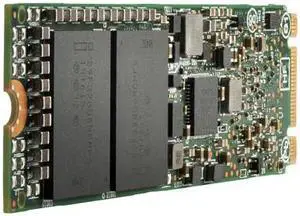

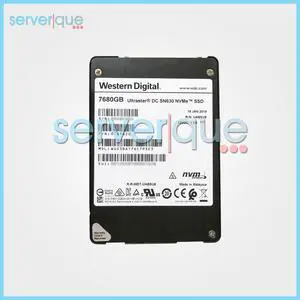


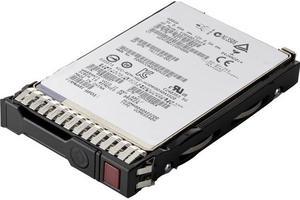
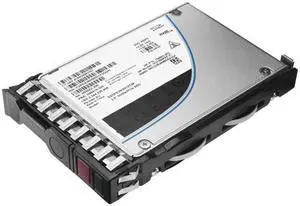
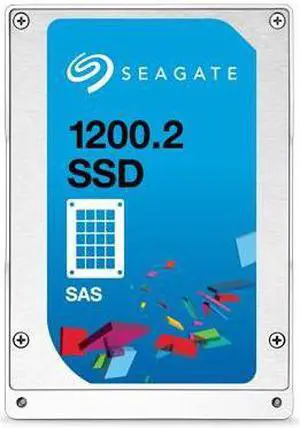

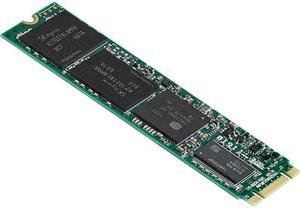
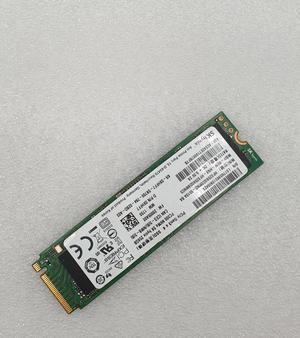
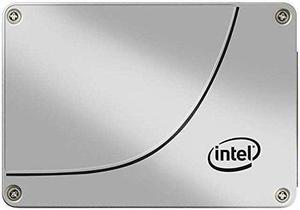
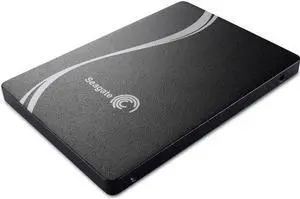
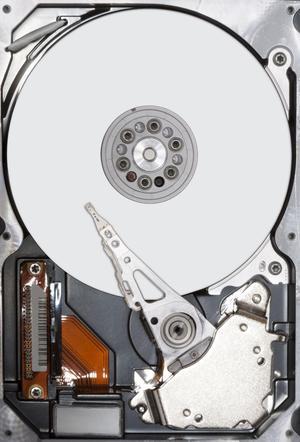
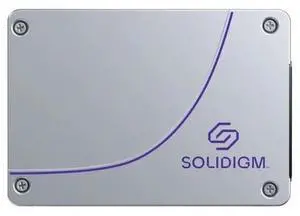
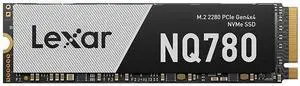
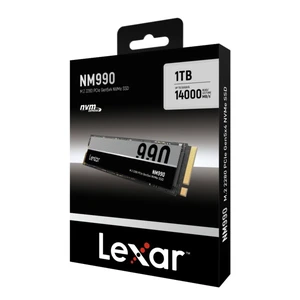
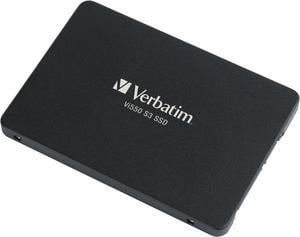
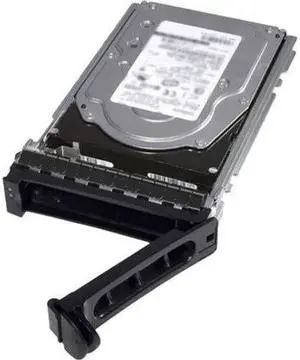

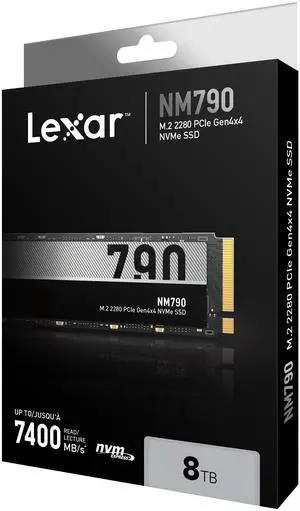

Explore a wide range of internal SSDs designed to enhance your computer's speed and storage reliability. Whether upgrading a desktop or laptop, find SATA and NVMe drives suitable for both home users and business applications.
When shopping for an internal SSD, understanding the core features can help you make the best choice for your PC or laptop upgrade:
For internal SSDs, the choice between SATA and NVMe interfaces is often the most critical factor influencing performance. SATA III drives, while widely supported and reliable, cap out at roughly 600 MB/s, which is sufficient for everyday home or office use, but can bottleneck power users.
NVMe SSDs leverage PCIe lanes to break this barrier, driving read/write speeds multiple times faster, often exceeding 3,000 MB/s on PCIe Gen3 and even faster with Gen4 models. This speed advantage means quicker boot times, faster file transfers, and enhanced responsiveness when handling large software or data sets. Choosing the right interface depends on your motherboard’s slots and the kind of workload you expect.
For an extensive range of options that showcase this technology, check out the robust lineup of SSD models available now.
For professionals requiring serious storage muscle—like video editors, 3D designers, or server admins—capacity and endurance are paramount. Internal SSDs in the 8TB & Up range strike the perfect balance, utilizing cutting-edge 3D NAND flash technologies that support high write volumes without sacrificing speed.
These massive drives excel in environments where storage performance directly impacts workflow efficiency—render farms, large-scale data caching, and high-res content libraries need both reliable write cycles and rapid access times. They often also possess enhanced error correction and thermal management to ensure data integrity under long, intense workloads.
Newegg shopping tip: When choosing an internal SSD, pay close attention to the interface type—SATA and NVMe drives offer different speeds and compatibility. Also, compare storage capacities and read/write speeds to match your performance needs without overspending.
The backbone of fast storage, SSDs leverage NAND flash and NVMe protocols to deliver quick boot times and responsive app loads in modern PCs.
Ideal for data-heavy workflows, 8TB+ SSDs use advanced 3D TLC/QLC NAND, balancing huge capacity with high endurance for pro and server-grade setups.
With 4TB to 7.9TB capacity, these drives hit a sweet spot for content creators needing vast space without sacrificing PCIe Gen4 speeds.
If you’re upgrading your computer or building a new system, choosing an internal solid state drive (SSD) is one of the smartest ways to speed up your PC or laptop. Unlike traditional hard drives, SSDs use flash memory to store data, which means faster boot times, quicker app launches, and overall smoother performance. Whether you’re looking for a system drive or simply need extra storage, Newegg offers a wide range of SSD options built for all skill levels and budgets. Keep in mind compatibility with your PC’s interface—most commonly SATA or NVMe—and aim for a capacity that suits your storage needs.
Gamers demand lightning-fast load speeds and plenty of room for large game installations. A 2TB or 1TB to 3.9TB SSD offers a great balance of PCIe Gen4 performance and storage capacity, ideal for today's AAA titles and esports titles alike. These drives minimize lag when loading maps or switching between apps, making them a preferred upgrade for gaming rigs. Newegg’s selection of 2TB and 4TB to 7.9TB SSDs meet the demands of heavy gaming libraries while keeping load and save times minimal.
Content creators juggling video editing, 3D rendering, or large photo libraries need internal SSDs that not only deliver maintain consistent high-speed data access but also provide substantial capacity. Capacities from 1TB to 3.9TB provide a great starting point for daily workloads, while creators with massive projects can look to 4TB to 7.9TB or even 8TB & Up models for workflow efficiency. Look for drives with TLC NAND for balanced endurance and performance across demanding projects.
Research more: When choosing an internal SSD, consider factors like storage capacity, read/write speeds, and the interface type (SATA or NVMe) that your system supports. For deeper insights and tailored advice, check out the Newegg Insider buying guides to help you find the best fit for your needs.
Last Updated: October 2026 | Newegg Internal SSDs Buying Guide
NVMe SSDs are much faster since they use the PCIe interface, delivering quicker read and write speeds, but they usually cost more than SATA SSDs, which are slower but more budget-friendly.
Both brands offer reliable drives, but Samsung often leads in speed and endurance, while Western Digital provides competitive options at a slightly lower price, so it depends on what you prioritize most.
Check your computer’s motherboard or laptop specs to see if it supports the SSD form factor you want, like 2.5-inch SATA or M.2. Also, confirm the interface type matches—SATA or NVMe—so it physically and electronically fits.
SATA SSDs use an older interface with slower speeds, usually up to 600 MB/s, while NVMe SSDs connect via PCIe and offer much faster read/write speeds, often several GB/s. NVMe drives are better for gaming and heavy file transfers but can be more expensive.
Think about what you use your computer for—if you mainly need it for the operating system and a few apps, 250GB to 500GB is usually enough. For gaming or video editing, aim for 1TB or more to have plenty of space for large files.
You don’t have to spend a fortune; budget SSDs often offer solid speed and reliability for everyday use. However, if you want top-tier performance or endurance for heavy workloads, investing in a higher-end model is worth it.
Look for feedback on failure rates and consistent performance over time. If lots of buyers mention drive failures or slowdowns soon after purchase, it’s a warning sign to choose a different model.
Pay attention to reports of overheating, firmware glitches, or compatibility issues with certain motherboards. These can cause crashes or reduced lifespan, so seeing frequent mentions means you might want to reconsider.
First, power down your computer and unplug it. Open the case, mount the SSD in an available drive bay or M.2 slot, connect the SATA or NVMe cable if needed, then close the case and power on to format and start using the drive.
Make sure your motherboard supports the SSD type, use the latest SATA or NVMe drivers, enable AHCI mode in BIOS, and avoid filling the drive to capacity to maintain speed and longevity.
“ With the help of the internet, I was able to easily install and start using the SSD drive. ”
Team Group T-FORCE VULCAN Z 2.5" 1TB SATA III 3D NAND Internal Solid State Drive (SSD) T253TZ001T0C101“ These are made how SSDs should be made with its own RAM cache and consistent performance. ”
SAMSUNG 990 PRO SSD 1TB PCIe 4.0 M.2 2280 Internal Solid State Hard Drive, Seq. Read Speeds Up to 7,450 MB/s for High End Computing, Gaming, and Heavy Duty Workstations, MZ-V9P1T0B/AM“ I needed a fast dedicated drive. This WD drive did the trick! ”
WD_BLACK 4TB SN850X NVMe Internal Gaming SSD Solid State Drive - Gen4 PCIe, M.2 2280, Up to 7,300 MB/s - WDS400T2X0E“ Performs good for TLC drive ”
Team Group T-FORCE VULCAN Z 2.5" 512GB SATA III 3D NAND Internal Solid State Drive (SSD) T253TZ512G0C101“ These are the only drives I purchase. ”
SAMSUNG 990 PRO SSD 1TB PCIe 4.0 M.2 2280 Internal Solid State Hard Drive, Seq. Read Speeds Up to 7,450 MB/s for High End Computing, Gaming, and Heavy Duty Workstations, MZ-V9P1T0B/AM“ I would recommend this to anyone who wants a freaking fast drive. ”
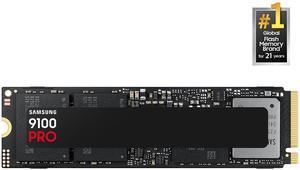
SAMSUNG SSD 9100 PRO 1TB, PCIe 5.0x4 M.2 2280, Seq. Read Speeds Up to 14,800MB/s, Best for AI Computing, Gaming, and Heavy Duty Workstations (MZ- VAP1T0B/AM)“ So, there may be some issue with SSD drives larger than 2 TB in the M2 slots. ”
Team Group T-FORCE G50 M.2 2280 4TB PCIe 4.0 x4 with NVMe 1.4 TLC Internal Solid State Drive (SSD) TM8FFE004T0C129“ Great SSD drive, works amazingly ”
SAMSUNG 990 EVO PLUS SSD 1TB, PCIe Gen 4x4 | Gen 5x2 M.2 2280, Speeds Up-to 7,150 MB/s, Upgrade Storage for PC/Laptops, HMB Technology and Intelligent Turbowrite 2.0 (MZ-V9S1T0B/AM)