NZ$62.10
GST-Inclusive Price
Ships from Hong Kong.
Most customers receive within 10-17 days.
Meet Your Seller
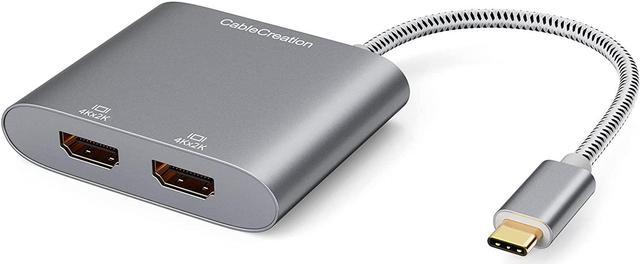
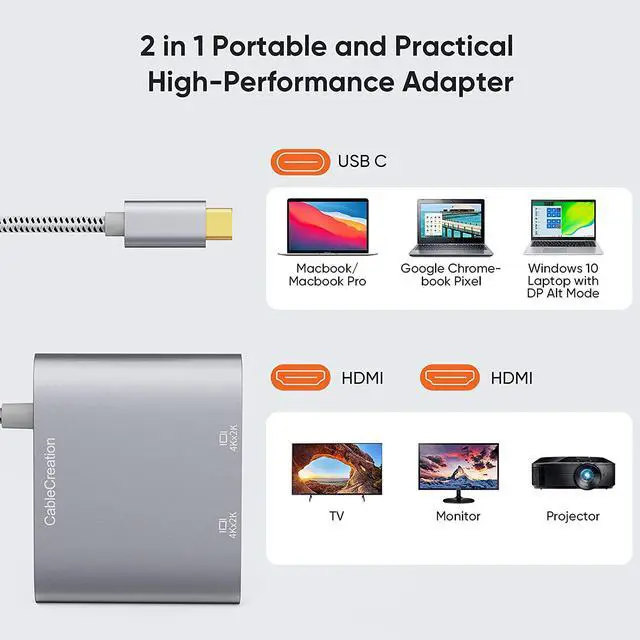
USB C to Dual HDMI 4K, CableCreation USB Type C (Compatible Thunderbolt 3) to 2 HDMI Adapter, Compatible with MacBook Pro 2019/2018/2017,XPS 13/Surface Book 2,Chromebook Pixel, Yoga 710, Aluminum Gray
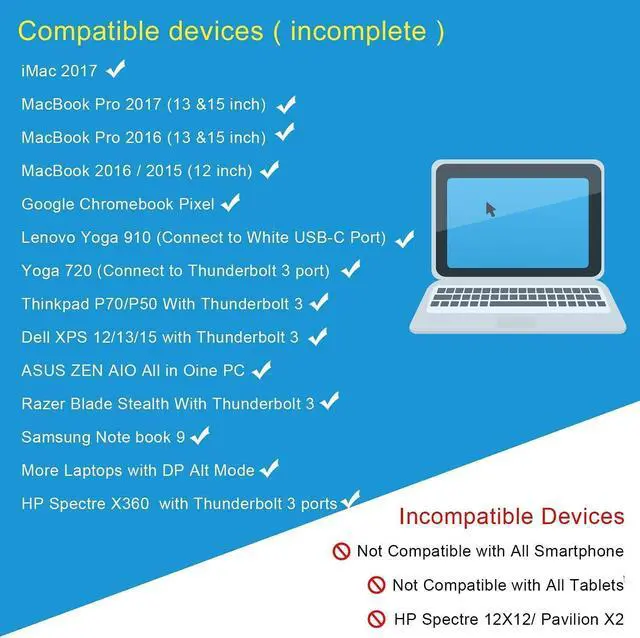
- BEFORE PURCHASE NOTE Make sure your laptop or PC supports Thunderbolt 3 or display output modeDP ALT mode. OTHERWISE it is NOT COMPATIBLE. Please feel free to contact us if you not sure the compatibility of your device.
+
+
Overview
Specs
Reviews
BEFORE PURCHASE NOTE Make sure your laptop or PC supports Thunderbolt 3 or display output modeDP ALT mode. OTHERWISE it is NOT COMPATIBLE. Please feel free to contact us if you not sure the compatibility of your device.
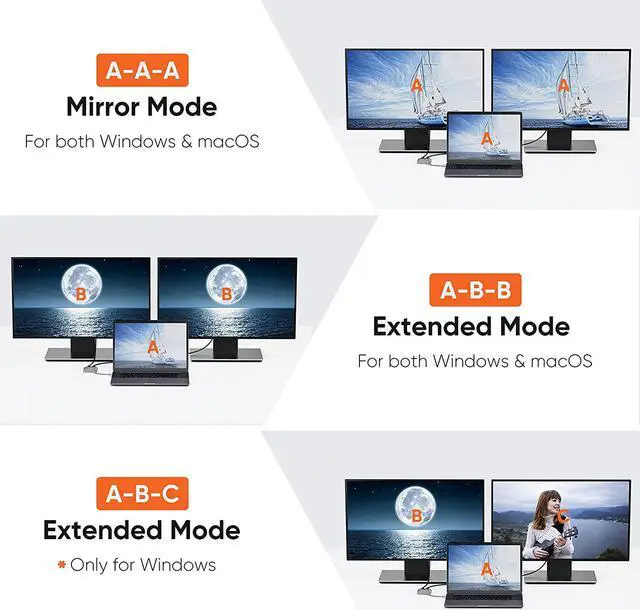
How to set Dual display on MacBook Please noted that MacBook is NOT able to run EXTEND MODE if you enable 2 or above extension display. ONLY MIRROR MODE is available if you connected 2 or above extension display on MacBook. Steps Top left corner Apple icon-->System Preferences-->Displays--> Mirror or Extend Displays, both HDMI monitor are identical but different with laptop screen.
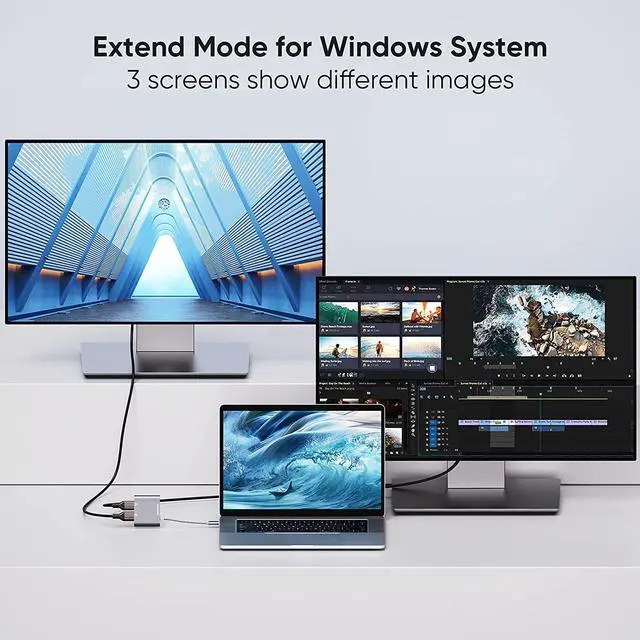
How to set Dual display on WindowsBoth mirror and extend mode is available on Windows. StepsPress Windows key + P combination command-->Choose Duplicate or Extend.
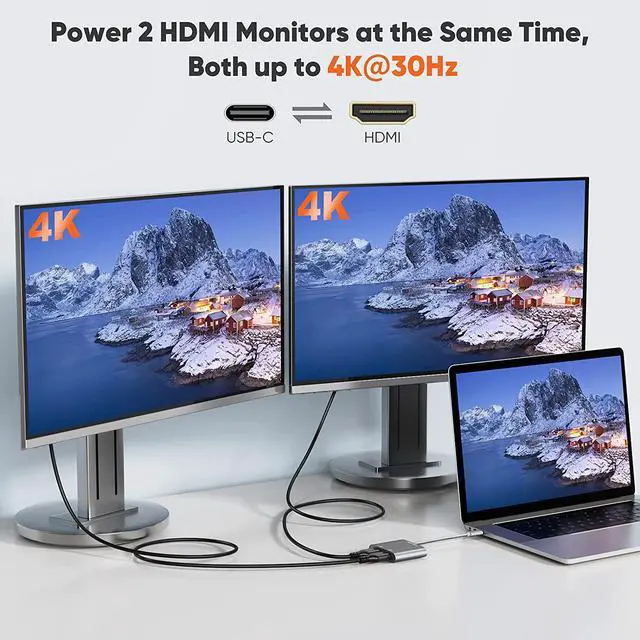
Plug & Play, Vivid 4K resolutionNo driver or software needed. 2 extension display resolution is up to 4K@30Hz, please makre sure us HDMI 1.4 cable or above to avoid Screens flickering. If your source video or laptop is over 4K@30Hz. Please lower the resolution as :For Windows Menu--> Setting--> Display--> Advanced Display Settings, set your laptop's resolution same as or lower the resolution of external monitor. For MacOS: Left-upper Apple icon-->System Preferences-->Displays-->Mirror displays
2 Years WarrantyWe provide 24 months worry free warranty for this USB-C dual HDMI convector, please feel free to contact us if you have any question or suggestion, we will get back to you in 24 hours.

How to set Dual display on MacBook Please noted that MacBook is NOT able to run EXTEND MODE if you enable 2 or above extension display. ONLY MIRROR MODE is available if you connected 2 or above extension display on MacBook. Steps Top left corner Apple icon-->System Preferences-->Displays--> Mirror or Extend Displays, both HDMI monitor are identical but different with laptop screen.
How to set Dual display on WindowsBoth mirror and extend mode is available on Windows. StepsPress Windows key + P combination command-->Choose Duplicate or Extend.
Plug & Play, Vivid 4K resolutionNo driver or software needed. 2 extension display resolution is up to 4K@30Hz, please makre sure us HDMI 1.4 cable or above to avoid Screens flickering. If your source video or laptop is over 4K@30Hz. Please lower the resolution as :For Windows Menu--> Setting--> Display--> Advanced Display Settings, set your laptop's resolution same as or lower the resolution of external monitor. For MacOS: Left-upper Apple icon-->System Preferences-->Displays-->Mirror displays
2 Years WarrantyWe provide 24 months worry free warranty for this USB-C dual HDMI convector, please feel free to contact us if you have any question or suggestion, we will get back to you in 24 hours.
Warranty & Returns
Warranty, Returns, And Additional Information
Return Policies*
- Return for refund within: 30 days
- Return for replacement within: non-replaceable
- This item is covered by SuZhouLiYuanLiXinBaiHuo Return Policy
- *Subject to applicable law
Warranty Notice:
This product does not include manufacturer warranty when purchased or used outside of its designated sales region. By purchasing internationally, you acknowledge that warranty support from the manufacturer will not be available.
Manufacturer Contact Info
- For a directory of all our manufacturers, please click below.
- Manufacturers Directory
LOADING...