


 All Categories

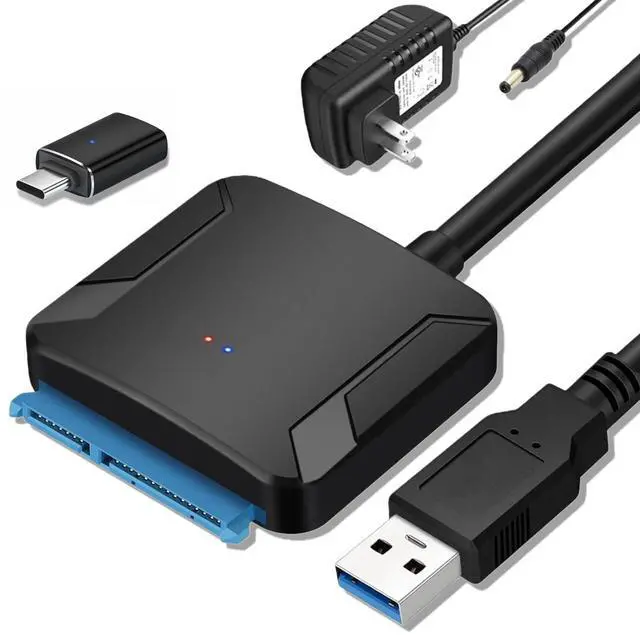
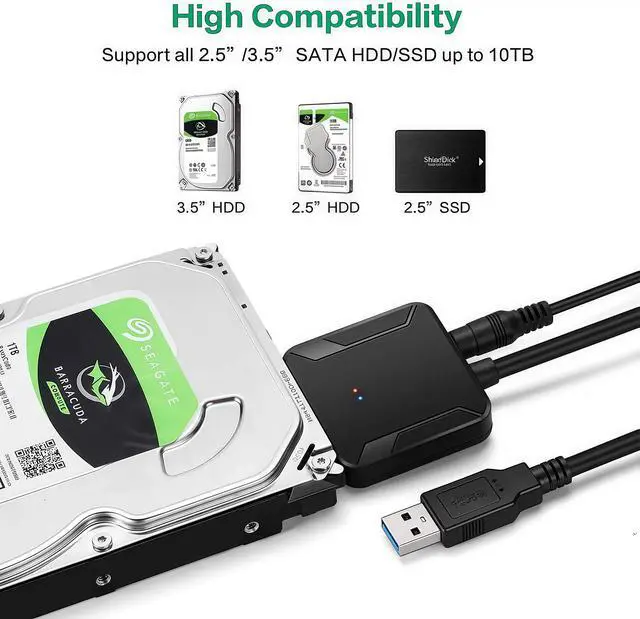
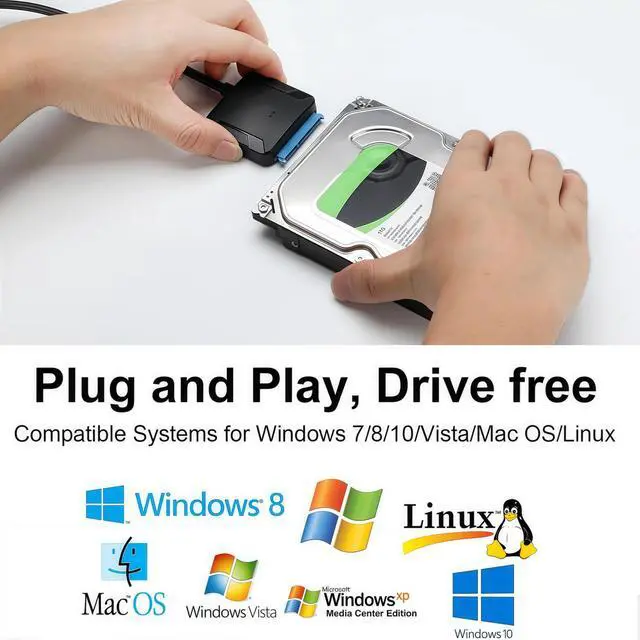
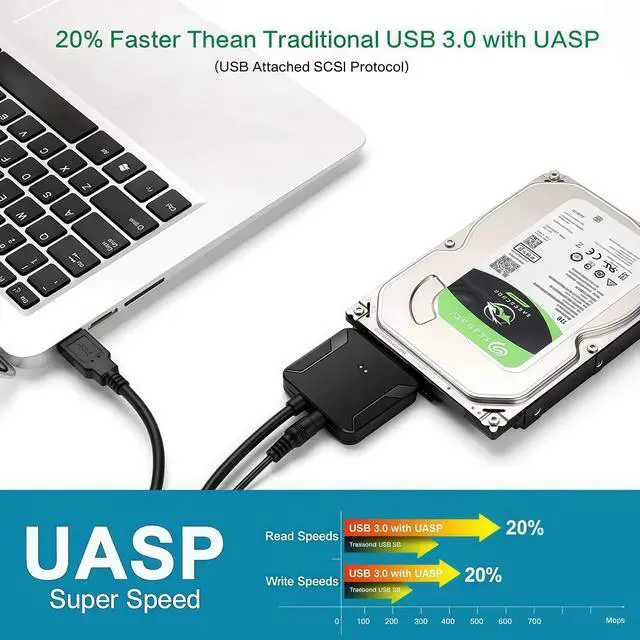


An external drive adapter that gives you quick and easy access to a SATA drive through the USB-A/USB-C port on a laptop
These devices allow you to connect 2.5"/3.5" SATA-based hard drives (HDDs) or solid-state drives (SSDs) to a computer via USB, making them useful for data recovery, backups, or using an internal drive externally


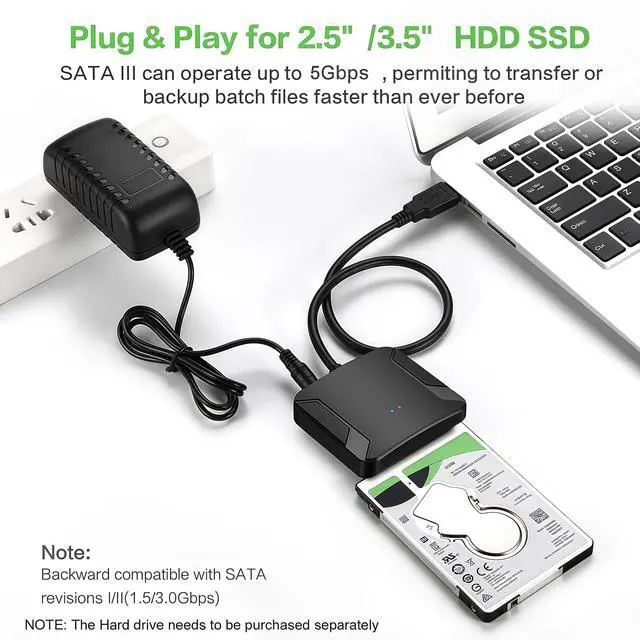
5Gbps Data Transmission Rates
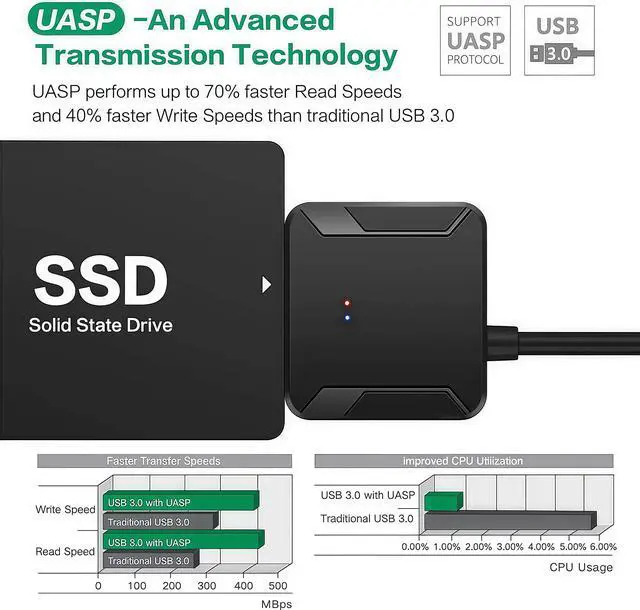
Features with USB 3.0 external data transfer rates up to 5Gbps, you can experience transfer speeds up to 20% faster than conventional USB 3.0, when connected to a computer that also supports UASP, allows you to backup files or upgrade your notebook/PC hard drive quickly.
USB 3.0: Offers speeds up to 5 Gbps (ideal for SSDs or fast HDDs).
USB 2.0: Limited to 480 Mbps (sufficient for basic file transfers but slower)

12V 2A Power Adapter Included
This SATA to USB Adapter is equipped with a DC-Jack port and comes with a 12V/2A Power Adapter, which ensures enough power supply for a 3.5" hard drive
Power Requirements:
- 2.5-inch drives: Typically powered via USB (no external power needed).
- 3.5-inch drives: Require a 12V external power adapter (included with most kits)

Come with A 3.0USB-A to USB-C adapter
Important Note
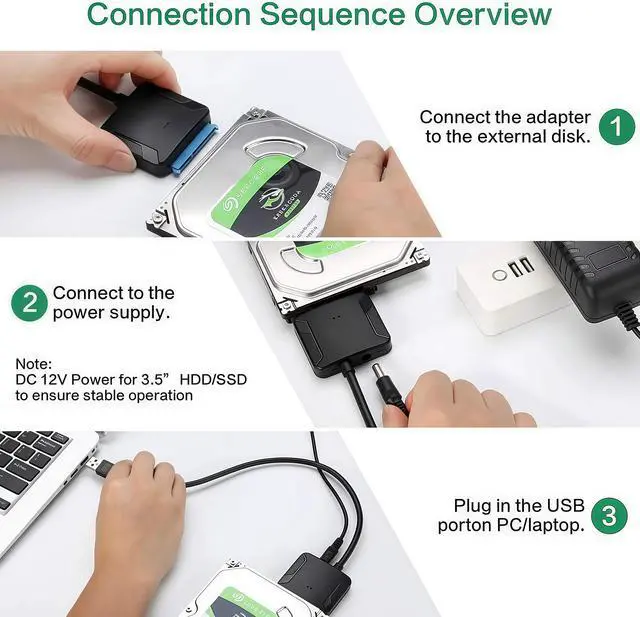
1 .For 2.5" HDD/SSD:Plug the SATA data cable into the drive's SATA port (L-shaped connector). No external power needed-USB provides power.
2 .For 3.5" HDD:Connect the SATA data cable to the drive. Attach the 12V power adapter to the adapter and plug it into an outlet.
3 .This Adapter Does not support BLU-RAY DVD, CD-ROM, DVD-ROM, CD-RW, DVD+RW Combo devices.
4 .Windows can only recognize (and assign a drive letter to) drives that are formatted in a compatible way. If this is a new drive, you may need to access the computer management' application where you can get into manual drive initialization, formatting, drive letter assignment, etc.
5 .Features with USB 3.0 external data transfer rates up to 5Gbps, you can experience transfer speeds up to 20% faster than conventional USB 3.0, when connected to a computer that also supports UASP, allows you to backup files or upgrade your notebook/PC hard drive quickly.
Plug the USB end of the adapter into your computer's USB port
Why my computer doesn't recognize the drive?
1. For a new SSD or HDD, you need to initialize it first and then format it. For guidance, search "How to initialize an external hard drive." The instructions differ between Windows 10, 7, and Vista.
2. If it is an old hard disk or a removed hard disk, please confirm whether it is intact.
3. If it is an Apple OS Mac system, please set the hard disk format
4. Wrong hard drive type - this cable does not apply to SAS/SCSI hard drive.
5. The USB port on the computer is damaged.
6. Drive spins but not detected: Format/repair via Disk Management
7. Drive not listed in Disk Management: Replace cable or adapter
8. Intermittent detection: Secure connections; use external power
9. Device descriptor request failed: Update USB drivers or OS