


 All CategoriesAll CategoriesAll Categories
Shipped by Newegg

Make informed decisions with expert advice. Learn More



Warranty Notice:
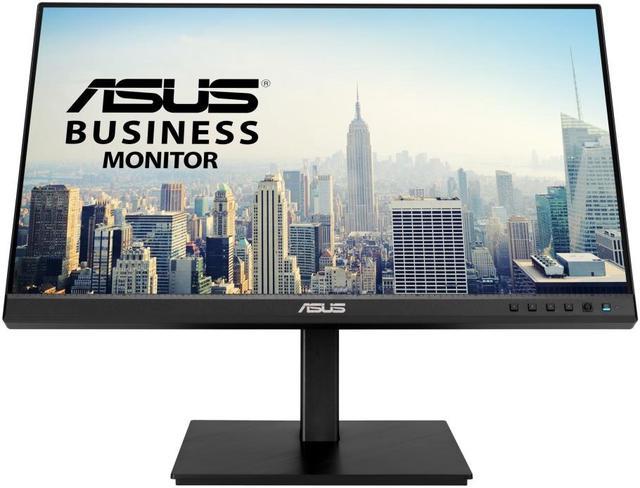
This product does not include manufacturer warranty when purchased or used outside of its designated sales region. By purchasing internationally, you acknowledge that warranty support from the manufacturer will not be available.The ASUS BE24ECSBT is a 23.8-inch Full HD IPS touchscreen monitor with 10-point touch, USB-C docking and up to 80W power delivery, suited to professionals who want an adjustable display for interactive work and a streamlined laptop setup.
| Attribute | Value |
|---|---|
| Best For | Business, student, and personal setups that benefit from a touch-enabled monitor and USB-C laptop connectivity |
| Panel And Resolution | 23.8-inch flat IPS LCD with 1920 × 1080 resolution, 16:9 aspect ratio, matte non-glare finish, 178° horizontal and vertical viewing angles, 0.2745 mm pixel pitch, 16.7 million colors, 300 cd/m² brightness, 1,000:1 contrast, and 100% sRGB color gamut |
| Refresh Rate And Response | 75 Hz refresh rate, 5 ms response time, with FreeSync and G-Sync adaptive sync listed |
| Ports And Connectivity | USB-C with DisplayPort Alt Mode and up to 80 W power delivery, one HDMI port, DisplayPort input and output for daisy chaining, three USB 3.2 Gen 1 Type-A downstream ports, and an earphone jack |
| Stand And Ergonomics | Adjustable height from 0 to 130 mm, +35° to −5° tilt, ±180° swivel, and ±90° pivot; supports 100 × 100 mm VESA mounting and includes an ambient light sensor |
| Power | 17.7 W power consumption; 100–240 VAC, 50/60 Hz power supply |
| Dimensions And Weight | With stand: 21.25 × 12.97–18.09 × 8.31 inches and 13.45 lb; without stand: 21.25 × 12.99 × 2.08 inches and 9.04 lb |
| Included Accessories | Power cord, HDMI cable, USB-C cable, USB-C-to-A cable, DisplayPort cable, quick start guide, warranty card, and MiniPC Kit |
| Model Identifiers | ASUS BE24ECSBT; part number 90LM05M1-B093B0 |
Q: ASUS BE24ECSBT or ZenScreen Touch MB16AMTR for a second touchscreen?
A: Choose the ASUS BE24ECSBT for a fixed desk setup with a larger 23.8-inch screen, a height-, tilt-, swivel-, and pivot-adjustable stand, and USB-C docking with up to 80W power delivery. The 15.6-inch ZenScreen Touch MB16AMTR is designed for portability, with a built-in battery, a fold-out kickstand, and a lighter body.
Q: Should I get the ASUS BE24ECSBT or ProArt PA148CTV for creative work?
A: Choose the BE24ECSBT for a larger 23.8-inch touch workspace and desk-focused flexibility, including an ergonomic stand, USB hub, DisplayPort daisy chaining, and up to 80W USB-C power delivery. Choose the 14-inch ProArt PA148CTV when portable creative work and factory-calibrated color are priorities; ASUS lists 100% sRGB and Rec. 709 coverage and Delta E < 2 color accuracy for that model.
Q: How does the ASUS BE24ECSBT compare with the ASUS VT229H touchscreen monitor?
A: Both are Full HD ASUS touch monitors with 10-point touch. Choose the BE24ECSBT for a larger 23.8-inch display, a 75Hz refresh rate, USB-C video and data with up to 80W laptop charging, three USB-A ports, DisplayPort daisy chaining, and a stand with height, swivel, tilt, and pivot adjustment. The 21.5-inch VT229H offers a more compact desktop display with HDMI and VGA inputs.
Q: Can I use the touchscreen with a Mac or iPad?
A: The monitor can display video from a compatible Mac, but buyers should not assume its multitouch features will work on Apple devices. ASUS lists Windows, Chrome, and Linux for 10-point touch and single-point touch for macOS; the connected device also needs to support video output.
Q: Can I use it to take notes without connecting a computer?
A: No. It is a monitor, not a standalone computer or note-taking device. Connect it to a compatible computer or other video source to use the display and touch functions.
Q: Can one USB-C cable connect and charge my laptop?
A: Yes, if the laptop’s USB-C port supports video output over DisplayPort Alt Mode. The monitor can carry video and data and deliver up to 80W of power to the laptop over USB-C.
Q: Is it practical to carry for travel?
A: It is better suited to a fixed desk than frequent travel. The 23.8-inch monitor weighs about 13.45 lb with its stand, making it much less portable than a small travel display.
Q: Can I use the BE24ECSBT with a stylus for handwriting or drawing?
A: The monitor supports 10-point touch, but that does not establish active-pen or stylus compatibility. A Reddit user specifically asked about pen support and reported being told it was incompatible; confirm pen support for your intended stylus and software before buying it for handwriting or drawing.
Q: Does the touchscreen work with Linux, including KDE Plasma?
A: Linux touch use may depend on the desktop environment: a Reddit user reported that touch worked in GNOME but not as expected in Plasma 6. If touch is essential, check compatibility with your specific Linux setup before purchasing.
Q: Can I start a DisplayPort daisy chain from a computer connected to this monitor over HDMI?
A: A Reddit discussion about this setup notes that daisy chaining requires a DisplayPort connection. The monitor has DisplayPort input and output, but a computer connected to it by HDMI should not assume it can pass a DisplayPort daisy chain through the monitor.


