As of October 2026, a budget Intel gaming PC costs about $950 to $1,200 before Windows. My recommended build pairs an Intel Core i5-14400F with a B760 DDR4 motherboard, 16GB of DDR4-3200, an Intel Arc B580 12GB graphics card, a 1TB PCIe 4.0 SSD and a 650W Gold power supply, which is enough for high settings at 1080p in most current games.
When we first published this guide in 2019, it was built around an Intel DIY kit with a Core i5-9600KF and a GTX 1660. Those parts are long gone, so I rebuilt the parts list for 2026 prices and kept the same simple, step-by-step assembly walkthrough. If you want a platform-neutral guide that also covers AMD builds, see our complete guide to building a budget gaming PC in 2026. This page stays focused on Intel.
Intel Budget Gaming PC Build
Here is the full parts list. I show price ranges rather than exact prices because component prices, especially memory and SSDs, have been moving every few weeks in 2026.
| Component | Recommended Pick | Typical Newegg Price Range | Why This Pick |
|---|---|---|---|
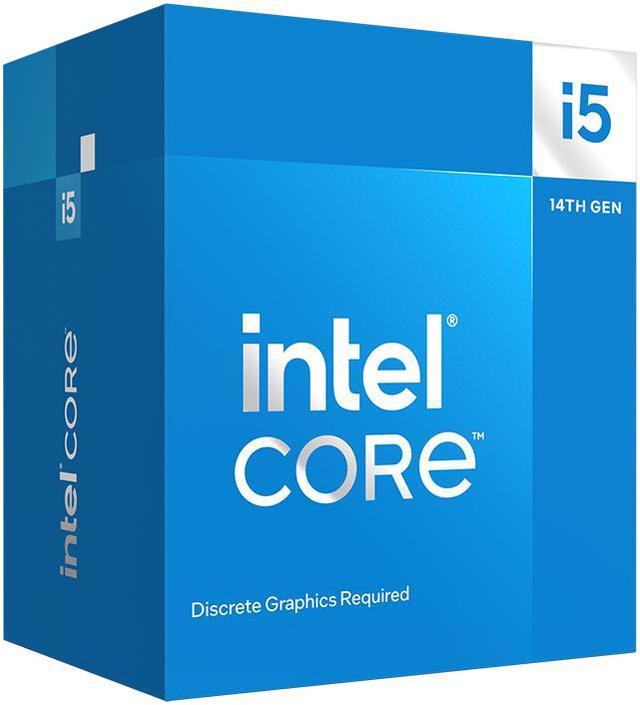
| CPU | Intel Core i5-14400F | $160–$180 | 10 cores (6P+4E), 16 threads, up to 4.7 GHz; boxed with the Intel Laminar RM1 cooler |
| Motherboard | ASUS B760M-AYW WIFI D4 II | $100–$150 | LGA 1700, DDR4, two M.2 slots, built-in Wi-Fi |
| Memory | Corsair Vengeance LPX 16GB (2 x 8GB) DDR4-3200 | $130–$170 | Dual-channel DDR4 costs far less than DDR5 right now |
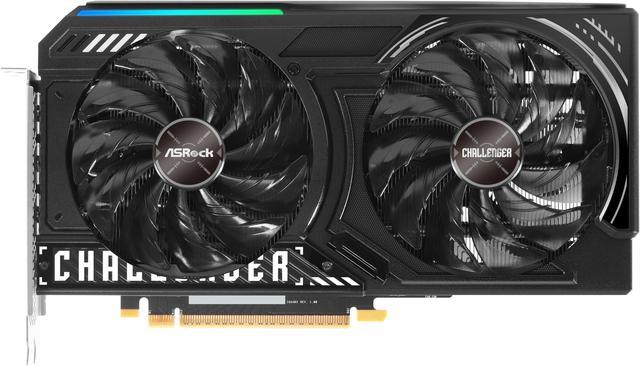
| Graphics Card | ASRock Challenger Arc B580 12GB | $300–$340 | 12GB of VRAM at this price; an all-Intel CPU and GPU pairing |
| Storage | TEAMGROUP T-FORCE G50 1TB PCIe 4.0 NVMe | $140–$180 | TLC NAND, up to 5,000 MB/s reads, enough room for several large games |
| Power Supply | MONTECH Century II 650W 80 PLUS Gold | $50–$80 | Fully modular, ATX 3.1, and meets the B580's 650W recommendation |
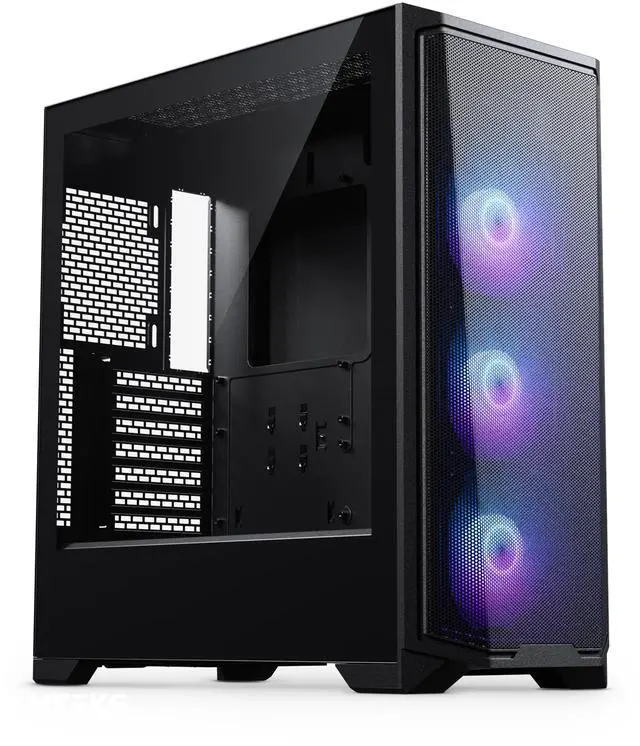
| Case | Phanteks Eclipse G370A | $50–$80 | Mesh front, three fans included, fits GPUs up to 400 mm |
| Total | About $950–$1,200 | Windows 11 not included |
Why the Core i5-14400F and DDR4?
The i5-14400F is still the value pick on the Intel side. It has six performance cores for games, four efficient cores for background tasks, and a 65W base power rating, so the boxed cooler works. It lacks integrated graphics (the "F" in the name), which doesn't matter in a build with a dedicated graphics card.
The bigger reason I chose it is memory. The i5-14400F supports both DDR4-3200 and DDR5-4800, and B760 boards come in DDR4 versions. In late October 2026, 16GB DDR5-6000 kits on Newegg run roughly $270–$310, while 16GB DDR4-3200 kits sit around $130–$170. In a build this size, that gap is the difference between staying on budget and going over it.
Why the Arc B580?
Graphics cards cost more than they did a year ago, and the Arc B580 is one of the few options around $300 that still has 12GB of video memory. Many 8GB cards cost more and are already limited by VRAM in newer games. The B580 targets 1080p at high settings, and with XeSS upscaling it can also run many games at 1440p. If you need to cut cost, the ASRock Challenger Arc B570 10GB usually saves about $40 and drops into the same build.
The Building Process
Before you start, make sure you have every component from the list above. For tools, you need a #2 Phillips screwdriver, a few zip ties or twist ties, and wire cutters or scissors to trim the ties. Work on a hard, clean surface, and touch a metal part of the case now and then to discharge static.
Tools Needed
Tools Needed: Screwdriver, Zip ties, Wire cutters
Step One: Prepare the Case and Install the Power Supply
Remove both side panels of the case. Because the MONTECH Century II is fully modular, plug in the cables you need before mounting the PSU: the 24-pin motherboard cable, the 8-pin CPU (EPS) cable, and one 8-pin PCIe cable for the graphics card. Mount the PSU in the bottom chamber with the fan facing down toward the dust filter, then secure it with four screws from the back.
Step Two: Prepare the Motherboard and Install the CPU
Install the CPU while the motherboard is still outside the case. It's much easier this way. Place the board on its box, press down the socket lever and swing it out, and lift the load plate. Line up the gold triangle on the corner of the i5-14400F with the triangle on the socket, and set the chip in without pressing. Close the load plate and lock the lever; the plastic socket cover pops off on its own. For the Laminar RM1 cooler, which has thermal paste pre-applied, align its four push pins with the holes around the socket and press each one down until it clicks. Plug the fan cable into the CPU_FAN header.
Step Three: Install the Two Memory Sticks onto the Motherboard
Open the latches on the memory slots and line up the notch in each stick with the key in the slot. The ASUS B760M-AYW WIFI D4 II has two slots, so fill both. If your board has four, use the second and fourth slots from the CPU (usually labeled A2 and B2) for dual-channel mode. Press firmly at both ends until the latches click.
Step Four: Install the M.2 SSD onto the Motherboard
Use the M.2 slot closest to the CPU, which is usually the fastest slot. Remove the slot's heatsink if it has one, insert the SSD at a slight angle, press it flat, and secure it with the screw or tool-less latch. Put the heatsink back on, and peel off any protective film on its thermal pad first. Since this board has Wi-Fi built in, there is no separate Wi-Fi card to install as in the original 2019 kit.
Step Five: Install the Motherboard into the Case
Check that the case's standoffs match the micro-ATX mounting holes, then lower the board into place with its rear ports lined up with the opening at the back of the case. Secure it with the motherboard screws, snug but not overtightened. Most micro-ATX boards use six to eight screws.
Step Six: Connect Cables from the Case and Power Supply to the Motherboard
Route the 24-pin and 8-pin CPU cables through the cutouts behind the motherboard tray and plug them in. Then connect the case cables: front-panel power and reset switches, LEDs, USB 3.0 and USB-C headers, HD audio, and the case fans. Front-panel pinouts vary by board, so follow the motherboard manual. Leave the PCIe power cable loose for now.
Step Seven: Install the Graphics Card onto the Motherboard and Case
Remove the two expansion slot covers lined up with the top PCIe x16 slot. Open the slot latch, press the Arc B580 straight down until the latch clicks, and screw the card's bracket to the case. The ASRock Challenger B580 is 249 mm long and two slots thick, so it fits this case easily.
Step Eight: Connect the Power Cables to the Graphics Card and Tidy Up Cables
Connect the 8-pin PCIe cable from Step One to the graphics card. Then bundle the loose cables behind the motherboard tray with zip ties or twist ties. Tidy cables don't make the PC faster, but they keep the fans' airflow clear and make future upgrades easier.
Step Nine: Update the BIOS and Install Windows 11
Connect your monitor to the graphics card, not the motherboard, because the i5-14400F has no integrated graphics. Then connect a keyboard and mouse and power on. In the BIOS, update to the latest firmware, enable XMP so the memory runs at DDR4-3200, and confirm that Resizable BAR (Above 4G Decoding and Re-Size BAR Support) is on. Intel Arc cards perform best with it enabled. Then boot from a Windows 11 USB drive and follow the prompts. Once Windows is installed, download the latest Intel Arc graphics driver and your motherboard's chipset drivers, and you're ready to play.
Build Comparison
If you have about $200–$300 more, the main upgrade is a newer Intel platform. The Core Ultra 5 250KF Plus has 18 cores and uses the LGA 1851 socket, but it requires DDR5 and does not come with a cooler. That's why the upgrade costs more than the CPU's price difference alone.
| Part | Budget Build (This Guide) | Step-Up Build |
|---|---|---|
| CPU | Core i5-14400F ($160–$180) | Core Ultra 5 250KF Plus ($200–$220) |
| Motherboard | B760 DDR4 ($100–$150) | GIGABYTE B860M D3HP ($130–$170) |
| Memory | 16GB DDR4-3200 ($130–$170) | Klevv Fit V 16GB DDR5-6000 ($270–$310) |
| CPU Cooler | Included Laminar RM1 | Cooler Master Hyper 212 3DHP ($20–$40) |
| GPU, SSD, PSU, Case | Same as above | Same as above |
| Estimated Total | About $950–$1,200 | About $1,200–$1,450 |
For a gaming-first budget build, I'd stay with the i5-14400F and put any extra money toward the graphics card or a second SSD later. The step-up build makes more sense if you also stream, edit video, or want a platform with newer features. If you'd rather pick parts yourself, the Newegg PC Builder checks socket, memory and power compatibility as you go.
Frequently Asked Questions
Common questions about building a budget Intel gaming PC.
How much does a budget Intel gaming PC cost in 2026?
Is the Core i5-14400F still good for gaming in 2026?
Should a budget Intel build use DDR4 or DDR5?
Do I need Resizable BAR for an Intel Arc graphics card?
Does the Core i5-14400F come with a cooler?
Read More
- How to Build a Budget Gaming PC in 2026: Complete Parts Guide - Our full build guide, including AMD options and first-boot checks.
- Newegg PC Builder - Pick parts and check compatibility before you buy.
- Intel Core i5-14400F Specifications (Intel) - Official core counts, clock speeds, power and memory support.
- Intel Arc B580 Specifications (Intel) - Official Xe-core count, memory and board power details.
- What Is Resizable BAR and How Do I Enable It? (Intel) - Intel's BIOS walkthrough for Arc graphics cards.