
Your Browsing History
 Holiday Shipping Details & Extended Holiday Returns Holiday Shipping Details & Extended Holiday Returns

Joined on 09/11/09
Pretty good monitor, but poor colors out of the box
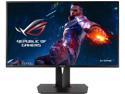
Pros: - 144Hz Refresh rate makes things look super smooth - Gsync makes games at 60 fps and lower feel a whole lot less choppy (and make you feel like you're getting more bang for your buck in the GPU performance department) - You practically don't need to enable any level of Anti-Aliasing because of the bigger resolution (seriously. I don't notice any difference in games with no AA and x2, x4 or x8 AA).
Cons: - Color quality outside of the box was very washed-out looking. I had to heavily rely on Desktop Color Settings in the Nvidia control panel to get the right amount of colors (which shouldn't be a thing, since a high-quality monitor like this should come with these settings in the first place) - Some games still have very noticeable input-lag with G-Sync enabled (typically some (not all) games that are only able to go up to 85, or 120Hz refresh rate. In these situations, it's better to just straight up disable gsync for only these games in the nvidia control panel) - G-Sync only works if you play at 144Hz refresh rate. If you try operating in 60 Hz or, well, anywhere under 144, you WILL experience input lag. Was especially noticeable in Counter-Strike: GO. So if you're experiencing input lag, make sure you have the highest refresh rate enabled.
Overall Review: These are the monitor and desktop color settings that I use. Everyone has their own color preference, but this one is mine: Monitor Settings: Brightness - 70 Contrast - 60 Color Temp. - Warm Nvidia Control Panel Desktop Color Settings: Brightness - 42 Contrast - 60 Digital Vibrance - 80
Functional, but high fan speeds=loud
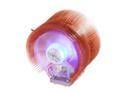
Pros: Keeps temps nice and cool while playing games. My idle temps are at 45-50c, which may seem like a lot, but when I go to play a video game like Battlefield 4, the temp usually only stays in the late 50c-early 60c.
Cons: The fan is pretty loud to the point that I can hear it through my headphones. And it's not really a consent speed. It goes super fast, and then it dies down for a bit and then goes super fast again. It also just generally makes odd-noises like a very slight buzz or hum. And for some reason you can hear the fan speed up and get loud and then die down again when you're doing minimal tasks such as opening up an internet browser or a new tab. I made sure it wasn't any of my case fans making the noise, too. It's definitely the CPU cooler. I even tried modifying the fan speeds to the best of my ability in the motherboard BIOS, but nothing fixed it. For this reason, I'm switching over and getting CORSAIR Hydro Series H50. Oh, and I was kind of careless with my instillation and cut myself on the almost-razor sharp copper blades. Multiple times. Make sure you have some band aids with you!
Overall Review: If fan speeds aren't a problem to you, and your generally use to a slightly loud computer, this will keep your temps down to a manageable level.
Can't believe how good a monitor this is for the price.
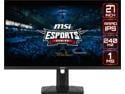
Pros: - 240Hz - 1,500:1 Contrast Ratio - 98% DCI-P3 Coverage - Borderline perfect Color Temperature - Low input lag thanks to 240Hz - Smaller stand and sleeker chin bezel compared to previous model - Price
Cons: - Slow Response Times - Oversaturated colors, particularly Reds - Can't turn off power light under chin - G-Sync bug
Overall Review: I'm really enjoying this monitor so far. I have a bit of a monitor addiction, so I know when I've bought an exceptional monitor, and when I do not. I feel like the bang-for-buck of this monitor is crazy. It was just a couple years ago when 240Hz monitors were going for $800+, and none of them had the image quality this one has. The thing I like most about this monitor is the contrast levels mixed with the wide color gamut. This monitor has by far the best contrast ratio for an IPS that I have ever had. It's not exactly OLED, but it's definitely a big noticeable jump from 1,000:1 ratio monitors. The colors on this monitor are extremely vibrant. TOO vibrant, actually. The colors by default are a bit oversaturated, and will need calibrated using a colorimeter for best results, although some people like their colors to be oversaturated, so your milage may vary. The color temp however, is spot on. The image doesn't look too cold or too warm like how it does with most monitors out there. Now onto the Cons. Because of the slow response times, the 240Hz refresh rate doesn't look as smooth as it really should. Slower response times can give monitors what I like to call 'natural motion blur'. If you have too much blur (from a slow response time), it will cause the high refresh rates to not look as smooth/clear as they should really look. Do I think 240Hz on this looks smoother than my 144Hz 4K monitor with good response times? Yes. But just barely. You have to REALLY be looking to see it. The higher refresh does however, decrease the amount of input lag you will experience, regardless of how slow the response times are. Playing first person shooters just feel super responsive to play. The more responsive your controls are, the more fun games are to play (even singleplayer games). I ran across a bug with the monitor that almost made me refund it because I thought it was busted. When plugging it into my computer, the G-Sync menu in the Nvidia Control Panel wasn't there. I did a clean install of the newest GPU drivers, but still no G-Sync option, even though there's a G-Sync sticker plastered on the chin of the monitor. I had to go into the monitor's Gaming menu, scroll all the way down to Adaptive-Sync, turn it OFF and then back ON. This finally enabled G-Sync to work, and to show up in the Nvidia Control Panel. Another annoying tidbit is that there IS an option to turn the Power Button to 'Off' or 'Standby', but I don't think either of these options do anything. The power light is on (white) all the time the monitor is on, and it is Orange when the monitor is asleep or your computer is turned off. There's no way to actually disable the light (side note: It's not even a power BUTTON. It's just a light. You have to turn the monitor on/off using the red control stick on the rear of the monitor). Overall, I'm really happy with the monitor. I do a fair mix of gaming/internet browsing/movies/TV etc, and I really enjoy having great levels of contrast and colors at the cost of frame smoothness from the lower response times.
Powerful card, but with some downsides
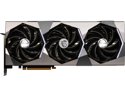
Pros: - Great performance. Feels like I can finally relax and not worry about if I'm going to get enough performance in newer games. - Relatively quiet in operation. I used a 1080 Ti Founders Edition card back in the day and swore off air-cooled GPU's because of how loud it was. This one stays pretty quiet even while under full load (my CPU and case fans are louder than the card).
Cons: - My card came with some coil whine. It's not that noticeable if you cap your framerate (which you need to do in order for G-Sync to work properly anyways). But if you have no FPS cap, the coil whine is very noticeable in menus where my fps counter was reading 500+ FPS. - The card's fans weirdly ramps up on occasion and scares me lol. As if the fans are going from 0% to 100% in a second and then ramp back down quickly. It does this even when in idle and I haven't played a game in a while, so my temps aren't bad. Not sure if this happens in the Gaming BIOS, as I've been using the Silent BIOS that the card shipped in. - This isn't really a con of the gpu as much as it is for game optimization, but I wouldn't buy this card and expect to be able to play newer games at high settings and get high framerates (like the benchmarks told us back when they released). Dead Space 2023 and Hogwarts Legacy both only get around 60-70fps with max settings (no ray tracing). You can use DLSS to get better performance, but at the cost of visual clarity. I'd really only buy this card if you play at 21:9 1440p or below.
Overall Review: Overall, I really like the performance of this card. The fans are quiet, and the thermals hover around 70c-75c while gaming. It does what I expected. However, with how much money the card costs, it really shouldn't have issues like coil whine and the weird fan ramping problem. I don't want to be bothered with packing it back up and shipping it back for another replacement that could be a gamble, but on the other hand, I worry about the re-sell value of the card in the coming years because of the issues with it. I guess I'll cross that road when I get to it.
Finally, a motherboard that supports Intel 13th gen from the get-go
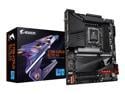
Pros: - Works with 13th gen Intel processors without needing to update BIOS - No coil whine on the board I received - Built-on I/O shield, so you don't have to worry about installing and lining it up
Cons: - No manual included, have to look it up online if you have questions
Overall Review: I got this motherboard to replace my MSI PRO Z690-A that didn't work with my i9-13900K, even after I tried flashing the BIOS with a FAT32 USB drive. So grateful we finally have a motherboard that just flat out supports Intel 13th gen with no BIOS updates. Mine doesn't have the coil whine issue that some others have been complaining about (it came preloaded with the F2 BIOS, not sure if that's why).
Great case, but caused a (literal) headache
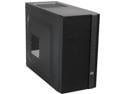
Pros: - You can just barely use a full ATX power supply - Lots of places to put fans for great airflow - Removable back panel for cable management (also a con. I'll get to that in a sec) - A lot of options to put SSD drives (Make sure you check the manual first. I thought the thing didn't have any since the 3.5" drives don't have brackets.
Cons: - There's not really much room to work with in terms of cable management. I just barely got the back panel screw on, and even that required quite a bit of force, and I had to run my Motherboard power cable through the case itself since it was far too big. I think this cause would greatly benefit if we had half an inch more room in the back panel to work with. - There also was not that much room to work with in terms of plugged the cables into my modular PSU. With the HDD bays so close, it was a very tight fit. - Perhaps my biggest con of this, is how loud the case is. I had a full ATX tower before this that was HUGE, but it was almost dead silent. You had to really pay attention to hear it. With this one, you can definitely hear the fans. Given, I unscrewed the one from the back and put it on the front so there's two up there now, but it's still unusually loud. I'm going to buy some different 120mm fans and hope this fixes the issue (and it's not just the sound echoing/amplifying in the small case).