here!
here!
I’m your shopping assistant for PC builds, upgrades, and everything tech.
Got questions? Ask away!
Start a conversation
here!
I’m your shopping assistant for PC builds, upgrades, and everything tech.
Got questions? Ask away!
Start a conversation






Step into a new era of performance with the Gigabyte MO27Q28G, featuring cutting-edge 4th Gen Tandem OLED technology for industry-leading brightness, a competitive 280Hz refresh rate, and AI OLED Care that intelligently safeguards your display for long-term brilliance.
Experience the world’s first 5K2K OLED Gaming Monitor, delivering immersive and captivating gameplay with a 5K2K (5120x2160) resolution, 125 PPI, and Dual-Mode with selectable 8 options, the 21:9 UltraWide sweet spot, 800R curvature, and DisplayPort 2.1.
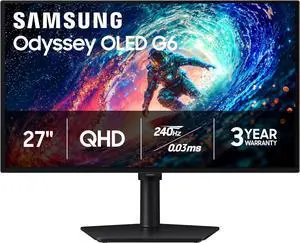
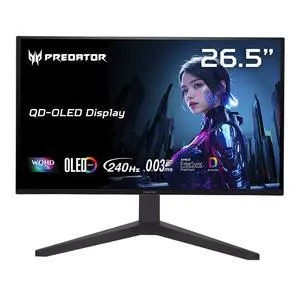
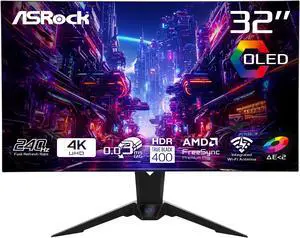
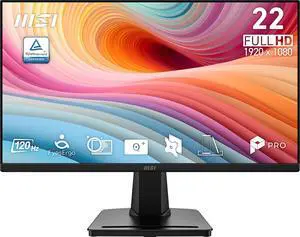
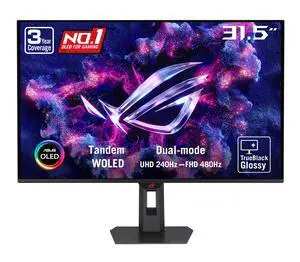
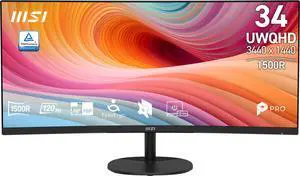
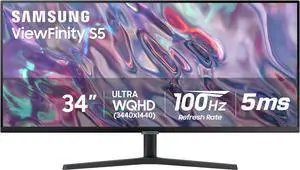
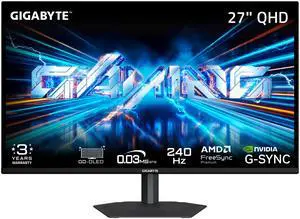
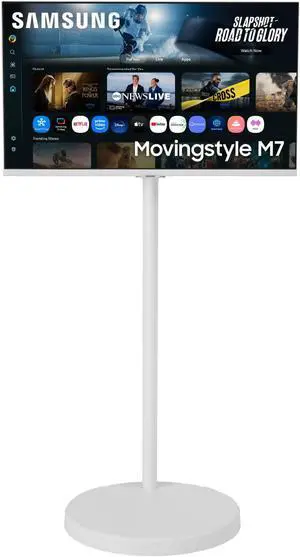
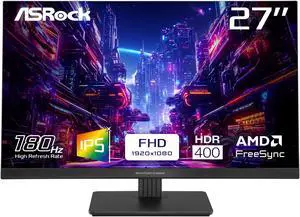
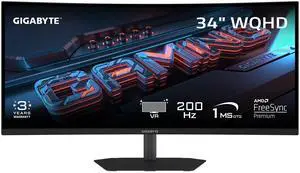
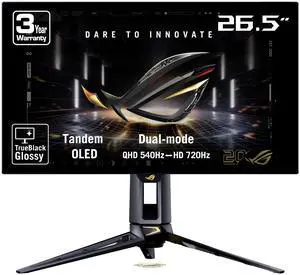
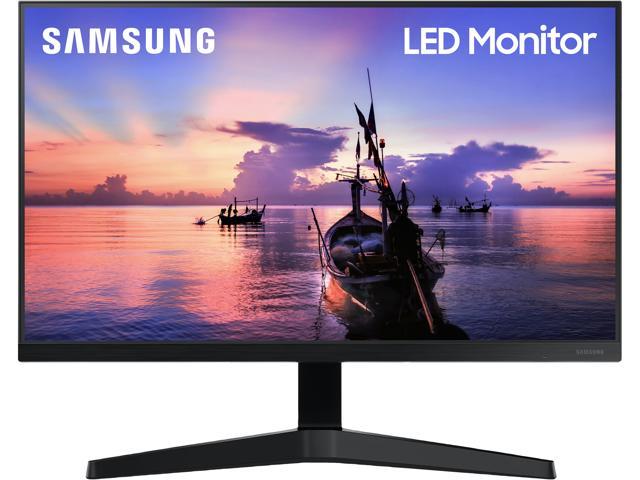
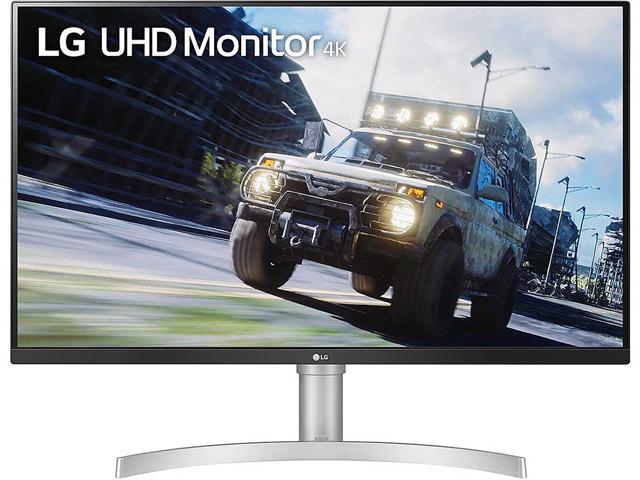
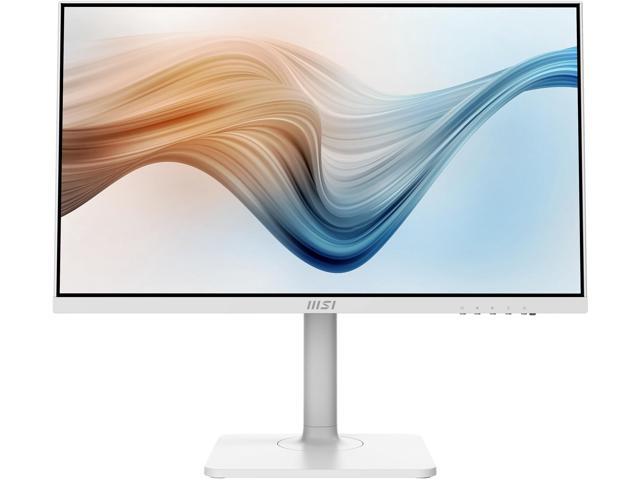
Find a wide selection of computer monitors featuring LED, LCD, curved, and HD displays with varying refresh rates suited for gaming, professional work, or everyday use. Compare top brands like ASUS, Acer, and Samsung to find the perfect monitor that fits your setup and needs.
When shopping for a monitor, especially if gaming or video playback are priorities, the refresh rate is a defining feature. Measured in hertz (Hz), refresh rate indicates how many times per second your screen updates its image. The higher the refresh rate—60Hz, 120Hz, 144Hz, or beyond—the smoother motion appears. This matters greatly in fast-action scenes where lower refresh rates can result in motion blur or stutter.
For competitive and casual gamers alike, monitors designed specifically for gaming integrate ultra-fast refresh rates and adaptive sync technologies to reduce screen tearing and input lag. Explore Gaming Monitors if you want a peek into these kinds of performance benefits.
For professionals in fields such as graphic design, video editing, or software development, selecting a monitor that meets specialized requirements is crucial. High-resolution choices like 4K or 5K Monitors offer precision for color grading and pixel-perfect workflows. Curved displays can enhance multitasking by wrapping your field of view, reducing distortion, and easing eye strain during long sessions. For creatives focused on color accuracy and contrast, OLED Monitors present an appealing option.
Developers and workflow-focused users benefit from UltraWide Monitors that provide extensive screen real estate for side-by-side windows, code editors, and documentation.
Newegg shopping tip: When choosing a monitor, look closely at the resolution and refresh rate to match your typical use—higher refresh rates benefit gaming, while higher resolutions improve clarity for work or media. Also, consider the panel type and screen size to find the right balance between color accuracy and viewing comfort.
Experience ultra-fast refresh rates and adaptive sync tech designed to minimize input lag and tearing for competitive gaming at its finest.
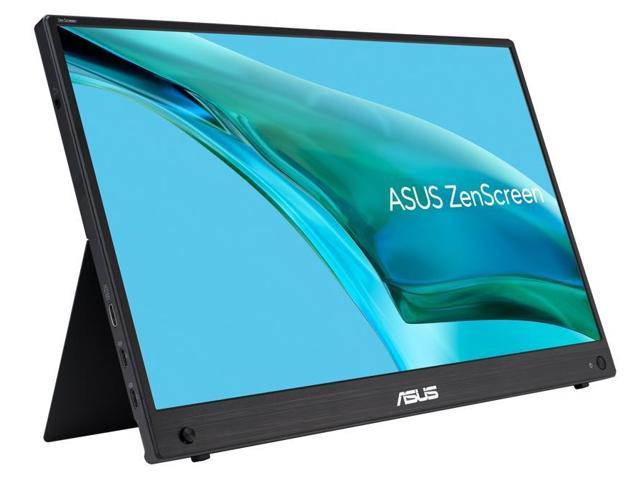
Ideal for on-the-go setups, these compact, lightweight screens stay powered via USB-C or battery, offering crisp visuals anywhere you work or play.
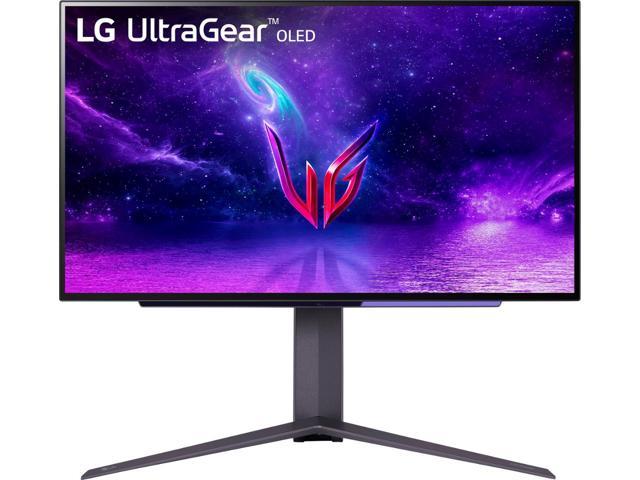
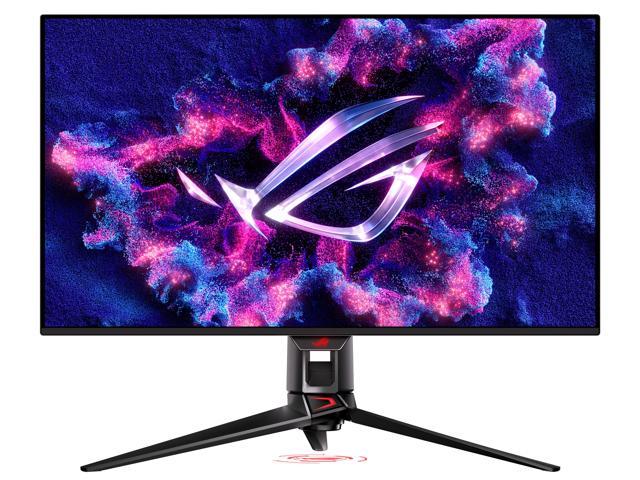
Dive into perfect blacks and vibrant colors with OLED tech, delivering unmatched contrast and ultra-wide viewing angles for creative pros and cinephiles.
Jumping into the world of monitors can feel overwhelming, but starting with the essentials helps simplify the process. If you need a reliable screen mainly for browsing, streaming, or working from home, begin with a standard Computer Monitor. Look for a balance of size (21-27 inches is usually ideal), full HD resolution, and eye-friendly features like flicker-free technology and adjustable stands. These basics will support most everyday tasks comfortably without breaking the bank.
For gamers, the monitor is more than just a display—it's an essential tool for competitive play and immersive entertainment. Explore Gaming Monitors designed with ultra-fast refresh rates, low response times, and adaptive sync technology to ensure smooth, tear-free visuals. Whether you're into fast-paced shooters or sprawling RPGs, a gaming monitor can make all the difference in responsiveness and clarity, giving you that crucial edge during intense sessions.
If your work involves photo editing, video production, or graphic design, color accuracy and resolution are paramount. Consider monitors with high resolutions like 5K /4K /2K Monitors that deliver razor-sharp detail and expansive workspaces. OLED options are also excellent choices for vivid, true-to-life colors and deep blacks, ideal for professionals seeking precise image reproduction. For multitasking, an UltraWide or Curved Monitors provide expansive screen real estate to organize your tools and timelines with ease.
Research more: Looking for the right monitor? Check out the Newegg Insider buying guides to dive deeper into specs like resolution, refresh rates, and screen types—so you can find a display that fits your needs and setup perfectly.
Last Updated: October 2026 | Newegg Monitor Buying Guide
Curved monitors offer a more immersive experience by wrapping the display around your field of vision, which can reduce eye strain in gaming, but flat monitors typically provide more accurate straight-line image representation, making them better for tasks like photo editing.
A 1440p monitor usually strikes a better balance by offering sharp visuals with higher refresh rates for smoother gameplay, while 4K monitors deliver crisper images but often need more powerful hardware to maintain high frame rates.
Resolution tells you how many pixels a screen can display, affecting how sharp and clear the image looks. Higher resolution means more detail, which is especially important if you work with graphics or watch high-quality videos.
Curved monitors can offer a more immersive experience by wrapping the screen slightly around your field of vision, but for regular office tasks, a flat screen works just fine and usually costs less. It really depends on how you plan to use it.
Focus on a monitor with a high refresh rate, like 144Hz or above, and a low response time to keep the action smooth and reduce motion blur. A resolution of 1080p or 1440p usually hits the sweet spot for good graphics without pushing your GPU too hard.
It depends on your space and what you use it for, but generally, a higher resolution on a moderately sized screen offers sharper images and more workspace without overwhelming your desk. Bigger screens are great if you want immersion, but don’t skimp on the resolution.
Look for detailed user reviews that mention screen quality issues like backlight bleed or pixel defects. If lots of buyers report these problems, it's a red flag to consider a different model.
Many gamers report problems with refresh rate inconsistencies or screen flickering over time. Checking reviews for long-term user experiences can help identify monitors that hold up well under heavy use.
Most monitors use HDMI or DisplayPort cables, so just plug one end into your laptop and the other into the monitor. Then, switch your laptop’s display settings to extend or duplicate your screen.
Position the monitor so the top of the screen is at or just below eye level and about an arm’s length away. Adjust brightness and contrast to reduce eye strain, and consider using any built-in blue light filters if you’re gaming or working late.
“ IMHO, you are essentially getting elite, high-end 4K Mini-LED performance for a major discount compared to the major competitors. ”
HKC 27 inch Dual Mode UHD 4K 160Hz Full HD 320Hz 1ms HDR1400 98% DCI-P3 90W DIC USB-C Mini LED Gaming Computer Monitor with Height Adjustable, Swivel, Pivot & Tilt Stand G27M7Pro“ The difference between this and a similar or higher refresh rate OLED at high framerates becomes increasingly negligible, while the drawbacks of LCD become increasingly obvious. ”
ASUS ROG STRIX 27 inch QHD 2K 1440P 360Hz DUAL MODE to 25" Full HD IPS AMD FreeSync Premium & G-Sync Pulsar Technology HDR400 with Height Adjustable, Swivel, Pivot & Tilt Stand XG27AQNGV“ Mini LED is the way to go. ”
HKC 27 inch Dual Mode UHD 4K 160Hz Full HD 320Hz 1ms HDR1400 98% DCI-P3 90W DIC USB-C Mini LED Gaming Computer Monitor with Height Adjustable, Swivel, Pivot & Tilt Stand G27M7Pro“ I went from a led to OLED and will never go back ”
MSI 34 inch Ultrawide QHD 2K 1440P 175Hz with AMD FreeSync Premium Pro 0.03ms HDR400 USB-C KVM OLED Curved Gaming Computer Monitor with Height Adjustable, Swivel & Tilt stand MAG341CQP QD-OLED“ Was looking for a mini LED 4K monitor for a few months. ”
HKC 27 inch Dual Mode UHD 4K 160Hz Full HD 320Hz 1ms HDR1400 98% DCI-P3 90W DIC USB-C Mini LED Gaming Computer Monitor with Height Adjustable, Swivel, Pivot & Tilt Stand G27M7Pro“ Mini LED does work well ”
AOC Q27G3XMN 27" Mini LED Gaming Monitor, 2K QHD 2560x1440, 180Hz 1ms, 2X HDMI 2.0, 2X Display Port, Height Adjustable, Xbox/PS5/Switch Ready, 3-Year Zero-Bright-dot