



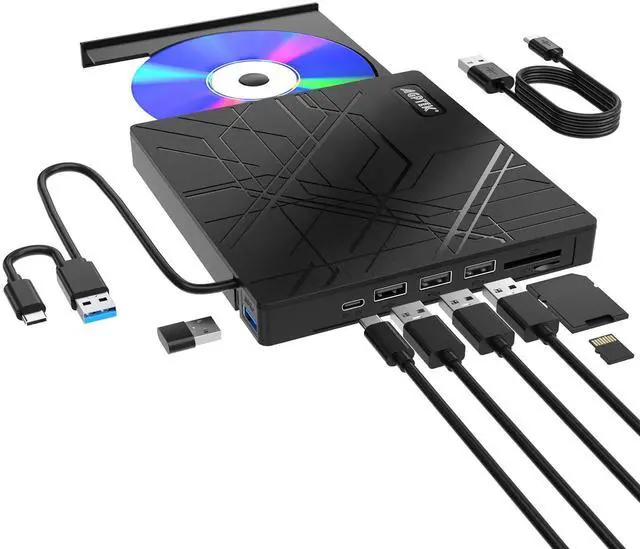
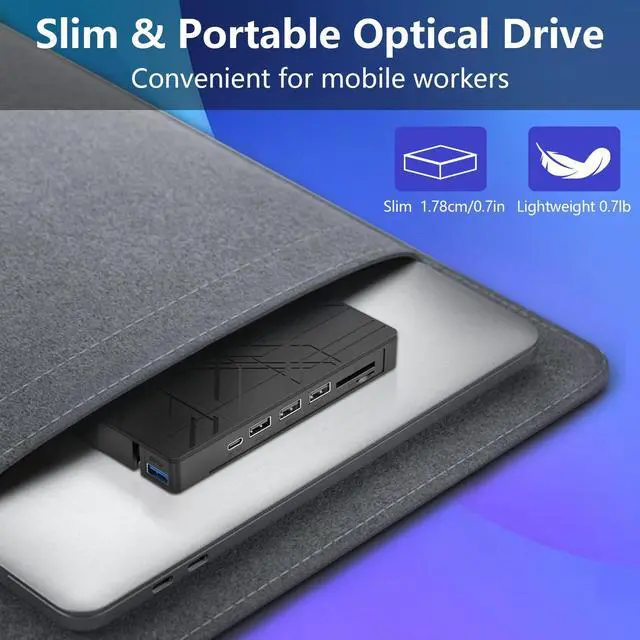
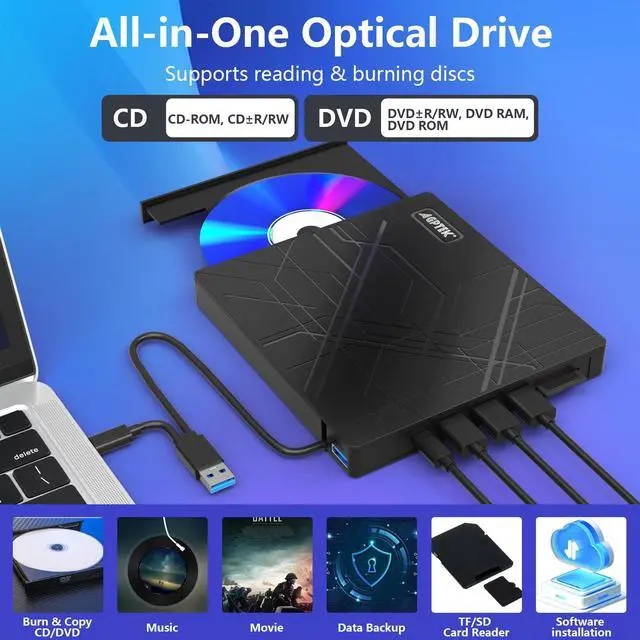


AGPTEK 8 in 1 External CD/DVD Drive


These things you need to know before buying
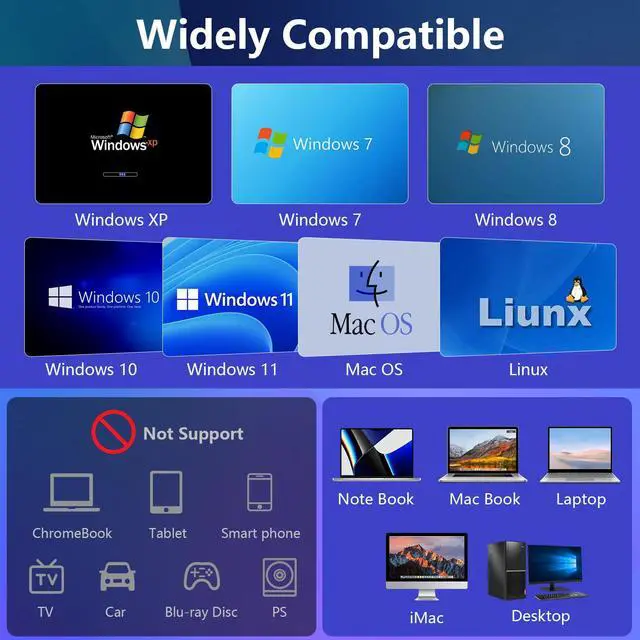
- Incompatible devices and discs:This CD/DVD drive cannot play Blu-ray discs. And it is not compatible with cars, trucks, TVs, projectors, smartphones, iPhones, tablets, iPads, PS4/5, Nintendo Switch, Xbox, surface (some models), Chromebooks and Ubuntu OS.
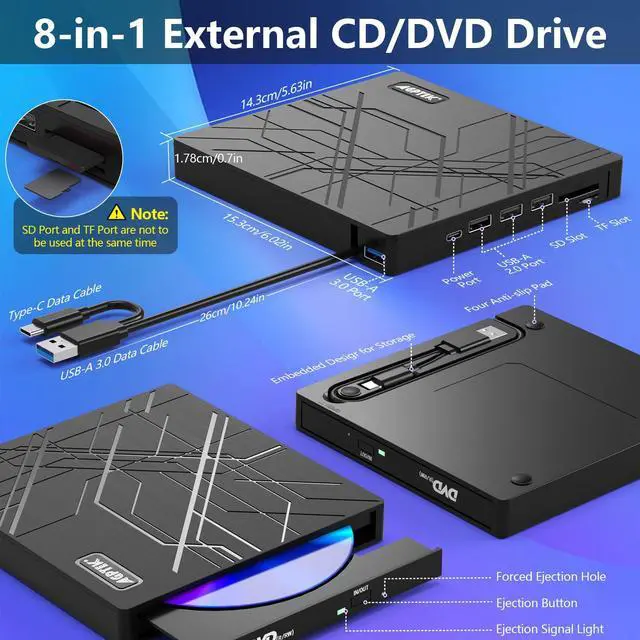
- Open the tray: For Windows, simply press the button on the front of the drive to eject the tray. For mac OS, the drive button is limited by mac OS and cannot open the tray, right-click the icon on the desktop and select "Eject", or select "File" - "Eject". If the device fails and cannot be opened, there is a reset hole next to the pop-up button, a pin can be used to eject the tray through the reset hole.
- Use it on Windows:1.Take out the USB data cable built into the back of the drive. 2.Plug the USB A or Type C connector into your computer's USB port (not through a USB hub). 3.Your computer will recognize the drive. 4.Set the region code to number 1 to play US or Canadian DVDs (CDs do not have region code). 5.Insert your CD or DVD. 6.Use a media player (such as Windows Media Player, VLC Player, etc.) or burning/ripping software to read/write the disc.
- Use it on Mac OS:1.Click “Finder” , select “Preferences” , make sure “CDs, DVDs, and iPods” is selected. 2.Take out the USB data cable built into the back of the drive. 3.Plug the USB A or Type C connector into your mac/macbook/imac USB port (not through a USB hub). 4.Insert your CD or DVD. 5.Your Mac will recognize the drive, read the disc and an icon will appear on the desktop. 6.Use a media player (such as Apple Music, iTunes, DVD Player, etc.) or burning/ripping software to read/write the disc.
- Setting region code in windows :1.Right-click the "DVD-RW Drive" icon and select "Properties". 2.Select the "Hardware" tab and select your CD/DVD drive. 3.Click to open the "Properties" tab at the bottom. 4.Select the "DVD Region" tab. 5.Select the correct region (e.g., USA is 1) and click "OK". (Note: You can only change the region code 4 times.)
- Ensure the drive is recognized:Insert the external optical drive into the computer. After the Windows system recognizes the optical drive, the "DVD RW Drive" icon will be displayed. The Mac OS computer will not display the device icon until the disc is placed in the optical drive and the disc is read successfully. If the computer fails to recognize the optical drive, it may be that the computer's driver is missing or the output current is insufficient.
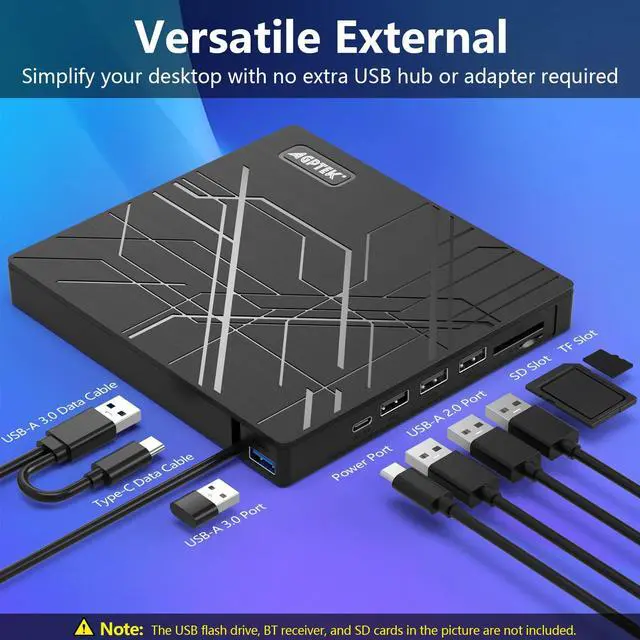
- About data cable & power cord:1.The USB data cable is built into the bottom of the drive.(Note: The total length of the data cable is only about 10.24 inches / 26 cm.) 2.The charging cord is a separate USB cord that comes with the package. The charging cord cannot be used as a data cable alone, it must be used together with the USB data cable built into the back of the drive. 3.It's better to use the 5V charger/power bank to increase the power if your computer don't have enough power to support the external drive.(Note: For the Apple computers, you need to connect the external CD/DVD drive to the mac/macbook/imac through the USB A/C data cable first, and then connect the 5V charger/power bank to the external CD/DVD drive through the charging cord, otherwise the Apple computer will not recognize the external CD/DVD drive.)
- WINDOWS 11 Requirements:WINDOWS 11 needs a media player (such as VLC ) and a network connection.
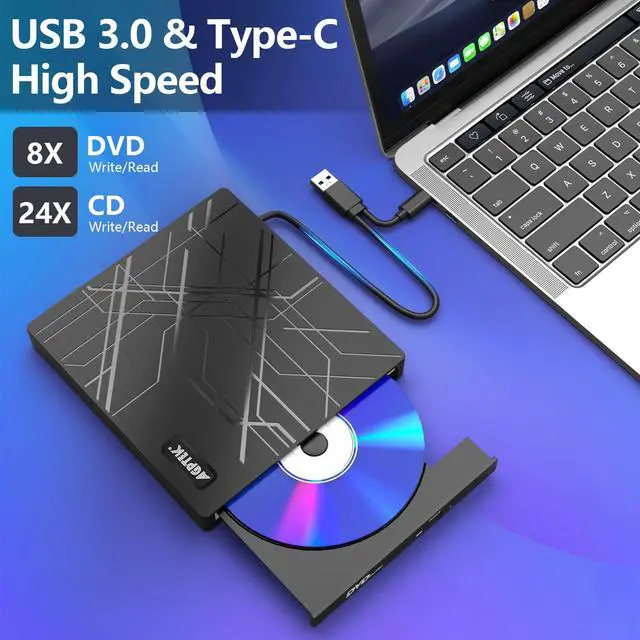
- Reading and writing speed: 1.This CD/DVD drive supports USB 3.0 and can provide data transfer speeds of up to 5Gbps. Although it has up to 8x DVD read/write speed and 24x CD read/write speed, the drive reads and writes CD/DVD discs at speeds that increase from the inner circle to the outer circle, and the starting speed is usually lower, reaching the maximum speed when reaching the outermost circle. 2.Recommended speeds (CD: Reading Speed: 24x or lower/Writing Speed: 8x to 16x; DVD: Reading Speed: 8x or lower/Writing Speed: 4x to 8x). For DVDs, slower writing speeds like 4x or 8x are often ideal to ensure data integrity, particularly for high-capacity or dual-layer discs. These speeds allow for more precise data encoding, reducing the risk of read errors in the future.

How to Play a CD on a Desktop Computer
Afer inserted the CD into the drive, click choose what to do with audio CDs, then Double-click your audio CD in the menu and you'll see all of the tracks appear in the center of the window. If nothing happens when you insert your disc, you can start Windows Media Player yourself.

How to Back Up Computer Files to CD/DVD
- Place a blank writable CD-R/RW (read/writable) or DVD-R/RW in your CD-RW /DVD-RW drive and choose Start?Documents.
- Select all files that you want to copy to disc. Right-click the files that you want and choose Copy To Folder.
- In the Copy Items dialog box, click CD-R/RW or DVD-RW drive and click Copy.
Troubleshooting Steps
If your computer does not recognise this CD/DVD drive, please try the following suggestions:
- Method 1: a.Use the USB-A and Type-C cables on the back of the machine to connect the laptop. (The cable comes with the package is only for current transmission, not for data transmission.) b.Move the data cable to different USB ports on your computer.
- Method 2: The power supply of the product is insufficient - Please use a 5V charger / power bank supply to supplement it.(Note: For the Apple computers, you need to connect the external CD/DVD drive to the computer first, and then connect the supplementary power supply to the external CD/DVD drive, otherwise the Apple computer will not recognize the external CD/DVD drive.)
- Method 3: Reinstall the driver: a.Press the Windows logo key + R to open the Run dialog box. b.Type devmgmt.msc in the Run dialog box, then press Enter. c.In Device Manager, expand DVD/CD-ROM drives, right-click the CD and DVD devices, and then select Uninstall. d.When you are prompted to confirm that you want to uninstall the device, select OK. e.Restart the computer. After the computer restarts, the drivers will be automatically installed.
- Method 4: WINDOWS 11 needs a media player (such as VLC ) and a network connection.

About Region Code

AGPTEK 8 in 1 External CD/DVD Drive


These things you need to know before buying
- Incompatible devices and discs:This CD/DVD drive cannot play Blu-ray discs. And it is not compatible with cars, trucks, TVs, projectors, smartphones, iPhones, tablets, iPads, PS4/5, Nintendo Switch, Xbox, surface (some models), Chromebooks and Ubuntu OS.
- Open the tray: For Windows, simply press the button on the front of the drive to eject the tray. For mac OS, the drive button is limited by mac OS and cannot open the tray, right-click the icon on the desktop and select "Eject", or select "File" - "Eject". If the device fails and cannot be opened, there is a reset hole next to the pop-up button, a pin can be used to eject the tray through the reset hole.
- Use it on Windows:1.Take out the USB data cable built into the back of the drive. 2.Plug the USB A or Type C connector into your computer's USB port (not through a USB hub). 3.Your computer will recognize the drive. 4.Set the region code to number 1 to play US or Canadian DVDs (CDs do not have region code). 5.Insert your CD or DVD. 6.Use a media player (such as Windows Media Player, VLC Player, etc.) or burning/ripping software to read/write the disc.
- Use it on Mac OS:1.Click “Finder” , select “Preferences” , make sure “CDs, DVDs, and iPods” is selected. 2.Take out the USB data cable built into the back of the drive. 3.Plug the USB A or Type C connector into your mac/macbook/imac USB port (not through a USB hub). 4.Insert your CD or DVD. 5.Your Mac will recognize the drive, read the disc and an icon will appear on the desktop. 6.Use a media player (such as Apple Music, iTunes, DVD Player, etc.) or burning/ripping software to read/write the disc.
- Setting region code in windows :1.Right-click the "DVD-RW Drive" icon and select "Properties". 2.Select the "Hardware" tab and select your CD/DVD drive. 3.Click to open the "Properties" tab at the bottom. 4.Select the "DVD Region" tab. 5.Select the correct region (e.g., USA is 1) and click "OK". (Note: You can only change the region code 4 times.)
- Ensure the drive is recognized:Insert the external optical drive into the computer. After the Windows system recognizes the optical drive, the "DVD RW Drive" icon will be displayed. The Mac OS computer will not display the device icon until the disc is placed in the optical drive and the disc is read successfully. If the computer fails to recognize the optical drive, it may be that the computer's driver is missing or the output current is insufficient.
- About data cable & power cord:1.The USB data cable is built into the bottom of the drive.(Note: The total length of the data cable is only about 10.24 inches / 26 cm.) 2.The charging cord is a separate USB cord that comes with the package. The charging cord cannot be used as a data cable alone, it must be used together with the USB data cable built into the back of the drive. 3.It's better to use the 5V charger/power bank to increase the power if your computer don't have enough power to support the external drive.(Note: For the Apple computers, you need to connect the external CD/DVD drive to the mac/macbook/imac through the USB A/C data cable first, and then connect the 5V charger/power bank to the external CD/DVD drive through the charging cord, otherwise the Apple computer will not recognize the external CD/DVD drive.)
- WINDOWS 11 Requirements:WINDOWS 11 needs a media player (such as VLC ) and a network connection.
- Reading and writing speed: 1.This CD/DVD drive supports USB 3.0 and can provide data transfer speeds of up to 5Gbps. Although it has up to 8x DVD read/write speed and 24x CD read/write speed, the drive reads and writes CD/DVD discs at speeds that increase from the inner circle to the outer circle, and the starting speed is usually lower, reaching the maximum speed when reaching the outermost circle. 2.Recommended speeds (CD: Reading Speed: 24x or lower/Writing Speed: 8x to 16x; DVD: Reading Speed: 8x or lower/Writing Speed: 4x to 8x). For DVDs, slower writing speeds like 4x or 8x are often ideal to ensure data integrity, particularly for high-capacity or dual-layer discs. These speeds allow for more precise data encoding, reducing the risk of read errors in the future.
How to Play a CD on a Desktop Computer
Afer inserted the CD into the drive, click choose what to do with audio CDs, then Double-click your audio CD in the menu and you'll see all of the tracks appear in the center of the window. If nothing happens when you insert your disc, you can start Windows Media Player yourself.
How to Back Up Computer Files to CD/DVD
- Place a blank writable CD-R/RW (read/writable) or DVD-R/RW in your CD-RW /DVD-RW drive and choose Start?Documents.
- Select all files that you want to copy to disc. Right-click the files that you want and choose Copy To Folder.
- In the Copy Items dialog box, click CD-R/RW or DVD-RW drive and click Copy.
Troubleshooting Steps
If your computer does not recognise this CD/DVD drive, please try the following suggestions:
- Method 1: a.Use the USB-A and Type-C cables on the back of the machine to connect the laptop. (The cable comes with the package is only for current transmission, not for data transmission.) b.Move the data cable to different USB ports on your computer.
- Method 2: The power supply of the product is insufficient - Please use a 5V charger / power bank supply to supplement it.(Note: For the Apple computers, you need to connect the external CD/DVD drive to the computer first, and then connect the supplementary power supply to the external CD/DVD drive, otherwise the Apple computer will not recognize the external CD/DVD drive.)
- Method 3: Reinstall the driver: a.Press the Windows logo key + R to open the Run dialog box. b.Type devmgmt.msc in the Run dialog box, then press Enter. c.In Device Manager, expand DVD/CD-ROM drives, right-click the CD and DVD devices, and then select Uninstall. d.When you are prompted to confirm that you want to uninstall the device, select OK. e.Restart the computer. After the computer restarts, the drivers will be automatically installed.
- Method 4: WINDOWS 11 needs a media player (such as VLC ) and a network connection.

About Region Code
