




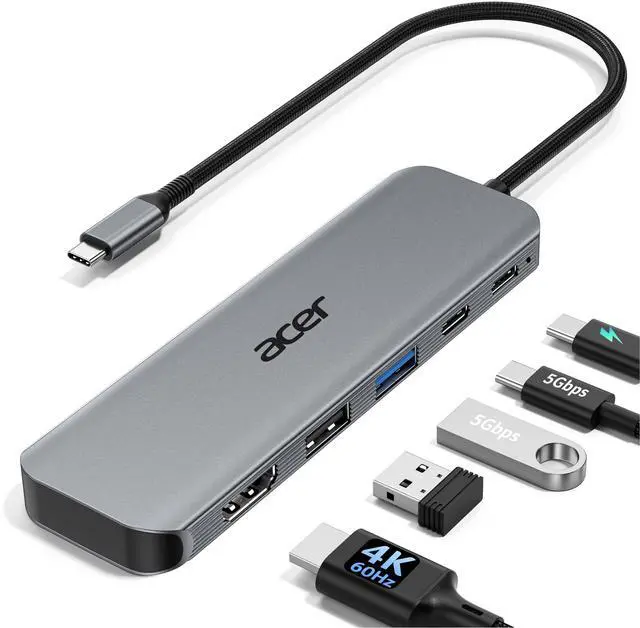


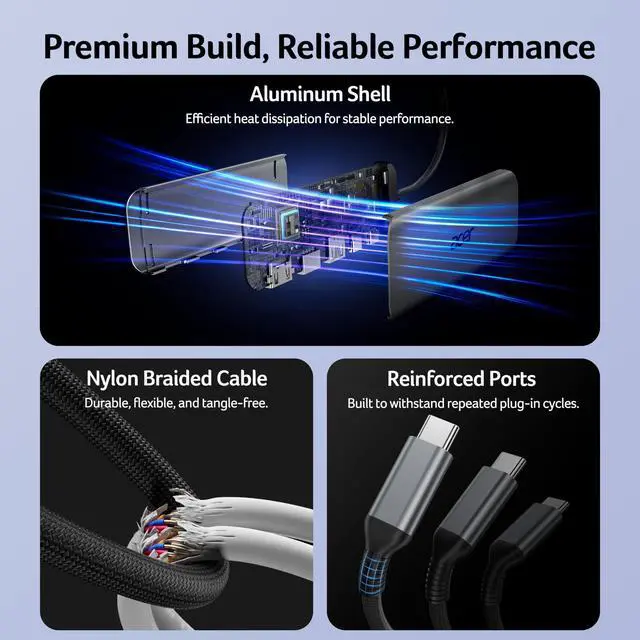



Please Read Carefully Before Purchasing
Choose Your Acer USB-C Multiport HUB
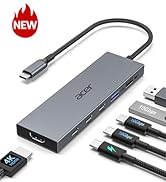
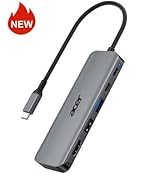
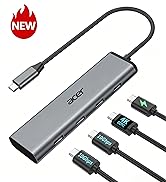
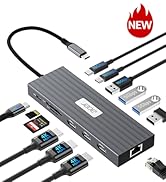
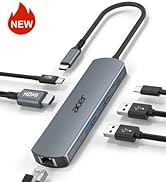
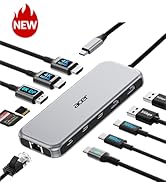
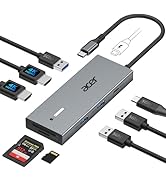
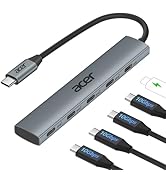
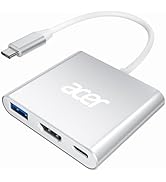
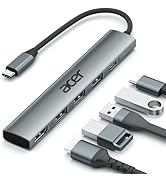
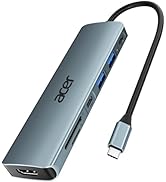
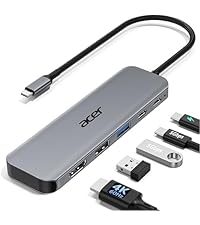 Acer USB C Hub 5-in-1 |  Acer USB C Hub 4-in-1 | 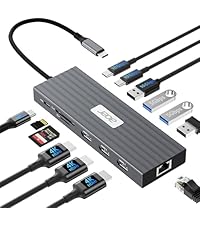 Acer USB C Dock 13-in-1 | 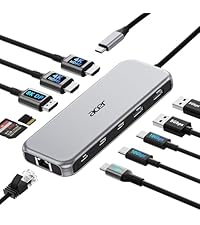 Acer USB C Dock 11-in-1 | 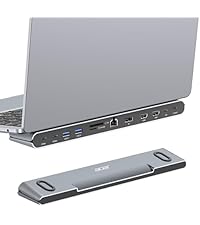 Acer Laptop Dock 11-in-1 | |
|---|---|---|---|---|---|
Customer Reviews | — | — | — | — | — |
Price | — | — | — | — | — |
Interface | USB C | USB C | USB C | USB C | USB C |
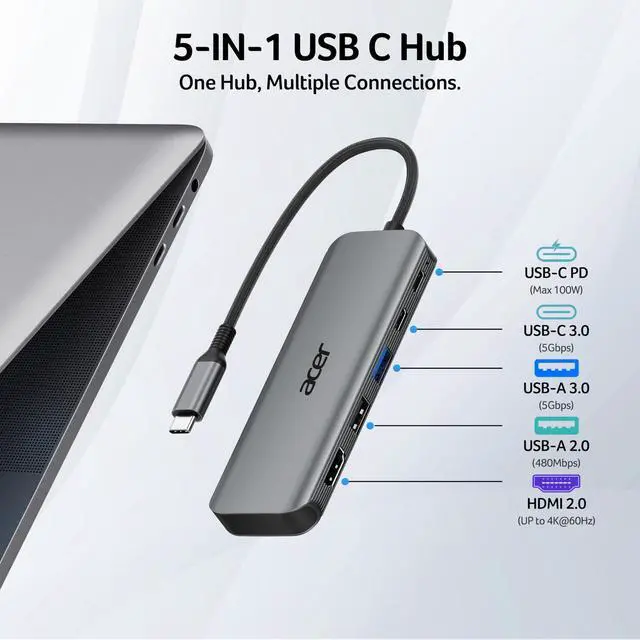
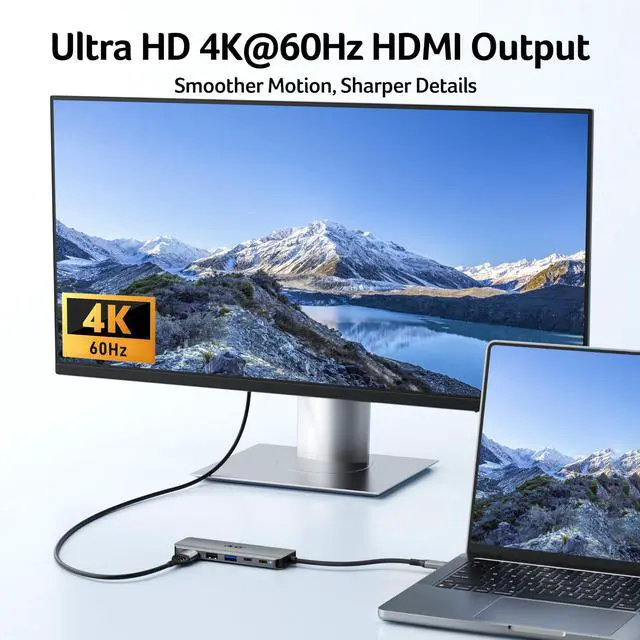
Display Ports | 1*HDMI | 1*USB-C Video Output | 3*HDMI | 2*HDMI+1*DP | 2*HDMI+1*DP |
External Display Support | Single | Single | Triple | Triple | Triple |
Max Single Display Resolution | Up to 4K@60Hz | Up to 4K@60Hz | Up to 4K@60Hz | Up to 8K@30Hz | Up to 8K@30Hz |
Data Port | 2*USBA+1*USBC | 2*USBC | 4*USBA+2*USBC | 2*USBA+2*USBC | 2*USBA+2*USBC |
Max Transfer Speed | 5Gbps | 10Gbps | 10Gbps | 10Gbps | 10Gbps |
SD / micro SD Slot | ? | ? | ? | ? | ? |
Charging Port | USB-C PD 100W | USB-C PD 100W | USB-C PD 100W | USB-C PD 100W | USB-C PD 100W |
Ethernet Port | ? | ? | 1 Gigabit | 1 Gigabit | 1 Gigabit |


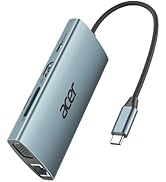
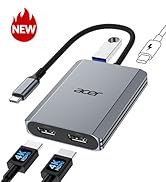
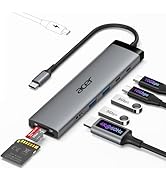
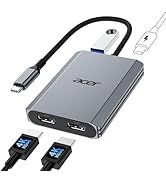
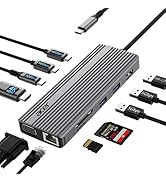


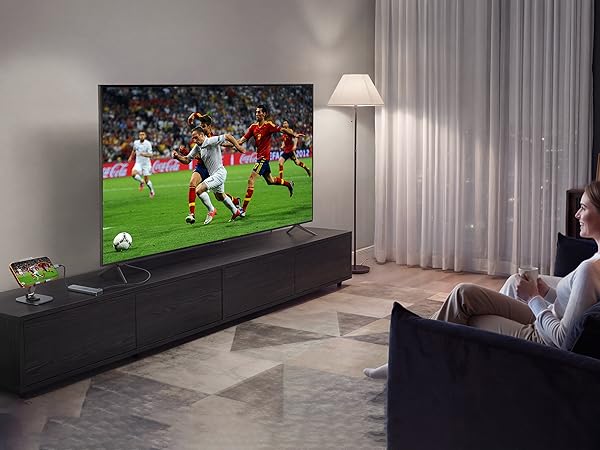

Please Read Carefully Before Purchasing
| ??Check Before Buy | Your device’s USB-C port must support ?????????? ???????????? (?????????????????????? ?????? ????????). USB-C ports that only support charging or data transfer will NOT output video via HDMI. |
|---|---|
| ??HDMI Display Behavior | HDMI display recognition may take a few seconds on first connection. If your monitor has multiple input sources, please manually select the correct HDMI input. |
| ??Full Charging Performance. | Supports up to ???????? ???? ?????????? (???? ???? ?????? ???????????? ???? ?????? ???????? ????????????). Your device, charger, and charging cable must all support the Power Delivery (PD) protocol. Charger and cable are not included. |
| ??About Audio Output | (??)If the sound is not transmitted to the TV or Monitor, please try to choose your TV or Monitor as the audio output device. (??)For Mac: Settings ? System Preferences ? Sound ? Output ? Select your TV or Monitor. |
| ??Not Compatible Devices | Not compatible with Lightning devices or gaming consoles, including iPhone/iPad (Lightning), Xbox, PS5/PS4, or similar devices. |
| Note | To fully utilize the display capabilities of the iPad Pro (M1), please connect a USB 3.0 drive to the 5Gbps USB-A port, and then connect the hub to the iPad Pro to display the image. |
| Note | For the most stable HDMI connection, we recommend connecting the PD power adapter before plugging in HDMI cables or other peripherals. |
| Note | Brief HDMI reconnection may occur when plugging or unplugging the PD charger as the hub reallocates power. This is normal and does not affect performance or lifespan. |
| Q1 | Why is there no image or blinking on HDMI? |
| A1 | 1. Make sure your device’s USB-C port supports DP Alt Mode 2. Ensure the hub and HDMI cable are firmly connected 3. Adjust your device’s display resolution 4. Use a high-quality 4K@60Hz HDMI cable 5. Select the correct monitor input source manually |
| Q2 | Why isn’t my laptop charging through the PD port? |
| A2 | 1. Connect the power adapter to the hub before connecting your laptop 2. Confirm your laptop USB-C port supports PD charging 3. Use a 65W or higher power adapter for best performance 4. Reconnect the hub if charging does not start immediately |
| Q3 | Can the male USB-C connector transfer data? |
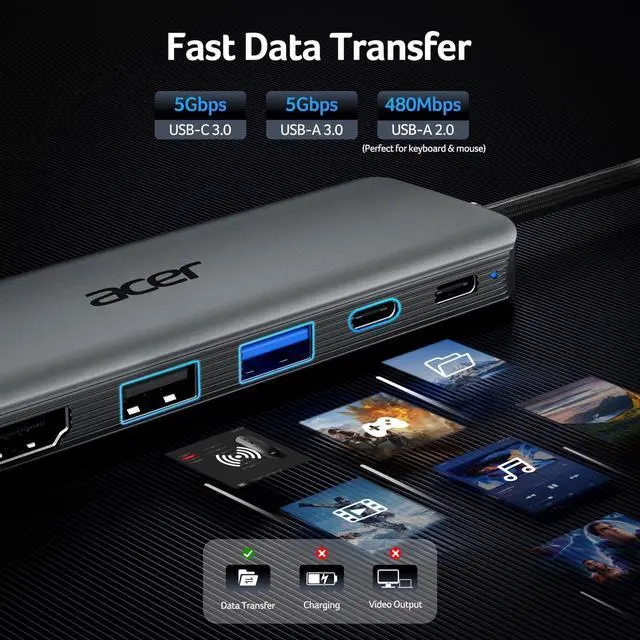
| A3 | No. The male USB-C connector is for host connection only. Data transfer is supported through the USB-A ports and designated USB-C data port. |
| Q4 | What happens to data transfer speed when multiple ports are used at the same time? |
| A4 | This hub has three independent data ports: ??USB-A 3.0: up to 5 Gbps ??USB-C 3.0: up to 5 Gbps ??USB-A 2.0: up to 480 Mbps. Each port operates based on its own USB specification and the connected device. Actual transfer speeds may vary depending on the host device performance, system workload, and connected peripherals. |
Choose Your Acer USB-C Multiport HUB
Acer USB C Hub 5-in-1 | Acer USB C Hub 4-in-1 | Acer USB C Dock 13-in-1 | Acer USB C Dock 11-in-1 | Acer Laptop Dock 11-in-1 |
|---|---|---|---|---|
| Customer Reviews | ||||
| — | — | — | — | — |
| Price | ||||
| — | — | — | — | — |
| Interface | ||||
| USB C | USB C | USB C | USB C | USB C |
| Display Ports | ||||
| 1*HDMI | 1*USB-C Video Output | 3*HDMI | 2*HDMI+1*DP | 2*HDMI+1*DP |
| External Display Support | ||||
| Single | Single | Triple | Triple | Triple |
| Max Single Display Resolution | ||||
| Up to 4K@60Hz | Up to 4K@60Hz | Up to 4K@60Hz | Up to 8K@30Hz | Up to 8K@30Hz |
| Data Port | ||||
| 2*USBA+1*USBC | 2*USBC | 4*USBA+2*USBC | 2*USBA+2*USBC | 2*USBA+2*USBC |
| Max Transfer Speed | ||||
| 5Gbps | 10Gbps | 10Gbps | 10Gbps | 10Gbps |
| SD / micro SD Slot | ||||
| ? | ? | ? | ? | ? |
| Charging Port | ||||
| USB-C PD 100W | USB-C PD 100W | USB-C PD 100W | USB-C PD 100W | USB-C PD 100W |
| Ethernet Port | ||||
| ? | ? | 1 Gigabit | 1 Gigabit | 1 Gigabit |
New Product Display
USB Hub--High Parameters
USB C Multiport HUB
USB Hubs