




GUERMOK For Your Eletronics
Redefining Gaming, Uniting Office Excellence, and Live Streaming Thrills
Our Genesis
Guermok's story unfolds at the intersection of passion for gaming, the pursuit of streamlined office life, and the captivating allure of live streaming. We believe that these realms aren't just separate activities but integral parts of modern living. Our commitment is to provide innovative products that fuse these elements harmoniously.
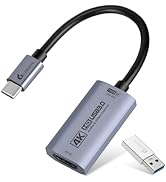
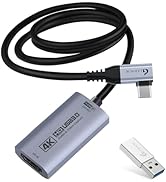
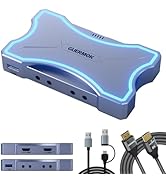
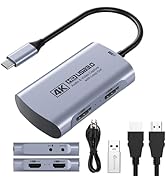
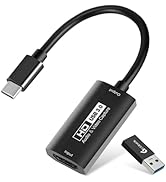
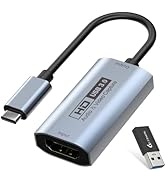
4K 60FPS capture card
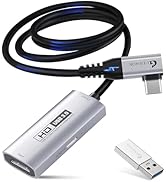
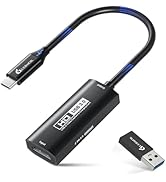
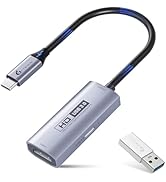
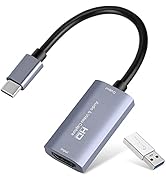
Live Streaming Excellence
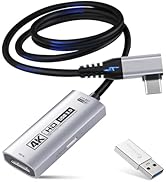
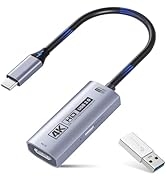
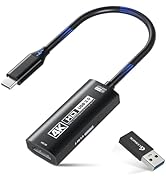
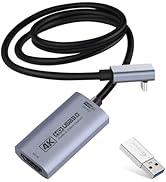
4K 60FPS Capture with PD100w
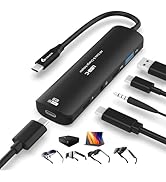
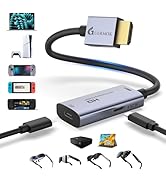
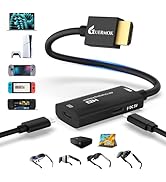
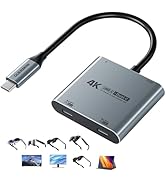
AR Glasses Converter (Switch2)
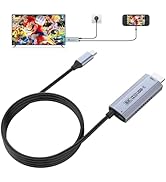
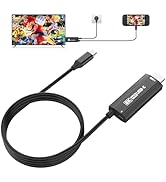
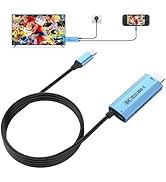
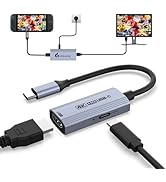
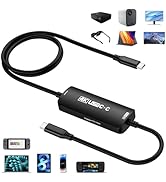
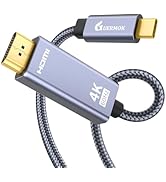
USBC to HDMI Adapter (Switch2)
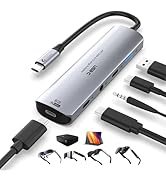

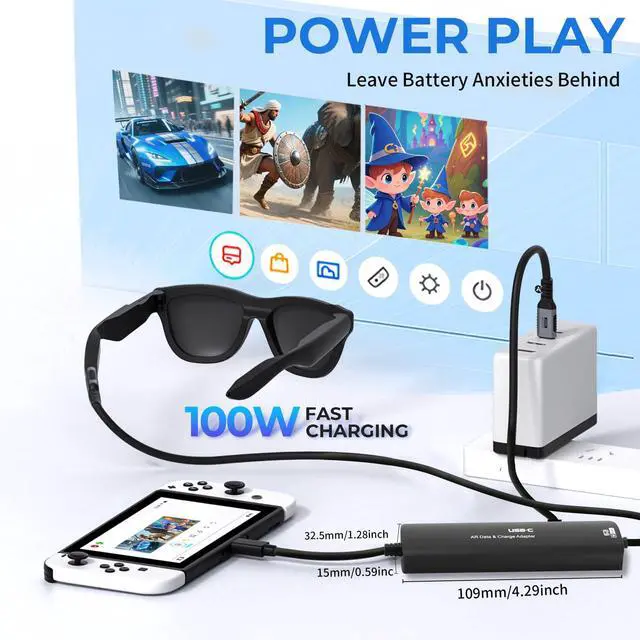
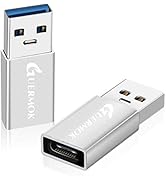
PD100W Fast Charging
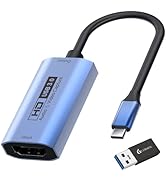
Innovative Gaming Solutions
The Brand Philosophy
At Guermok, our brand philosophy is simple yet profound: make gaming a lifestyle, bring office excellence to the forefront, and infuse the thrill of live streaming into every moment. We encourage you to transcend boundaries and seamlessly integrate these facets into your daily life.
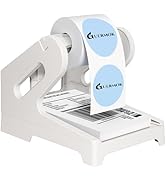
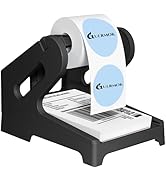
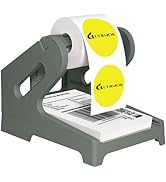
Empowering Office Life
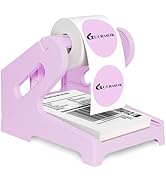
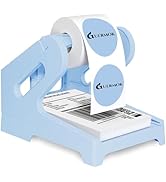
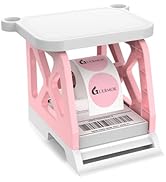

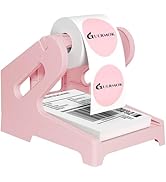
Label Holder

Live Gaming
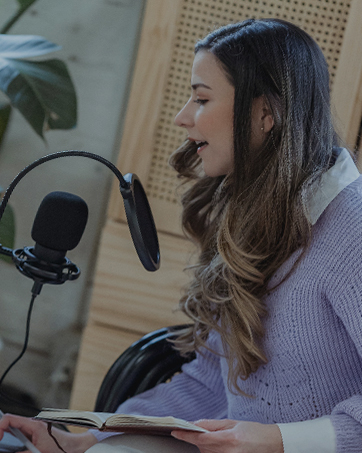
Video Recorder

Live Streaming
Community-Centric
Guermok isn't just a brand; it's a community of like-minded individuals who understand the importance of balancing work, play, and entertainment. Our community encourages sharing, support, and the creation of unforgettable moments.
Thank You for Your Support
Guermok extends heartfelt gratitude to our customers, gamers, office professionals, and live streamers alike. Our mission is to empower you to seamlessly integrate these facets of modern life, ensuring you have the tools to succeed in work and play.
Guermok
where gaming, office, and live streaming unite in excellence.

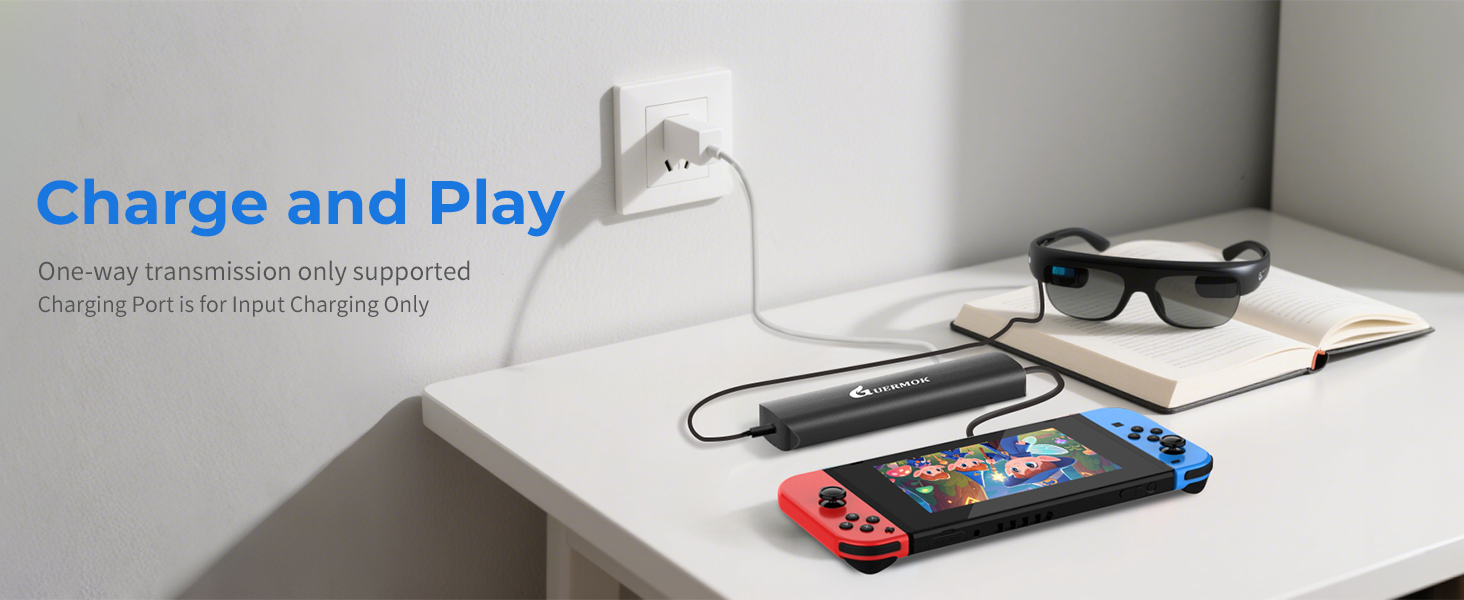
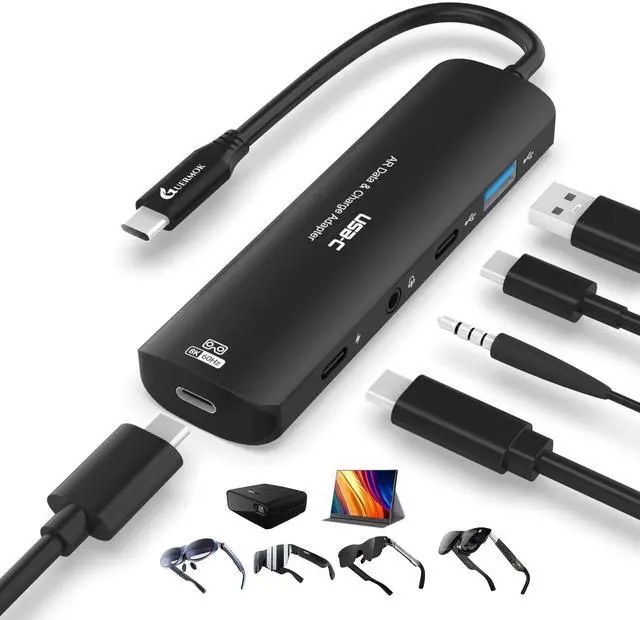
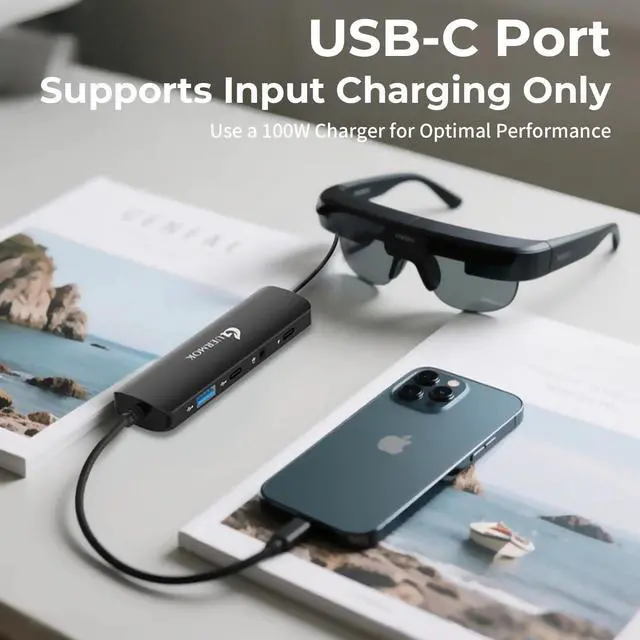
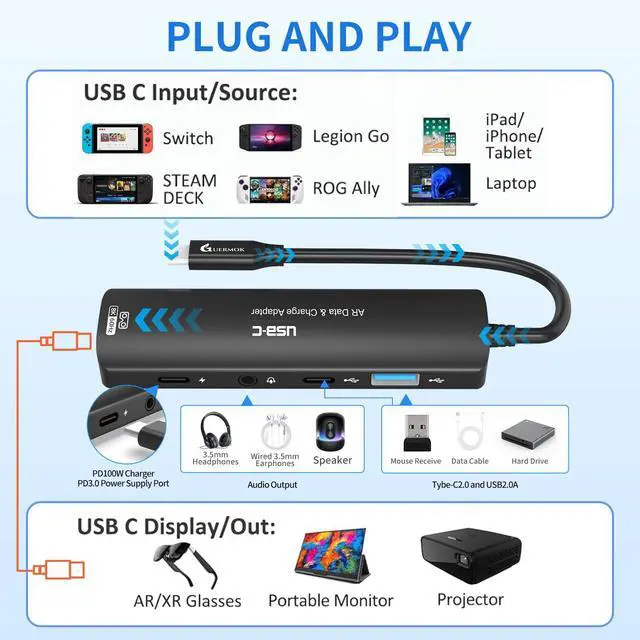
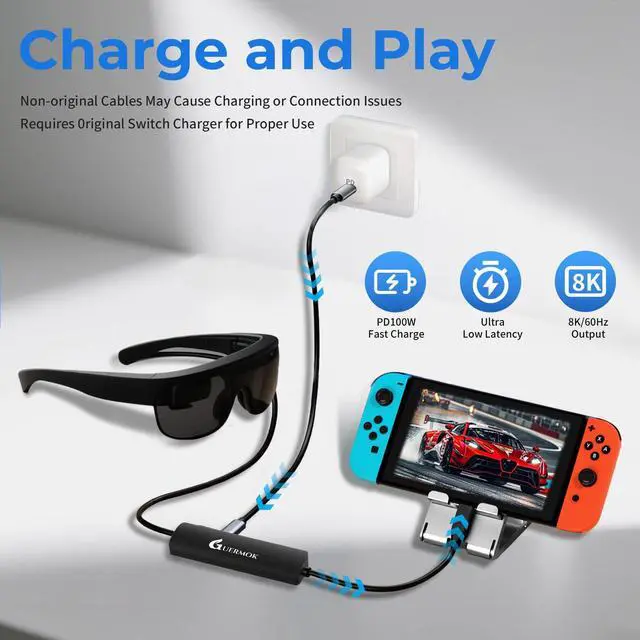
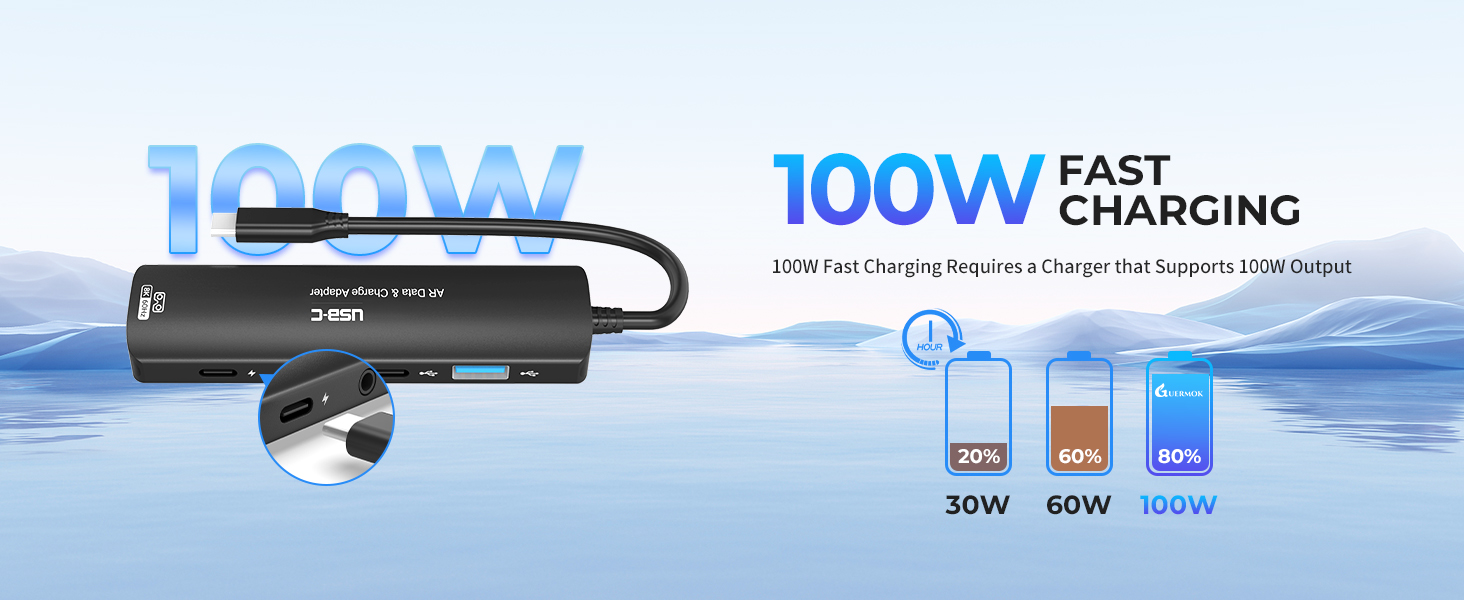
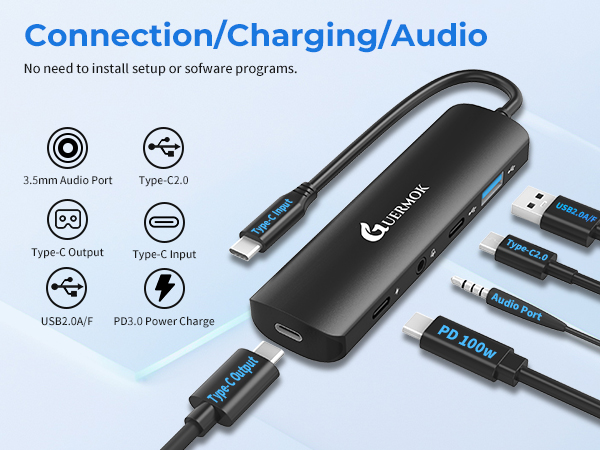
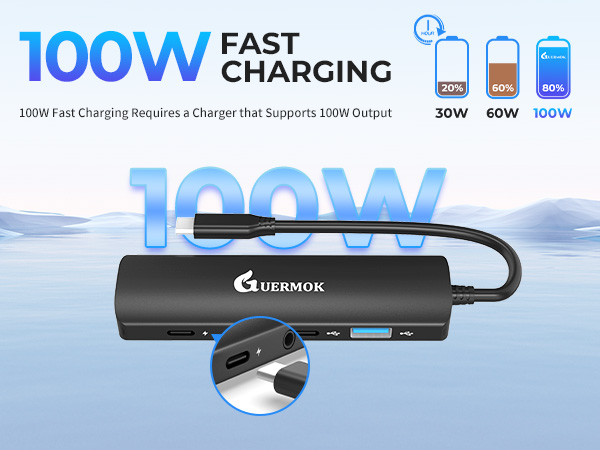
The Type-C fast charging port supports up to 100W PD and is intended exclusively for upstream fast charging of computers and mobile phones. It does not support downstream fast charging for display devices
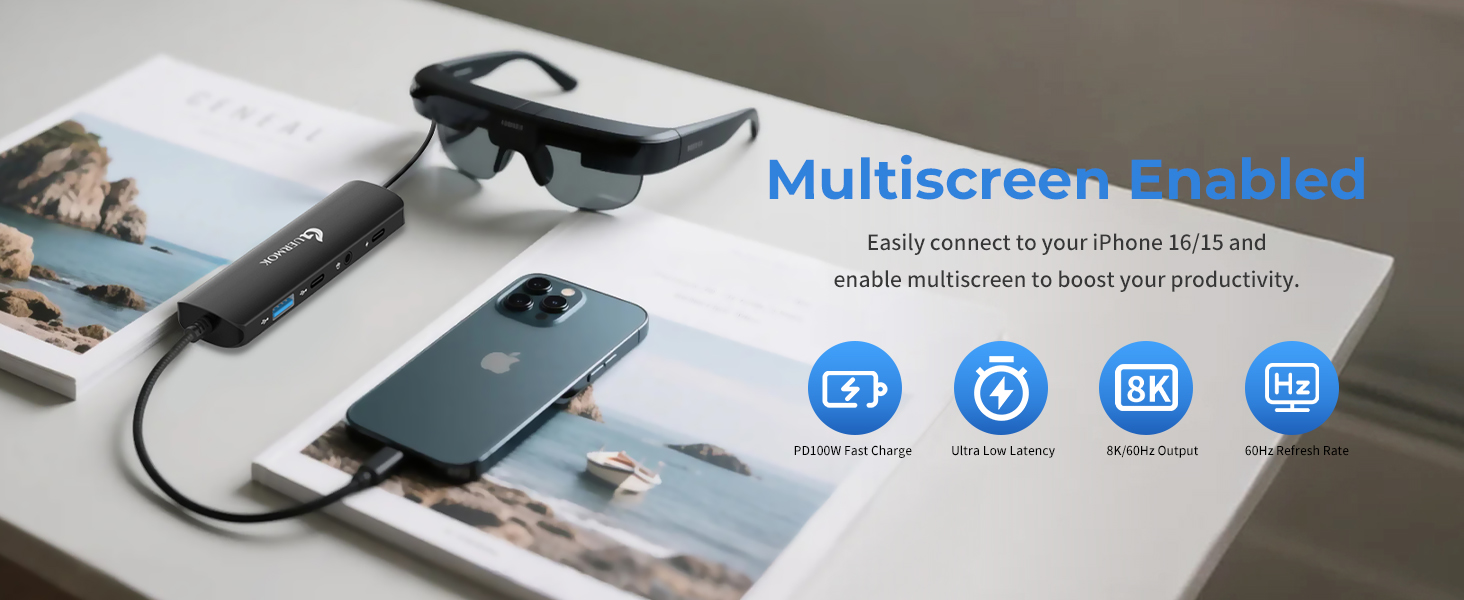
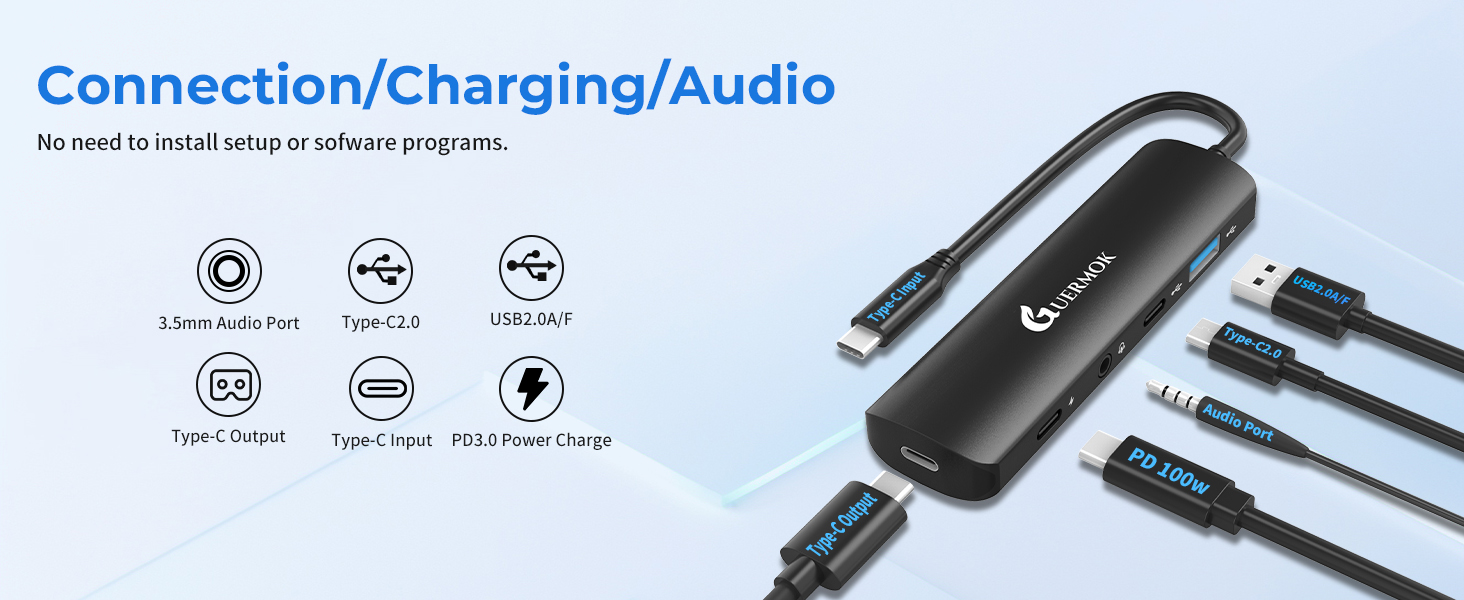
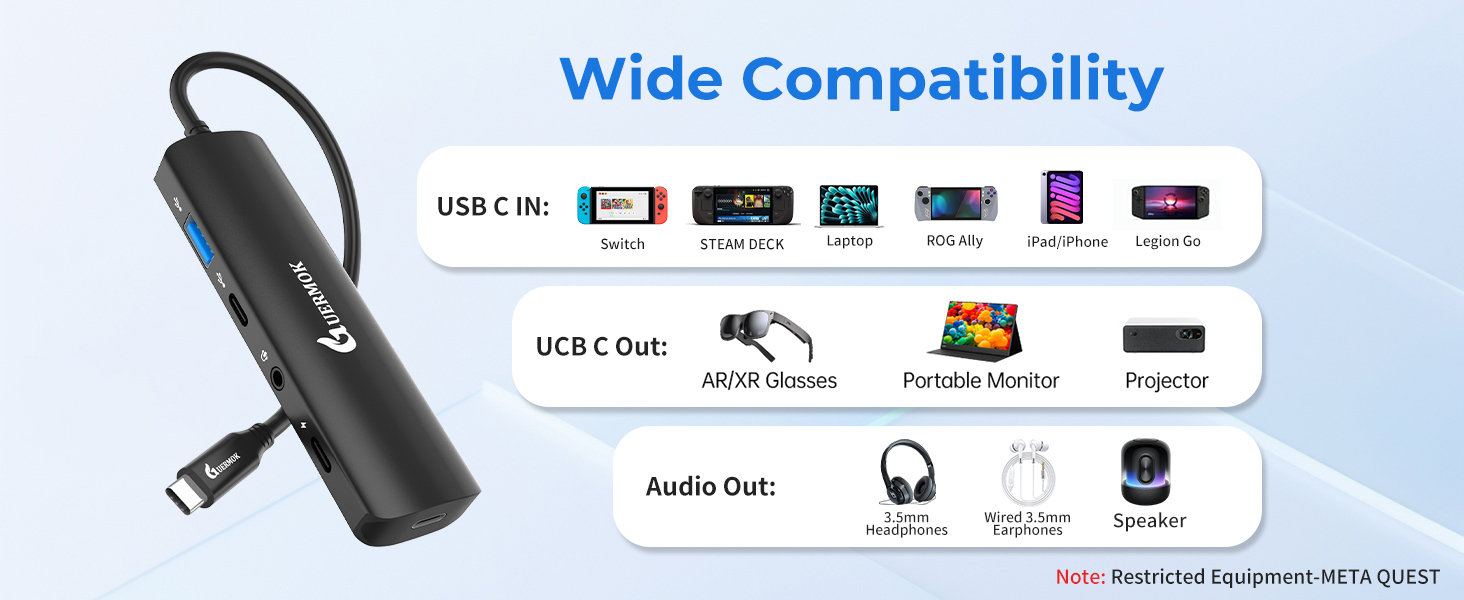
Please make sure that the USB-C port of the input device supports audio and video transmission, otherwise this product cannot be used;Connect the 3.5mm audio jack for audio playback and calls using headphones or external speakers, and the sound of external AR glasses or monitor will be switched
No Audio Output:
Check if the 3.5mm connector has been selected as the default audio device, and manually select the sound output channel when the computer device does not switch automatically.
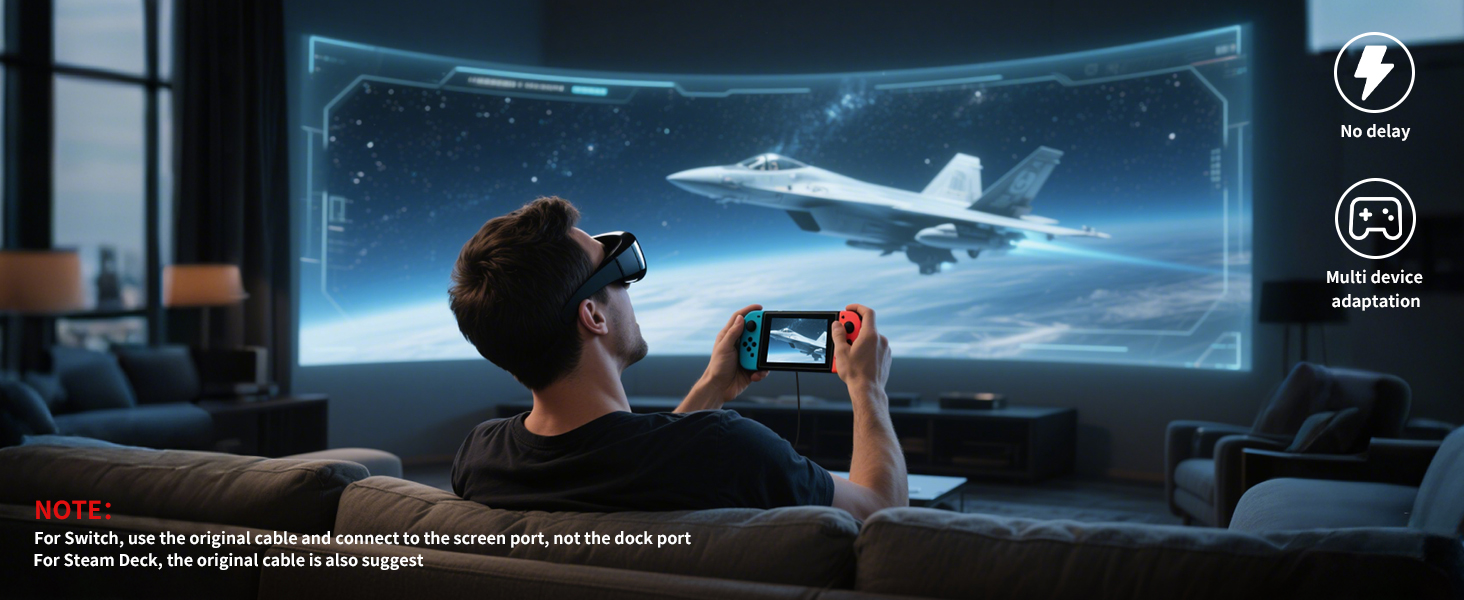
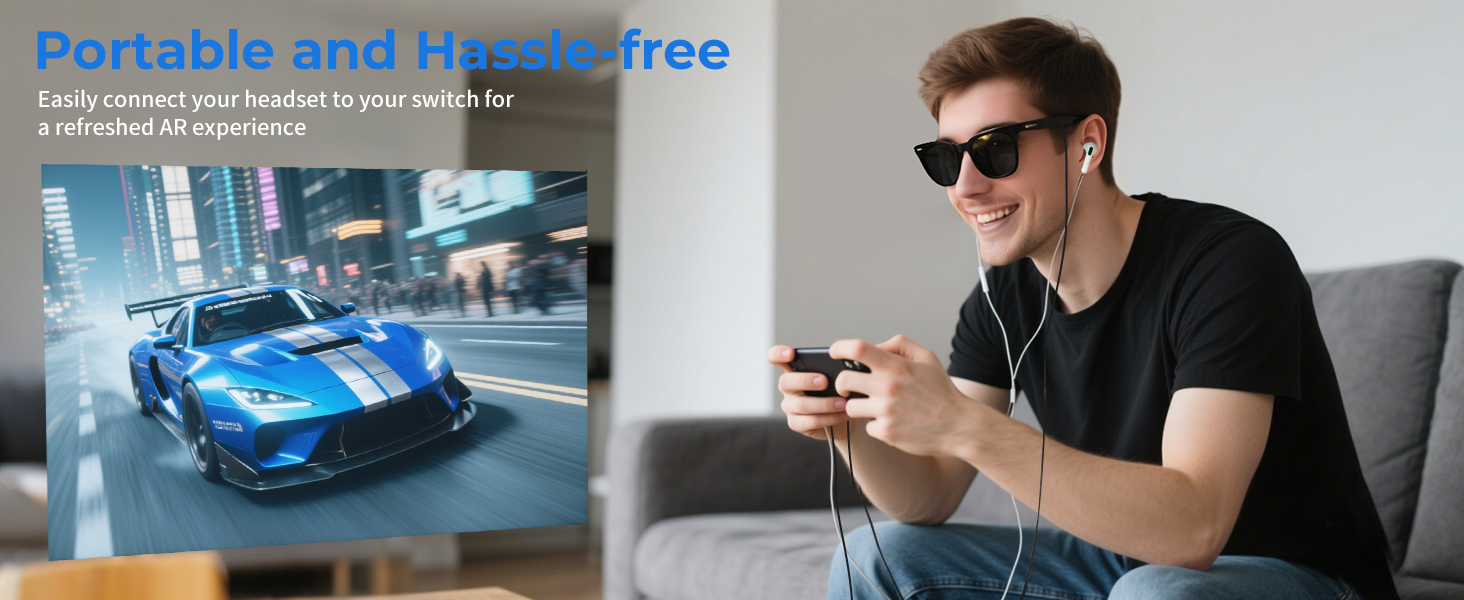
Switch-activated TV Mode:
Use the original Switch power adapter, or use the included USB-C charging cable and an adapter that supports 15V, 3A output.
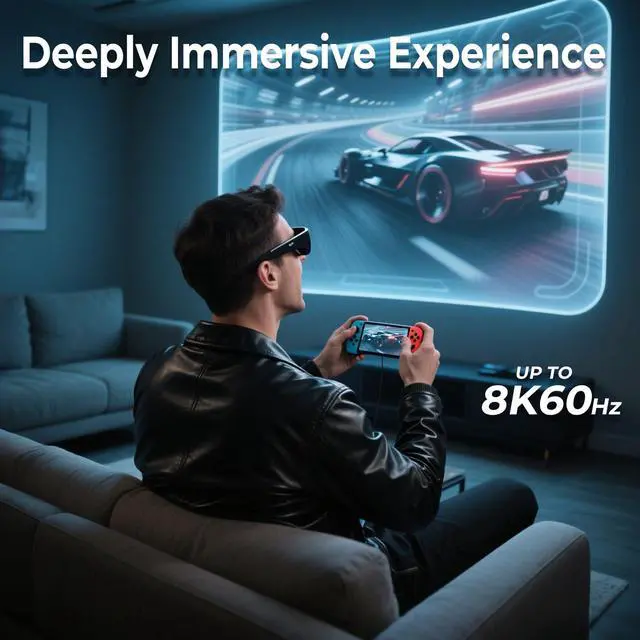
This product supports up to 8K@60Hz and is backward compatible with 4K, 2K, 1080P, and 720P. It also supports 1080P@144Hz and 1080P@120Hz. For optimal resolution and refresh rate, ensure both input and output devices support the required specifications
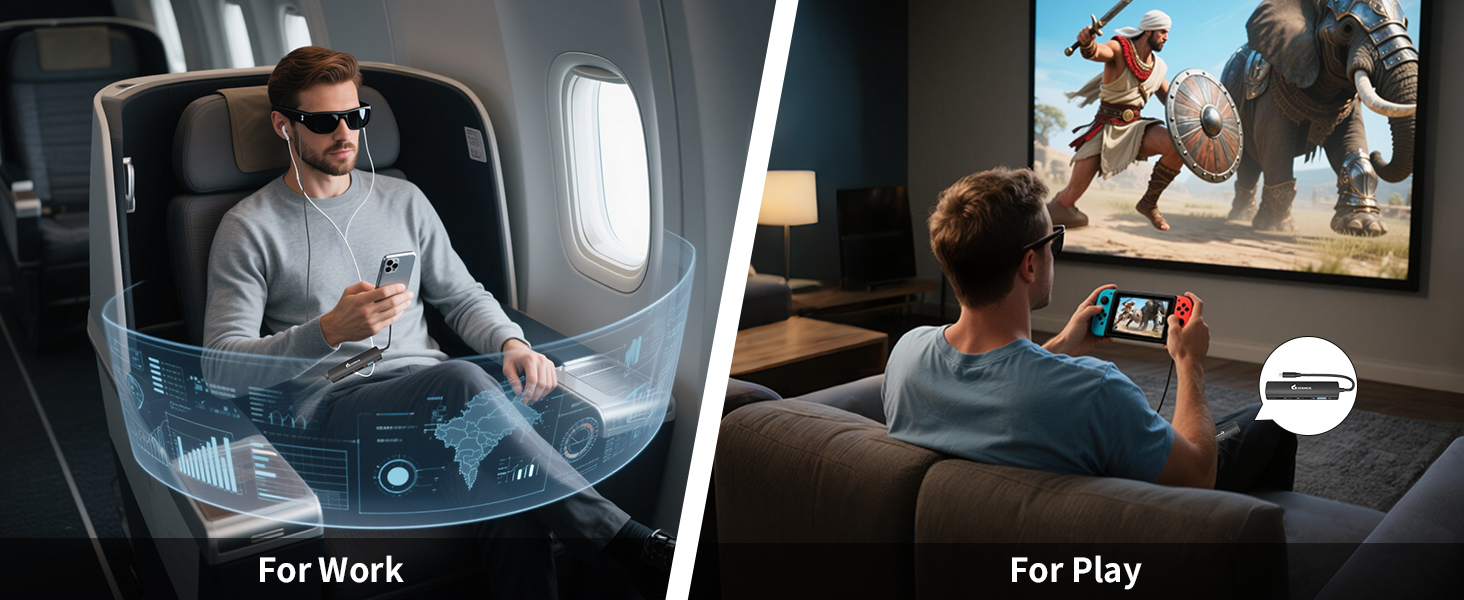
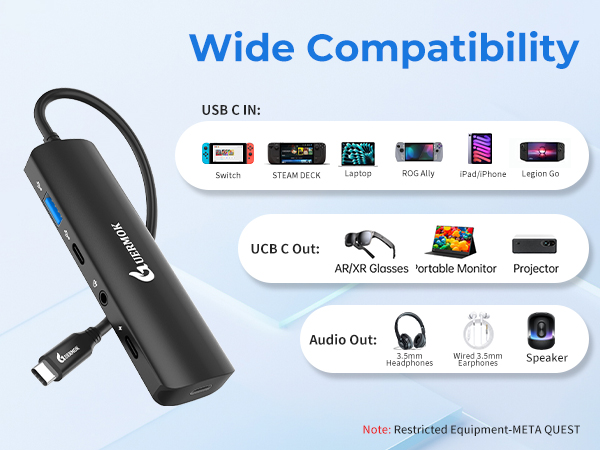
Compatible with various smart glasses: XREAL: XREAL Air 2 Pro, XREAL One, XREAL Air, XREAL Air 2, XREAL One Pro, XREAL Air 2 Ultra, Rokid Air/Max, Viture Pro/One, RayNeo Air 2s XR, Thunderbird AR, etc.
Note:
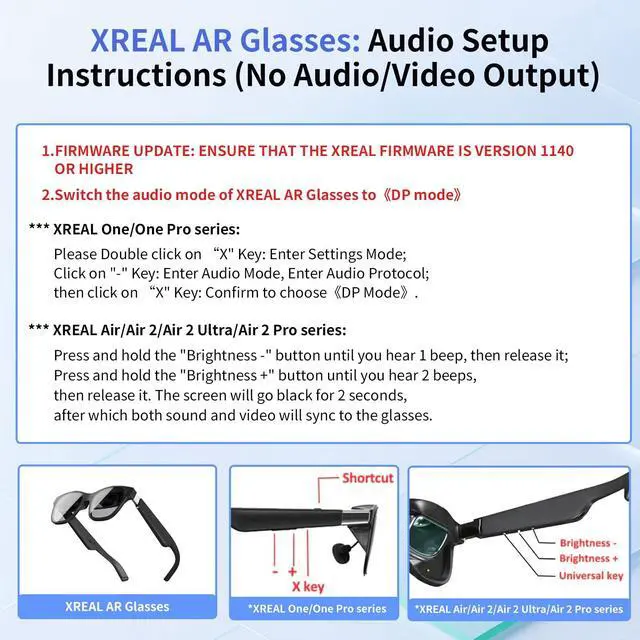
If there is no sound when the USB C adapter is connected to the XREAL Air/Air 2/Air 2 Ultra/Air 2 Pro seriesl AR glasses:
1. please update your Xreal glasses firmware to the latest version (update in the Xreal app on your phone).
2. After upgrading, press and hold Brightness - (one beep) and release; then press and hold Brightness + (two beeps), the screen will briefly go black and both audio and video will be displayed simultaneously
If there is no sound when the USB C adapter is connected to the XREALI One/One Pro series:
Please Double click on “X" Key: Enter Settings Mode;Click on "_" Key: Enter Audio Mode, Enter Audio Protocol;then click on “X" Key: Confirm to choose«DP Mode».
Nintendo Switch Connection Guide:
1. TV Settings: Select '1080p' for resolution and 'Auto' for audio.
2. Connect the USB-C connector to the USB-C port on the bottom of the Switch and detach the joystick.
3. Activate TV mode:Use the original Switch power adapter, or use the supplied USB-C charging cable and an adapter that supports 15V, 3A output.
Note: Nintendo Switch is sensitive to power requirements, and TV Mode must be powered by a power source that meets these requirements in order to function properly. If the screen does not turn black, check the power adapter specifications.
Guermok AR/XR Glasses Adapter
 5-in-1 USB-C AR Adapter | 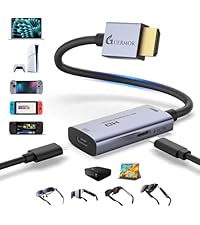 HDMI to USB-C AR Adapter | 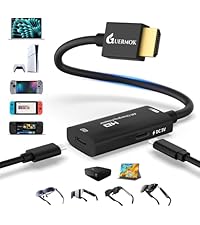 HDMI to USB-C AR Adapter |  5-in-1 USB-C AR Adapter |  Video Capture Card |  Video Capture Card |  Video Capture Card | |
|---|---|---|---|---|---|---|---|
Customer Reviews | — | — | — | — | — | — | — |
Price | — | — | — | — | — | — | — |
Supports Charging | ? | ? | ? | ? | ? | ? | ? |
Audio Out Port | ? | ? | ? | ? | ? | ? | ? |
Connection Port | USB-C to Type-C | HDMI to USB-C | HDMI to USB-C | HDMI to USB-A/C | HDMI to USB-A/C | HDMI to USB-A/C | HDMI to USB-A/C |
Charging Power | PD 100W | DC 5V | DC 5V | PD 100W | PD 100W | PD 100W | No |
Input Port Compatible Devices | Switch 1,Steam Deck,Rog Ally | Switch,Steam Deck,Rog Ally | Switch,Steam Deck,Rog Ally | Switch1/2 ,Steam Deck,Rog Ally | Ipad/Iphone/Laptop/XBOX/Webcam | Ipad/Iphone/Laptop/XBOX/Webcam | Ipad/Iphone/Laptop/XBOX/Webcam |
Input Port Compatible Devices | Laptop,Iphone/Ipad,Legion Go | PS5/4,Laptop,XBOX Series | PS5/4,Laptop,XBOX Series | Laptop,Iphone/Ipad,Legion Go | Switch/SteamDeck/Camera/PS5/4 | Switch/SteamDeck/Camera/PS5/4 | Switch/SteamDeck/Camera/PS5/4 |
Output Port Compatible Devices | XREAL One/Pro,XREAL Air/2/Pro | XREAL One/Pro,XREAL Air/2/Pro | XREAL One/Pro,XREAL Air/2/Pro | XREAL One/Pro,XREAL Air/2/Pro | Quest/Laptop | Quest/Laptop | Quest/Laptop |
Output Port Compatible Devices | Rokid Air/Max, Viture Pro/One | Rokid Air/Max, Viture Pro/One | Rokid Air/Max, Viture Pro/One | Rokid Air/Max, Viture Pro/One | All in one PC/Computer | All in one PC/Computer | All in one PC/Computer |
Output Port Compatible Devices | Studio display, Monitors | RayNeo Air 2/3s etc. | RayNeo Air 2/3s etc. | Studio display, Monitors | Ipad/Imac | Ipad/Imac | Ipad/Imac |
Product Usage | Screen transfer to AR glasses | Screen transfer to AR glasses | Screen transfer to AR glasses | Screen transfer to AR glasses | Live feed capture in real time | Live feed capture in real time | Live feed capture in real time |
Support Switch 2 | ? | ? | ? | ? | ? | ? | ? |
Maximum resolution | 8K 60hz | 4K 60hz | 4K 60hz | 4K 60hz | 1080P 60hz | 1080P 60hz | 1080P 60hz |
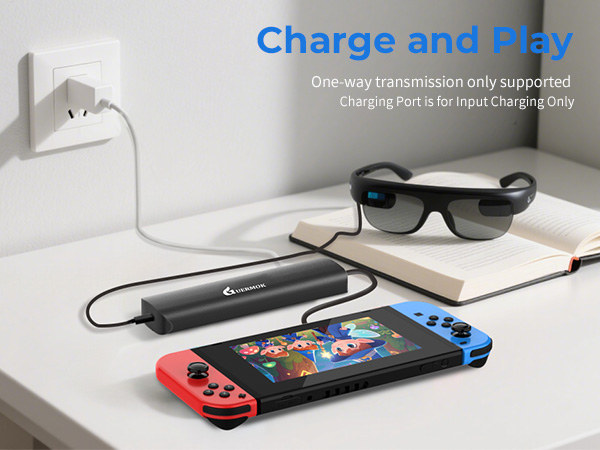
The Type-C fast charging port supports up to 100W PD and is intended exclusively for upstream fast charging of computers and mobile phones. It does not support downstream fast charging for display devices
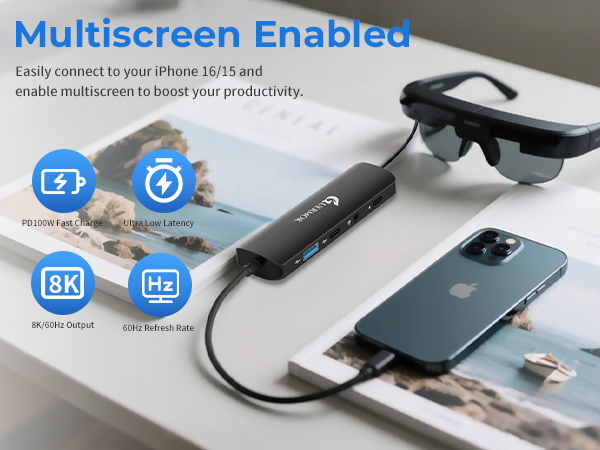
Please make sure that the USB-C port of the input device supports audio and video transmission, otherwise this product cannot be used;Connect the 3.5mm audio jack for audio playback and calls using headphones or external speakers, and the sound of external AR glasses or monitor will be switched
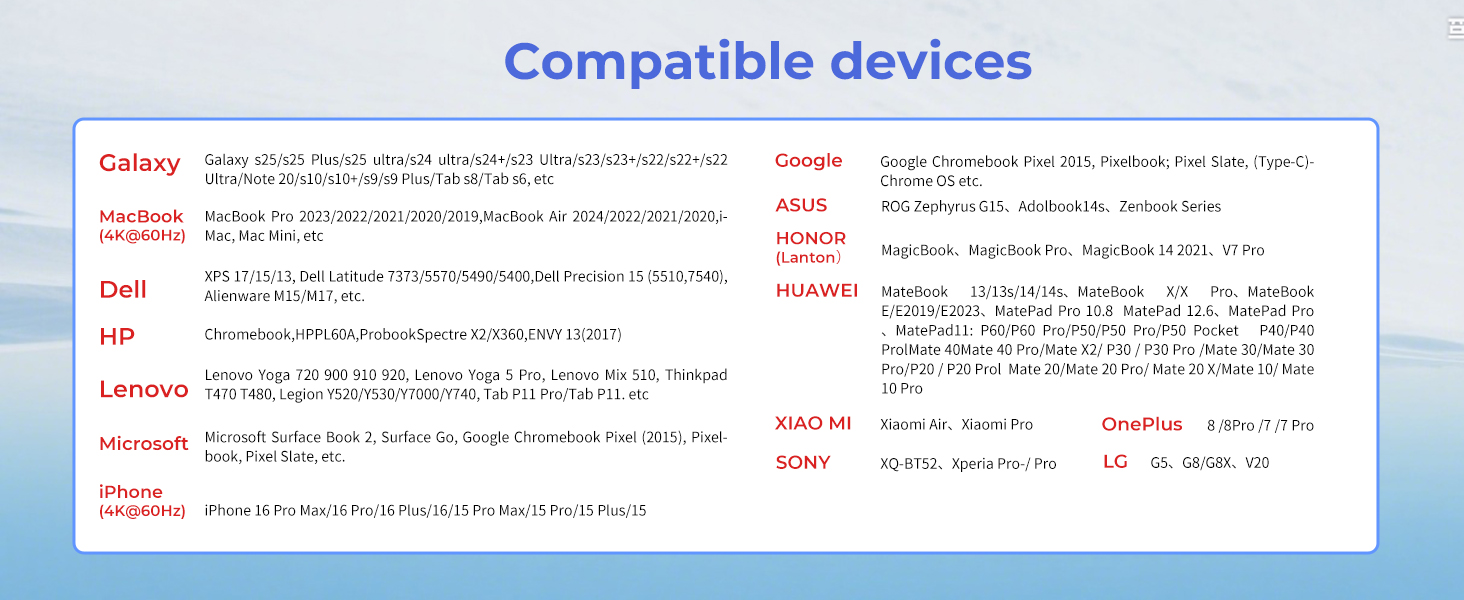
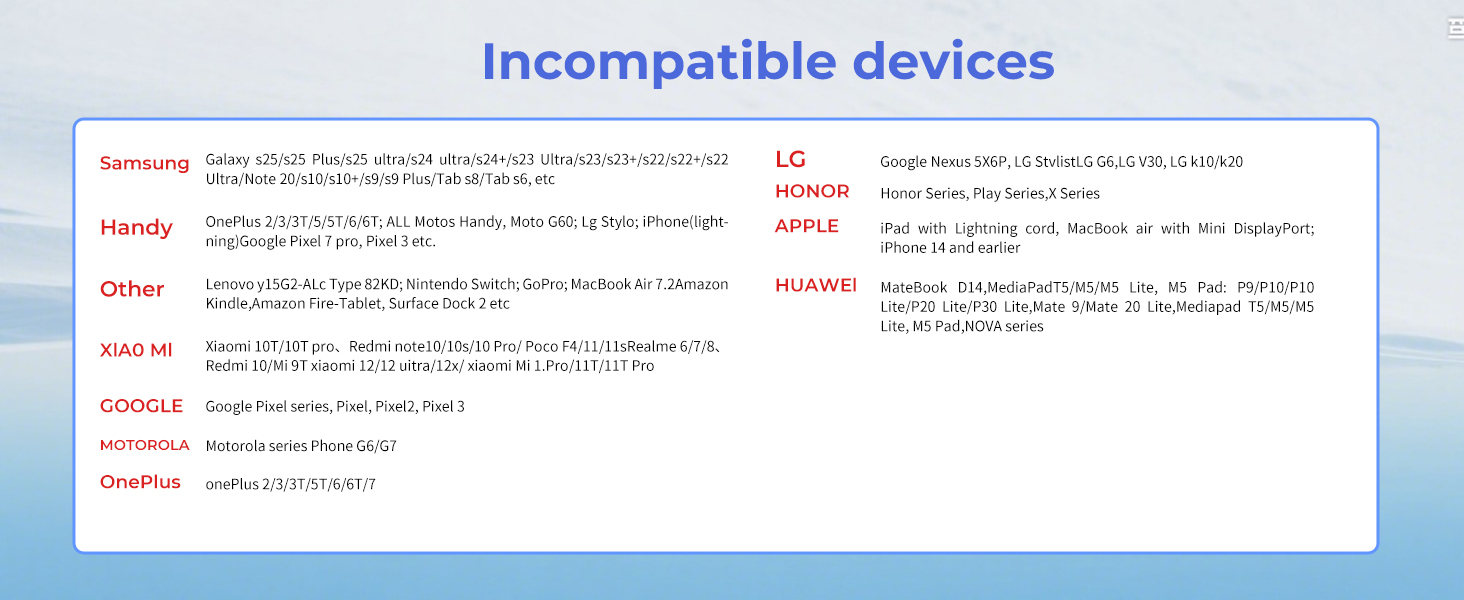
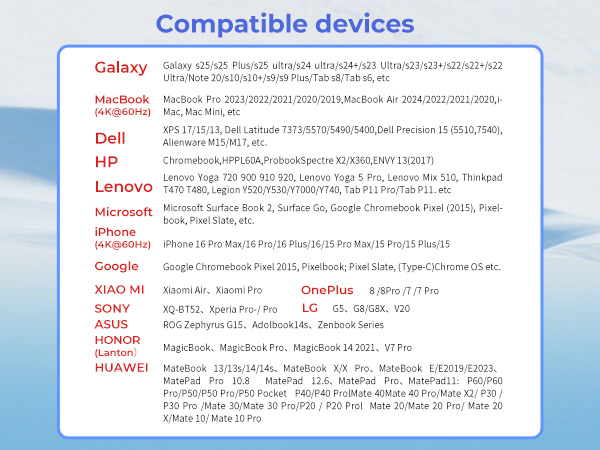
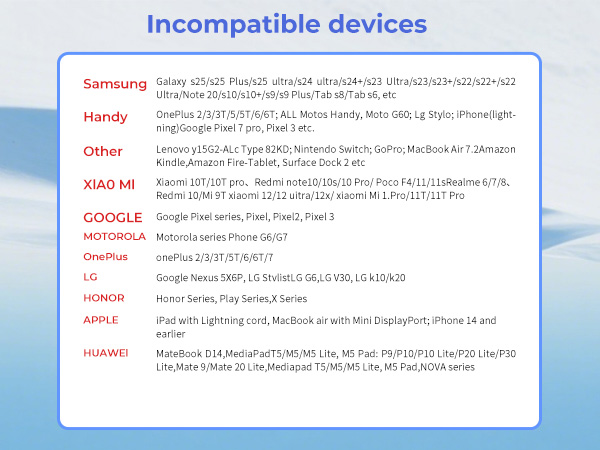
Google Pixel 7 or earlier and Moto G series don't support AR output, please avoid using them
Make sure the device supports DisplayPort Alt Mode and PD fast charging
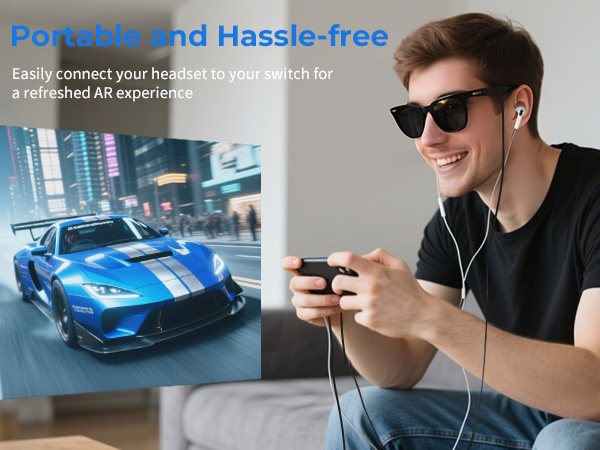
Before connecting, make sure that the AR glasses support USB-C video and audio transmission
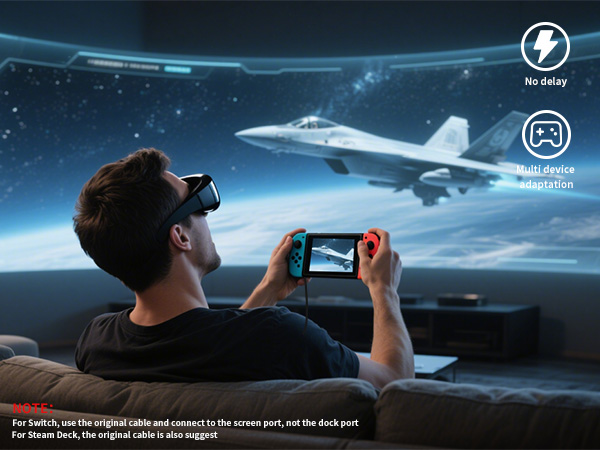
No Audio Output:
Check if the 3.5mm connector has been selected as the default audio device, and manually select the sound output channel when the computer device does not switch automatically.
Switch-activated TV Mode:
Use the original Switch power adapter, or use the included USB-C charging cable and an adapter that supports 15V, 3A output.
This product supports up to 8K@60Hz and is backward compatible with 4K, 2K, 1080P, and 720P. It also supports 1080P@144Hz and 1080P@120Hz. For optimal resolution and refresh rate, ensure both input and output devices support the required specifications
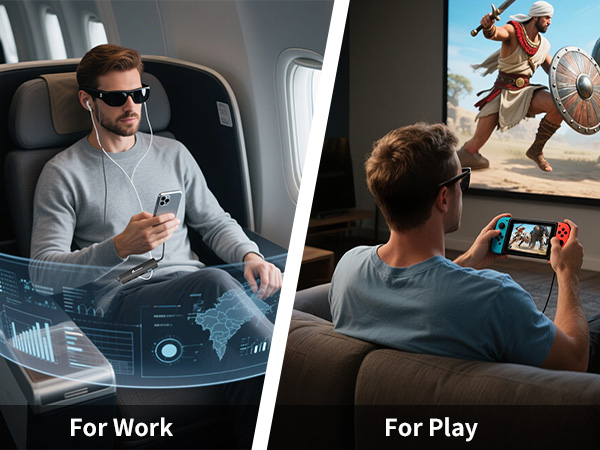
Compatible with various smart glasses: XREAL: XREAL Air 2 Pro, XREAL One, XREAL Air, XREAL Air 2, XREAL One Pro, XREAL Air 2 Ultra, Rokid Air/Max, Viture Pro/One, RayNeo Air 2s XR, Thunderbird AR, etc.
Note:
If there is no sound when the USB C adapter is connected to the XREAL Air/Air 2/Air 2 Ultra/Air 2 Pro seriesl AR glasses:
1. please update your Xreal glasses firmware to the latest version (update in the Xreal app on your phone).
2. After upgrading, press and hold Brightness - (one beep) and release; then press and hold Brightness + (two beeps), the screen will briefly go black and both audio and video will be displayed simultaneously
If there is no sound when the USB C adapter is connected to the XREALI One/One Pro series:
Please Double click on “X" Key: Enter Settings Mode;Click on "_" Key: Enter Audio Mode, Enter Audio Protocol;then click on “X" Key: Confirm to choose«DP Mode».
Nintendo Switch Connection Guide:
1. TV Settings: Select '1080p' for resolution and 'Auto' for audio.
2. Connect the USB-C connector to the USB-C port on the bottom of the Switch and detach the joystick.
3. Activate TV mode:Use the original Switch power adapter, or use the supplied USB-C charging cable and an adapter that supports 15V, 3A output.
Note: Nintendo Switch is sensitive to power requirements, and TV Mode must be powered by a power source that meets these requirements in order to function properly. If the screen does not turn black, check the power adapter specifications.
Guermok AR/XR Glasses Adapter
5-in-1 USB-C AR Adapter | HDMI to USB-C AR Adapter | HDMI to USB-C AR Adapter | 5-in-1 USB-C AR Adapter | Video Capture Card | Video Capture Card | Video Capture Card |
|---|---|---|---|---|---|---|
| Customer Reviews | ||||||
| — | — | — | — | — | — | — |
| Price | ||||||
| — | — | — | — | — | — | — |
| Supports Charging | ||||||
| ? | ? | ? | ? | ? | ? | ? |
| Audio Out Port | ||||||
| ? | ? | ? | ? | ? | ? | ? |
| Connection Port | ||||||
| USB-C to Type-C | HDMI to USB-C | HDMI to USB-C | HDMI to USB-A/C | HDMI to USB-A/C | HDMI to USB-A/C | HDMI to USB-A/C |
| Charging Power | ||||||
| PD 100W | DC 5V | DC 5V | PD 100W | PD 100W | PD 100W | No |
| Input Port Compatible Devices | ||||||
| Switch 1,Steam Deck,Rog Ally | Switch,Steam Deck,Rog Ally | Switch,Steam Deck,Rog Ally | Switch1/2 ,Steam Deck,Rog Ally | Ipad/Iphone/Laptop/XBOX/Webcam | Ipad/Iphone/Laptop/XBOX/Webcam | Ipad/Iphone/Laptop/XBOX/Webcam |
| Input Port Compatible Devices | ||||||
| Laptop,Iphone/Ipad,Legion Go | PS5/4,Laptop,XBOX Series | PS5/4,Laptop,XBOX Series | Laptop,Iphone/Ipad,Legion Go | Switch/SteamDeck/Camera/PS5/4 | Switch/SteamDeck/Camera/PS5/4 | Switch/SteamDeck/Camera/PS5/4 |
| Output Port Compatible Devices | ||||||
| XREAL One/Pro,XREAL Air/2/Pro | XREAL One/Pro,XREAL Air/2/Pro | XREAL One/Pro,XREAL Air/2/Pro | XREAL One/Pro,XREAL Air/2/Pro | Quest/Laptop | Quest/Laptop | Quest/Laptop |
| Output Port Compatible Devices | ||||||
| Rokid Air/Max, Viture Pro/One | Rokid Air/Max, Viture Pro/One | Rokid Air/Max, Viture Pro/One | Rokid Air/Max, Viture Pro/One | All in one PC/Computer | All in one PC/Computer | All in one PC/Computer |
| Output Port Compatible Devices | ||||||
| Studio display, Monitors | RayNeo Air 2/3s etc. | RayNeo Air 2/3s etc. | Studio display, Monitors | Ipad/Imac | Ipad/Imac | Ipad/Imac |
| Product Usage | ||||||
| Screen transfer to AR glasses | Screen transfer to AR glasses | Screen transfer to AR glasses | Screen transfer to AR glasses | Live feed capture in real time | Live feed capture in real time | Live feed capture in real time |
| Support Switch 2 | ||||||
| ? | ? | ? | ? | ? | ? | ? |
| Maximum resolution | ||||||
| 8K 60hz | 4K 60hz | 4K 60hz | 4K 60hz | 1080P 60hz | 1080P 60hz | 1080P 60hz |
GUERMOK For Your Eletronics
Redefining Gaming, Uniting Office Excellence, and Live Streaming Thrills
Our Genesis
Guermok's story unfolds at the intersection of passion for gaming, the pursuit of streamlined office life, and the captivating allure of live streaming. We believe that these realms aren't just separate activities but integral parts of modern living. Our commitment is to provide innovative products that fuse these elements harmoniously.
4K 60FPS capture card
Live Streaming Excellence
4K 60FPS Capture with PD100w
AR Glasses Converter (Switch2)
USBC to HDMI Adapter (Switch2)
PD100W Fast Charging
Innovative Gaming Solutions
The Brand Philosophy
At Guermok, our brand philosophy is simple yet profound: make gaming a lifestyle, bring office excellence to the forefront, and infuse the thrill of live streaming into every moment. We encourage you to transcend boundaries and seamlessly integrate these facets into your daily life.
Empowering Office Life
Label Holder
Live Gaming
Video Recorder
Live Streaming
Community-Centric
Guermok isn't just a brand; it's a community of like-minded individuals who understand the importance of balancing work, play, and entertainment. Our community encourages sharing, support, and the creation of unforgettable moments.
Thank You for Your Support
Guermok extends heartfelt gratitude to our customers, gamers, office professionals, and live streamers alike. Our mission is to empower you to seamlessly integrate these facets of modern life, ensuring you have the tools to succeed in work and play.
Guermok
where gaming, office, and live streaming unite in excellence.