






USB C to Dual DisplayPort Splitter Extended Display
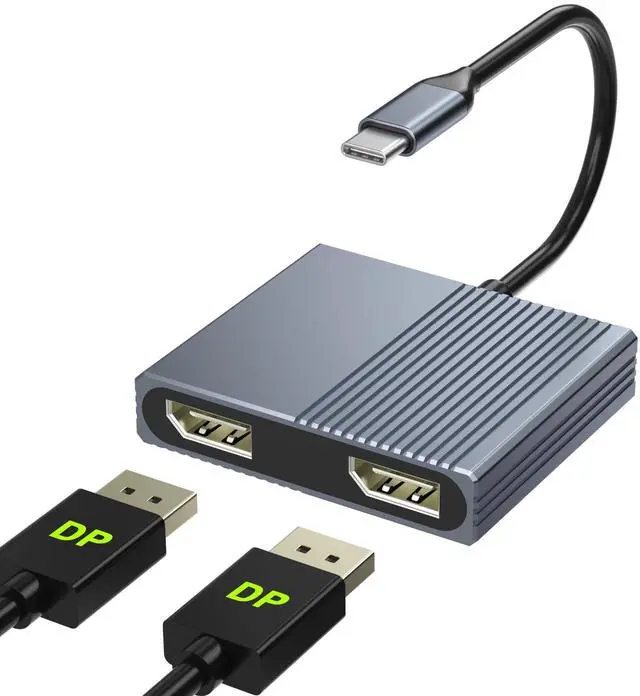
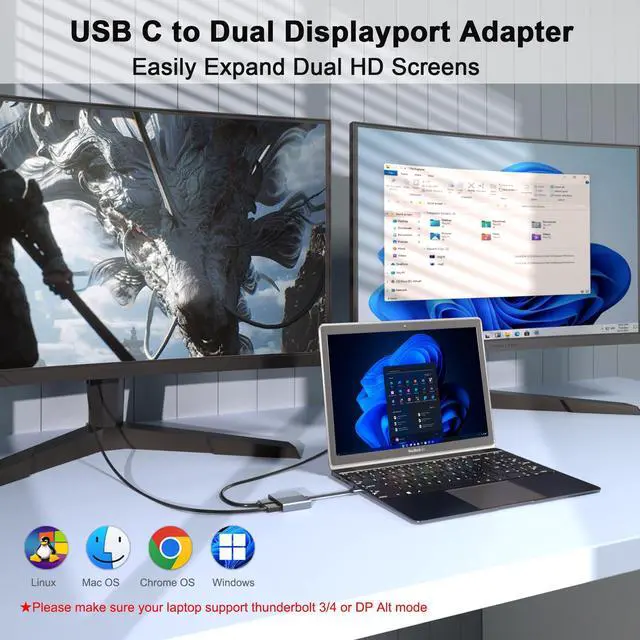
The USB-C to Dual DisplayPort MST hub allows you connect two independent DisplayPort monitors to a laptop or PC via a USB-C port that supports DP Alt Mode. It enables dual 4K@60Hz displays with a single connection, allowing you to extend two different screens for enhanced productivity and efficient multitasking.
Product Features:
- Output to two 4K displays via USB-C
- Supports 4K@60Hz
- Selectable extend/mirror modes
- Compatible with ultra-wide monitors
- Simple plug-and-play connection
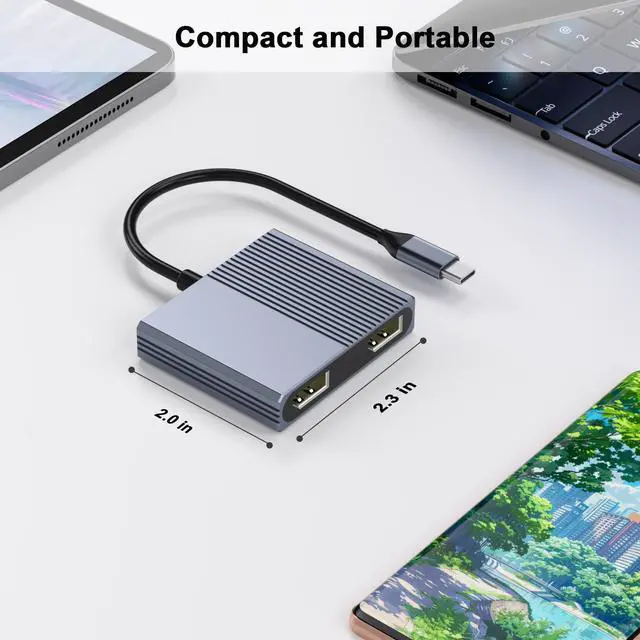
- Durable aluminum design with excellent heat dissipation
Please note:Insufficient power supply may cause unstable video output. This adapter does not provide additional power to your computer. To ensure normal and stable image output, you should use a separate power adapter to charge your computer.

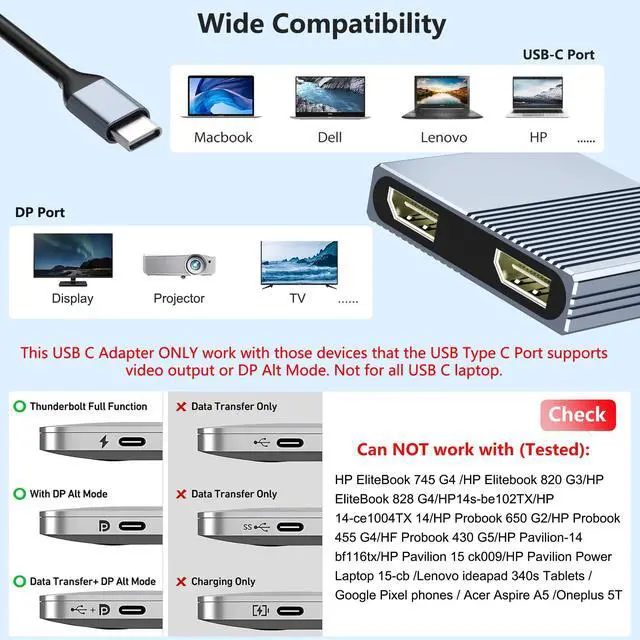
Note: NOT for all USB-C port laptops, Make sure your laptop or PC supports ” Thunderbolt 3” ” Thunderbolt 4”or “displayport output mode(DP ALT mode.
What is USB-C DP ALT Mode?
DP Alt Mode allows USB-C ports to transfer dataideo via multiple interfaces, including the increasingly popular DisplayPort video interface. USB-C ports capable of transferring DisplayPort signals are either called USB-C DisplayPort or DP Alt Mode. They allow you to connect video sources (e.g. PCs, Blu-Ray players, etc.) and display devices (e.g. TVs, projectors, etc.) that support DisplayPort to each other via their USB-C ports to broadcast high-definition video.
But now not all USB-C ports feature DisplayPort Alt Mode functionality.
How do I know if my device supports DisplayPort over USB-C?
The best method to decipher whether your device supports DisplayPort over USB-C is to check either the product specs on the manufacturer’s official website or to check websites with in-depth product reviews and/or information. Within those sites you’ll be able to find detailed breakdowns of each port on the device.
Basically, Thunderbolt 3, Thunderbolt 4, and USB C 3.1 Gen 2 (or above) support video output. If you are not sure, you are welcome to ask us for a device compatibility check before purchase.

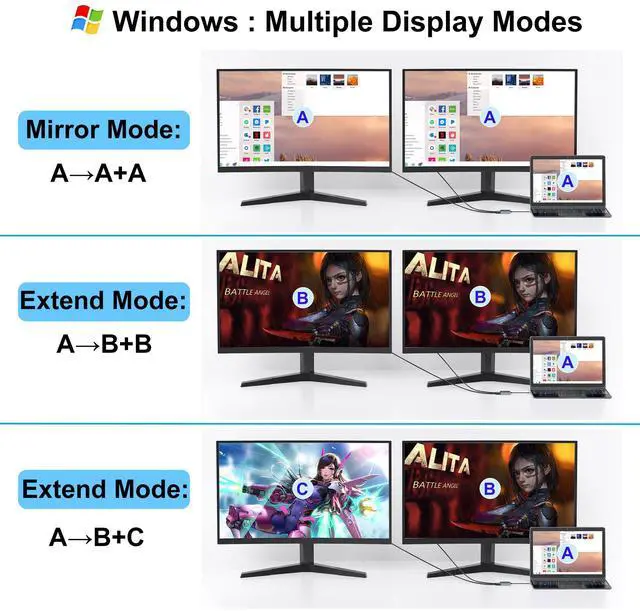
Windows System-Multiple Display Mode-Mirror Mode & Extend Mode:
Mirror Mode (AAA Mode):Laptop shows same images with external dual displays.
Extend Mode (ABB and ABC Mode):Laptop shows different images with external dual displays.
How to extend monitor on Windows: Right-click desktop? select Intel display Settings ? pop-up Settings screen select display? select multi-screen display? expand the desktop

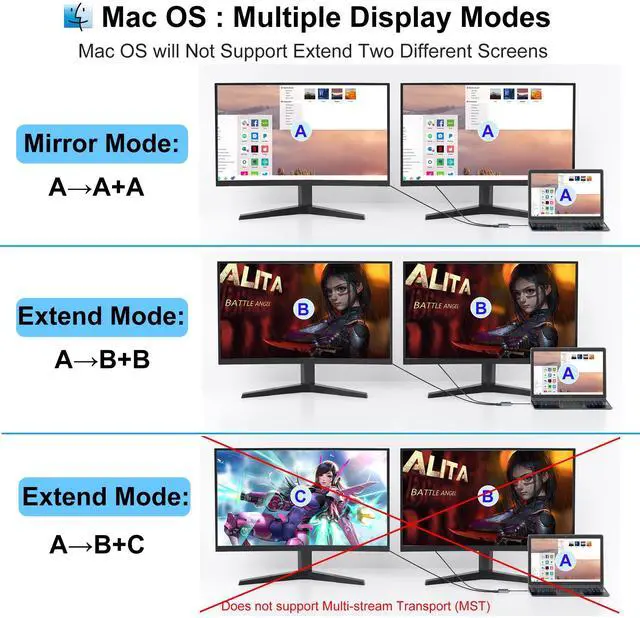
MacOS System -Mirror Mode & Extend Mode -Only SST Supported:
Mirror Mode (AAA Mode):Laptop shows same images with displays.
Extend Mode (ABB Mode):3 external screen display same images but different with laptop.
How to extend monitor on macOS: Setting ? Display ?click the "mirror display" box to switch to Extend mode ? then you can drag a window of website/movie to the rightest side of your desktop screen until it disappear on your desktop screen and show up on the external monitor screen.
Note: ON MacOS only SST mode (AAA and ABB mode) supported due to MacOS limitation.It will Not Support Extend Two Different Screens.


Dual 4K@60Hz DisplayPort
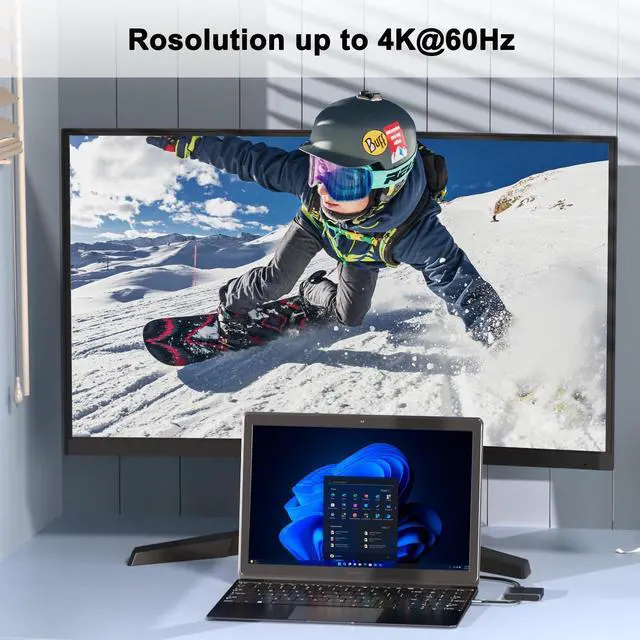
This dual display port to USB C adapter resolution up to 4K @60HZ, it also support 1440p and 1080p at 60Hz offered by the DisplayPort MST technology.
Please make sure the USB-C port of your Windows laptop supports DP1.4 that the dual displayport reach a maximum 4K@60Hz resolution.
Checking Your DisplayPort (DP) Version:
If you're using a Windows device, you can know which version of DP you have by checking your CPU generation.
DP version 1.2 if your CPU is Intel generation 10 or earlier.
DP version 1.4 if your CPU is Intel generation 11 or later.
DP version 1.4 if you're using a workstation laptop with an NVIDIA GPU.
If you're using a MacBook, iMac, or iPad, you can find your DP version from the list below:
DP 1.4: iPad Pro (3rd generation and later), MacBook Pro ( 2017, 2019, 2020, 2021), MacBook Air (2020), MacBook Air (13-inch, M1, 2020), iMac (2017 and later), iMac Pro (2017 and later)
DP 1.2: iPad Air (4th generation), MacBook Air (2018), MacBook Pro (2016), Mac mini (2018)



In the age of digital innovation, Aibilangose stands as a beacon of simplicity and efficiency. Our mission is to provide innovative solutions that simplify digital lives.
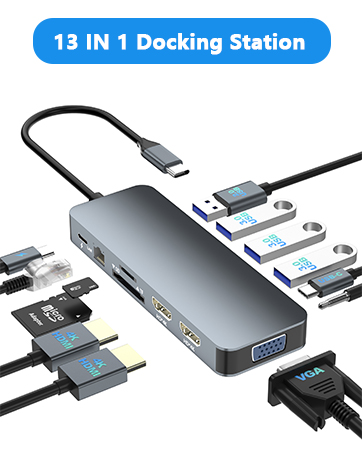
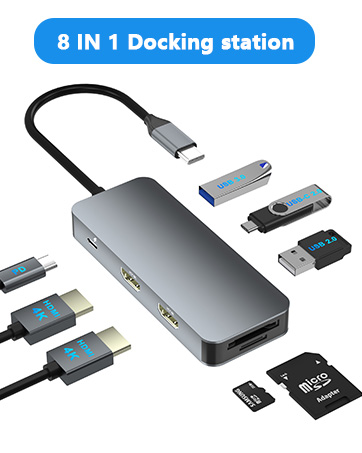
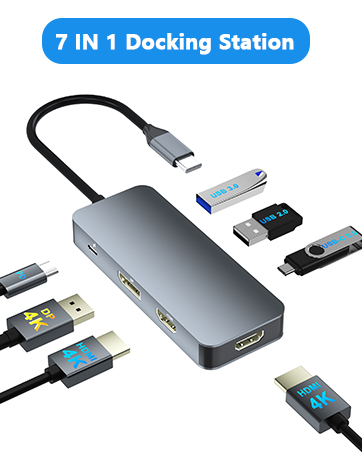
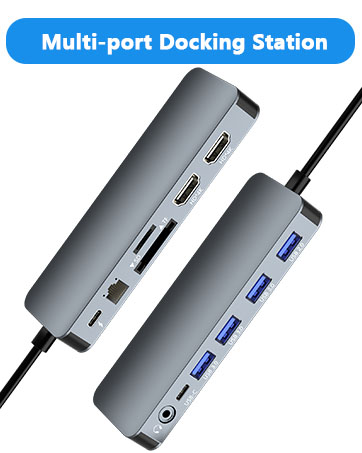
Our flagship product the docking station offers numerous ports and connectivity options, allowing seamless connection of laptops, monitors, and peripherals, and storage devices.
We believe a well-organized workspace significantly boosts efficiency and creativity.
USB C Docking Station
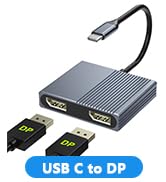
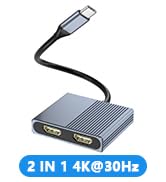
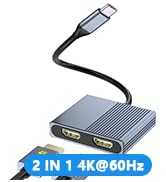
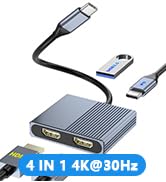
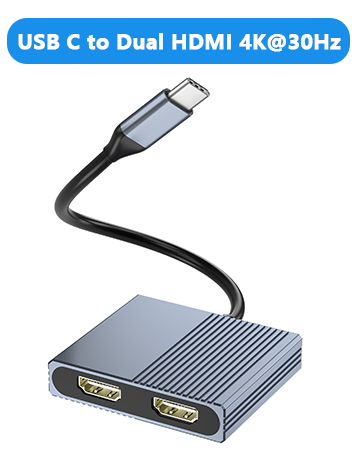
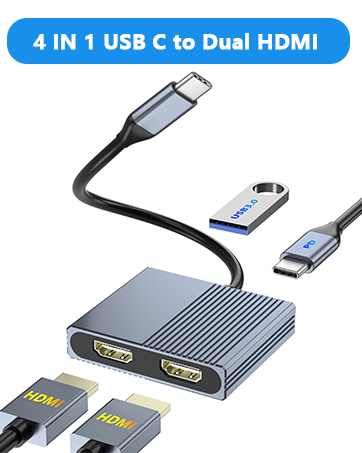
USB C to Dual DP/Dual HDMI
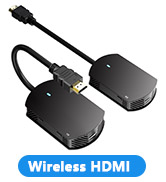
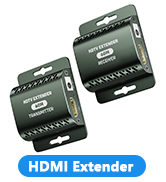
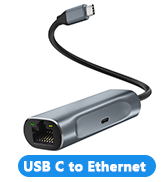
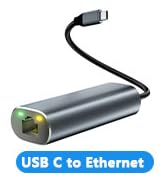
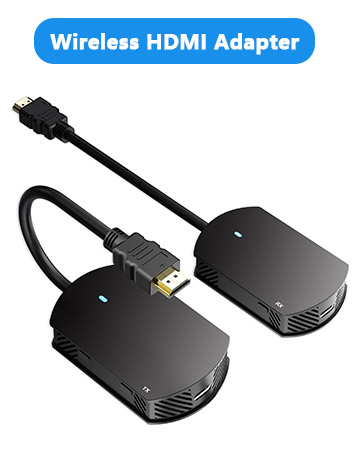
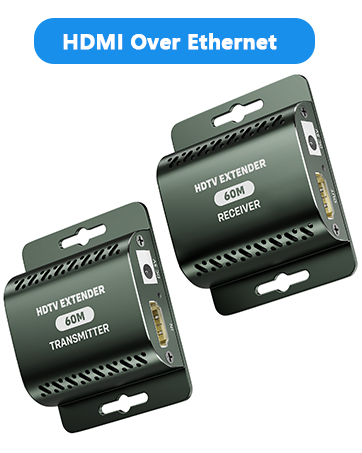
HDMI Extender/USB to Ethernet
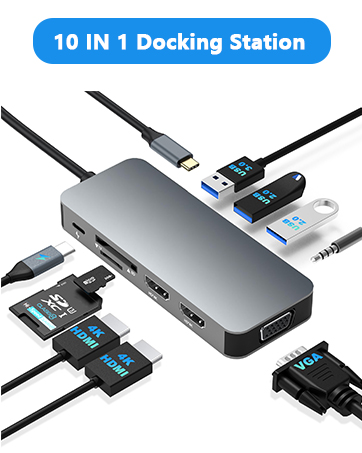

USB C to Dual DisplayPort Splitter Extended Display
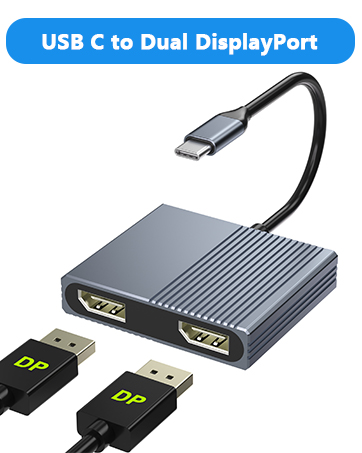
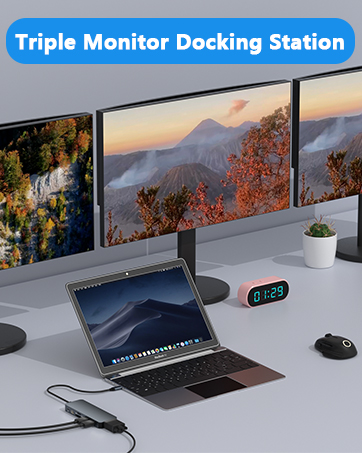
The USB-C to Dual DisplayPort MST hub allows you connect two independent DisplayPort monitors to a laptop or PC via a USB-C port that supports DP Alt Mode. It enables dual 4K@60Hz displays with a single connection, allowing you to extend two different screens for enhanced productivity and efficient multitasking.
Product Features:
- Output to two 4K displays via USB-C
- Supports 4K@60Hz
- Selectable extend/mirror modes
- Compatible with ultra-wide monitors
- Simple plug-and-play connection
- Durable aluminum design with excellent heat dissipation
Please note:Insufficient power supply may cause unstable video output. This adapter does not provide additional power to your computer. To ensure normal and stable image output, you should use a separate power adapter to charge your computer.
Note: NOT for all USB-C port laptops, Make sure your laptop or PC supports ” Thunderbolt 3” ” Thunderbolt 4”or “displayport output mode(DP ALT mode.
What is USB-C DP ALT Mode?
DP Alt Mode allows USB-C ports to transfer dataideo via multiple interfaces, including the increasingly popular DisplayPort video interface. USB-C ports capable of transferring DisplayPort signals are either called USB-C DisplayPort or DP Alt Mode. They allow you to connect video sources (e.g. PCs, Blu-Ray players, etc.) and display devices (e.g. TVs, projectors, etc.) that support DisplayPort to each other via their USB-C ports to broadcast high-definition video.
But now not all USB-C ports feature DisplayPort Alt Mode functionality.
How do I know if my device supports DisplayPort over USB-C?
The best method to decipher whether your device supports DisplayPort over USB-C is to check either the product specs on the manufacturer’s official website or to check websites with in-depth product reviews and/or information. Within those sites you’ll be able to find detailed breakdowns of each port on the device.
Basically, Thunderbolt 3, Thunderbolt 4, and USB C 3.1 Gen 2 (or above) support video output. If you are not sure, you are welcome to ask us for a device compatibility check before purchase.
Windows System-Multiple Display Mode-Mirror Mode & Extend Mode:
Mirror Mode (AAA Mode):Laptop shows same images with external dual displays.
Extend Mode (ABB and ABC Mode):Laptop shows different images with external dual displays.
How to extend monitor on Windows: Right-click desktop? select Intel display Settings ? pop-up Settings screen select display? select multi-screen display? expand the desktop
MacOS System -Mirror Mode & Extend Mode -Only SST Supported:
Mirror Mode (AAA Mode):Laptop shows same images with displays.
Extend Mode (ABB Mode):3 external screen display same images but different with laptop.
How to extend monitor on macOS: Setting ? Display ?click the "mirror display" box to switch to Extend mode ? then you can drag a window of website/movie to the rightest side of your desktop screen until it disappear on your desktop screen and show up on the external monitor screen.
Note: ON MacOS only SST mode (AAA and ABB mode) supported due to MacOS limitation.It will Not Support Extend Two Different Screens.
Dual 4K@60Hz DisplayPort
This dual display port to USB C adapter resolution up to 4K @60HZ, it also support 1440p and 1080p at 60Hz offered by the DisplayPort MST technology.
Please make sure the USB-C port of your Windows laptop supports DP1.4 that the dual displayport reach a maximum 4K@60Hz resolution.
Checking Your DisplayPort (DP) Version:
If you're using a Windows device, you can know which version of DP you have by checking your CPU generation.
DP version 1.2 if your CPU is Intel generation 10 or earlier.
DP version 1.4 if your CPU is Intel generation 11 or later.
DP version 1.4 if you're using a workstation laptop with an NVIDIA GPU.
If you're using a MacBook, iMac, or iPad, you can find your DP version from the list below:
DP 1.4: iPad Pro (3rd generation and later), MacBook Pro ( 2017, 2019, 2020, 2021), MacBook Air (2020), MacBook Air (13-inch, M1, 2020), iMac (2017 and later), iMac Pro (2017 and later)
DP 1.2: iPad Air (4th generation), MacBook Air (2018), MacBook Pro (2016), Mac mini (2018)
In the age of digital innovation, Aibilangose stands as a beacon of simplicity and efficiency. Our mission is to provide innovative solutions that simplify digital lives.
Our flagship product the docking station offers numerous ports and connectivity options, allowing seamless connection of laptops, monitors, and peripherals, and storage devices.
We believe a well-organized workspace significantly boosts efficiency and creativity.
USB C Docking Station
USB C to Dual DP/Dual HDMI
HDMI Extender/USB to Ethernet