
Your Browsing History





Any questions? Our AI beta will help you find out quickly.
Easy to Connect to Your TV
Step 1
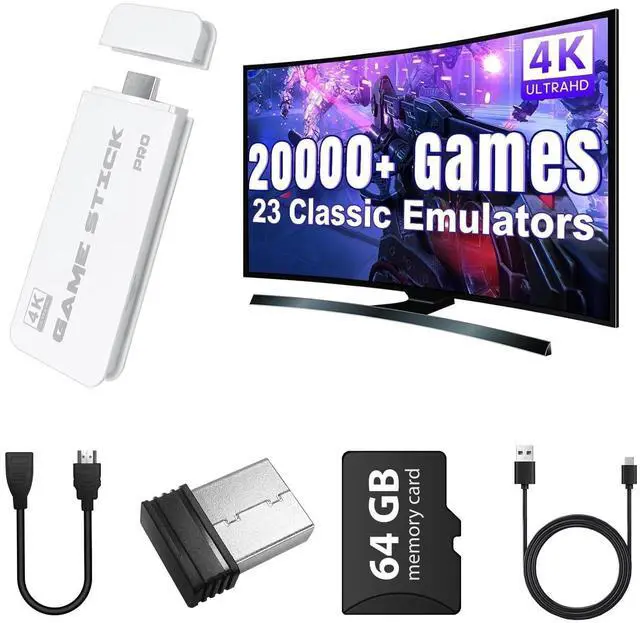
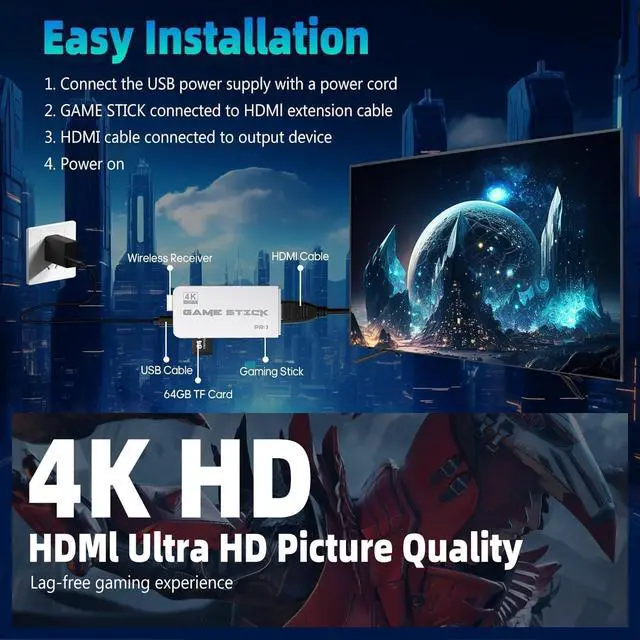
Connect to TV: Please use the HDMI extension cable provided to plug the retro video game console into your TV/Computer/projectors HDMI interface to ensure there is no blockage between the retro stick and the gamepads. And switch TV mode to HDMI mode.
Note: If plug the retro stick directly into your TV/Computer/projectors HDMI interface without an HDMI extension cable, the controller signal will be poor and the retro stick will get clogged, resulting in gamepad non-working.
Step 2
Insert the Controller wireless receiver to the retro gaming stick, and make sure there is no blockage between the controller signal receiver and the gamepad.
Note: If the wireless receiver is not plugged in properly, the retro stick will not be able to receive a signal, which will cause the gamepad doesn't work.
Step 3
Power Supply: Connect with a charging adapter (Not included) and the power will turn on automatically.
Note: Please use a 5V/1A or higher power adapter to provide power to the retro stick. When retro gaming consoles don't work properly or games lag, a big reason is that the power is not available from the USB port. It is recommended to connect with the adapter of the phone charger, the power supply will be relatively stable. Please do not use the fast charger for power supply.
Step 4
Install 2 AAA batteries (Not included) on each gamepad and turn on the switch, you're ready to play.
Trouble shooting
If the retro stick does not work, please follow these steps to check that the device is properly connected:
1. Check whether the switch of the gamepad is in the ON state.
2. Check whether the gamepad is lit red or green (red for player 1, green for player 2);
3. Check whether the Bluetooth wireless receiver is well inserted into the retro stick;
4. Check whether the stick lights up blue;
5. If the connection is correct, the primary gamepad(player 1) is red and the secondary gamepad (player 2)is green.
6. If the traffic lights are flashing at the same time, it means that the battery is low or the wireless receiver has not been successfully connected.
(1) If the battery is low, replace the batteries of the gamepad.
(2) If the Bluetooth wireless receiver connection is not successful, (may not be able to read the retro stick), please pull out the wireless receiver in the shutdown state and reinsert.
Button Description
Press the SELECT key to enter the system settings: you can set language, sound effects.
Press SELECT key +START key: When you hold down the two keys in the game at the same time to return to the main menu, choose to quit the game enter the qame menu interface
Press R1 and L1 to select the game mode
Press R2 to save your favorite game (a five-pointed star appears behind the game name indicating succesful collection, press R2 again to cancel the collection and the five-pointed star will disappear).
If some games show "insert coin", press the "Select" button to continue playing.
Make sure the switch of the gamepad is turned on and the power light is always on.