4 Port 4K@60Hz Dual Monitor DisplayPort KVM Switch (DP+ DP+DP+DP)
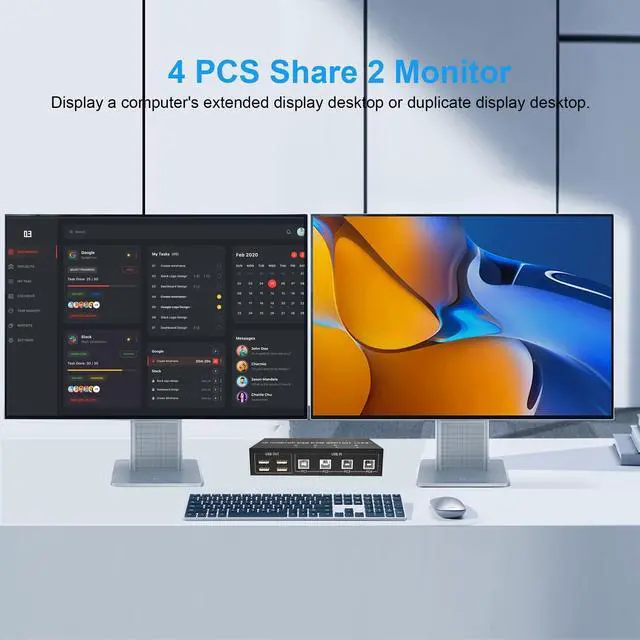
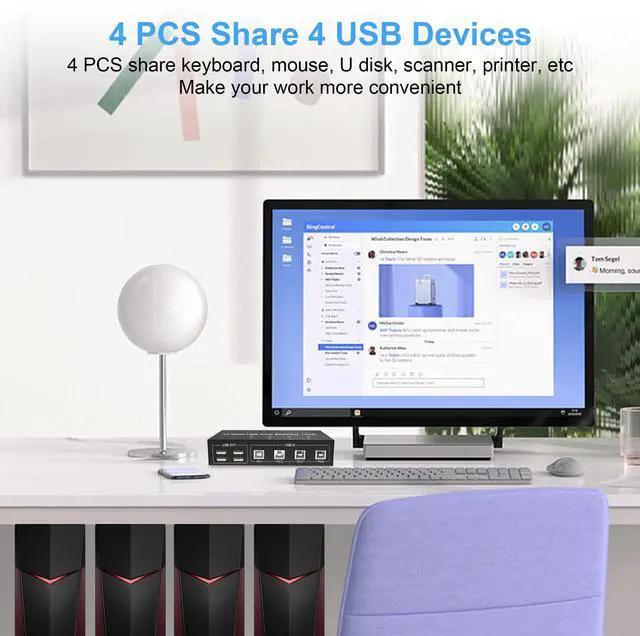
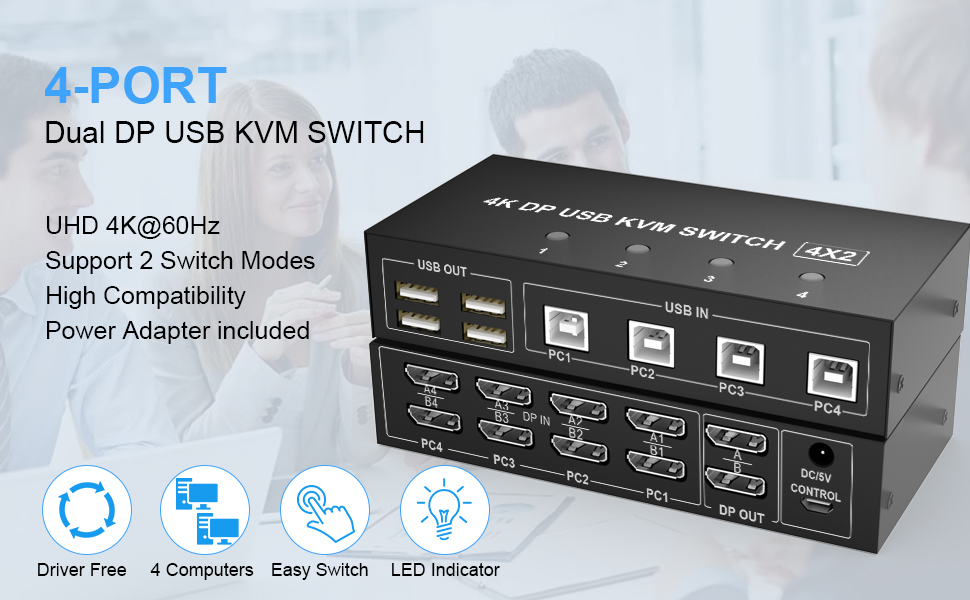
- * This DisplayPort KVM Switch 4-Port, you can easily control 4 signal sources at the same time, share the same keyboard and mouse, and share 2 monitors.
- You can toggle and control any input device at any time with a button switch.
Feature:
- 1. 4 computers share one set of keyboard, mouse and 2 monitors, and other USB devices.
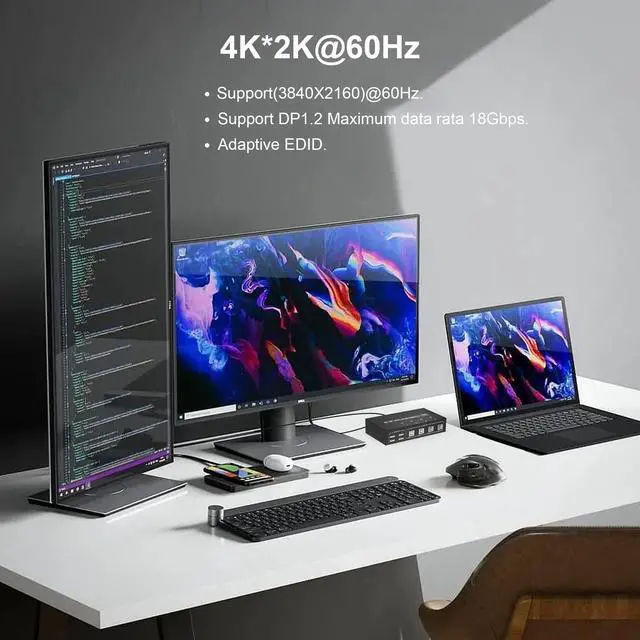
- 2. This dual monitor DisplayPort KVM switch supports up to 4K@60Hz. It offers an ultra-high definition visual experience.
- 3. Supports DP1.2 with a transfer rate of 18Gbps.
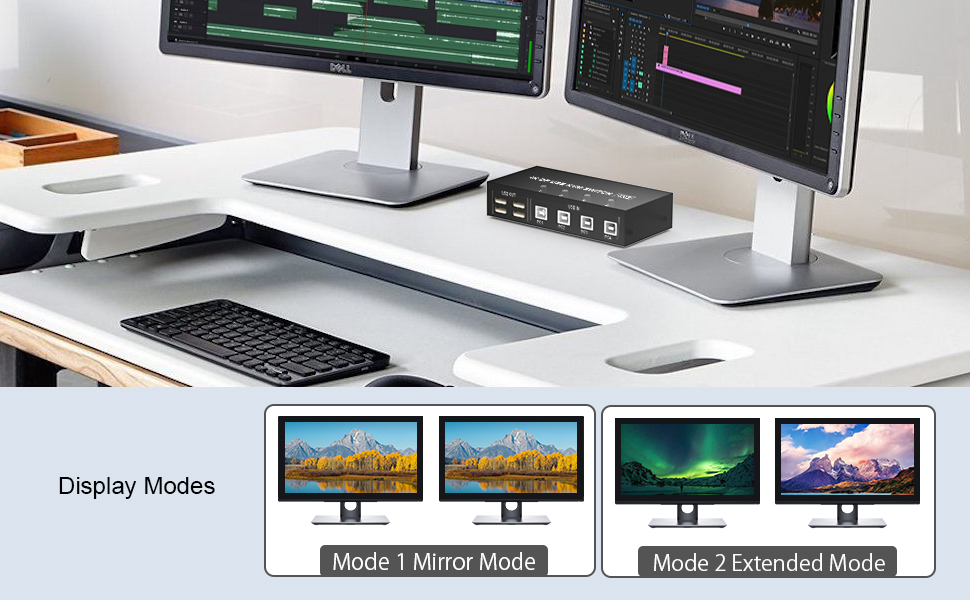
- 4. Dual monitors output support extended and mirrored display.
- 5. Compatibility with all computers and other devices with DP ports.
- 6. Adaptive EDID can adapt to a variety of complex application environments.
- 7. Compatible with Windows 10/7/2000/XP/Vista, Linux, UNIX, Ubuntu, Fedora, and other systems.
- 8. Switching modes: Button switch and wired remote.

This dual monitor KVM Switch Supports Two Mode Switching (Mirror Mode or Extended Mode)
- 1. Extended mode can output two different screens and mirror mode can output two identical screens.
- 2. The requirement for this KVM to achieve a dual-screen display is that each PC you connect to has the capability to support a dual or multi-screen display. This has nothing to do with KVM. Detection method: You can connect the computer to 2 monitors directly (not via KVM). If both monitors have an on-screen display, the computer supports a multi-monitor display.

Connection steps:
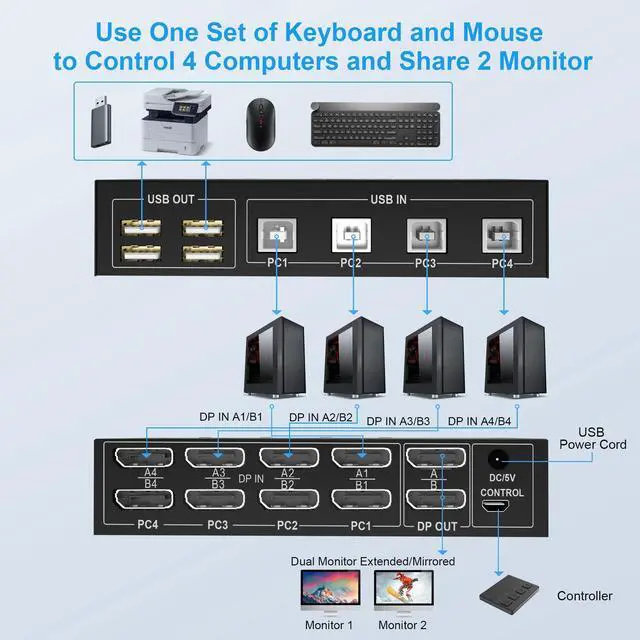
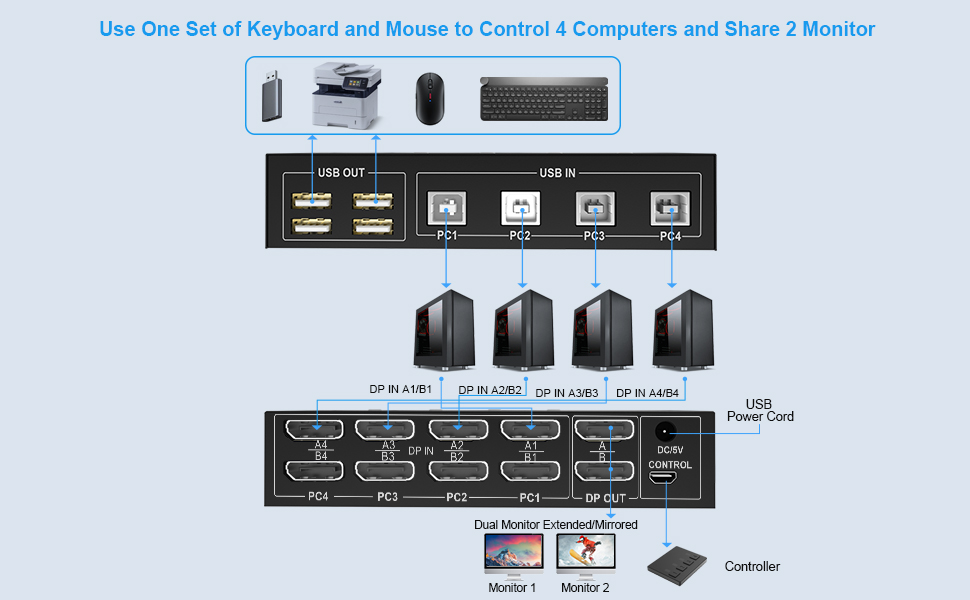
- Step 1. Connect the power adapter into the "DC/5V" to the Dual Monitor DP KVM Switch, and the KVM to ensure power supply.
- Connect 2*DP cables+1*USB-B cable between computer 1 and KVM (PC1, DP IN A1, DP IN B1).
- Step 2. Connect 2*DP cables+1*USB-B cable between computer 2 and KVM (PC2, DP IN A2, DP IN B2).
- Step 3. Connect 2*DP cables+1*USB-B cable between computer 3 and KVM (PC3, DP IN A3, DP IN B3).
- Step 4. Connect 2*DP cables+1*USB-B cable between computer 4 and KVM (PC4, DP IN A4, DP IN B4).
- Step 5. Connect 2*DP cables between the KVM (DP OUT A, DP OUT B) and the monitors.
- Step 6. Connect the keyboard, mouse, and USB devices to the USB 2.0 ports on the KVM.
- Step 7. Insert the desktop controller into the "PC1, PC2, PC3,PC4" port to remotely switch between PC1, PC2, PC3, and PC4. Or press the switch button (1, 2, 3, 4)on the KVM to switch.

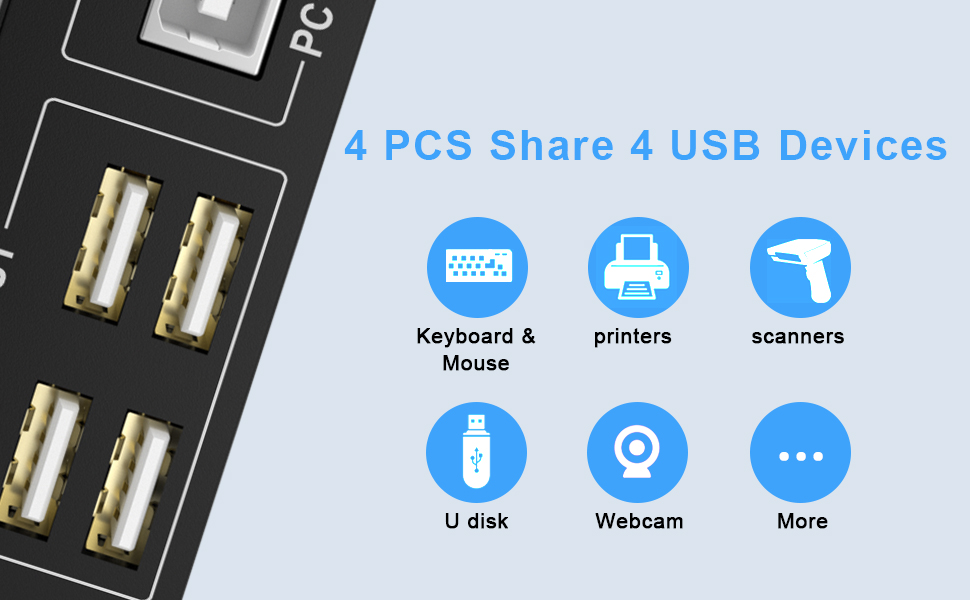
With 4 USB2.0 ports
Share USB2.0 devices such as scanners, printers, flash drives, etc.
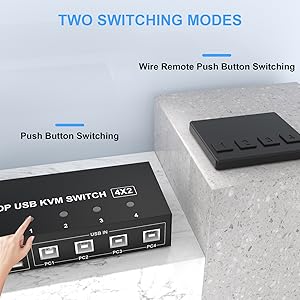
Two Switching Methods
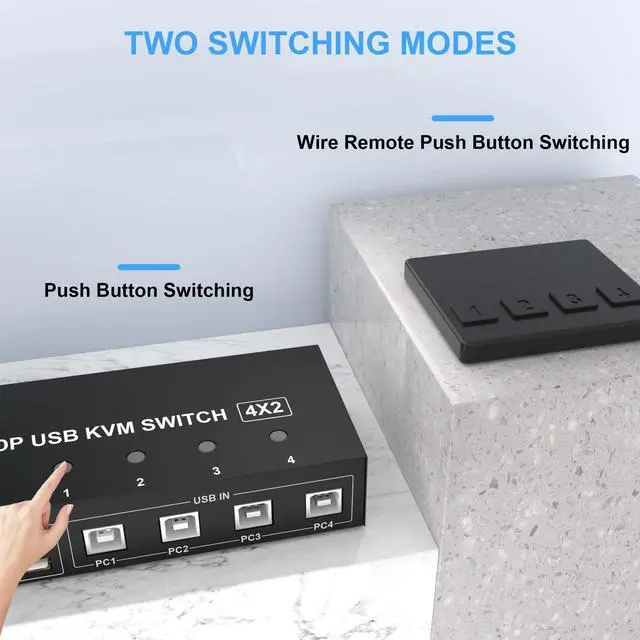
- Quickly switch between the 4 computers with just one click of the switch button and no extra operations.
- A button-controlled switch extension cord is presented, so you don’t have to get up and switch easily when you use it.
- Do not support keyboard switches, avoid hotkey conflicts.

Universal Compatibility
Cross support most major OS including
Windows, Linux, Mac, and more.

What's in the box
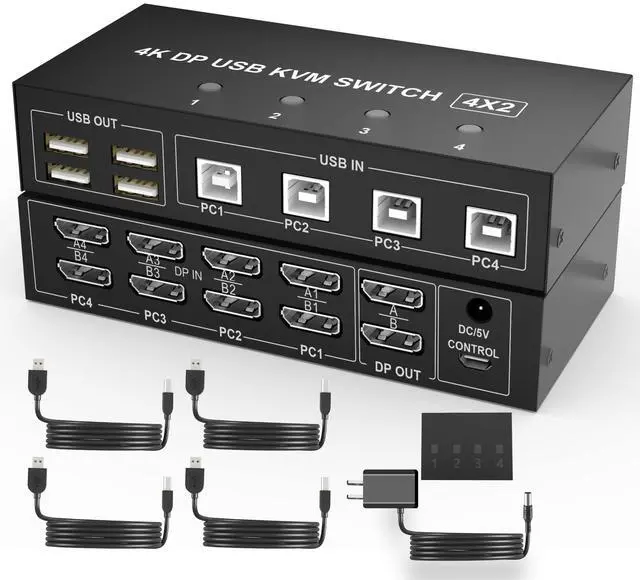
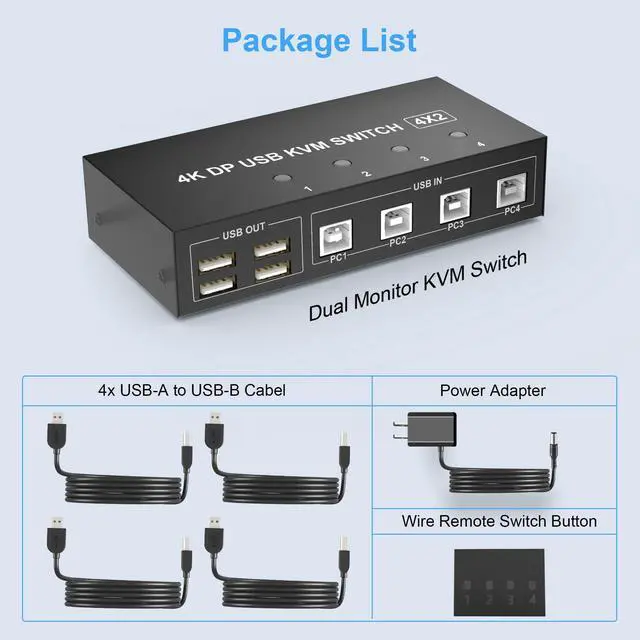
(1)4 port USB DP KVM Switch Dual Monitor
(2) 4x USB A-USB B Cables
(3) 1x Switch Button extension cord
(4) 1x Power Adapter
(5)1x Manual

4 Port 4K@60Hz Dual Monitor DisplayPort KVM Switch (DP+ DP+DP+DP)
- * This DisplayPort KVM Switch 4-Port, you can easily control 4 signal sources at the same time, share the same keyboard and mouse, and share 2 monitors.
- You can toggle and control any input device at any time with a button switch.
Feature:
- 1. 4 computers share one set of keyboard, mouse and 2 monitors, and other USB devices.
- 2. This dual monitor DisplayPort KVM switch supports up to 4K@60Hz. It offers an ultra-high definition visual experience.
- 3. Supports DP1.2 with a transfer rate of 18Gbps.
- 4. Dual monitors output support extended and mirrored display.
- 5. Compatibility with all computers and other devices with DP ports.
- 6. Adaptive EDID can adapt to a variety of complex application environments.
- 7. Compatible with Windows 10/7/2000/XP/Vista, Linux, UNIX, Ubuntu, Fedora, and other systems.
- 8. Switching modes: Button switch and wired remote.

This dual monitor KVM Switch Supports Two Mode Switching (Mirror Mode or Extended Mode)
- 1. Extended mode can output two different screens and mirror mode can output two identical screens.
- 2. The requirement for this KVM to achieve a dual-screen display is that each PC you connect to has the capability to support a dual or multi-screen display. This has nothing to do with KVM. Detection method: You can connect the computer to 2 monitors directly (not via KVM). If both monitors have an on-screen display, the computer supports a multi-monitor display.

Connection steps:
- Step 1. Connect the power adapter into the "DC/5V" to the Dual Monitor DP KVM Switch, and the KVM to ensure power supply.
- Connect 2*DP cables+1*USB-B cable between computer 1 and KVM (PC1, DP IN A1, DP IN B1).
- Step 2. Connect 2*DP cables+1*USB-B cable between computer 2 and KVM (PC2, DP IN A2, DP IN B2).
- Step 3. Connect 2*DP cables+1*USB-B cable between computer 3 and KVM (PC3, DP IN A3, DP IN B3).
- Step 4. Connect 2*DP cables+1*USB-B cable between computer 4 and KVM (PC4, DP IN A4, DP IN B4).
- Step 5. Connect 2*DP cables between the KVM (DP OUT A, DP OUT B) and the monitors.
- Step 6. Connect the keyboard, mouse, and USB devices to the USB 2.0 ports on the KVM.
- Step 7. Insert the desktop controller into the "PC1, PC2, PC3,PC4" port to remotely switch between PC1, PC2, PC3, and PC4. Or press the switch button (1, 2, 3, 4)on the KVM to switch.

With 4 USB2.0 ports
Share USB2.0 devices such as scanners, printers, flash drives, etc.
Two Switching Methods
- Quickly switch between the 4 computers with just one click of the switch button and no extra operations.
- A button-controlled switch extension cord is presented, so you don’t have to get up and switch easily when you use it.
- Do not support keyboard switches, avoid hotkey conflicts.

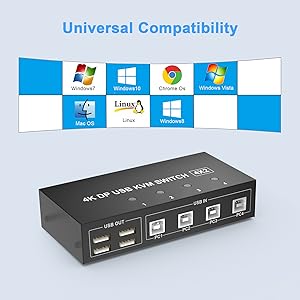
Universal Compatibility
Cross support most major OS including
Windows, Linux, Mac, and more.
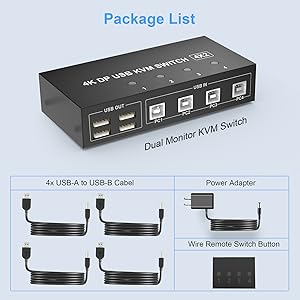
What's in the box
(1)4 port USB DP KVM Switch Dual Monitor
(2) 4x USB A-USB B Cables
(3) 1x Switch Button extension cord
(4) 1x Power Adapter
(5)1x Manual