



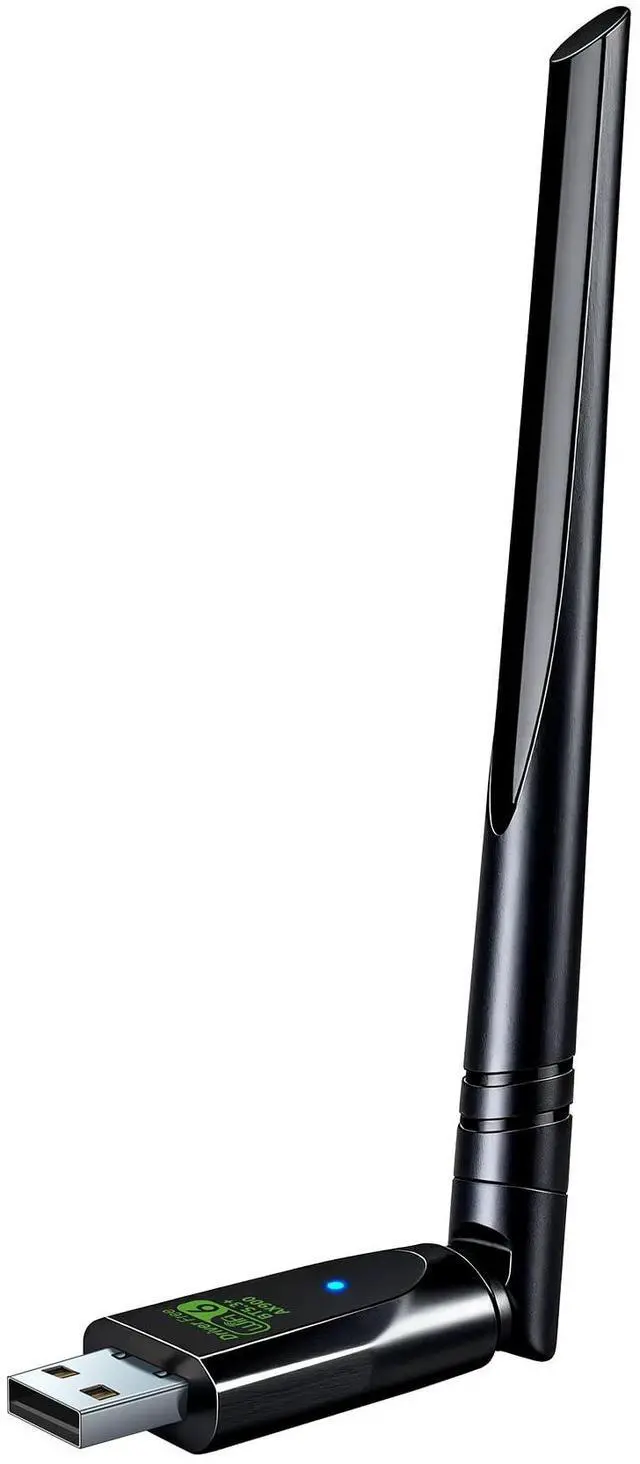


2-IN-1 Wi-Fi 6 and Bluetooth 5.3 Adapter for PC/Laptop/Desktop
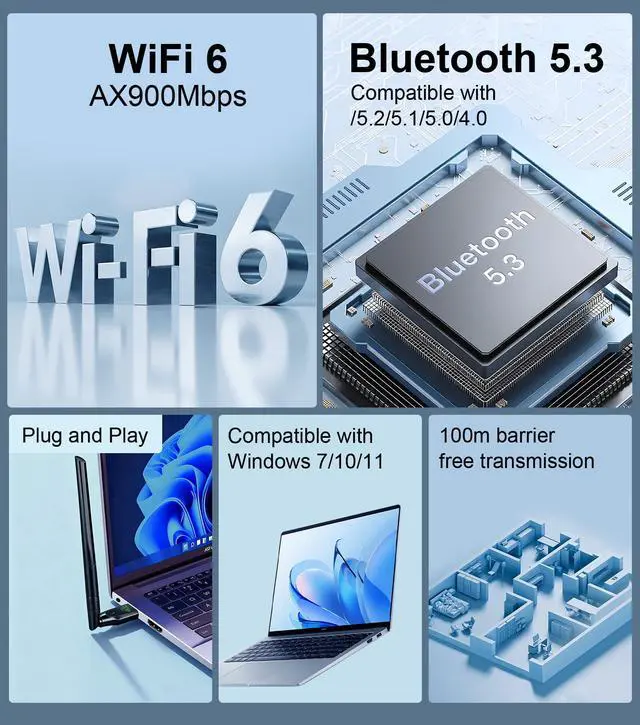
Lightning-Fast Wi-Fi 6 Adapter – Experience blazing speeds and reduced network congestion like never before. Perfect for gaming, downloading, and streaming without interruptions.
Advanced Bluetooth 5.3 – Featuring the latest Bluetooth technology, it eliminates delays and connection issues found in older versions. Fully compatible with Bluetooth 4.0/5.1/5.2 devices, it offers low-latency performance and auto-reconnect without repeated pairing. Enjoy quick, seamless Bluetooth connectivity every time.

USB Wi-Fi 6 Latest technology
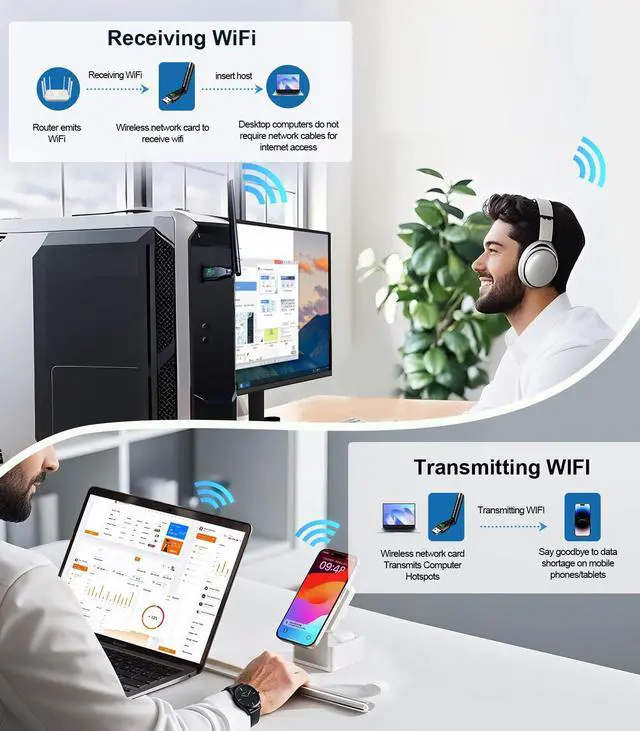
USB Wi-Fi Adapter – Just plug into any USB port on your laptop or Windows desktop to unlock dual-band Wi-Fi. Get extended wireless speeds up to 600Mbps on the 5GHz band and up to 286Mbps on the 2.4GHz band—smooth streaming and fast downloads guaranteed.
MU-MIMO Support – Connect multiple devices at once without slowing down. This Wi-Fi 6 feature delivers full-speed, lag-free performance in busy households, so everyone can game, stream, and browse seamlessly.
Built-in AP Mode – Turn your desktop into an instant Wi-Fi hotspot. Share your wired Ethernet connection with phones, laptops, or other devices—no router needed. Perfect for travel or setting up a quick temporary network.

Enjoy low-latency performance with dual-mode BLE and EDR support—for smoother, more stable connections.
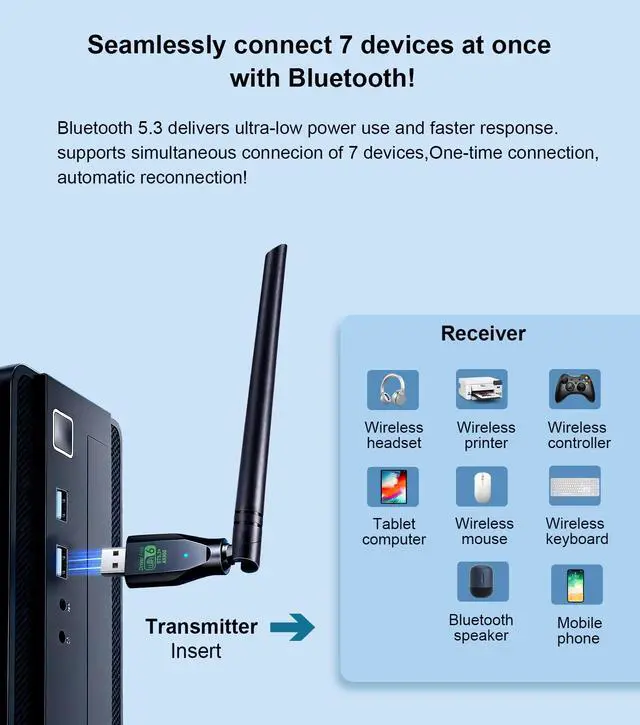
Connect up to 7 Bluetooth devices at the same time—like your PC, laptop, Bluetooth headphones, speakers, keyboard, mouse printer IPhone iPad and more—all with one powerful adapter.
Easily transfer files, stream stereo music, make clear calls, and embrace a truly wireless work and play lifestyle.


Easy 4-Step Setup
Step 1: Insert the wireless network card.
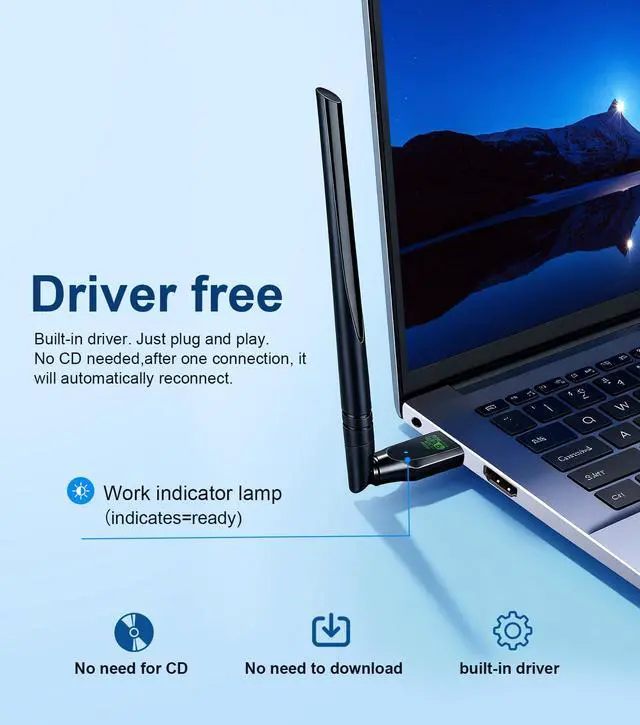
Step 2: the driver will pop up automatically, install it, and restart the computer.
Step 3: If the driver doesn't auto-launch, go to "This pc" ? double-click Wireless to install.
Step 4: Enter the WiFi password to finish. You can connect automatically after the first connection.
 AstruLink USB Wi-Fi Adapter,WiFi 6 & Bluetooth Adapter for Laptop PC - 900Mbp... |  AstruLink AX900Mbps USB WiFi 6 & Bluetooth Adapter for Desktop PC,5dBi Gain A... | |
|---|---|---|
| Nature of Device | Dual Band AX900Mbps and BT5.4 | Dual Band AX900Mbps and BT5.3 |
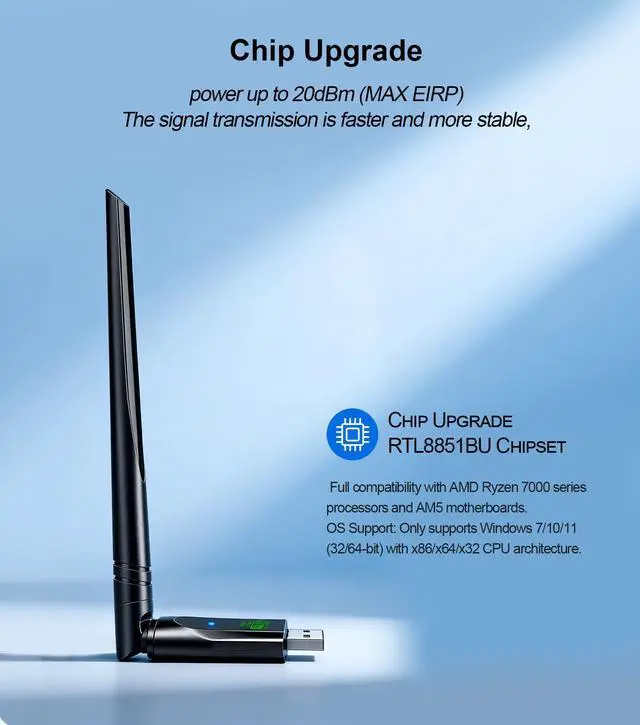
| Wi-Fi antenna | Wireless transmit power up to 20dBm (MAX EIRP) | External Dual High Gain 5dBi Antenna Expand YourCoverage Range |
| System Compatibility | for Windows 7/10/11 | for Windows 10/11 |
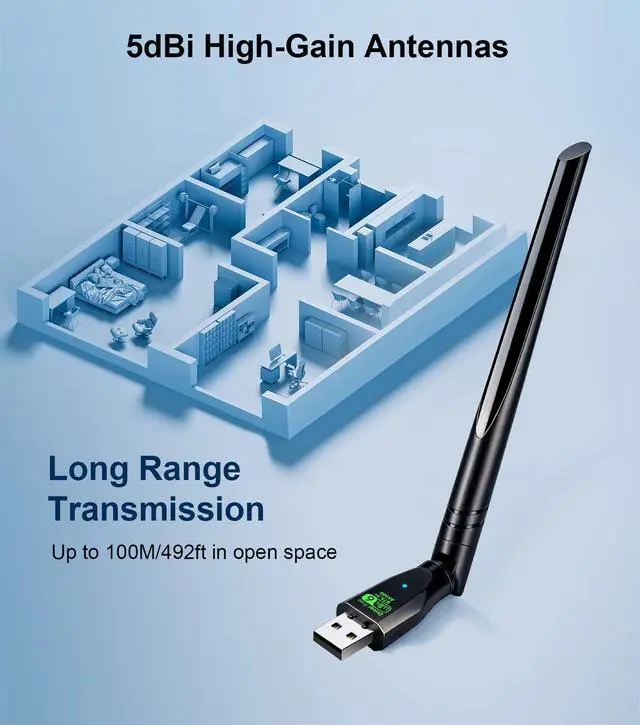
| WiFi Signal Coverage | General Chip, Up to 60 Meters | General Chip, Up to 100 Meters |
| Plug n Play for Windows OS | Plug n Play for Win 11 10 | Plug n Play for Win 11 10 |
Q: Why Should I Choose the Upgraded Bluetooth and WiFi Adapter?
A: This WiFi 6 and Bluetooth 5.3 adapter is equipped with 5dBi high-gain antennas that deliver superior signal reception, ensuring greater stability for both WiFi and Bluetooth connections. It offers an impressive range of up to 328 feet (100 meters), enabling reliable long-distance connectivity. With its support for low latency and a one-time, automatic reconnection feature—so you never have to pair your devices again—it's an ideal choice for anyone looking to upgrade the wireless capabilities of their laptop or desktop PC.
Q: Is the WiFi adapter plug-and-play? Do I need to install drivers?
A: The WiFi adapter comes with a built-in driver. Once you plug it into your PC, simply click on the driver installation prompt that appears to complete the setup. It will automatically reconnect after the first pairing, so you'll never have to reinstall the drivers.
Q: can I expect after ordering the WiFi adapter?
A: If you're not tech-savvy, we offer free online setup assistance. We can even help optimize your computer settings for the best possible WiFi speeds. For any issues with your PC wireless adapter, we'll make sure you get a satisfactory response and solution.
Q: Why isn't a driver installation prompt appearing on my PC when I plug in the "driver-free" adapter?
A: If the installation prompt doesn't appear: Check if your computer has previously installed similar WiFi drivers. If so, please uninstall them via the Control Panel, then manually install the driver and restart your computer. Please ensure your computer is running Windows 10 or 11. If you're using Windows 7, you will need to manually install the driver. (Note: The Bluetooth feature is not supported on Windows 7. You will need to upgrade your operating system to use it.)
Q: Why doesn't the Bluetooth function show up on some PCs when I plug in the WiFi adapter?
A: This is often due to interference from a built-in Bluetooth adapter. Your computer's existing Bluetooth hardware might be blocking the new adapter. To fix this, go to your PC's "Device Manager" and disable the built-in Bluetooth adapter. Then, shut down your computer, plug in this new adapter, and power the PC back on. It should now find the correct drivers.
Q: How to disable your computer's built-in Bluetooth?
1. Disable Existing Bluetooth,Open via Win+X ? Device Manager. In Device Manager, expand Bluetooth.Right-click Bluetooth adapters ? Disable
2. Device connection Turn on Bluetooth on your device ?Double-click the icon {Bluetooth} status bar of the computer, click icon [+], click {Bluetooth} to enter the Bluetooth devices list ?Find the device name in the list and click “Connect”
Q: Will installing the WiFi driver affect my computer?
A: No, it won't cause any lag or slowdown. The driver simply enables the WiFi connection. Think of it as operating invisibly in the background—"I'm just here, plug-and-play, working behind the scenes. Zero lag for streaming, gaming, and browsing."
Q: How can we troubleshoot if the internet speed is slower than expected?
A: Make sure your router is Wi-Fi 6 compatible and try using the adapter in a location with a stronger signal. Try switching your router's band from 5GHz to 2.4GHz for better range.
Q: What can I do if it can't detect any Wi-Fi signals?
A: 1.Check if the router's Wi-Fi is working properly by connecting a phone to it directly. 2.Make sure the adapter is within 30 feet of the router and clear of obstacles like thick walls or metal.

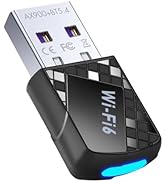
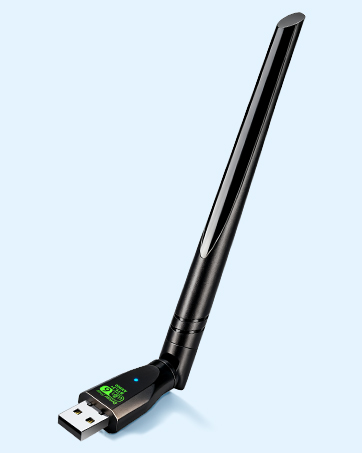
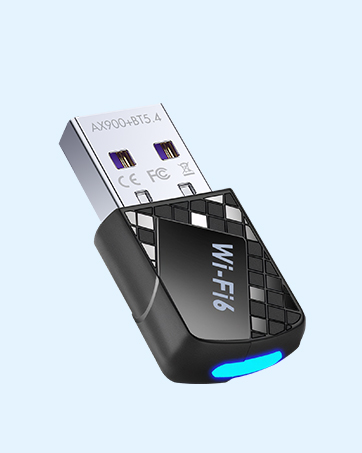
2-IN-1 Wi-Fi 6 and Bluetooth 5.3 Adapter for PC/Laptop/Desktop
Lightning-Fast Wi-Fi 6 Adapter – Experience blazing speeds and reduced network congestion like never before. Perfect for gaming, downloading, and streaming without interruptions.
Advanced Bluetooth 5.3 – Featuring the latest Bluetooth technology, it eliminates delays and connection issues found in older versions. Fully compatible with Bluetooth 4.0/5.1/5.2 devices, it offers low-latency performance and auto-reconnect without repeated pairing. Enjoy quick, seamless Bluetooth connectivity every time.
USB Wi-Fi 6 Latest technology
USB Wi-Fi Adapter – Just plug into any USB port on your laptop or Windows desktop to unlock dual-band Wi-Fi. Get extended wireless speeds up to 600Mbps on the 5GHz band and up to 286Mbps on the 2.4GHz band—smooth streaming and fast downloads guaranteed.
MU-MIMO Support – Connect multiple devices at once without slowing down. This Wi-Fi 6 feature delivers full-speed, lag-free performance in busy households, so everyone can game, stream, and browse seamlessly.
Built-in AP Mode – Turn your desktop into an instant Wi-Fi hotspot. Share your wired Ethernet connection with phones, laptops, or other devices—no router needed. Perfect for travel or setting up a quick temporary network.
Enjoy low-latency performance with dual-mode BLE and EDR support—for smoother, more stable connections.
Connect up to 7 Bluetooth devices at the same time—like your PC, laptop, Bluetooth headphones, speakers, keyboard, mouse printer IPhone iPad and more—all with one powerful adapter.
Easily transfer files, stream stereo music, make clear calls, and embrace a truly wireless work and play lifestyle.
Easy 4-Step Setup
Step 1: Insert the wireless network card.
Step 2: the driver will pop up automatically, install it, and restart the computer.
Step 3: If the driver doesn't auto-launch, go to "This pc" ? double-click Wireless to install.
Step 4: Enter the WiFi password to finish. You can connect automatically after the first connection.
AstruLink USB Wi-Fi Adapter,WiFi 6 & Bluetooth Adapter for Laptop PC - 900Mbp... | AstruLink AX900Mbps USB WiFi 6 & Bluetooth Adapter for Desktop PC,5dBi Gain A... | |
|---|---|---|
| Nature of Device | Dual Band AX900Mbps and BT5.4 | Dual Band AX900Mbps and BT5.3 |
| Wi-Fi antenna | Wireless transmit power up to 20dBm (MAX EIRP) | External Dual High Gain 5dBi Antenna Expand YourCoverage Range |
| System Compatibility | for Windows 7/10/11 | for Windows 10/11 |
| WiFi Signal Coverage | General Chip, Up to 60 Meters | General Chip, Up to 100 Meters |
| Plug n Play for Windows OS | Plug n Play for Win 11 10 | Plug n Play for Win 11 10 |
Q: Why Should I Choose the Upgraded Bluetooth and WiFi Adapter?
A: This WiFi 6 and Bluetooth 5.3 adapter is equipped with 5dBi high-gain antennas that deliver superior signal reception, ensuring greater stability for both WiFi and Bluetooth connections. It offers an impressive range of up to 328 feet (100 meters), enabling reliable long-distance connectivity. With its support for low latency and a one-time, automatic reconnection feature—so you never have to pair your devices again—it's an ideal choice for anyone looking to upgrade the wireless capabilities of their laptop or desktop PC.
Q: Is the WiFi adapter plug-and-play? Do I need to install drivers?
A: The WiFi adapter comes with a built-in driver. Once you plug it into your PC, simply click on the driver installation prompt that appears to complete the setup. It will automatically reconnect after the first pairing, so you'll never have to reinstall the drivers.
Q: can I expect after ordering the WiFi adapter?
A: If you're not tech-savvy, we offer free online setup assistance. We can even help optimize your computer settings for the best possible WiFi speeds. For any issues with your PC wireless adapter, we'll make sure you get a satisfactory response and solution.
Q: Why isn't a driver installation prompt appearing on my PC when I plug in the "driver-free" adapter?
A: If the installation prompt doesn't appear: Check if your computer has previously installed similar WiFi drivers. If so, please uninstall them via the Control Panel, then manually install the driver and restart your computer. Please ensure your computer is running Windows 10 or 11. If you're using Windows 7, you will need to manually install the driver. (Note: The Bluetooth feature is not supported on Windows 7. You will need to upgrade your operating system to use it.)
Q: Why doesn't the Bluetooth function show up on some PCs when I plug in the WiFi adapter?
A: This is often due to interference from a built-in Bluetooth adapter. Your computer's existing Bluetooth hardware might be blocking the new adapter. To fix this, go to your PC's "Device Manager" and disable the built-in Bluetooth adapter. Then, shut down your computer, plug in this new adapter, and power the PC back on. It should now find the correct drivers.
Q: How to disable your computer's built-in Bluetooth?
1. Disable Existing Bluetooth,Open via Win+X ? Device Manager. In Device Manager, expand Bluetooth.Right-click Bluetooth adapters ? Disable
2. Device connection Turn on Bluetooth on your device ?Double-click the icon {Bluetooth} status bar of the computer, click icon [+], click {Bluetooth} to enter the Bluetooth devices list ?Find the device name in the list and click “Connect”
Q: Will installing the WiFi driver affect my computer?
A: No, it won't cause any lag or slowdown. The driver simply enables the WiFi connection. Think of it as operating invisibly in the background—"I'm just here, plug-and-play, working behind the scenes. Zero lag for streaming, gaming, and browsing."
Q: How can we troubleshoot if the internet speed is slower than expected?
A: Make sure your router is Wi-Fi 6 compatible and try using the adapter in a location with a stronger signal. Try switching your router's band from 5GHz to 2.4GHz for better range.
Q: What can I do if it can't detect any Wi-Fi signals?
A: 1.Check if the router's Wi-Fi is working properly by connecting a phone to it directly. 2.Make sure the adapter is within 30 feet of the router and clear of obstacles like thick walls or metal.
Astrulink: Connect Your World
Your Bridge to Better Wireless.
usb wifi adapter for pc
