





Founded in 2011, BrosTrend dedicates itself to premium network products which deliver fast and reliable connections.
With more than 10 years of experience in the networking industry, BrosTrend never stops innovating and is ready to bring a smoother online experience for everyone.
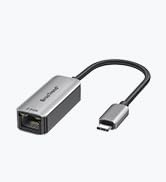
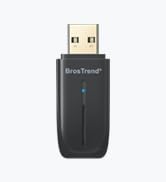
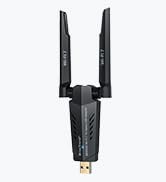
New Release
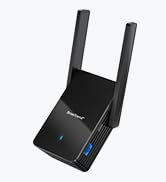
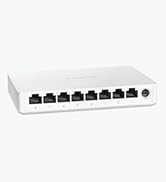
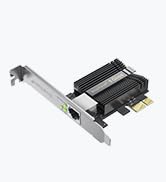
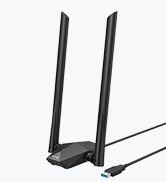
Our Recommendations

BrosTrend N300 WiFi to Ethernet Adapter
Merchant Video
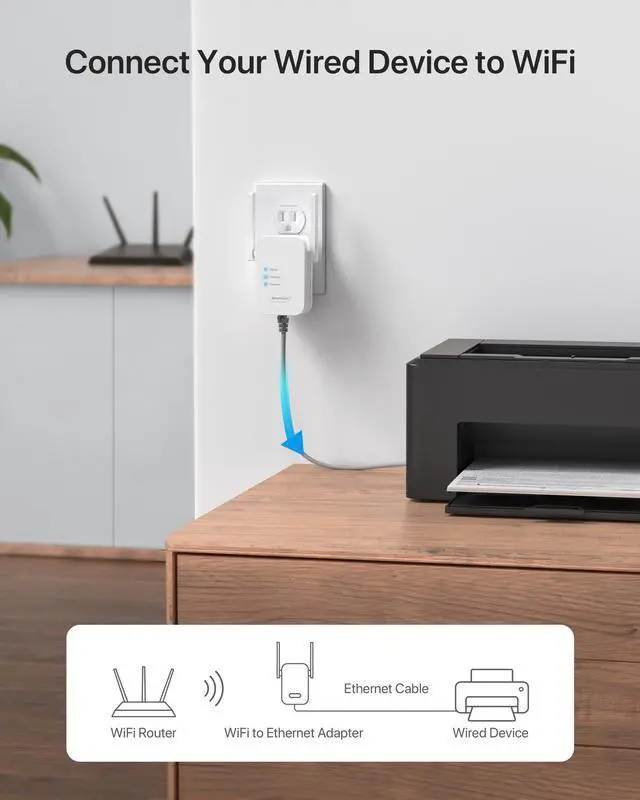
Connect Your Wired Device to WiFi
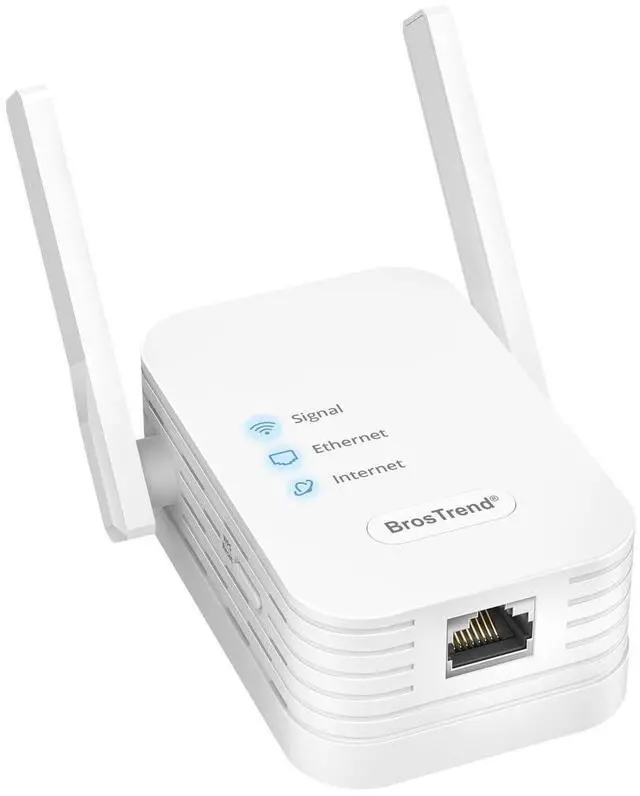
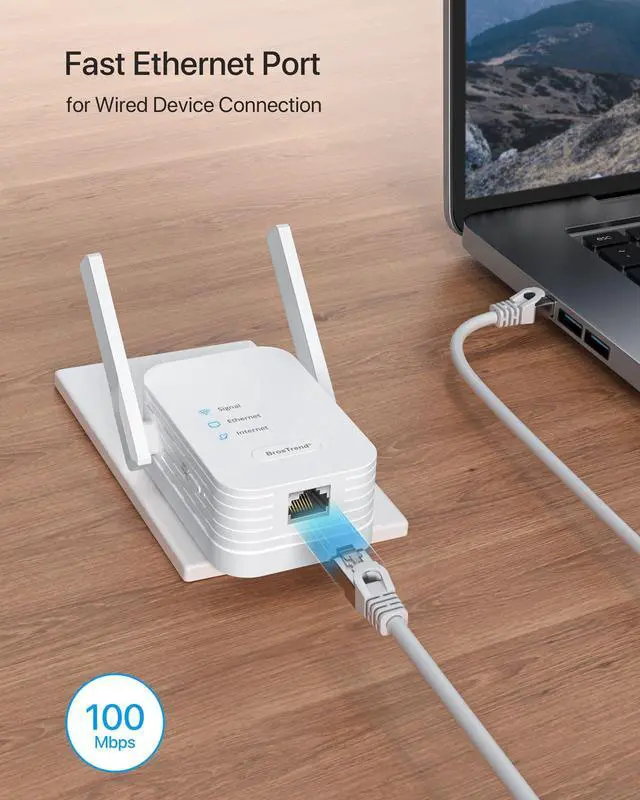
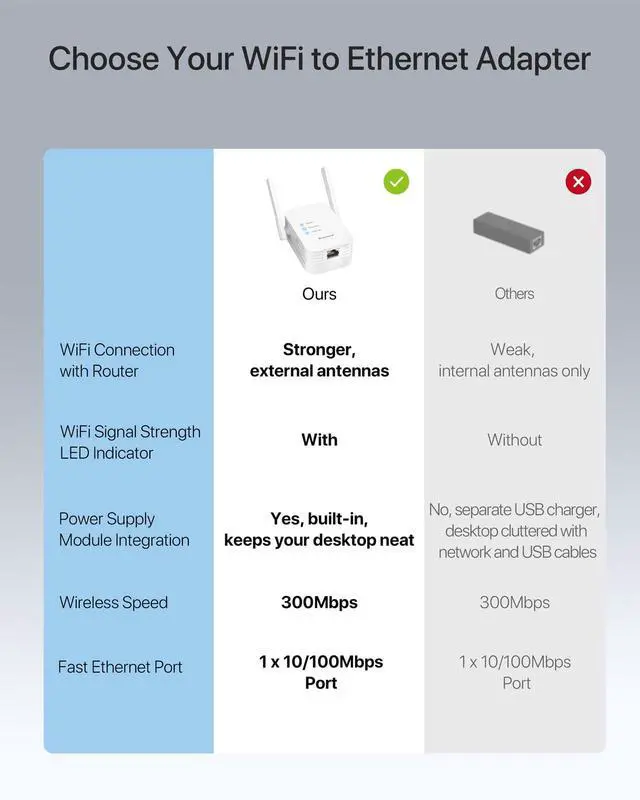
Experience a reliable connection on your wired device with this budget-friendly WiFi to Ethernet adapter. It connects to your router wirelessly at 300Mbps on the 2.4GHz band and builds a dependable connection on your device with its fast Ethernet port.
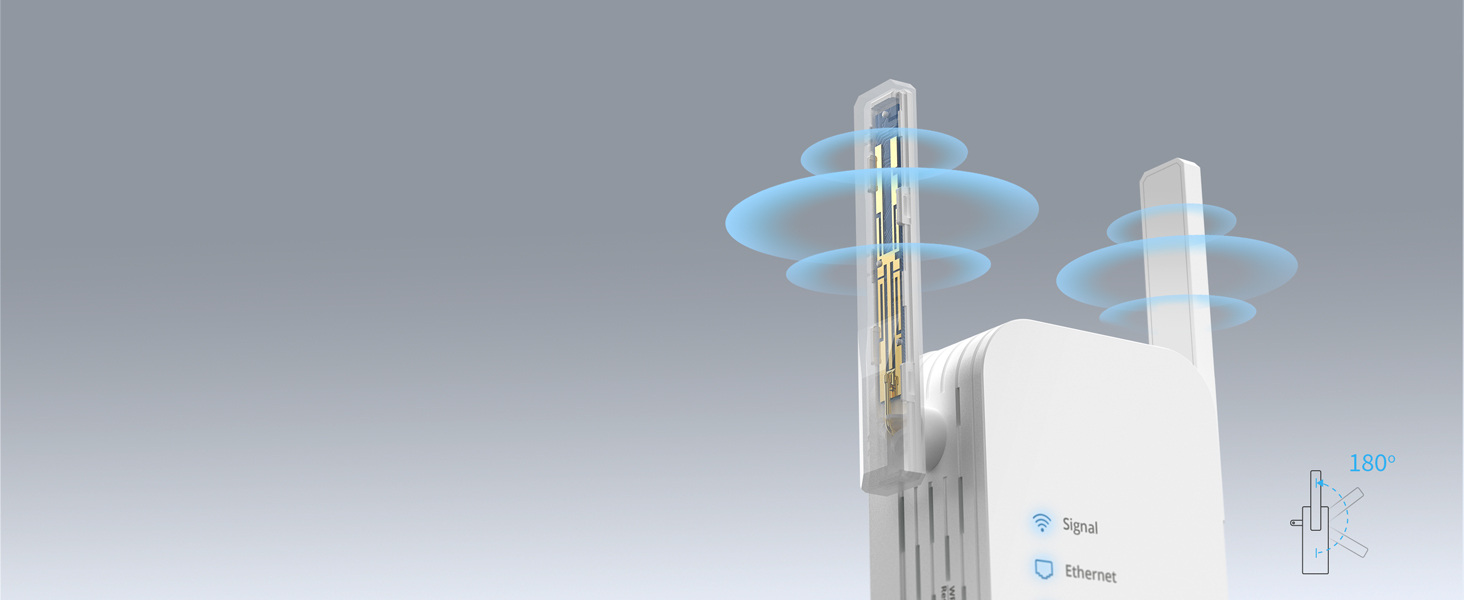
Adjust for Better Signal
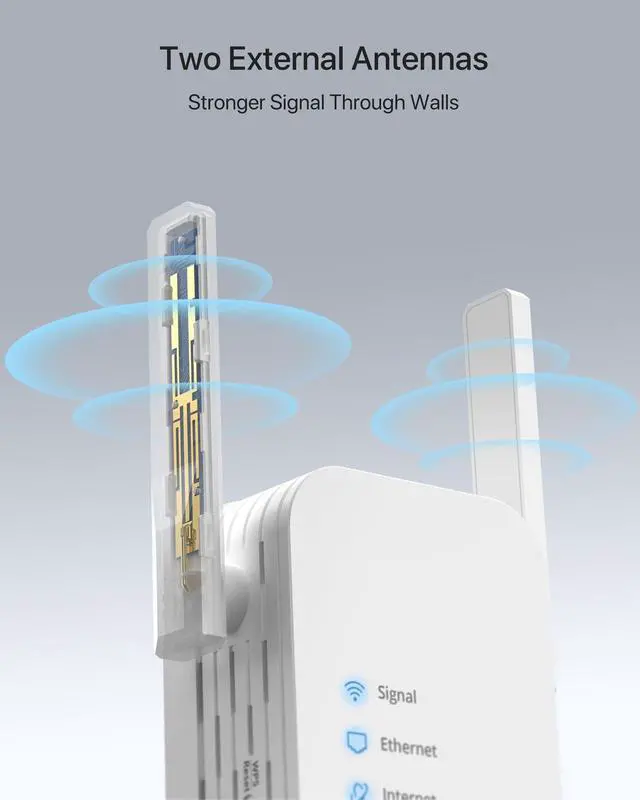
Receives a stronger signal than other adapters with internal antennas only.
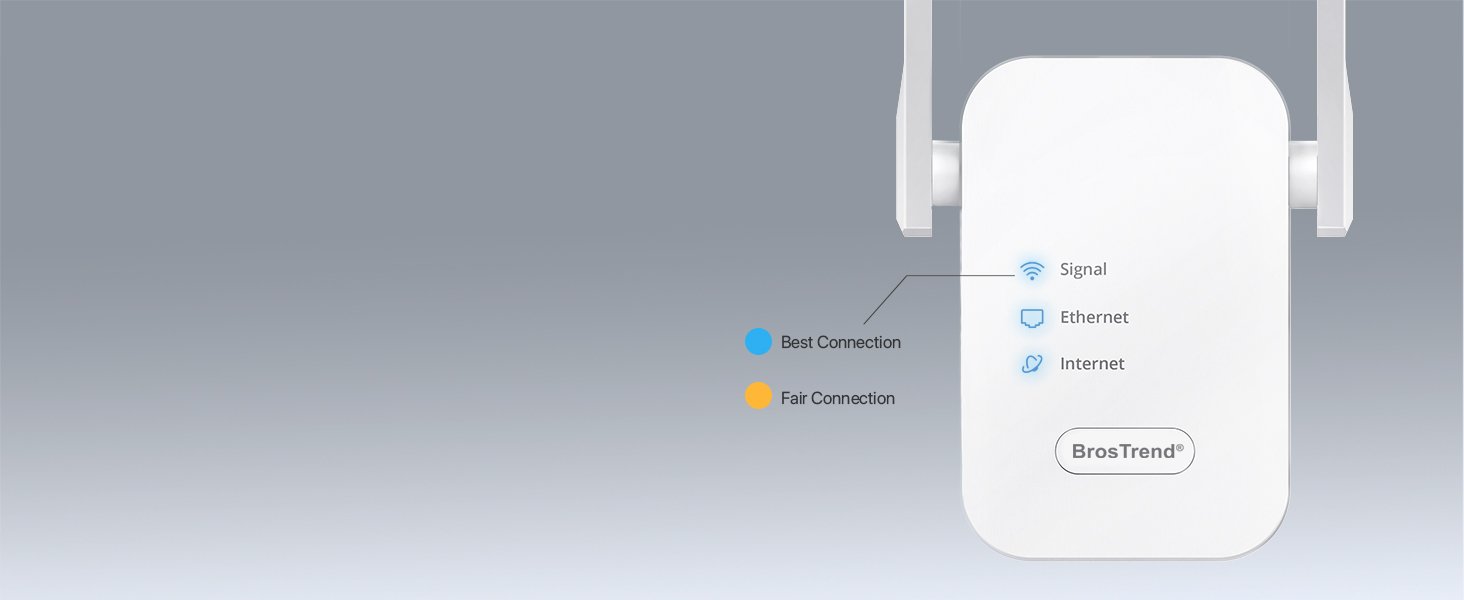
Find Optimal Location
Easily spot the ideal location, ensuring a reliable connection on your device.
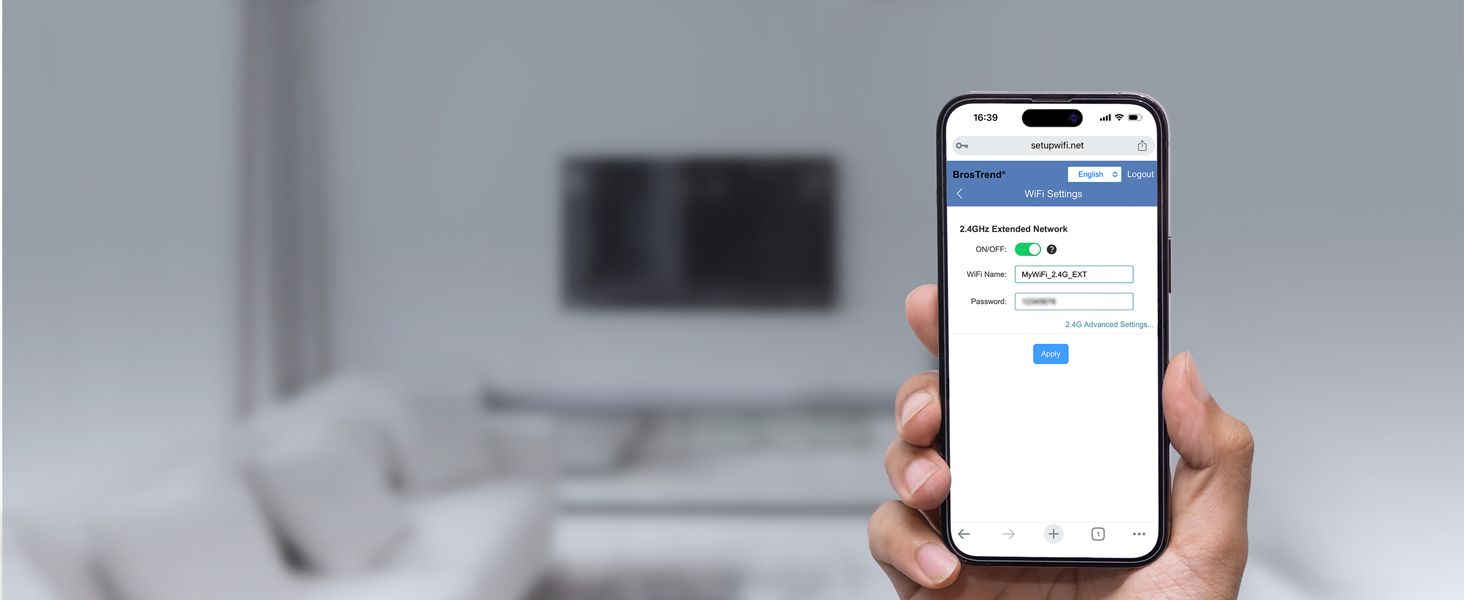
Disable Extended WiFi
Manage unnecessary SSIDs via its WEB UI, customizing the setup to your specific needs.
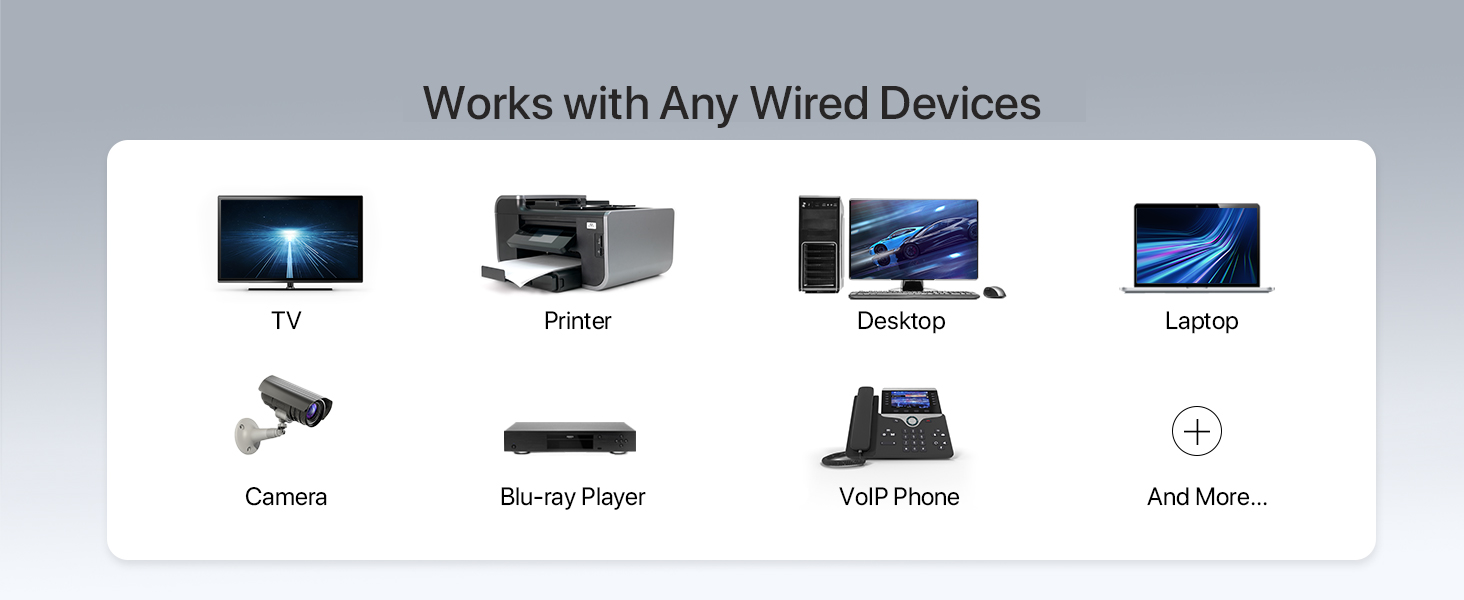

Secures Your Data
Protects every connection by supporting WPA2-PSK, WPA-PSK and WPA2-PSK/WPA-PSK.
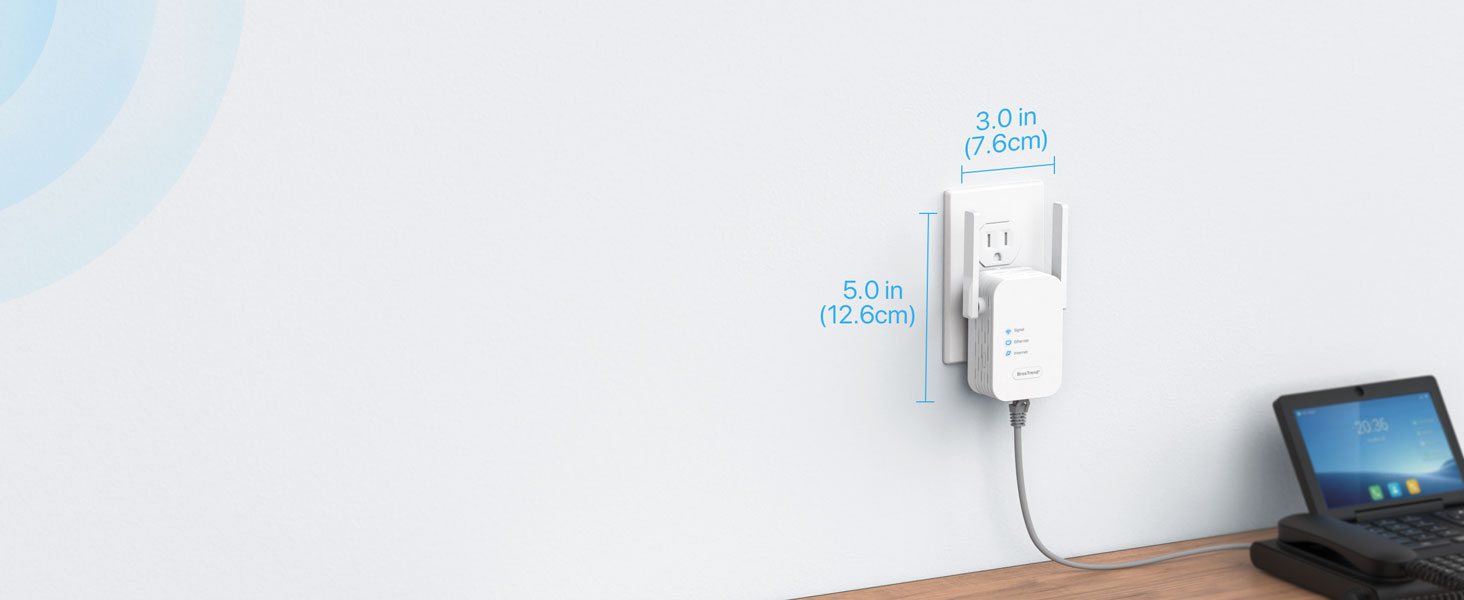
Blends into Your Home Environment
The space-saving form factor ensures both practicality and aesthetic charm.
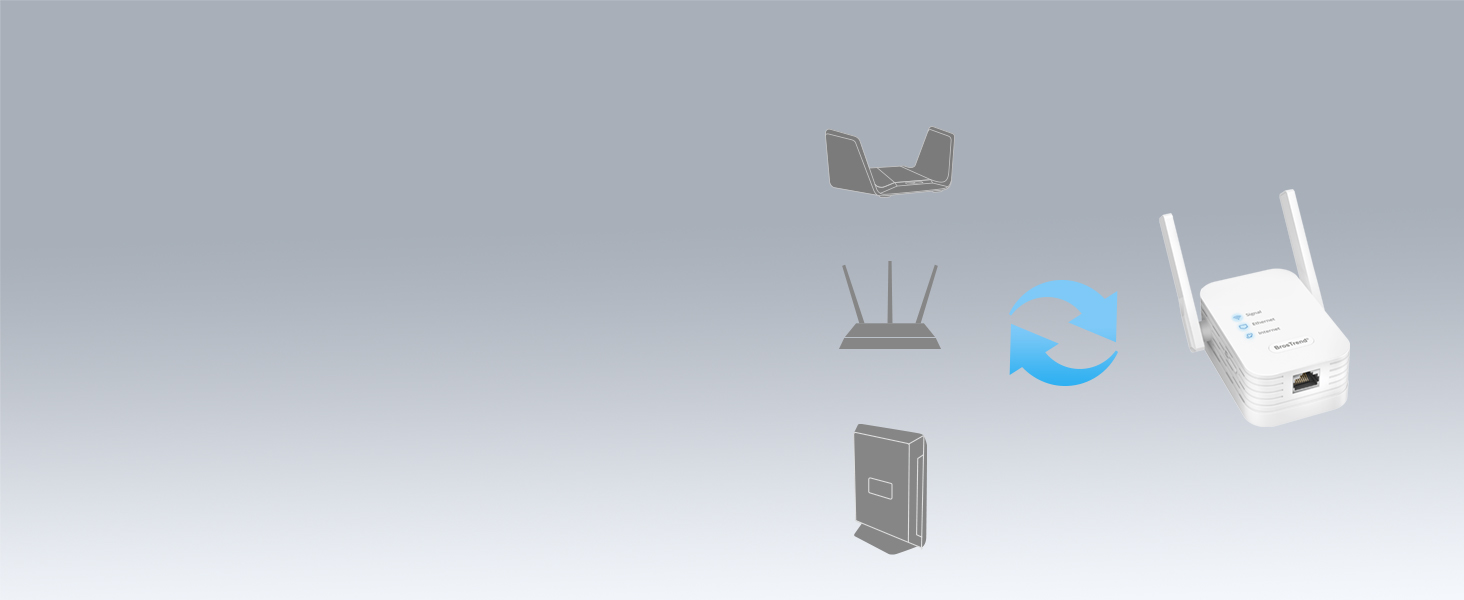
Seamlessly Connects to Your WiFi
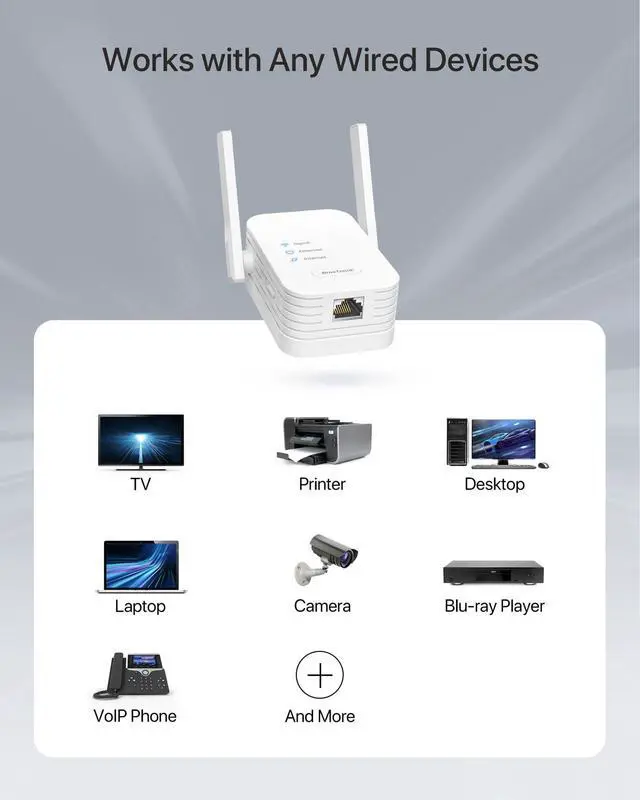
Compatible with all WiFi routers, whether ISP-provided or independently purchased.
WPS Setup Steps
Step 1
Press the WPS button on your existing WiFi router.
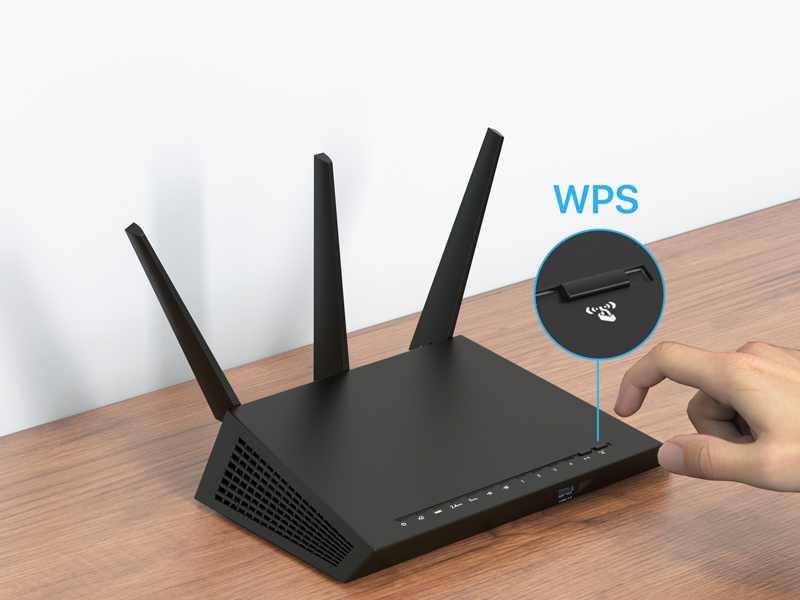
Step 2
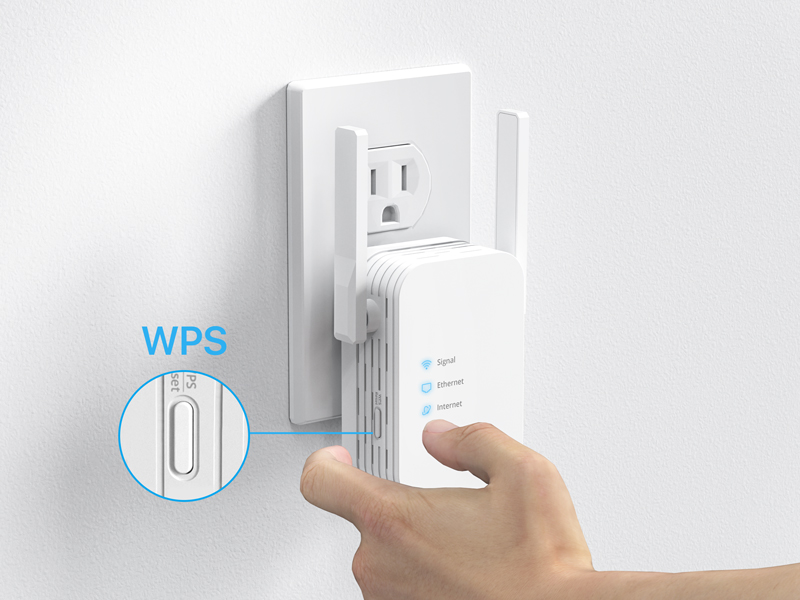
Press the WPS button on this adapter for 1 second. After the extended network appears, please wait approximately 2 minutes for the adapter to fully connect to your WiFi router. If the Signal LED light does not turn solid blue or orange, reset the adapter and try WEB UI method to set it up again.
Step 3
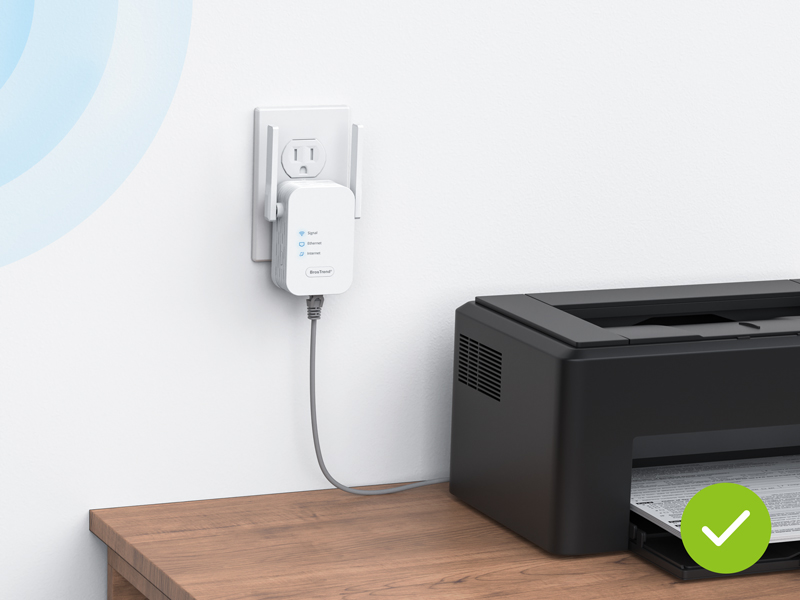
Relocate the adapter halfway between your router and your device. Connect your wired device to the adapter with an Ethernet cable. Setup is done!
WEB Management Interface Setup
Step 1
Place the WiFi to Ethernet adapter in the same room as your existing WiFi router and power it on.
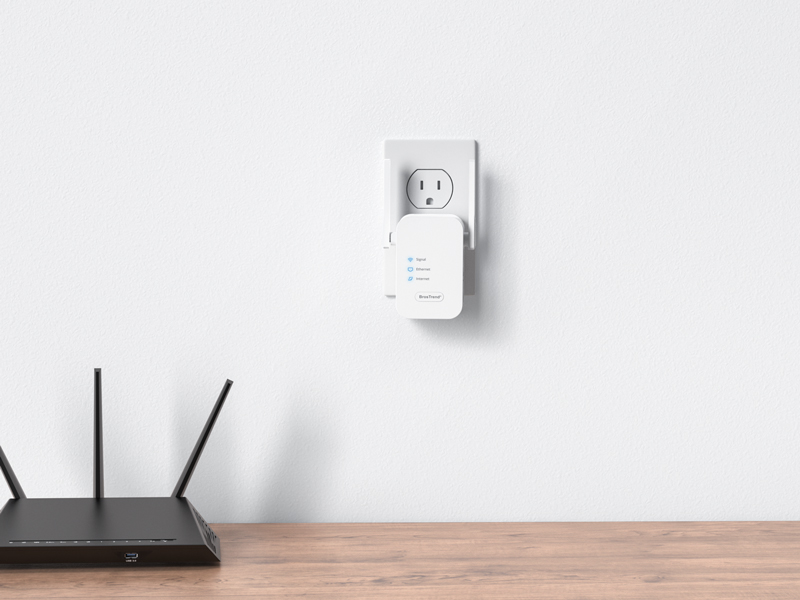
Step 2
Use a WiFi device to connect to the default WiFi network BrosTrend_xxxx with the password 12345678. Open a web browser and go to setupwifi.net. Log in with the default password admin, then create a new password. Select your existing WiFi network, enter its password, and save the settings. Wait until the Signal LED light turns solid blue or orange, which indicates a successful connection with your existing WiFi router.
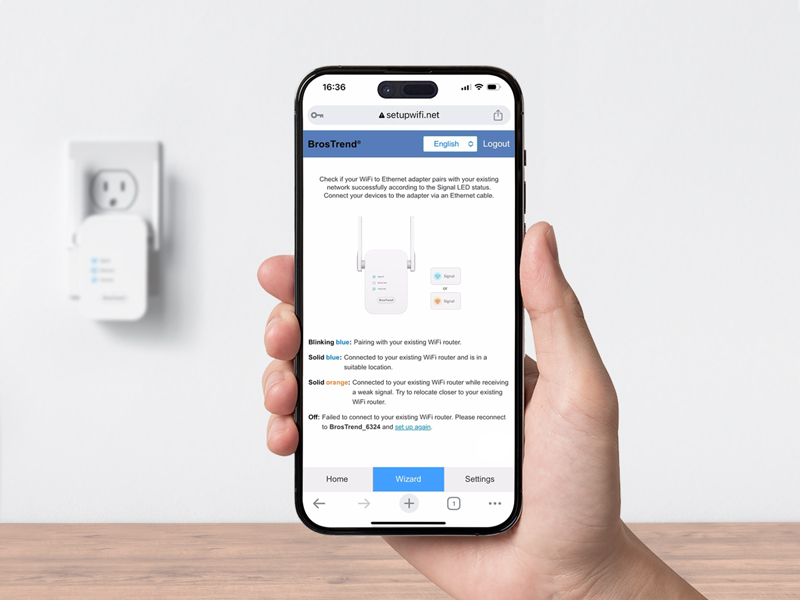
Step 3
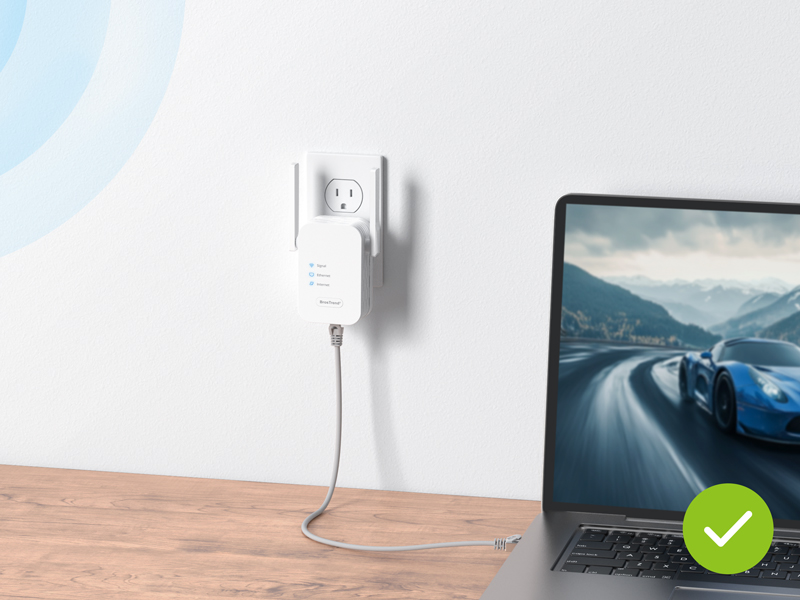
Relocate the adapter halfway between your router and your device. Connect your wired device to the adapter with an Ethernet cable. Setup is done!
Choose Your Right Adapter
 N300 Adapter |  AC1200 Adapter |  AX1500 Adapter |  AX3000 Adapter | |
|---|---|---|---|---|
Customer Reviews | — | — | — | — |
Price | — | — | — | — |
Ethernet Port Speed | 100Mbps | 100Mbps | 1Gbps (1000Mbps) | 1Gbps (1000Mbps) |
WiFi Standard | WiFi 4 | WiFi 5 | WiFi 6 | WiFi 6 |
5GHz Speed | - | 5GHz 867Mbps | 5GHz 1201Mbps | 5GHz 2402Mbps |
2.4GHz Speed | 2.4GHz 300Mbps | 2.4GHz 300Mbps | 2.4GHz 300Mbps | 2.4GHz 574Mbps |
Antenna Type | 2dBi | 3.5dBi | High Gain 5dBi | High Gain 5dBi |
Setup Method | WPS, WEB UI | WPS, WEB UI | WPS, WEB UI | WPS, WEB UI |
Driver Setup Required | ? | ? | ? | ? |
BrosTrend N300 WiFi to Ethernet Adapter
Merchant Video
Connect Your Wired Device to WiFi
Experience a reliable connection on your wired device with this budget-friendly WiFi to Ethernet adapter. It connects to your router wirelessly at 300Mbps on the 2.4GHz band and builds a dependable connection on your device with its fast Ethernet port.
Adjust for Better Signal
Receives a stronger signal than other adapters with internal antennas only.
Find Optimal Location
Easily spot the ideal location, ensuring a reliable connection on your device.
Disable Extended WiFi
Manage unnecessary SSIDs via its WEB UI, customizing the setup to your specific needs.


Secures Your Data
Protects every connection by supporting WPA2-PSK, WPA-PSK and WPA2-PSK/WPA-PSK.
Blends into Your Home Environment
The space-saving form factor ensures both practicality and aesthetic charm.
Seamlessly Connects to Your WiFi
Compatible with all WiFi routers, whether ISP-provided or independently purchased.


WPS Setup Steps


Step 1
Press the WPS button on your existing WiFi router.
Step 2
Press the WPS button on this adapter for 1 second. After the extended network appears, please wait approximately 2 minutes for the adapter to fully connect to your WiFi router. If the Signal LED light does not turn solid blue or orange, reset the adapter and try WEB UI method to set it up again.
Step 3
Relocate the adapter halfway between your router and your device. Connect your wired device to the adapter with an Ethernet cable. Setup is done!
WEB Management Interface Setup


Step 1
Place the WiFi to Ethernet adapter in the same room as your existing WiFi router and power it on.
Step 2
Use a WiFi device to connect to the default WiFi network BrosTrend_xxxx with the password 12345678. Open a web browser and go to setupwifi.net. Log in with the default password admin, then create a new password. Select your existing WiFi network, enter its password, and save the settings. Wait until the Signal LED light turns solid blue or orange, which indicates a successful connection with your existing WiFi router.
Step 3
Relocate the adapter halfway between your router and your device. Connect your wired device to the adapter with an Ethernet cable. Setup is done!
Choose Your Right Adapter
N300 Adapter | AC1200 Adapter | AX1500 Adapter | AX3000 Adapter |
|---|---|---|---|
| Customer Reviews | |||
| — | — | — | — |
| Price | |||
| — | — | — | — |
| Ethernet Port Speed | |||
| 100Mbps | 100Mbps | 1Gbps (1000Mbps) | 1Gbps (1000Mbps) |
| WiFi Standard | |||
| WiFi 4 | WiFi 5 | WiFi 6 | WiFi 6 |
| 5GHz Speed | |||
| - | 5GHz 867Mbps | 5GHz 1201Mbps | 5GHz 2402Mbps |
| 2.4GHz Speed | |||
| 2.4GHz 300Mbps | 2.4GHz 300Mbps | 2.4GHz 300Mbps | 2.4GHz 574Mbps |
| Antenna Type | |||
| 2dBi | 3.5dBi | High Gain 5dBi | High Gain 5dBi |
| Setup Method | |||
| WPS, WEB UI | WPS, WEB UI | WPS, WEB UI | WPS, WEB UI |
| Driver Setup Required | |||
| ? | ? | ? | ? |
Founded in 2011, BrosTrend dedicates itself to premium network products which deliver fast and reliable connections.
With more than 10 years of experience in the networking industry, BrosTrend never stops innovating and is ready to bring a smoother online experience for everyone.
New Release
Our Recommendations