




Does the smart night light come with a built-in battery? Can it be used without a power source?
No, the smart bedside lamp does not contain batteries and must be connected to a power cord. Our products thoughtfully include the necessary Type-C cable and charging adapter.
Please note: remote control not included.
Does it work with smart speakers or other apps?
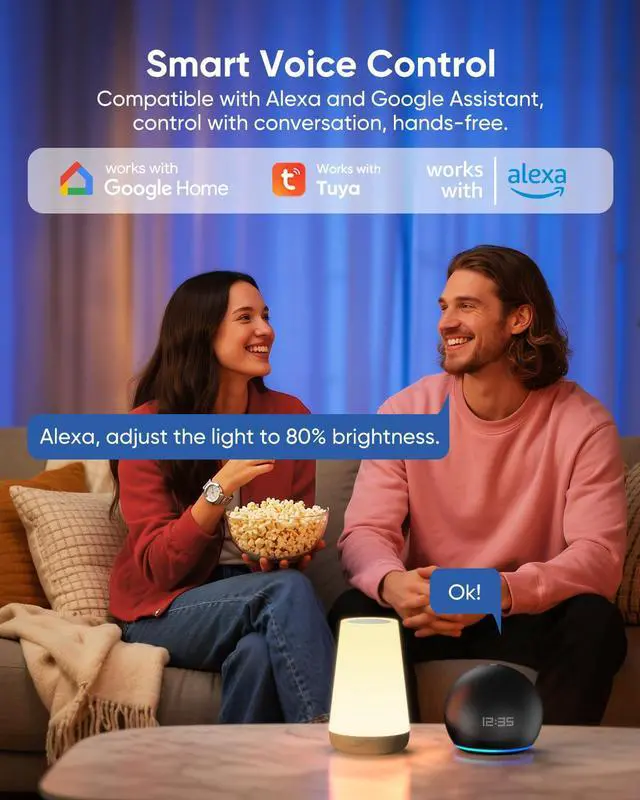
Yes. It is compatible with Alexa, Google Home. You can also control it via the Smart Life and Tuya Smart Apps. Note: It requires 2.4 GHz Wi-Fi (5 GHz is not supported).
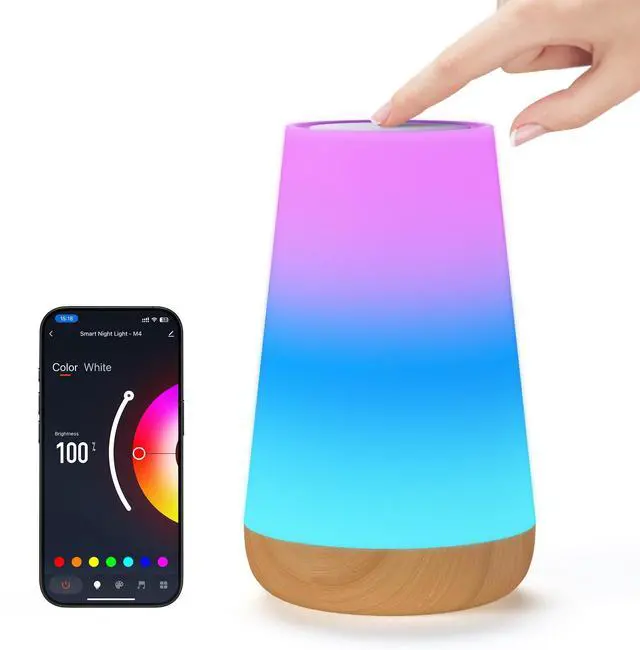
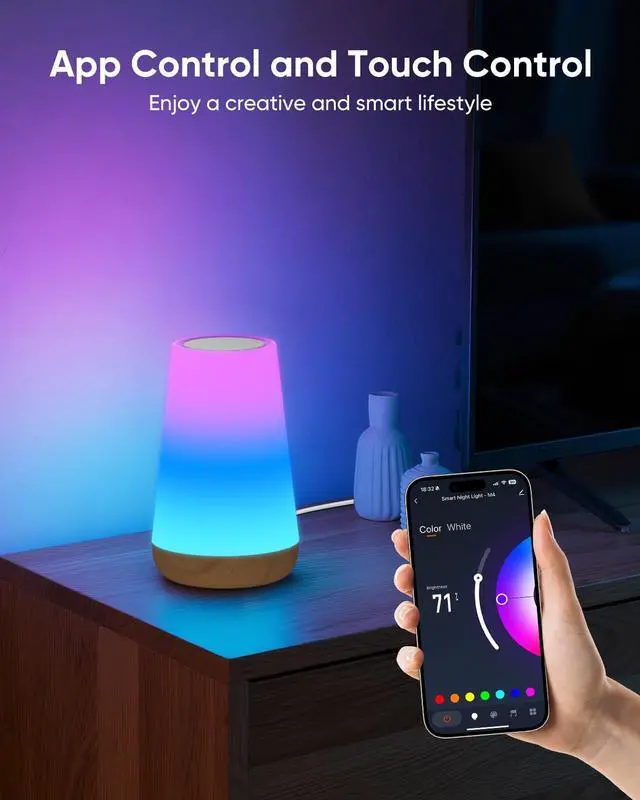
As well as voice and app control, it also supports touch control.
How do I connect to the Smart Life / Tuya app?
1. Connect the light to a power source and press it for 5 seconds to activate pairing mode.
2. Open the app. The device will be displayed. Tap “Add.” Select 2.4 GHz Wi-Fi for the connection.
If the device does not appear automatically, how can I add it to the Smart Life / Tuya app?
1. Connect the light to a power source and press it for 5 seconds to pair it.
2. Tap the “+” icon on the app's home screen, then tap “Add Device.” Then proceed as usual.
What should I do if the smart night light fails to enter pairing mode or the Wi-Fi connection fails?
You will need to reset the device. Please follow these steps:
1. Disconnect the device from the power supply, wait 10 seconds, and then reconnect it.
2. Add the device again and connect it.


Does the smart night light come with a built-in battery? Can it be used without a power source?
No, the smart bedside lamp does not contain batteries and must be connected to a power cord. Our products thoughtfully include the necessary Type-C cable and charging adapter.
Please note: remote control not included.
Does it work with smart speakers or other apps?
Yes. It is compatible with Alexa, Google Home. You can also control it via the Smart Life and Tuya Smart Apps. Note: It requires 2.4 GHz Wi-Fi (5 GHz is not supported).
As well as voice and app control, it also supports touch control.
How do I connect to the Smart Life / Tuya app?
1. Connect the light to a power source and press it for 5 seconds to activate pairing mode.
2. Open the app. The device will be displayed. Tap “Add.” Select 2.4 GHz Wi-Fi for the connection.
If the device does not appear automatically, how can I add it to the Smart Life / Tuya app?
1. Connect the light to a power source and press it for 5 seconds to pair it.
2. Tap the “+” icon on the app's home screen, then tap “Add Device.” Then proceed as usual.
What should I do if the smart night light fails to enter pairing mode or the Wi-Fi connection fails?
You will need to reset the device. Please follow these steps:
1. Disconnect the device from the power supply, wait 10 seconds, and then reconnect it.
2. Add the device again and connect it.