




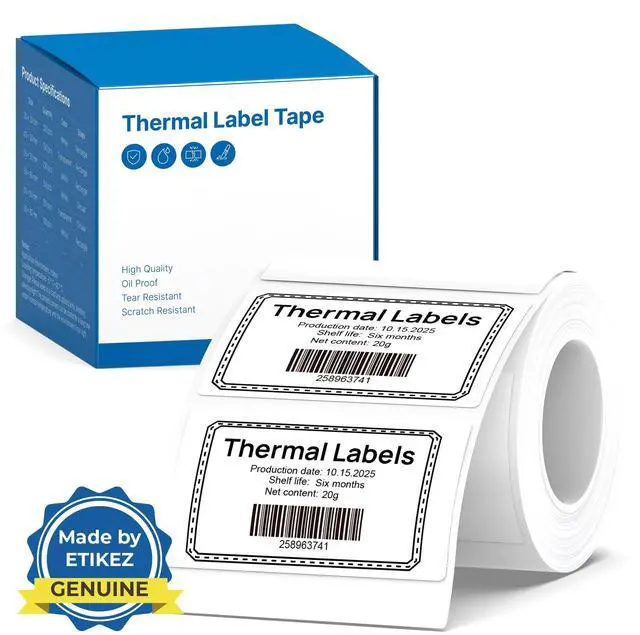
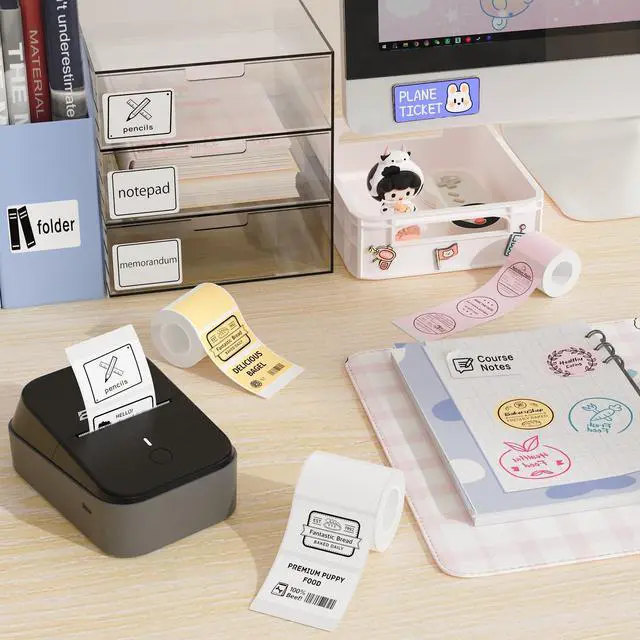
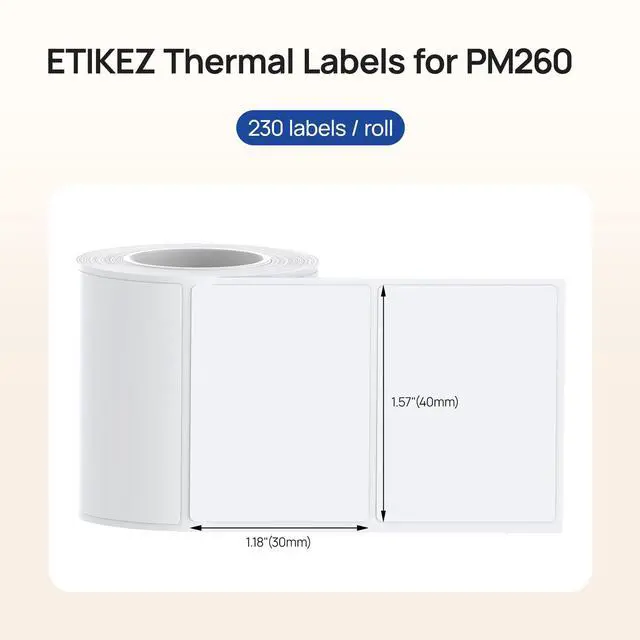
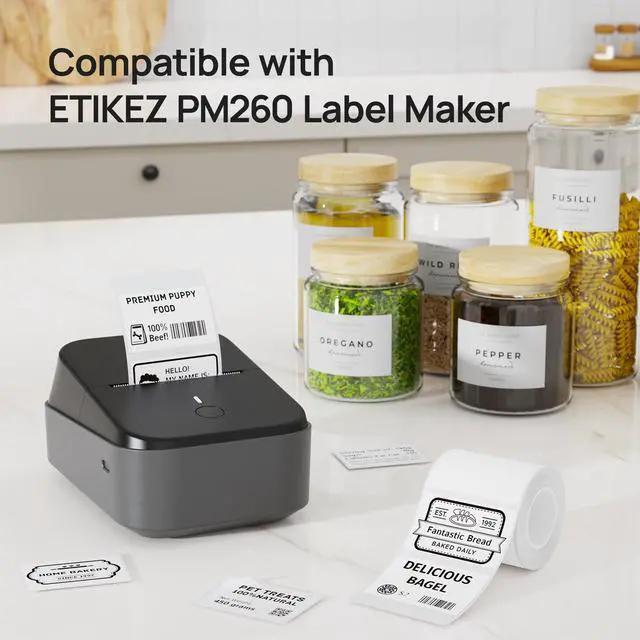


Work with ETIKEZ PM260 Labal Maker
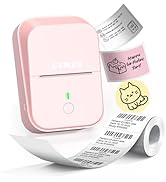
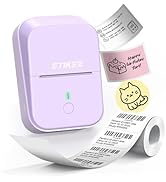
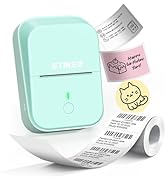
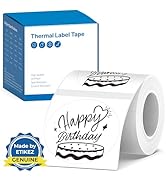
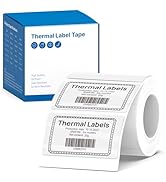
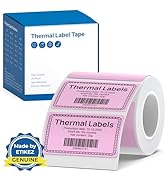
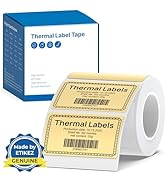
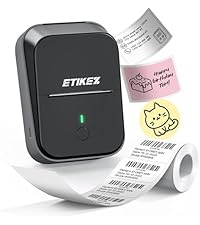 ETIKEZ PM260 Label Maker | 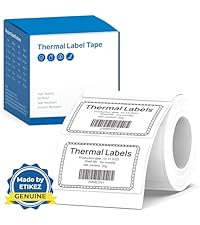 ETIKEZ 40x30mm Label |  ETIKEZ 50x50mm Label | ETIKEZ 50x30mm Label |  ETIKEZ 40x30mm Label |  ETIKEZ 50mm Label | 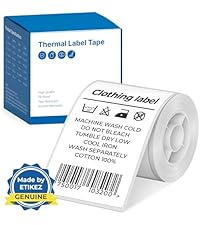 ETIKEZ 50x80mm Label | |
|---|---|---|---|---|---|---|---|
Customer Reviews | — | — | — | — | — | — | — |
Price | — | — | — | — | — | — | — |
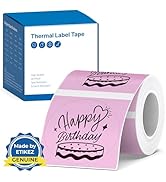
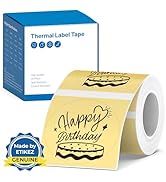
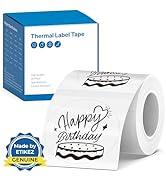
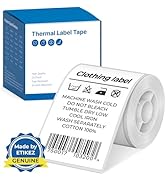
Pack | / | 230 Labels | 230 Labels | 230 Labels | 230 Labels | 150 Labels | 100 Labels |
Color | Black | White | White | White | Pink | Yellow | White |
Size | 5.12"D x 3.94"W x 2.72"H | 1.57"x1.18"(40x30mm) | 2"(50mm) | 2"x1.18"(50x30mm) | 1.57'' x 1.18'' (40x30mm) | 2"(50mm) | 2'' x 3.15''(50x80mm) |
Compatible with | Phone/Windows/Mac OS | ETIKEZ PM260 Label Maker | ETIKEZ PM260 Label Maker | ETIKEZ PM260 Label Maker | ETIKEZ PM260 Label Maker | ETIKEZ PM260 Label Maker | ETIKEZ PM260 Label Maker |
High Quality | ? | ? | ? | ? | ? | ? | ? |
How to calibrate labels and adjust print misalignment?
Press the right button to open the paper bin for calibration. When the printer is turned on, closing the paper bin will automatically complete label calibration.
For misalignment, open the paper bin, position the labels correctly, and reinsert them.
What if the printing is not clear?
1. Connect PM260 through Bluethooth on APP "Labelnize".
2. Click on "Connection"- "Settings"-"Firmware version" -and update to V1.16 immediately.
3. The printer's yellow light is on, indicating that the firmware upgrade is successful.



Work with ETIKEZ PM260 Labal Maker
ETIKEZ PM260 Label Maker | ETIKEZ 40x30mm Label | ETIKEZ 50x50mm Label | ETIKEZ 50x30mm Label | ETIKEZ 40x30mm Label | ETIKEZ 50mm Label | ETIKEZ 50x80mm Label |
|---|---|---|---|---|---|---|
| Customer Reviews | ||||||
| — | — | — | — | — | — | — |
| Price | ||||||
| — | — | — | — | — | — | — |
| Pack | ||||||
| / | 230 Labels | 230 Labels | 230 Labels | 230 Labels | 150 Labels | 100 Labels |
| Color | ||||||
| Black | White | White | White | Pink | Yellow | White |
| Size | ||||||
| 5.12"D x 3.94"W x 2.72"H | 1.57"x1.18"(40x30mm) | 2"(50mm) | 2"x1.18"(50x30mm) | 1.57'' x 1.18'' (40x30mm) | 2"(50mm) | 2'' x 3.15''(50x80mm) |
| Compatible with | ||||||
| Phone/Windows/Mac OS | ETIKEZ PM260 Label Maker | ETIKEZ PM260 Label Maker | ETIKEZ PM260 Label Maker | ETIKEZ PM260 Label Maker | ETIKEZ PM260 Label Maker | ETIKEZ PM260 Label Maker |
| High Quality | ||||||
| ? | ? | ? | ? | ? | ? | ? |
How to calibrate labels and adjust print misalignment?
Press the right button to open the paper bin for calibration. When the printer is turned on, closing the paper bin will automatically complete label calibration.
For misalignment, open the paper bin, position the labels correctly, and reinsert them.
What if the printing is not clear?
1. Connect PM260 through Bluethooth on APP "Labelnize".
2. Click on "Connection"- "Settings"-"Firmware version" -and update to V1.16 immediately.
3. The printer's yellow light is on, indicating that the firmware upgrade is successful.
ETIKEZ PM260 Label Maker
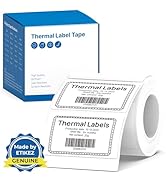
ETIKEZ PM260 Label Maker Tape
ETIKEZ PM260 Label Maker Tape
ETIKEZ PM260 Label Maker Tape