


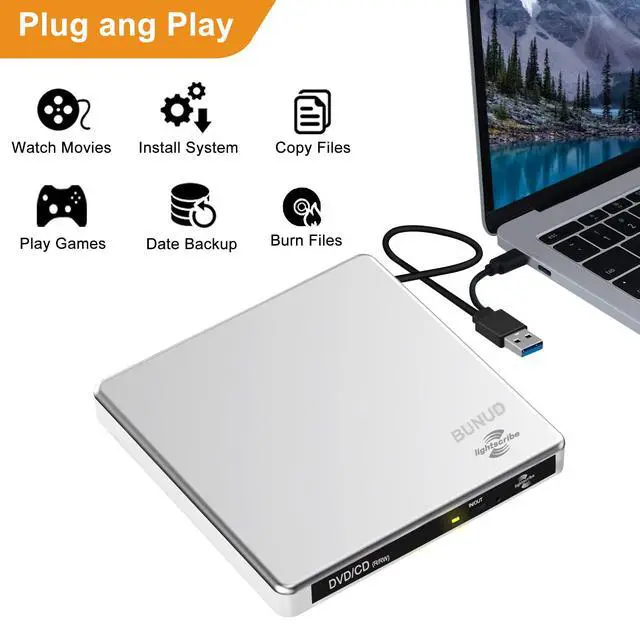


BUNUD External CD DVD Drive
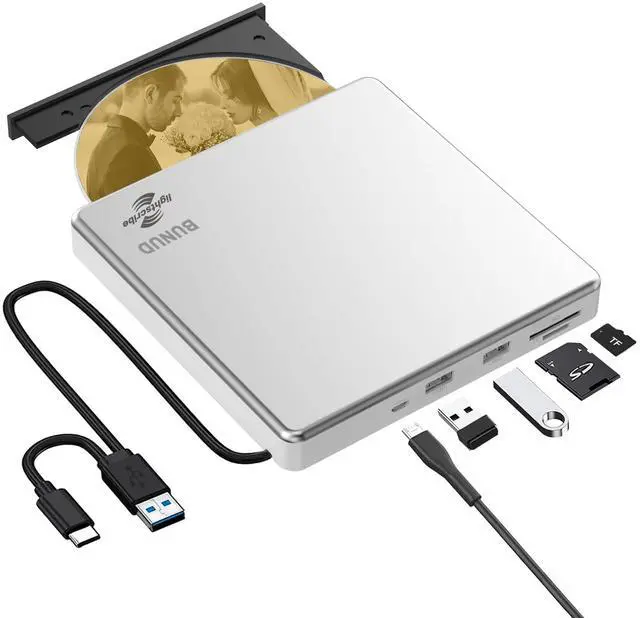
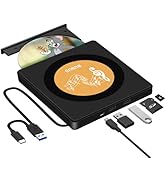
BUNUD External CD DVD Drive makes your life easier and the 5-in-1 function is like a mini hub, which let you more convienient.

Business Scope
The company specializes in the production of optical drive series, 5 in 1 external cd drive, external bluray drive, handheld steamer, usb-c car charger etc.
Quality
We are committed to the development of magneto-optical technology to meet the needs of customers at home and abroad.
We strictly control product quality and abide by the commitment to customers and would like establish long-term partnership with customers.
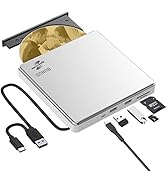
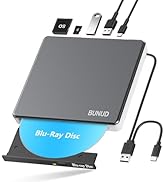
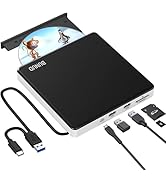
5 in 1 External CD DVD Drive
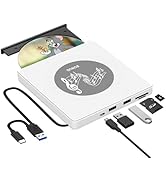

Product of BUNUD






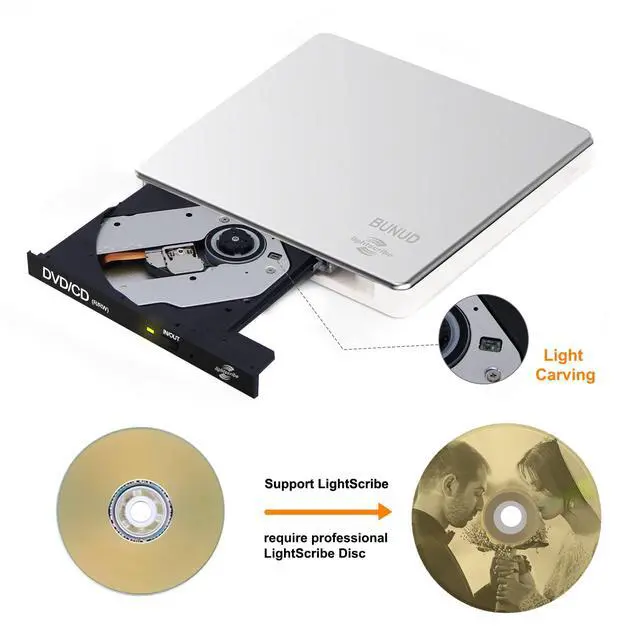
The Knowledge of The LightScribe System Software (LSS)
LightScribe System Software (LSS)
LightScribe System Software (LSS), sometimes called LightScribe drivers, it can work with Windowns and Mac.
LSS for Windows
Windows (10/8.1/8/7/Vista/XP/2K)
LSS for MAC
Mac (OSX 10.3.9/OSX 10.4.0 or later)
You must have the LightScribe System Software (LSS) or your LightScribe drive will not work, at least the LightScribe functioning of your drive will not.
Requirements: LightScribe enabled drive and media. LightScribe Labeling Software.
LightScribe Simple Labeler is a simple labeling application. Nothing fancy here but for simple projects it gets the job done in three easy steps.
1. Put in a LightScribe disc label-side down.
2. Enter text in your favorite font and select a border from the free ones provided.
3. Preview your label and burn!

BUNUD Portable External DVD Drive USB 3.0 for Laptops/Desktop
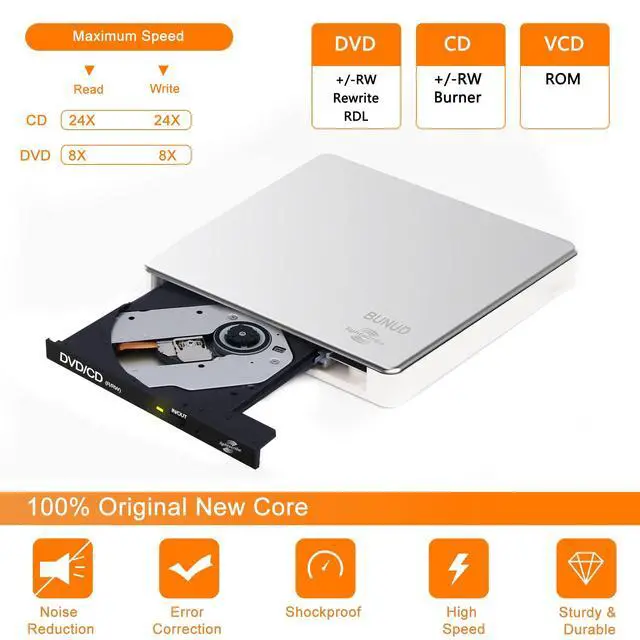
Supported formats: DVD-ROM, DVD-Video, CD-R/RW, CD-ROM/XA, CD-ROM, CD-EXTRA, CD-TEXT.
Media Types Supported: CD-ROM, CD-R, CD-RW, DVD-ROM, DVD-R, DVD-RW, DVD+RW, DVD+R, DVD+R DL, DVD-R DL, DVD RAM.
Reading Speed: CD-ROM: 24x Max; DVD-ROM: 8x Max; DVD-ROM(DL): 6x Max.
Write Speed: 24x CD-R, 8x CD-RW, DVD±R: 8x Max; DVD±R DL: 4X Max; DVD-R±9: 2.4x Max.
Overwrite Speed: DVD+RW: 4X Max; DVD-RW: 4x Max; CD-RW: 10X Max; DVD RAM: 3x max.
DO NOT SUPPORT TV/CAR/CHROME/TABLE/SURFACE/SMARTPHONE/IPAD/BLU-RAY.


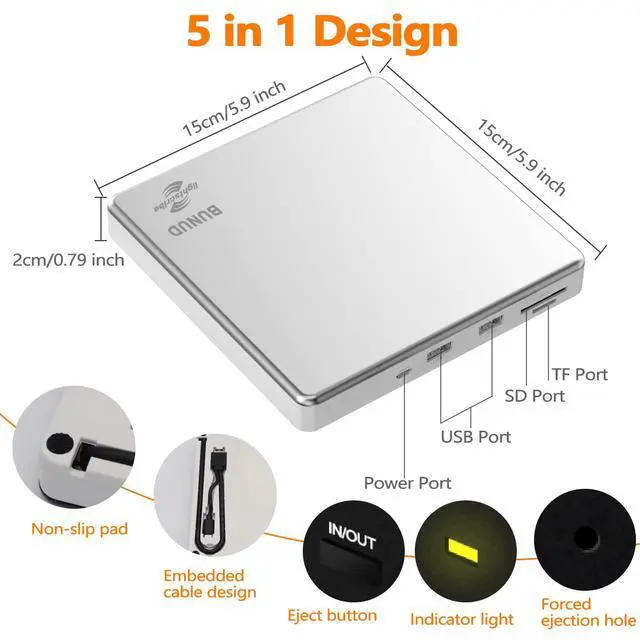
5 in 1 Design
BUNUD external CD DVD drive has an independent SD / TF card slot, 2 USB 3.0 ports and micro USB ports. It can transfer photos and videos directly from SD / TF card into the computer.

USB 3.0 & USB-C
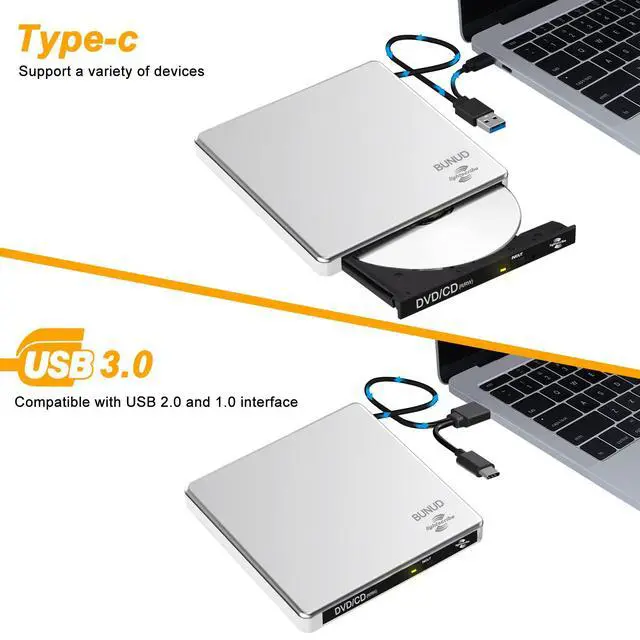
Equipped with advanced Type C and USB 3.0 super high speed interface, provides high speed data transfer which up to a maximum of 5Gbps and stable performance with strong fault tolerance for you.

Convenient Design
With this forced eject hole, indicator light and eject button, you don't have to worry about the DVD/CD won't pop out. You can easily take out your DVD CD when the external DVD/CD drive is not working.

Knowledge of Using BUNUD LightScribe External CD DVD Drive Before Buying:
Use This Drive on Windows
1. Remove the USB A/USB C data cable built into the back of this external CD DVD drive. 2. Plug the USB A or USB C connector into the USB port on your computer (not through a USB hub). 3. Your computer will recognise the external CD DVD drive. 4. Insert your CD or DVD. 5. Use a media player (such as Windows Media Player, VLC Player, etc.) or burning/ripping software to read/write the disc. Windows 11 Requirements: Windows 11 requires a media player (such as VLC ) and a network connection.
Using This Drive on Mac OS
1. Click 'Finder', select 'Preferences' and make sure 'CDs, DVDs, and iPods' is selected. 2. Remove the USB A/USB C data cable from the back of the drive. 3. Plug the USB A or USB C connector into the USB port on your Mac/MacBook/iMac (not via a USB hub). 4. Insert your CD or DVD. 5. Your Mac will recognise this drive, read the disc and an icon will appear on the desktop. 6. Use a media player (such as Apple Music, iTunes, DVD Player, etc.) or burning/ripping software to read/write the disc.
Make Sure Computer Recognises
Connect the external CD DVD drive to the computer. After the Windows system recognises the external disk drive, the 'DVD RW Drive' icon will appear. The Mac OS computer will not display the device icon until the disc is inserted into the drive and the disc is successfully read. If the computer doesn't recognise the drive, the computer's driver may be missing or the output power may be insufficient. For desktop, connect the data cable to the rear USB port of the host instead of the front USB port of the host.
Adding Power to the DVD Drive
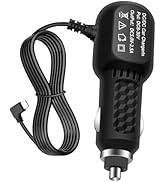
If your computer doesn't have enough power to support the external CD DVD drive, it's better to use the 5V charger/power bank to boost power. Note: For Apple computers, you must first connect the external CD DVD drive to the Mac/Macbook/iMac via the USB A/C data cable, and then connect the 5V charger/power bank to the external DVD drive via the charging cable, otherwise the Apple computer will not recognise it. PS: It comes with a power cable in the package for charging power for this LightScribe external CD DVD drive. Don't only connect the power cable to the drive and your computer, must connect the data cable to your computer.
NOTES:
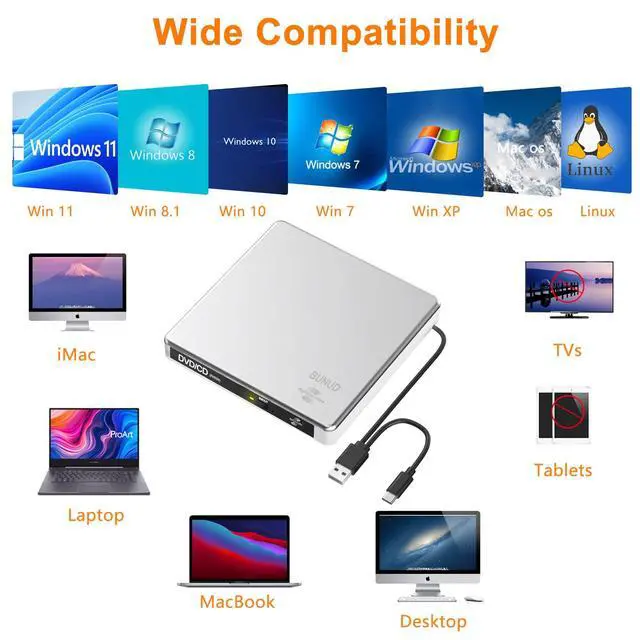
BUNUD external CD DVD drive is compatible with almost all computers including MacBook Pro, MacBook Air, iMac, Mac Mini, Windows laptop and desktop PCs. But doesn't support Chromebook, TV, tablet, iPad, mobile phones, projectors, trucks and cars.
Recommended CD & DVD Burning/Ripping Software
for Windows OS: Free audio CD burning software (Windows Media Player, CDBurnerXP and ImgBurn); Free audio CD ripping software (Windows Media Player, iTunes, CDex, Exact Audio Copy [EAC]); Free video DVD burning software (ImgBurn, BurnAware Free, CDBurnerXP, Freemake Video Converter, or HandBrake software); Free video DVD ripping software (HandBrake, MakeMKV, VLC Media Player, Freemake Video Converter).
on Mac OS: Free audio CD burning software (Apple Music, old iTunes, Burn, Express Burn); Free audio CD ripping software (Apple Music, old iTunes, X Lossless Decoder, HandBrake, Audacity); Free video DVD burning software (Burn, HandBrake, iDVD (Legacy), DVDStyler, iDVD [for old Mac]); Free video DVD ripping software (MakeMKV, HandBrake with VLC - use VLC to read the DVD, and HandBrake to convert and rip it to the format you want).
Mac OS has a Built-in Burning Function: Connect the external CD/DVD drive, insert a blank disc, then click 'File' in the top menu and select 'New Burn Folder. Drag the files you want to burn into this folder, click 'Burn to Disc,' and eject the disc when finished. Note that Mac OS only supports burning to blank discs, and each disc can only be burned once.
The Knowledge of The LightScribe System Software (LSS)
LightScribe System Software (LSS)
LightScribe System Software (LSS), sometimes called LightScribe drivers, it can work with Windowns and Mac.
LSS for Windows
Windows (10/8.1/8/7/Vista/XP/2K)
LSS for MAC
Mac (OSX 10.3.9/OSX 10.4.0 or later)
You must have the LightScribe System Software (LSS) or your LightScribe drive will not work, at least the LightScribe functioning of your drive will not.
Requirements: LightScribe enabled drive and media. LightScribe Labeling Software.
LightScribe Simple Labeler is a simple labeling application. Nothing fancy here but for simple projects it gets the job done in three easy steps.
1. Put in a LightScribe disc label-side down.
2. Enter text in your favorite font and select a border from the free ones provided.
3. Preview your label and burn!
BUNUD Portable External DVD Drive USB 3.0 for Laptops/Desktop
Supported formats: DVD-ROM, DVD-Video, CD-R/RW, CD-ROM/XA, CD-ROM, CD-EXTRA, CD-TEXT.
Media Types Supported: CD-ROM, CD-R, CD-RW, DVD-ROM, DVD-R, DVD-RW, DVD+RW, DVD+R, DVD+R DL, DVD-R DL, DVD RAM.
Reading Speed: CD-ROM: 24x Max; DVD-ROM: 8x Max; DVD-ROM(DL): 6x Max.
Write Speed: 24x CD-R, 8x CD-RW, DVD±R: 8x Max; DVD±R DL: 4X Max; DVD-R±9: 2.4x Max.
Overwrite Speed: DVD+RW: 4X Max; DVD-RW: 4x Max; CD-RW: 10X Max; DVD RAM: 3x max.
DO NOT SUPPORT TV/CAR/CHROME/TABLE/SURFACE/SMARTPHONE/IPAD/BLU-RAY.
5 in 1 Design
BUNUD external CD DVD drive has an independent SD / TF card slot, 2 USB 3.0 ports and micro USB ports. It can transfer photos and videos directly from SD / TF card into the computer.
USB 3.0 & USB-C
Equipped with advanced Type C and USB 3.0 super high speed interface, provides high speed data transfer which up to a maximum of 5Gbps and stable performance with strong fault tolerance for you.
Convenient Design
With this forced eject hole, indicator light and eject button, you don't have to worry about the DVD/CD won't pop out. You can easily take out your DVD CD when the external DVD/CD drive is not working.
Knowledge of Using BUNUD LightScribe External CD DVD Drive Before Buying:
Use This Drive on Windows
1. Remove the USB A/USB C data cable built into the back of this external CD DVD drive. 2. Plug the USB A or USB C connector into the USB port on your computer (not through a USB hub). 3. Your computer will recognise the external CD DVD drive. 4. Insert your CD or DVD. 5. Use a media player (such as Windows Media Player, VLC Player, etc.) or burning/ripping software to read/write the disc. Windows 11 Requirements: Windows 11 requires a media player (such as VLC ) and a network connection.
Using This Drive on Mac OS
1. Click 'Finder', select 'Preferences' and make sure 'CDs, DVDs, and iPods' is selected. 2. Remove the USB A/USB C data cable from the back of the drive. 3. Plug the USB A or USB C connector into the USB port on your Mac/MacBook/iMac (not via a USB hub). 4. Insert your CD or DVD. 5. Your Mac will recognise this drive, read the disc and an icon will appear on the desktop. 6. Use a media player (such as Apple Music, iTunes, DVD Player, etc.) or burning/ripping software to read/write the disc.
Make Sure Computer Recognises
Connect the external CD DVD drive to the computer. After the Windows system recognises the external disk drive, the 'DVD RW Drive' icon will appear. The Mac OS computer will not display the device icon until the disc is inserted into the drive and the disc is successfully read. If the computer doesn't recognise the drive, the computer's driver may be missing or the output power may be insufficient. For desktop, connect the data cable to the rear USB port of the host instead of the front USB port of the host.
Adding Power to the DVD Drive
If your computer doesn't have enough power to support the external CD DVD drive, it's better to use the 5V charger/power bank to boost power. Note: For Apple computers, you must first connect the external CD DVD drive to the Mac/Macbook/iMac via the USB A/C data cable, and then connect the 5V charger/power bank to the external DVD drive via the charging cable, otherwise the Apple computer will not recognise it. PS: It comes with a power cable in the package for charging power for this LightScribe external CD DVD drive. Don't only connect the power cable to the drive and your computer, must connect the data cable to your computer.
NOTES:
BUNUD external CD DVD drive is compatible with almost all computers including MacBook Pro, MacBook Air, iMac, Mac Mini, Windows laptop and desktop PCs. But doesn't support Chromebook, TV, tablet, iPad, mobile phones, projectors, trucks and cars.
Recommended CD & DVD Burning/Ripping Software
for Windows OS: Free audio CD burning software (Windows Media Player, CDBurnerXP and ImgBurn); Free audio CD ripping software (Windows Media Player, iTunes, CDex, Exact Audio Copy [EAC]); Free video DVD burning software (ImgBurn, BurnAware Free, CDBurnerXP, Freemake Video Converter, or HandBrake software); Free video DVD ripping software (HandBrake, MakeMKV, VLC Media Player, Freemake Video Converter).
on Mac OS: Free audio CD burning software (Apple Music, old iTunes, Burn, Express Burn); Free audio CD ripping software (Apple Music, old iTunes, X Lossless Decoder, HandBrake, Audacity); Free video DVD burning software (Burn, HandBrake, iDVD (Legacy), DVDStyler, iDVD [for old Mac]); Free video DVD ripping software (MakeMKV, HandBrake with VLC - use VLC to read the DVD, and HandBrake to convert and rip it to the format you want).
Mac OS has a Built-in Burning Function: Connect the external CD/DVD drive, insert a blank disc, then click 'File' in the top menu and select 'New Burn Folder. Drag the files you want to burn into this folder, click 'Burn to Disc,' and eject the disc when finished. Note that Mac OS only supports burning to blank discs, and each disc can only be burned once.
BUNUD External CD DVD Drive
BUNUD External CD DVD Drive makes your life easier and the 5-in-1 function is like a mini hub, which let you more convienient.
Business Scope
The company specializes in the production of optical drive series, 5 in 1 external cd drive, external bluray drive, handheld steamer, usb-c car charger etc.
Quality
We are committed to the development of magneto-optical technology to meet the needs of customers at home and abroad.
We strictly control product quality and abide by the commitment to customers and would like establish long-term partnership with customers.
5 in 1 External CD DVD Drive
Product of BUNUD