


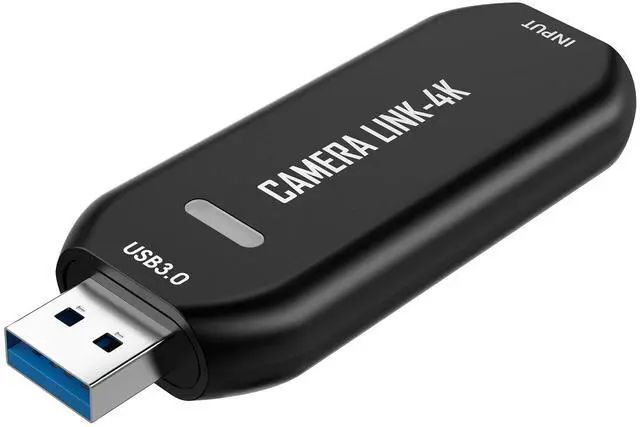
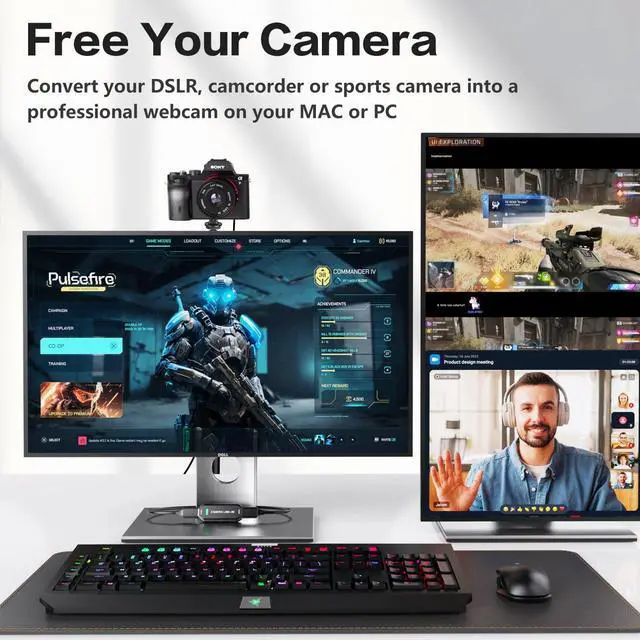
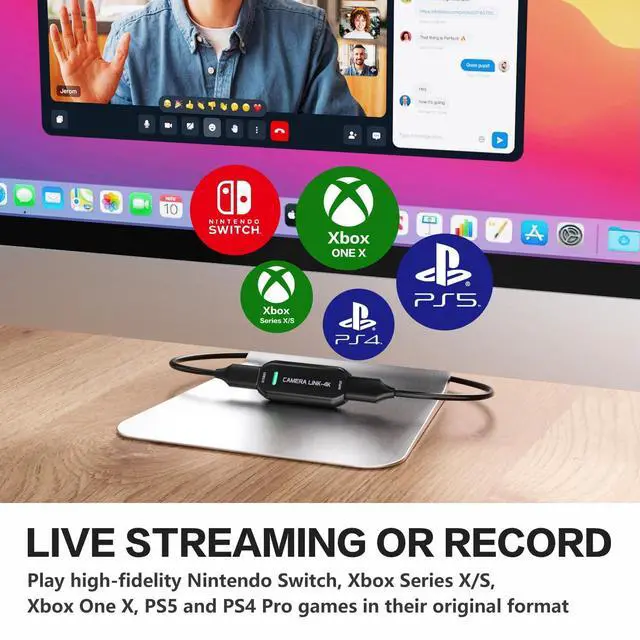
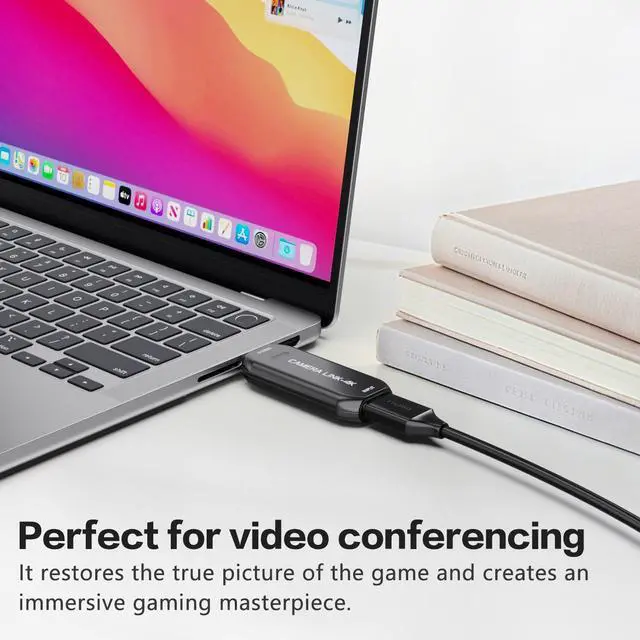


VIXLW Cam Link 4K Capture Card
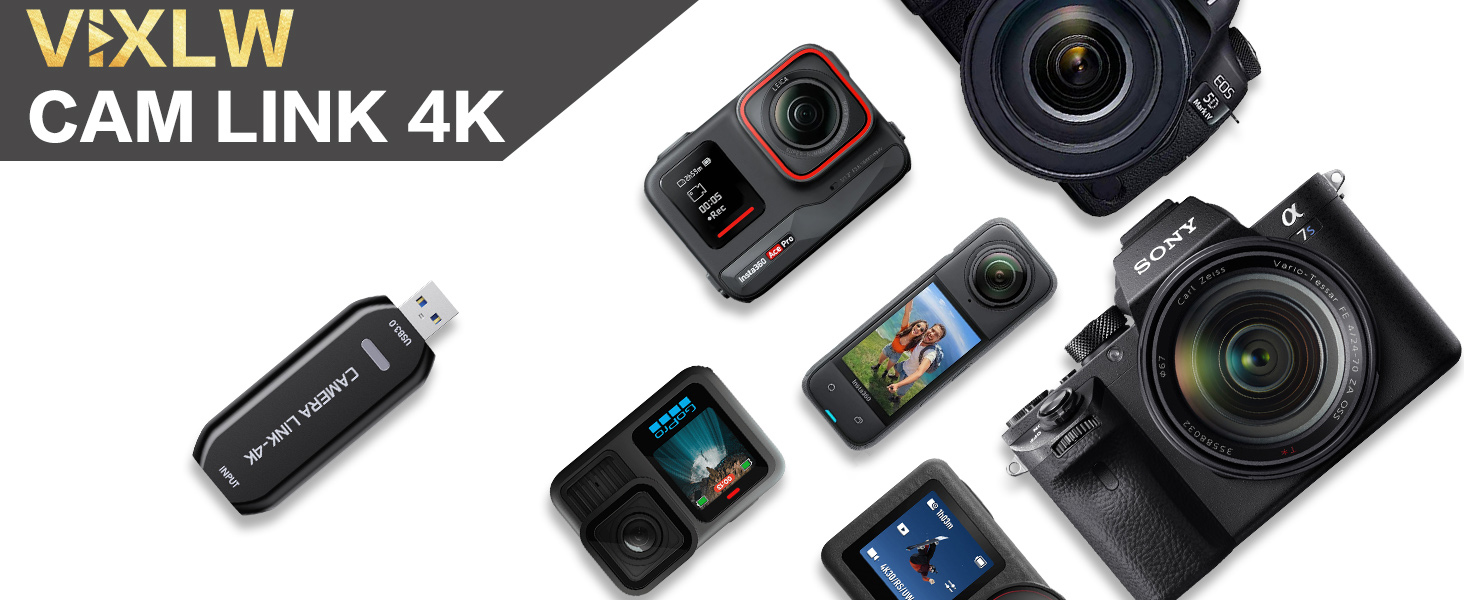
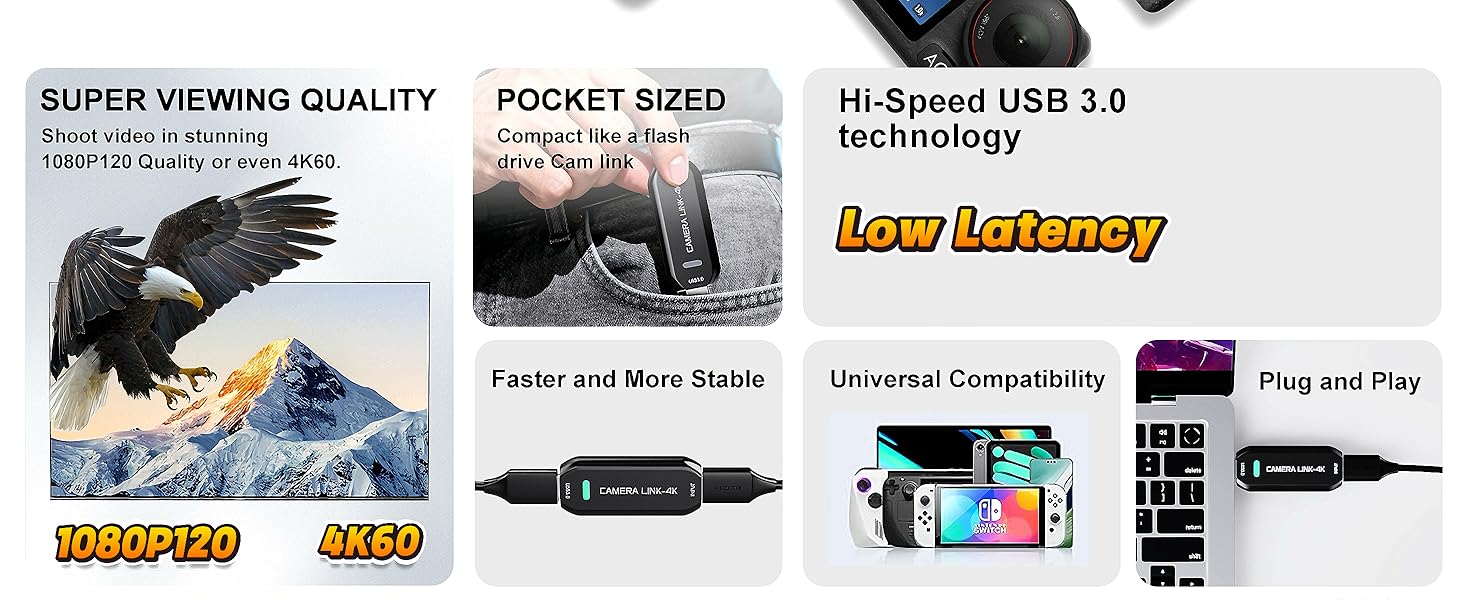
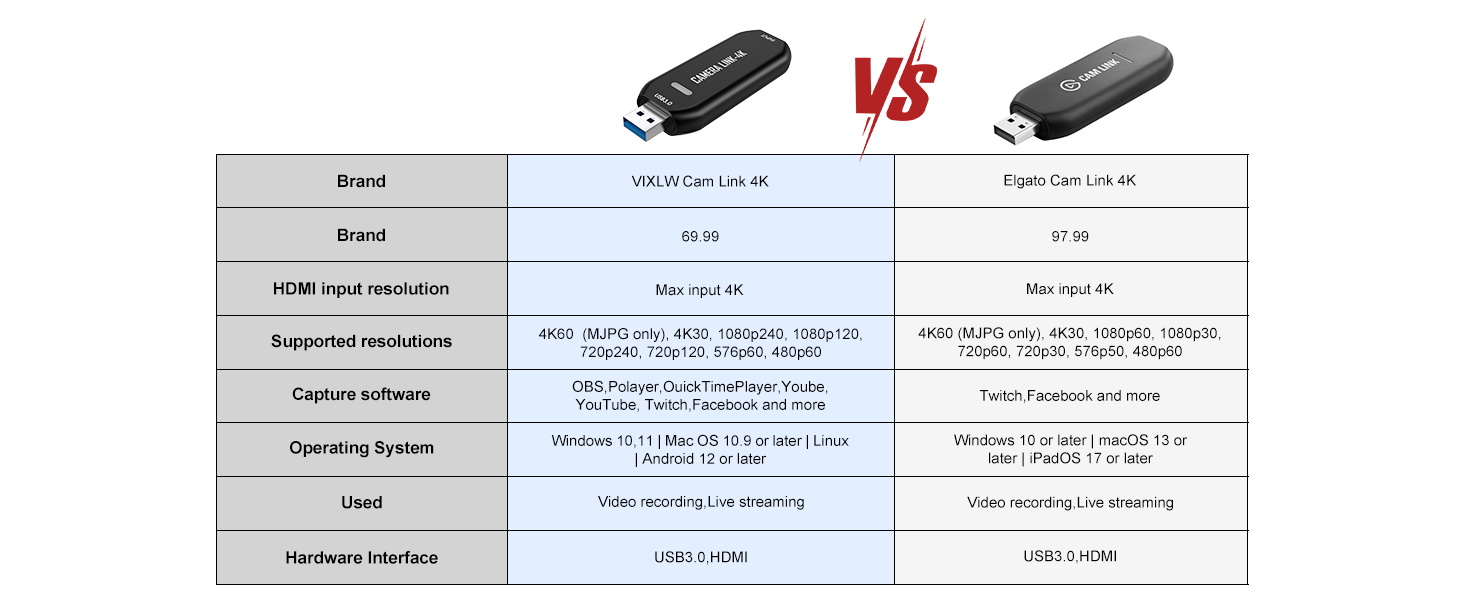
Premium quality, pocket-friendly price
OBS Studio Setup
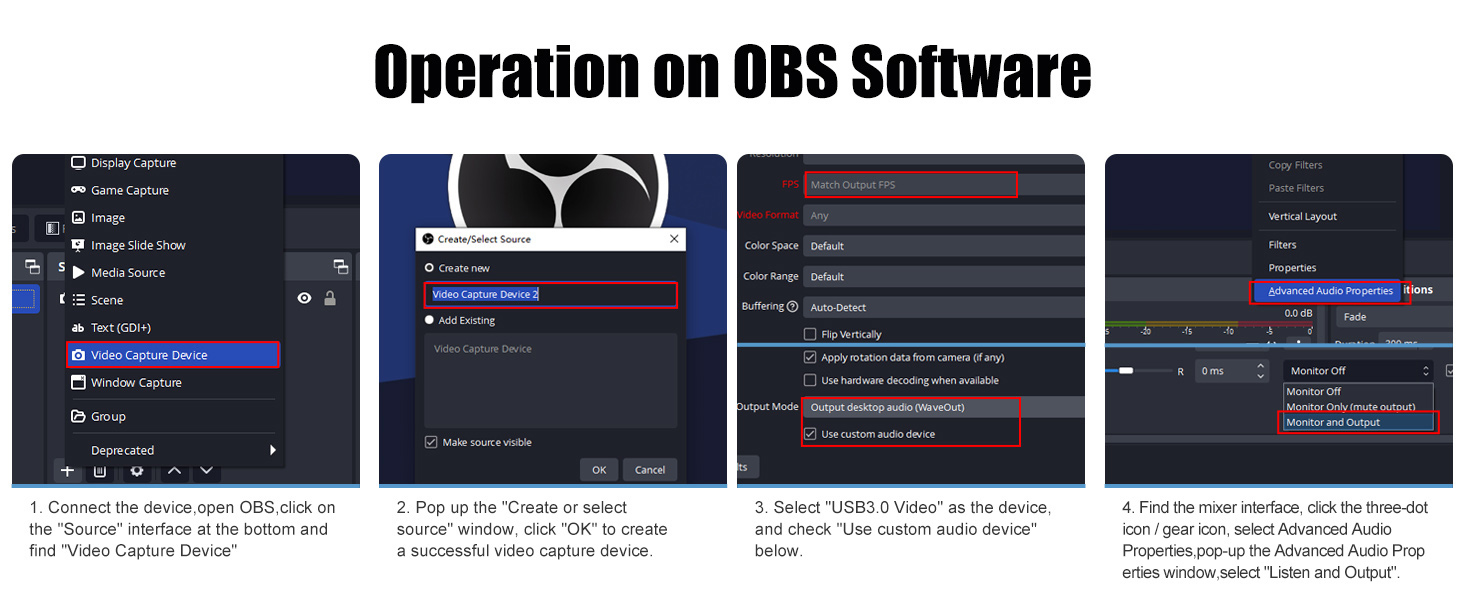
1. Open OBS, create a new source under Sources by clicking "+", select "Video Capture Device", name it, then set:
Device: USB3.0 Video. Audio Output Mode: Capture Mode Only; Use custom audio device: Digital Audio Interface (USB 3.0 Audio)
2. In OBS settings ? Audio:
Disable all Global Audio Settings except Mic/Auxiliary Audio; Set Mic/Auxiliary Audio to Digital Audio Interface (USB 3.0 Audio)
3. Under the Audio tab:
Right-click Mic/Auxiliary Audio ? Advanced Audio Properties ? Set Audio Monitoring to "Monitor Only (Mute Output)"
4. In PC settings ? System ? Sound:
Set Input to Laptop Microphone; All Sound Devices ? Input Devices ? Digital Audio Interface. Ensure it is NOT set to default. All Sound Devices ? Input Devices ? Laptop Microphone. Ensure it IS set to default.
5. In Discord:
If prompted to switch audio device, choose "don't switch" User Settings > Voice & Video > Input > Laptop Microphone. User Settings > Voice & Video > Output > Laptop Speakers.
Can the Cam Link 4K capture 4K at 60 fps?
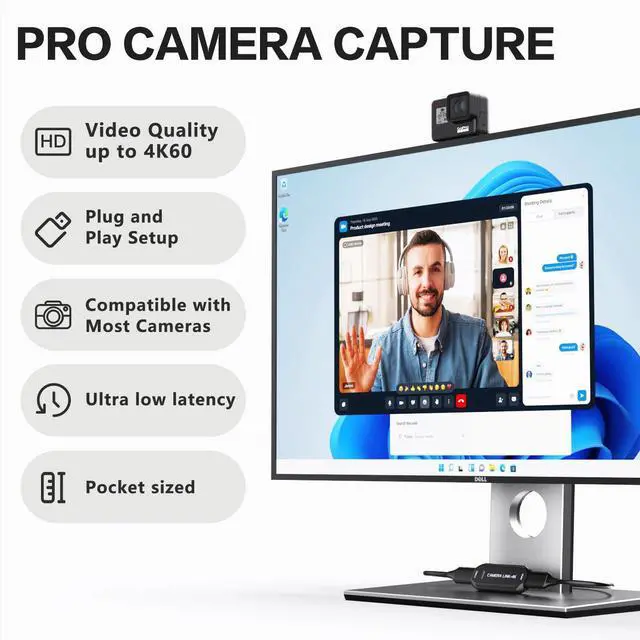
Yes. The Cam Link 4K Capture Card supports up to 4K60 input and delivers ultra-smooth, high-quality video output in 4K or 1080p120 for streaming and recording.
Can I use any USB port?
The Cam Link 4K features a USB-A interface and requires a USB 3.0 or higher port to ensure the best performance and stable transmission speed.
Do I need any other equipment to connect my camera?
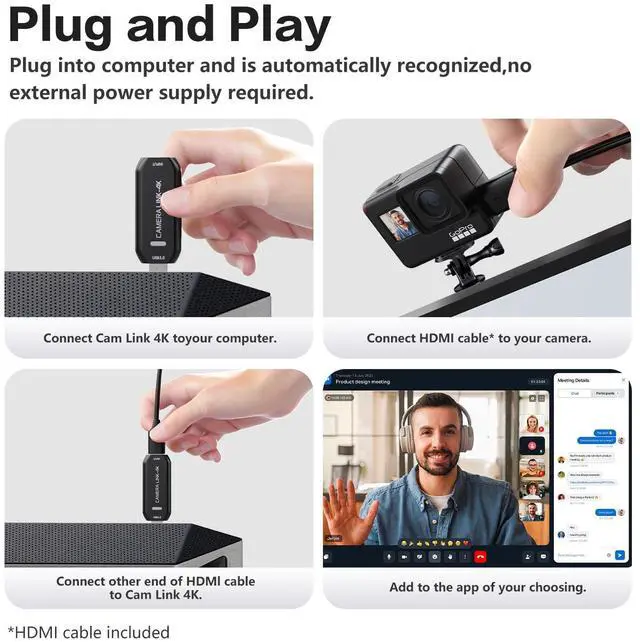
Depending on your camera model, you may need a Micro HDMI to HDMI or Mini HDMI to HDMI cable (one HDMI cable is included).
If your computer only has USB-C ports, use a USB-C to USB-A adapter to connect the device.
What should I do if the Cam Link 4K is not recognized?
Make sure you’re using a USB 3.0 port. Then check Device Manager — “USB 3.0 Video” should appear under camera drivers. If there’s a warning icon, update your drivers and reconnect the device.
Is the Cam Link 4K easy to set up and use?
Yes. It’s completely plug and play—no drivers or extra software needed. OBS and other streaming apps recognize it instantly, and the included manual provides clear, step-by-step setup instructions.
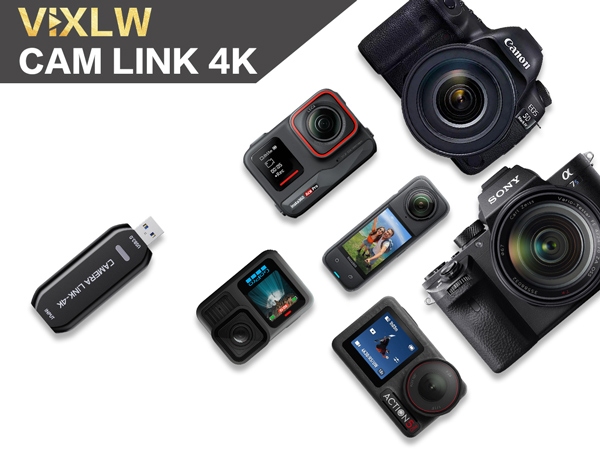
VIXLW Cam Link 4K Capture Card
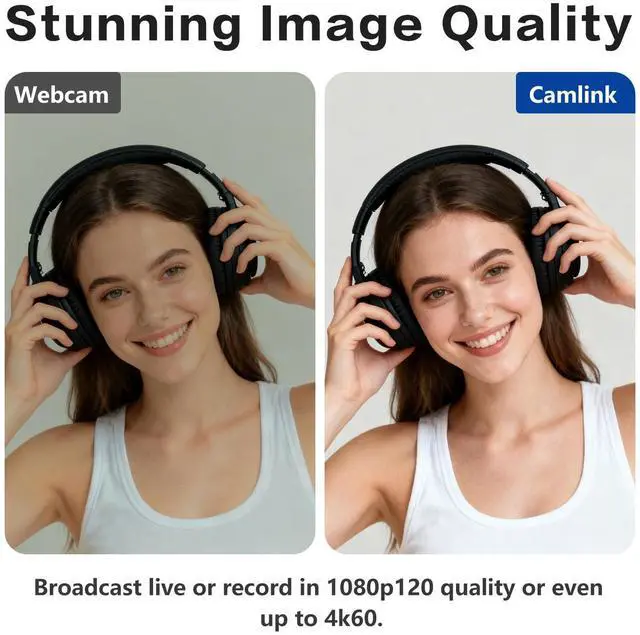
4K60 & 1080p120 Quality
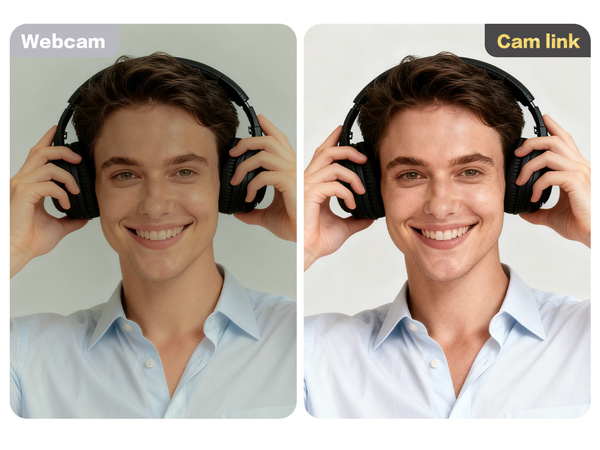
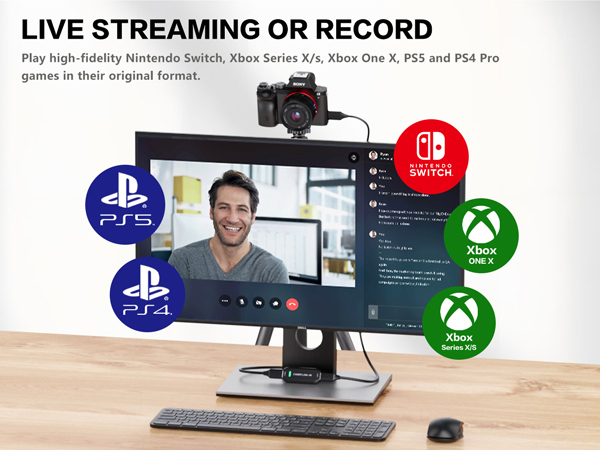
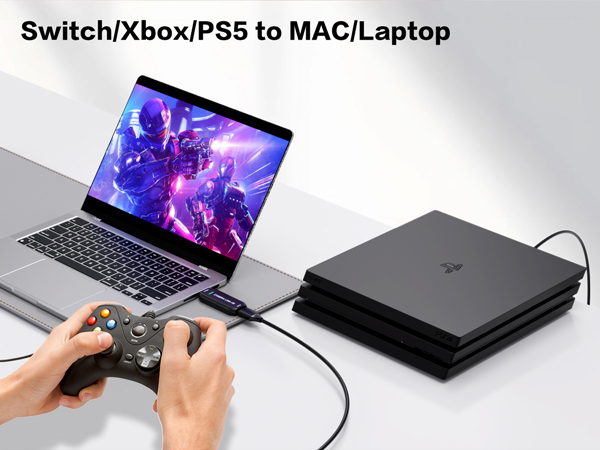
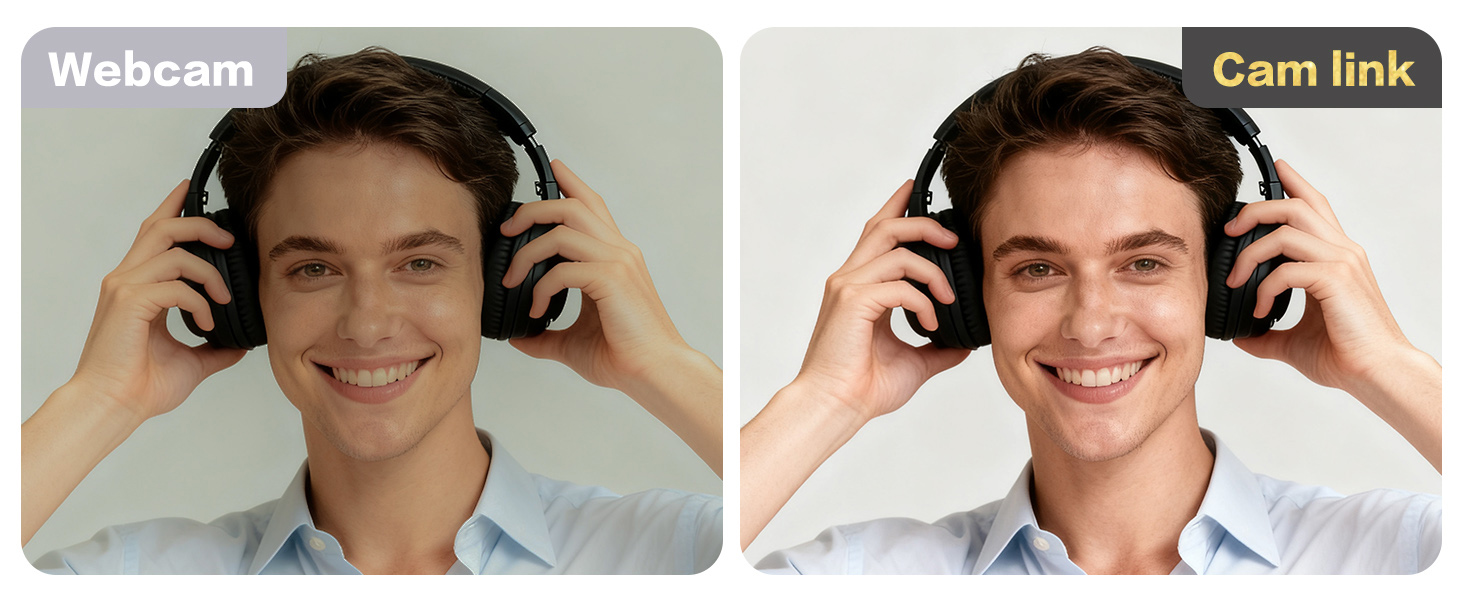
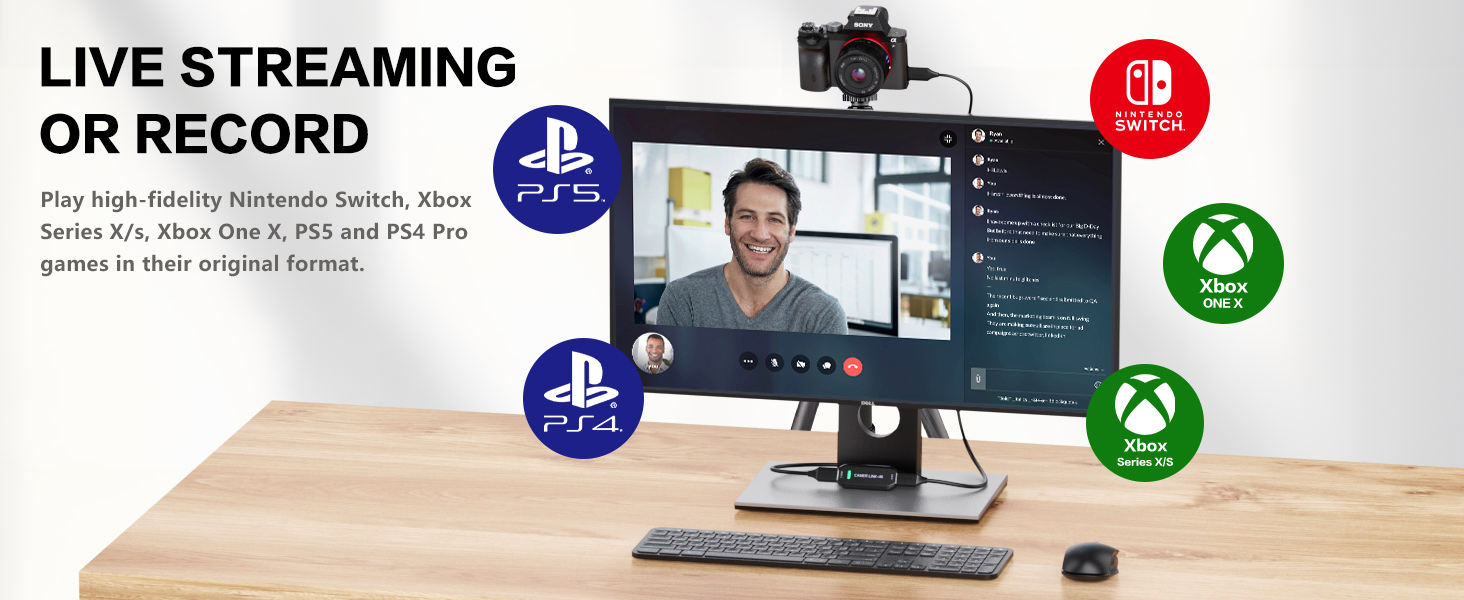
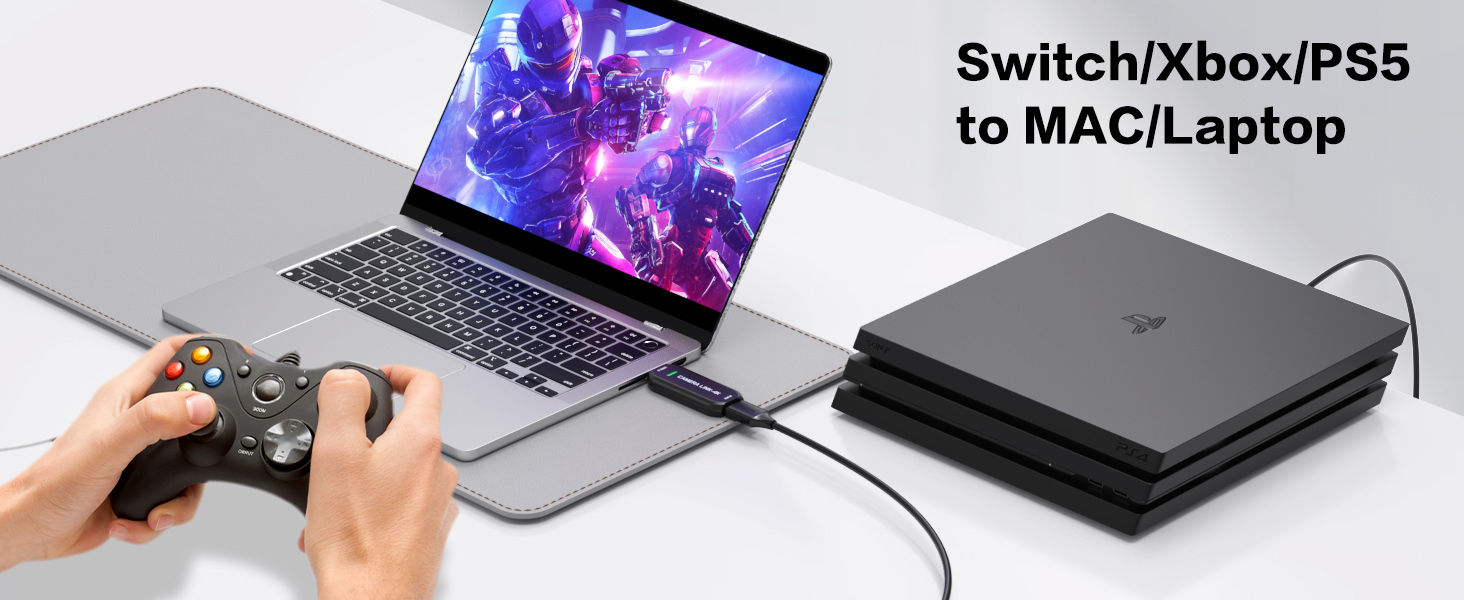
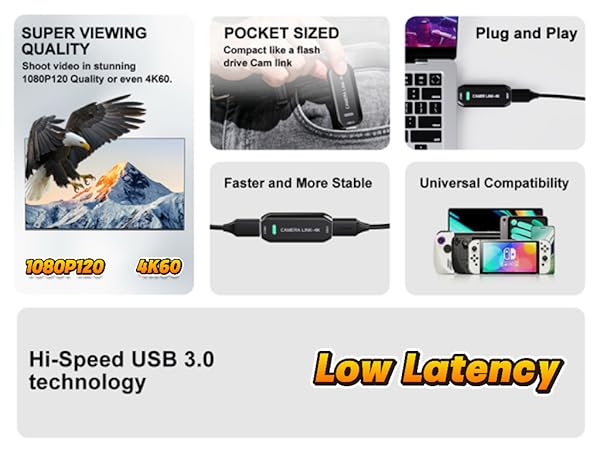
Enjoy ultra-clear, smooth video in 4K60 or 1080p120. Perfect for gaming, live streaming, video calls, and content creation.
Premium quality, pocket-friendly price
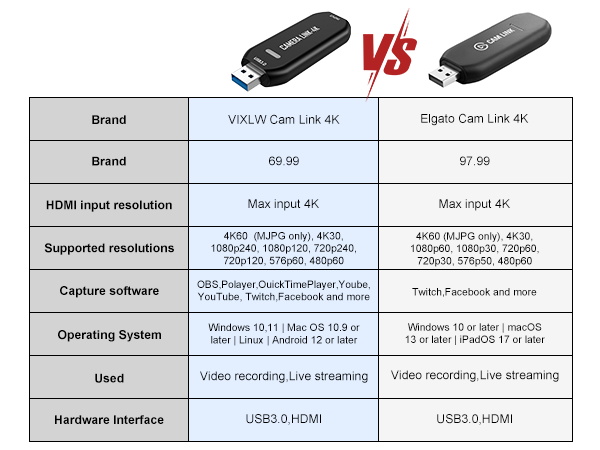
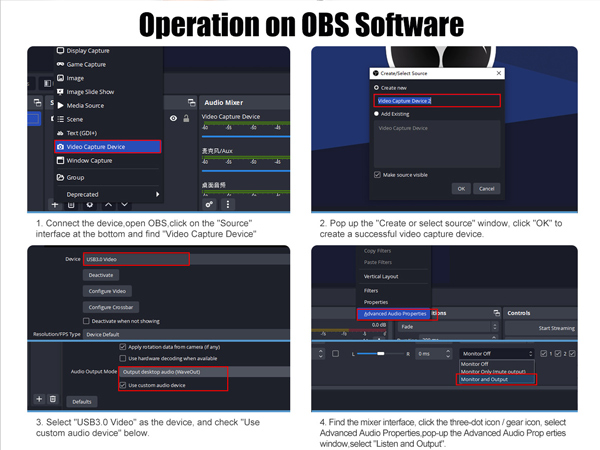
OBS Studio Setup
1. Open OBS, create a new source under Sources by clicking "+", select "Video Capture Device", name it, then set:
Device: USB3.0 Video. Audio Output Mode: Capture Mode Only; Use custom audio device: Digital Audio Interface (USB 3.0 Audio)
2. In OBS settings ? Audio:
Disable all Global Audio Settings except Mic/Auxiliary Audio; Set Mic/Auxiliary Audio to Digital Audio Interface (USB 3.0 Audio)
3. Under the Audio tab:
Right-click Mic/Auxiliary Audio ? Advanced Audio Properties ? Set Audio Monitoring to "Monitor Only (Mute Output)"
4. In PC settings ? System ? Sound:
Set Input to Laptop Microphone; All Sound Devices ? Input Devices ? Digital Audio Interface. Ensure it is NOT set to default. All Sound Devices ? Input Devices ? Laptop Microphone. Ensure it IS set to default.
5. In Discord:
If prompted to switch audio device, choose "don't switch" User Settings > Voice & Video > Input > Laptop Microphone. User Settings > Voice & Video > Output > Laptop Speakers.
Can the Cam Link 4K capture 4K at 60 fps?
Yes. The Cam Link 4K Capture Card supports up to 4K60 input and delivers ultra-smooth, high-quality video output in 4K or 1080p120 for streaming and recording.
Can I use any USB port?
The Cam Link 4K features a USB-A interface and requires a USB 3.0 or higher port to ensure the best performance and stable transmission speed.
Do I need any other equipment to connect my camera?
Depending on your camera model, you may need a Micro HDMI to HDMI or Mini HDMI to HDMI cable (one HDMI cable is included).
If your computer only has USB-C ports, use a USB-C to USB-A adapter to connect the device.
What should I do if the Cam Link 4K is not recognized?
Make sure you’re using a USB 3.0 port. Then check Device Manager — “USB 3.0 Video” should appear under camera drivers. If there’s a warning icon, update your drivers and reconnect the device.
Is the Cam Link 4K easy to set up and use?
Yes. It’s completely plug and play—no drivers or extra software needed. OBS and other streaming apps recognize it instantly, and the included manual provides clear, step-by-step setup instructions.