






Cubilux is committed to creating high-quality products that elevate audio experiences across smartphones, tablets, PCs, and laptops—whether for work or leisure.
By enhancing device capabilities for recording, vlogging, and livestreaming, we empower creators to bring their ideas to life with greater ease.
We welcome customer feedback and continually refine our designs to truly meet your needs.
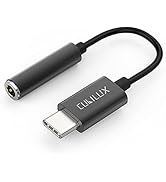
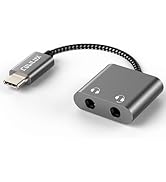
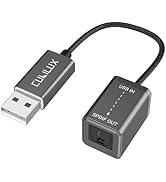
Audio Converters
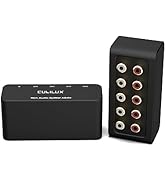
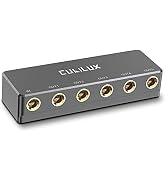
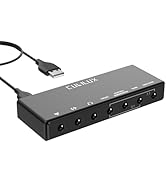
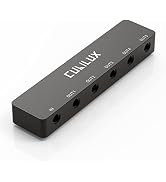
Audio Splitters
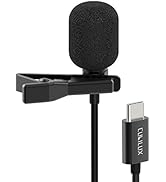
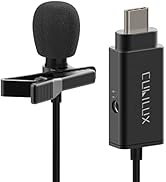
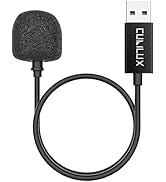
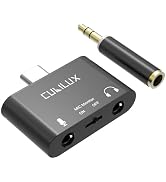
Microphones & Accessories
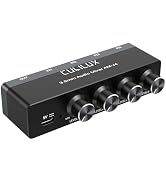
![Cubilux AM-K4 6.35mm Audio Mixer [Ultra-Low Noise, HiFi AMP] 4-Channel Line-In 1/4” Mini AUX Mixe...](//c1.neweggimages.com/sellingpilot/modules/product/a-plus/d0e4dddfc63e96a350f6ece794d50374079923efacbeea635e70eaa7dd07de40.jpg)
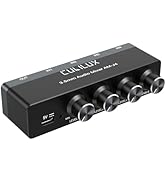
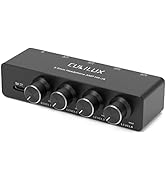
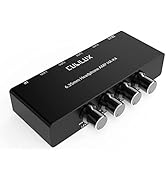
Mixers & AMPs
![Cubilux AM-K4 6.35mm Audio Mixer [Ultra-Low Noise, HiFi AMP] 4-Channel Line-In 1/4” Mini AUX Mixe...](http://c1.neweggimages.com/sellingpilot/modules/product/a-plus/d0e4dddfc63e96a350f6ece794d50374079923efacbeea635e70eaa7dd07de40.jpg)
Important Note
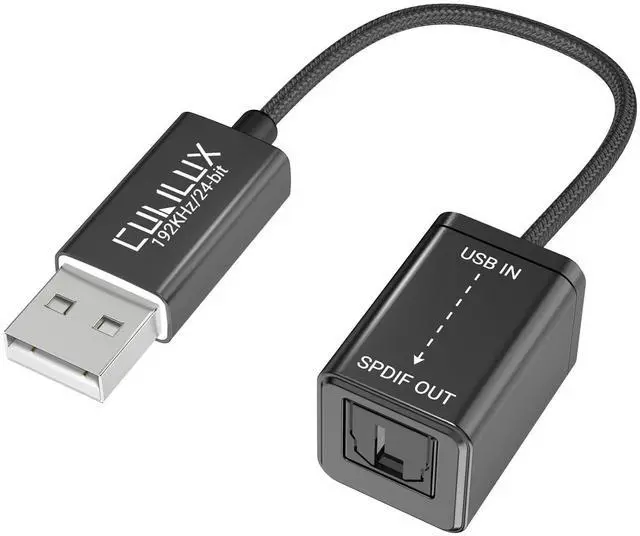
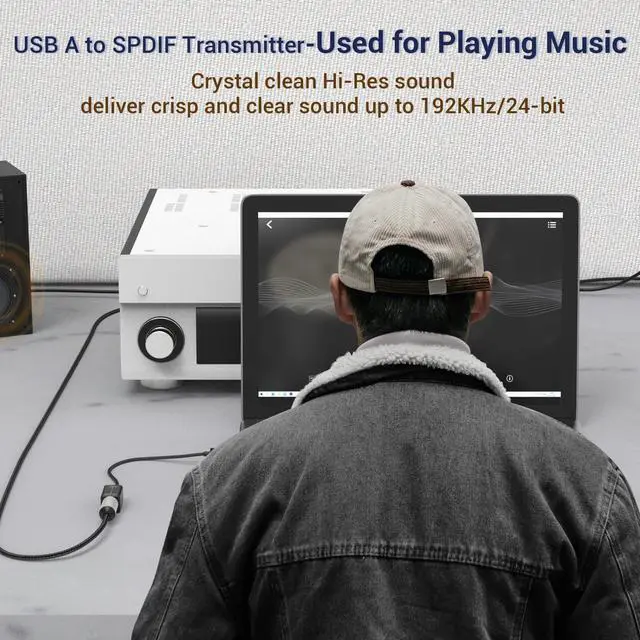
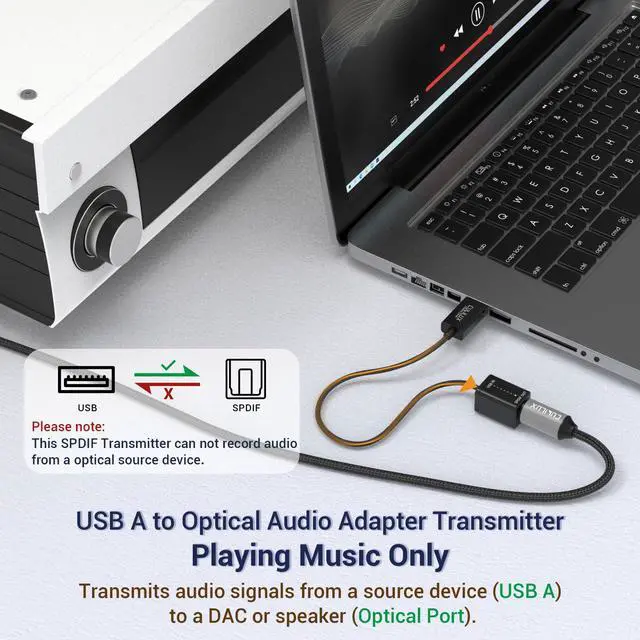
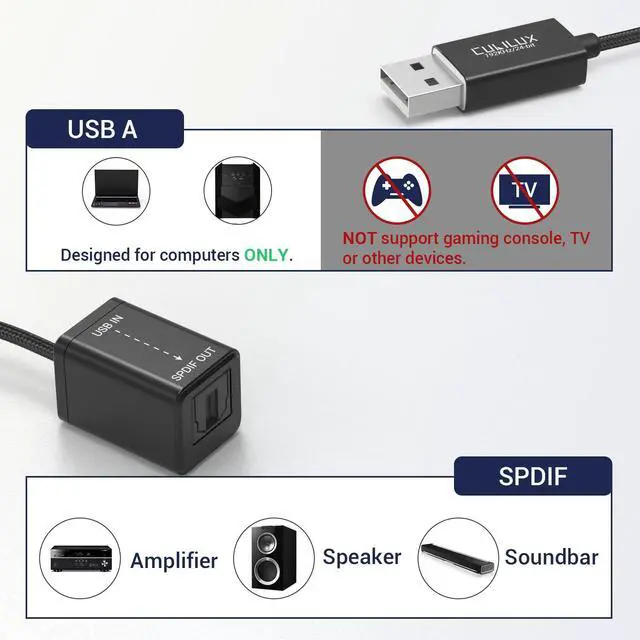
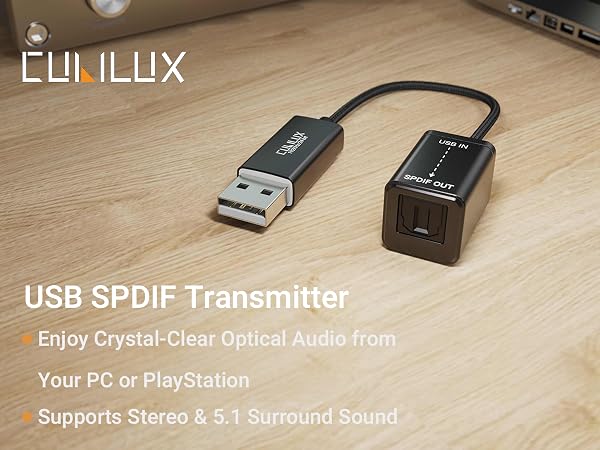
- This transmitter is designed for transmitting optical digital audio signals. It does NOT convert stereo audio to 5.1 surround sound, and it CANNOT upscale low-resolution audio to high-resolution.
- This transmitter is ONLY compatible with computers and PS5/PS4. It does NOT work with TVs, car USB ports, Xbox consoles, or other non-computer devices.
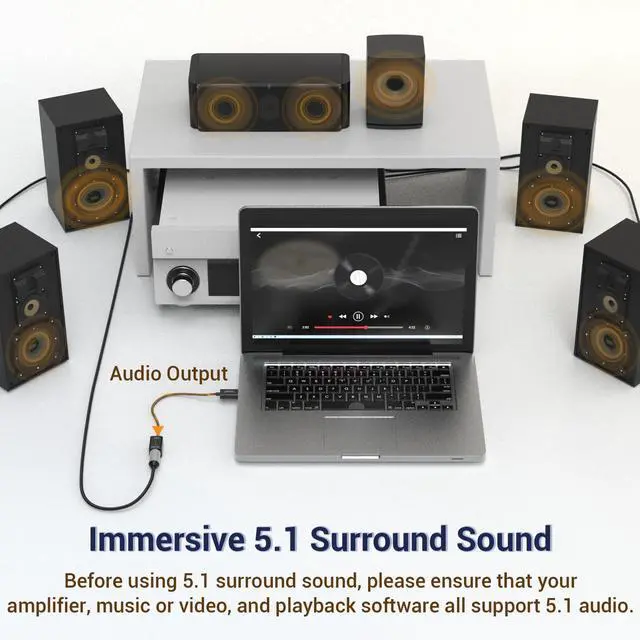
- On computers, this transmitter supports both stereo and 5.1 surround sound. On PlayStation consoles, this transmitter supports stereo ONLY.
- On macOS, the transmitter does NOT support volume adjustment. Please control the volume directly on your receiving device.
- 7.1 surround sound is NOTsupported.
Explore Cubilux SPDIF Adapters
 USB > SPDIF Transmitter |  USB C > SPDIF Transmitter |  SPDIF > USB Receiver |  SPDIF > USB C Receiver |  USB > SPDIF Transmitter |  USB C > SPDIF Transmitter |  USB > 2 SPDIF Transmitter | |
|---|---|---|---|---|---|---|---|
Customer Reviews | — | — | — | — | — | — | — |
Price | — | — | — | — | — | — | — |
5.1 Surround Sound | ? | ? | ? | ? | ? | ? | ? |
7.1 Surround Sound | ? | ? | ? | ? | ? | ? | ? |
Stereo Audio | ? | ? | ? | ? | ? | ? | ? |
Output Optical Audio From USB | ? | ? | ? | ? | ? | ? | ? |
Recording Optical Audio to USB | ? | ? | ? | ? | ? | ? | ? |
Sampling Rate | Up to 192 KHz/24-bit | Up to 192 KHz/24-bit | 48KHz, 16/24-bit ONLY | 48KHz, 16/24-bit ONLY | 48KHz, 16-bit ONLY | 48KHz, 16-bit ONLY | Up to 192 KHz/24-bit |
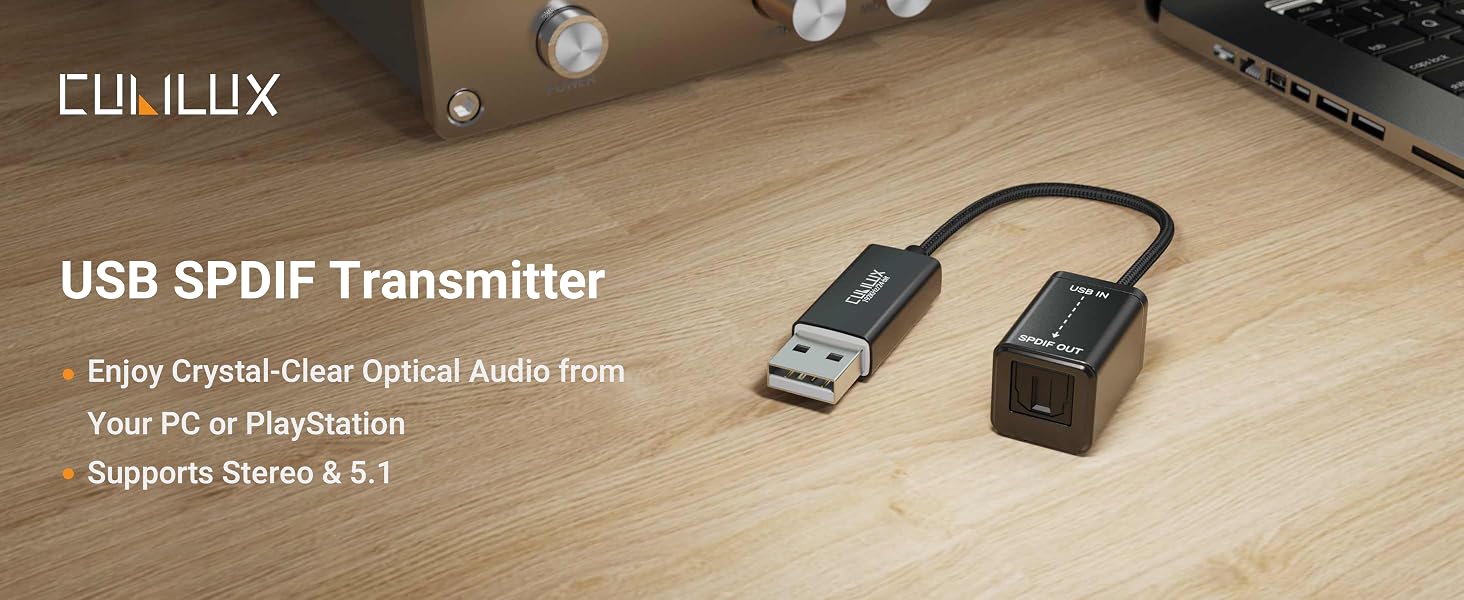
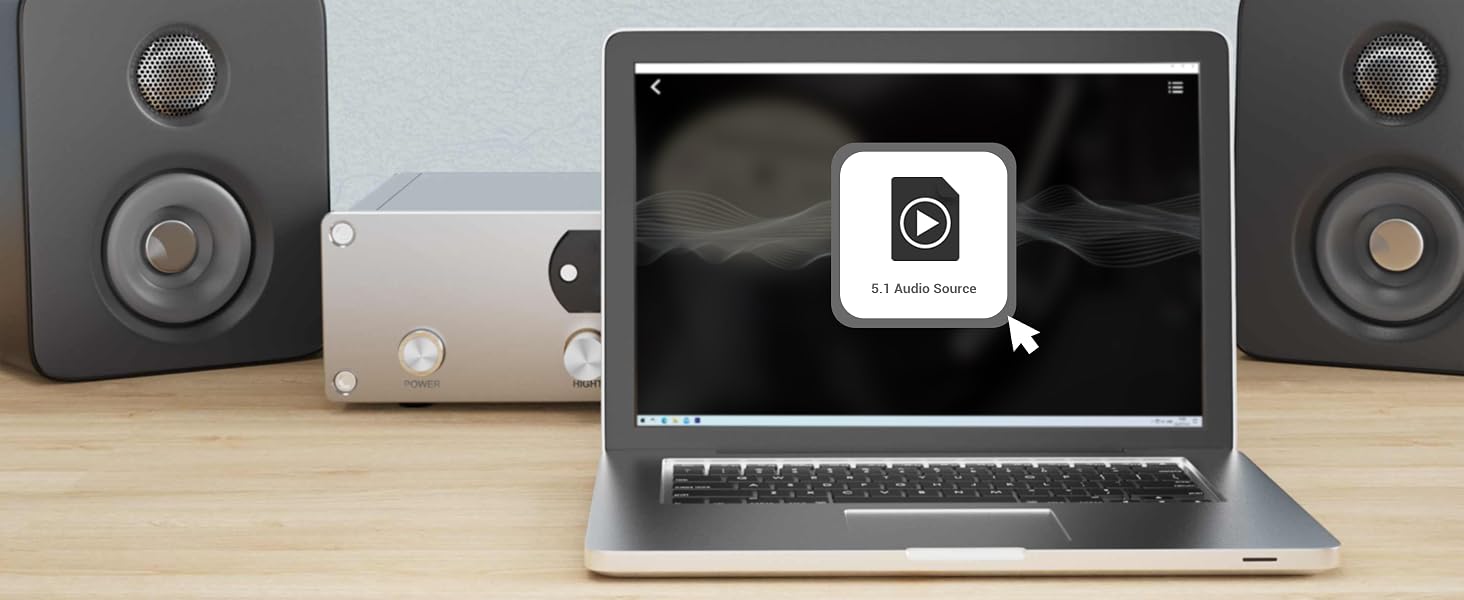
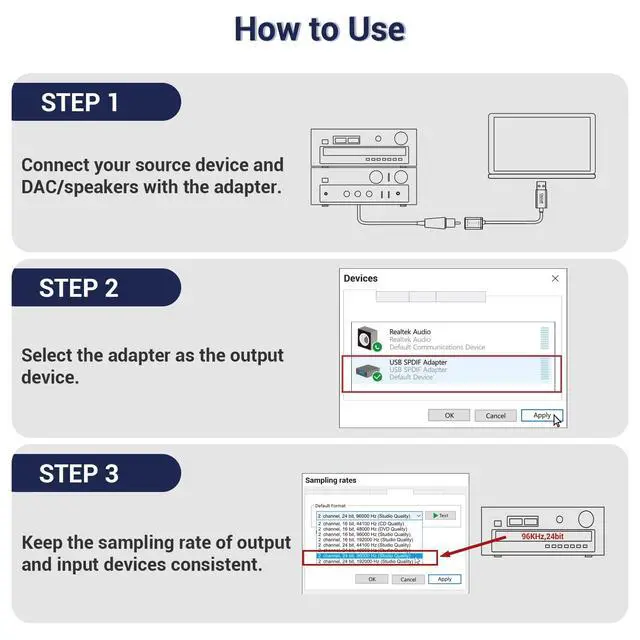
Step 1
Get a 5.1 surround sound movie or music file ready.
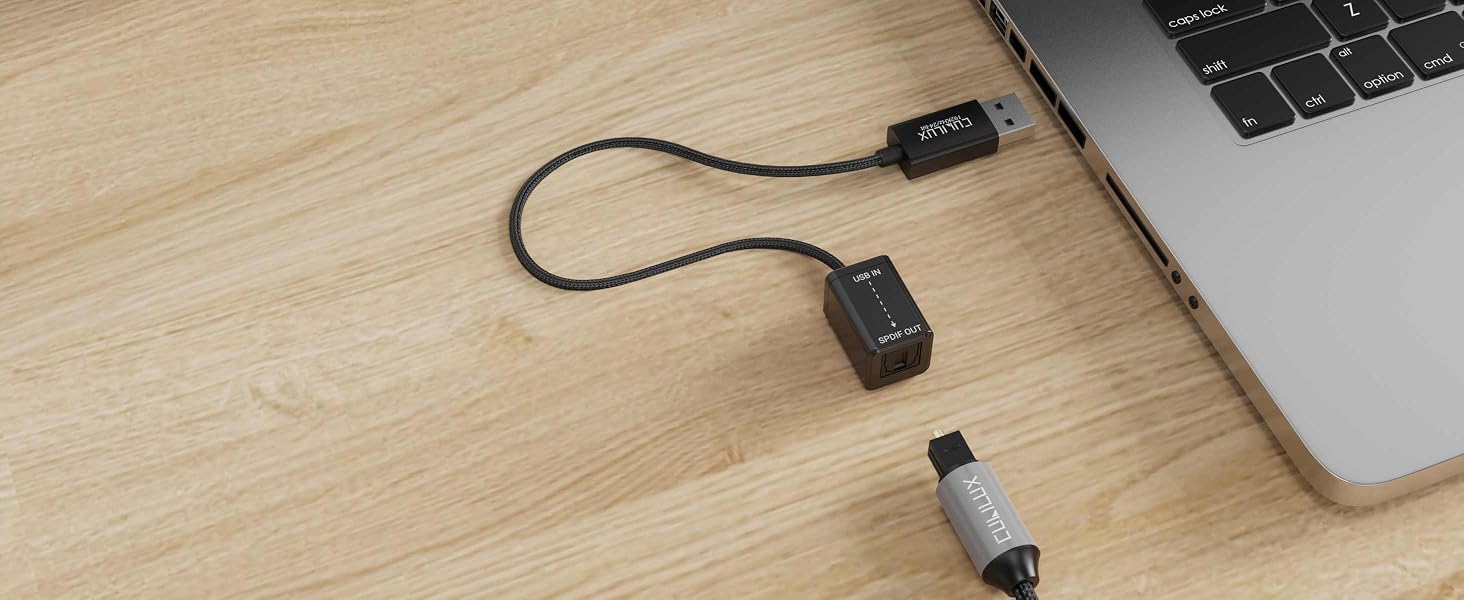
Step 2
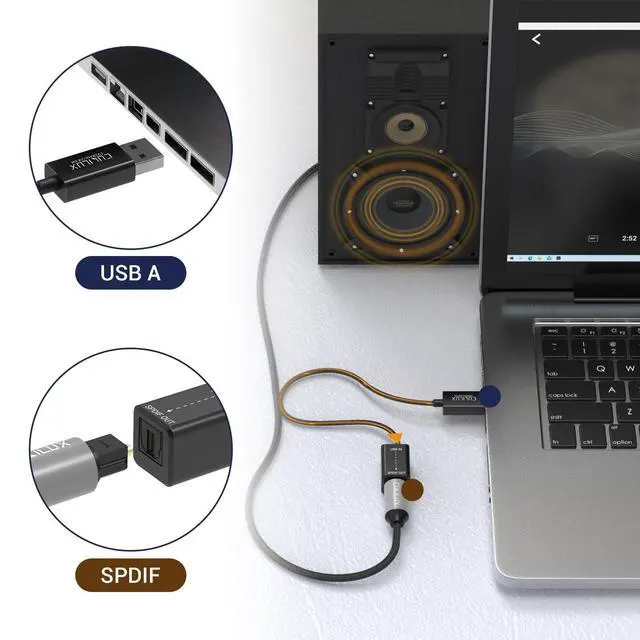
Connect your PC to your AV receiver via the USB S/PDIF adapter.
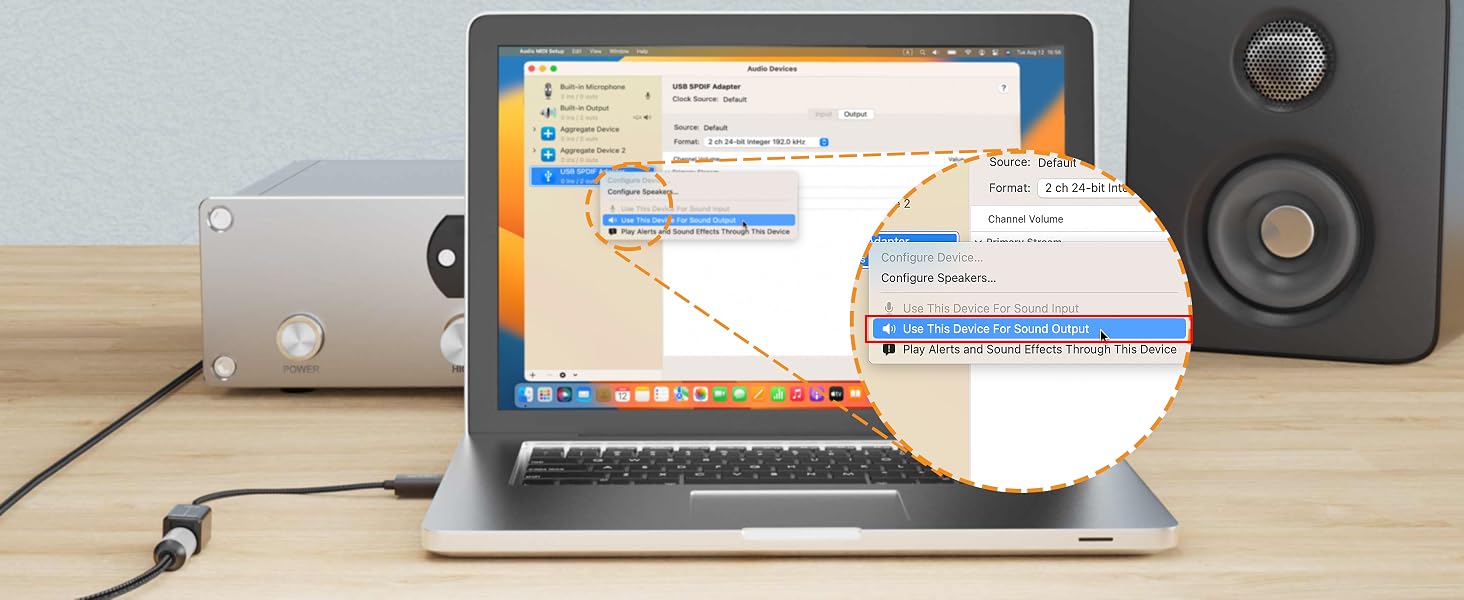
Step 3
Set the USB S/PDIF adapter as your default output device in system settings.
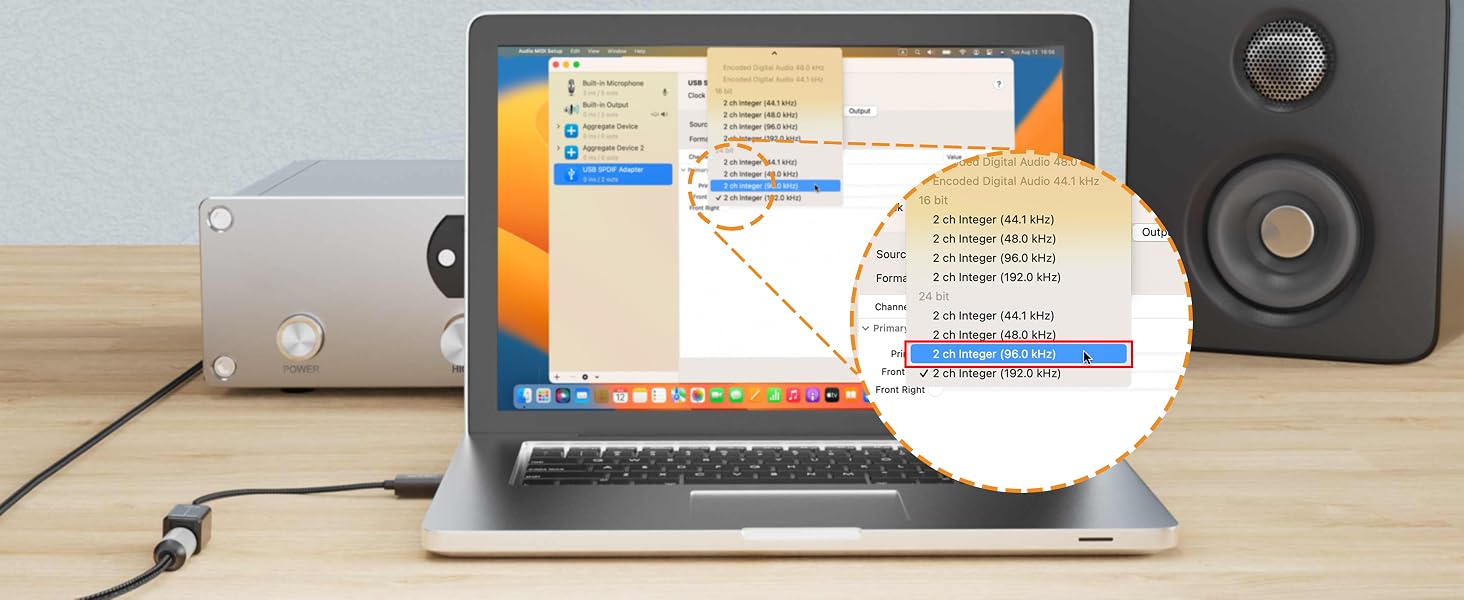
Step 4
Make sure the sampling rate of your PC matches your receiver’s supported format.
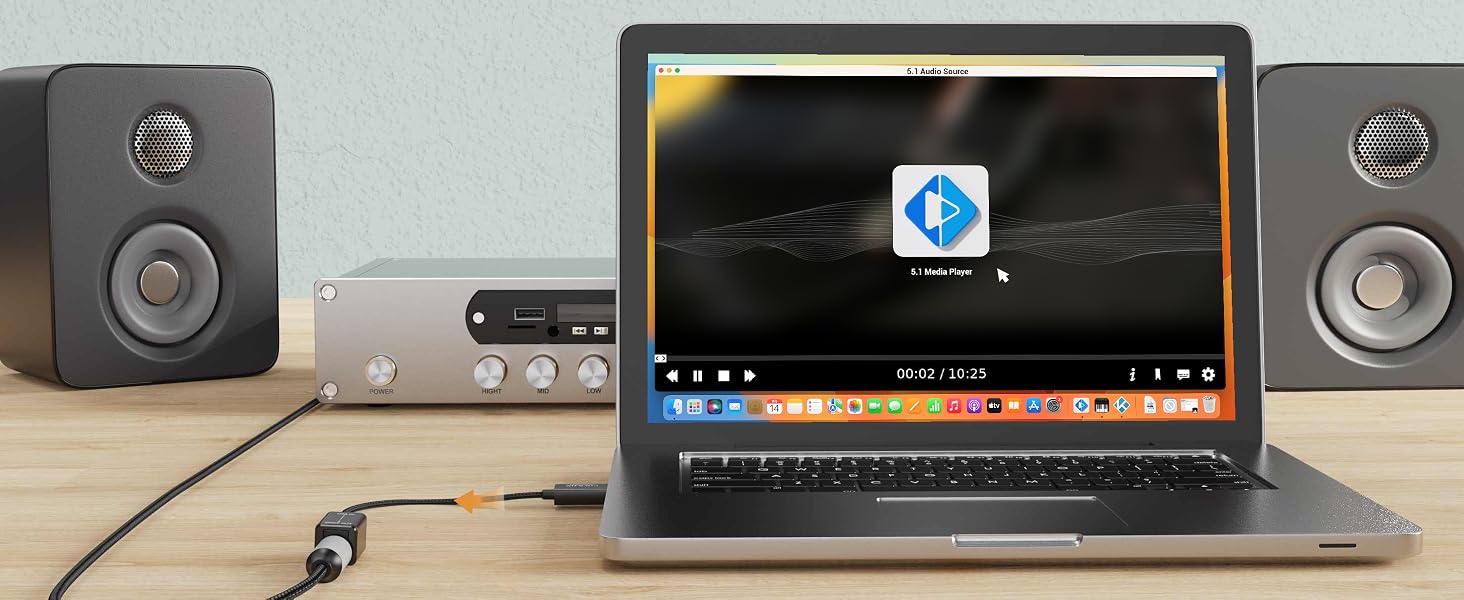
Step 5
Use a media player that supports 5.1 surround sound to enjoy immersive audio.
5.1 Surround Sound Setup Guide
USB SPDIF Transmitter User Instructions
Why is there no sound or distorted "static" noise?
Most audio issues stem from a Resolution Mismatch.
- Minor Difference: Distortion / Jitter - Occurs when the system tries to re-sample the audio, leading to a loss in clarity or subtle "crackling."
- Major Difference: No Sound - Occurs when you send a high-res signal (e.g., 384kHz) to a device that only supports up to 96kHz. The hardware simply cannot "read" the data.
To get perfect, noise-free sound, you must ensure three-way synchronization between your Audio File, Output, and Receiving Device.
Know Your Hardware Limits
- Before adjusting settings, check your DAC or Active Speaker’s manual for its Maximum Supported Resolution. Many Optical (Toslink) connections are capped at 24-bit/192kHz or even 96kHz. If you push a signal beyond these hardware limits, you will experience total silence or loud static noise.
How to Achieve the Perfect Match
- Method A (Automatic): Use a player that supports Exclusive Mode/Bit-Perfect (like Tidal, Foobar2000, Kodi). It will automatically change the Windows output to match the file's native resolution.
- Method B (Manual): If your player doesn't support automatic switching, you must manually go to Sound Settings and select the resolution that matches both your file and your DAC's capability.
Why does my audio experience dropouts or "cut in and off"?
It is usually a Clock Synchronization (Jitter) issue rather than a hardware defect.
Adjust DPLL Settings (Recommended)
- Increase the DPLL or Jitter Elimination level in your DAC’s menu (e.g., change from 5 to 7 or higher). This widens the "tolerance window" for the digital signal, allowing the DAC to maintain a stable lock even if the input timing has slight instabilities.
Turn the ASRC (Asynchronous Sample Rate Converter) switch to ON.
- It uses the DAC’s internal high-precision clock to re-process the audio, effectively isolating it from any jitter introduced by the source or cable.
Lower the Sample Rate
- In Sound Settings, set the output to 24-bit/48kHz or 44.1kHz. High sample rates (like 192kHz) are extremely sensitive to signal integrity. Lowering the rate reduces timing pressure and significantly improves connection stability with negligible impact on sound quality.
Important Note
- This transmitter is designed for transmitting optical digital audio signals. It does NOT convert stereo audio to 5.1 surround sound, and it CANNOT upscale low-resolution audio to high-resolution.
- This transmitter is ONLY compatible with computers and PS5/PS4. It does NOT work with TVs, car USB ports, Xbox consoles, or other non-computer devices.
- On computers, this transmitter supports both stereo and 5.1 surround sound. On PlayStation consoles, this transmitter supports stereo ONLY.
- On macOS, the transmitter does NOT support volume adjustment. Please control the volume directly on your receiving device.
- 7.1 surround sound is NOTsupported.
Explore Cubilux SPDIF Adapters
USB > SPDIF Transmitter | USB C > SPDIF Transmitter | SPDIF > USB Receiver | SPDIF > USB C Receiver | 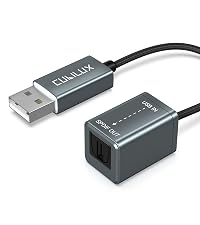 USB > SPDIF Transmitter | USB C > SPDIF Transmitter | 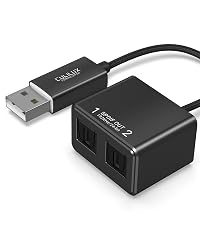 USB > 2 SPDIF Transmitter |
|---|---|---|---|---|---|---|
| Customer Reviews | ||||||
| — | — | — | — | — | — | — |
| Price | ||||||
| — | — | — | — | — | — | — |
| 5.1 Surround Sound | ||||||
| ? | ? | ? | ? | ? | ? | ? |
| 7.1 Surround Sound | ||||||
| ? | ? | ? | ? | ? | ? | ? |
| Stereo Audio | ||||||
| ? | ? | ? | ? | ? | ? | ? |
| Output Optical Audio From USB | ||||||
| ? | ? | ? | ? | ? | ? | ? |
| Recording Optical Audio to USB | ||||||
| ? | ? | ? | ? | ? | ? | ? |
| Sampling Rate | ||||||
| Up to 192 KHz/24-bit | Up to 192 KHz/24-bit | 48KHz, 16/24-bit ONLY | 48KHz, 16/24-bit ONLY | 48KHz, 16-bit ONLY | 48KHz, 16-bit ONLY | Up to 192 KHz/24-bit |

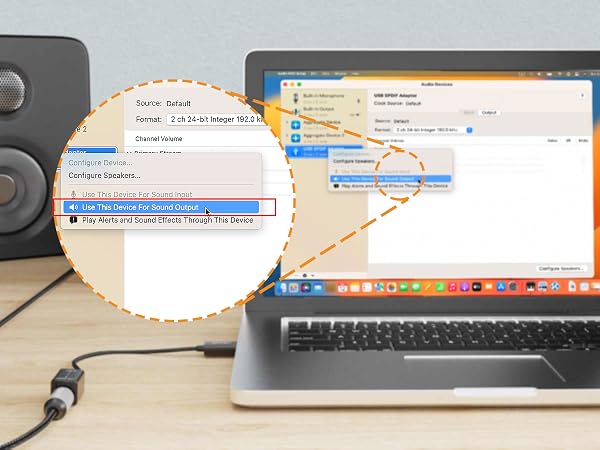
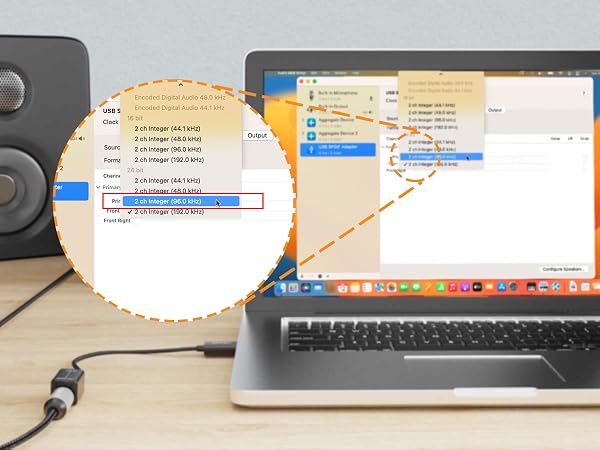
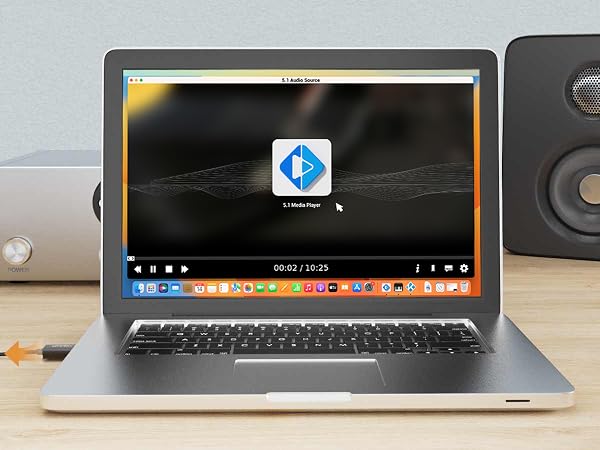
Step 1
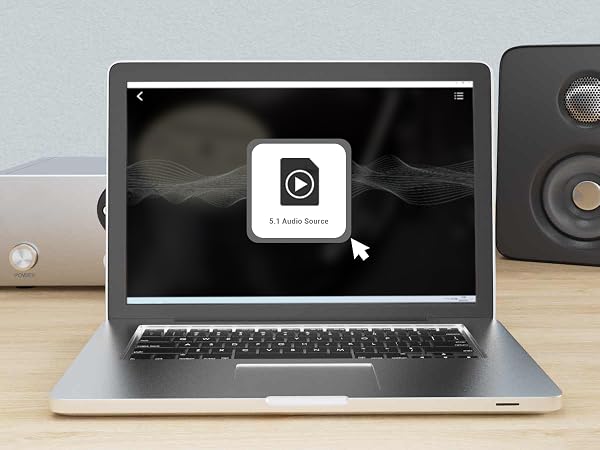
Get a 5.1 surround sound movie or music file ready.
Step 2
Connect your PC to your AV receiver via the USB S/PDIF adapter.
Step 3
Set the USB S/PDIF adapter as your default output device in system settings.
Step 4
Make sure the sampling rate of your PC matches your receiver’s supported format.
Step 5
Use a media player that supports 5.1 surround sound to enjoy immersive audio.
5.1 Surround Sound Setup Guide
USB SPDIF Transmitter User Instructions
Why is there no sound or distorted "static" noise?
Most audio issues stem from a Resolution Mismatch.
- Minor Difference: Distortion / Jitter - Occurs when the system tries to re-sample the audio, leading to a loss in clarity or subtle "crackling."
- Major Difference: No Sound - Occurs when you send a high-res signal (e.g., 384kHz) to a device that only supports up to 96kHz. The hardware simply cannot "read" the data.
To get perfect, noise-free sound, you must ensure three-way synchronization between your Audio File, Output, and Receiving Device.
Know Your Hardware Limits
- Before adjusting settings, check your DAC or Active Speaker’s manual for its Maximum Supported Resolution. Many Optical (Toslink) connections are capped at 24-bit/192kHz or even 96kHz. If you push a signal beyond these hardware limits, you will experience total silence or loud static noise.
How to Achieve the Perfect Match
- Method A (Automatic): Use a player that supports Exclusive Mode/Bit-Perfect (like Tidal, Foobar2000, Kodi). It will automatically change the Windows output to match the file's native resolution.
- Method B (Manual): If your player doesn't support automatic switching, you must manually go to Sound Settings and select the resolution that matches both your file and your DAC's capability.
Why does my audio experience dropouts or "cut in and off"?
It is usually a Clock Synchronization (Jitter) issue rather than a hardware defect.
Adjust DPLL Settings (Recommended)
- Increase the DPLL or Jitter Elimination level in your DAC’s menu (e.g., change from 5 to 7 or higher). This widens the "tolerance window" for the digital signal, allowing the DAC to maintain a stable lock even if the input timing has slight instabilities.
Turn the ASRC (Asynchronous Sample Rate Converter) switch to ON.
- It uses the DAC’s internal high-precision clock to re-process the audio, effectively isolating it from any jitter introduced by the source or cable.
Lower the Sample Rate
- In Sound Settings, set the output to 24-bit/48kHz or 44.1kHz. High sample rates (like 192kHz) are extremely sensitive to signal integrity. Lowering the rate reduces timing pressure and significantly improves connection stability with negligible impact on sound quality.
Cubilux is committed to creating high-quality products that elevate audio experiences across smartphones, tablets, PCs, and laptops—whether for work or leisure.
By enhancing device capabilities for recording, vlogging, and livestreaming, we empower creators to bring their ideas to life with greater ease.
We welcome customer feedback and continually refine our designs to truly meet your needs.
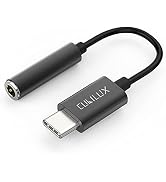
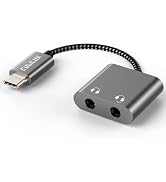
Audio Converters
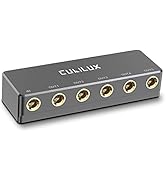
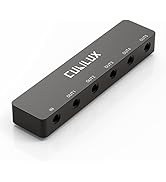
Audio Splitters
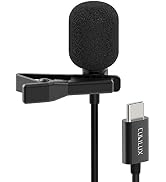
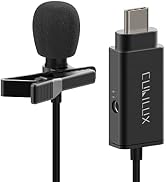
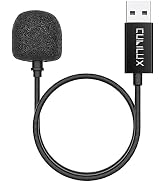
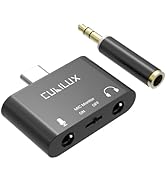
Microphones & Accessories
Mixers & AMPs
