

Your Browsing History


Trevor k.
Joined on 07/04/05
0
0
100%
100%


product reviews
- 156
Very capable, almost perfect
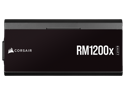
CORSAIR RMx Shift Series RM1200x Shift Fully Modular 80PLUS Gold ATX Power Supply
Pros: The RM1200x SHIFT power supply has a few new features worthy of note and make it stand out from the crowd. For me, the biggest innovation is the 'Shift' in the modular power supply cables. The Shift power supply models have moved the face where the modular power cables connect by 90 degrees and gives certain cases more room and easier access to the cables. Admittedly, moving the power cables around 90 degrees isn't all that exciting, but come on, it's a power supply. Other perks are: - 1200W of power, all of which is available on the 12v rail if you need a dedicated power supply for GPUs or other 12v components (thinking mining rigs or parallel compute use cases). - 10 year warranty, it's built to last. - Modular cables (type 5 for the RM1200x Shift) use smaller connectors at the powers supply that the previous type 4 (see image) - AC and modular power cables are all sturdy and rated for the heavy loads. - Includes and supports a PCIe 5.0 12VHPWR cable. - All cables are modular, makes installation a little easier. - Zero fan is nice as the fan only runs as needed. Many like it for noise, to me it means less dust to accumulate on filters. - Metal enclosure is powder coated and has no sharp edges. - Black and gray color scheme fits my color scheme, sorry to those with white cases.
Cons: I was a little disappointed Corsair no longer includes the fabric bags for keeping the extra cables in. Previous Corsair supplies gave a bag to keep all the unused cables/parts in. For me it keeps them from getting lost and mixed up which is important as modular power supply cables can't be mixed together (they aren't standardized across manufacturers or product lines) Another issue I had was with the motherboard connector cable. In previous Corsair power supplies, the motherboard connector had the wires all separated and then gathered in a braided sleeve. This gave the cable more flexibility when routed on the backside of the case. The RM1200x Shift motherboard cable has several flat cables that don't take lateral bending very well. However, the more I thought about it, the more I liked it because the cables that use the braided sheath have large pieces of heatshrink and glue that make the cable very rigid and difficult to bend near the connectors. Given how stiff the cables are and the extra room the heatshrink and sheath needs, I think the flat cables are the better approach. I was also a little bummed they didn't include some of the Corsair branded velcro straps they show in some of the marketing material. For the cost, it would have been nice to include a few for cable management instead of the cheap zip-ties.
Overall Review: Before purchasing the RM1200x Shift, there are a couple things you should ask yourself and verify. 1. Do you really need this much power? The recommended power supply for an RTX4080 is 750W for the system. RTX4090 is 850W recommended for the system (system not just the GPU). It is good to not run the power supply right at their rating, but far exceeding what you need is just throwing money. 2. Will you case support the 'Shift' series power supplies? With the modular power connectors on the side, it will lock you into a power supply orientation. Will mounting the power supply in the orientation you need for connector access block the power supply fan? Finally, Corsair does have a guide for their product lines (CX/RM/HX/AX...) if you aren't sure you are picking the correct Corsair power supply. In short, they have the good (CX), the better (RM/HX), and the best (AX). Having 'Shift' in the product name just means they moved the modular power connector around to the side instead of the back. Checkout the Corsair website for details on how the power supplies are differ across the series. For the purpose of this review, I replaced the power supply (RM650x) in my Corsair iCUE 220T case and was largely a painless exercise. I did have to remove the hard drive cage to install the power supply, but that was easy to do and once the power supply was installed, I was able to install the hard drive cage again without issues.
3/6/2023See more detail
Needs improvement
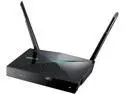
ASRock IoT HUB + AC1300 Router / Repeater / AP / Bridge Single APP to Cross Control Multiple X10, Philips HUE and IR Appliances. Home Automation, Zigbee, Infrared (X10)
Pros: This router is definitely unique in how it combines a WiFi router with another feature many consumers will find a need for, an IoT hub. As more and more 'things' in the home become smart, the need for a central hub will grow. So why not include it in another device we already need every day for our smart devices. The router itself is not the fanciest one out there, but it does get the job done with WiFi going up to wireless AC 1300. The setup is well guided with the web interface and does good in coercing the user into setting a non-default password on the setup pages. Some of the more advanced features include IPv6 support, OpenVPN, data prioritization (QoS), parental controls on a separate SSID and more. The parental controls allows scheduling when WiFi is on or off as well as keyword and URL filtering, all on a separate SSID. This means you can use a separate WiFi network for watching Netflix at 3AM and your kids can't.
Cons: Some fairly glaring issues with the IoT hub functionality. My biggest issue is that I only have Android devices and all of them throw an error while trying to add the router to my account. Contact with ASRock is pretty slow and while they did provide me a firmware pre-release, it still did not fix the issue I am having. Of more annoyance is the fact that you can NOT add any IoT devices through the web interface. All of that MUST be done through a mobile app which for me doesn't work. There is nothing that can be done through the web interface for ZigBee devices or IR devices that I could see. It seems this is a fairly limited feature which is a bummer for me as a developer making my own IoT devices. Another 'feature' that has struck me as odd is the 'Self-Healing' feature. It is essentially an periodic reboot to help keep the internals of the router from performing poorly. If you are sending a device into production that needs to be periodically reset to maintain some semblance of stable operating conditions, there is a problem. No proper device should rely on periodic reboots to work.
Overall Review: I will update my review if I can get the 'IoT Hub' portion of this router to work. However, once a manufacturer responds to a review, it becomes locked and cannot be edited. The concept of rolling WiFi and home automation hub features into one device is a very novel idea, but poorly executed by ASRock. It is a new product and will have bugs and bumps to work out, here's to hoping a future firmware rev allows this router to reach its full potential.
10/2/2017See more detail
So close, but still great
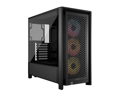
Corsair FRAME 4000D RS ARGB Black Steel / Tempered Glass ATX Mid Tower Computer Case
Pros: First impressions on this case are how roomy it is inside, how elegantly laid out it is and its general aesthetics. I've built a good few custom computers over the decades and there was a time they were about all the same inside (cheap sharp metal, a bit of bending, no cable management aids, etc). It is so much more pleasant building a computer with modern cases such as this Corsair 4000D series case. Each panel is held in place with thumb screws (with a rubber gasket to prevent marring of the metal and rubbing of the powder coat). Once the screws are loosened, there is another retention mechanism that holds the piece in place until you pop it out. This is very nice on the glass panel as there is much less concern for the panel falling out when removing the last fastener. Since this case has a glass panel, it is meant to show off the hardware inside. Most people like to show off the hardware and not all the wires that connect them and there was a fair bit of attention given by Corsair for this detail. Inside the case are channels, openings, tie points and other features to aid in cable management. This case even supports motherboards with the power connectors on the backside (I unfortunately don't have one). The case is compatible with Corsair's Shift series power supplies. This is a modular power supply that rotates the face all the modular connectors are on. Makes it very easy to add and remove cables with the power supply installed in the case.
Cons: Despite all the good, there are a few things I didn't like and was honestly a bit shocked Corsair hadn't given as much attention to. I debated between 3 and 4 stars due to these reasons. First and foremost is the wad of cables that comes out the bottom of the case for the front panel. I'm not a mechanical designer, but still can't help but feel there was a bit of oversight with how the front panel wires had to exit and re-enter the case in such an obvious spot. At the very least a cover to hide that little section would have been nice. Next was the mounting for the mechanical hard drives. These are becoming a lot less common, but they are still around and I have two of them (I use them for long term storage that isn't important enough to be on a file server, but important enough to have in a RAID). The plate meant for holding the second drive at the bottom of the case does not leave enough room for the power and SATA cables. It took a lot of finagling to get it all to fit right and not feel at risk of pulling the wires out. I don't think Corsair tried mounting at that location. A little more on the minor side, but the very top panel is a bit too thin in my opinion. The panel has a pattern cut in it for airflow, but the panel is so thin it flexes very easy. If anything falls on it, even gently, it will likely warp and no longer look nice. The last glaring issue I have is with the fans on the front. These fans are addressable RGB (ARGB). This is NOT compatible with Corsairs iCUE LINK system. The case assumes you will be connecting these to a ARGB header on the motherboard, but the iCUE software does not control this header. There are plugins for iCUE for various motherboard manufacturers, but they only pass along control for the RGB headers and NOT the ARGB headers. This was particularly disappointing as I was transitioning over from a Corsair iCUE 220T RGB case that included a lighting node that allowed the iCUE software to control these same type of fans. This case did not include the cheap little board that allowed iCUE to control these fans.
Overall Review: Overall this case is not too bad. Look at the reviews carefully as you decide whether to buy this case or not as multiple model years and options are piled under this same listing to preserve the ratings and reviews. This means not all the reviews will be applicable to the case you are looking at (unless you filter). For what it is worth, I also installed the Corsair iCUE LINK TITAN 360 RX LCD All-in-one water cooler in this case for my setup and it fit well. The cooler also included an iCUE LINK system hub, but again, this cannot interface with the ARGB fans included in this case. You have to use a completely independent controller for them if you want to control them in iCUE.
6/30/2025See more detail
Corsair delivers
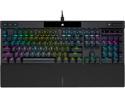
Corsair K70 RGB PRO Wired Mechanical Gaming Keyboard (Cherry MX RGB Brown Switches: Tactile & Quiet, 8,000Hz Hyper-Polling, PBT Double-Shot PRO Keycaps, Soft-Touch Palm Rest) QWERTY, NA - Black
Pros: This is not the first mechanical keyboard I have tried, but it is the first one I have liked well enough to keep. I have the Cherry MX Brown switches (as opposed to the Cherry MX Blue). The colors assigned to these switches have no real aesthetic meaning, but rather classify how loud or 'clicky' they are. Between the Blue and the Brown, the Blue is more 'clicky' (has more tactile feedback) and the Brown will be the quieter of the two. If you are new to mechanical keyboards, read around on the various 'colors' and get a feel for what you might like. If you are leaning towards the Blue or Green, be mindful of those near where you plan to use it as they will likely plot your demise within a week. The keyboard itself is well built as you would expect for the price it sells for. It feels sturdy and does well to stay in place on my desk. The colors are great and do well to shine through the keys without a ton of bleed between the keys. I find on some cheaper boards, the light bleed around the keys can almost exceed what is shone through the keys and it can make the keyboard a little harder to read. This keyboard does not have that issue but does have some bleed that adds to the aesthetics. The keyboard also supports the use of macros without the bulk of dedicated keys. The keyboard does have a Fn button that can be used to defining the triggering key combos for the macros and does support the programming and use of macros without the iCUE software. Similarly, changing the effects or colors can be done from the keyboard without needing to open iCUE (or even have it installed). The iCUE software can be used for programming an extensive color profile and supports more than just Corsair products. The iCUE software is able to detect my ASUS motherboard and supports controlling the RGB lighting through the use of an included plugin.
Cons: There is a definite 'ping' you can hear on this keyboard. I think the only area I can hear it coming from is the springs in the spacebar. I really wish these were damped out a little better as it does detract from the otherwise great quality. If you have never heard the ping before it is really the sound of a small spring reverberating. The iCUE software download comes in at +800MB. I realize space is cheap, but I can't help but feel that software for controlling aesthetics shouldn't be this big. Not sure why it is so large. The keyboard does feel a bit tall and it took my hands a little getting used to. I did attach the palm rest and it has made it a much easier transition. As a bonus, the palm rest attaches to the keyboard with magnets and does a good job staying attached. There are also additional anti-slip rubber feet on the palm rest that help keep the whole keyboard together and in one spot.
Overall Review: I have been pleasantly surprised by many of Corsairs products over the years. While not all products are perfect, they are all still pretty decent. I have used Corsair branded power supplies, headsets, mice, keyboards and more and always have mostly good things to say.
5/22/2022See more detail
Great drive
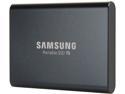
SAMSUNG T5 Portable SSD 1TB - Up to 540 MB/s - USB 3.1 External Solid State Drive MU-PA1T0B/AM
Pros: Purchased for a Raspberry Pi based mobile media center I installed into my car. Works fast, reliably and great all around!
Overall Review: No hesitations in recommending this.
3/7/2022See more detail
It does better than others, but don't expect a miracle
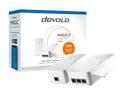
devolo Magic 2 LAN triple Starter Kit
Pros: I've used a few powerline adapters in various situations over the years because there are simply some places you can't get WiFi or Ethernet. This pair has outperformed previous units I have had experience with, but is woefully below what it claims in both the GUI and marketing materials. Overall, the setup is dead simple. Plug them in, you might need to sync them and BAM, you now have network connectivity in a place you may not have had before. The units both have a GUI interface accessed via a web browser (they pull an IP from DHCP and you can find it with their utility or through mDNS). The web GUI allows you to see the status of the powerline side of the network, what devices are participating in the powerline network as well as various other statistics. These devices also appear to recognize and minimize interference with other powerline adapters. As an example, an old set of powerline adapters was plugged into my home wiring and the Devolo saw them and performed mitigation to prevent interference. I was not able to measure speeds with both networks running, but I can say they didn't stomp out each other or make them grind to a halt. It is also worth mentioning the communications are encrypted to prevent your neighbors from buying a pair and gaining access to your network. The three port network switch is also a nice touch for those that might need to connect a smart TV, consoles and/or streaming box in the same location. Final good news for those perhaps a little more security conscious, these units do not run Linux. Despite having a webserver/DHCP/mDNS/NTP/etc inside, they have a small 'OS' that doesn't have things like telnet or SSH or any of the other usuals that are used when turning a device rogue.
Cons: You will not get the advertised speed out of these, you almost never do with powerline adapters. But these adapters seem a little more far-fetched in their claims than others. I can plug these things in to each other with the passthrough outlet and top out at 300Mbps in one direction. This was the configuration that provided the fastest throughput. In a real-world scenario, I plugged one in at my modem and the other in the garage and was able to pull about 75-80Mbps. This is not a bad speed as my 3-year old set provided ~32Mbps in the same conditions. I should also mention that the estimated speed provided in the web GUI is not to be believed either. In testing various protocols and transferring large files, I could pull 112-120Mbps of actual data through the adapters on the same circuit 10 feet apart while the GUI reported 600Mbps. The second con I have with these adapters is they call home regularly on their own. They communicate with an update server to automatically install firmware updates which is good on the surface, but you have no reassurance what other information or telemetry these units are sending. If a rouge firmware is uploaded to their independent infrastructure, you can bet these units will pick it up and install it. Really this can happen to any auto-update service, but in this case it is entirely up to Devolo and their vendors to keep this chain secure. You do have the option to turn off automatic updates and automatically checking for updates, but you are relying that is enough to prevent them from calling home. I did not test if turning these off does indeed make them stop communicating with the internet. The third con I have is how hot these units run. At first I thought the CPU temperature reported in the web UI had a bug, but three different firmware revisions provide the same high temperature readings. During file transfers, the CPU temperature was reported as high as 112C. This is likely the die temperature inside the chip and can indeed get hot, but the bigger problem is how the heat soaks through to the external surfaces. During my testing in a 68F (20C) room, an infrared thermometer measured surface temperatures of up to 106F (41C). At the time those temperatures were take, the CPU temp was reported at 107.1C. In order to determine how bad the issue could get, I placed the unit in a warmer spot and ran another temperature test. The CPU was able to reach just over 118C at its worst, had a max external temperature of 184F (84C) and the software had apparently throttle the throughput by 75%. During all these temperature tests, a file transfer was in progress. This highlights the operating temperature allowed for these units, 32F to 104F (0C to 40C). These units are not suitable for use in garages or other areas where the temperature is not regulated to be within the specified range. The unit does not provide any venting or other thermal management and appears to depend only on conduction through the outlet or radiation from the surface of the plastic enclosure. As a side note, power consumption peaked at about 4.6W for the single port unit and 5.2W on the triple. These numbers are not super accurate as the power consumption appears to be fairly volatile with large fluctuations. Final con is the sheer size of these things. They are large and you will also need to consider the ethernet connection at the bottom when considering how tall they are. I have had issues getting these to share outlets with other devices which is where the passthrough outlet comes in handy. I wish the outlet sat a little higher and the ethernet ports came out the side. Also, despite the outlet having a round shape, they do not rotate. NOTE: None of these tests has a surge protector or UPS in the loop. These devices will kill your throughput and should be avoided.
Overall Review: If you need to get from point A to point B inside your home/apartment, pass between 70Mbps and 150Mbps and are not too concerned with the cons I listed, these are a great pair of units. They simply work and pass data at a notable rate of speed. Just make sure they are in a place with good ventilation or plugged into a wall that generally keeps cool.
3/7/2022See more detail