
Your Browsing History
 Holiday Shipping Details & Extended Holiday Returns Holiday Shipping Details & Extended Holiday Returns

Joined on 07/26/10
Awesome Docking Station
![ORICO Tool-Free USB 3.0 & eSATA to 2.5" and 3.5" SATA External Hard Disk Drive Lay-Flat Docking Station [Support 8TB]- Black](https://c1.neweggimages.com/ProductImageCompressAll125/0VN-0003-000G3-03.jpg)
Pros: -USB 3.0 and E-SATA -Both cables included -Auto standby/sleep according to Power Options config. -Fast speed up to interface standard -On/Off button
Cons: Haven't find any yet.
Overall Review: Not sure if this product support SATA 3/6Gbps drives. I haven't test it out yet. Highly recommended product!
Keeps my Ryzen 5900X CPU cool!
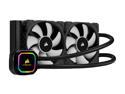
Pros: My Ryzen 5900X temp under load is 57°C all cores with room temp at 26.6°C while running Cinebench. Idle temp is 32°C. CPU at stock, no overclock. I use the stock thermal paste that comes with it. I bought Kryonaut paste but didn't see the need to use it so I'm not sure if that paste helps lower the temp further. Can't afford AC running here in Hawaii...😁 So room temp is high which causes my CPU temp higher than a cooler room. This is my first build and I follows all manuals that comes with all the components amd built my system, no help from anyone. After research regarding Ryzen 5900X, most people reported their CPU temp is too hot over 70°C. I was wondering what they did to have such high temp. I didn't even tighten the CPU socket all the way since I don't want to put too much pressure on the CPU. I have a large case and mounted my radiator at the top as exhaust. I mounted my radiator all the way towards the front of my case, away from directly above the CPU which I think might help with lower temp since it is not sucking the hot air from CPU directly above it.
Cons: There is no option to set the fan curve for both the radiator fans in the BIOS, bummer. The fans kick in high gear whenever there is CPU spikes. Both fans run at max RPM whenever I'm gaming and they are ridiculous loud. I also hated the Corsair iCUE software due to its bloated huge download size and install could takes over 1GB for such a driver, no iCUE for me unless Corsair reduce the bloat from iCUE software.
Overall Review: Besides the loud fan noise over 38°C CPU temp, this AIO cooler works great at keeping my Ryzen 5900X cool. Note: stock BIOS settings is not always the best since it pushes extra voltage to the CPU even though it is not needed. This extra voltage will causes your CPU temp to be much higher. Take time to experiment all the settings from your motherboard. I recommend undervolt your CPU to keep lower temp if you have bad temp.
Nice Dual Screen Ultrabook
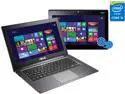
Pros: -Dual screen and tablet mode -Backlit keyboard -Quiet -Wireless Display capability -Great for travel, school, and business work -Stylus pen for writing is awesome, which is great for taking notes in college. Would love it if I had it in my college years.
Cons: -Buggy Windows 8.1 upgrade -Runs hot on high intensive tasks -Dual core, not Quad core -Very thick screen bezel = wasted space for bigger screen size -Battery lasted about 4-5 hrs on low screen brightness at night, which is disappointing for an ultrabook. -Can't dim the Windows logo on the back screen, which is distracting at night. It is too bright!
Overall Review: PEOPLE! Windows 8.1 upgrade will mess things up badly. The best solution is to install a fresh copy of Windows 8.1 retail and upgrade to BIOS version 209, which is just released in May 2014. This BIOS will fix your screen problems. -Go to this link, select Windows 8.1, select Bios to download the new BIOS v209 http://www.asus.com/us/supportonly/TAICHI31/HelpDesk_Download/ -Extract the BIOS zip file to the root directory of your USB thumbdrive, keep thumbdrive plugged in, restart machine, repeatedly press f3 f4 f5, one of those key is the BIOS flash function key, not sure which but you just press them all. -Once in BIOS flash screen, select your BIOS file "TAICHI31AS.209" and press Enter key. Voila, BIOS will flash automatically. Wait for it to finish, go to BIOS and reset to default and save it and restart again. -The other easier way to flash bios is download the flash utility on the drivers page and take it from there. -All your problems will be solved after you follow my instructions. I figured this all out by myself. -The problems you are experiencing is from both Microsoft and Asus. Your laptop will run faster and smoother if you install a fresh retail copy of Windows 8.1. Trust me, I did that! I paid for the pro version license too. EVERYONE! Change your ratings to 3 or 4 stars after you tried my solution. The laptop works perfectly after that. Therefore, it deserves a 4 stars from me. I know, I had a headache too trying to figure out how to fix the problem like you all do. Glad the nightmare is finally over! Cheers!!! :) Son Pham
Awsome Budget Ultrabook

Pros: -Nice, slim, and light -Very loud speakers and good sound quality -Backlit Keyboard -Very quiet and nice feeling keyboard -Best multitouch touchpad with advanced functions -4 USB 3.0 ports -Excellent microphone quality -HDMI port
Cons: -Bad webcam in low light condition -Low contrast screen, no deep black color -Comes with bloatware
Overall Review: Overall, I love this ultrabook. However, the OS was installed on the mechanical HDD which runs very slow as with all computers that has HDD as their boot drive. To make this ultrabook lightning fast, install your OS on the 32GB SSD that comes with it even though the space is tiny. Windows 8 only takes about 10GB of space after you do the following: 1. Boot into BIOS and disable "Secure Boot" so you can reinstall retail copy of Windows OS, not OEM one 2. Delete all partitions you see and create new ones 3. Install Windows into the 32GB SSD 4. Disable hibernation by open command prompt with administrative privilege, type "powercfg -h off", which saves you about 5GB disk space instantly 5. Disable Pagefile or set it to minimum of 16MB and maximum of about 1GB or above in Advanced System Properties. If you don't know, google how to do it. This will saves you another 4GB of disk space. 6. After all that, you will have about 20GB of free space out of 29.2GB to install your drivers and software 7. If you apply Windows Updates, they will eat up about 10GB of your precious disk space if you happens to need to install Net Framework 3.5, which adds more to updates size, yikes!!! Make sure you delete the Windows Updates download cache files to save you some space. Folder is in "C:\Windows\SoftwareDistribution\Download" 8. Make sure you store your movies, music, and large files in the 500GB HDD since you have very limited space on the 32GB SSD Congratulation! You just make this ultrabook lightning fast without spending extra $$ for a new SSD. It runs as fast as my $1800 gaming laptop when doing normal tasks such as web browsing or word processing. Don't even think about heavy 3D gaming with this ultrabook, it is not made for that! It only works with light gaming that doesn't requires heavy graphics processing. This is perfect for school and work! I hate to write reviews but this laptop deserves it since I only write reviews on products that are either very good or very bad...lol