




 here!
here!
I’m your shopping assistant for PC builds, upgrades, and everything tech.
Got questions? Ask away!
Start a conversation
here!
I’m your shopping assistant for PC builds, upgrades, and everything tech.
Got questions? Ask away!
Start a conversation

Joined on 10/06/04

Linux install went much smoother than expected
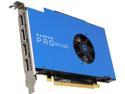
Pros: My workstations run Linux (Gentoo), primarily for CAD and software development. I like to build SFF desktops that pack as much processing power as possible into small, power-efficient spaces. The WX 5100 fits perfectly into one PCIe slot of my SFF Shuttle, replacing an old 2-slot Eyefinity HD6450 EyeFinity card, and at 75W max doesn't stress out the power supply. The fan is inaudible over the whisper of my case fan, even when pushing the card hard with Unigine OpenGL demos. Installation was no more difficult than compiling the amdgpu and radeonsi drivers alongside the radeon and r600 driver modules I had been using previously. I rebooted the computer and my three HD monitors came up without a hitch. Honestly, I was shocked at how easy it was--I've never had a video card transplant go so easily on Linux before. The performance increase is very noticeable. Although I don't game I did use some of the Unigine demos for benchmarking, and this card easily runs all of the one I tried at 60 fps full-screen without a hitch. I plan to move to 4K monitors soon for CAD work, and this card should be able to handle the load.
Cons: I would really like to see AMD finish porting OpenCL and Vulkan to the amdgpu drivers. It's a pain having to load in the amdgpu-pro drivers in order to get those features.
Overall Review: I'd move to Ryzen as well if AMD would fix its problems on Gentoo...
Great Linux Workstation card
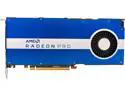
Pros: Bought this video card from Newegg two years ago, and it's been working flawlessly in my Gentoo box ever since. The open-source AMD drivers are rock-solid. I'm driving three 4K monitors using KDE as my WM and it's been an easy and rock-solid setup. I'm an engineer not a gamer, so most of my uses for this card are for CAD and Blender type applications and general OpenGL/Vulkan software development, not game engines. For those uses this card (and the associated drivers) have been great.
Cons: It's gone up in price since I bought it.
Overall Review: Awesome video card for engineering use.
Works fine on KDE Plasma

Overall Review: I bought this keyboard so I could occasionally maneuver around KDE on an old backup Gentoo Linux system I use as a NAS, and which I primarily SSH into. It's small size fits perfectly on top of the small Shuttle case, taking up no room as I had hoped. The only issue I had with it was the high resolution of the trackball, which sent the cursor careening around the screen at warp speed. Setting the KDE mouse cursor speed setting to its lowest value slowed it down and made the trackball usable. I also enabled middle click = left + right click, as there are only two mouse buttons on the left of the keyboard. Although closely spaced, the keys are large enough that touch-typing is no problem, and although not as convenient as a separate mouse, the slowed-down trackball and buttons work well enough using two hands. The box only mentions Windows compatibility, but I haven't found any incompatibilities with Linux and KDE.
Quiet midsize case with well-thought out airflow
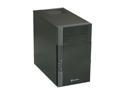
Pros: Smaller than a full-size case, but with enough room to hold a full-size cooling solution. Two front drive bays that don't intrude on the motherboard space. Keep the power supply length to 160mm or less and there's enough room to mount a Blu-ray drive and still route the cables out of the power supply. The power supply fan draws from a filter at the top of the case so as to not interfere with the CPU cooling path. The easily removed motherboard tray (two screws) makes mounting the motherboard simple, and the space between it and the case is great for tucking the excess lengths of power supply, front panel and SATA cables into to keep them out of the airflow and the motherboard side of the case tidy.
Cons: With a large cooler like the Noctua the internal slide-out drive bay is useless for 3.5" HDDs, as they are too long and will hit the heatsink fins. 2.5" drives would fit OK. This wasn't a problem for me as I used a motherboard-mounted NVMe M.2 SSD as my main drive, and I drilled four holes in the bottom of the case to mount a 4T 3.5 HDD sideways where the drive bay would normally be. This also keeps the drives from interfering with the CPU airflow. Another con I found with this case are the four mounting thumbscrews that hold the side panels on. The holes rarely align correctly, causing the screws to be hard to thread, and the small thumbscrew heads bite into your fingers. I replaced these four screws with #6-32 thumbscrews with larger heads and that solved the problem. Lastly, there's a very clever heatsink support that pivots up from the bottom of the case, designed to rest against the heatsink fins and provide additional mechanical support to heavy heatsinks. Unfortunately, with the Noctua the support ended up resting against the fan in the middle and not the fins, and because the fan is only loosely mounted with clips much of the mechanical advantage was lost. It's too bad there's not a way to slide the support fore and back some.
Overall Review: For almost two decades now I've been building quiet PCs using Shuttle-style cases for my desktop Gentoo workstations. With chromium now taking too long to compile on my old Intel quad-core, I decided to move up to a Ryzen 3950 16C/32T processor. Unfortunately, these new high-core count processors also come with the need for high-performance cooling solutions which don't fit in those tiny cases. I use my workstation primarily for programming and CAD, not gaming, so I don't overclock, but I needed adequate yet quiet cooling for my 140W processor, so went with air cooling and a Noctua NH-D15S heatsink. Thanks to Newegg's comprehensive specifications pages I calculated that the Noctua height would just fit into the case with 10mm to spare. Sure enough, my mATX motherboard with the Noctua mounted just fit. The airflow path in this case is well-thought out, with two quiet front 120mm fans (included) pulling air through filtered side vents, directly onto the Noctua and its fan, and I mounted a fourth (purchased) 120mm fan on the rear to help exhaust the case. When the CPU is idle the fans run slowly and are nearly quiet, and with all CPU cores running the fans are faster but not whiny, and the CPU shows no thermal throttling. It's a tight build with a high-watt processor and air cooling, but quiet doable in this well-thought out case.
Very nice picture, but lacking in OTA TV info

Pros: Very nice looking, with a narrow bezel and a bright, gorgeous LCD screen. The menu has a full complement of display adjustments for color temperature, size and position, and the like. The built-in sound is crisp and powerful--at 75% on the adjustment control I get a very comfortable listening level in my living room. There are also built in bass, treble and EQ controls, although they blank out in some AV modes like 'movie'. Unlike a lot of TVs in this price range, you can play back movies as well as photos and music via USB. The OTA HDTV receiver seems to do a good job at bringing in most of the OTA channels I can get around these parts.
Cons: I use this primarily as an OTA HDTV, and the OTA menus are lacking. There is no signal strength indicator in any of the menus, which makes tuning an antenna difficult. There is also a paucity of information on the info popup overlay using the 'Display' button on the remote. Basically, all you get is channel number, the resolution (1080i, 480p, etc.), the program title, and the start and stop times of the program. You also get a few mode indications for CC, AV Mode, etc. The two big items that are missing are the extended description of the program, and the current time. Hence, you'd better have a smartphone or tablet nearby with an OTA TV guide app and a clock, because all this HDTV will tell you when you tune channel 13.1, for example, is 'El Loco' is on between 8:00PM and 10:00PM. I took off one star because this HDTV has the least informative channel pop-up of any HDTV I have ever seen. If you actually want to use the USB port on this HDTV, and you mount it in a standard TV way (like in a cubby or against the wall) you're going to need a USB extension cable to actually get to the USB port, as all the I/O connections are located around a 'bezel' near the middle-rear of the device.
Overall Review: Don't lose the remote. There is only one button on the display itself--a power button on the back near the right edge, which is basically useless because it's hard to reach. All of the adjustments, input selections, and so forth are done through the remote. The 'Freeze' button on the remote is fun to play with once or twice, but this isn't a DVR--why is it there??? No manual comes with the HDTV. You have to download it and print it yourself. I don't consider this a 'con' these days, as I prefer to have electronic versions anyway, but it might annoy some folks.
Great portable Linux solution
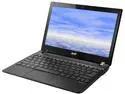
Pros: This is a light, inexpensive notebook great for taking Linux on the road. I typically run Gentoo, but as this notebook only has a 1.1G dual-core processor I decided to forgo the pain of continuous compilation and installed the LTS Linux Mint 13 KDE 32-bit edition instead. I used a USB DVD reader with a downloaded Mint ISO and a wired connection to my network, and the installation proceeded without a hitch. After Mint was installed I was able to ditch the wired connection and ran on the WiFi connection instead. Austin H. has a good review that matches my experience, so I'm not going to repeat it, other than to note that the backlight actually does work (see the Cons.) Like him, I removed the internal hard drive and installed an SSD instead. Removing the bottom of the case is easy (pop off the battery, take out one screw, and slide the cover), as is removing and replacing the drive. There are some good videos on youtube showing the process.
Cons: On the one hand, it's great that the manufacturers are beginning to support Linux by providing notebooks without the Windows tax. On the other hand, one can barely call the Linpus OS 'support'. It's obvious that this is still a Windows notebook with Windows simply stripped out. In particular, the BIOS is a bare-bones affair crafted to fulfill the minimum needs of Windows and only vaguely hewing to the official BIOS specifications, such as they are. The result is that it takes more effort and twiddling then it should to get everything to 'just work'. I'm still awaiting the day when Linux is treated as a first-class citizen by the hardware manufacturers and not some begrudged stepchild. Some cons: - the display backlight does work. However, to make it function I had to edit the grub2 file '/etc/default/grub' and add 'acpi_backlight=vendor' to the GRUB_CMDLINE_LINUX= line and reboot. The backlight keys then work. They are a bit slow and jumpy, but sufficient. - the SD card reader doesn't work. As of this review, this appears to be a regression/bug in the Broadcom BCM57765 driver related to power management. There's a kernel patch floating around out there, but I wasn't sufficiently interested to apply it, as I don't have much use for the slot myself. - like most laptops/notebooks, the touchpad is a pain when typing. Whenever possible I prefer a mouse, and Fn-F7 works fine to toggle the touchpad on and off. - No USB3.
Overall Review: Please don't buy this expecting a plug-n-play device. You have to have enough skill to install a real Linux distribution. It's not difficult, but if you don't understand what I just wrote, buy something else. As Austin H. said, I wish more of the hardware manufacturers (and Newegg) sold systems like this. However, I also wish they would do a better job of tailoring those machines for Linux, both by adhering better to hardware/firmware standards and by not reserving the better hardware for Windows devices. (For example, why does the Windows version of this model get the touchscreen and the USB3 ports?)


