
Your Browsing History


ADAM B.
Joined on 09/10/05
0
0
product reviews
- 11
Works well... If you don't have Noctua fans.
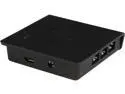
GRID+ V2 Digital Fan Controller
Pros: - 6 PWM capable connectors<br>- Very small profile. I have it on the backside of my mobo panel and the rear case panel has a good half inch of clearance.<br>- Very easy to set up. Plug in the USB header to the mobo and the micro-USB into the controller, then connect the molex connect to its respective power cable and then plug the barrel power end into the controller. Just install the CAM software and select the Grid+ in the installtion process.<br>- Allows custom fan curves on a per-fan basis (up to 6) and you can name each fan individually for ease of customization and control.
Cons: - It turns out there is either a hardware conflict or a software glitch that makes any Notcua PWM fans plugged into the controller to "breathe" or rev up and down slowly (creating a breathing like effect) and no change of options or custom fan curves can fix it.<br><br>A brief Google search shows a NZXT Forum post from 01/09/16 and a NZXT Staff member made apost stating they are working on the issue, so it's good to hear that they are at least investigating it. Hopefully it get resolved soon. Sure, it's not terribly annoying, but Noctua fans spin pretty dang fast and can get kinda loud.
Overall Review: The CAM software is a little unrefined as of this writing but from what I have seen of previous editions, it's headed in the right direction. I am thoroughly impressed by NZXT and how quickly they have established themselves in the custom built PC market as a very reputable brand that actually listens to their customers. *UPDATE* 01/17/16 - NZXT got back to my bug report in two days with a very detailed explaination that I have provided below. "So this is what I got from the hardware engineers. It sounds like you may need to keep the fan above 50% to avoid the voltage instability. "Before anything, I am showing the correlation between duty and output voltage of Grid+&Grid+V2 as below : 0%(0V), 20%(4V), 25%(4.5V), 30%(5V), 35%(5.5V), 40%(6V), 45%(6.5V), 50%(7V), 55%(7.5V), 60%(8V), 65%(8.5V), 70%(9V), 75%(9.5V), 80%(10V), 85%(10.5V), 90%(11V), 95%(11.5V), 100%(12V). Most of issues happened at 40~45%(6~6.5V) and starting voltage of most fans is 6~7V. So what we can confirmed the issue's duty(voltage) is close to their starting voltage. In order to be compatible with most of fans(3-pin and PWM fans), Grid+&Grid+V2 is using voltage regulation like usual fan controllers because 3-pin fans don't have PWM IC and communication by PWM duty via 4th pin. There are two ways can access voltage regulation: Use variable electrical resistance serially into circuit or PWM method. We are using PWM method to adjust the output voltage that can have compact circuit design and no big heat dissipation problem. But PWM method has problem in providing stable voltage while the difference from 12V is too big. After test with Noctua NF-F12 and NF-A14 PWM and other PWM fans, we did repeat the issues but not all of them had this issue. So we checked with suppliers of fan and PWM IC both and found some PWM IC inside PWM fans have protection against unstable input voltage. And Grid+&Grid+V2 using PWM method just did this under 50% duty so cause this issue of spin up and down. That's why most of issues are on PWM fans not 3-pin fans. So it is the issue we can do nothing in software and firmware update. It does require us to make a big upgrade on hardware design. The issue can only be solved on next Grid+ (Grid+V3 or other names) which can provide both voltage control and PWM control for 3-pin and 4-pin fans separately and automatically."" Kudos to NZXT getting back to me in a timely manner and for a thorough explanation. I will be sending my back and waiting for the Grid+ 3 or whatever they call it.
1/18/2016See more detail
Coil Whine... Gone.
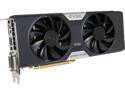
EVGA 03G-P4-3784-KR G-SYNC Support GeForce GTX 780 3GB 384-Bit GDDR5 PCI Express 3.0 SLI Support Dual FTW w/ EVGA ACX Cooler Video Card
Pros: Good high-end reference card with an excellent cooler. Idles around 25C with gaming load in BF4 on max with 65-68C temps. Readily overclockable but I couldn't when I first plugged this card in since my PSU was only 550W. Had a nasty coil whine that I could hear through my headphones during gaming. Looked around on the net that sometimes your PSU can cause the coil whine. <br><br>I needed a more powerful PSU anyways since I wanted to overclock this card. Ordered a XFX 850w Pro series full modular PSU and my coil whine is completely gone.
Cons: This is a long card. In the same order as this card, I ordered a new case that could accomodate a card of this length since my current case could barely handle it. Had to move a HDD up a few slots and had 1/4 gap between the end of the card and my HDD cage.<br><br>Had coil whine but a new PSU fixed it.
Overall Review: *UPDATE* 9/9/15 This card died after a year and a half of not so heavy gaming use. Submitted a warranty RMA through EVGA, they promptly replaced it with a GTX970 ACX at no additional cost. Granted, the first one they sent was DOA, but the second one is working great! I don't think I will ever buy from a different manufacturer of GFX card now that I know EVGA has such awesome warranty support. My only beef is that I spend $550 on the GTX780 and I got a replacement $350 gfx card.
1/17/2016See more detail
Very fast RAM at a very good price!
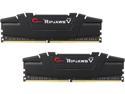
G.SKILL Ripjaws V Series 16GB (2 x 8GB) 288-Pin DDR4 SDRAM DDR4 3200 (PC4 25600) Desktop Memory Model F4-3200C16D-16GVK
Pros: - Easy to install. (it is RAM afterall..) - Sturdy construction with a good heft to it. - Very Fast! RAM tests report over 36GB/s data transfers. Yes, gigabytes.
Cons: - A little tall in the way of RAM but since I am using a AIO liquid cooler, clearance isn't an issue with the mobo, only the case might be an issue.
Overall Review: My Corsair 300R only supports 140mm fans/radiators on the top vents, I had to add holes for the radiator to fit inside. With this RAM being so tall, I have to install the fan in PULL configuration outside the case on the top. Not the most ideal situation but a new case that can accommodate is on the way.
1/14/2016See more detail
Obscenely fast!
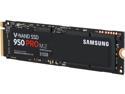
SAMSUNG 950 PRO M.2 2280 512GB PCI-Express 3.0 x4 Internal Solid State Drive (SSD) MZ-V5P512BW
Pros: - Drive runs at advertised speeds of ~2500MB/s (that's megaBYTES, ie 2.2GB/s) read and ~1500MB/s write speeds. - Computer boots up in under 3 seconds from a hard shutdown! - Incredibly tiny! I can't believe they crammed 512 Gigs into this gumstick sized drive. - Super easy to install. Plug it in and screw it down. No cables, no fuss. - 5 year/400TBW warranty. 400 TERABYTES of writes!?
Cons: - One pitiful con, only because I'm kind of OCD when it comes to labels, but it's upside down when installed in my mobo. Granted, this might not be a problem if your mobo's m.2 socket is on the left side of the board and not on the right side like mine.
Overall Review: My OS SSD before getting this drive was a sad little 160GB 3rd gen Intel X-25M pulling a miserable ~260MB/s read and ~110MB/s write speeds. This thing was a beast for the time i had it, with over 30TB of data written to the drive! In terms of setup, just make sure you read your Mobo's instructions about what you need to do to configure an m.2 NVMe drive as the bootdrive. I make a practice of only plugging in the drive I am installing the OS onto when setting up a new system as to give the mobo the best chance of auto-configuration grabbing it, as it did in this case. I have very high hopes for this 950 Pro and expect many many Terabytes of data written to it! Keep up the amazing work Samsung!
1/14/2016See more detail
Excelent Drive
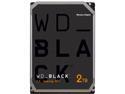
WD Black 2TB Performance Desktop Hard Disk Drive - 7200 RPM SATA 6Gb/s 64MB Cache 3.5 Inch - WD2003FZEX
Pros: WD reliability, fast read/write speeds for a mechanical drive, WD reliability, very large capacity. I have had several different brand of drives overs the years and WD has never let me down. I've had several Seagates, Hitachis, Samsungs, you name it, I've owned them and all eventually died on me. The WD 320gb HDD I replaced with this 2TB drive is over 10 years old with 10,000 hours of on time and still has all sectors intact.
Cons: None. WD makes the best drives out there and I will never purchase a different brand for my backup drives.
Overall Review: For being a mechanical HDD, this drive is fast. It took 5 hours to transfer 800GB of data.
1/6/2015See more detail
Excellent Keyboard with easily changeable LEDs
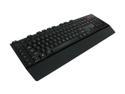
Microsoft SIDEWINDER X4 Keyboard - Retail
Pros: Standard key layout that can have 3 profiles with the ability to disable the Caps Lock and Windows keys. Each profile allows custom macros. Low profile keys. Is easily cleanable and even washable if you have some skill with a screwdriver.
Cons: F keys are a little small. The feet to raise the keyboard angle wasn't high enough for me so I used spacers to prop it up more. It only came with red LEDs. I found an Instructible that showed how to swap the LEDs. so now I have an X4 with white LEDs and it's perfect.
Overall Review: The LEDs are easily swapped out if you have even a basic understanding of soldering. for about $5 I got enough white LEDs to swap out most of the red ones. I kept the Caps Lock light red so it's easier to see. For the $30 I got it for, I'm not worried about the warranty.
3/21/2014See more detail