




 here!
here!
I’m your shopping assistant for PC builds, upgrades, and everything tech.
Got questions? Ask away!
Start a conversation
here!
I’m your shopping assistant for PC builds, upgrades, and everything tech.
Got questions? Ask away!
Start a conversation

Joined on 08/11/03
Initial review: hot, Hot, HOT !!!!
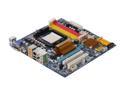
Pros: Fired right up - see the Other thoughts section on a good procedure. All sorts of overclocking adjustments including the hidden Ctrl-F1 Advanced Options menu enable. Too bad the memory bus clock is not independent of the CPU clock. Easytune 5 seems to work properly. All drivers from the mfr's site installed without any problems, including the latest BIOS (v. F1) which I installed BEFORE anything else. ----- START OF OTHER THOUGHTS SECTION ----- Haven't tested out the the onboard HDMI video or audio, analog or SPDIF audio. Haven't attached an SATA drive yet, either, but the BIOS supports IDE and AHCI (NCQ) modes for the first SATA controller and IDE and SATA modes for the second SATA controller. I guess the 2nd SATA controller doesn't support NCQ. Haven't tested out the the onboard HDMI video or audio, analog or SPDIF audio. Haven't even attached an SATA drive yet, either, but the BIOS supports IDE and AHCI (NCQ) modes for the first SATA controller and IDE and SATA modes for the 2nd.
Cons: HOT HOT HOT !!! The row of ferrite inductor cubes next to the row of capacitors gets REALLY hot. I don't want to hold my finger on any one of them for very long. This won't damage the inductors, but this *MUST* be bad for the adjacent capacitors. I have to wonder about long-term reliability. The southbridge gets *TERRIBLY* hot - it should have its own cooling fan. The northbridge gets *UNBELIEVABLY HOT* !!! Nothing is overclocked !
Overall Review: Install Procedure: 1) Throw away the driver CD, IMMEDIATELY !! Download both the device drivers and the latest BIOS from the Gigabyte site. Copy the BIOS image file to a USB drive. 2) Install ONLY 1 RAM stick in the slot CLOSEST to the CPU. 3) Burn the new BIOS using the <End> key to enter the Qflash utility during startup. 4) Shut down and short out the BIOS reset pin on the mobo. 5) Restart and press <Del> to enter the BIOS setup. 6 ) "Load Optimized defaults" in the BIOS. Set the date-time and check/set RAM voltage & timings. DON'T OVERCLOCK. Check/set SATA controller modes as desired. Save settings and restart. Shut down again. 7) Install any remaining RAM sticks - FOLLOW THE MANUAL'S INSTRUCTIONS on which RAM slots to fill. 8) Optionally run MEMTEST86 to verify RAM operation. This will take A LONG TIME. 9) Install the OS. Install the drivers. DO NOT INSTALL that Windows audio driver. 10) Enjoy. ***ADD EXTRA COOLING FANS*** to move fresh air around and then exhaust it.
"RECERTIFIED" Western Digital Scorpio Black WD3200BEKT
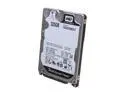
Pros: Low price. A very nice drive, at least, when it's brand new - but, it's NOT brand new.
Cons: 90 DAY WARRANTEE ! If it's factory "recertified", why doesn't it carry a full 3 year warantee like the new drives ?
Overall Review: There's no good excuse for this drive having such a bad warantee.
Warranty for WD WDBPCK0010BBK-NESN 1TB Ext USB Drive

Pros: See the other reviews.
Cons: See the other reviews.
Overall Review: QUOTE : " The term of your limited warranty depends on the country in which your product was purchased. Please visit our web site at support.wdc.com/warranty for the detailed terms and conditions of our limited warranty and for a list of the specific countries in these regions."
Rosewill RHUB-210 USB 2.0 4-Port Hub with Power Adapter
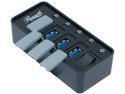
Pros: Works properly, as expected: SDHC adapter, 5 volt output jack, eSATA port, USB 2.0 hub with 3# ports. I have no way to test the other 3# FLASH card ports.
Cons: None at this time. Time will tell...
Overall Review: A very good buy if it continues to work properly.
Western Digital Scorpio Black WDBABD3200ANC-NRSN
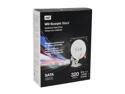
Pros: In comparison to the Western Digital Scorpio Black WD3200BEKT 320GB 7200 RPM 16MB Cache 2.5" SATA 3.0Gb/s model: There don't seem to be any at all, except that it probably comes with a data cable and 4 mounting screws. But, the photos don't show these ...
Cons: In comparison to the Western Digital Scorpio Black WD3200BEKT 320GB 7200 RPM 16MB Cache 2.5" SATA 3.0Gb/s model: Unknown spindle speed, fifteen bucks more expensive and has only a 3 year warranty compared to 5 years for the 7200 rpm Black bare/OEM model.
Overall Review: Why is the spindle speed not known/shown ?
Mushkin 8GB SDHC MKNSDHCC10-8GB
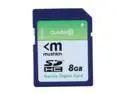
Pros: Both work like a champ.
Cons: "Class 10" ??? In your dreams ! Still, probably faster than writing to a typical "Class 6" card.
Overall Review: Nowhere near 10MB/sec write speed. Does Mushkin rate "Read Speed" ? They won't say, of course, as part of the Flash memory card industry-wide deception practice. Small files: About 750 KB/sec (to an empty card; fuller will be slower) Large Files: About 3.5 MB/sec (same comment as above)


