
Your Browsing History


Marina K.
Joined on 01/15/09
0
0
product reviews
- 1
Works Great
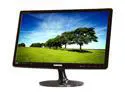
SAMSUNG T24A350 ToC Rose Black 24" 5ms Full HD LED BackLight LCD Monitor w/ DTV Tuner 250 cd/m2 DC 1,000,000:1 (1,000:1)
Pros: - Currently posting my review from this monitor... hee hee. It is hooked up to my HP dm4t laptop running Windows 7. - Colors look fantastic (some tweaking necessary for Photo/Video editing as with any monitor) - Beautiful. Sleek and light-weight for the size. Initially thought 10lbs would be an annoying weight, but weighs less than a typical bag of groceries. - Television (air and cable channels) easy to set up, love the options available in the monitor's menus to configure every setting - Runs cool to the touch, no funky high-pitched noises either
Cons: Set-up with HDMI may be complicated for the technologically-challenged. See "other thoughts". (Connected through VGA, works best with the "extend these displays" option if you want multiple monitors, and when this monitor is selected, the optimum 1980x1080 resolution should be available.)
Overall Review: Connected through HDMI, the connection should be renamed to PC by: 1.) Press Source button on remote control. 2.) With the HDMI port the computer is connected to highlighted, tools option becomes available. Press the Tools button on the remote. 3.) Select Edit Name on the pop-up menu 4.) Select PC on the scroll-down list If monitor now shows a 1" black border all around, you need to adjust scaling. On my HP dm4t, I opened Catalyst Control Center. As per Duncan E's post on some other website: 1.) Switch to a lower resolution than native (e.g. 1280x720) 2.) Select Graphics (top left), Desktops and Displays 3.) Click on the little black trangle in the top RIGHT of the SMALL (repeat SMALL) display icon 4.) Select Configure 5.) Enable GPU Scaling 6.) Click on the 'Scaling Options' Tab 7.) Slide the Under/Overscan to 0% (If it is greyed out, try applying the settings first then repeating previous steps) 8.) Apply the settings 9.) Switch back to full resolution (1980x1080)
8/31/2011See more detail