
Your Browsing History


Alan A.
Joined on 02/10/09
0
0
product reviews
- 30
Works Fine
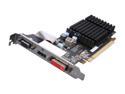
XFX One Radeon HD 5450 512MB DDR3 PCI Express 2.1 x16 Low Profile Ready Graphics Card ON-XFX1-STD2
Pros: 1. Has a wraparound heat sink that uses both sides of the card. About time somebody thought of this. 2. HDMI out. 3. Runs two monitors at the same time off the DVI and D-sub (VGA) connectors. 4. No fan. 5. Sure, works fine, noprob.
Cons: The installation software wanted to update itself. Fine, but then it wanted me to register to receive the updated drivers. Ummm...why? Are bad men downloading these drivers, and selling them on the street to strung-out driver heads? Most vendors realized in 2005 that it's pointless to make everybody register for everything, because all those email addresses are useless anyway. We just send you to the SPAM pile. Meanwhile, after driver installation the Catalyst Control Center will update the drivers from the ATI site without drama. When I did update, the newly installed drivers and/or Catalyst Control Center did not correctly set my monitor resolution, and reversed my monitors, primary-to-secondary. This required the usual confused search for the right place to click. I have no idea how I fixed it.
Overall Review: It's axiomatic that a thirty-dollar video card is one step above a motherboard's onboard video...barely. So this XFX card is not going to turn your web surfing box into a gaming monster. However, you do get HDMI out, which is probably the main reason for buying this card. Tip: this and all graphics cards put out serious heat, and heat is the main reason for failure of electronic components, AND hard drives, AND power supplies. If you're upgrading, it's wise to check your case temperatures with Speccy, and with Core Temp (both free, both on Google). If necessary, allowing cooling air by running with the cover removed is a lot better than frying your computer. The negatives I listed are no worse, and no more numerous, than any, so five stars, sure.
11/5/2012See more detail
No Connection to Actiontec Router GT701D
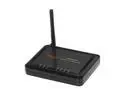
Rosewill RNX-EasyN400 Wireless-N Broadband Router (1T1R) IEEE 802.11b/g/n Up to 150Mbps Data Rates/ WPA Personal and Enterprise, WPA2, 64 & 128 bit WEP, PSK, TKIP, AES, WPS Security with 2 dBi fixed Antenna
Pros: Small, neat little box, nice indicator lights.
Cons: Never connected to an Actiontec GT701D router.
Overall Review: I've set up routers, modems, and gateways, but this thing defeated me. I sent it back. Maybe this is a headsup for somebody. With packing, stopping at the post office, and $3 restocking fee, this deal is a net loss for me. Also maybe a headsup.
7/22/2011See more detail
A Good Bet If You Win
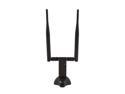
Rosewill RNX-N250UBE - Wireless N300 Wi-Fi Adapter - IEEE 802.11b/11g/11n, (2T2R), Up to 300 Mbps Data Rates, USB 2.0 Interface, Two 5 dBi High Power Detachable Antenna
Pros: works
Cons: but can get expensive
Overall Review: . Before anything else, this thing works fine. My years-old Toshiba laptop suddenly detected 7 networks where once there were 2. Same laptop, I got 4 bars out of 5 at a paced-off 70 feet going through 4 residential building walls, 5 bars at 50 feet and 2 walls. Installation was smooth. I downloaded the latest driver ZIP file from Rosewill, installed only the drivers, and that was petty much that. Like others I had to click to let Windows do the managing, but the dialog boxes for this popped up automatically. Things seem well thought out by somebody. All good. BUT the first antenna I received didn't work. During the usual re-plug, re-start, re-install I found that the connecting cable was too hot to touch! A short inside the antenna. Happily, my motherboard withstood the load, but this was scary. So send it back. But now, even though I printed out the Newegg return label as instructed, UPS still wanted 12 bucks to do the shipping. Send it in, or forget the whole thing? Sent it. So I wound up paying 32 bucks for this 20 dollar antenna. Not what you could call a really great deal. So like the man says, you pays yo' money and you takes yo' choice. I'm sure faulty units are few and far between, but if you happen to receive one this winds up being a pretty expensive piece of hardware. Your bet. .
3/20/2014See more detail
Working Fine
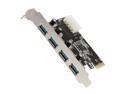
SYBA USB 3.0 4-port PCI-Express x1 Controller Card, VLI VL80x Chip Model SD-PEX20133
Pros: Six weeks of occasional use and I'm very happy with this card. The test result numbers don't really tell the story, in everyday use the speed increase over 2.0 is impressive. Those with problems, are you connecting a 4-pin Molex power plug? Power to the card is not optional, it's necessary.
Cons: None.
Overall Review: Absolute number are meaningless because machine speeds vary. Here are my relative test results running everything on the same machine. The 2.0 port used was a rear motherboard port, the 3.0 port is this Syba add-on card. The test program was H2testw v1.4, tests were run more than once. A 3.0 flash drive plugged into this card's 3.0 port: Write speed: 16.8 MByte/s Read speed: 74.0 MByte/s The same 3.0 flash drive plugged into a 2.0 port: Write speed: 12.8 MByte/s Read speed: 31.3 MByte/s And interestingly, showing that USB flash drive speeds do vary a lot: A 2.0 flash drive plugged into the same 2.0 port: Write speed: 3.45 MByte/s Read speed: 15.6 MByte/s REMEMBER: Don't just unplug an NFTS-formatted drive because data loss and damage to the drive are possible. Use the tray (where the clock is) icon to shut down the drive before you unplug.
5/18/2013See more detail
Good Stuff
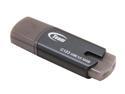
Team C123 32GB USB 3.0 Flash Drive TC123332GC01
Pros: A couple of weeks of intermittent use and I love this thing. The test result numbers don't really tell the story, in everyday use the speed increase over 2.0 is impressive.
Cons: The generic con of people who want to explain all about how they lost the cap. Look kittens, if you can't keep track of your mittens, well then you can't. But telling everybody about it doesn't make you look good.
Overall Review: Absolute number are meaningless because machine speeds vary. Here are my relative test results from running everything on the same machine. The 2.0 port used was a rear motherboard port, the 3.0 port is a no-name add on card. This 3.0 flash drive plugged into a 3.0 port: Writing speed: 16.8 MByte/s Reading speed: 74.0 MByte/s This same 3.0 flash drive plugged into a 2.0 port: Writing speed: 12.8 MByte/s Reading speed: 31.3 MByte/s A 2.0 flash drive plugged into the same 2.0 port: Writing speed: 3.45 MByte/s Reading speed: 15.6 MByte/s (Tested with H2testw v1.4) Some more information: Formats to NFTS noprob. IMPORTANT: Do not just unplug an NFTS-formatted drive because data loss and damage to the drive are possible. Use the tray (where the clock is) icon to shut down the drive before you unplug.
4/20/2013See more detail
Does the Job, Sure
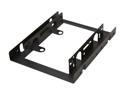
Rosewill RDRD-11004 2.5" SSD / HDD Mounting Kit for 3.5" Drive Bay
Pros: Fits, and come with screws. Will adapt either a regular/obsolete spinning hard drive, or a solid state (SSD). The bottom mounting holes fit only SSD, but the side holes are the same on spinning or solid.
Cons: None. Unless you want to say the light-gauge sheet metal construction is a con, which it really isn't.
Overall Review: Everybody quit talking about things not fitting. Hard drives don't have a top or bottom, per both Western Digital and Seagate. They also don't have fronts or backs, except as convenience dictates. And these adapter brackets are the same. So you can mount your drive metal cover up, circuit board up, or vertically. Flip the hard drive and/or the adapter front to back, or top to bottom. The way that fits is right. That is, as long as you have a standard case for the adapter to screw into. And if you don't have a standard case, what has that got to do with Rosewill? All of that remaining so, these adapter brackets are pretty thin, made out of light-gauge sheet metal. One reviewer called them flimsy. I wouldn't go that far, but they're not nearly as thick and robust as their more expensive cousins. However, I don't think that matters much. Their job is to hold a flyweight hard drive in place, and they certainly can do that. Don't think that these or any brackets will do anything about vibration. All hard drives are essentially silent, and they do not vibrate except for a mild spinning feel when you put your hand on the metal (not circuit board!) cover. If you do have noticeable noise or vibration, then back up your data right away, the drive going is to fail soon. Only make sure the source is really the hard drive. When installing these or any adapter brackets, make sure the mounting screw holes line up perfectly, both with the case and the hard drive. If necessary bend the bracket (easy with this one) for perfect screw hole alignment. You don't want a bent bracket, or misaligned screw holes, putting torque (twisting force) on the hard drive chassis. Over time this will tend to twist the bearings out of alignment, with the result you'd expect. As an item of information, I'm running a [spinning] laptop hard drive in a desktop case. No adjustments of any kind are needed, the SATA power connector automatically sends the right power to the right place. The laptop and desktop data connectors are the same.
11/14/2012See more detail