
Your Browsing History
 Holiday Shipping Details & Extended Holiday Returns Holiday Shipping Details & Extended Holiday Returns

Joined on 02/18/01
Very stable, easy overclocking, Linux compatible
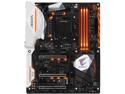
Pros: Gigabyte has been my preferred motherboard provider for many years. I've never had a Gigabyte board fail on me or encountered one with memory problems. I've always found the BIOS on Gigabyte boards to be very flexible and this board is no different. For overclockers they've included a number of profiles for various Skylake and Kabylake CPUs, for example to overclock the i7700K to 4.8GHz all you have to do is select 7700k 4.8GHz from a menu. Gigabyte BIOSes can be upgraded from a FLASH stick and it's always easy to find the latest BIOS on their website. I currently have 9 systems running 24/7 which I use for FPGA (field programable gste array) development. I use two Linux distributions on my systems, Scientific Linix 6.x (a RHEL clone) on my older systems and Fedora on my newer systems. I installed Fedora 25 on this system, I'm happy to report that everything is works, the board is completely Linux compatible as long as you are using a leading edge distribution such as Fedora 25, The board has support for PCI express SSDs (SATA SSDs require no special support in a BIOS but PCIe SSDs do). I used an Intel 750 1.2TB PCI Express SSD as my primary drive, the SSD is visible in the BIOS and I was able to select it as my boot drive. The DIMMs are well placed. I used a fairly large CPU cooler but the DIMMs are still accessible with the cooler installed. The GA-Z270X-Gaming K7 supports both the Sky Lake and Kaby Lake CPUs, For this build I used the following components, Gigabyte GA-Z270X-Gaming K7 Intel Core i7-7700K Kaby Lake Quad-Core 4.2 GHz CPU Cooler Master Hyper 212 EVO - CPU Cooler with 120 mm PWM Fan 2 X G.SKILL Ripjaws V Series 32GB (2 x 16GB) 288-Pin DDR4 SDRAM DDR4 2400 (64G total) Intel 750 Series AIC 1.2TB PCI-Express 3.0 x4 MLC Internal Solid State Drive 2 X HGST Deskstar NAS 3.5" 4TB 7200 RPM To test the stability of the system I ran sys_basher, the Linux hardware diagnostic and system exerciser, at the nominal CPU clock rate (4.5GHz), 4.8 GHz and 5GHz. A complete sys_basher takes 7 hours. At the nominal clock rate and at 4.8GHz the system passed the sys_basher test, at 5GHz the system crashed before completing the test. I feel confident in running this system up to 4.8GHz. To test performance I ran Intel/Altera's Quartus FPGA development tool on a large design. Quartus is a multithreaded CPU intensive program. For comparison I also ran the same Quartus build on a very similarly equipped Sky Lake system and an older Ivy Bridge system. All systems were running Fedora 25. On this system I first ran with the BIOS set to the default settings and then with the memory set to XMP (2.4GHz vs 2.1GHz), finally I set the CPU clock to 4.6MHz and then 5GHZ. Setting the memory to XMP had a small effect on performance as did setting the CPU clock to 5GHz. There was no significant performance difference between Kaby Lake and Sky Lake. Supposedly Kaby Lake has faster graphics but I didn't test that. For CPU intensive tasks Kaby Lake is no better than Sky Lake, feel free to use either. CPU Elapsed CPU Time Kabylake 01:09:22 02:20:56 Kabylake XMP 01:06:51 02:14:10 Kabylake 4.6GHz 01:06:04 02:13:17 Kabylake 5GHz 01:02:39 02:06:46 Skylake 01:07:40 02:14:44 Ivy Bridge 01:40:42 03:30:26
Cons: None
Overall Review: Linux users should run a leading edge distribution such as Fedora 25 or the latest Ubuntu. Enterprise distros, such as RHEL 6.8 or 7.1 (or their clones CentOS and Scientific Linux) generally take a year or so before they add support for new chipsets. About Me: I'm a Newegg EggXpert, we aren't paid for these reviews but we do get free review units although in this case it only applied the motherboard, I purchased all of the other components. I'm an engineer who has been designing computers since the 1970s. I specialize in networking and high performance computing.
Failed after 5 months, no way to RMA
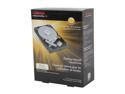
Pros: Cheap
Cons: You don't know what your getting when you order this drive. The first two that I bought were rebranded Hitachi's and they've been fine. The most recent drive is a Toshiba drive and it failed after 5 months. Although there is supposed to be a 3 year warranty it's meaningless because there doesn't seem to be a mechanism for RMAing a hard drive to Toshiba. There website doesn't seem to support internal drives. The serial number and the device model are unrecognized by their website.
Lightning Fast, requires a mainline Linux kernel

Pros: This system is noticeably faster than any of my older systems. My system has the following components, GIGABYTE Z790 AORUS ELITE AX LGA 1700 Intel Z790 ATX 128G CORSAIR Vengeance 64GB (2 x 32GB) 288-Pin PC RAM DDR5 5600 (PC5 44800) Desktop Memory Model CMK64GX5M2B5600C40
Cons: The kernels in Ubuntu 22.04 and 22.10 do not support Raptor Lakes out of the box, the lack the proper graphics drivers.
Overall Review: To install Ubuntu 22.04 or 22.10 you will need to use an old graphics card while you are doing the install. Once you have the system up a mainline kernel has to be installed. After you've updated the kernel the system will be fully functional. The mainline kernel will also be faster on a Raptor Lake because it's scheduler has been updated to handle the microarchitecure of the Raptor Lake. My script for installing a mainline kernel on Ubuntu is, #!/bin/bash -f add-apt-repository ppa:cappelikan/ppa apt -y update apt -y install mainline mainline --install-latest
Better than GSKILL
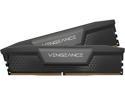
Pros: I've just built two Raptor Lake systems, one based on an ASUS mother board and one based on a Gigabyte motherboard, of the two I prefer the Gigabyte.
Cons: I originally bought eight GSkill DIMMs, four for each system. Of the eight only four worked, the other four got bit errors. Newegg refunded my money on the four bad GSKILL Dimms and I bought four Corsair DIMMs for the second board. Of the four Corsair DIMMs two were fine and two had shorts in them, the system wouldn't power on with the bad DIMMs. Newegg replaced the two bad DIMMs and they new ones were fine. With the four good DIMMs I was able to run the 24 hour sys_basher memory test without errors.
Overall Review: Even though I got two bad DIMMs the Corsair DIMMs seem to be better than the GSkill. The failures in the GSkill were bit errors that you could only find with comprehensive memory test like sys_basher, without a test the user would have no way of determining the source of the system crashes. The Corsair failures were hard failures, the DIMMs didn't work at all. When the bad DIMMs were replaced all four passed a 24 hour memory test without any errors.
Running Ubuntu 22.04
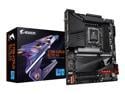
Pros: I've recently built two Raptor Lake systems, the first with an ASUS motherboard and the second with this mother board. I like the layout of this board better, the DIMM sockets are also better. The board has been solid, I've been running the system for a couple of months. I used the following components, Intel Core i9-13900K - Core i9 128G CORSAIR Vengeance 64GB (2 x 32GB) 288-Pin PC RAM DDR5 5600 (PC5 44800) Desktop Memory Model CMK64GX5M2B5600C40
Cons: DDR5 DIMMs are problematic. On the ASUS system I used GSkill DIMMs, out of eight only four worked, the other four failed Sys_basher. I returned the four bad DIMMs and ordered four Corsair DIMMs for this board. Of the first four two DIMMs were fine and two were so badly broken that the system wouldn't power on. Newegg replaced the two bad DIMMs and the replacements were fine. All 128G passed a 24 hour sys_basher memory test.
Overall Review: Raptor Lakes require a mainline kernel, I'm currently running kernel 6.2.0. Ubuntu 22.04 and 22.10 have older kernels that don't support the graphics on a Raptor Lake CPU. To install them you either have to temporarily use an older graphics card or do the install to the SSD on another system and then install a mainline kernel. For my ASUS build I used a old Nvidia card,. while that card was in the system I used it to set up two SSDs, one for the ASUS box and one for the Gigabyte box. Ubuntu 23.04 should support Raptor Lake out of the box when it arrives. My script for installing the mainline kernel is, #!/bin/bash -f add-apt-repository ppa:cappelikan/ppa apt -y update apt -y install mainline mainline --install-latest
50% Failure rate
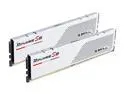
Cons: I bought eight of these for two builds. On an ASUS Prime Z790-A WiFi 6E LGA 1700 board 50% of them failed the sys_basher memory test. After building the system it was crashing so I ran sys_basher which got errors. I then ran sys_basher on each DIMM individually to determine which ones were bad, out of 8 DIMMs only half passed the test. With the four good DIMMs the system is stable and it's able to run the 24 hour sys_basher tests.
Overall Review: GSkill has always been by goto DIMMs over the years, I've built a couple of dozen systems using GSKill over the last 20 years, they've always been solid. Unfortunately these are horrendously poor, a 50% failure rate, see by comment above.
Delivered quickly.
Good price, great product, delivered quickly.