




 here!
here!
I’m your shopping assistant for PC builds, upgrades, and everything tech.
Got questions? Ask away!
Start a conversation
here!
I’m your shopping assistant for PC builds, upgrades, and everything tech.
Got questions? Ask away!
Start a conversation

Joined on 07/22/03
It's good
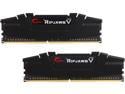
Overall Review: Remember that 3200 MHz is not a JEDEC certified frequency. This means that in order to get the full advertised 3200 MHz speed, you have to go into your motherboard BIOS settings and turn on XMP 2.0, which will automatically fix the timings and voltage for your RAM. If you don't do this, the RAM will run at about 2132 MHz. You can verify it worked in the BIOS screen or Windows Task Manager (Performance > Memory).
Driver resets all the time
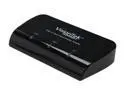
Pros: - Supports digital 1080p output to two displays at once. - Integration with native Windows Control Panel for changing screen resolution and rotation. - Cheaper and easier than buying another GPU and another motherboard with more PCI-e x16 slots.
Cons: - The driver crashes and resets at the slightest provocation: moving a window around, maximizing a window, dragging a rectangle to select desktop icons, or even the Identify feature in the Windows Screen Resolution control panel. - Sometimes the driver gets stuck in an infinite crashing loop.
Overall Review: Nifty piece of hardware, but the driver instability is where it fails.
Pretty good, no real alternatives
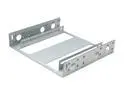
Pros: - Securely fit my Seagate 18TB Exos - Not too hard to install
Cons: - It's easier to use the two outer screw holes on the drive, because the middle one is blocked by this tray not having a screwdriver access hole in the right place - The tolerances on the length of the tray's long inner slots where the drive's screws attach is a bit tight, so it's a little tough to make the screws go in straight. This is exacerbated by... - The screwdriver access holes in this tray don't line up well with the drive's outer screw holes, so it's easy to get the screws misaligned or cross-threaded. - I found it was easiest to start the included hex+Phillips head screws with my fingers, then tighten them using a 1/4" box-end wrench instead of a screwdriver, because it's easier to align. - The metal edges are very sharp and not rolled over or beveled, so be careful you don't cut yourself. - None of the included screws were long enough to attach my 5.25" drive bay rails to this tray, so I used my own screws that were left over from some other case or drive I bought in the past. - It's very thin stamped sheet metal that easily flexes when you bend it, unlike the very rigid 2.5" drive to 3.5" bay adapters I've gotten from Corsair, which don't have sharp, unfinished, exposed edges and are even painted.
Overall Review: I would recommend this tray, and I'll get another one if I need to install another drive in this case. It works well and wasn't too hard to install. Unfortunately, there is not much competition between 3.5" drive to 5.25" bay adapter trays for some reason, even though there are thousands of 2.5" drive to 3.5" bay adapters to choose from, so your choices are severely limited. All the other options for this use case looked like a worse fit or way too expensive. If I could change one thing, I would want to mount the drive to the tray from the bottom instead of the sides. This would make it way easier to access the screws, and make the tray more rigid because there wouldn't be a bunch of holes cut out of it. My drive has four screw holes on the bottom, and this is how all the 2.5" drive to 3.5" bay adapters work anyway.
Works perfectly
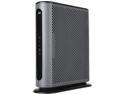
Pros: - The built-in web interface is more detailed and has better, more understandable, and more comprehensive explanations than my old Motorola cable modem. I also asked my roommates for their feedback: - "It's fine, I haven't had any problems" - "I think it's good"
Cons: - Not a con, but FYI in case you're in the same boat as I was: when I first connected it to Comcast, I couldn't load the Comcast walled-garden sign in page because I had set a custom DNS server on my router. I fixed this by reconfiguring the router to use DHCP to get its DNS servers, so Comcast could resolve my host lookup to their walled-garden sign in page. Then I could sign in and activate the modem. After you activate and your internet connection is working, you can revert to using whatever non-ISP DNS server you want.
Overall Review: It's good, I like it.
It's good, I like it
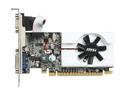
Pros: - Functional, quiet, simple to install. - Lets you connect an external monitor so you can rescue a headless desktop if RDC fails.
Cons: - Drivers are no longer being released for this card. The latest compatible drivers are version 342.01 from December 14, 2016. If you try to install newer drivers, the installer won't warn you, but your card won't output any video to your monitor.
Overall Review: It's a little hard to tell from the description and photos, but there are actually three different included port configurations: low profile with VGA only, low profile with DVI and HDMI, and full profile with VGA, DVI, and HDMI.
It's good
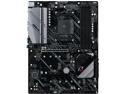
Pros: - Works out-of-the-box with Ryzen 7 3700X Matisse with factory BIOS version (1.40 I believe), unlike many B-chipset motherboards that have to be upgraded using an older spare CPU first. - Simple to turn on XMP for full RAM speed (it's easy to forget to do this). - Installs and boots Win10 from NVMe drive without issues. - Pretty nice fan speed curve customization, if you want low temperatures to have very slow, quiet fans. - BIOS upgrade installed smoothly. - Chipset fan is not noisy.
Cons: - Automatic fan speed curve detection (called FAN-Tastic or something) erroneously picks too low a speed for low temperatures. After letting it run its detection, I had to manually increase the low-temp fan speeds from like 20% to 40%, otherwise they wouldn't spin at all. - Automatic fan speed detection briefly turns off the CPU fan during its test, which is scary. If this sounds weird to you then just don't run the FAN-Tastic tuning thing, the fans work fine by default. - Automatic boot on power restore (off by default) seems a little dodgy. One time I plugged in the power cable with the power switch on, and it didn't boot until I manually turned off and on the power supply. Another time, it was shut down while I was installing a PCIe card, and it started booting just from me touching the motherboard, so I had to unplug the power supply. - Not the fastest to POST and get past the BIOS logo screen.
Overall Review: I like it.


