
Your Browsing History


Kevin D.
Joined on 06/30/06
0
0
product reviews
- 3
Works Linux Ubuntu 10.10
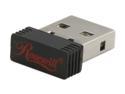
Rosewill RNX-MiniN1 (RWLD-110001) Wireless-N 2.0 Dongle (1T1R) IEEE 802.11b/g/n, USB2.0 Up to 150Mbps Data Rates, WEP 64/128, WPA/WPA2, and IEEE 802.1x
Pros: Works in Ubuntu 10.10 running 2.6.35 kernel. Super low profile. But only works in 2.4Ghz range (not true N, which is 5GHz). I had originally installed it using instructions found in a previous review (6/4/2011), and it didn't work. Then I noticed the instructions were for an earlier version of the driver (v.3.0.1590). The newest version of the driver (v.3.1.2590) installs fine using just the install.sh script. Below are updated instructions, for the new driver.
Cons: Steps to get the 8192cu driver to work under ubuntu 10.10 kernel 2.6.39 Make sure your ubuntu environment is setup to build from source. I have build-essential, and others, so I'm good. Make sure the wireless usb adapter is not plugged in. Download driver from http://www.realtek.com/downloads/downloadsView.aspx?Langid=1&PNid=21&PFid=48&Level=5&Conn=4&DownTypeID=3&GetDown=false&Downloads=true#2742 It's v. 3.1.2590, listed under Linux driver for Kernel 2.6.38(and earlier) Unzip the driver. Change to directory you extracted the zip. In my case that was /home/kevin/Desktop/RTL8192CU_8188CUS_8188CE-VAU_linux_v3.1.2590.20110928
Overall Review: In ubuntu run the following command in order to become root: sudo su Make the file install.sh executable by running the following command: chmod +x install.sh Install the driver using the command: ./install.sh If all goes well you should see the following: The Setup Script is completed ! Run the following command to see that the driver is loaded: lsmod | grep 8192 and you should see something like: 8192cu 477140 0 Exit the shell and insert the usb adapter. Happy networking.
11/2/2011See more detail
Works with Ubuntu 11.10
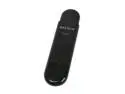
BELKIN F5D8053 N Wireless Adapter IEEE 802.11b/g/n USB 2.0 Up to 300Mbps Wireless Data Rates
Pros: Works out of the box with Ubuntu 11.10, kernel 3.0. Good signal strength. Dual Band, 2.4 / 5 Ghz, so real N throughput. Comes with USB extension cable, and a little stand, so you can position it for best signal.
Cons: A little bulky, but mine sticks out the back of my desktop, under the desk, so not really a problem for me.
11/10/2011See more detail
Works Ubuntu 10.10
Rosewill RNX-MiniN1 (RWLD-110001) Wireless-N 2.0 Dongle (1T1R) IEEE 802.11b/g/n, USB2.0 Up to 150Mbps Data Rates, WEP 64/128, WPA/WPA2, and IEEE 802.1x
Pros: I got this unit working under Ubuntu 10.10 (kernel 2.6.35-30). I originally followed the instructions posted here by N/A on 6/24/2011. Didn't work for me. Plugged in the adaptor and my system froze. Then I saw that the instructions were for an earlier driver (v. 3.0.1590). The newest version of the driver (v. 3.1.2590) installs perfectly, working fine. Adapter works fine. Super low profile. But only receives in the 2.4 GHz range, so not true N (which is 5 Ghz). Below are the previous instructions, I've edited out the steps made unnecessary by using the new driver:
Cons: Linux driver for Kernel 2.6.38(and earlier) at http://www.realtek.com/downloads/downloadsView.aspx?Langid=1&PNid=21&PFid=48&Level=5&Conn=4&DownTypeID=3&GetDown=false&Downloads=true#2742 Extract the package. Go into the directory you just extracted. In my case it was /home/kevin/Desktop/RTL8192CU_8188CUS_8188CE-VAU_linux_v3.1.2590.20110922
Overall Review: Make sure the wireless usb adapter is not plugged in. In ubuntu run the following command in order to become root: sudo su Make the file install.sh executable by running the following command: chmod +x install.sh Install the driver using the command: ./install.sh If all goes well you should see the following: The Setup Script is completed ! Run the following command to see that the driver is loaded: lsmod | grep 8192 and you should see something like: 8192cu 477140 0 Exit the shell and insert the usb adapter. Happy networking.
11/1/2011See more detail