




 here!
here!
I’m your shopping assistant for PC builds, upgrades, and everything tech.
Got questions? Ask away!
Start a conversation
here!
I’m your shopping assistant for PC builds, upgrades, and everything tech.
Got questions? Ask away!
Start a conversation



Any questions? Ask CelesteSM will help you find out quickly.
What do I need to be aware of when I receive a battery?
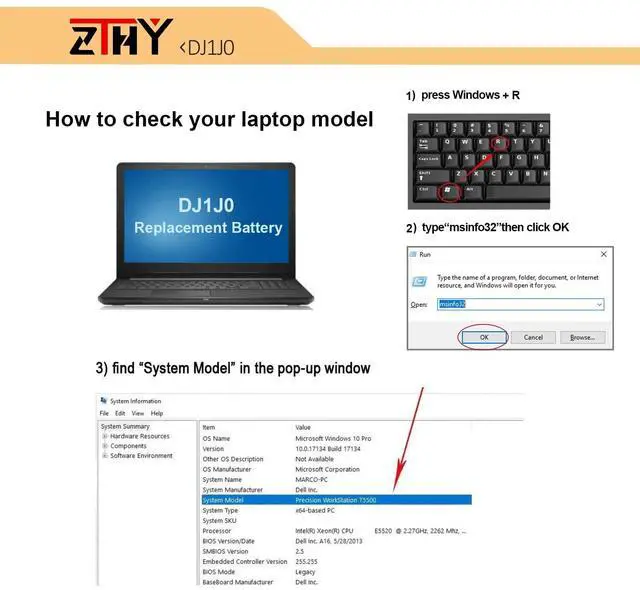
You need to check its appearance, confirm the model, read the instruction manual. Cycle and charge it 5 to 6 times to activate the maximum usage space of the battery. When not in use temporarily, charge the battery to 50%-60%.
What should I do if laptop won't boot up after installing a new battery?
1.Check if the battery is properly seated and connections are clean. 2.Try charging it or use the adapter alone to start. 3.Examine hardware links, like RAM and adapters. 4.Reset BIOS settings if needed. 5.Enter Safe Mode to fix system issues.
How should I do if the battery is not recognised?
If it is not recognised, it is recommended to update the BIOS settings or please disconnecting the old battery, and holding down the power button for 20 seconds, then connect the new battery.
What should I do if the battery expands?
1.Power off your laptop and disconnect it from any power source. 2.Carefully remove the swollen battery from the laptop in a well-ventilated area, avoid pressing or squeezing the battery during removal.
What can you do if you are not satisfied with the battery?
Please Contact ZTHY, we'll help you. Our battery have 12 months replace a new one and 30 days moeny back guarrante.

Battery Installation Guidelines
1.Prepare Before Installation: While installing a battery is generally straightforward, it is recommended to watch online installation tutorials for your specific laptop model or seek assistance from a professional.
2.Follow Installation Procedures: Handle all components with care during installation. Be particularly gentle with the battery connector on the laptop motherboard; do not use excessive force. Any damage caused by improper operation is the user's responsibility.
3.If the New Battery Doesn't Charge: If the battery isn't charging after installation, try a power reset: remove the battery, unplug the charger, hold the power button for 15 seconds, and then reinstall the battery. Repeat this process if necessary.
Battery Identification Troubleshooting Guide
1.Check the Connection: A loose battery is a common cause. Remove the battery and reinstall it, ensuring the connector is firmly seated in the motherboard interface.
2.Inspect Conductive Components: The conductive materials on the laptop's battery contact points can become damaged. Compare with an original battery to confirm (if the original battery works, the conductive components are likely the issue).
3.Update the Battery Driver: Check the device's driver status. If the battery driver is malfunctioning, download and install the latest driver for your specific laptop model.
4.Perform a Power Reset: Remove the battery and, with the power adapter unplugged, press and hold the power button for 15 seconds to discharge residual power. Reinstall the battery and attempt to power on. You may need to repeat this process if it is ineffective the first time.
Battery Usage and Maintenance Tips: 1.Activating a New Battery: New batteries often arrive with a partial charge (around 50%). To maximize initial performance, discharge the battery to 10-20% and then charge it to 100%. Repeat this cycle 3-5 times. 2.Avoid Full Discharge: Never drain the battery to 0%, as this can damage the battery cells and accelerate aging. Extreme low power may also cause the laptop to shut down unexpectedly. 3.Charge Promptly: Recharge the battery soon after it is depleted. Leaving a battery at 0% for an extended period can cause permanent damage. 4.Long-Term Storage: If you do not plan to use the laptop for a while, charge the battery to at least 70% before storing it. The storage period should not exceed three months for optimal battery health. 5.Exercise the Battery: If you primarily use your laptop while plugged in, disconnect the charger and run on battery power at least once a week to maintain battery activity. 6.Use Compliant Chargers: Always use the original charger or a certified replacement from a reputable brand. Poor-quality chargers can disrupt normal charging and potentially damage the battery. 7.Maintain Proper Ventilation: Regularly clean dust from the fans to ensure effective heat dissipation. This reduces overall power consumption and helps extend battery life. 8.Understanding Power Readings: The displayed battery percentage and estimated usage time may fluctuate during use. This is normal and depends on the software running. Focus on whether the actual usage time meets your expectations.
Committed to providing customers with various high-quality batteries, and care services can help you easily solve the problem.

ZTHY is a professional laptop battery, camera battery and all kinds of chargers manufacture. We are committed to providing our partners one-stop valuable power charging solution.
A professional manufacturer with a strong product range and Industry chains, to creating the best products which can perfectly fit your devices.
Welcome to ZTHY Store!

Good battery replacement for your laptop

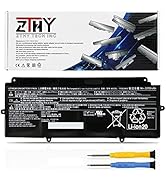
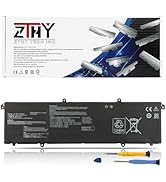
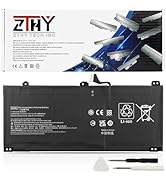
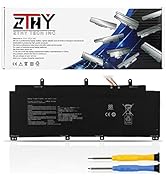
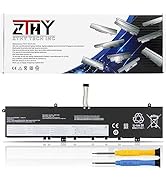
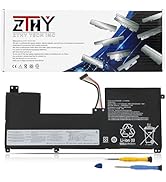
1, You need to turn off your laptop and disconnect the power.
2, Disconnect the connection between the old battery and the motherboard to avoid unnecessary damage caused by disassembling the battery. Then unscrew the old battery screws one by one and carefully save each screw.
3, Remove the old battery, carefully install the new battery on the battery case, screw in the screw, and connect the wiring of the new battery.
4, If you don't understand the above steps, you can search for the video about laptop battery installation on YouTube. Maybe it will help you.
1. Discharge the new battery use to 10%(not to 0%) and then charge to 95%, and cycle 3-4 times.
2. Do not disassemble, crush or puncture. Do not dispose of in fire or water.
3. If you remove the battery for a long time, charge more than 80% at least one time within one month.
4. Don't connect the adapter for a long time while using the battery. It may damage the battery.
5. When using the battery, care should be taken to prevent exposure and moisture.
1. Could be caused by battery loss. Please re-install the battery and make sure that the battery cable and the motherboard interface are tightly inserted.
2. Maybe due to conductive material damage which the laptop motherboard and battery anode and cathode contact position, you can try to confirm it with your original battery.
3. Check whether the battery drive is in normal condition, if not, download the corresponding driver software to update.
1.Turn off the laptop.
2.Unplug AC power.
3.Remove the battery.
4.Replace AC power.
5.Turn on laptop,allow OS to boot.
6.Once logged in to the machine,perform a normal shut donw.
7.Unplug AC power.
8.Replace battery.
1, Change your laptop power plan settings, and choose the power saver plan. Then Change advanced power settings, and scroll down to find Processor power management. Click the On-battery option and reduce the processor state to 20%.
2, Always keep your laptop neat and clean. The dust easily enters the hardware through the vents which are meant to release the heat generated from various computer components.
3, Close Wi-Fi, Bluetooth, and other settings. This can help your computer save precious battery life.
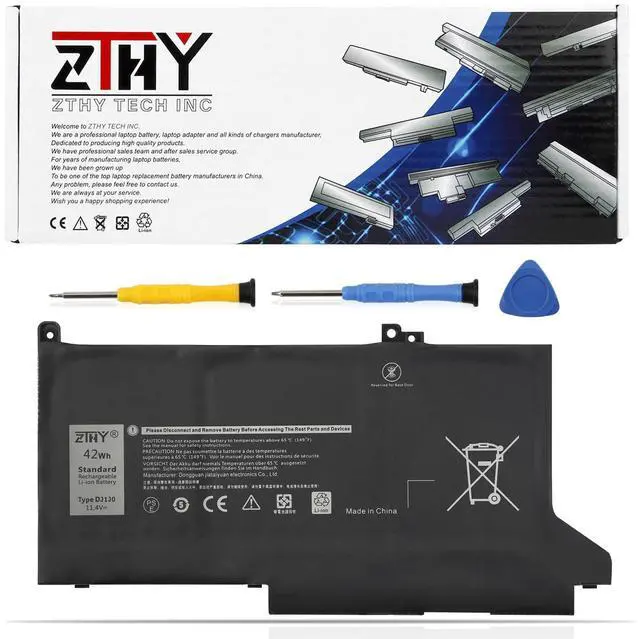
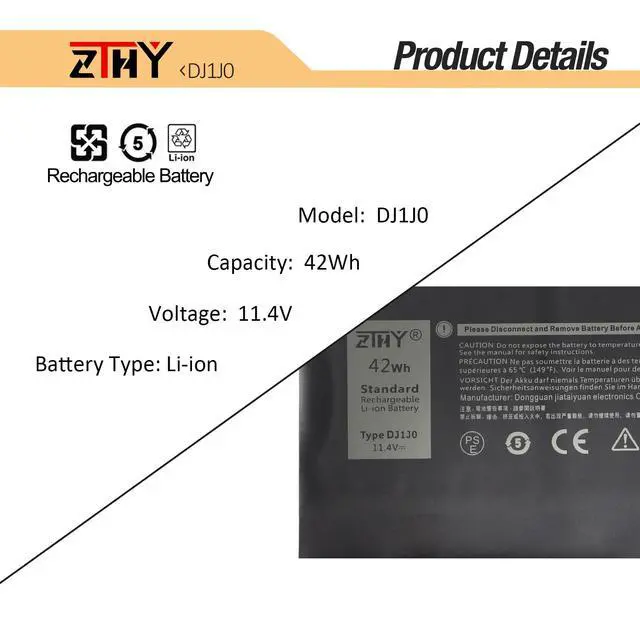
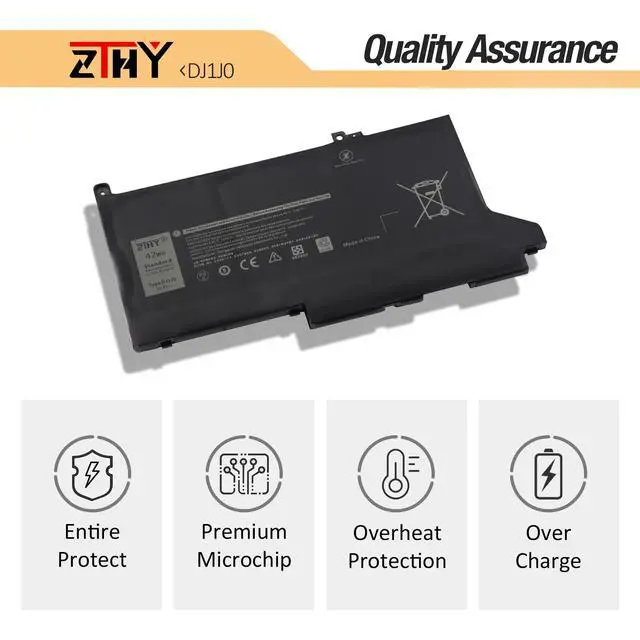
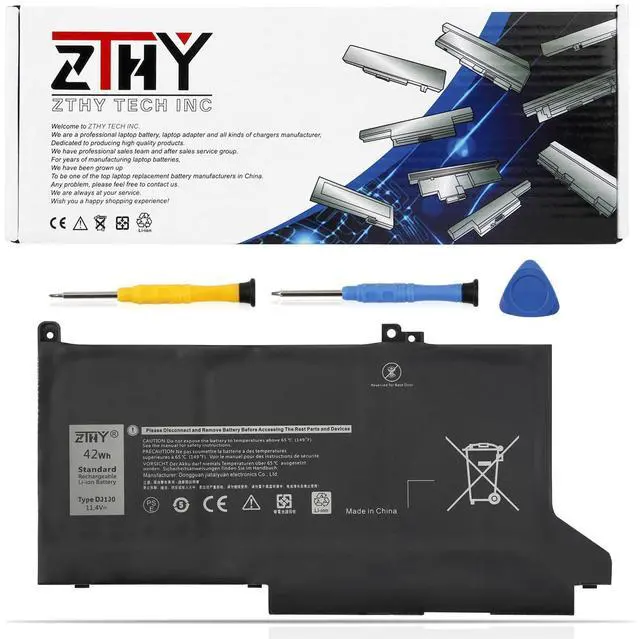
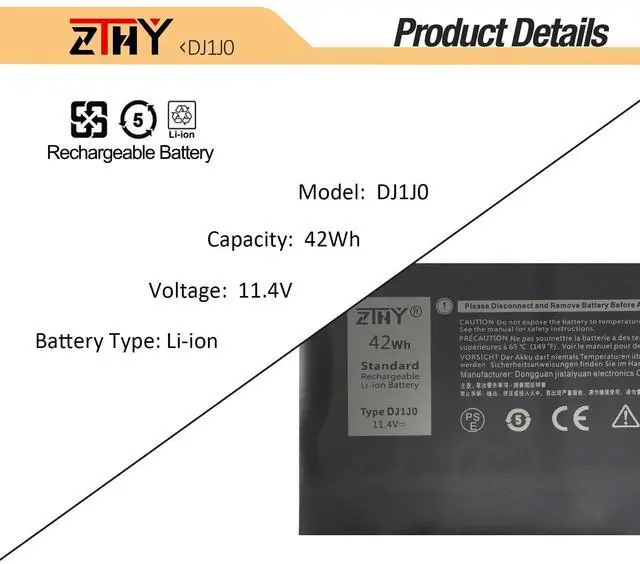
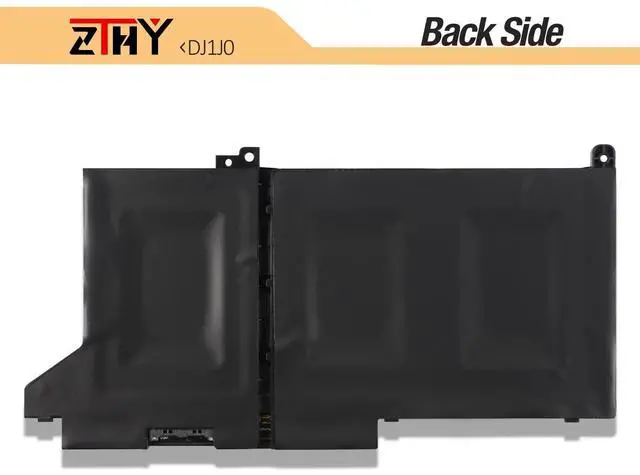
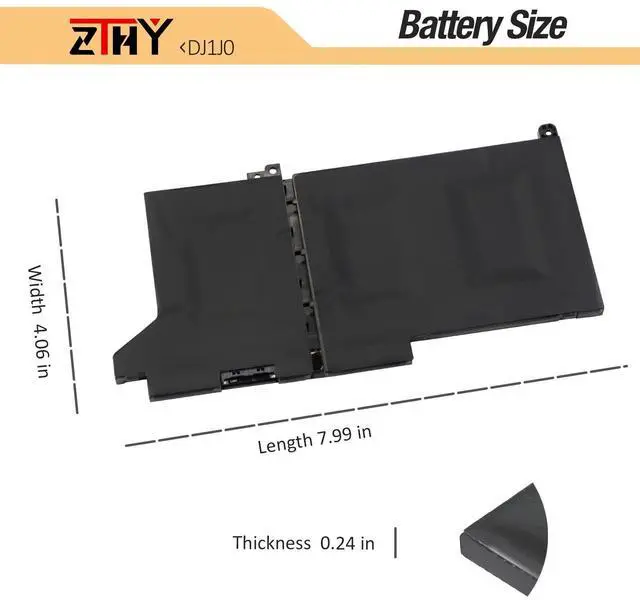
| Compatible Part Number | DJ1J0 451-BBZL C27RW PGFX4 ONFOH DJ1JO |
|---|---|
| Compatible Model | Replacement for Dell Latitude 12 7000 7280 7290 Series; |
| Compatible Model | Replacement for Dell Latitude 13 7000 7380 7390 Series; |
| Compatible Model | Replacement for Dell Latitude14 7000 7480 7490 Latitude 7480 (00MG3), Latitude 7480 (KG9V9), Latitude 7480 (8CG05), Latitude (7480-CY4FG), Latitude (7480-D4CWR) Series; |
| Compatible Model | Replacement for Dell Latitude E7280 Series; |
| Compatible Model | Replacement for Dell Latitude E7380 Series; |
| Compatible Model | Replacement for Dell Latitude E7480 Series; |
| Compatible Model | Replacement for Dell Latitude E7290 Series; |
| Compatible Model | Replacement for Dell Latitude E7390 Series; |
| Compatible Model | Replacement for Dell Latitude E7490 Series. |
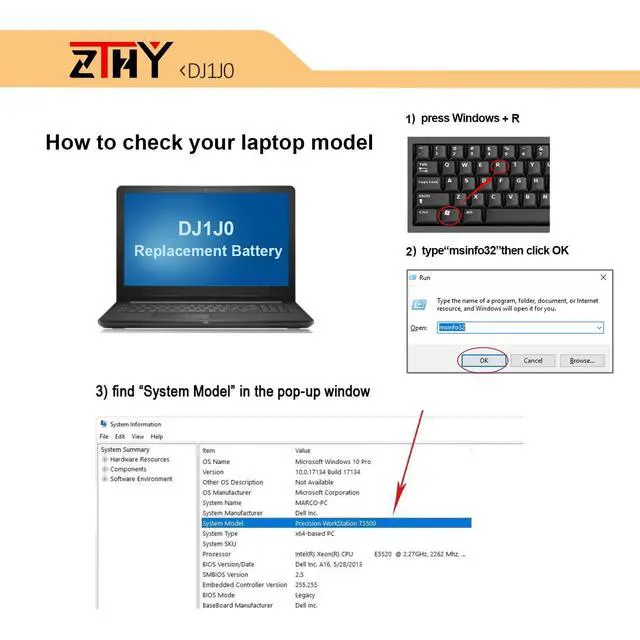
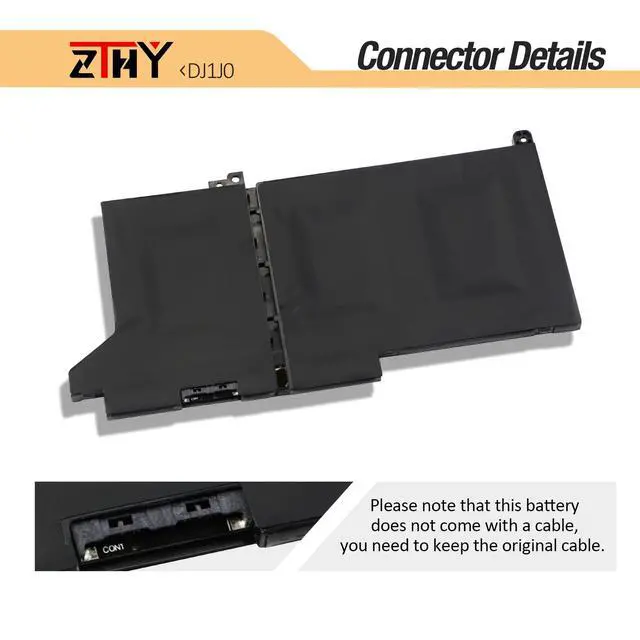
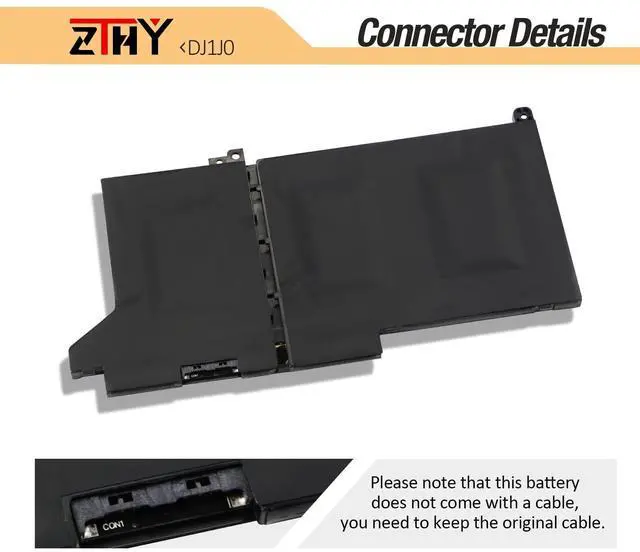
| Attention | If you install the battery, you find that the laptop cannot detect the battery or the battery level cannot be displayed normally. Please check whether the battery cable is installed properly. Sometimes the battery cannot be charged because the cable is not fixed properly. |
What do I need to be aware of when I receive a battery?
You need to check its appearance, confirm the model, read the instruction manual. Cycle and charge it 5 to 6 times to activate the maximum usage space of the battery. When not in use temporarily, charge the battery to 50%-60%.
What should I do if laptop won't boot up after installing a new battery?
1.Check if the battery is properly seated and connections are clean. 2.Try charging it or use the adapter alone to start. 3.Examine hardware links, like RAM and adapters. 4.Reset BIOS settings if needed. 5.Enter Safe Mode to fix system issues.
How should I do if the battery is not recognised?
If it is not recognised, it is recommended to update the BIOS settings or please disconnecting the old battery, and holding down the power button for 20 seconds, then connect the new battery.
What should I do if the battery expands?
1.Power off your laptop and disconnect it from any power source. 2.Carefully remove the swollen battery from the laptop in a well-ventilated area, avoid pressing or squeezing the battery during removal.
What can you do if you are not satisfied with the battery?
Please Contact ZTHY, we'll help you. Our battery have 12 months replace a new one and 30 days moeny back guarrante.

Battery Installation Guidelines
1.Prepare Before Installation: While installing a battery is generally straightforward, it is recommended to watch online installation tutorials for your specific laptop model or seek assistance from a professional.
2.Follow Installation Procedures: Handle all components with care during installation. Be particularly gentle with the battery connector on the laptop motherboard; do not use excessive force. Any damage caused by improper operation is the user's responsibility.
3.If the New Battery Doesn't Charge: If the battery isn't charging after installation, try a power reset: remove the battery, unplug the charger, hold the power button for 15 seconds, and then reinstall the battery. Repeat this process if necessary.
Battery Identification Troubleshooting Guide
1.Check the Connection: A loose battery is a common cause. Remove the battery and reinstall it, ensuring the connector is firmly seated in the motherboard interface.
2.Inspect Conductive Components: The conductive materials on the laptop's battery contact points can become damaged. Compare with an original battery to confirm (if the original battery works, the conductive components are likely the issue).
3.Update the Battery Driver: Check the device's driver status. If the battery driver is malfunctioning, download and install the latest driver for your specific laptop model.
4.Perform a Power Reset: Remove the battery and, with the power adapter unplugged, press and hold the power button for 15 seconds to discharge residual power. Reinstall the battery and attempt to power on. You may need to repeat this process if it is ineffective the first time.
Battery Usage and Maintenance Tips: 1.Activating a New Battery: New batteries often arrive with a partial charge (around 50%). To maximize initial performance, discharge the battery to 10-20% and then charge it to 100%. Repeat this cycle 3-5 times. 2.Avoid Full Discharge: Never drain the battery to 0%, as this can damage the battery cells and accelerate aging. Extreme low power may also cause the laptop to shut down unexpectedly. 3.Charge Promptly: Recharge the battery soon after it is depleted. Leaving a battery at 0% for an extended period can cause permanent damage. 4.Long-Term Storage: If you do not plan to use the laptop for a while, charge the battery to at least 70% before storing it. The storage period should not exceed three months for optimal battery health. 5.Exercise the Battery: If you primarily use your laptop while plugged in, disconnect the charger and run on battery power at least once a week to maintain battery activity. 6.Use Compliant Chargers: Always use the original charger or a certified replacement from a reputable brand. Poor-quality chargers can disrupt normal charging and potentially damage the battery. 7.Maintain Proper Ventilation: Regularly clean dust from the fans to ensure effective heat dissipation. This reduces overall power consumption and helps extend battery life. 8.Understanding Power Readings: The displayed battery percentage and estimated usage time may fluctuate during use. This is normal and depends on the software running. Focus on whether the actual usage time meets your expectations.
Committed to providing customers with various high-quality batteries, and care services can help you easily solve the problem.
ZTHY is a professional laptop battery, camera battery and all kinds of chargers manufacture. We are committed to providing our partners one-stop valuable power charging solution.
A professional manufacturer with a strong product range and Industry chains, to creating the best products which can perfectly fit your devices.
Welcome to ZTHY Store!
Good battery replacement for your laptop
1, You need to turn off your laptop and disconnect the power.
2, Disconnect the connection between the old battery and the motherboard to avoid unnecessary damage caused by disassembling the battery. Then unscrew the old battery screws one by one and carefully save each screw.
3, Remove the old battery, carefully install the new battery on the battery case, screw in the screw, and connect the wiring of the new battery.
4, If you don't understand the above steps, you can search for the video about laptop battery installation on YouTube. Maybe it will help you.
1. Discharge the new battery use to 10%(not to 0%) and then charge to 95%, and cycle 3-4 times.
2. Do not disassemble, crush or puncture. Do not dispose of in fire or water.
3. If you remove the battery for a long time, charge more than 80% at least one time within one month.
4. Don't connect the adapter for a long time while using the battery. It may damage the battery.
5. When using the battery, care should be taken to prevent exposure and moisture.
1. Could be caused by battery loss. Please re-install the battery and make sure that the battery cable and the motherboard interface are tightly inserted.
2. Maybe due to conductive material damage which the laptop motherboard and battery anode and cathode contact position, you can try to confirm it with your original battery.
3. Check whether the battery drive is in normal condition, if not, download the corresponding driver software to update.
1.Turn off the laptop.
2.Unplug AC power.
3.Remove the battery.
4.Replace AC power.
5.Turn on laptop,allow OS to boot.
6.Once logged in to the machine,perform a normal shut donw.
7.Unplug AC power.
8.Replace battery.
1, Change your laptop power plan settings, and choose the power saver plan. Then Change advanced power settings, and scroll down to find Processor power management. Click the On-battery option and reduce the processor state to 20%.
2, Always keep your laptop neat and clean. The dust easily enters the hardware through the vents which are meant to release the heat generated from various computer components.
3, Close Wi-Fi, Bluetooth, and other settings. This can help your computer save precious battery life.


