





Immersive Lighting: Total Control & Sound Sync

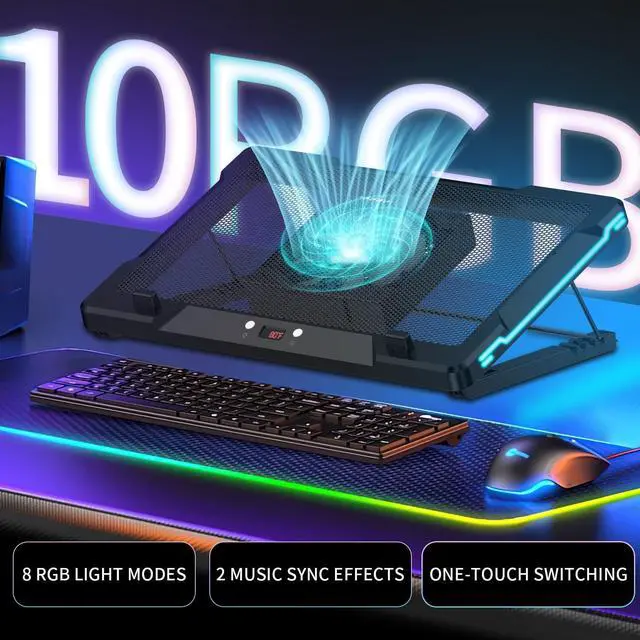
Left Button: Easy Light Modes
Short Press: ON ? Cycle Levels ? OFF.
Long Press: Toggles Sound (R1) / Manual (LEd) modes.
Sound Mode: L1 (normal), L2 (high sensitivity).
Manual Mode: 8 settings: C1-4 solid, C5-8 dynamic effects.

Sound Mode: Lights Dance
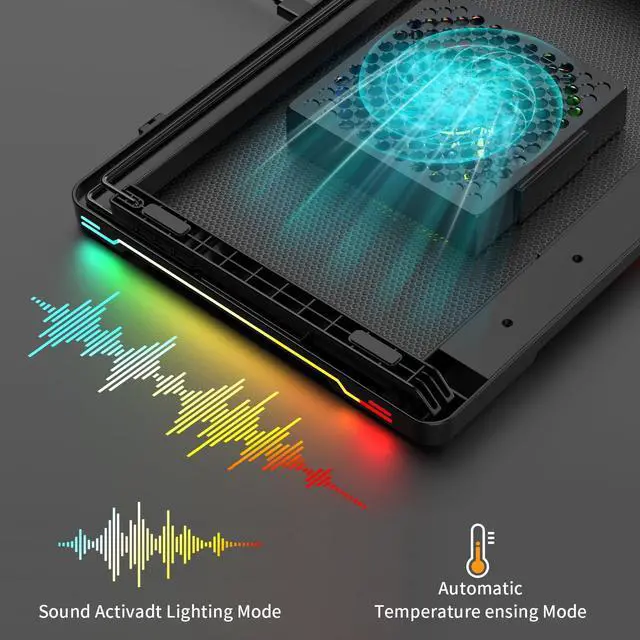
Sound Mode (R1): Lights change with ambient sound.
L1 Sensitivity: Responds to louder sounds.
L2 Sensitivity: Responds to even soft sounds.
Atmosphere: Vibrant audio-visuals synced to music/environment
Intelligent Fan Control for Personalized Comfort

Right Button: Smart Fan Control
Short Press (Manual): ON ? Speeds ? OFF.
Long Press: Switches Auto (AU) / Manual (AA) modes.
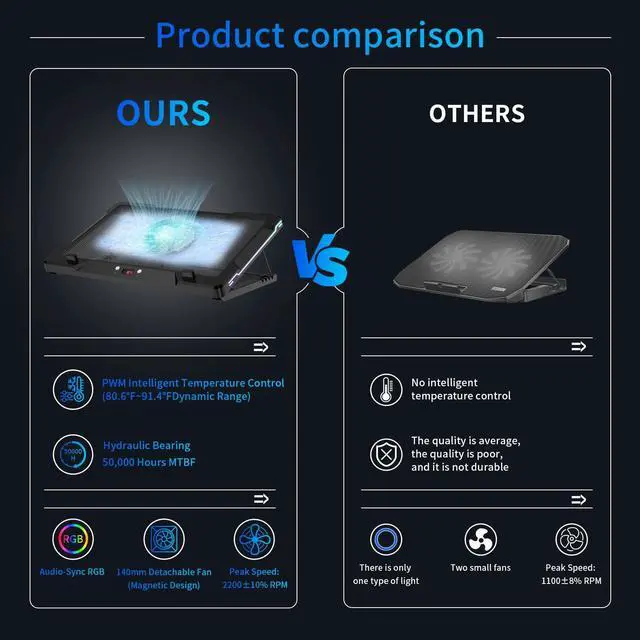
Auto (AU): Speed by temp (27-29, 30-32, 33°C+).
Manual (AA): 3 speeds: A1 (low) ? A2 (med) ? A3 (high)

Smart Cooling: Auto & Manual
Auto (AU): Hands-free cooling! Speed auto-adjusts by temp.
Indicator: AU. Temp Tiers: 79–84°F, 86–90°F, 91°F+.
Manual (AA): Between your control! Set A1-A3 speeds for comfort.

My Laptop Cooling Pad isn't spinning when plugged in. Is it faulty?
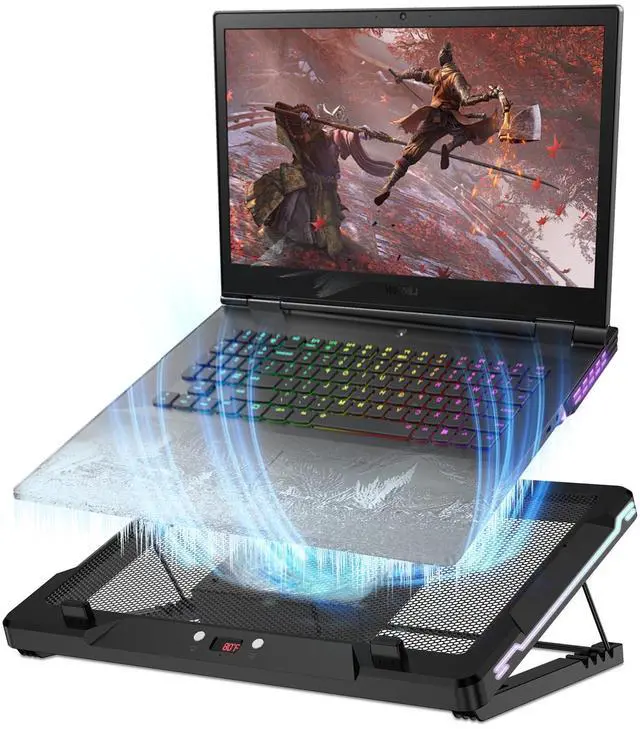
Not at all! The fans on your Laptop Cooling Pad automatically activate only when the temperature reaches the starting threshold of 79°F (26°C). You can long press the Right Button to switch to Manual Fan Mode for immediate control.
How does Sound Mode work on this Laptop Cooler Stand? Sensitivity levels?
In Sound Mode (R1), lights react to ambient sound. L1 responds to louder sounds, while L2 is highly sensitive, reacting even to soft sounds. This creates a dynamic audio-visual atmosphere synced with your music or environment.
How do I operate the fan on this Laptop Cooling Pad & switch modes?
In Manual Mode, short press the Right Button for ON, to cycle speeds, or OFF. Long press it to switch between Auto Temp Mode (AU indicator), where speed adjusts to temperature, and Manual Mode (AA indicator) for direct speed control.
What is Auto Temp Mode for the Laptop Cooler Stand's fan? How does it adjust?
Auto Temp Mode (AU indicator) offers hands-free cooling. The fan speed automatically adjusts based on real-time temperature across pre-set tiers (e.g., 79-84°F, 86-90°F, 91°F+), ensuring optimal comfort without manual intervention.
Can I manually set light effects & fan speeds on my Laptop Cooling Pad?
Yes. For lights, Manual Mode (LEd) provides 8 settings: C1-C4 for solid colors and C5-C8 for mixed dynamic effects. For the fan, Manual Mode (AA) offers 3 speed levels: A1 (low), A2 (medium), and A3 (high).


DEPGI
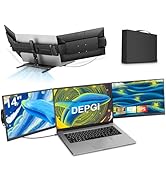
Founded by gamers, engineers, and innovators, DEPGI redefines gaming and productivity through sleek multi-screen solutions. We saw a need: clunky, overpriced setups lacked modern aesthetics. Our answer? Dual and triple screens fused with cutting-edge tech and intuitive design—empowering gamers, streamers, and pros to dominate their digital worlds. Every pixel sharpens focus; every second fuels victory
SHOP BEST SELLERS


Immersive Lighting: Total Control & Sound Sync
Left Button: Easy Light Modes
Short Press: ON ? Cycle Levels ? OFF.
Long Press: Toggles Sound (R1) / Manual (LEd) modes.
Sound Mode: L1 (normal), L2 (high sensitivity).
Manual Mode: 8 settings: C1-4 solid, C5-8 dynamic effects.
Sound Mode: Lights Dance
Sound Mode (R1): Lights change with ambient sound.
L1 Sensitivity: Responds to louder sounds.
L2 Sensitivity: Responds to even soft sounds.
Atmosphere: Vibrant audio-visuals synced to music/environment
Intelligent Fan Control for Personalized Comfort
Right Button: Smart Fan Control
Short Press (Manual): ON ? Speeds ? OFF.
Long Press: Switches Auto (AU) / Manual (AA) modes.
Auto (AU): Speed by temp (27-29, 30-32, 33°C+).
Manual (AA): 3 speeds: A1 (low) ? A2 (med) ? A3 (high)
Smart Cooling: Auto & Manual
Auto (AU): Hands-free cooling! Speed auto-adjusts by temp.
Indicator: AU. Temp Tiers: 79–84°F, 86–90°F, 91°F+.
Manual (AA): Between your control! Set A1-A3 speeds for comfort.

My Laptop Cooling Pad isn't spinning when plugged in. Is it faulty?
Not at all! The fans on your Laptop Cooling Pad automatically activate only when the temperature reaches the starting threshold of 79°F (26°C). You can long press the Right Button to switch to Manual Fan Mode for immediate control.
How does Sound Mode work on this Laptop Cooler Stand? Sensitivity levels?
In Sound Mode (R1), lights react to ambient sound. L1 responds to louder sounds, while L2 is highly sensitive, reacting even to soft sounds. This creates a dynamic audio-visual atmosphere synced with your music or environment.
How do I operate the fan on this Laptop Cooling Pad & switch modes?
In Manual Mode, short press the Right Button for ON, to cycle speeds, or OFF. Long press it to switch between Auto Temp Mode (AU indicator), where speed adjusts to temperature, and Manual Mode (AA indicator) for direct speed control.
What is Auto Temp Mode for the Laptop Cooler Stand's fan? How does it adjust?
Auto Temp Mode (AU indicator) offers hands-free cooling. The fan speed automatically adjusts based on real-time temperature across pre-set tiers (e.g., 79-84°F, 86-90°F, 91°F+), ensuring optimal comfort without manual intervention.
Can I manually set light effects & fan speeds on my Laptop Cooling Pad?
Yes. For lights, Manual Mode (LEd) provides 8 settings: C1-C4 for solid colors and C5-C8 for mixed dynamic effects. For the fan, Manual Mode (AA) offers 3 speed levels: A1 (low), A2 (medium), and A3 (high).
DEPGI
Founded by gamers, engineers, and innovators, DEPGI redefines gaming and productivity through sleek multi-screen solutions. We saw a need: clunky, overpriced setups lacked modern aesthetics. Our answer? Dual and triple screens fused with cutting-edge tech and intuitive design—empowering gamers, streamers, and pros to dominate their digital worlds. Every pixel sharpens focus; every second fuels victory
SHOP BEST SELLERS