












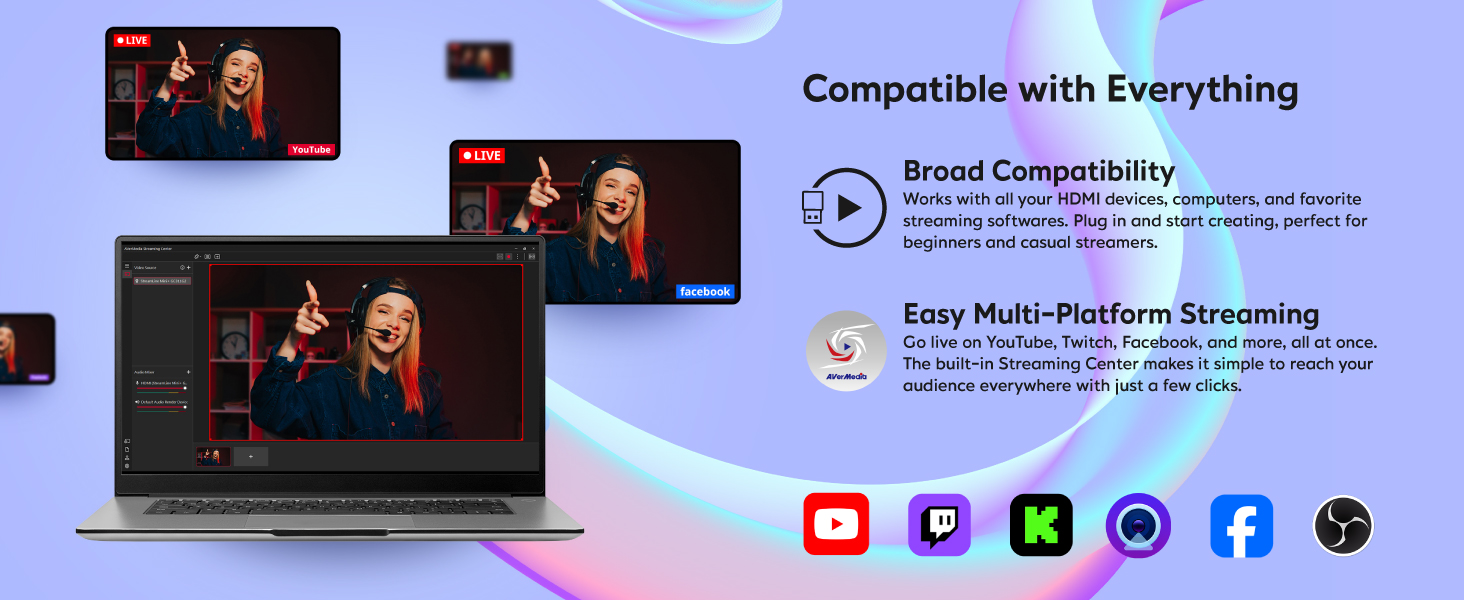
Technical Specifications
Discover Your Capture Card
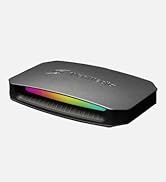
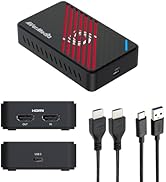
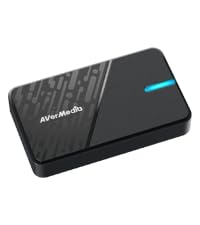 Streamline MINI+ | 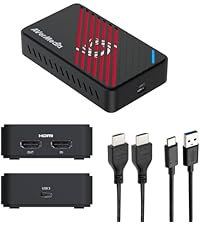 Live Gamer Ultra S | 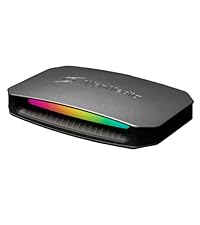 Live Gamer ULTRA 2.1 | 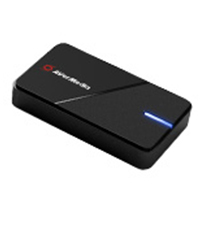 Live Gamer EXTREME 3 | |
|---|---|---|---|---|
Customer Reviews | — | — | — | — |
Price | — | — | — | — |
Interface | UBS 3.0 | UBS 3.2 | USB 3.2 | USB 3.0 |
Output Interface | HDMI 2.0 | HDMI 2.0 | HDMI 2.1 / 4-Pole 3.5 mm | HDMI 2.0 / 3-Pole 3.5 mm |
Max VRR Pass-Through Res. | - | 4K60, 1440p144 | 4K144, 1440p240, 1080p360 | 1440p120 / 1080p120 |
HDR Max Pass-Through Res | 2160p60,1440p144, 1080p240 | 4K60 HDR/VRR,1440p144 HDR/VRR | HDR:4K144,1440p240,1080p360 | HDR:4K60 / 1440p120 / 1080p240 |
Max Capture Resolution | 1080p60 | 4K60, 1440p144, 1080p240 | 4K144 (with RECentral) | 4K30 |
Ultra-wide Resolution | - | 3440x1440/2560x1080 | 3440x1440p 120Hz/100 Hz | - |
Compatible Game Console | PS5/Pro, Xbox Series, Switch 2 | PS5/Pro, Xbox Series, Switch 2 | PS5/Pro, Xbox Series, Switch 2 | PS5/Pro, Xbox Series, Switch 2 |
Streaming Platform | OBS/Twitch/YT/FB Live/Mixer | OBS/Twitch/YT/FB Live/Mixer | OBS/Twitch/YT/FB Live/Mixer | OBS/Twitch/YT/FB Live/Mixer |
Windows Operating System | Windows 10x64/11x64 | Windows 10x64/11x64 | Windows 10x64/11x64 | Windows 10x64/11x64 |
macOS Operating System | macOS 13 / 14 or later | macOS 13 / 14 or later | macOS 13 / 14 or later | macOS 11 / 12 / 13 or later |
Experience Video Quality (HDR) issue (Gray/Flickering) when connected to the Switch 2?
Connect Switch 2 directly to your monitor to test HDR. If colors look off with a capture card, check HDR support and try disabling or adjusting HDR on the Switch 2.
Why do I only see a black screen in the software preview with no error messages?
Black preview screen? Check: (1) Camera access in privacy settings (2) No protected content (e.g. Netflix) (3) No other apps using video source (4) Antivirus isn't blocking capture (e.g. Kaspersky)
How could I fix the error message Resolution is not supported?
Use HDMI 2.0 source. For iPhone/iPad, use Apple adapter (with power for iPad). Check resolution/FPS is supported. Connect HDMI to “In,” not “Out.” Try another HDMI cable. Avoid splitters. Match source resolution in software.
Can I record from an iOS/iPadOS/Android device using an AVerMedia capture card?
To capture from iOS/Android, turn off HDCP in Assist Central Pro. Use an Apple adapter for Type-C to HDMI. Close apps like Disney+ that may enable HDCP and block capture.
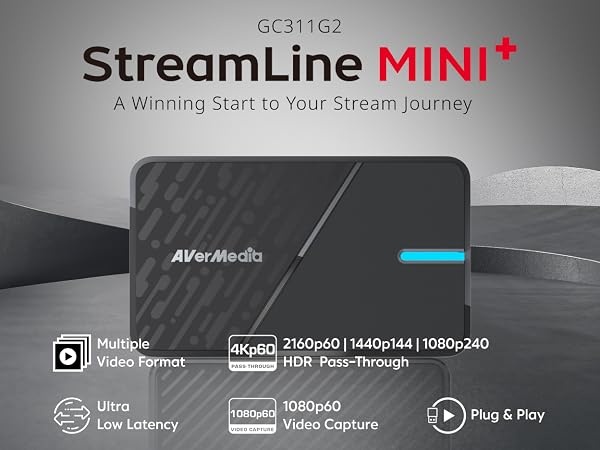
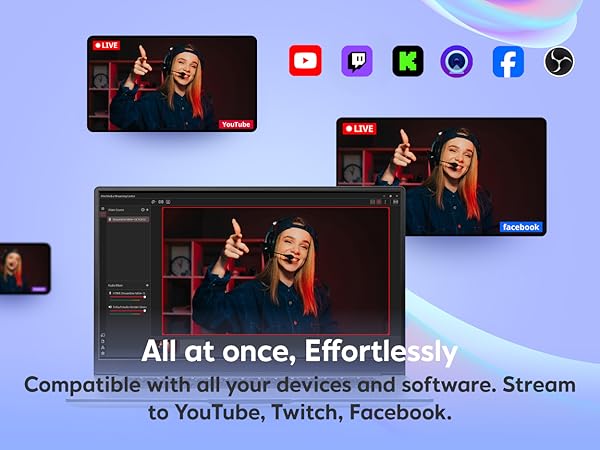
Technical Specifications
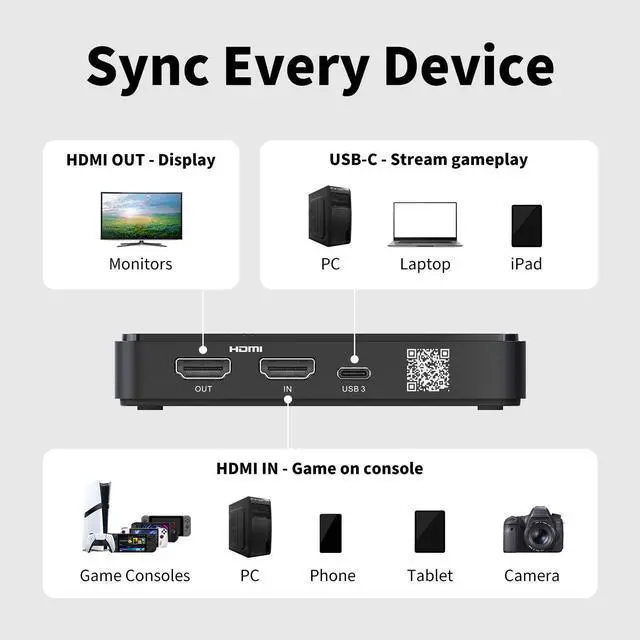
| Video Input& Output | HDMI 2.0 (passthrough) |
|---|---|
| Audio Input & Output | HDMI 2.0 (passthrough) |
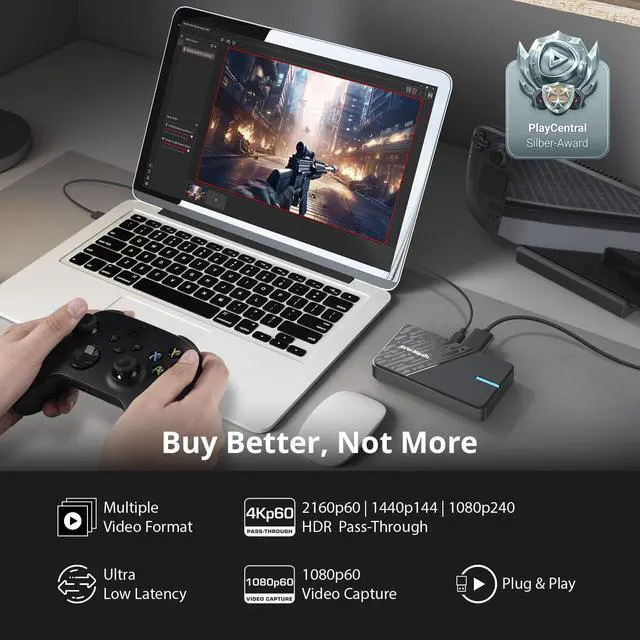
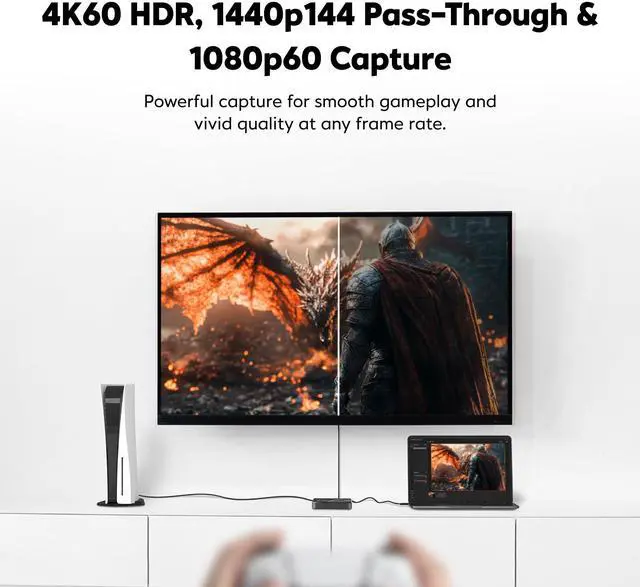
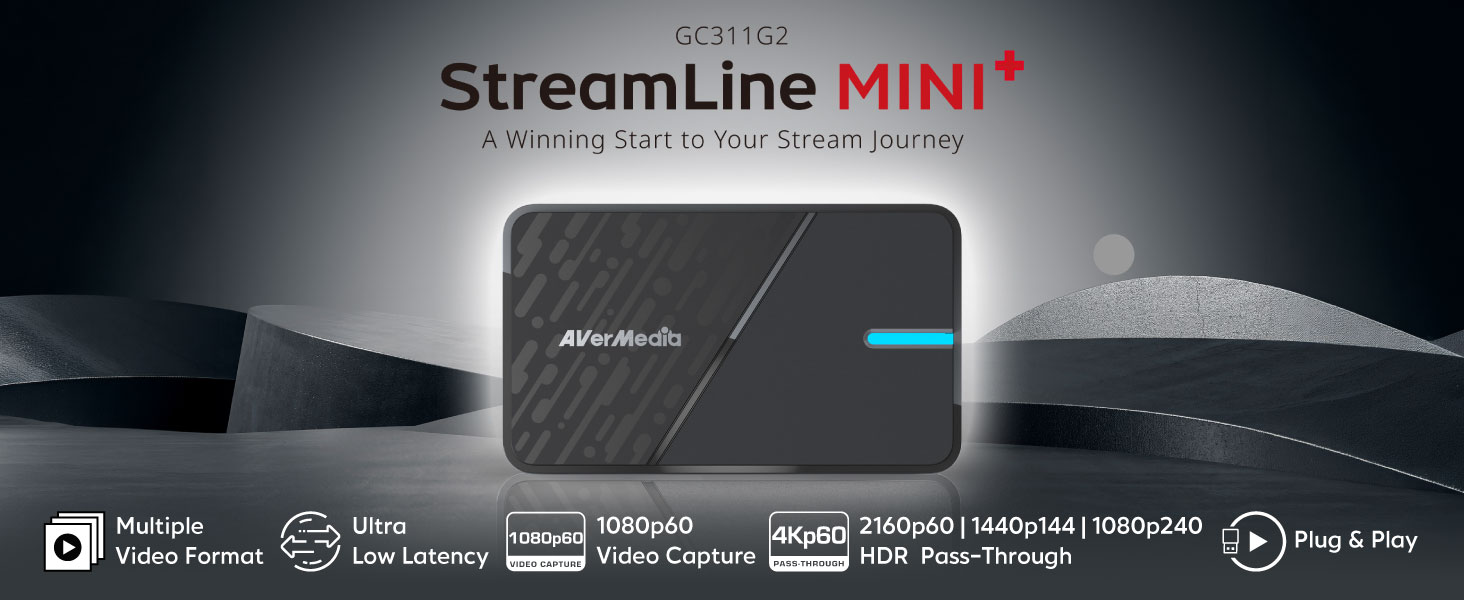
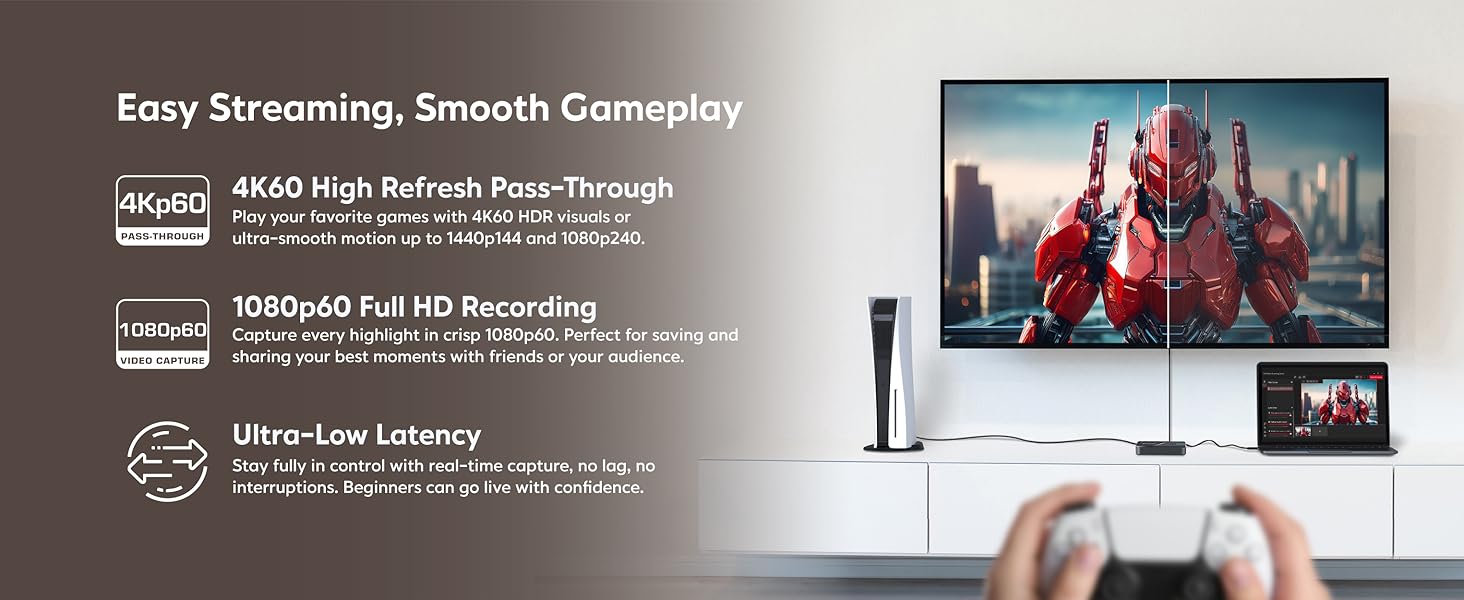
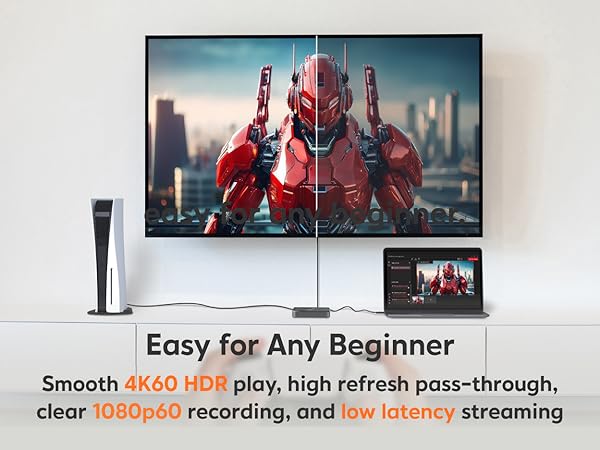
| Capture Resolutions | 1080p60 |
| Passthrough Resolutions | 2160p60 HDR,1440p144 HDR, 1080p240 HDR |
| System Requirements | Windows 10 x64 / 11 x64 or later, macOS 13 / 14 or later, iPadOS 17 or later |
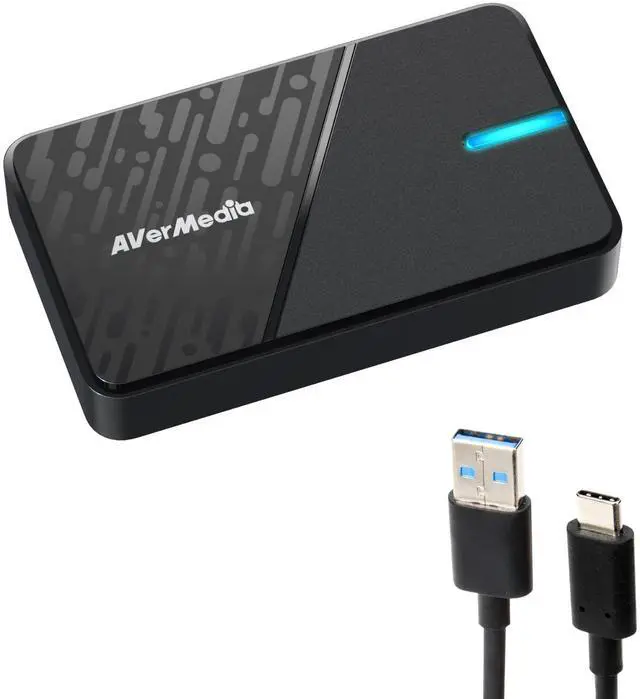
| What's In the Box | StreamLineMINI+ (GC311G2), Type C to Type A Cable, Quick Start Guide |
| Supported AVerMedia Software | AVerMedia Assist Central Pro, AVerMedia Streaming Center (Windows only), AVerMedia Streaming Center Plug (OBS Plugin), Firmware update tool |
| Supported Resolution (Input) | 2160p, 1440p, 1080p, 1080i, 720p, 576p, 480p, 480i |
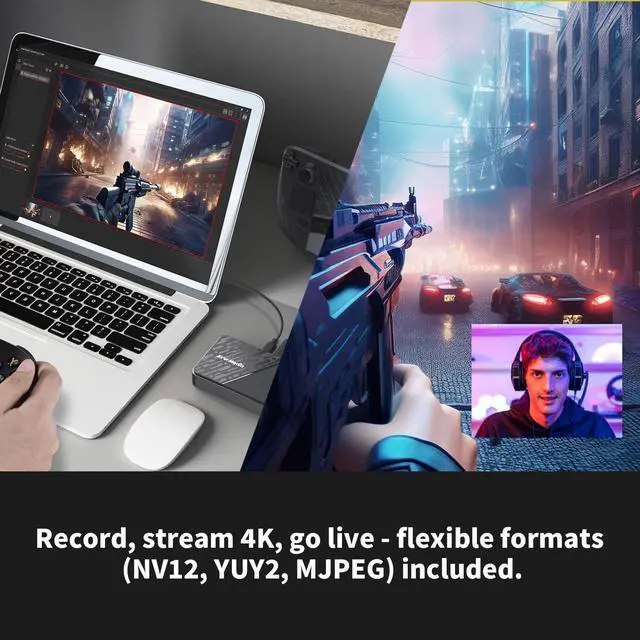
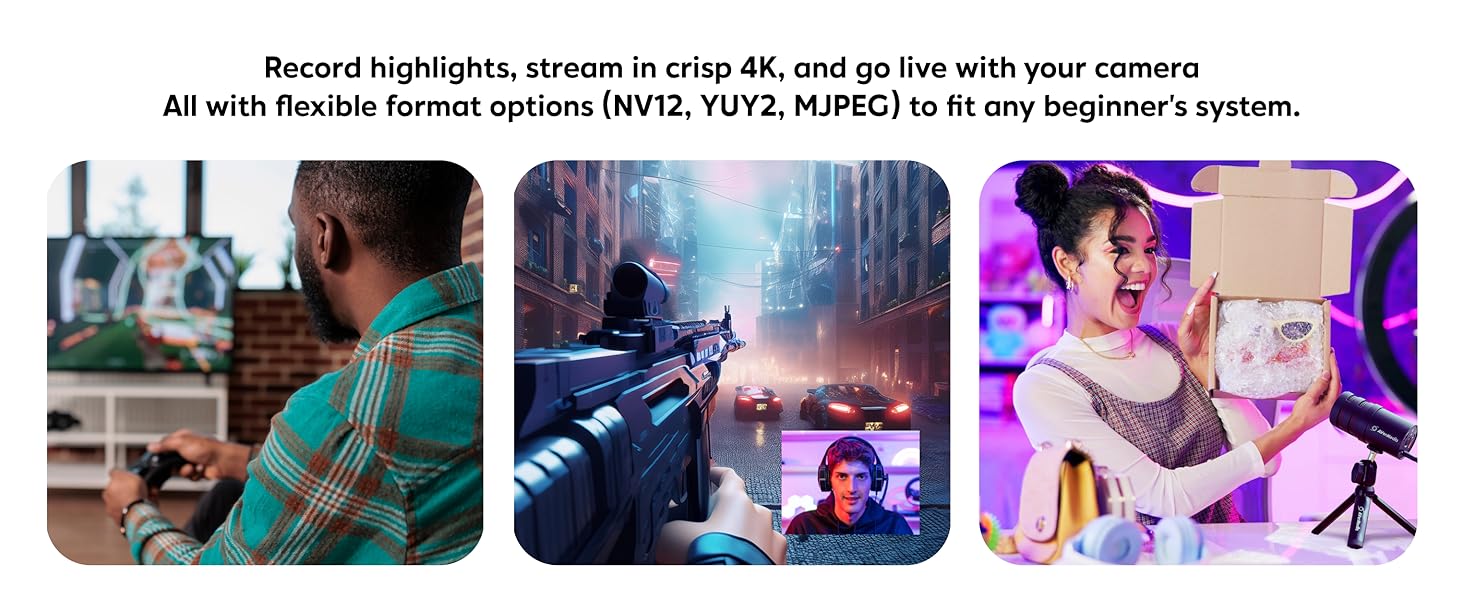
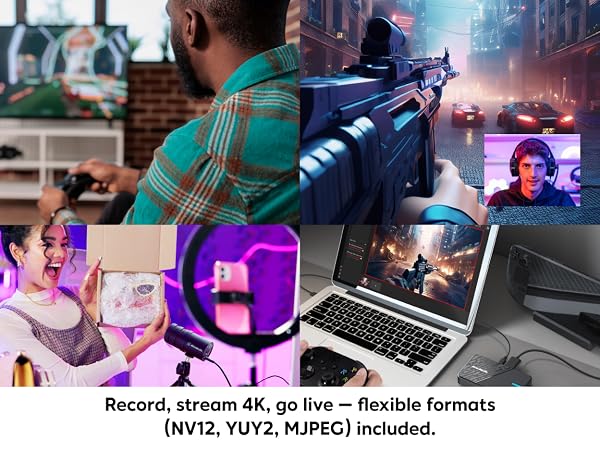
| Video Format | NV12, YUY2, MJPEG |
Discover Your Capture Card
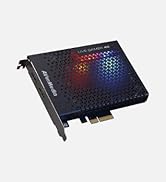
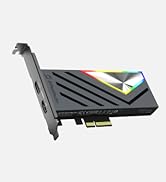
Streamline MINI+ | 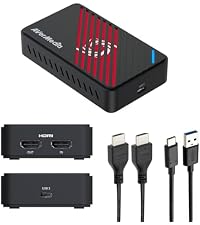 Live Gamer Ultra S |  Live Gamer ULTRA 2.1 | Live Gamer EXTREME 3 |
|---|---|---|---|
| Customer Reviews | |||
| — | — | — | — |
| Price | |||
| — | — | — | — |
| Interface | |||
| UBS 3.0 | UBS 3.2 | USB 3.2 | USB 3.0 |
| Output Interface | |||
| HDMI 2.0 | HDMI 2.0 | HDMI 2.1 / 4-Pole 3.5 mm | HDMI 2.0 / 3-Pole 3.5 mm |
| Max VRR Pass-Through Res. | |||
| - | 4K60, 1440p144 | 4K144, 1440p240, 1080p360 | 1440p120 / 1080p120 |
| HDR Max Pass-Through Res | |||
| 2160p60,1440p144, 1080p240 | 4K60 HDR/VRR,1440p144 HDR/VRR | HDR:4K144,1440p240,1080p360 | HDR:4K60 / 1440p120 / 1080p240 |
| Max Capture Resolution | |||
| 1080p60 | 4K60, 1440p144, 1080p240 | 4K144 (with RECentral) | 4K30 |
| Ultra-wide Resolution | |||
| - | 3440x1440/2560x1080 | 3440x1440p 120Hz/100 Hz | - |
| Compatible Game Console | |||
| PS5/Pro, Xbox Series, Switch 2 | PS5/Pro, Xbox Series, Switch 2 | PS5/Pro, Xbox Series, Switch 2 | PS5/Pro, Xbox Series, Switch 2 |
| Streaming Platform | |||
| OBS/Twitch/YT/FB Live/Mixer | OBS/Twitch/YT/FB Live/Mixer | OBS/Twitch/YT/FB Live/Mixer | OBS/Twitch/YT/FB Live/Mixer |
| Windows Operating System | |||
| Windows 10x64/11x64 | Windows 10x64/11x64 | Windows 10x64/11x64 | Windows 10x64/11x64 |
| macOS Operating System | |||
| macOS 13 / 14 or later | macOS 13 / 14 or later | macOS 13 / 14 or later | macOS 11 / 12 / 13 or later |
Experience Video Quality (HDR) issue (Gray/Flickering) when connected to the Switch 2?
Connect Switch 2 directly to your monitor to test HDR. If colors look off with a capture card, check HDR support and try disabling or adjusting HDR on the Switch 2.
Why do I only see a black screen in the software preview with no error messages?
Black preview screen? Check: (1) Camera access in privacy settings (2) No protected content (e.g. Netflix) (3) No other apps using video source (4) Antivirus isn't blocking capture (e.g. Kaspersky)
How could I fix the error message Resolution is not supported?
Use HDMI 2.0 source. For iPhone/iPad, use Apple adapter (with power for iPad). Check resolution/FPS is supported. Connect HDMI to “In,” not “Out.” Try another HDMI cable. Avoid splitters. Match source resolution in software.
Can I record from an iOS/iPadOS/Android device using an AVerMedia capture card?
To capture from iOS/Android, turn off HDCP in Assist Central Pro. Use an Apple adapter for Type-C to HDMI. Close apps like Disney+ that may enable HDCP and block capture.
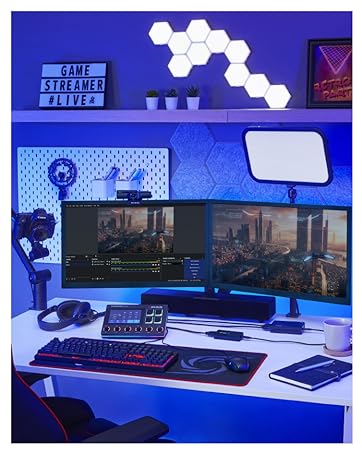
Perfect for streaming
Enhance your streaming experience with AVerMedia's exceptional range of products.
The FIRST HDMI 2.1 capture
The ideal choice for creation
High-Quality & Reliable
Advanced & Dependable
NDAA & TAA compliant products
