here!
here!
I’m your shopping assistant for PC builds, upgrades, and everything tech.
Got questions? Ask away!
Start a conversation
here!
I’m your shopping assistant for PC builds, upgrades, and everything tech.
Got questions? Ask away!
Start a conversation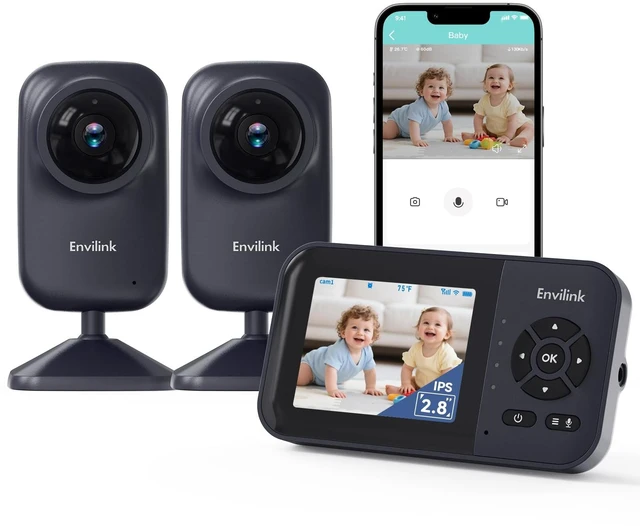



Any questions? Ask CelesteSM will help you find out quickly.

Baby Monitor Not Working Normally/Erratically
Unable to Scan QR for Network Connection
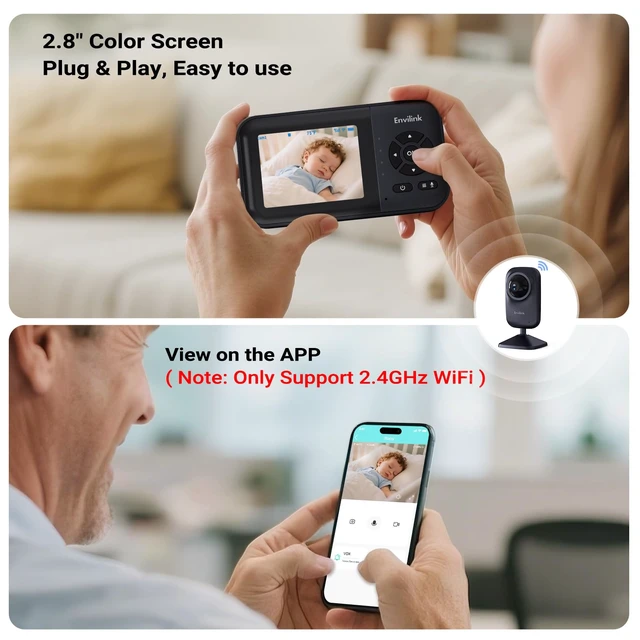
First, check these key points: 1. Is the baby camera properly plugged in and turned on? 2. Did the baby camera enter network pairing mode successfully? 3. Can the app generate a valid QR (with clear screenshot)? 4. Did the camera confirm successful QR scanning? 5. What error message appears when the QR cannot be read? 6. What specific message shows when failing to connect to the network? 7. Is your router using a 5G band? (Note: Only 2.4G WiFi is supported.)
Additional fixes:


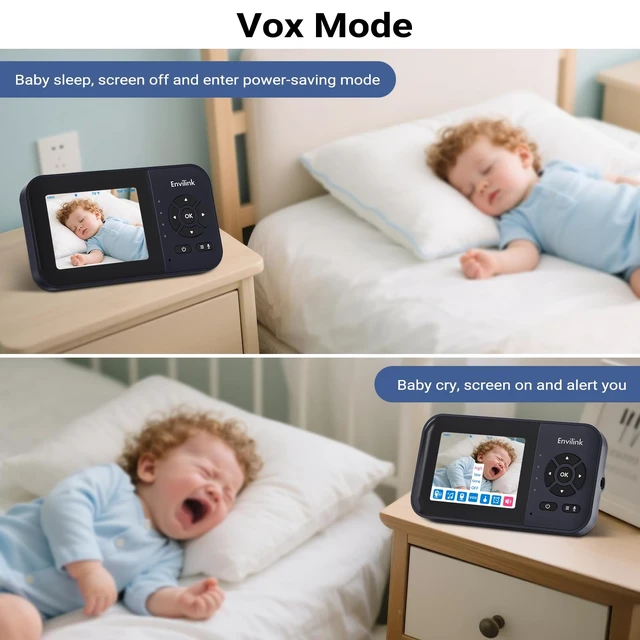
Activates monitor only when baby’s sounds are detected. Extend battery life, cut idle static, enjoy seamless use.

Our video baby monitor features precise temperature monitoring to adjust your baby’s clothes or blankets promptly for optimal comfort.

Baby monitor can set timely alerts for baby’s feeding and diaper changes, streamlining your parenting schedule with ease.

This video baby monitor features precise temperature monitoring to adjust your baby’s clothes or blankets promptly for optimal comfort.

 Video Baby WiFi Monitor |  Baby Monitor with App |  Baby Monitor with Camera |  Smart Baby Monitor |  Baby Monitor 2 Cameras | |
|---|---|---|---|---|---|
Customer Reviews | — | — | — | — | — |
Price | — | — | — | — | — |
Screen Size | 2.8" | 2.8" | 2.8" | 2.8" | 2.8" |
Battery milliamp-hours | 2500mAh | 2500mAh | 2500mAh | 2500mAh | 2500mAh |
Pixel (app) | 480P | 480P | 480P | 1080P | 1080P |
AI Function | × | × | × | v | v |
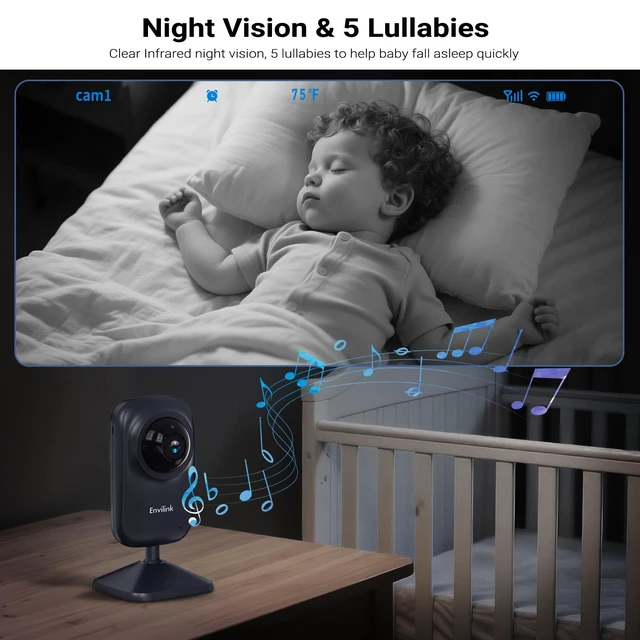
Lullabies (app) | 5 | 5 | 5 | 8 | 8 |
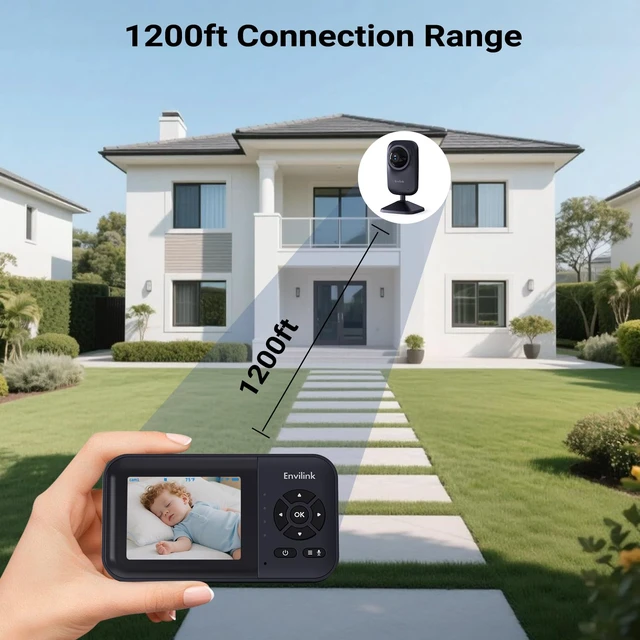
Connection Range | 1200ft | 1200ft | 1200ft | 1200ft | 1200ft |
Color | Black | Black | White | Black | Black |


In Envilink, We build bridges of love,combine smart technology with human-centered design.
Join us at Envilink,love shouldn't have distance limit.


Yes, our product can be connected via a local 2.4G network, or you can choose the No Wi-Fi mode to protect your privacy at all times.
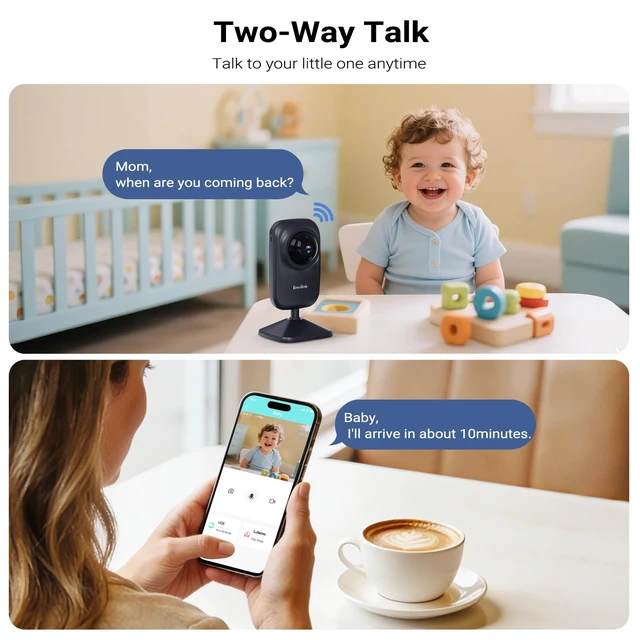
Yes, if you want to check on your baby anytime, anywhere on your phone, you can download our app to do so.
Yes, our product has all the necessary certificates to ensure its safety.

Baby Monitor Not Working Normally/Erratically
Unable to Scan QR for Network Connection
First, check these key points: 1. Is the baby camera properly plugged in and turned on? 2. Did the baby camera enter network pairing mode successfully? 3. Can the app generate a valid QR (with clear screenshot)? 4. Did the camera confirm successful QR scanning? 5. What error message appears when the QR cannot be read? 6. What specific message shows when failing to connect to the network? 7. Is your router using a 5G band? (Note: Only 2.4G WiFi is supported.)
Additional fixes:


Activates monitor only when baby’s sounds are detected. Extend battery life, cut idle static, enjoy seamless use.
Our video baby monitor features precise temperature monitoring to adjust your baby’s clothes or blankets promptly for optimal comfort.
Baby monitor can set timely alerts for baby’s feeding and diaper changes, streamlining your parenting schedule with ease.
This video baby monitor features precise temperature monitoring to adjust your baby’s clothes or blankets promptly for optimal comfort.

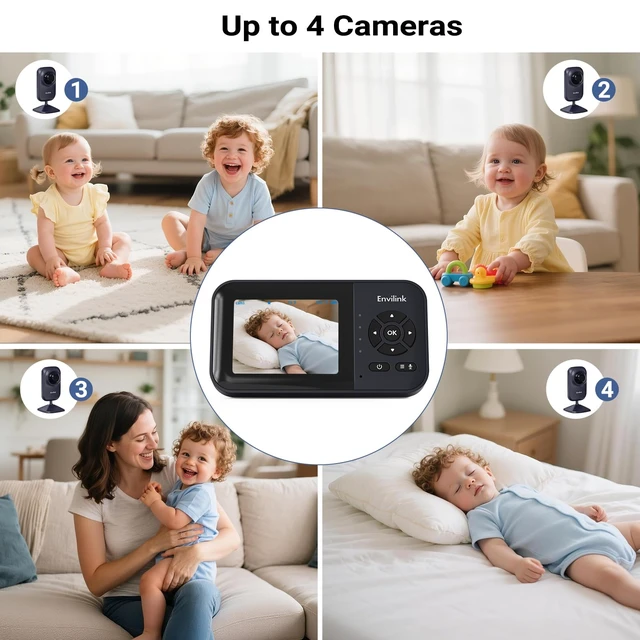
Video Baby WiFi Monitor | Baby Monitor with App | Baby Monitor with Camera | Smart Baby Monitor | Baby Monitor 2 Cameras |
|---|---|---|---|---|
| Customer Reviews | ||||
| — | — | — | — | — |
| Price | ||||
| — | — | — | — | — |
| Screen Size | ||||
| 2.8" | 2.8" | 2.8" | 2.8" | 2.8" |
| Battery milliamp-hours | ||||
| 2500mAh | 2500mAh | 2500mAh | 2500mAh | 2500mAh |
| Pixel (app) | ||||
| 480P | 480P | 480P | 1080P | 1080P |
| AI Function | ||||
| × | × | × | v | v |
| Lullabies (app) | ||||
| 5 | 5 | 5 | 8 | 8 |
| Connection Range | ||||
| 1200ft | 1200ft | 1200ft | 1200ft | 1200ft |
| Color | ||||
| Black | Black | White | Black | Black |
In Envilink, We build bridges of love,combine smart technology with human-centered design.
Join us at Envilink,love shouldn't have distance limit.
Yes, our product can be connected via a local 2.4G network, or you can choose the No Wi-Fi mode to protect your privacy at all times.
Yes, if you want to check on your baby anytime, anywhere on your phone, you can download our app to do so.
Yes, our product has all the necessary certificates to ensure its safety.