




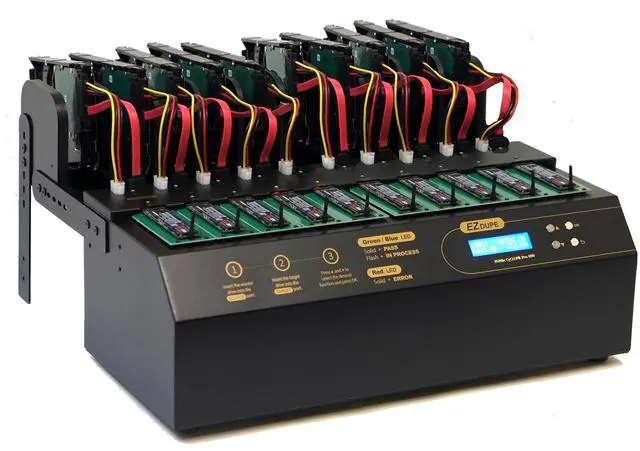
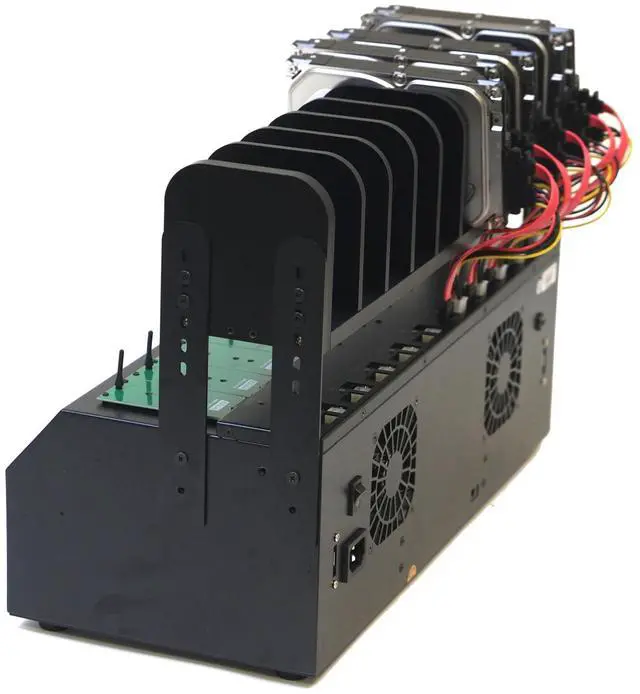
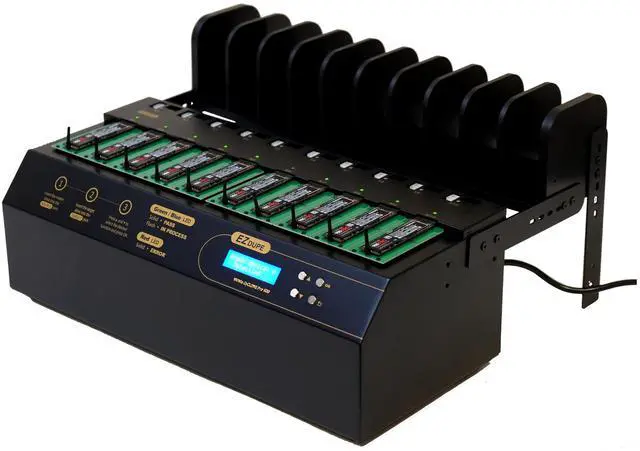
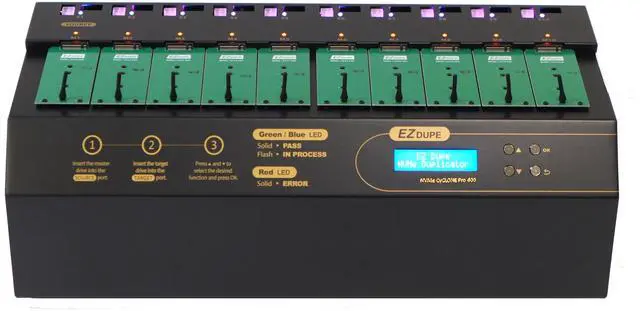
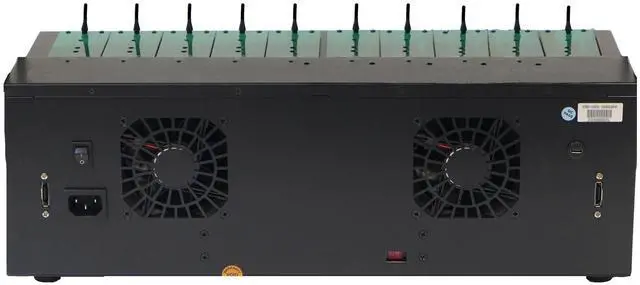


NVMe Cyclone Pro Duplicator
Duplicate M.2 NVMe & M.2 SATA
EZ Dupe builds on the powerful legacy of the Cyclone Pro series, offering amazing refinements in duplication performance and versatility.
EZ Dupe's commitment to duplication excellence is the soul of the NVMe Cyclone Pro 300 and 600 series now offers a simpler way of duplicating M-Keys, B-Keys or B+M Keys in an instant. Cyclone Pro's exclusive feature include crossover duplication with SATA Hard Drive!
New Features exclusive to NVMe Cyclone Pro
The exciting feature of NVMe Cyclone Pro support any M.2 NVMe / SATA SSD with crossover duplication to SATA connections for 2.5" & 3.5" Hard Drive Disks.
Event Log File to keep track of job functions, Time Stamp, ID #.
EXCLUSIVE Feature on NVMe Cyclone Pro - Quality check will Verify:
- Bad sector quantity on the storage
- Tested actual capacity size in storage
- Average read speed
- Average write speed
Easy to Use with added Pro functions!
Daisy-Chain up to 255 units of NVMe Cyclone Pro (must be in the same NVMe Cyclone Pro series and not mixed with other NVMe models) for maximum of 2294 of copy & Erase for 1 to 9 NVMe Cyclone Pro 600.
The NVMe Cyclone Pro will detect any stalled/defective M.2 NVMe module key with alert indication to remove the defective M.2 NVMe. Thus continuing the copying process for the remaining slots.
Features of NVMe Cyclone PRO

Detect Defective/Stalled Media Storage
Each slot has its own independent bandwidth with the max copy speed set at the slowest speed of the M.2 NVMe.
When a bad M.2 NVMe stalled or decreased speed during the duplication copy process, the duplicator will automatically reject the stalled M.2 NVMe and the max copy speed will increase for the remaining copy slots. Indication alert will signal to user to remove bad M.2 media or Hard Drive to maintain maximum copy speed for the remaining copy slots.

Daisy-Chain Multiple Units
With NVMe Cyclone Pro series, you can connect multiple NVMe Cyclone Pro together to increase the amount of the duplication copies at the same time from one source slot of the duplicator. Daisy-Chain up to maximum of 255 NVMe Cyclone Pro 600 together from one source.
Please note in that it needs to be in same models (ie NVMe Cyclone Pro 300 to NVMe Cyclone Pro 300.... or NVMe Cyclone Pro 600 to NVMe Cyclone Pro 600). It cannot mix different speed of NVMe Cyclone Pro.

Downloadable Event Log File
Download the Event Log File to one drive for the detailed information of the completed function.
The event log file would include the detailed type of job function, date/time stamp of the completed job function, and the Identification number of the drive.

NVMe Cyclone Pro integrated SATA connections to the NVMe Cyclone series for 2.5" & 3.5" Hard Drive Disks (HDD) and Solid State Drives (SSD).
The pro series also offers a seamlessly crossover integrations between SATA and M.2 NVMe connections.
NVMe Cyclone Pro automatically detect NVMe and/or SATA connections to copy from one interface to a different interface connection:
- M.2 NVMe to M.2 NVMe
- M.2 NVMe to HDD/SSD (SATA)
- HDD/SSD (SATA) to M.2 NVMe
- HDD/SSD (SATA) to HDD/SSD (SATA)

System and Files Copy - Intelligent Copy (Quick Copy)
System and Files Copy copies only stored system and files data, not unused space area. Intelligent Copies that duplicates essential files in the M.2 NVMe drives to save time.
Example: Partition 1 has a capacity of 158GB with 58GB of data in it. Only 58GB of data will be copied while unused space area will not be copied.

Whole Media Copy - Comprehensive (Full Copy)
Whole Media copy will copy the entire M.2 NVMe drives regardless of whether it has been partitioned or not. Longer Duplication Time is expected for full copy.
Use this copy mode for all proprietary systems and unknown files formats.

Percentage Copy
Percentage Copy - Setting up a starting point and end point
When the file system of a M.2 NVMe drive is undefined, Percentage Copy can be used by setting up the ending point of data to copy from the starting point of 0% or any distance.
All Partitioned Copy & Non-Zero Copy
All Partitioned Copy - Copy Partitioned Area Only
Example: a 600GB M.2 NVMe has two partitions.
Partition 1 with 158GB and Partition 2 with 200GB. While All Partition Copy mode is selected, these two partitions will be copied and the undefined area will not be copied
Non-Zero Copy - Excludes "zero"data area
For unknown or proprietary systems, Non-Zero Copy mode can be utilize to exclude "zero" data area for rapid and efficient copy for M.2 modules that contain proprietary system files such as SGI, BOS, and many other different operating systems.

Quick / Full Erase
Erase the index of a M.2 NVMe drive within a few seconds
Full erase - Entire Drive
Erase the data from a M.2 NVMe module by overwriting each sector which is able to read/write data.

Department of Defense Erase Modes
3-Pass DoD
Erase M.2 NVMe module 3 times complying with the 5220.22-M data erase security standard of the U.S. Department of Defense.
7-Pass DoD
Erase M.2 NVMe module 7 times complying with the 5220.22-M ECE data erase security standard of the U.S. Department of Defense to ensure the data is unable to be recovered.

Secure / Enhanced Erase
Secure Erase
The Secure Erase Mode is approved by N.I.S.T. (National Institute of Standard Technology) SP 800-88 for data sanitization solution that most lessens the risk to confidentiality while respecting any other constraints involved.
Enhanced SSD Erase
The Enhance SSD Erase Mode is approved by N.IS.T. for overwriting predetermined data patterns, data area including sectors that are no longer in use due to allocation. It erases data by using internal M.2 SSD's built-in ATA command.

Erase HPA & DCO
Erase HPA area
Remove the HPA (Hidden Partition Area) and free up space
Erase DCO area
Remove the DCO (Device Configuration Overlay) partition
Technical Specs
| Operating Type | Stand Alone (No PC, host, or software Required) |
|---|---|
| Duplication Mode | (1) System and Files (2) Whole Hard Drive (3) All-Partitioned - Copy Partitioned Area Only (4) Percentage - Setting up a starting point and end point (5) Non-Zero - For proprietary system to exclude "zero area" data for copies |
| Erase Options | (1) Quick Erase, (2) Full Erase, (3 & 4) DoD Erase modes - 3 pass & 7 pass, (5) Secure Erase, (6) Enhanced SSD Erase, (7) HPA Erase (8) DCO Erase |
| Format Options | (1) FAT32 - For HDD over 2GB but less than 32GB, (2) exFAT - For HDD over 32GB |
| Quick Copy supported Format | Support FAT16/32, exFAT, NTFS, Linux (Ext2, Ext3, Ext4), Mac OS (HFS, HFS+, HFSX) |
| Whole HDD Copy Support Format | All Major Format |
| Supported M.2 NVMe Media | 22mm sized of M.2 NVMe & M.2 SATA SSD module (B Key, M Key, B+M Key) at 2230, 2242, 2260, 2280 |
| Supported Hard Drive Storage | Support 2.5" & 3.5" SATA connected Hard Drive Disk (HDD) and Solid State Drive (SSD) |
| Size Capacity Support | No Limitations - All M.2 NVMe capacity Size supported |
| Quality Check | Verify: (1) Bad sector quantity (2) Tested capacity storage (3) Average read speed (4) Average write speed |