






How should the controller be connected to the PS5 console for the first time? (Step 1)
Step 1: Connect the PS5 console and the controller with a USB-C data cable that comes with the package(OR PS5 original data cable ). Please note that there must be a USB-A interface at the rear of the general PS5 console.
How should the controller be connected to the PS5 console for the first time? (Step 2)
Step 2: After the connection is completed, press the Home button on the gamepad. If you see the light flashing slowly, it means the pairing is successful, and you can use a wireless connection to the PS5 console subsequently.
What consoles can the controller be compatible with?
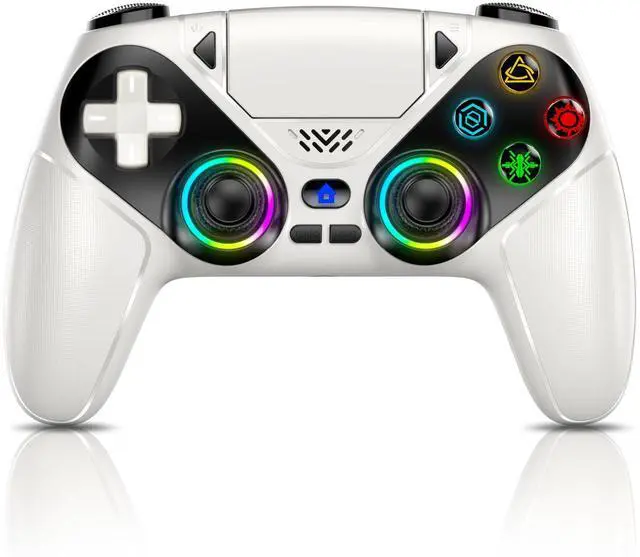
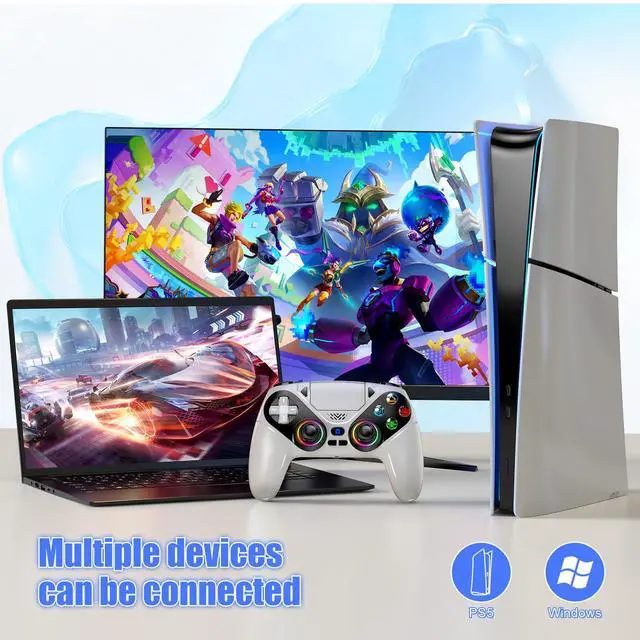
It can compatible with PS5/PS5 Pro/PS5 Slim and Windows PC, NOT For Mac, PS4 and Phone.
Cannot charge at charging stations
The controller does not work with the charging station and only supports USB-C charging
How to calibrate the triggers and joysticks -for joystick drift and trigger problems
1. Enter Calibration Mode: Power off the controller(after connecting to PS5), hold Share + Menu, press Home. Wait for rapid Home button flashing.
2. Calibrate: Press triggers 3-5 times, rotate joysticks 3-5 circles, confirm with X. Done.


Similar Products
 PS5 Controller - White |  PS5 Controller - Teal |  PS5 Controller - Black |  PS5 Controller - Blue |  PS5 Controller - Red |  PS5 Controller - Amethyst | |
|---|---|---|---|---|---|---|
Customer Reviews | — | — | — | — | — | — |
Price | — | — | — | — | — | — |
Compatibility | PS5/PS5 Pro/Slim/Windows PC | PS5/PS5 Pro/Slim/Windows PC | PS5/PS5 Pro/Slim/Windows PC | PS5/PS5 Pro/Slim/Windows PC | PS5/PS5 Pro/Slim/Windows PC | PS5/PS5 Pro/Slim/Windows PC |
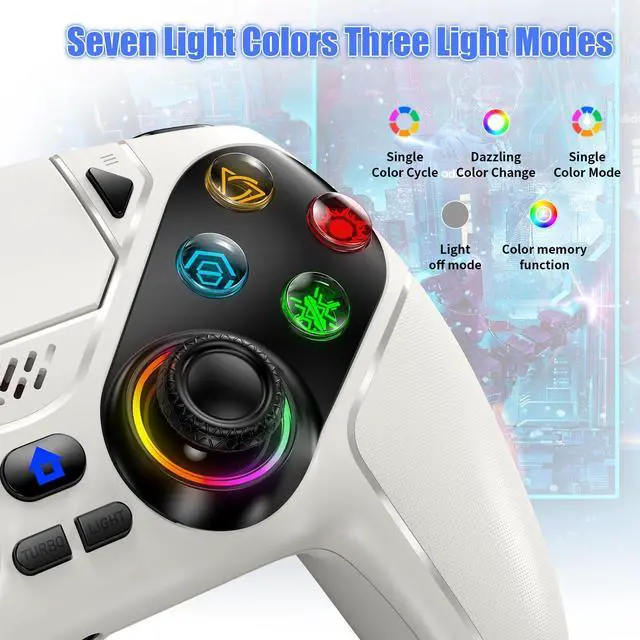
RGB lighting | (7 colors, 8 modes) | (7 colors, 8 modes) | (7 colors, 8 modes) | (7 colors, 8 modes) | (7 colors, 8 modes) | (7 colors, 8 modes) |
Charging Time | 3 hours | 3 hours | 3 hours | 3 hours | 3 hours | 3 hours |
Gaming Time | 15 hours | 15 hours | 15 hours | 15 hours | 15 hours | 15 hours |
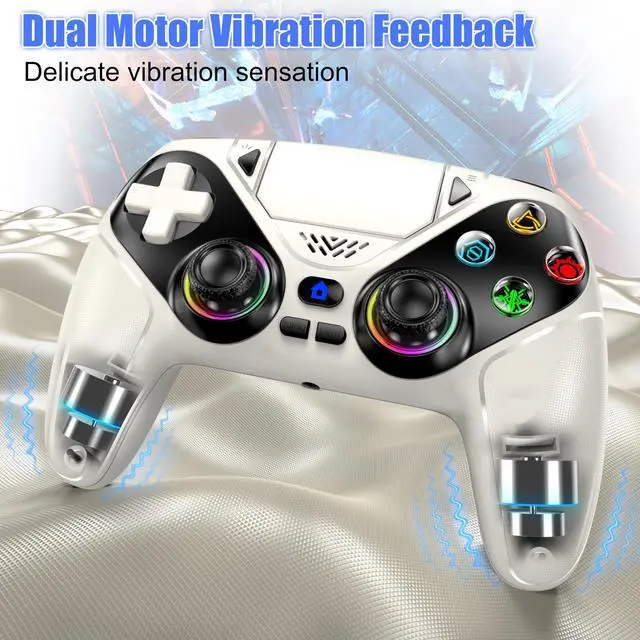
Dual Vibration | ? | ? | ? | ? | ? | ? |
Macro Function | ? | ? | ? | ? | ? | ? |
Turbo Function | ? | ? | ? | ? | ? | ? |
3.5mm TRRS Audio Jack | ? | ? | ? | ? | ? | ? |
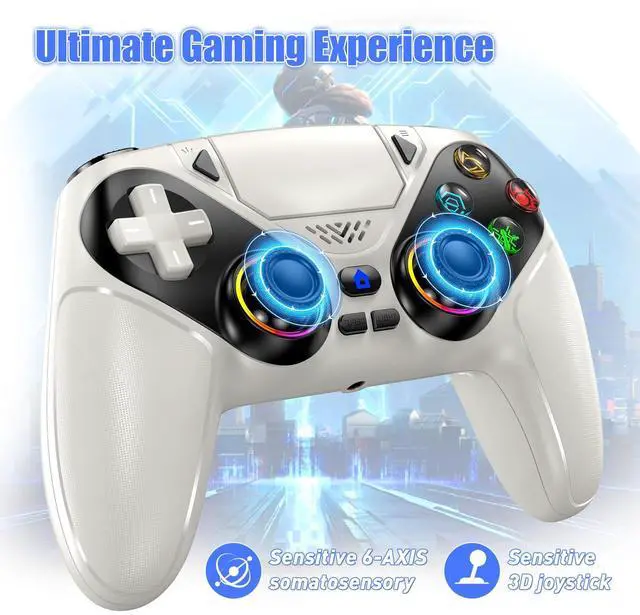
Six-Axis Motion Control | ? | ? | ? | ? | ? | ? |
Speaker | ? | ? | ? | ? | ? | ? |
Anti-Slip Grip | ? | ? | ? | ? | ? | ? |
Microphone | ? | ? | ? | ? | ? | ? |
How should the controller be connected to the PS5 console for the first time? (Step 1)
Step 1: Connect the PS5 console and the controller with a USB-C data cable that comes with the package(OR PS5 original data cable ). Please note that there must be a USB-A interface at the rear of the general PS5 console.
How should the controller be connected to the PS5 console for the first time? (Step 2)
Step 2: After the connection is completed, press the Home button on the gamepad. If you see the light flashing slowly, it means the pairing is successful, and you can use a wireless connection to the PS5 console subsequently.
What consoles can the controller be compatible with?
It can compatible with PS5/PS5 Pro/PS5 Slim and Windows PC, NOT For Mac, PS4 and Phone.
Cannot charge at charging stations
The controller does not work with the charging station and only supports USB-C charging
How to calibrate the triggers and joysticks -for joystick drift and trigger problems
1. Enter Calibration Mode: Power off the controller(after connecting to PS5), hold Share + Menu, press Home. Wait for rapid Home button flashing.
2. Calibrate: Press triggers 3-5 times, rotate joysticks 3-5 circles, confirm with X. Done.


Similar Products
PS5 Controller - White | PS5 Controller - Teal | PS5 Controller - Black | PS5 Controller - Blue | PS5 Controller - Red | PS5 Controller - Amethyst |
|---|---|---|---|---|---|
| Customer Reviews | |||||
| — | — | — | — | — | — |
| Price | |||||
| — | — | — | — | — | — |
| Compatibility | |||||
| PS5/PS5 Pro/Slim/Windows PC | PS5/PS5 Pro/Slim/Windows PC | PS5/PS5 Pro/Slim/Windows PC | PS5/PS5 Pro/Slim/Windows PC | PS5/PS5 Pro/Slim/Windows PC | PS5/PS5 Pro/Slim/Windows PC |
| RGB lighting | |||||
| (7 colors, 8 modes) | (7 colors, 8 modes) | (7 colors, 8 modes) | (7 colors, 8 modes) | (7 colors, 8 modes) | (7 colors, 8 modes) |
| Charging Time | |||||
| 3 hours | 3 hours | 3 hours | 3 hours | 3 hours | 3 hours |
| Gaming Time | |||||
| 15 hours | 15 hours | 15 hours | 15 hours | 15 hours | 15 hours |
| Dual Vibration | |||||
| ? | ? | ? | ? | ? | ? |
| Macro Function | |||||
| ? | ? | ? | ? | ? | ? |
| Turbo Function | |||||
| ? | ? | ? | ? | ? | ? |
| 3.5mm TRRS Audio Jack | |||||
| ? | ? | ? | ? | ? | ? |
| Six-Axis Motion Control | |||||
| ? | ? | ? | ? | ? | ? |
| Speaker | |||||
| ? | ? | ? | ? | ? | ? |
| Anti-Slip Grip | |||||
| ? | ? | ? | ? | ? | ? |
| Microphone | |||||
| ? | ? | ? | ? | ? | ? |