



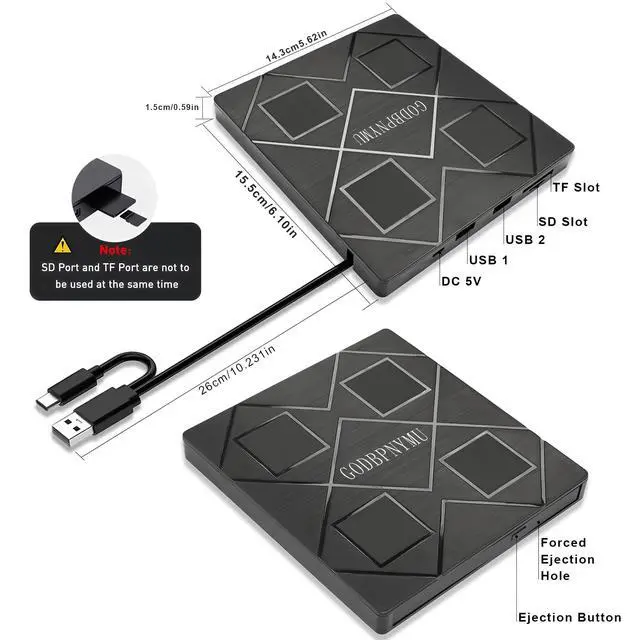
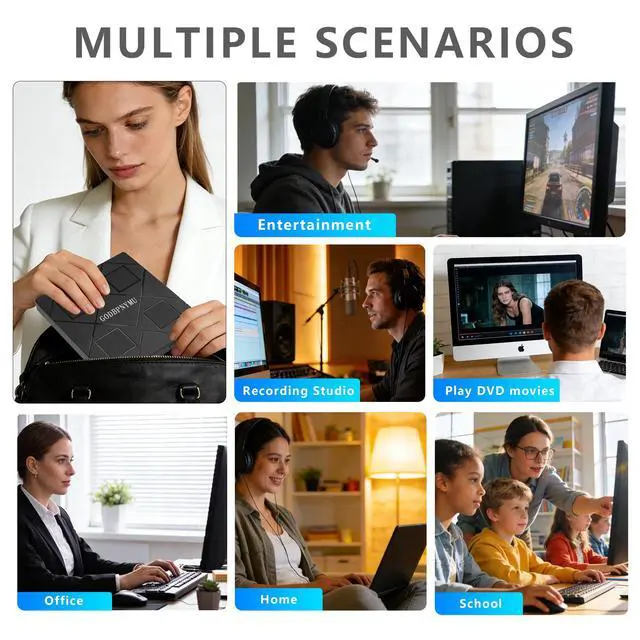


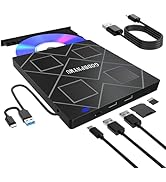
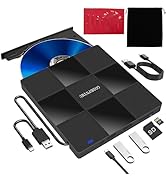
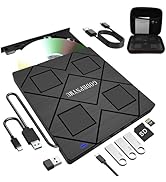
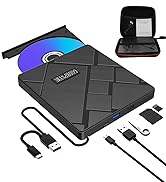
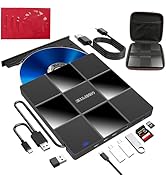
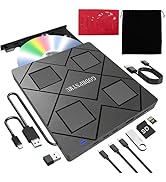
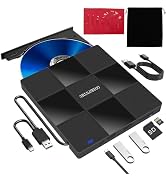
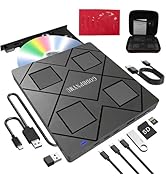
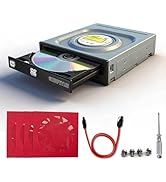
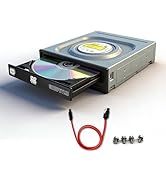
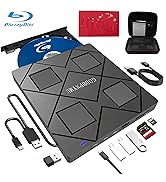
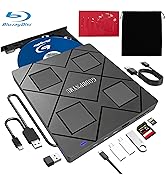
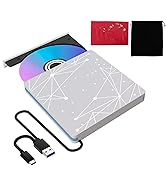
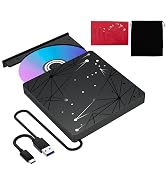
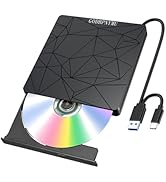
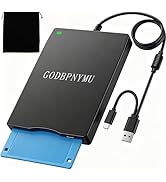
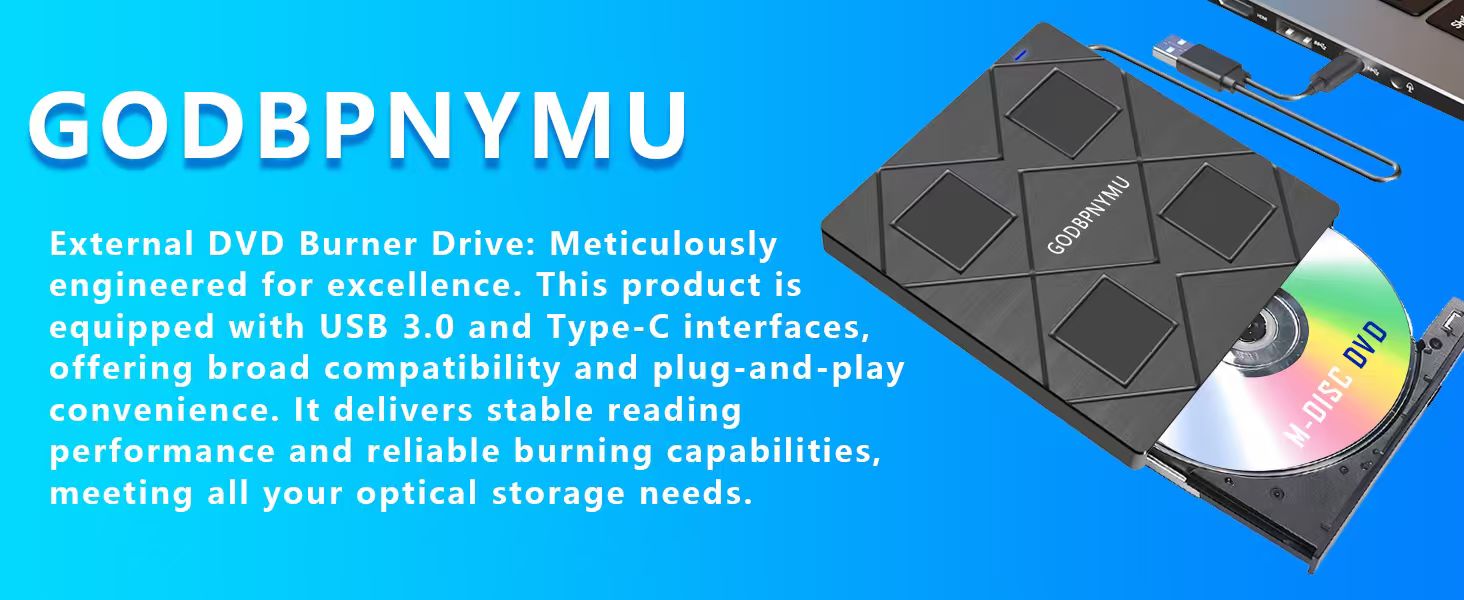



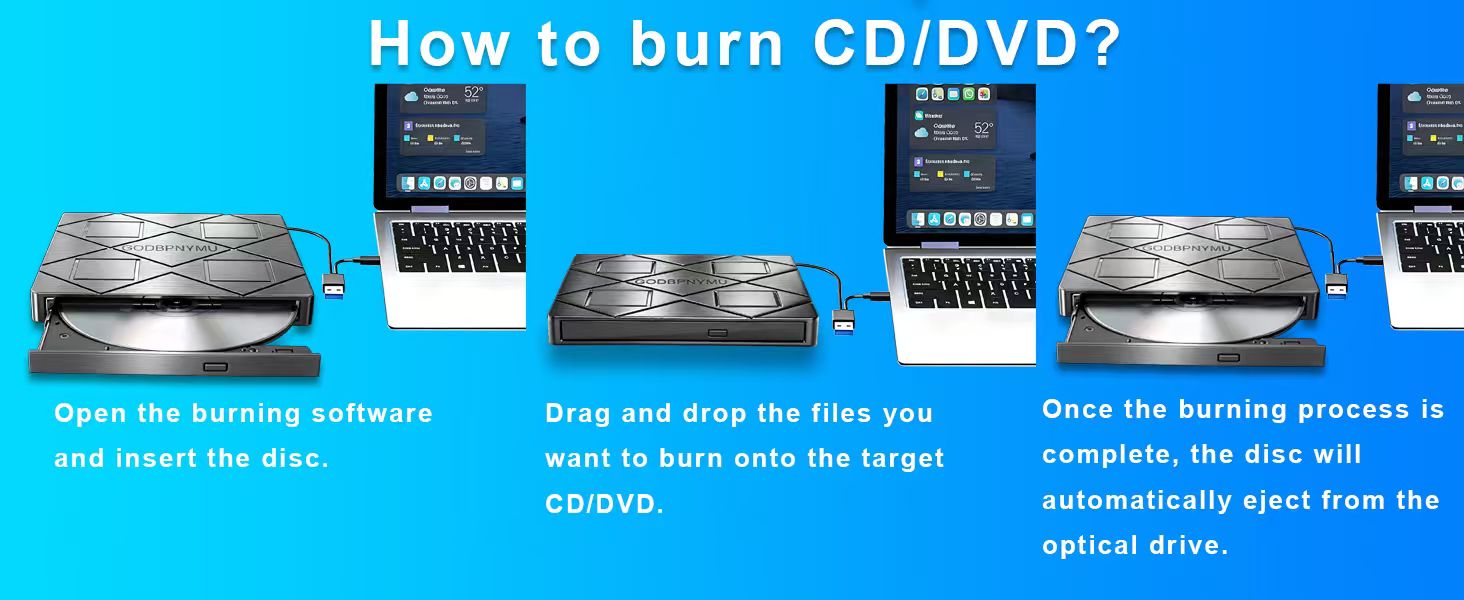
External DVD Burner User Guide I. Core Functions Playback Function: Relive cherished moments preserved on VCD/CD/DVD—wedding day warmth, birthday party joy, Christmas Eve gatherings, and other special celebrations. Supports diverse content including home videos, classic films, music albums, educational materials, game discs, and important documents. Burning Function: Burn digital content like music, photos, and videos onto discs for long-term preservation, playback across multiple devices, and digital organization/archiving. II. Software Preparation Player Software (Required): Since most operating systems do not pre-install DVD playback components, a third-party player must be installed beforehand. Recommended Options: VLC Media Player: Free and open-source with comprehensive format support and optimal compatibility KMPlayer: Feature-rich with excellent decoding capabilities Burning Software (Optional): Prepare dedicated software if disc burning is required. Recommended Options: BurnAware Free Edition: Lightweight design for basic burning needs Nero: Professional-grade tool offering advanced burning and editing features III. Critical Considerations Genuine/Protected DVDs: First-time playback requires setting the “Region Code.” Select the option that exactly matches the disc's labeled region. Important Note: Region code changes are limited (typically =5 times). Choose carefully. Standard Discs:Includes self-burned VCD/CD/DVD data discs, music CDs, game discs, etc. Typically plug-and-play after installing playback software. IV. Operation Flow 1. Install required playback/burning software 2. Connect external optical drive via USB port 4. Use corresponding software to play or burn
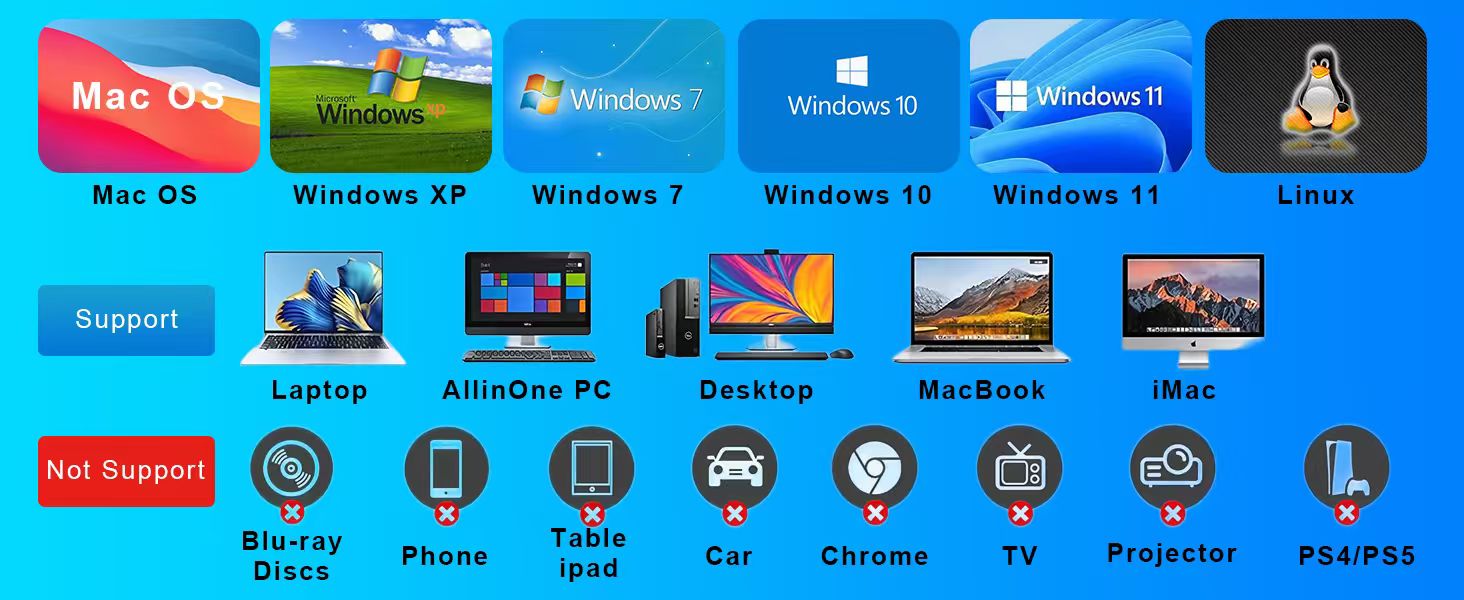
Can it read Blu-ray discs?
No, this drive is designed for CD and DVD fomats only. It does not support Blu-ray discs. For Blu-ray playback, you would need a dedicated Blu-ray drive
Does it require any software to install?
Far readine d ti diers iled and play- no dhiver neded For playing VD movies youl ned hid party playersofiware ike VLC Medi Plyer fre) or MPlaye, as mest S dontintlude DVo playbak. For burning, use software like BurnAware or Nero.
What is the "region code" and why does it matter?
DV region codes leg. Region1 for US,Region 3 forAsi)estict playback by area. Fist play ronpts you to set thecode. Important You can only cthange this up to5 times so thoose carefuly
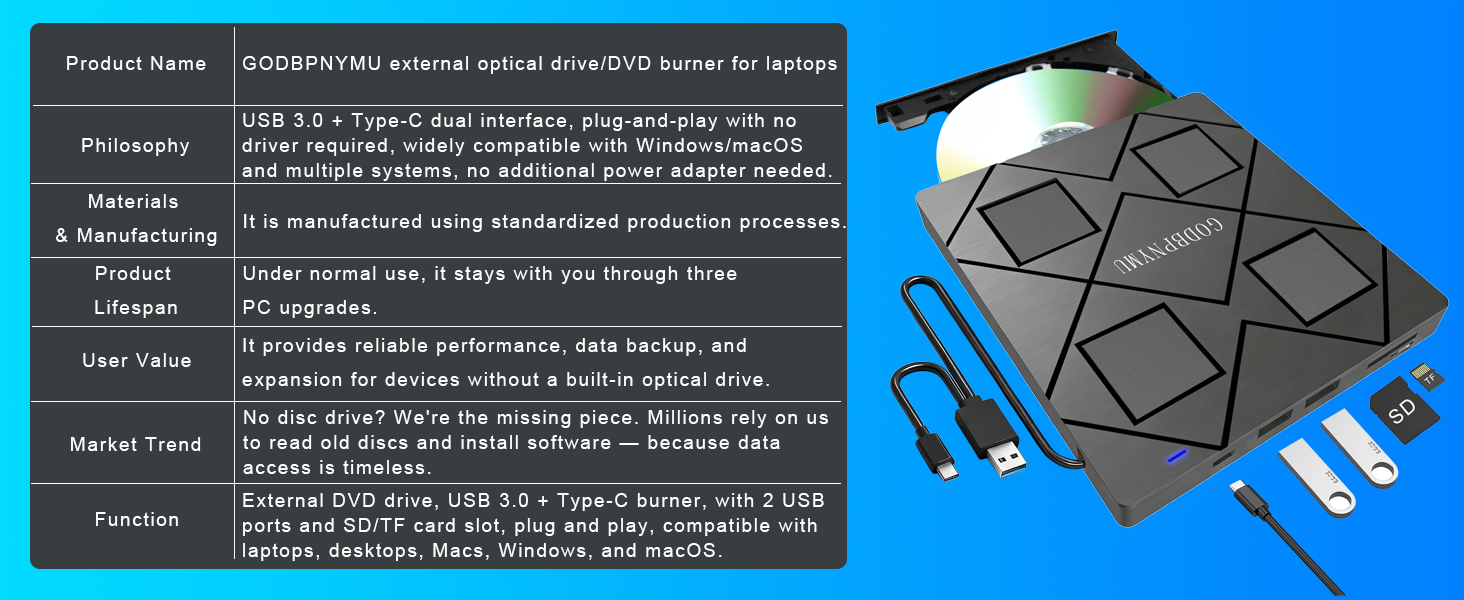
What's the difference between this 5-in-1 drive and a standard optical drive?
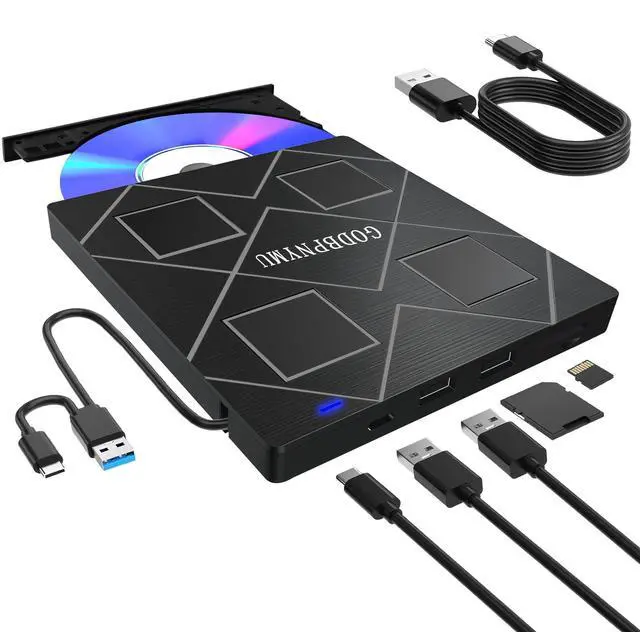
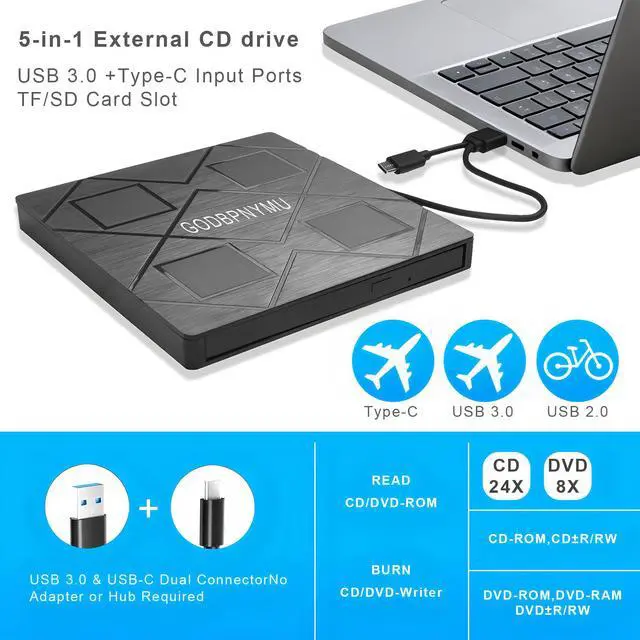
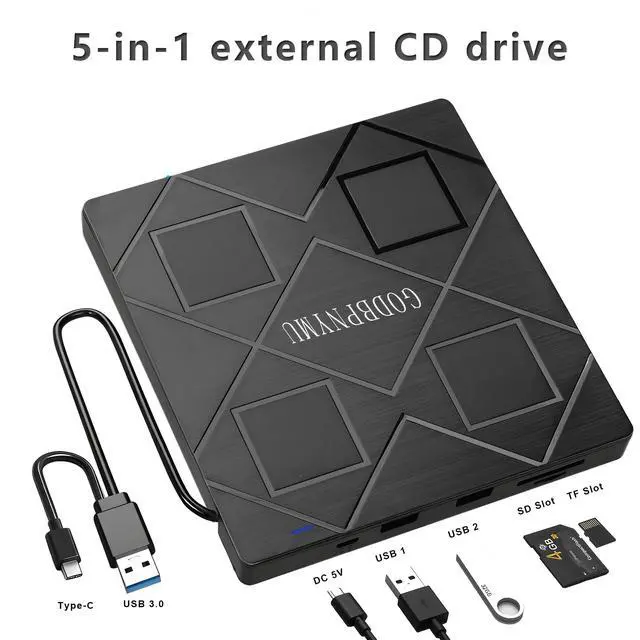
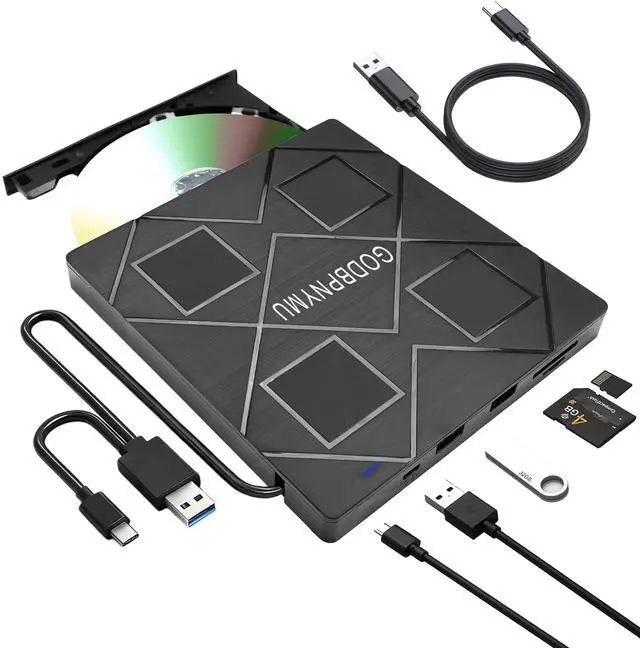
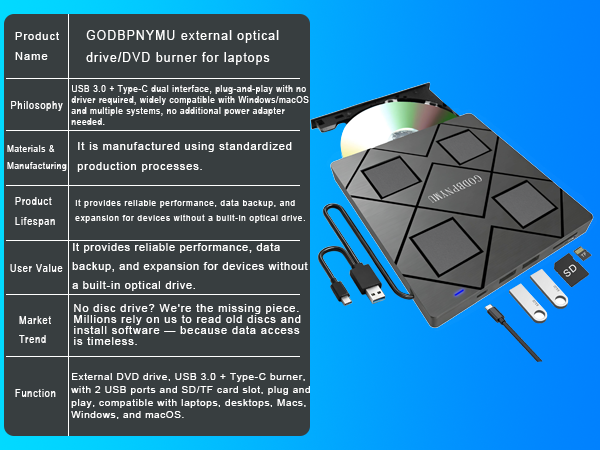
Standard drives only read/write discs. This 5-in-1 adds 2 USB 2.0 ports, TF and SD card slots – connect USB peripherals and transfer photos/videos from camera/phone cards. Disc drive + USB hub + card reader in one.
Is it compatible with Chromebooks?
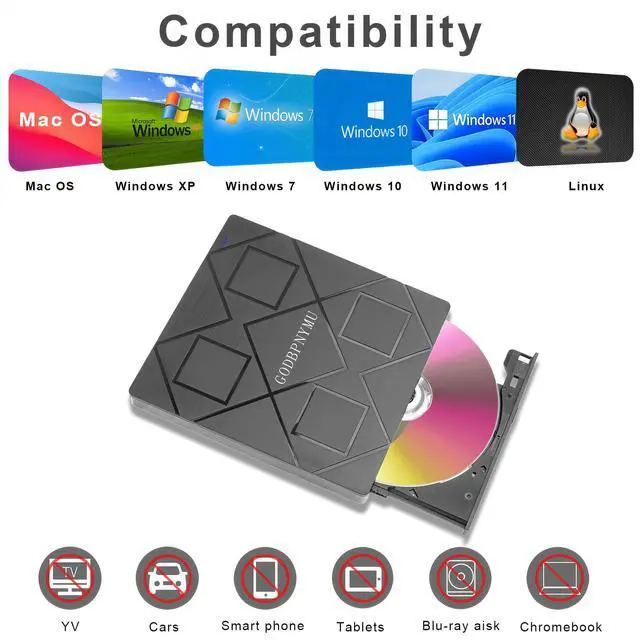
Yes itsuports Linux-based ystens inctluding Chrome S, so tworks vith most Chromeboks For DVD movie playback youl stllneed a compatible player app fron the Chrome Web Store
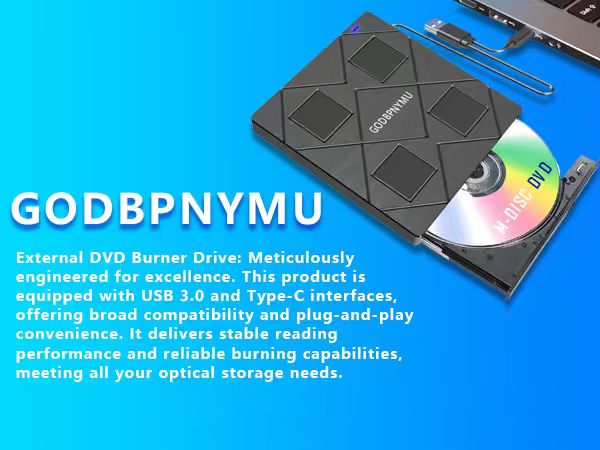




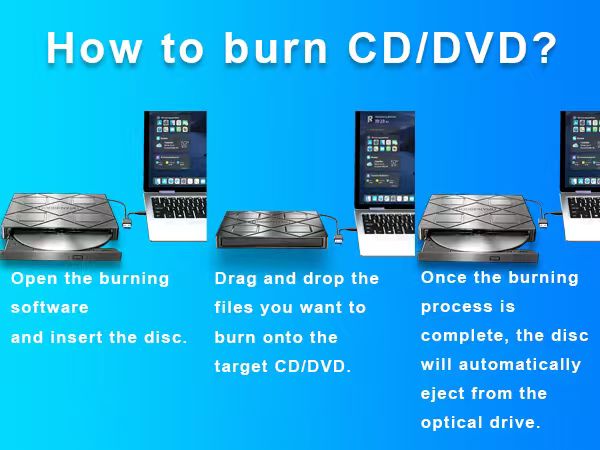
External DVD Burner User Guide I. Core Functions Playback Function: Relive cherished moments preserved on VCD/CD/DVD—wedding day warmth, birthday party joy, Christmas Eve gatherings, and other special celebrations. Supports diverse content including home videos, classic films, music albums, educational materials, game discs, and important documents. Burning Function: Burn digital content like music, photos, and videos onto discs for long-term preservation, playback across multiple devices, and digital organization/archiving. II. Software Preparation Player Software (Required): Since most operating systems do not pre-install DVD playback components, a third-party player must be installed beforehand. Recommended Options: VLC Media Player: Free and open-source with comprehensive format support and optimal compatibility KMPlayer: Feature-rich with excellent decoding capabilities Burning Software (Optional): Prepare dedicated software if disc burning is required. Recommended Options: BurnAware Free Edition: Lightweight design for basic burning needs Nero: Professional-grade tool offering advanced burning and editing features III. Critical Considerations Genuine/Protected DVDs: First-time playback requires setting the “Region Code.” Select the option that exactly matches the disc's labeled region. Important Note: Region code changes are limited (typically =5 times). Choose carefully. Standard Discs:Includes self-burned VCD/CD/DVD data discs, music CDs, game discs, etc. Typically plug-and-play after installing playback software. IV. Operation Flow 1. Install required playback/burning software 2. Connect external optical drive via USB port 4. Use corresponding software to play or burn
Can it read Blu-ray discs?
No, this drive is designed for CD and DVD fomats only. It does not support Blu-ray discs. For Blu-ray playback, you would need a dedicated Blu-ray drive
Does it require any software to install?
Far readine d ti diers iled and play- no dhiver neded For playing VD movies youl ned hid party playersofiware ike VLC Medi Plyer fre) or MPlaye, as mest S dontintlude DVo playbak. For burning, use software like BurnAware or Nero.
What is the "region code" and why does it matter?
DV region codes leg. Region1 for US,Region 3 forAsi)estict playback by area. Fist play ronpts you to set thecode. Important You can only cthange this up to5 times so thoose carefuly
What's the difference between this 5-in-1 drive and a standard optical drive?
Standard drives only read/write discs. This 5-in-1 adds 2 USB 2.0 ports, TF and SD card slots – connect USB peripherals and transfer photos/videos from camera/phone cards. Disc drive + USB hub + card reader in one.
Is it compatible with Chromebooks?
Yes itsuports Linux-based ystens inctluding Chrome S, so tworks vith most Chromeboks For DVD movie playback youl stllneed a compatible player app fron the Chrome Web Store
cd burner for laptop
dvd player for laptop
dvd burner/bluray drive
cd burner / usb floppy drive
