







GUERMOK For Your Eletronics
Redefining Gaming, Uniting Office Excellence, and Live Streaming Thrills
Our Genesis
Guermok's story unfolds at the intersection of passion for gaming, the pursuit of streamlined office life, and the captivating allure of live streaming. We believe that these realms aren't just separate activities but integral parts of modern living. Our commitment is to provide innovative products that fuse these elements harmoniously.
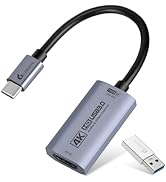
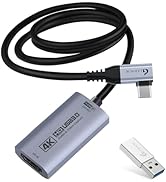
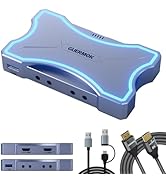
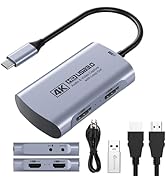
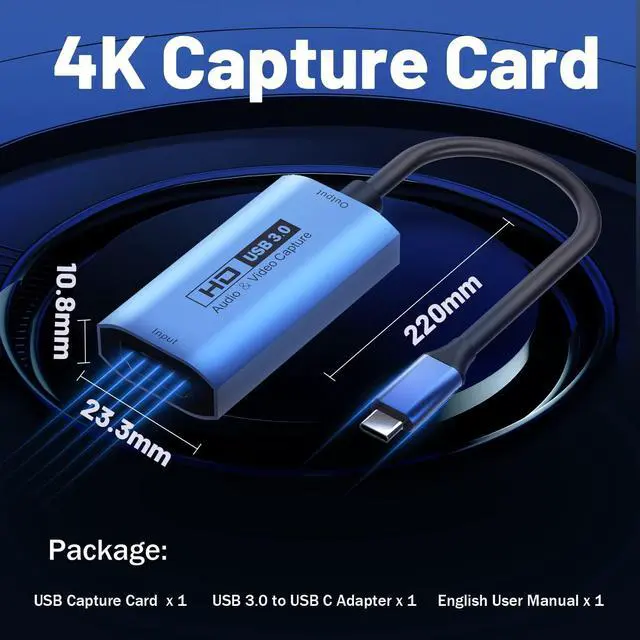
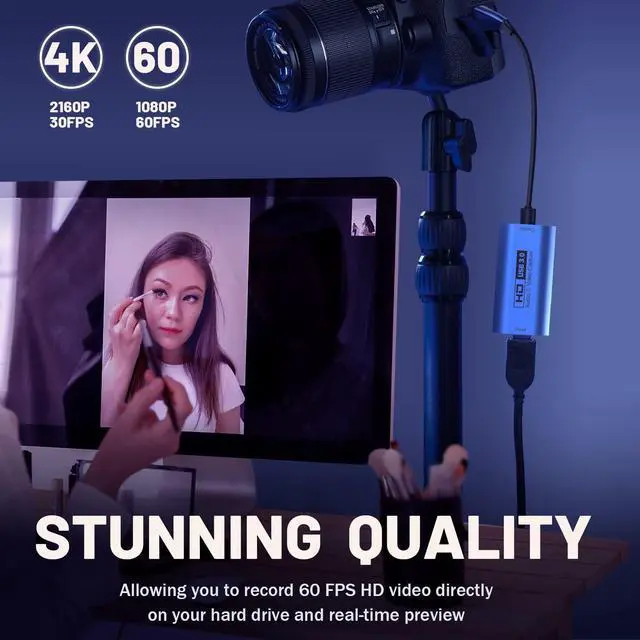
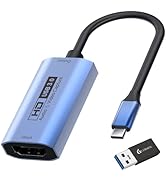
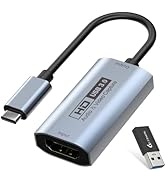
4K 60FPS capture card
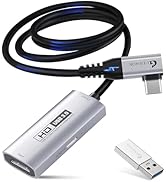
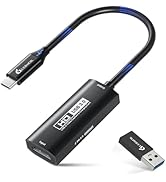
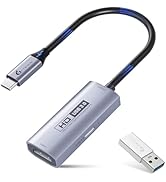
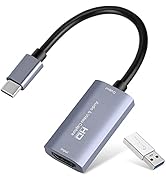
Live Streaming Excellence
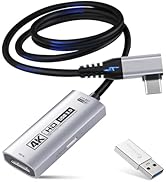
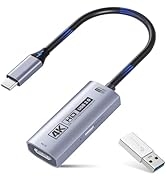
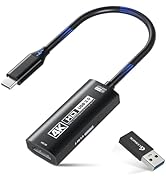
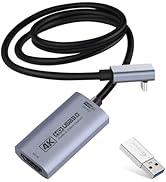
4K 60FPS Capture with PD100w
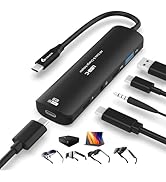
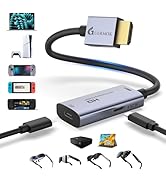
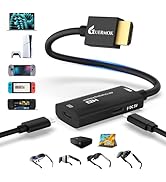
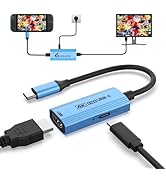
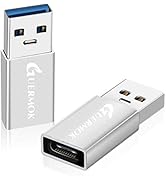
AR Glasses Converter (Switch2)
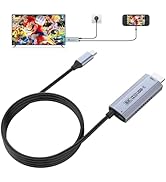
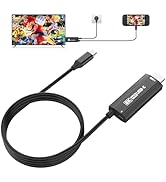
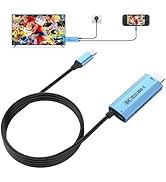
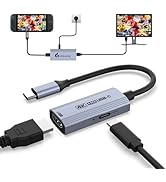
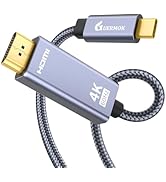
USBC to HDMI Adapter (Switch2)
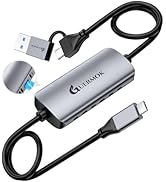

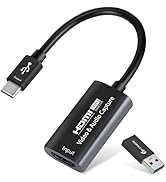
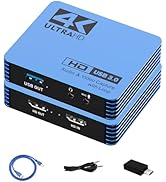
PD100W Fast Charging
Innovative Gaming Solutions
The Brand Philosophy
At Guermok, our brand philosophy is simple yet profound: make gaming a lifestyle, bring office excellence to the forefront, and infuse the thrill of live streaming into every moment. We encourage you to transcend boundaries and seamlessly integrate these facets into your daily life.
Empowering Office Life
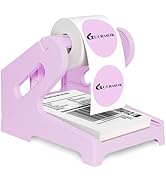
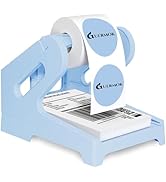
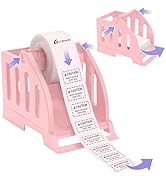
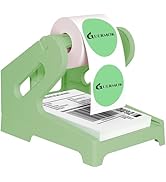
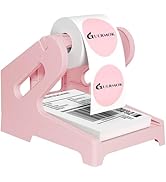
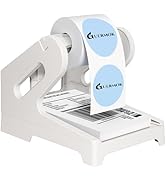
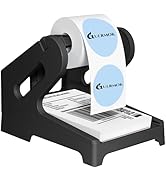
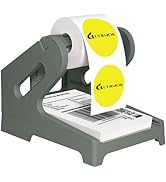
Label Holder

Live Gaming
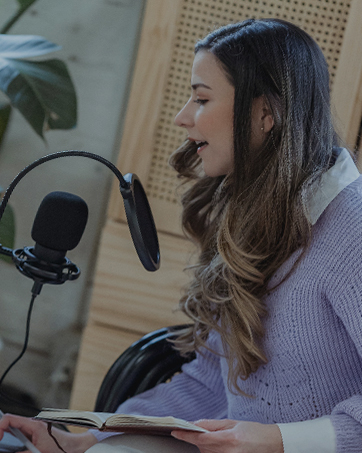
Video Recorder

Live Streaming
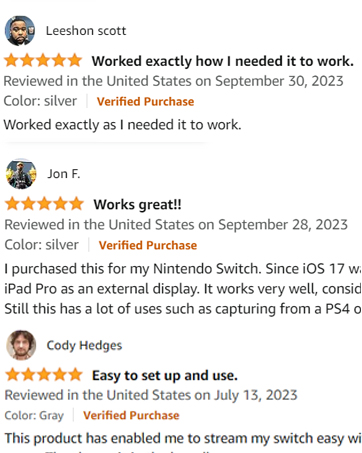
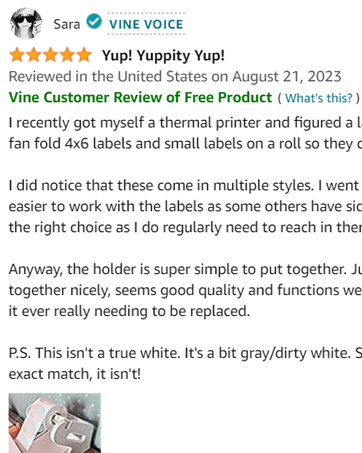
Community-Centric
Guermok isn't just a brand; it's a community of like-minded individuals who understand the importance of balancing work, play, and entertainment. Our community encourages sharing, support, and the creation of unforgettable moments.
Thank You for Your Support
Guermok extends heartfelt gratitude to our customers, gamers, office professionals, and live streamers alike. Our mission is to empower you to seamlessly integrate these facets of modern life, ensuring you have the tools to succeed in work and play.
Guermok
where gaming, office, and live streaming unite in excellence.


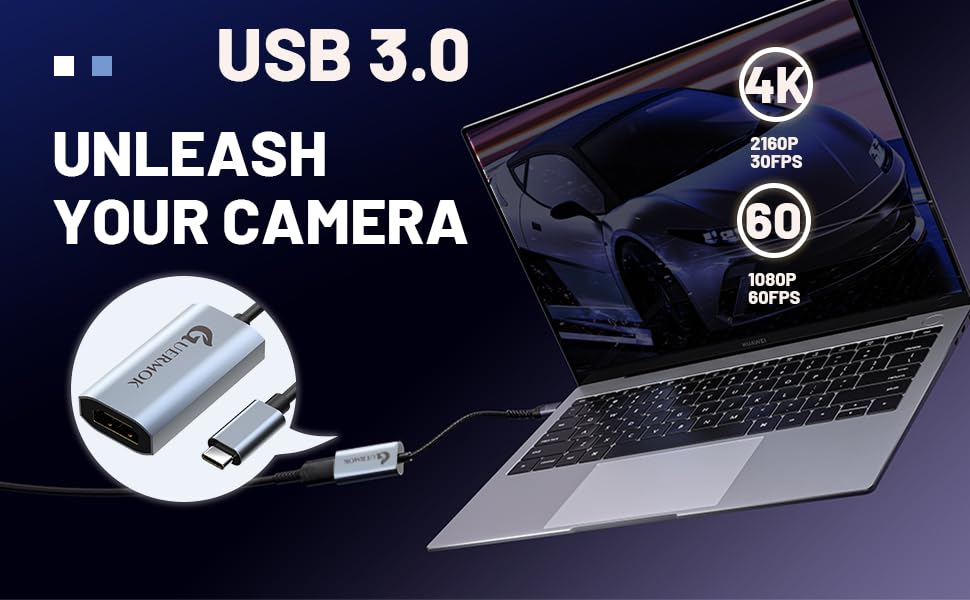
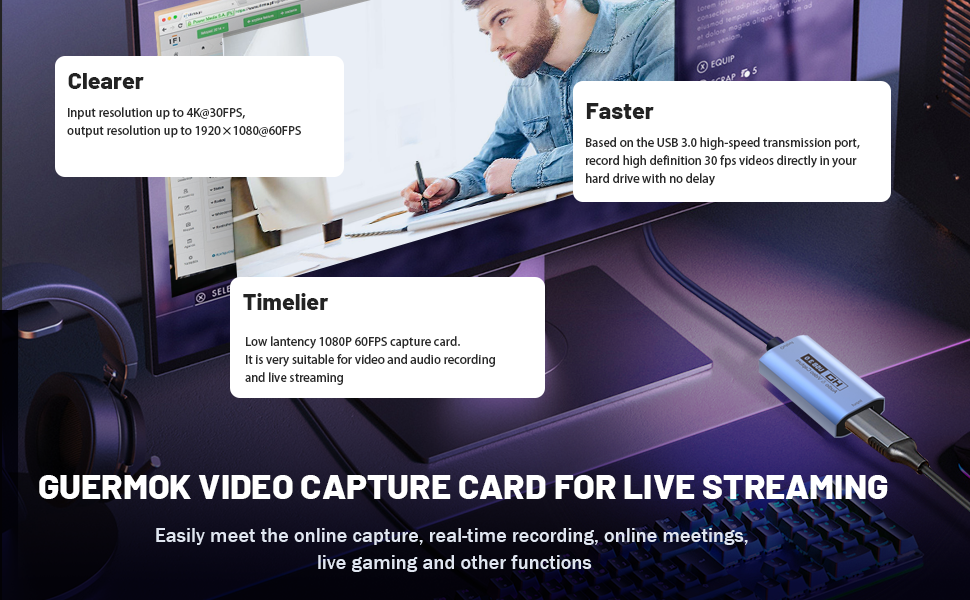
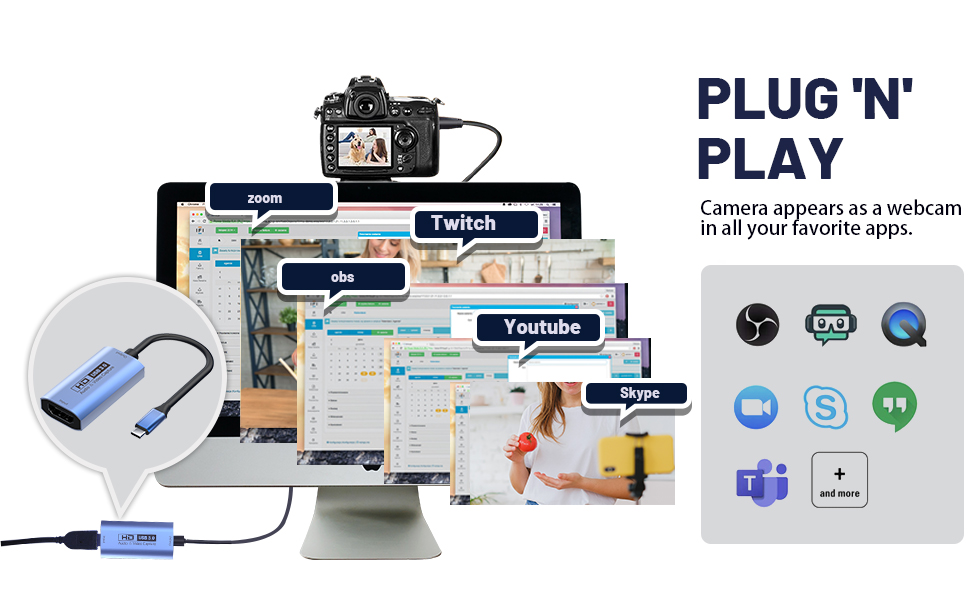
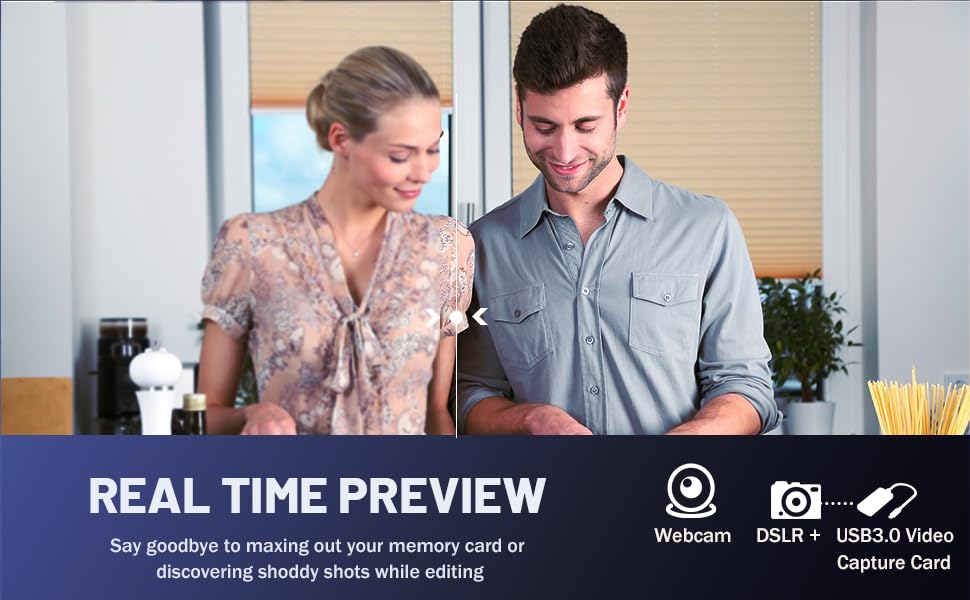
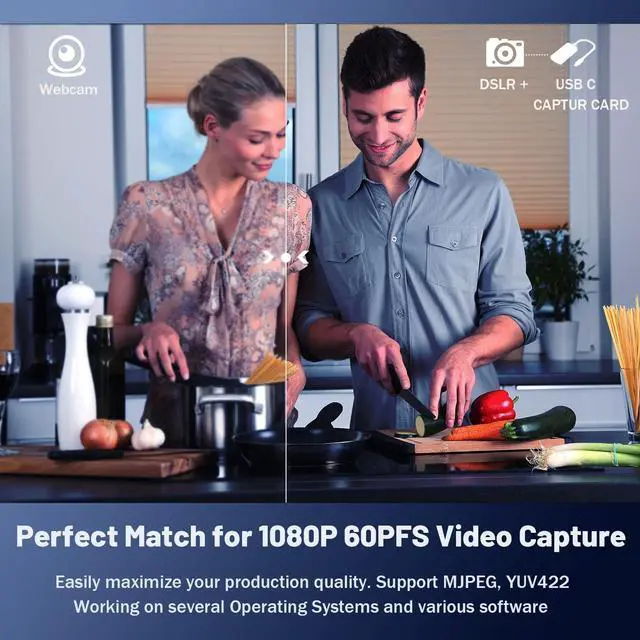
High Compatibility with several Operating Systems and various software
This HDMI to USB C/3.0 video capture devices can be working on several Operating Systems and various software:
- Windows 7/ 8/ 10,
- Mac OS or above,
- Linux, Android,
- Laptop,
- Xbox One, Camera,
- PS3, PS4, PS5,
- Webcame, DSLR,
- Nintendo Switch,
- TV BOX, HDTV, Potplayer/VLC,
- OBS ZOOM Studio
- etc.
Noted
- Restart the OBS Studio software after the audio setup is complete, otherwise it will result in no sound output
- Download the Audio & OBS user guide from this website if you need
Audio Input Settings on OBS
a. Add a new source, select " video capture device"/ "audio and video input capture"
Video Signal Output Settings on OBS
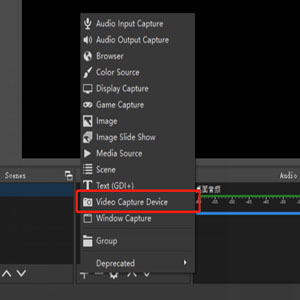
a. Sources ? Click “+”? Find the“ Video Capture Device”
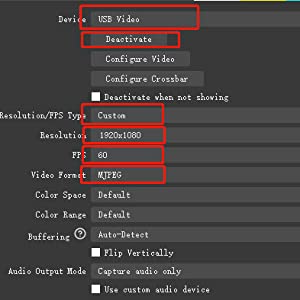
b. Device Choose “ USB Video”? Click “ Deactivate”? Resolution/FPS choose “ customize”? Resolution select "1920 x 1080" ? FPS choose “60”? Video format select " MJPEG" and Click “ OK” ( as my below screenshot)
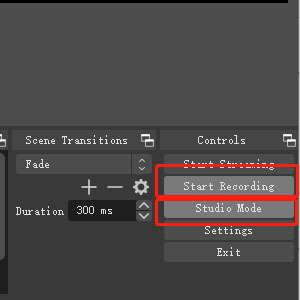
Start recording
a. Select " Studio Mode"
b. Click " Start Recording"
High Compatibility with several Operating Systems and various software
This HDMI to USB C/3.0 video capture devices can be working on several Operating Systems and various software:
- Windows 7/ 8/ 10,
- Mac OS or above,
- Linux, Android,
- Laptop,
- Xbox One, Camera,
- PS3, PS4, PS5,
- Webcame, DSLR,
- Nintendo Switch,
- TV BOX, HDTV, Potplayer/VLC,
- OBS ZOOM Studio
- etc.
Noted
- Restart the OBS Studio software after the audio setup is complete, otherwise it will result in no sound output
- Download the Audio & OBS user guide from this website if you need
GUERMOK For Your Eletronics
Redefining Gaming, Uniting Office Excellence, and Live Streaming Thrills
Our Genesis
Guermok's story unfolds at the intersection of passion for gaming, the pursuit of streamlined office life, and the captivating allure of live streaming. We believe that these realms aren't just separate activities but integral parts of modern living. Our commitment is to provide innovative products that fuse these elements harmoniously.
4K 60FPS capture card
Live Streaming Excellence
4K 60FPS Capture with PD100w
AR Glasses Converter (Switch2)
USBC to HDMI Adapter (Switch2)
PD100W Fast Charging
Innovative Gaming Solutions
The Brand Philosophy
At Guermok, our brand philosophy is simple yet profound: make gaming a lifestyle, bring office excellence to the forefront, and infuse the thrill of live streaming into every moment. We encourage you to transcend boundaries and seamlessly integrate these facets into your daily life.
Empowering Office Life
Label Holder
Live Gaming
Video Recorder
Live Streaming
Community-Centric
Guermok isn't just a brand; it's a community of like-minded individuals who understand the importance of balancing work, play, and entertainment. Our community encourages sharing, support, and the creation of unforgettable moments.
Thank You for Your Support
Guermok extends heartfelt gratitude to our customers, gamers, office professionals, and live streamers alike. Our mission is to empower you to seamlessly integrate these facets of modern life, ensuring you have the tools to succeed in work and play.
Guermok
where gaming, office, and live streaming unite in excellence.