here!
here!
I’m your shopping assistant for PC builds, upgrades, and everything tech.
Got questions? Ask away!
Start a conversation
here!
I’m your shopping assistant for PC builds, upgrades, and everything tech.
Got questions? Ask away!
Start a conversation



Any questions? Ask CelesteSM will help you find out quickly.

Redefining Gaming, Uniting Office Excellence, and Live Streaming Thrills

Our Genesis
Guermok's story unfolds at the intersection of passion for gaming, the pursuit of streamlined office life, and the captivating allure of live streaming. We believe that these realms aren't just separate activities but integral parts of modern living. Our commitment is to provide innovative products that fuse these elements harmoniously.

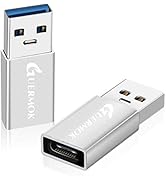
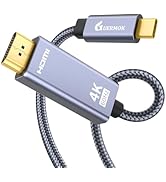
The Brand Philosophy
At Guermok, our brand philosophy is simple yet profound: make gaming a lifestyle, bring office excellence to the forefront, and infuse the thrill of live streaming into every moment. We encourage you to transcend boundaries and seamlessly integrate these facets into your daily life.







Guermok isn't just a brand; it's a community of like-minded individuals who understand the importance of balancing work, play, and entertainment. Our community encourages sharing, support, and the creation of unforgettable moments.
Guermok extends heartfelt gratitude to our customers, gamers, office professionals, and live streamers alike. Our mission is to empower you to seamlessly integrate these facets of modern life, ensuring you have the tools to succeed in work and play.
where gaming, office, and live streaming unite in excellence.
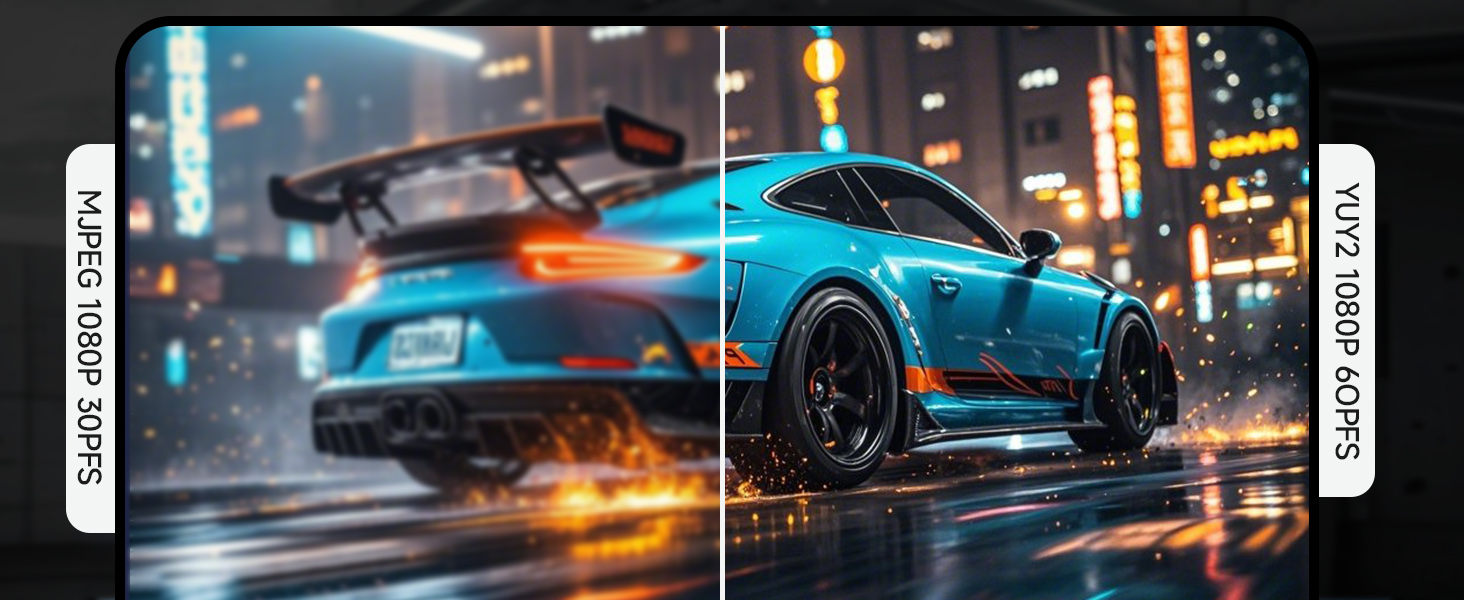
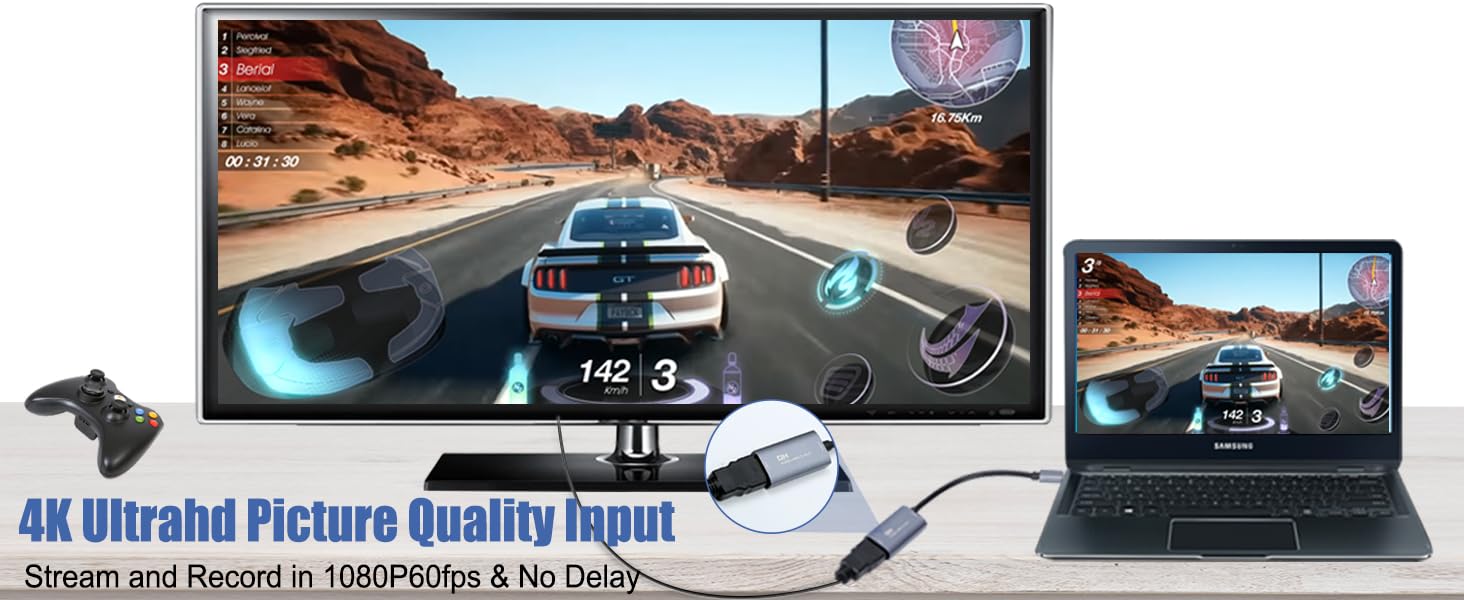
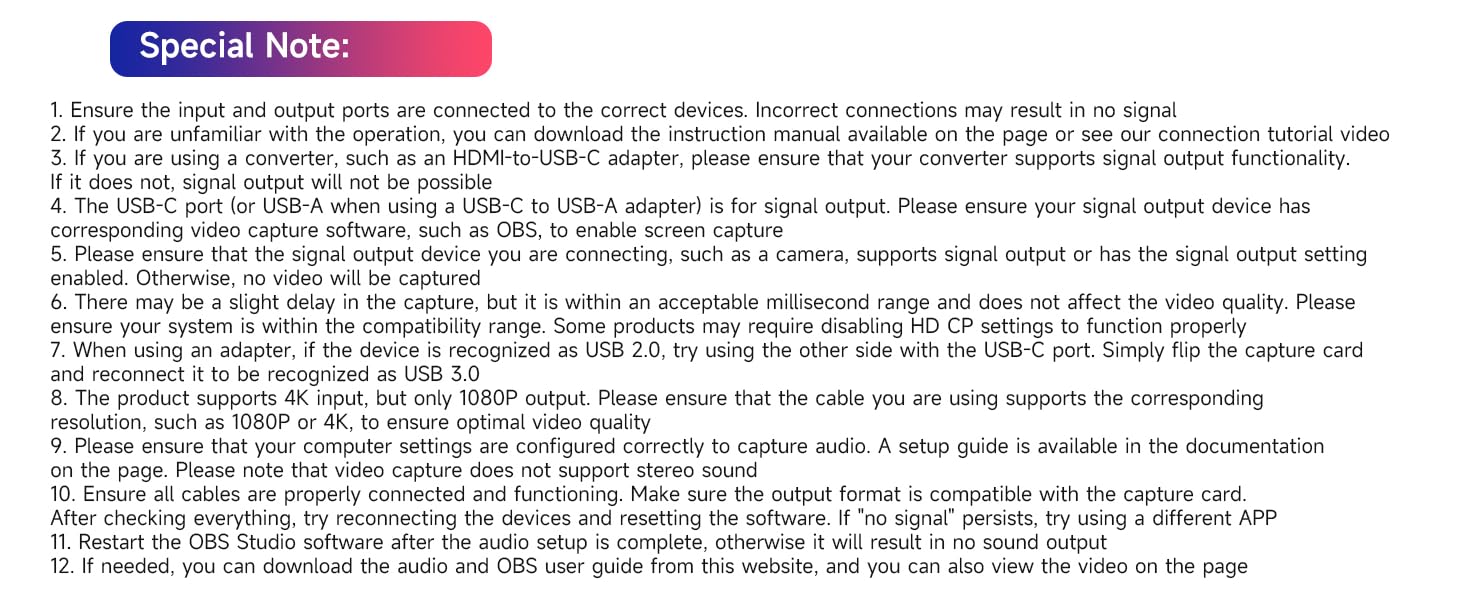
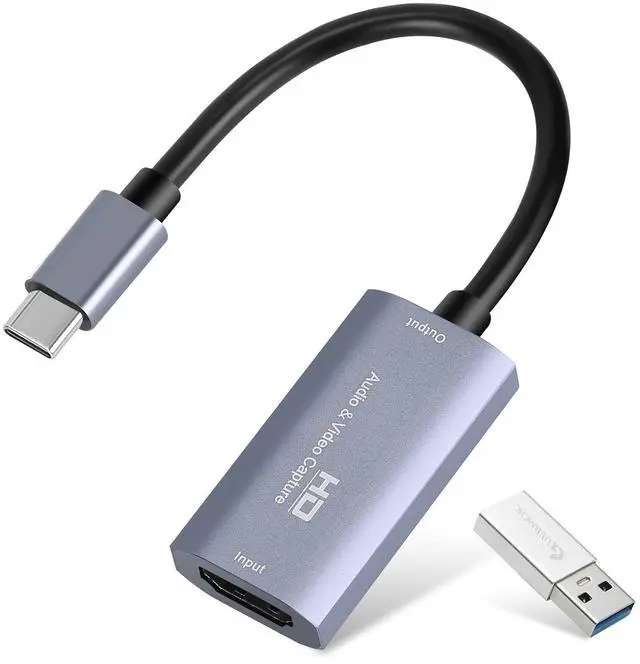
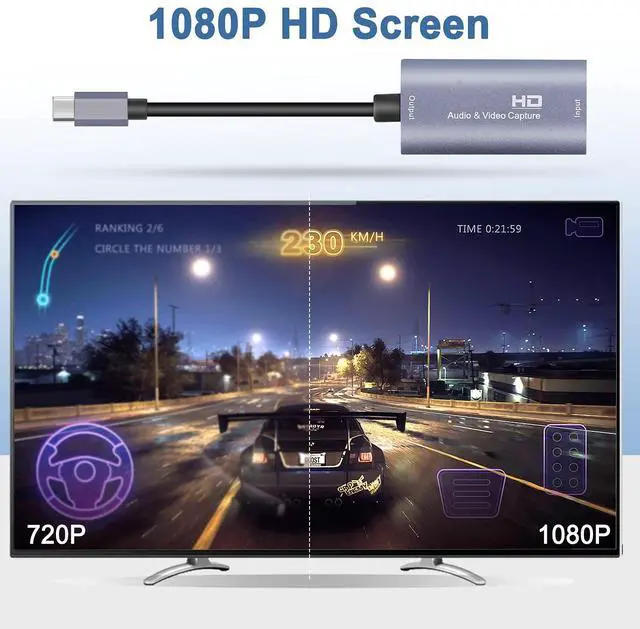
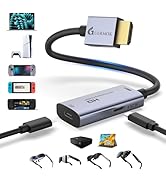
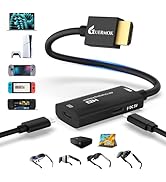
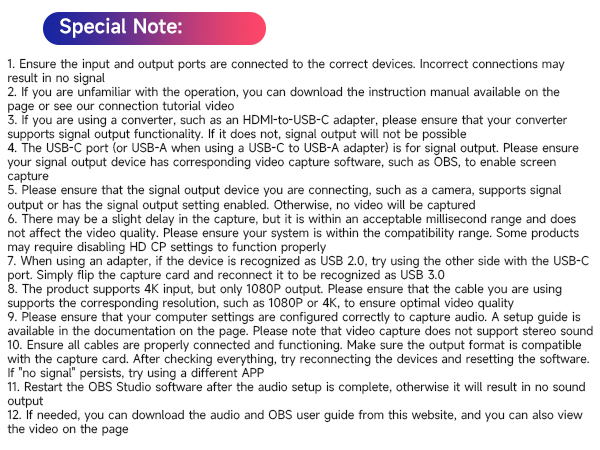
The product supports 4K input, but only 1080P output. Please ensure that the cable you are using supports the corresponding resolution, such as 1080P or 4K, to ensure optimal video quality
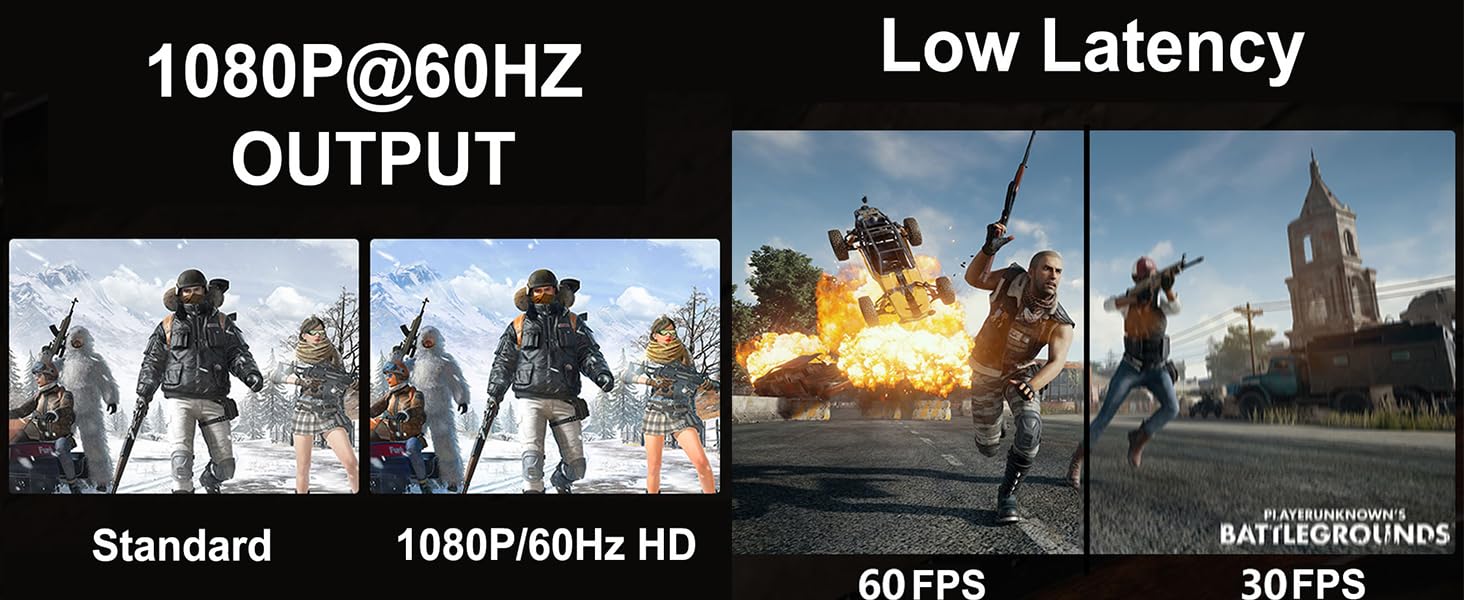
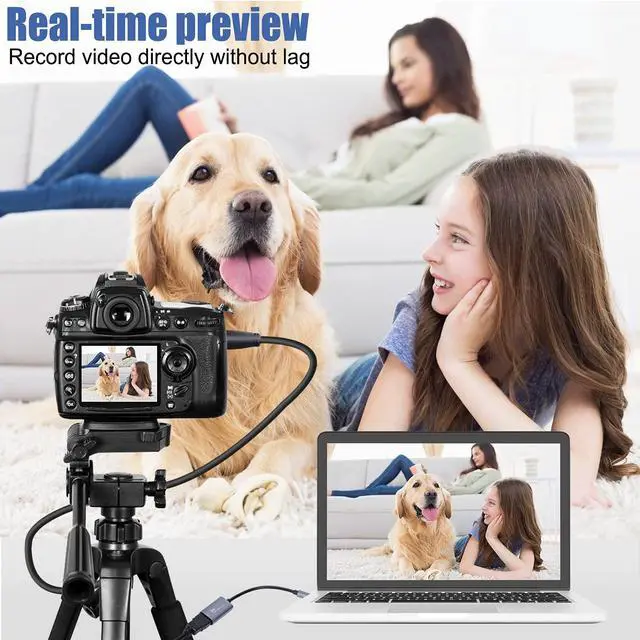
There may be a slight delay in the capture, but it is within an acceptable millisecond range and does not affect the video quality
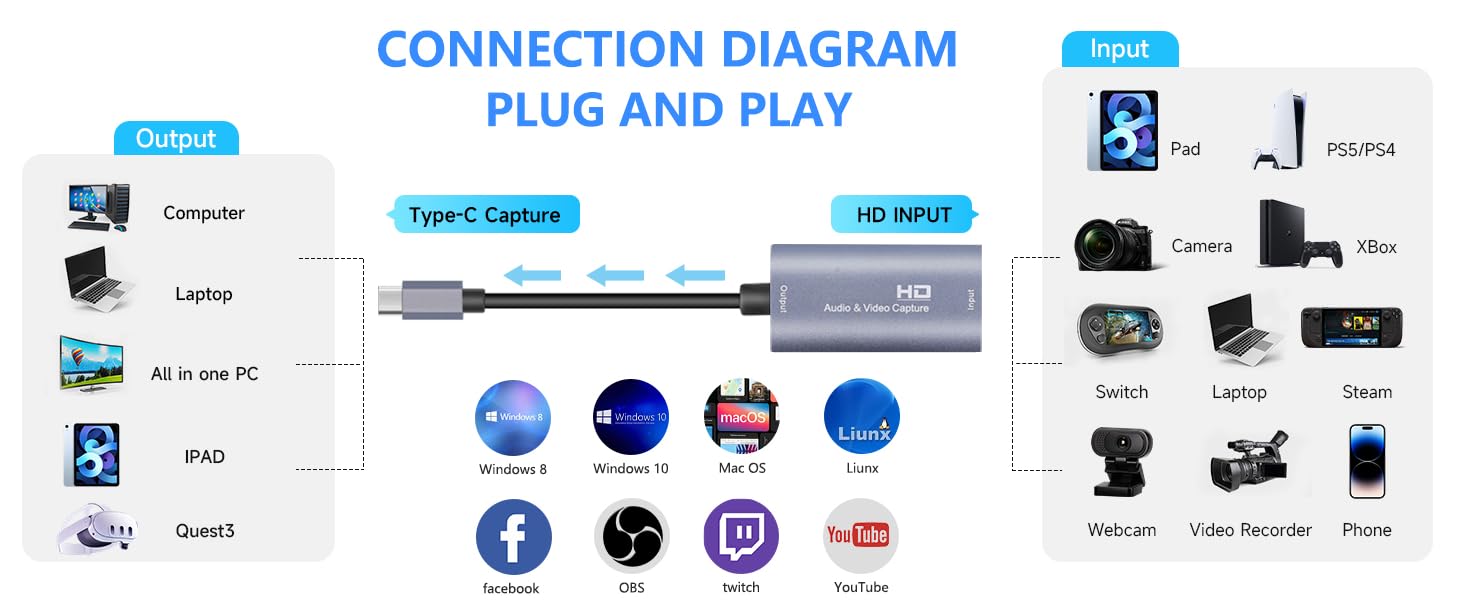
The USB-C port (or USB-A when using a USB-C to USB-A adapter) is for signal output .
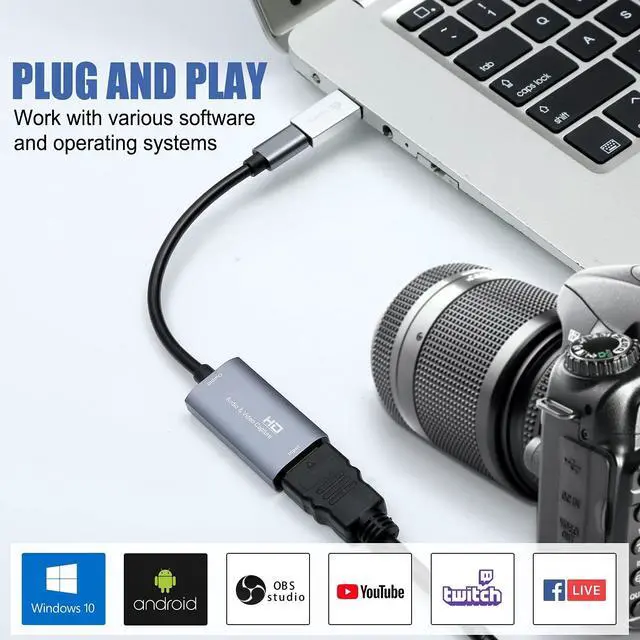
Please ensure your signal output device has corresponding video capture software, as OBS, to enable screen capture
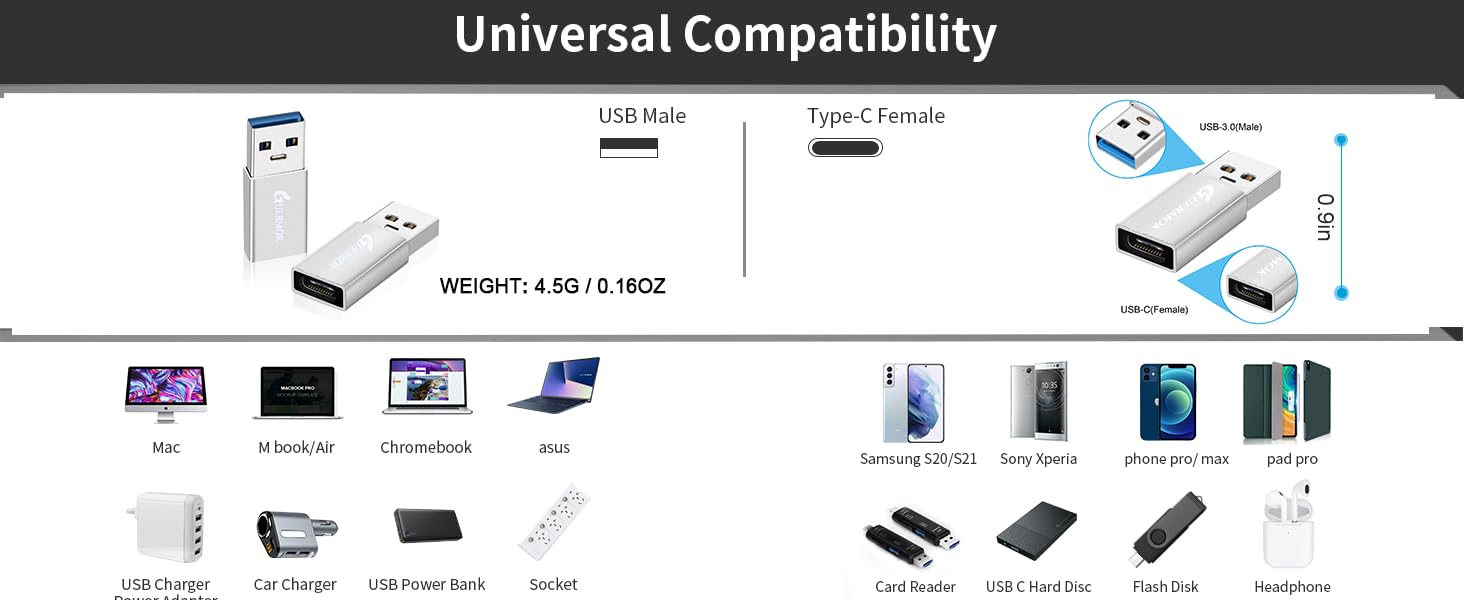
When using an adapter, if the device is recognized as USB 2.0, try using the other side with the USB-C port. Simply flip the capture card and reconnect it to be recognized as USB 3.0
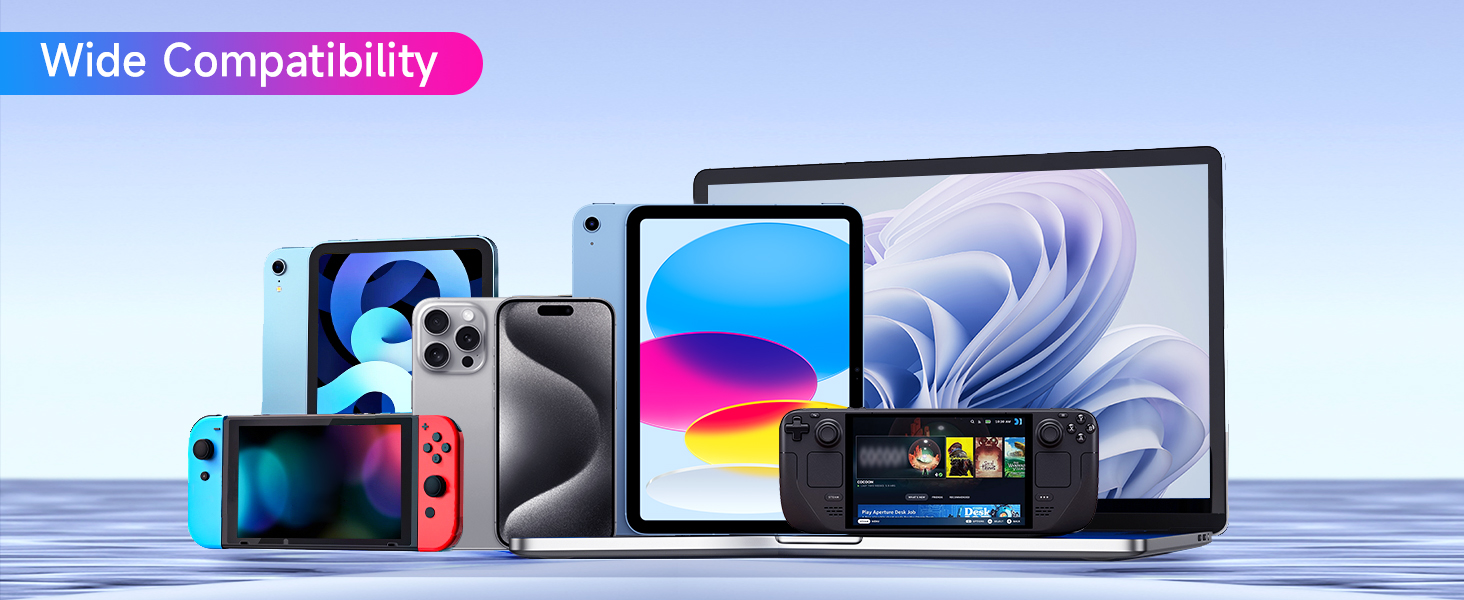
Make sure the output format is compatible with the capture card. After checking everything, try reconnecting the devices and resetting the software. If "no signal" persists, try using a different APP
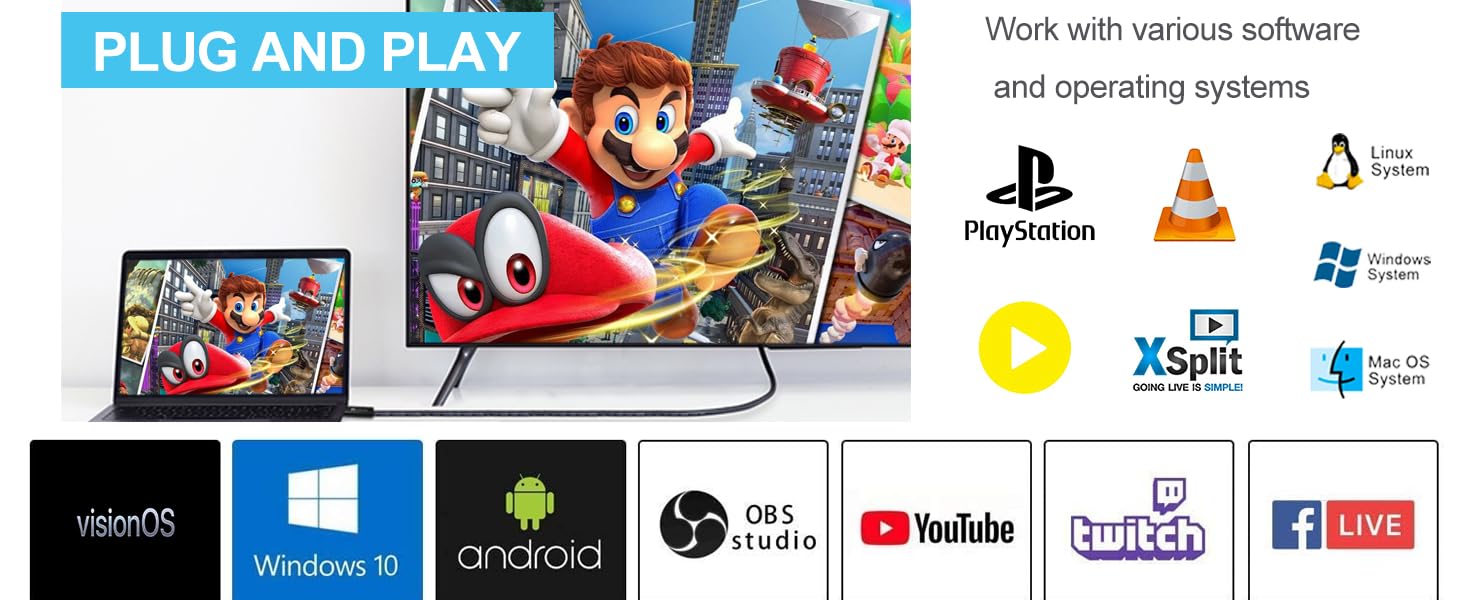
Please ensure your system is within the compatibility range. Some products may require disabling HD CP settings to function properly
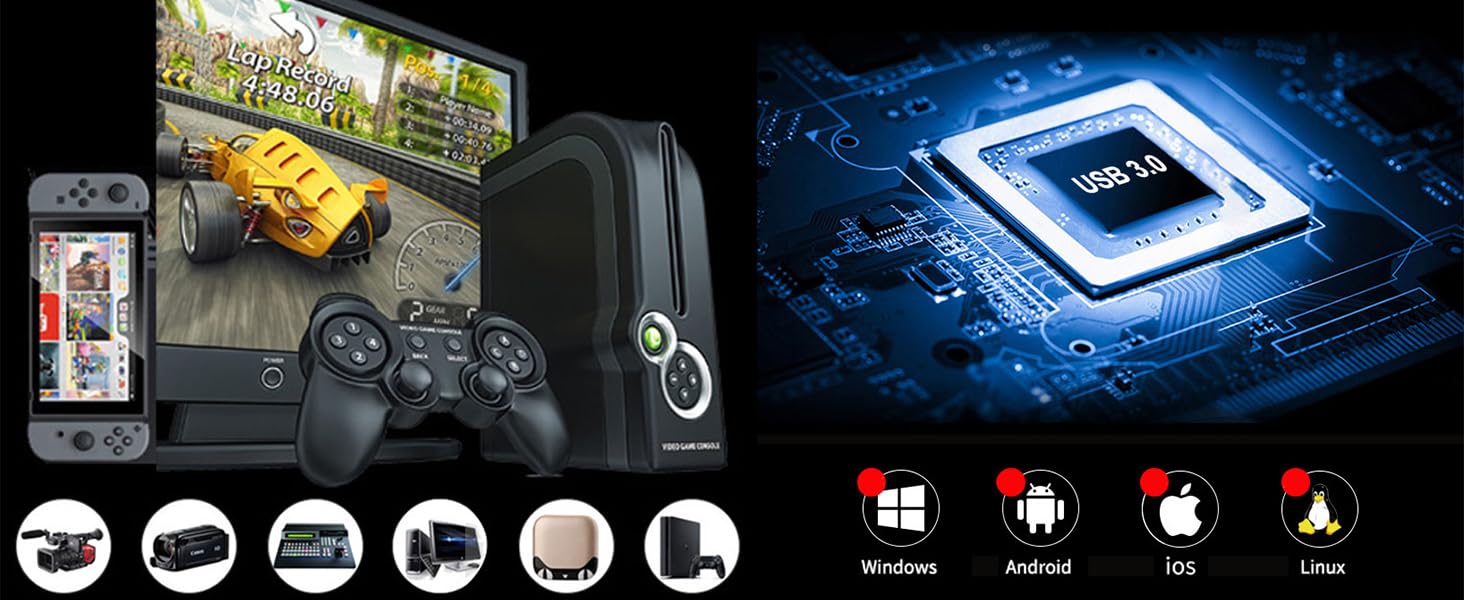
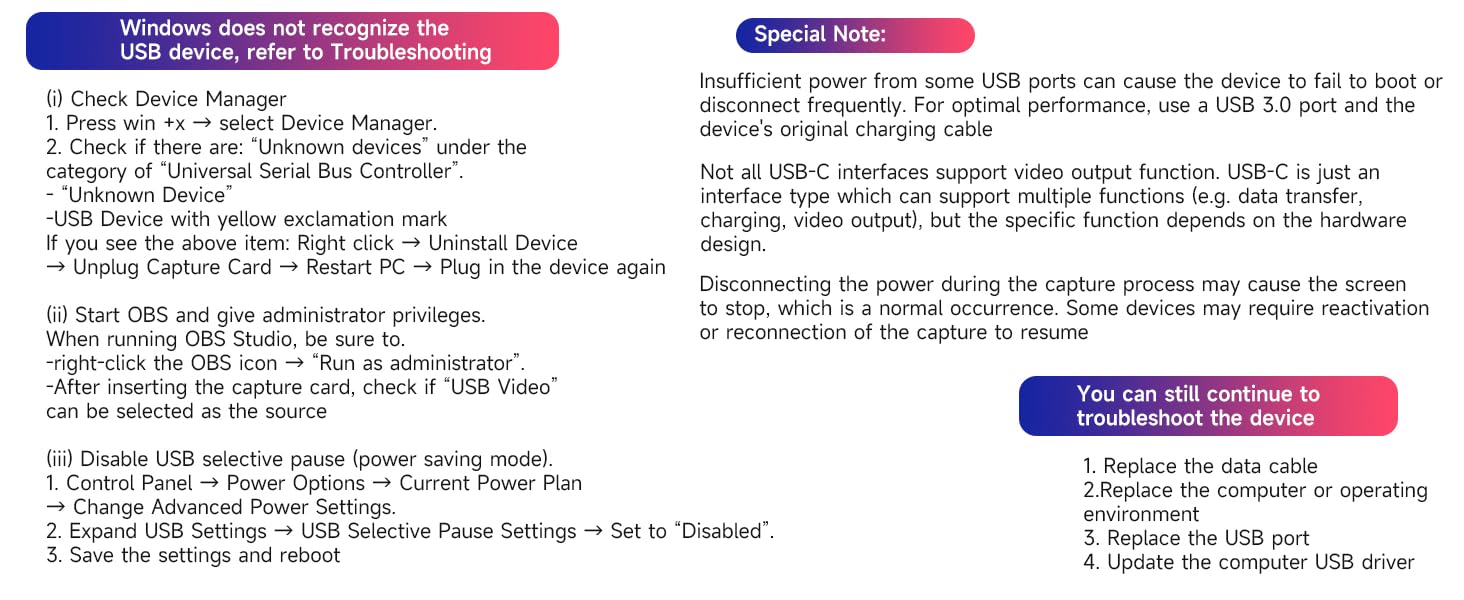
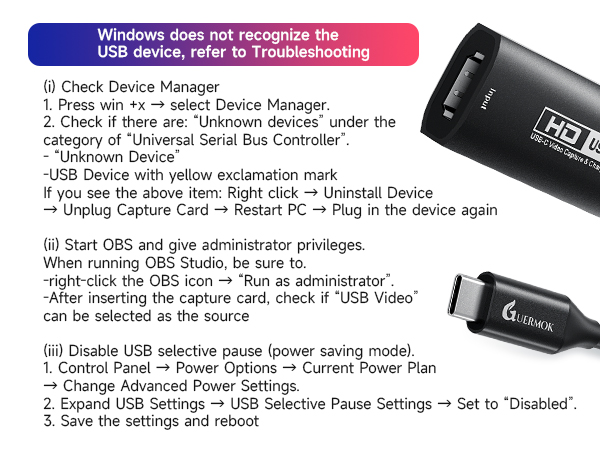
Not all USB ports support 3.0 transmission. To ensure proper functionality, connect the device to a USB 3.0 port (often marked in blue or labeled "SS") and confirm your computer has the required USB 3.0 drivers installed
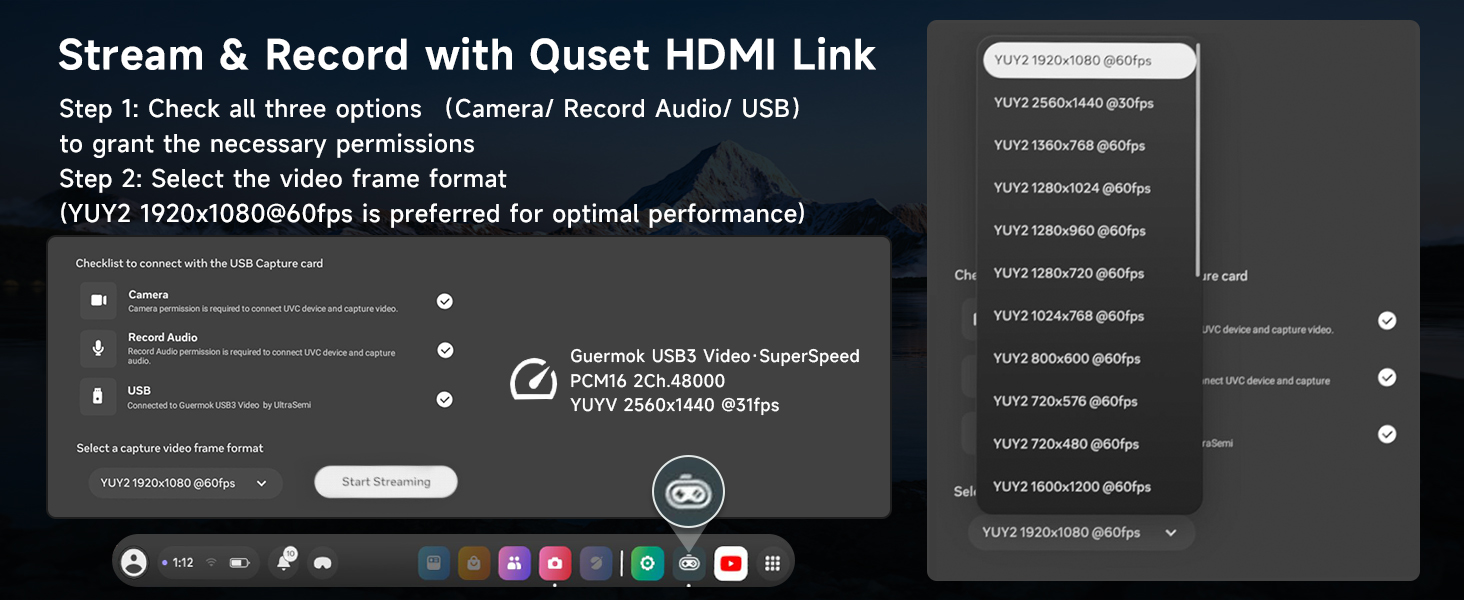
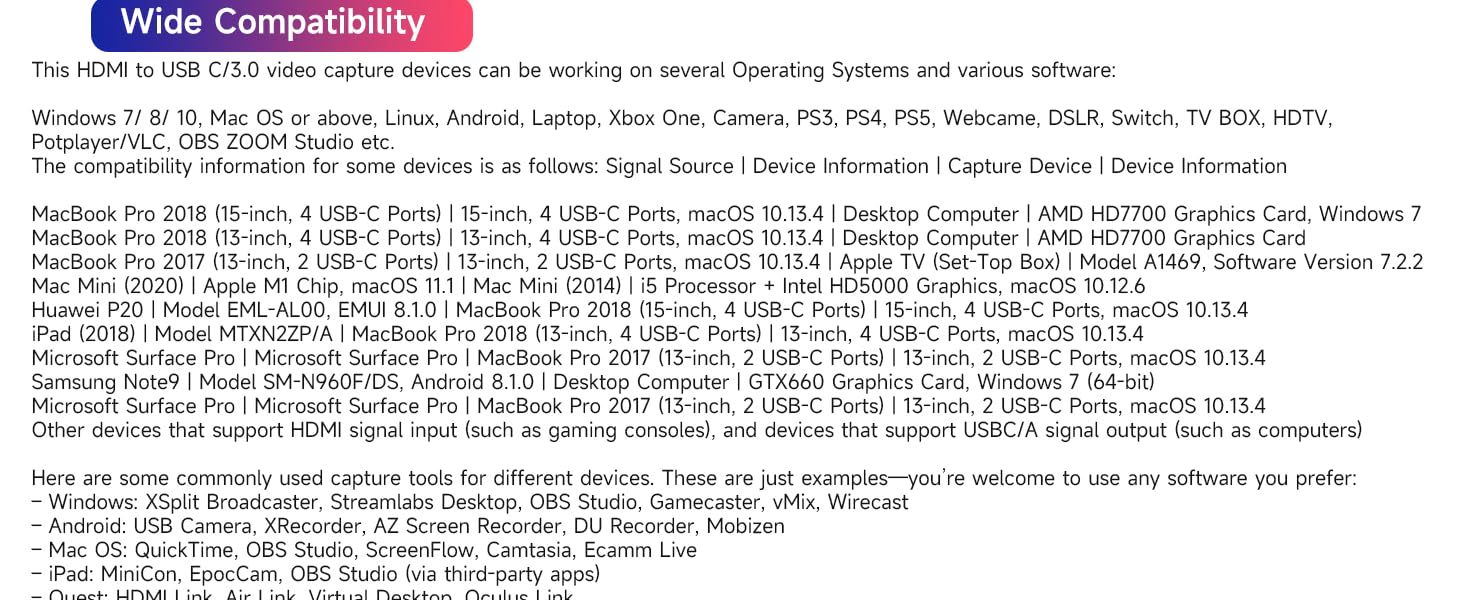
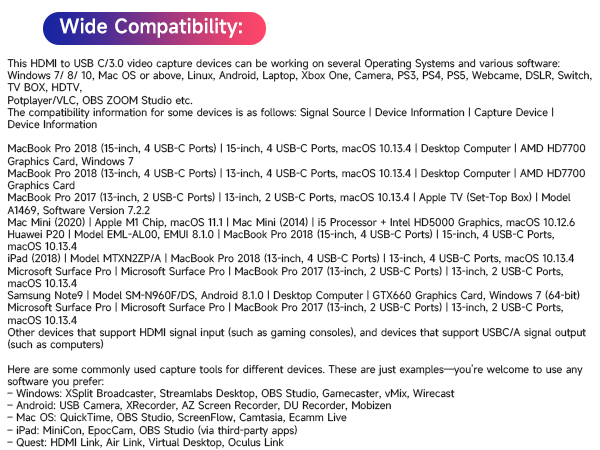
Capture every thrilling moment from your VR adventures with HDMI-enabled devices like Quest3/3s/2, allows you to seamlessly switch between gaming and office tasks, supporting multiple screens
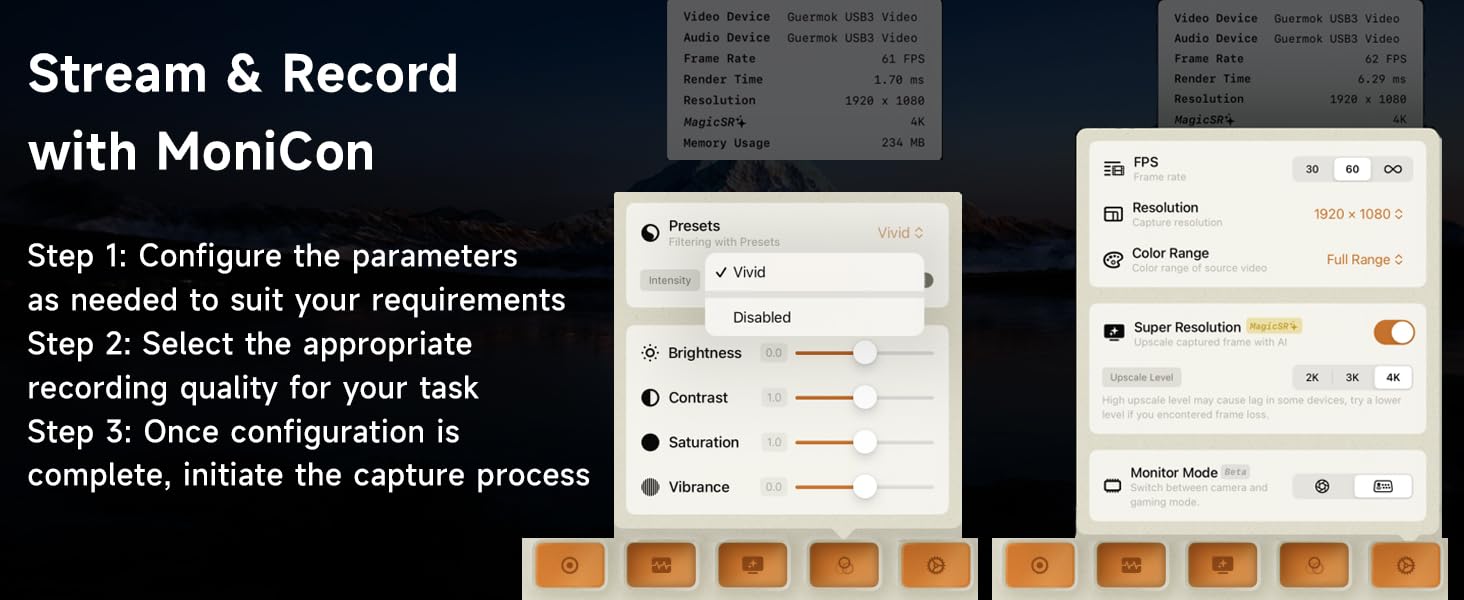
MiniCon allows you to transform your iPad into an external display, offering plug-and-play USB-C connection, low-latency performance, and crisp video—good for streaming and content creation on the go
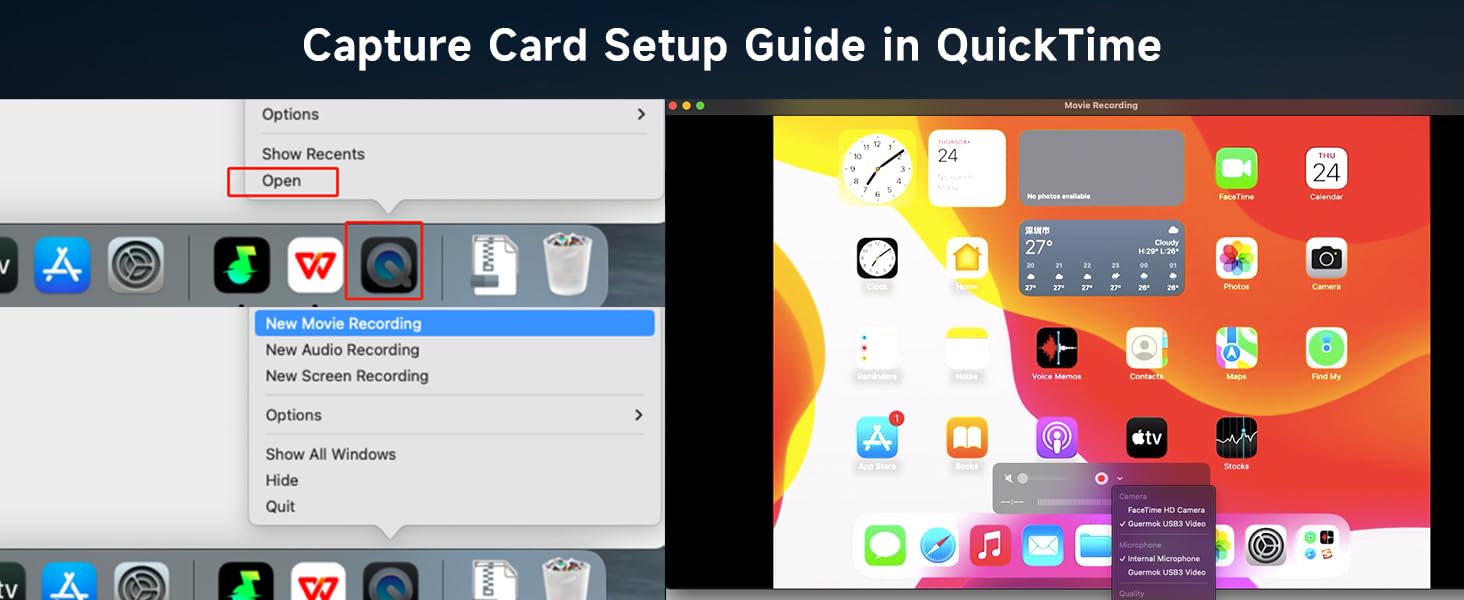
Using a capture card with QuickTime on Mac OS allows seamless, high-quality video recording and streaming. It offers easy integration with Mac's native tools, providing smooth performance
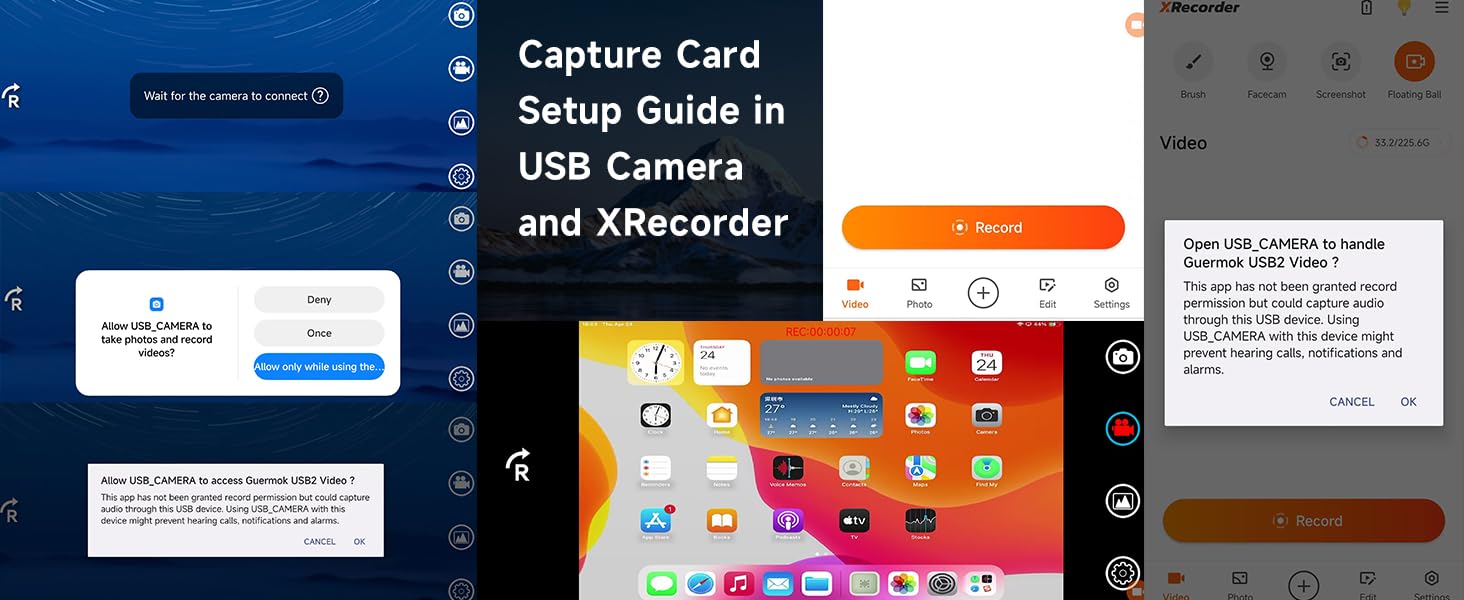
Record USB video and screen easily on Android with USB Camera & XRecorder. Easy plug & play setup, output via USB 2.0 or USB3.0, depending on the type of port on your phone or other devices
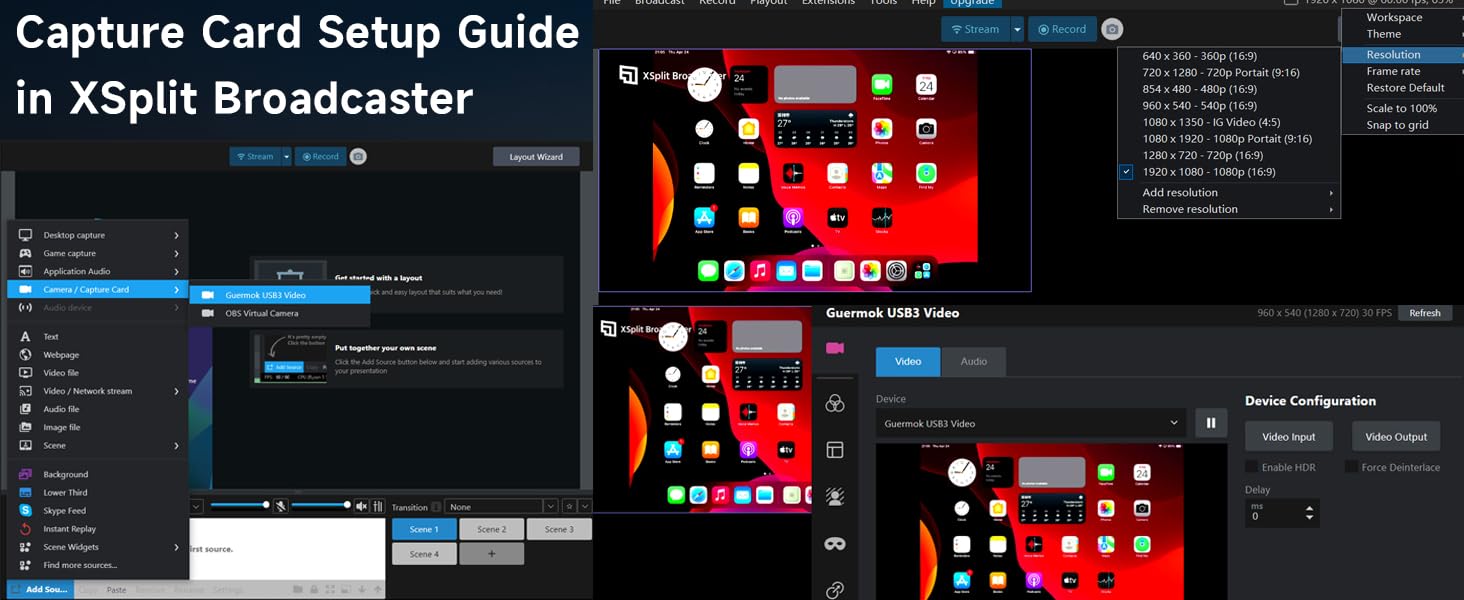
XSplit Broadcaster enhances capture card performance with seamless scene switching, pro-level audio/video mixing, and high-quality streaming or recording on PC
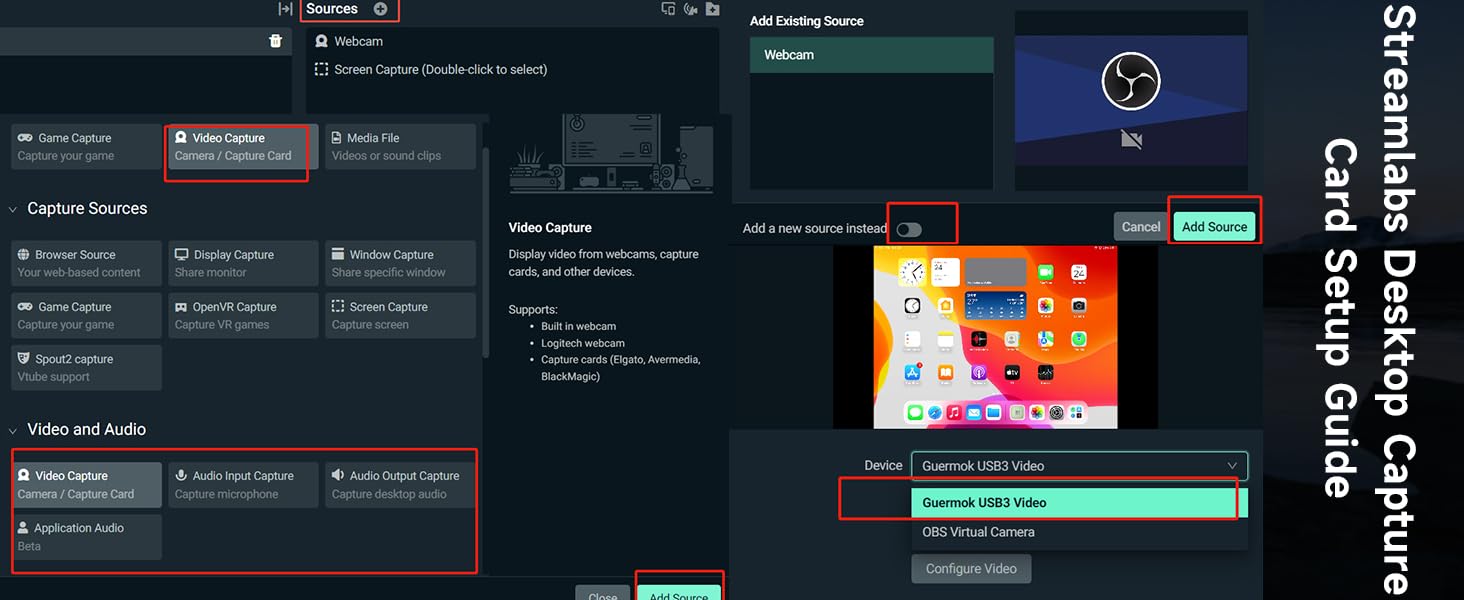
Streamlabs Desktop combines pro-level features with effortless setup for seamless streaming, making it easy to manage your live broadcasts and content creation all in one place
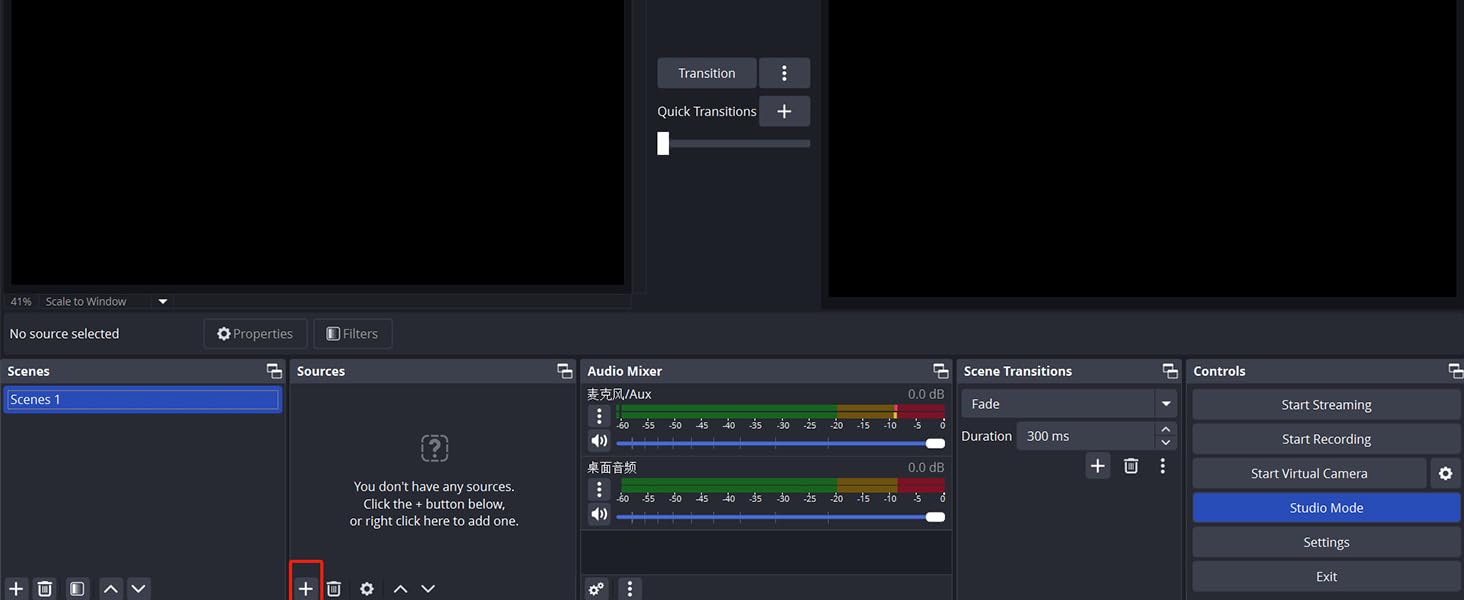
Add a new source
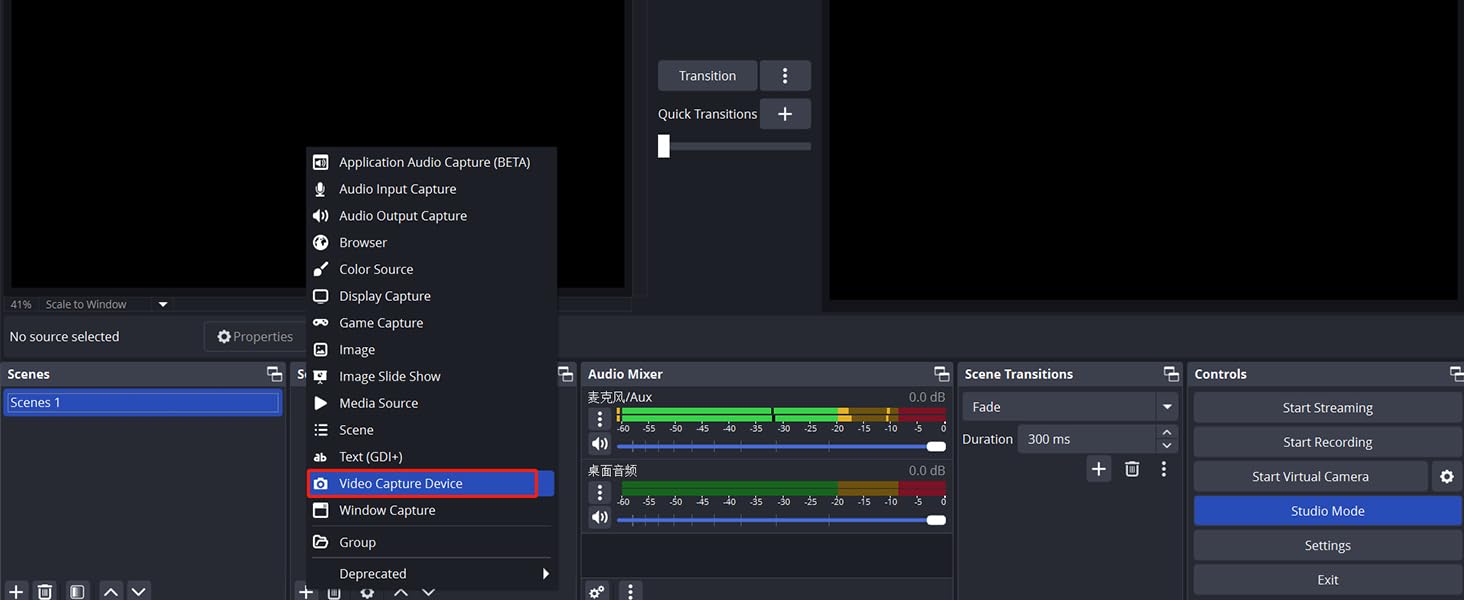
Select " video capture device"/ "audio and video input capture"
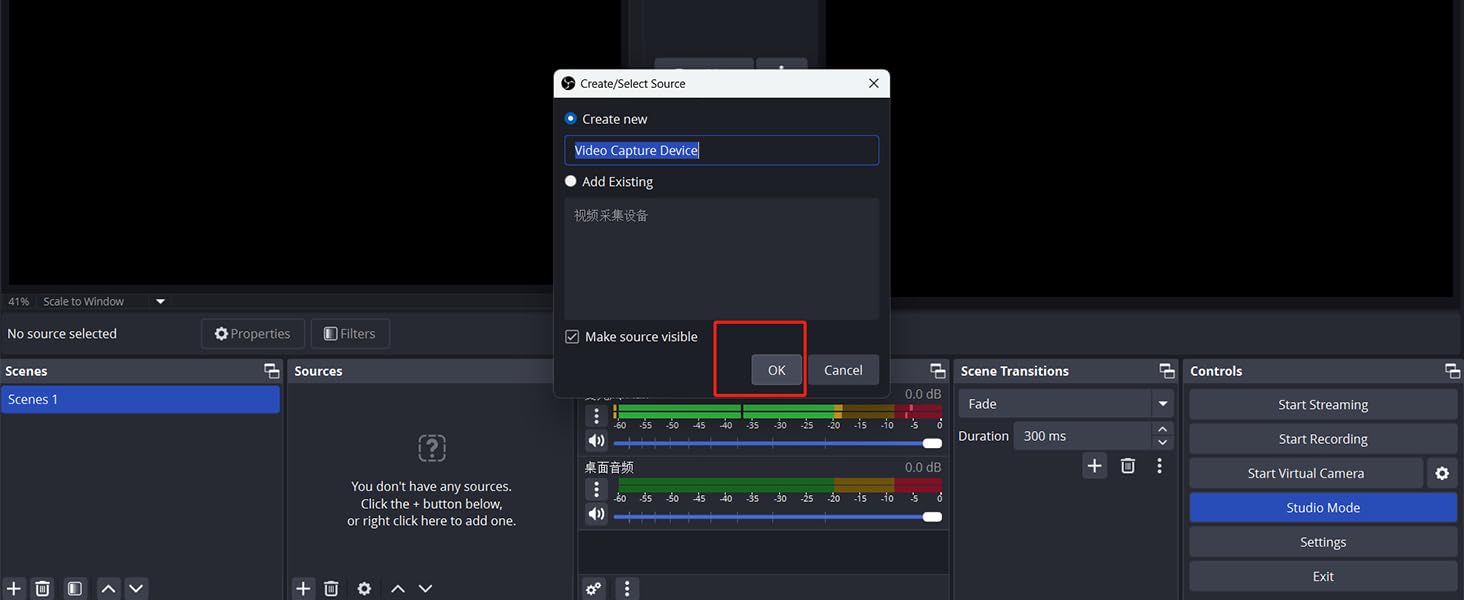
Rename and Click "OK".If there are multiple video sources, it is recommended that you cancel all of them and keep only one, so as to ensure that the captured screen is displayed properly.
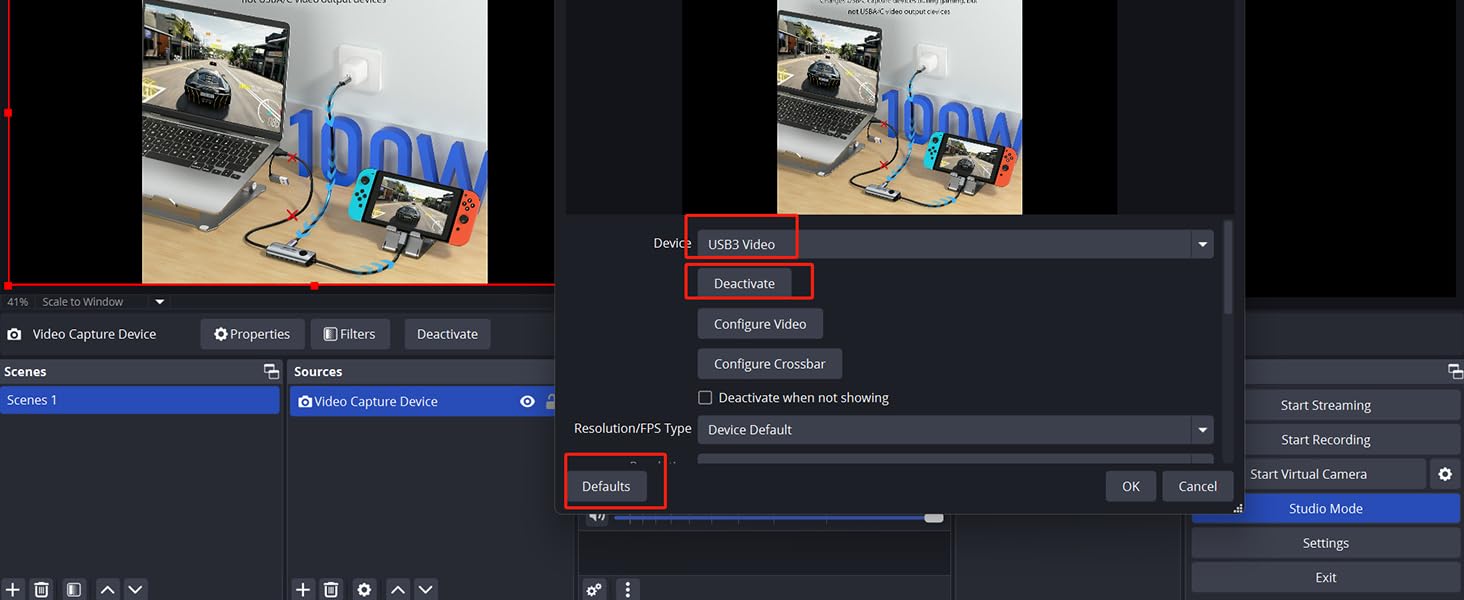
evice Choose “ USB3 Video”?Click “ activate”?Resolution/FPS choose “ customize”?Resolution select "1920 x 1080"?FPS choose “60”?Video format select " MJPEG"& Click “OK”. If no image, click "Defaults"
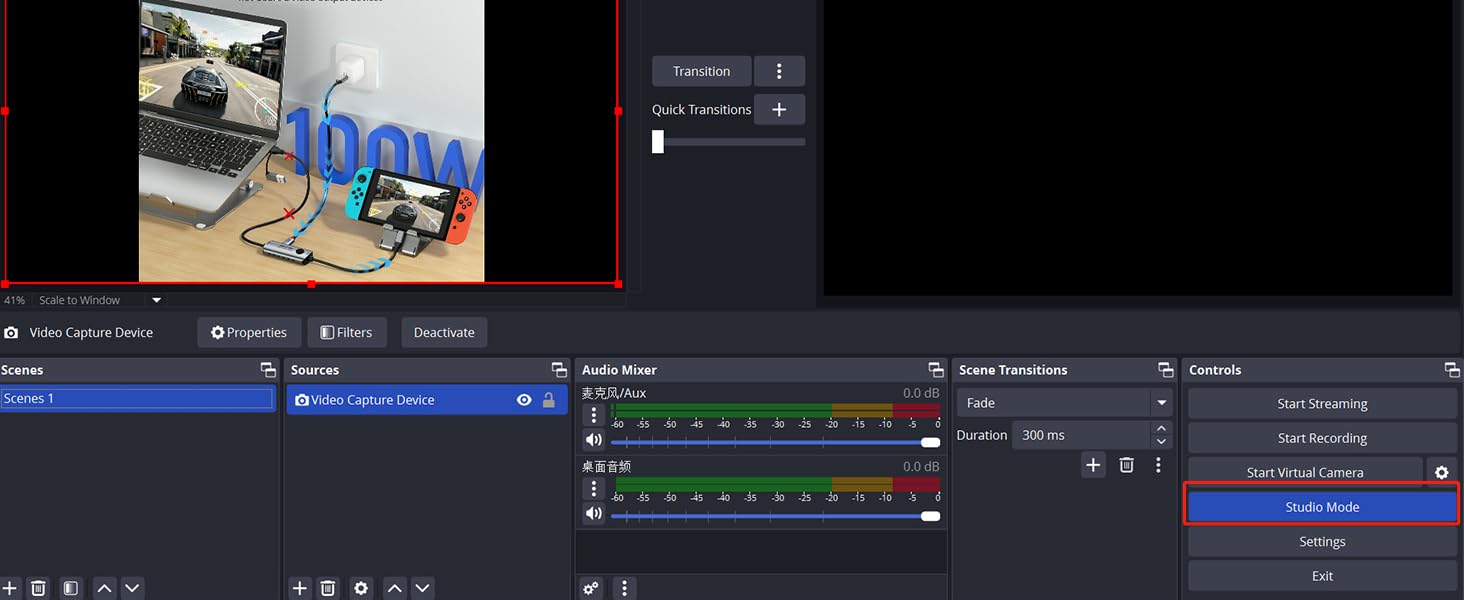
Select " Studio Mode"
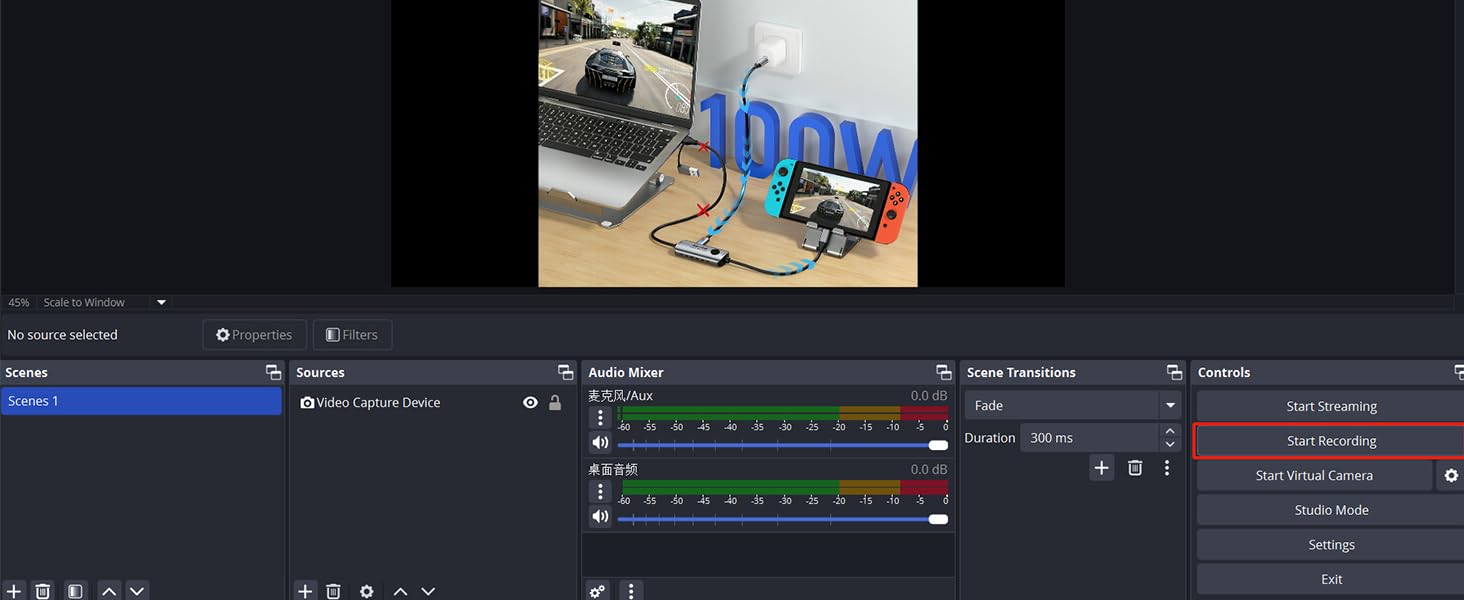
Click " Start Recording"
If the acquisition screen appears for the first time when using OBS, delete it and reopen the screen to recognize USB2.0. First restore the default value or deactivate and then activate to restore recognition to USB2.0
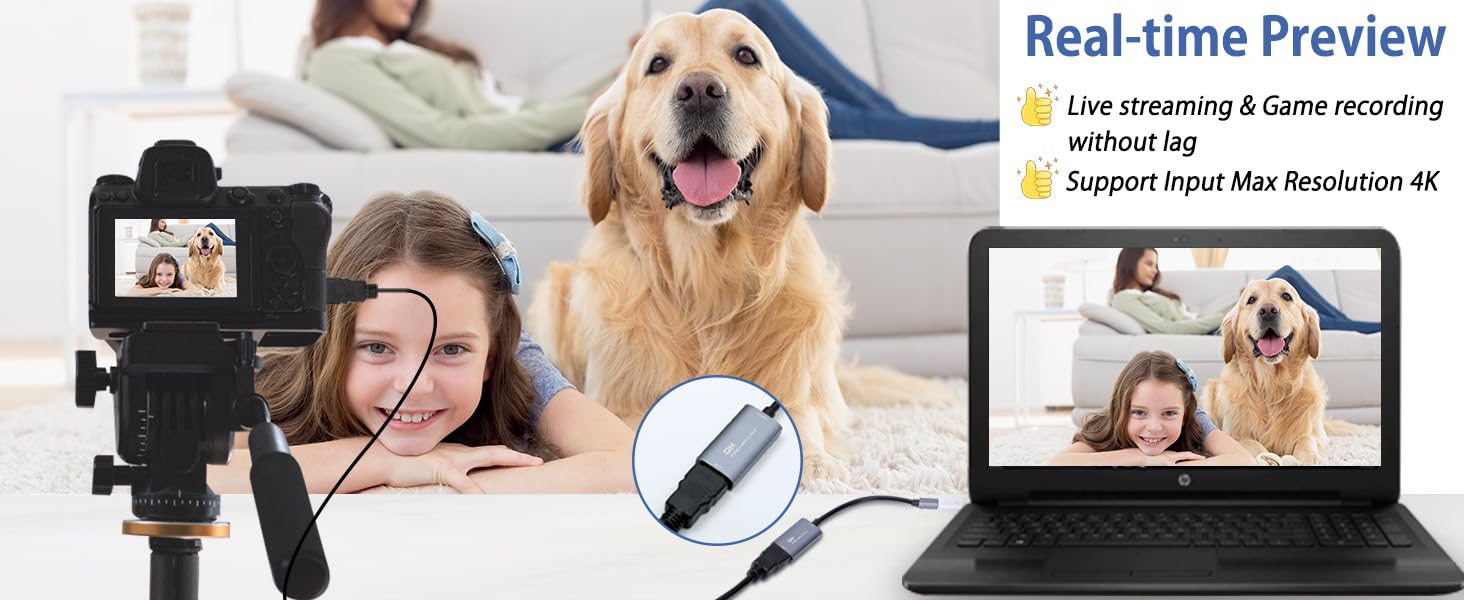
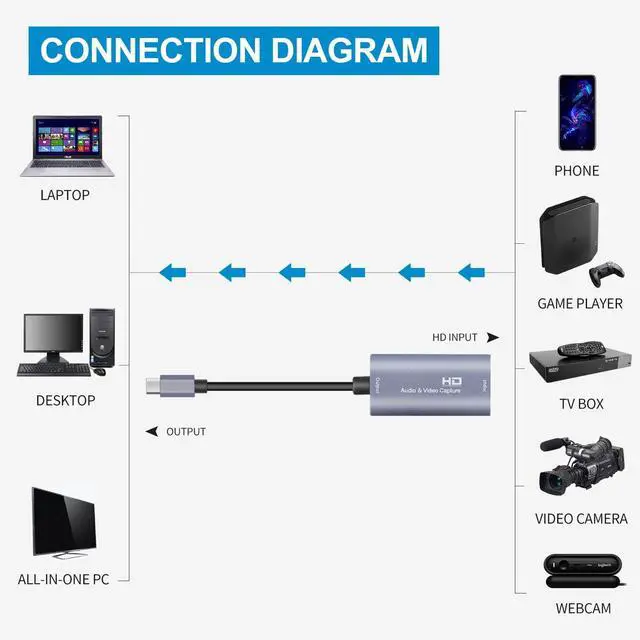
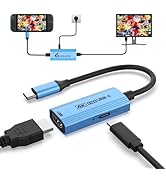
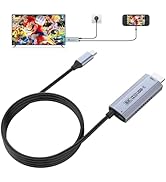
If you are unfamiliar with the operation, you can download the instruction manual available on the page or watch our connection tutorial video. Ensure the input and output ports are connected to the correct devices. Incorrect connections may result in no signal
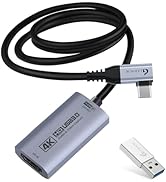
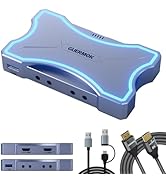
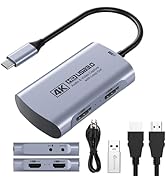
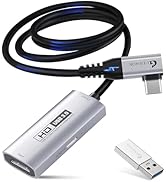
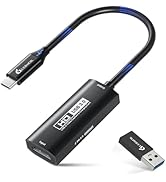
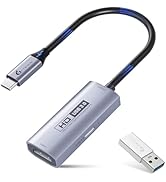
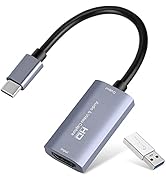
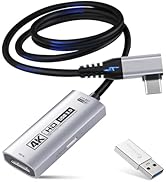
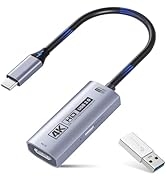
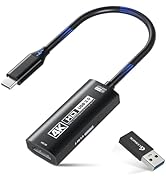
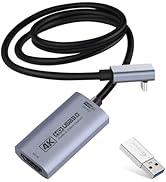
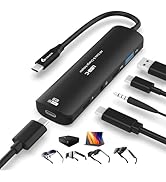
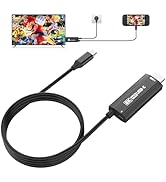
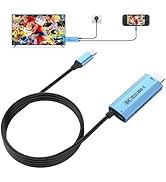
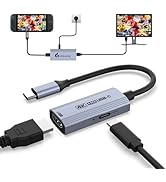
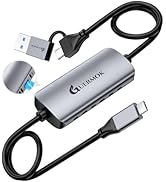
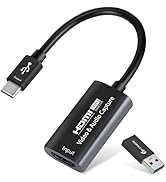
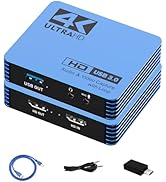
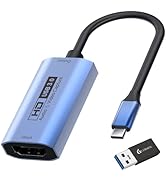
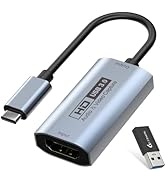
 Guermok USB3 Capture Card |  Guermok USB3 Capture Card |  Guermok USB3 Capture Card |  Guermok 4K60 Capture Card |  Guermok 4K60 Capture Card |  Guermok 4K60 Capture Card | 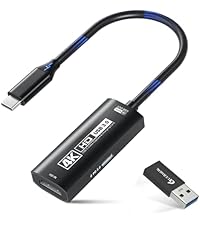 Guermok 4K60 Capture Card | |
|---|---|---|---|---|---|---|---|
Customer Reviews | — | — | — | — | — | — | — |
Price | — | — | — | — | — | — | — |
Power Delivery (PD) Support | ? | ? | ? | ? | ? | ? | ? |
Charging Port | ? | USB-C Output Port ONLY | USB-C Output Port ONLY | ? | ? | USB-C Input Port ONLY | USB-C Input Port ONLY |
Capture Resolution | 1080P@60Hz or 2k@30Hz | 1080P@60Hz or 2k@30Hz | 1080P@60Hz or 2k@30Hz | 1080P@240Hz or 4k@60Hz 2K144Hz | 1080P@240Hz or 4k@60Hz 2K144Hz | 1080P@240Hz or 4k@60Hz 2K144Hz | 1080P@240Hz or 4k@60Hz 2K144Hz |
Max Input Resolution | 4K@30Hz | 4K@30Hz | 4K@30Hz | 4K@60Hz | 4K@60Hz | 4K@60Hz | 4K@60Hz |
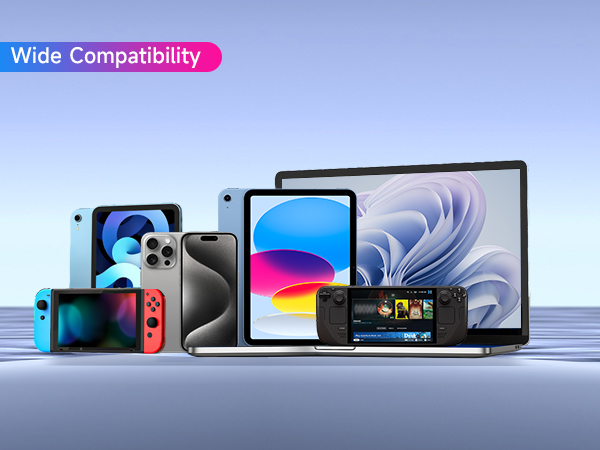
Compatibility | PS5/Switch/Camera/IPad/Quest | PS5/Switch/Camera/IPad/Quest | PS5/Switch/Camera/IPad/Quest | PS5/Switch/Camera/IPad/Quest | PS5/Switch/Camera/IPad/Quest | PS5/Switch/Camera/IPad/Quest | PS5/Switch/Camera/IPad/Quest |
Compatibility | PCs/Steam/Xbox/iphone/Android | PCs/Steam/Xbox/iphone/Android | PCs/Steam/Xbox/iphone/Android | PCs/Steam/Xbox/iphone/Android | PCs/Steam/Xbox/iphone/Android | PCs/Steam/Xbox/iphone/Android | PCs/Steam/Xbox/iphone/Android |
Connector | HDMI to USB A/C | HDMI to USB A/C | HDMI to USB A/C | HDMI to USB A/C | HDMI to USB A/C | HDMI to USB A/C | USB C to USB A/C |
Video Capture Software | OBS Studio/Potplayer/VLC/Vmix | OBS Studio/Potplayer/VLC/Vmix | OBS Studio/Potplayer/VLC/Vmix | OBS Studio/Potplayer/VLC/Vmix | OBS Studio/Potplayer/VLC/Vmix | OBS Studio/Potplayer/VLC/Vmix | OBS Studio/Potplayer/VLC/Vmix |
Video Capture Software | USB Camera/XRecorder/MiniCon | USB Camera/XRecorder/MiniCon | USB Camera/XRecorder/MiniCon | USB Camera/XRecorder/MiniCon | USB Camera/XRecorder/MiniCon | USB Camera/XRecorder/MiniCon | USB Camera/XRecorder/MiniCon |
Audio compatibility for APP | 1080P60fps for 48Khz App | 1080P60fps for 48Khz App | 1080P60fps for 48Khz App | 96Khz, 4K not for 48Khz App | 96Khz, 4K not for 48Khz App | 96Khz, 4K not for 48Khz App | 96Khz, 4K not for 48Khz App |
Video Output Format | YUY2/MJPEG | YUY2/MJPEG | YUY2/MJPEG | MJPEG, YUY2, NV12, XRGB | MJPEG, YUY2, NV12, XRGB | MJPEG, YUY2, NV12, XRGB | MJPEG, YUY2, NV12, XRGB |
Audio Output Interface | Outputs audio stream via USB | Outputs audio stream via USB | Outputs audio stream via USB | Outputs audio stream via USB | Outputs audio stream via USB | Outputs audio stream via USB | Outputs audio stream via USB |
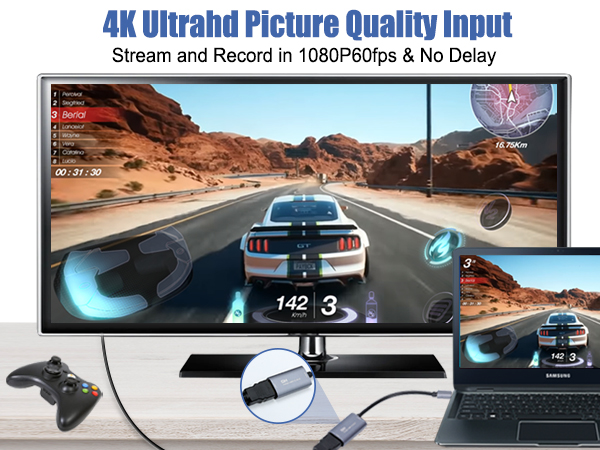
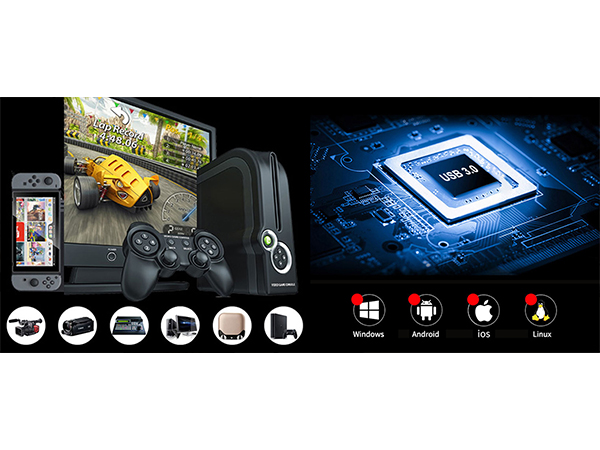
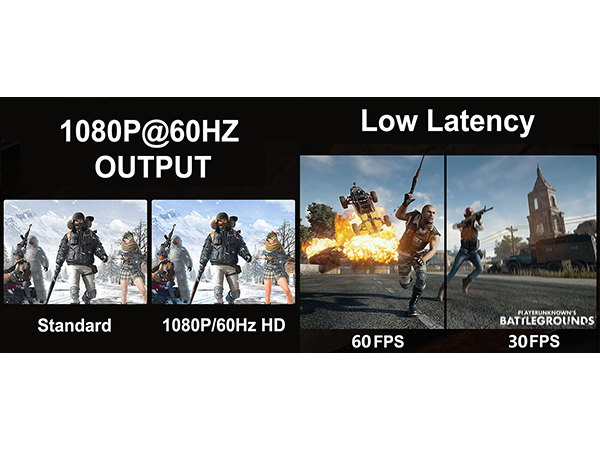
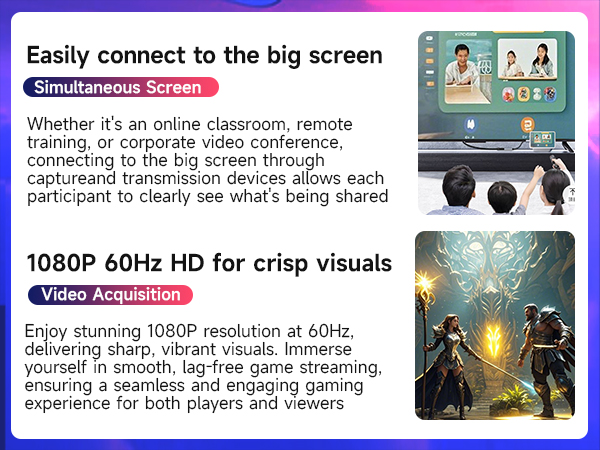
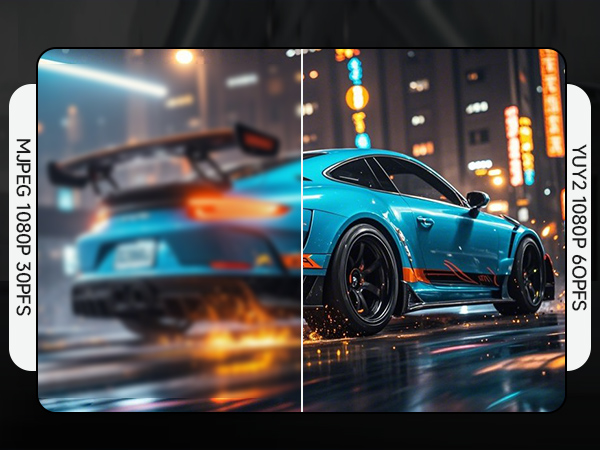



The product supports 4K input, but only 1080P output. Please ensure that the cable you are using supports the corresponding resolution, such as 1080P or 4K, to ensure optimal video quality
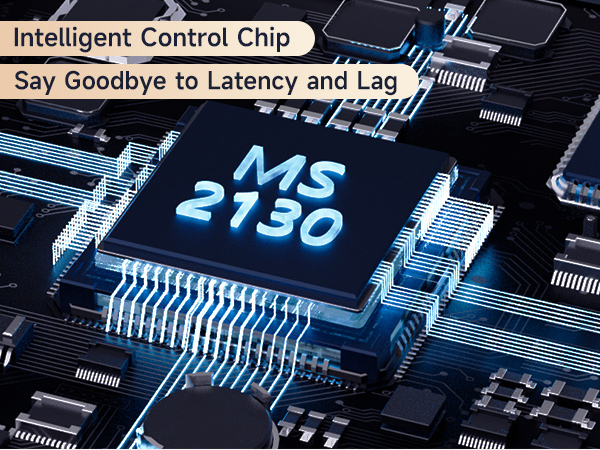
There may be a slight delay in the capture, but it is within an acceptable millisecond range and does not affect the video quality
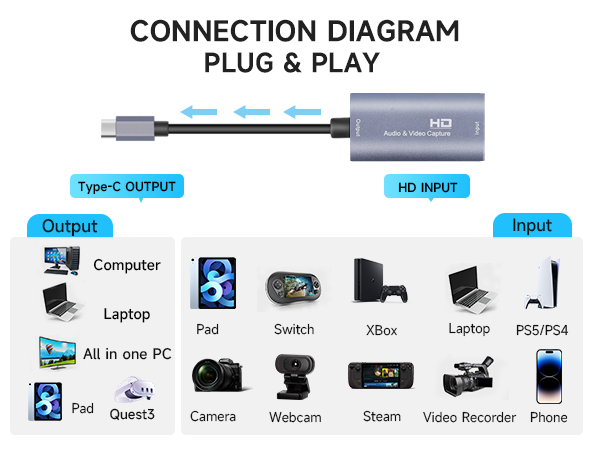
The USB-C port (or USB-A when using a USB-C to USB-A adapter) is for signal output .
Please ensure your signal output device has corresponding video capture software, as OBS, to enable screen capture
When using an adapter, if the device is recognized as USB 2.0, try using the other side with the USB-C port. Simply flip the capture card and reconnect it to be recognized as USB 3.0
Make sure the output format is compatible with the capture card. After checking everything, try reconnecting the devices and resetting the software. If "no signal" persists, try using a different APP
Please ensure your system is within the compatibility range. Some products may require disabling HD CP settings to function properly
Not all USB ports support 3.0 transmission. To ensure proper functionality, connect the device to a USB 3.0 port (often marked in blue or labeled "SS") and confirm your computer has the required USB 3.0 drivers installed


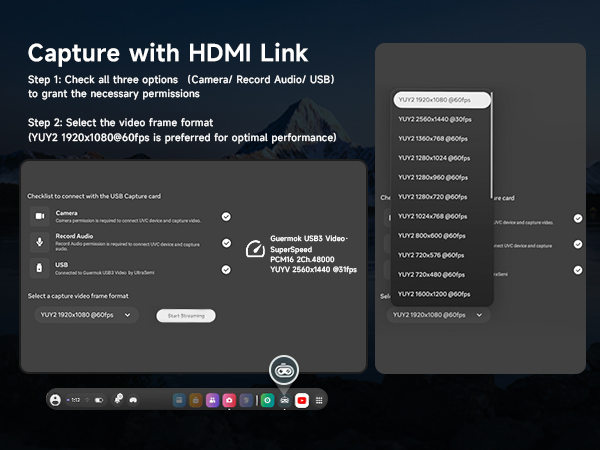


Capture every thrilling moment from your VR adventures with HDMI-enabled devices like Quest3/3s/2, allows you to seamlessly switch between gaming and office tasks, supporting multiple screens
MiniCon allows you to transform your iPad into an external display, offering plug-and-play USB-C connection, low-latency performance, and crisp video—good for streaming and content creation on the go
Using a capture card with QuickTime on Mac OS allows seamless, high-quality video recording and streaming. It offers easy integration with Mac's native tools, providing smooth performance
Record USB video and screen easily on Android with USB Camera & XRecorder. Easy plug & play setup, output via USB 2.0 or USB3.0, depending on the type of port on your phone or other devices
XSplit Broadcaster enhances capture card performance with seamless scene switching, pro-level audio/video mixing, and high-quality streaming or recording on PC
Streamlabs Desktop combines pro-level features with effortless setup for seamless streaming, making it easy to manage your live broadcasts and content creation all in one place
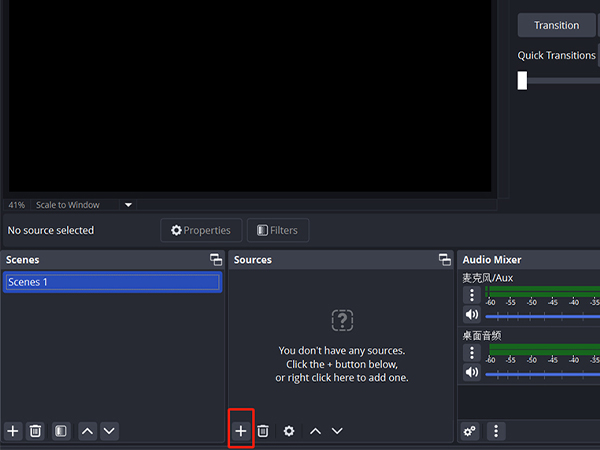
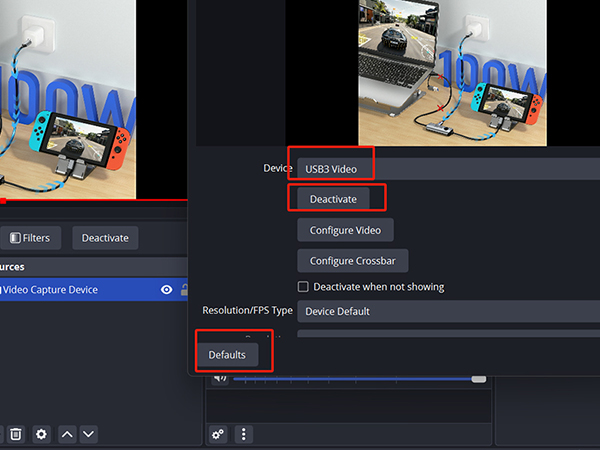


Add a new source
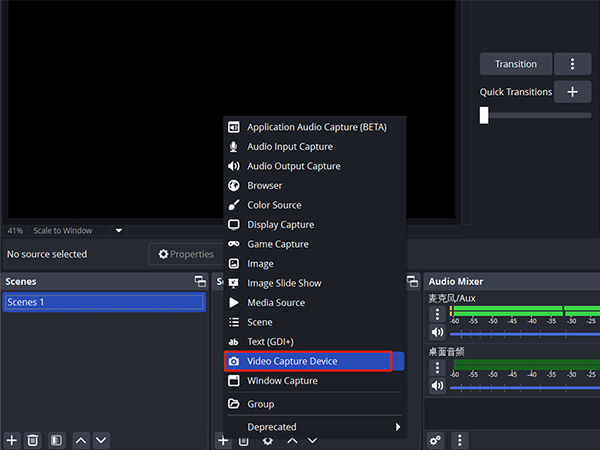
Select " video capture device"/ "audio and video input capture"
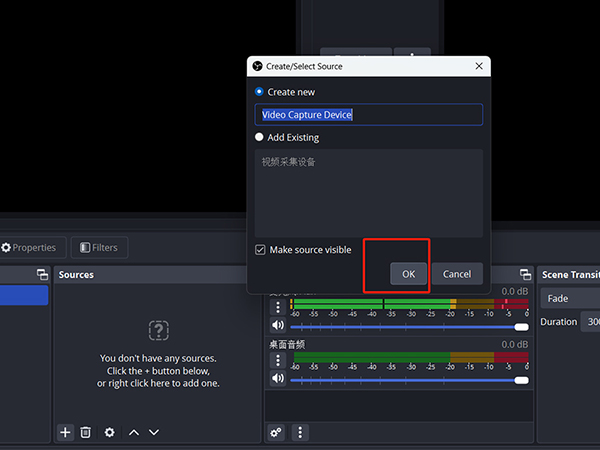
Rename and Click "OK".If there are multiple video sources, it is recommended that you cancel all of them and keep only one, so as to ensure that the captured screen is displayed properly.
evice Choose “ USB3 Video”?Click “ activate”?Resolution/FPS choose “ customize”?Resolution select "1920 x 1080"?FPS choose “60”?Video format select " MJPEG"& Click “OK”. If no image, click "Defaults"
Select " Studio Mode"
Click " Start Recording"
If the acquisition screen appears for the first time when using OBS, delete it and reopen the screen to recognize USB2.0. First restore the default value or deactivate and then activate to restore recognition to USB2.0
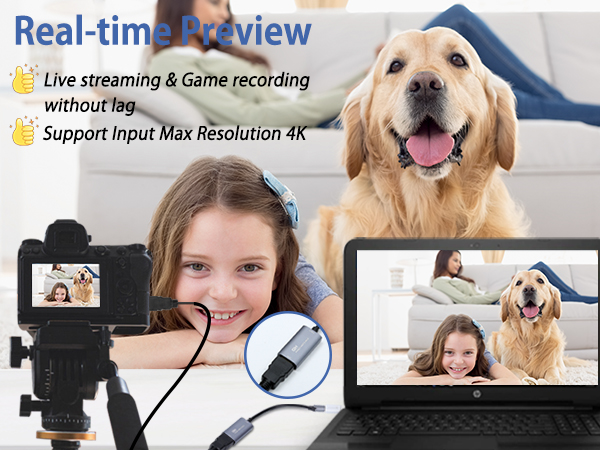
If you are unfamiliar with the operation, you can download the instruction manual available on the page or watch our connection tutorial video. Ensure the input and output ports are connected to the correct devices. Incorrect connections may result in no signal
Guermok USB3 Capture Card | Guermok USB3 Capture Card | Guermok USB3 Capture Card | Guermok 4K60 Capture Card | Guermok 4K60 Capture Card | Guermok 4K60 Capture Card | Guermok 4K60 Capture Card |
|---|---|---|---|---|---|---|
| Customer Reviews | ||||||
| — | — | — | — | — | — | — |
| Price | ||||||
| — | — | — | — | — | — | — |
| Power Delivery (PD) Support | ||||||
| ? | ? | ? | ? | ? | ? | ? |
| Charging Port | ||||||
| ? | USB-C Output Port ONLY | USB-C Output Port ONLY | ? | ? | USB-C Input Port ONLY | USB-C Input Port ONLY |
| Capture Resolution | ||||||
| 1080P@60Hz or 2k@30Hz | 1080P@60Hz or 2k@30Hz | 1080P@60Hz or 2k@30Hz | 1080P@240Hz or 4k@60Hz 2K144Hz | 1080P@240Hz or 4k@60Hz 2K144Hz | 1080P@240Hz or 4k@60Hz 2K144Hz | 1080P@240Hz or 4k@60Hz 2K144Hz |
| Max Input Resolution | ||||||
| 4K@30Hz | 4K@30Hz | 4K@30Hz | 4K@60Hz | 4K@60Hz | 4K@60Hz | 4K@60Hz |
| Compatibility | ||||||
| PS5/Switch/Camera/IPad/Quest | PS5/Switch/Camera/IPad/Quest | PS5/Switch/Camera/IPad/Quest | PS5/Switch/Camera/IPad/Quest | PS5/Switch/Camera/IPad/Quest | PS5/Switch/Camera/IPad/Quest | PS5/Switch/Camera/IPad/Quest |
| Compatibility | ||||||
| PCs/Steam/Xbox/iphone/Android | PCs/Steam/Xbox/iphone/Android | PCs/Steam/Xbox/iphone/Android | PCs/Steam/Xbox/iphone/Android | PCs/Steam/Xbox/iphone/Android | PCs/Steam/Xbox/iphone/Android | PCs/Steam/Xbox/iphone/Android |
| Connector | ||||||
| HDMI to USB A/C | HDMI to USB A/C | HDMI to USB A/C | HDMI to USB A/C | HDMI to USB A/C | HDMI to USB A/C | USB C to USB A/C |
| Video Capture Software | ||||||
| OBS Studio/Potplayer/VLC/Vmix | OBS Studio/Potplayer/VLC/Vmix | OBS Studio/Potplayer/VLC/Vmix | OBS Studio/Potplayer/VLC/Vmix | OBS Studio/Potplayer/VLC/Vmix | OBS Studio/Potplayer/VLC/Vmix | OBS Studio/Potplayer/VLC/Vmix |
| Video Capture Software | ||||||
| USB Camera/XRecorder/MiniCon | USB Camera/XRecorder/MiniCon | USB Camera/XRecorder/MiniCon | USB Camera/XRecorder/MiniCon | USB Camera/XRecorder/MiniCon | USB Camera/XRecorder/MiniCon | USB Camera/XRecorder/MiniCon |
| Audio compatibility for APP | ||||||
| 1080P60fps for 48Khz App | 1080P60fps for 48Khz App | 1080P60fps for 48Khz App | 96Khz, 4K not for 48Khz App | 96Khz, 4K not for 48Khz App | 96Khz, 4K not for 48Khz App | 96Khz, 4K not for 48Khz App |
| Video Output Format | ||||||
| YUY2/MJPEG | YUY2/MJPEG | YUY2/MJPEG | MJPEG, YUY2, NV12, XRGB | MJPEG, YUY2, NV12, XRGB | MJPEG, YUY2, NV12, XRGB | MJPEG, YUY2, NV12, XRGB |
| Audio Output Interface | ||||||
| Outputs audio stream via USB | Outputs audio stream via USB | Outputs audio stream via USB | Outputs audio stream via USB | Outputs audio stream via USB | Outputs audio stream via USB | Outputs audio stream via USB |
Redefining Gaming, Uniting Office Excellence, and Live Streaming Thrills
Our Genesis
Guermok's story unfolds at the intersection of passion for gaming, the pursuit of streamlined office life, and the captivating allure of live streaming. We believe that these realms aren't just separate activities but integral parts of modern living. Our commitment is to provide innovative products that fuse these elements harmoniously.
The Brand Philosophy
At Guermok, our brand philosophy is simple yet profound: make gaming a lifestyle, bring office excellence to the forefront, and infuse the thrill of live streaming into every moment. We encourage you to transcend boundaries and seamlessly integrate these facets into your daily life.
Guermok isn't just a brand; it's a community of like-minded individuals who understand the importance of balancing work, play, and entertainment. Our community encourages sharing, support, and the creation of unforgettable moments.
Guermok extends heartfelt gratitude to our customers, gamers, office professionals, and live streamers alike. Our mission is to empower you to seamlessly integrate these facets of modern life, ensuring you have the tools to succeed in work and play.
where gaming, office, and live streaming unite in excellence.