




RECHARGEABLE DUAL MODE BLUETOOTH MOUSE(Bluetooth 4.0/5.0+Usb-2.4G receiver)
How to use it 2.4Ghz Mode:
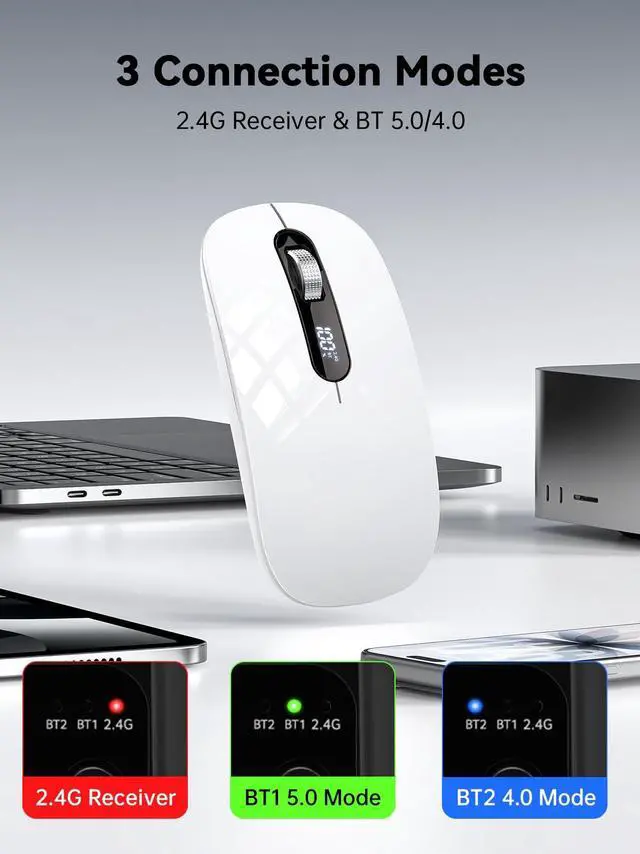
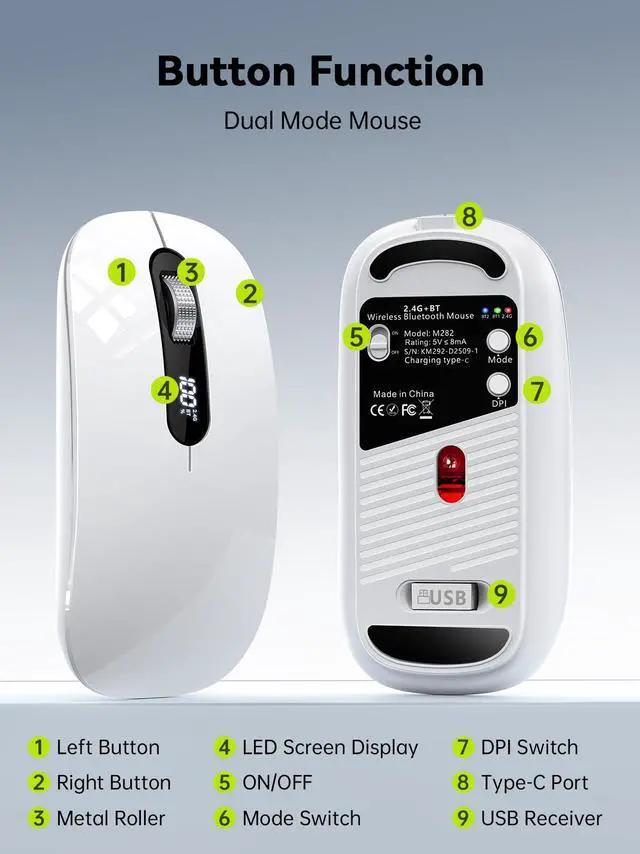
just take the USB receiver from the bottom of the mouse, then insert the USB receiver into the computer USB receiver port.Turn on the power switch,the 2.4G signal light will illuminate red. The 2.4G wireless mode is now ready to use.(The mouse screen will display 2.4G mode.)
How to connect to iOS/iPad/Pro/Air/iPhone (ios 13/ios 14) via Bluetooth Mouse
first To switch the mouse to Bluetooth mode (BT1 or BT2).open tabletSettings >Accessibility > Touch > AssistiveTouch > Click to open (An auxiliary dot will appear on the screen),Go back to Settings > Click on the bluetooth > Click to open > BT 5.0/4.0 MOUSE > connect and Pair.(PIN:0000)(If the Bluetooth name cannot be found, in Bluetooth mode, please press and hold the Bluetooth mode switch button for 6 seconds.)

It is compatible with Mac OS Windows XP, Vista, 7, 8, 10and is suitable for desktop, notebook, PC, Mac Macbook Pro/Air/ipad/iMac and other devices.

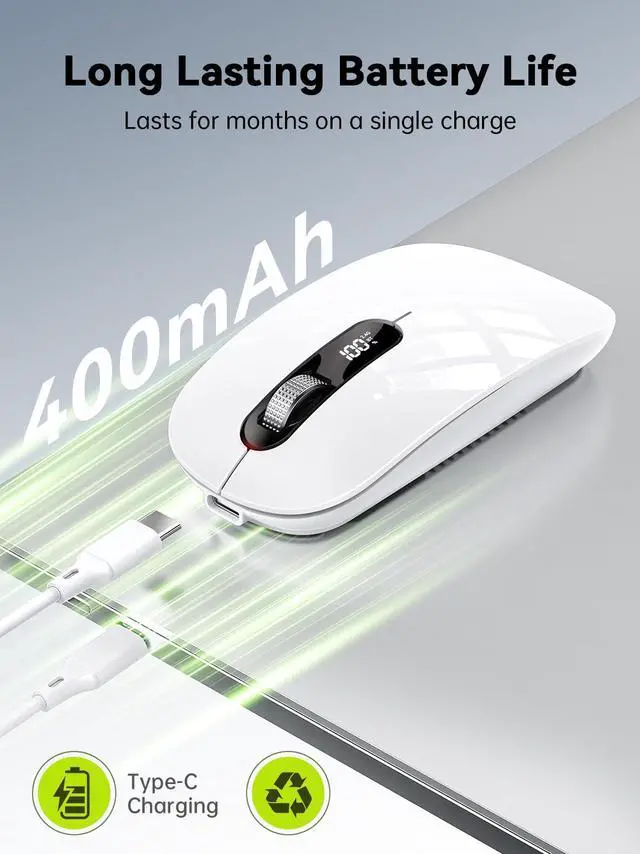
Note: The mouse cursor will move slowly or stop moving when the mouse is low battery,Please charge it in time. The blue light beside the scroll wheel will be on while charging, and then goes off when the mouse is fully charged,It takes about 2.5 hours to fully charge.


Q:What is the screen in the middle of the mouse for?
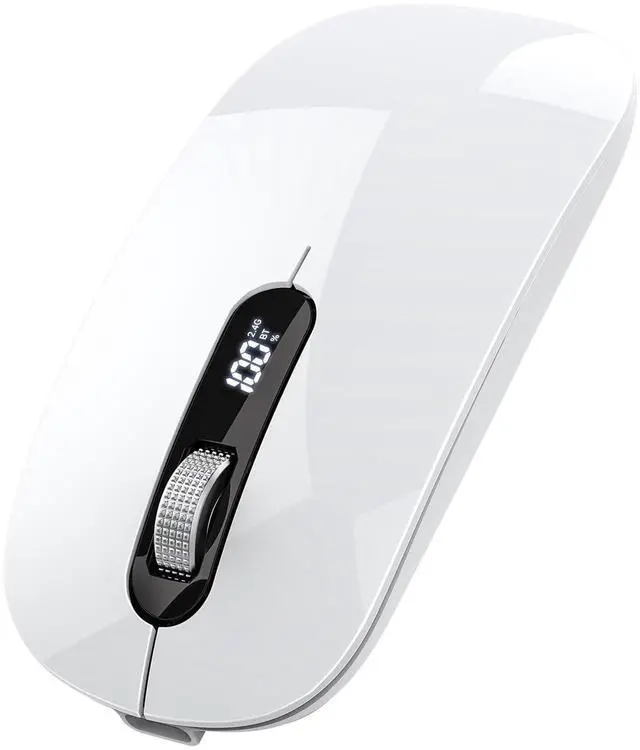
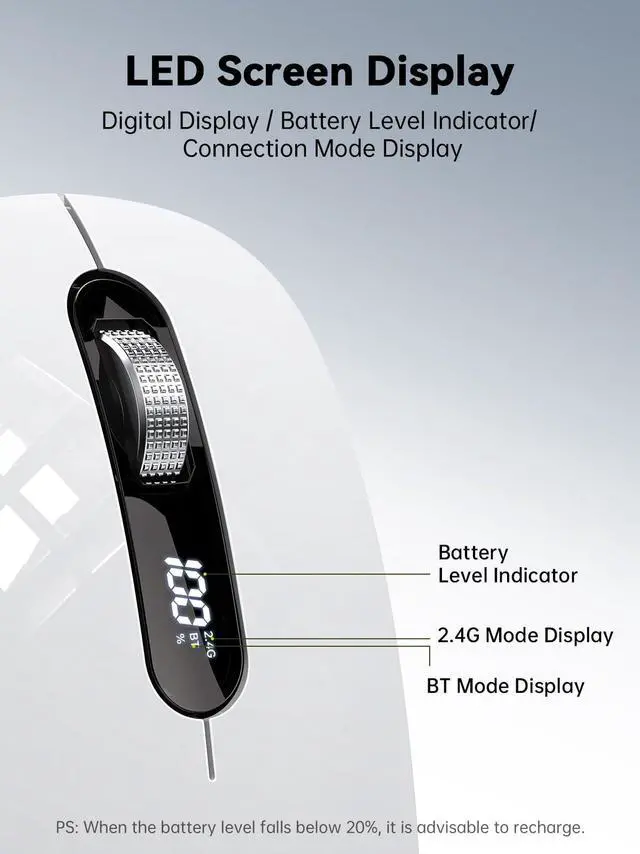
A:There is an LED screen in the middle of the mouse, which allows you to know , remaining battery, and connection mode at any time.
Q: Does this mouse connect via Bluetooth?
A: This mouse supports Bluetooth 5.0/4.0 and 2.4G wireless connectivity.
Q: How to connect to Bluetooth?
A: Search and connect to Bluetooth by switching the "mode" key. Blue means BT2, green means BT1, and red means 2.4G connection.
Q: What if I switch to Bluetooth mode but can't find the Bluetooth name on my device?
A: Switch to BT1 or BT2, press and hold the mode switch button for five seconds until the Bluetooth indicator light flashes rapidly, then find the Bluetooth name and connect.


Just Be Yourself
Choose what you need, Make work life easier!

RECHARGEABLE DUAL MODE BLUETOOTH MOUSE(Bluetooth 4.0/5.0+Usb-2.4G receiver)
How to use it 2.4Ghz Mode:
just take the USB receiver from the bottom of the mouse, then insert the USB receiver into the computer USB receiver port.Turn on the power switch,the 2.4G signal light will illuminate red. The 2.4G wireless mode is now ready to use.(The mouse screen will display 2.4G mode.)
How to connect to iOS/iPad/Pro/Air/iPhone (ios 13/ios 14) via Bluetooth Mouse
first To switch the mouse to Bluetooth mode (BT1 or BT2).open tabletSettings >Accessibility > Touch > AssistiveTouch > Click to open (An auxiliary dot will appear on the screen),Go back to Settings > Click on the bluetooth > Click to open > BT 5.0/4.0 MOUSE > connect and Pair.(PIN:0000)(If the Bluetooth name cannot be found, in Bluetooth mode, please press and hold the Bluetooth mode switch button for 6 seconds.)
It is compatible with Mac OS Windows XP, Vista, 7, 8, 10and is suitable for desktop, notebook, PC, Mac Macbook Pro/Air/ipad/iMac and other devices.
Note: The mouse cursor will move slowly or stop moving when the mouse is low battery,Please charge it in time. The blue light beside the scroll wheel will be on while charging, and then goes off when the mouse is fully charged,It takes about 2.5 hours to fully charge.
Q:What is the screen in the middle of the mouse for?
A:There is an LED screen in the middle of the mouse, which allows you to know , remaining battery, and connection mode at any time.
Q: Does this mouse connect via Bluetooth?
A: This mouse supports Bluetooth 5.0/4.0 and 2.4G wireless connectivity.
Q: How to connect to Bluetooth?
A: Search and connect to Bluetooth by switching the "mode" key. Blue means BT2, green means BT1, and red means 2.4G connection.
Q: What if I switch to Bluetooth mode but can't find the Bluetooth name on my device?
A: Switch to BT1 or BT2, press and hold the mode switch button for five seconds until the Bluetooth indicator light flashes rapidly, then find the Bluetooth name and connect.
Just Be Yourself
Choose what you need, Make work life easier!
About ASLDPUO
We’re a keyboard and mouse brand focused on innovation and quality.
Each of our teams is committed to providing customers with sincere service and a meaningful product experience.
We will always keep in mind the opinions of our customers to make the office convenient and comfortable.
