



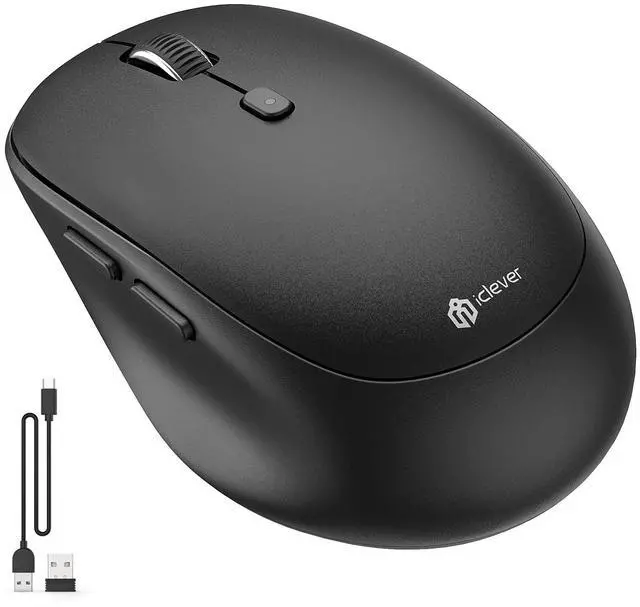


iClever Ultra Comfortable Bluetooth Wireless Mouse
Powerful Functionality
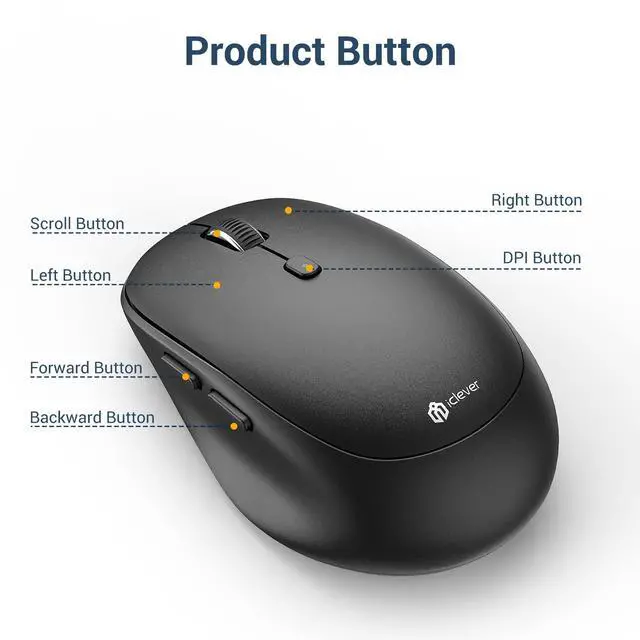
The iClever mouse has upgraded the function buttons in response to the current public needs. The mouse has a total of 7 function buttons, which greatly saves your working time and improves your work efficiency.
Simple and Sleek Design
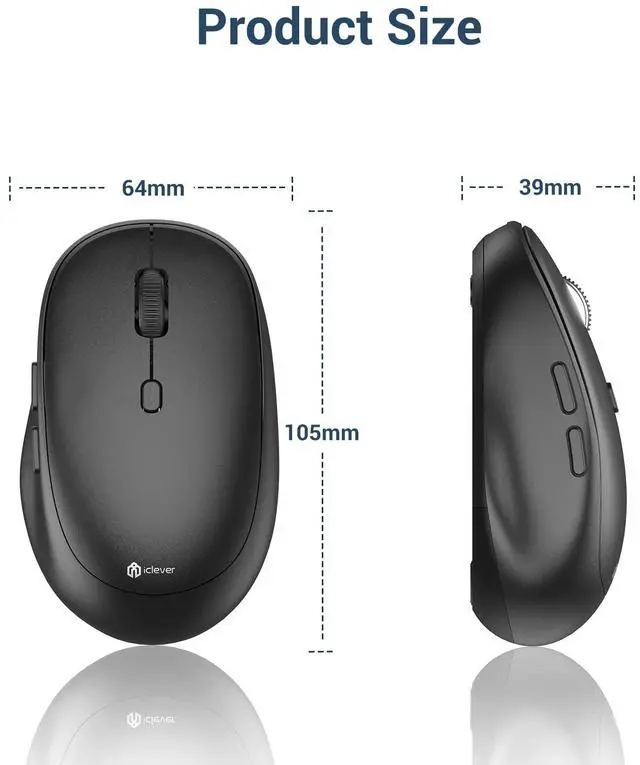
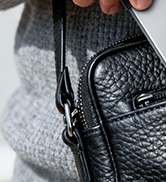
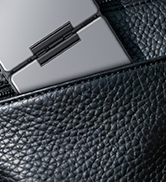
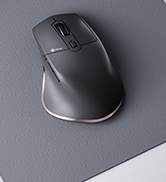
The iClever Bluetooth mouse is suitable for any scene. The portable and convenient design allows you to use it at any time. The simple and atmospheric design can reflect your taste.
Highlights
- Broad Compatibility
- Reliable Wireless Connection
- Rechargeable & Energy Saving
- 7 Buttons Design
- Ergonomic Right-hand Design
- Type-C Charging Port
- Plug and Play
- Quiet Design

Type-C Rechargeable
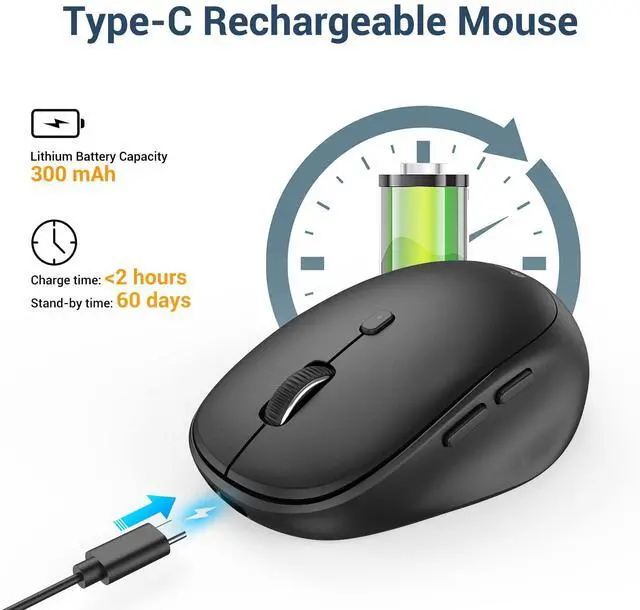
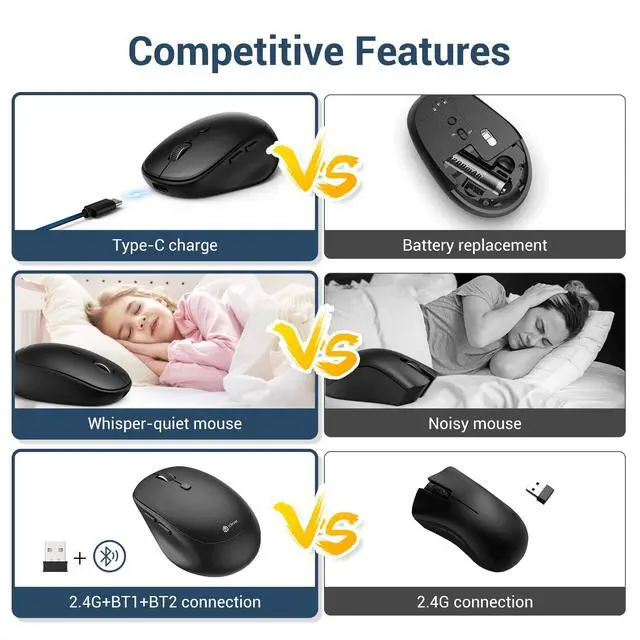
The powerful rechargeable battery provides 30 days of use after 2 hours of charging. Better yet, you can still use the mouse during charging. If you have not used it for a while, it will enter power-saving mode. (Press any key to wake up)

4 Levels DPI Adjustable
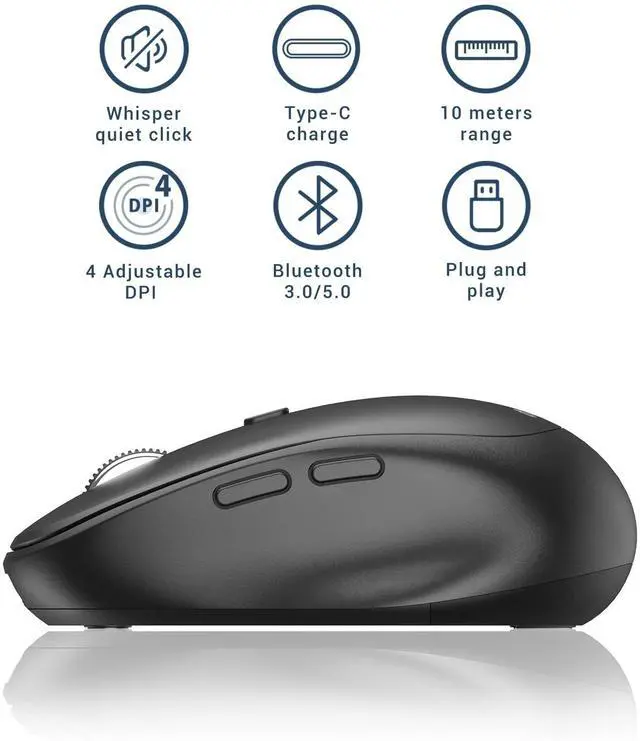
The wireless mouse has 4-Levels adjustable DPI(800/1200/1600/2400). It can be freely switched, enabling more precise operation, which greatly meets your daily demands

Ergonomic Right-hand Design
The curve shape of the mouse perfectly fits your right palm. A slight concave curve on the left side provides your thumb an anti-slip grip and relieves fatigue caused by long-term use. Thanks to the frosted finish, hand sweating is no match and effortless holding is within reach!

Whisper-quiet Left and Right Button
Silent button reduces of noises, which makes it an ideal wireless mouse for office, conference room, cafe, library, bedroom, help you concentrate on your work, study without disturbing others besides you.

2.4G Connectivity Range
iClever 2.4G Wireless mouse allows up to 10 meters working range without data transmission delays or dropping. Super smooth and stable.

Product Overview
Connect Button, 2.4G/BT1/BT2 Channel Indicator, USB receiver, Anti-Slip Pad, LED Indicator, ON/OFF Button.
 iClever BK10 Black Bluetooth keyboard |  iClever BK10 Black Bluetooth keyboard |  iClever DK03 Wireless and Bluetooth keyboard |  iClever GKA22B Wireless keyboard |  iClever GKA22S Wireless keyboard |  iClever 209G Ergonomic Mouse | |
|---|---|---|---|---|---|---|
| Customer Reviews | — | — | — | — | — | — |
| Price | — no data | — | — no data | — no data | — no data | — no data |
| Connection Type | USB Receiver | Bluetooth 5.1 | Bluetooth 4.2+USB Receiver | USB Receiver | USB Receiver | USB Receiver |
| System Reqiured | Mac OS/Windows | Mac OS/Windows/iOS/Android | Mac OS/Windows/iOS/Android | Mac OS/Windows | Mac OS/Windows | Mac OS/Windows |
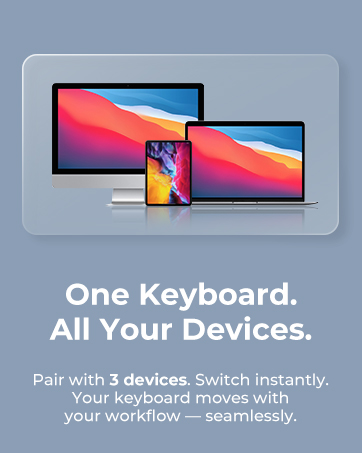
| Multi-device Bluetooth | One Device | Three Devices | Three Devices | One Device | One Device | One Device |
| Compatibility | Desktop/Laptop | PC/Tablet/Smartphone/ipad | PC/Tablet/Smartphone/ipad | Desktop/Laptop | Desktop/Laptop | Desktop/Laptop |
Q: Where is the USB receiver?
The USB receiver can be found in the mouse storage compartment.
Remove the mouse bottom cover to get it.
Q: Compatibility OS for MD165
- Windows 8 or late
- Android 6.0 or late
- iOS 9.0 or late
- Mac OS X 10.8 or later
NOTE:
- Not compatible with Mac mini, Mac studio, XBOX, Samsung Smart TV, Nokia Phones, and Bluetooth adapter.
- Forward and backward buttons do not work in MacOS and iOS.
Q: Can this wireless mouse be connected by either 2.4G or Bluetooth?
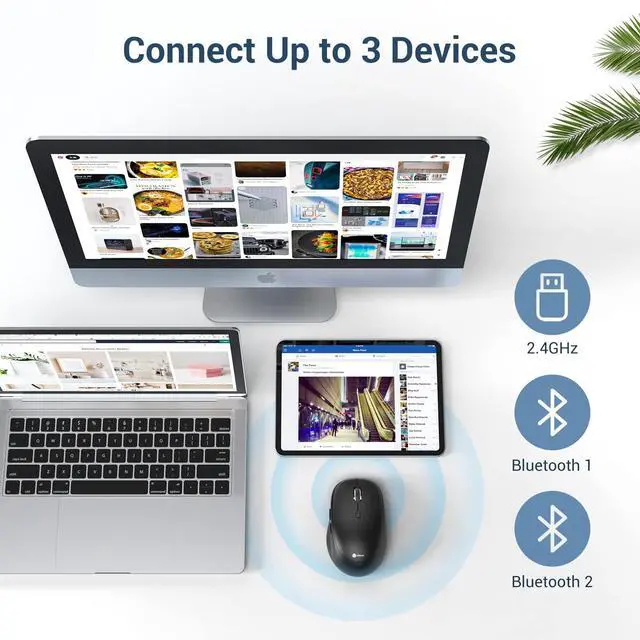
- Yes, the mouse is dual-mode and can connect by either 2.4G or Bluetooth.
Q: Delay when typing / Buttons or keys do not work correctly
- Verify the product or receiver is connected directly to the computer and not to a hub, extender, switch, or something similar.
- Move the keyboard closer to the USB receiver. If your receiver is in the back of your computer, it may help to relocate the receiver to a front port.
- Keep other electrical wireless devices away from the USB receiver to avoid interferences.
- Remove all wireless adapters/receivers on your computer except iclever's
- Check if there are any Windows updates running in the background that may cause the delay.
- Try on a different computer.
Q: Mouse isn't working
- Charge the mouse for 2 hours
- Moving the receiver to another USB-A port
- Moving the receiver to another computer to verify
- Do not use your wireless mouse on metal surfaces
- Keep other electrical wireless devices away from the USB receiver to avoid interferences. Such as: 1.Wireless speakers 2.Computer power supplies 3.Monitors 4.Cell phones 5.Garage door openers





iClever Ultra Comfortable Bluetooth Wireless Mouse
Powerful Functionality
The iClever mouse has upgraded the function buttons in response to the current public needs. The mouse has a total of 7 function buttons, which greatly saves your working time and improves your work efficiency.
Simple and Sleek Design
The iClever Bluetooth mouse is suitable for any scene. The portable and convenient design allows you to use it at any time. The simple and atmospheric design can reflect your taste.
Highlights
- Broad Compatibility
- Reliable Wireless Connection
- Rechargeable & Energy Saving
- 7 Buttons Design
- Ergonomic Right-hand Design
- Type-C Charging Port
- Plug and Play
- Quiet Design
Type-C Rechargeable
The powerful rechargeable battery provides 30 days of use after 2 hours of charging. Better yet, you can still use the mouse during charging. If you have not used it for a while, it will enter power-saving mode. (Press any key to wake up)
4 Levels DPI Adjustable
The wireless mouse has 4-Levels adjustable DPI(800/1200/1600/2400). It can be freely switched, enabling more precise operation, which greatly meets your daily demands
Ergonomic Right-hand Design
The curve shape of the mouse perfectly fits your right palm. A slight concave curve on the left side provides your thumb an anti-slip grip and relieves fatigue caused by long-term use. Thanks to the frosted finish, hand sweating is no match and effortless holding is within reach!
Whisper-quiet Left and Right Button
Silent button reduces of noises, which makes it an ideal wireless mouse for office, conference room, cafe, library, bedroom, help you concentrate on your work, study without disturbing others besides you.
2.4G Connectivity Range
iClever 2.4G Wireless mouse allows up to 10 meters working range without data transmission delays or dropping. Super smooth and stable.
Product Overview
Connect Button, 2.4G/BT1/BT2 Channel Indicator, USB receiver, Anti-Slip Pad, LED Indicator, ON/OFF Button.
iClever BK10 Black Bluetooth keyboard | iClever BK10 Black Bluetooth keyboard | iClever DK03 Wireless and Bluetooth keyboard | iClever GKA22B Wireless keyboard | iClever GKA22S Wireless keyboard | iClever 209G Ergonomic Mouse | |
|---|---|---|---|---|---|---|
| Customer Reviews | — | — | — | — | — | — |
| Price | — no data | — | — no data | — no data | — no data | — no data |
| Connection Type | USB Receiver | Bluetooth 5.1 | Bluetooth 4.2+USB Receiver | USB Receiver | USB Receiver | USB Receiver |
| System Reqiured | Mac OS/Windows | Mac OS/Windows/iOS/Android | Mac OS/Windows/iOS/Android | Mac OS/Windows | Mac OS/Windows | Mac OS/Windows |
| Multi-device Bluetooth | One Device | Three Devices | Three Devices | One Device | One Device | One Device |
| Compatibility | Desktop/Laptop | PC/Tablet/Smartphone/ipad | PC/Tablet/Smartphone/ipad | Desktop/Laptop | Desktop/Laptop | Desktop/Laptop |
Q: Where is the USB receiver?
The USB receiver can be found in the mouse storage compartment.
Remove the mouse bottom cover to get it.
Q: Compatibility OS for MD165
- Windows 8 or late
- Android 6.0 or late
- iOS 9.0 or late
- Mac OS X 10.8 or later
NOTE:
- Not compatible with Mac mini, Mac studio, XBOX, Samsung Smart TV, Nokia Phones, and Bluetooth adapter.
- Forward and backward buttons do not work in MacOS and iOS.
Q: Can this wireless mouse be connected by either 2.4G or Bluetooth?
- Yes, the mouse is dual-mode and can connect by either 2.4G or Bluetooth.
Q: Delay when typing / Buttons or keys do not work correctly
- Verify the product or receiver is connected directly to the computer and not to a hub, extender, switch, or something similar.
- Move the keyboard closer to the USB receiver. If your receiver is in the back of your computer, it may help to relocate the receiver to a front port.
- Keep other electrical wireless devices away from the USB receiver to avoid interferences.
- Remove all wireless adapters/receivers on your computer except iclever's
- Check if there are any Windows updates running in the background that may cause the delay.
- Try on a different computer.
Q: Mouse isn't working
- Charge the mouse for 2 hours
- Moving the receiver to another USB-A port
- Moving the receiver to another computer to verify
- Do not use your wireless mouse on metal surfaces
- Keep other electrical wireless devices away from the USB receiver to avoid interferences. Such as: 1.Wireless speakers 2.Computer power supplies 3.Monitors 4.Cell phones 5.Garage door openers
WorkMate
FoldMate
NumMate
SilentTap
