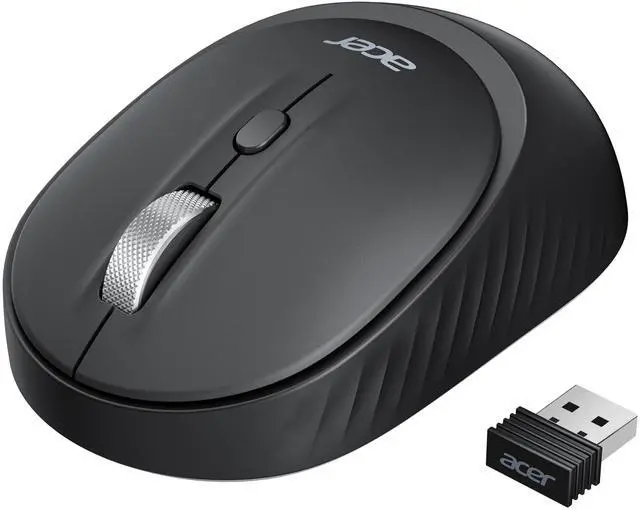
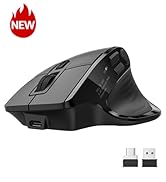
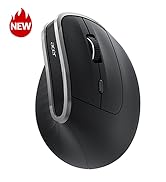
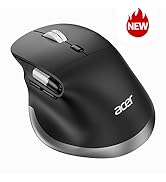
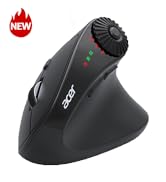
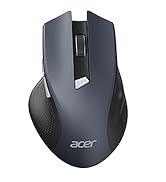
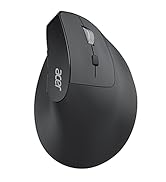
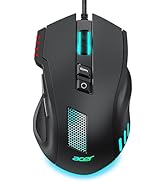
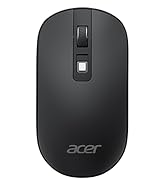
Bluetooth Wireless Mouse for Laptop, Computer Mouse Wireless (BT5.2+2.4GHz), Small to Medium Size, Left & Right Handed Office USB Mice with USBA Receiver, 4 Buttons, Compatible with PC, Desktop
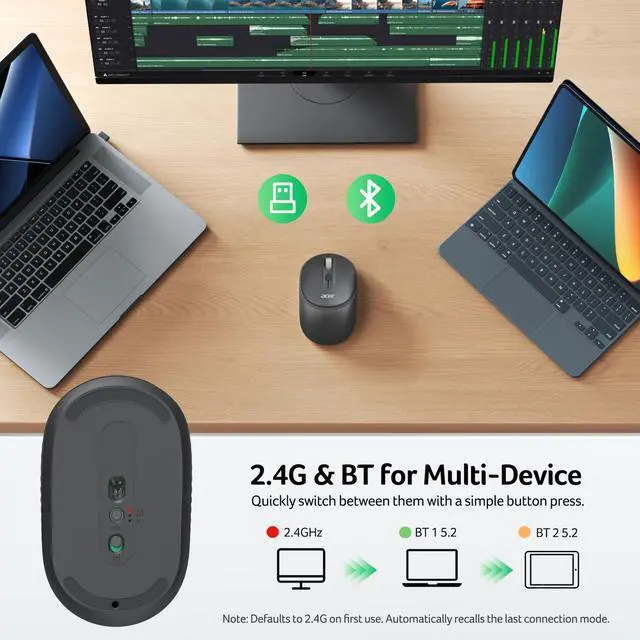
Bluetooth & 2.4GHz Wireless in OneThis dual-mode bluetooth mouse allows seamless switching between three devices with a simple toggle (2.4G, BT1, BT2). It supports bluetooth connections for two devices and a 2.4GHz Wireless for the third. Note: Bluetooth mode and 2.4G mode cannot be used simultaneously.
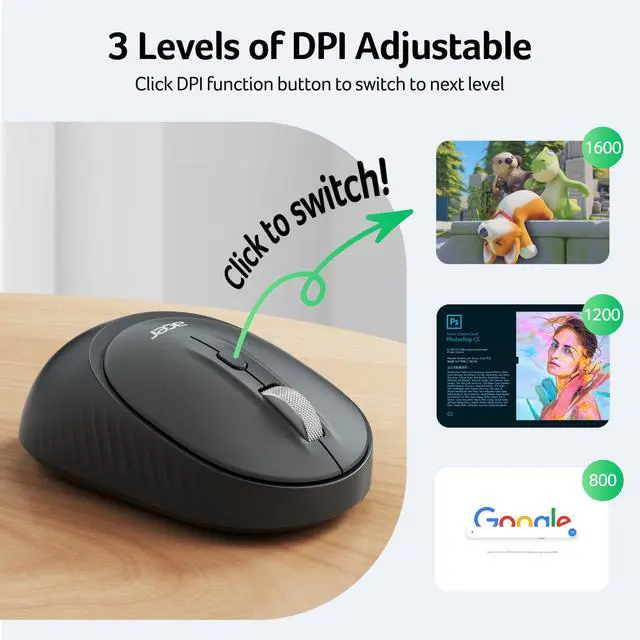
3 Levels Adjustable DPIThis USB mouse offers 3 adjustable DPI settings (800, 1200, 1600), allowing you to customize sensitivity for precise design work. Effortlessly switch to match your task and elevate your productivity.
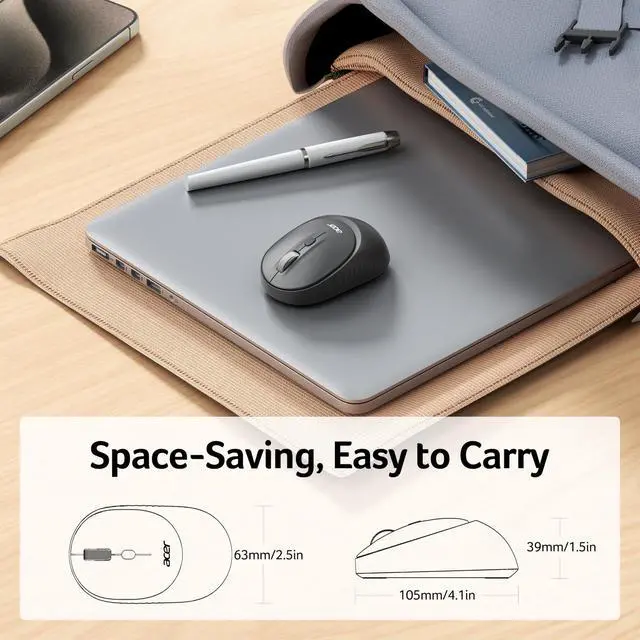
Left & Right Hand Equally ComfortableThe laptop mouse wireless features a symmetrical and slim design that ensures a comfortable, natural grip for both right- and left-handed users, offering universal adaptability for broader user groups. Its compact size perfect travel companion for work or play.
Silent Clicks, Seamless FocusThe silent mouse delivers quiet operation, making it perfect for offices, libraries, or late-night work sessions. With smooth, noiseless clicking, you can focus without interruptions. Whether you're working and studying in quiet environments, Say goodbye to annoying clicky.
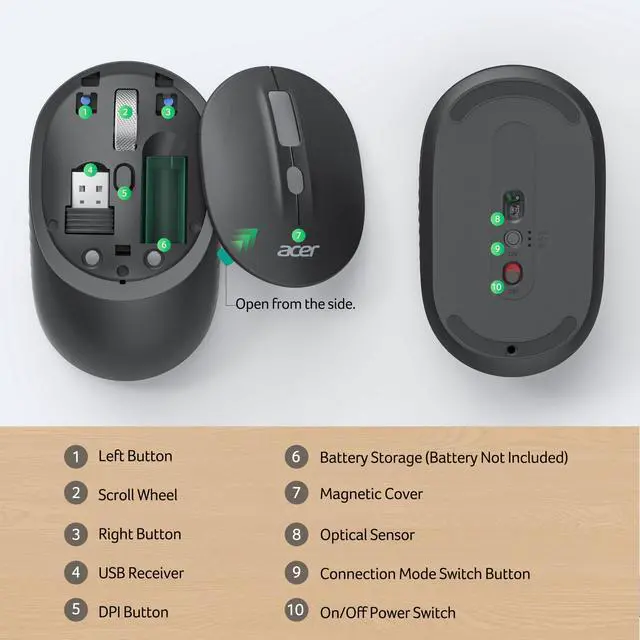
User-Friendly Magnetic CoverThis travel mouse features a magnetic battery cover on the top surface. The snap-on cover aligns perfectly with built-in magnets, allowing quick battery replacement. The sleek, seamless design maintains the mouses aesthetics while enhancing usability. Note: Please remove the battery cover from the left or right side.
1. Please check if the battery is installed with the correct polarity. Make sure the power switch is set to "ON". 2. Try to plug the receiver into a different USB-A port or Restart the computer. 3. The battery might be dead.
Q2
Where is the USB A receiver?
-
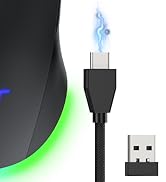
Please open the battery cover on the top of mouse; the receiver is stored in the battery compartment.
Q3
How to wake up the mouse?
-
Powers down after 10 minutes of idle and requires 2-3 clicks to wake it.
Q4
How to switch seamlessly between different devices?
-
Press the round button at the bottom of the mouse, you can seamlessly switch between the three devices of 2.4GHz, BT1 and BT2 to use the mouse. Please note: When using Bluetooth connection for the first time, you must first ensure that the device and the mouse are paired with Bluetooth.
Q5
How to connect to Bluetooth?
-
(1) Power on the mouse; (2) press the mode switch button to switch to BT1/BT2; (3) long press the mode switch button for 3-5 sec, the indicator light will flash fast to enter the Bluetooth pairing mode; (4) find the Bluetooth name "Acer BT5.2 Mouse" to pair.
Q6
When the mouse responds slowly, has delays, or lacks precision, please follow these steps to re-pair it
-
1. Insert the batteries into the mouse, switch it to the "NO" position to power it on.
-
2. Plug in the mouse receiver to computer, then press and hold both the left and right mouse buttons simultaneously.
-
3. Place the mouse within 20 cm of the receiver and wait for 3–5 seconds until pairing is complete. Your mouse will then be successfully paired with the receiver and ready for normal use.
Q7
What are the dimensions and weight of this mouse?
-
This mouse is L 4.1 inches, W 2.5 inches, H 1.5 inches, and a weight of 2oz.
1. Please check if the battery is installed with the correct polarity. Make sure the power switch is set to "ON". 2. Try to plug the receiver into a different USB-A port or Restart the computer. 3. The battery might be dead.
Q2
Where is the USB A receiver?
-
Please open the battery cover on the top of mouse; the receiver is stored in the battery compartment.
Q3
How to wake up the mouse?
-
Powers down after 10 minutes of idle and requires 2-3 clicks to wake it.
Q4
How to switch seamlessly between different devices?
-
Press the round button at the bottom of the mouse, you can seamlessly switch between the three devices of 2.4GHz, BT1 and BT2 to use the mouse. Please note: When using Bluetooth connection for the first time, you must first ensure that the device and the mouse are paired with Bluetooth.
Q5
How to connect to Bluetooth?
-
(1) Power on the mouse; (2) press the mode switch button to switch to BT1/BT2; (3) long press the mode switch button for 3-5 sec, the indicator light will flash fast to enter the Bluetooth pairing mode; (4) find the Bluetooth name "Acer BT5.2 Mouse" to pair.
Q6
When the mouse responds slowly, has delays, or lacks precision, please follow these steps to re-pair it
-
1. Insert the batteries into the mouse, switch it to the "NO" position to power it on.
-
2. Plug in the mouse receiver to computer, then press and hold both the left and right mouse buttons simultaneously.
-
3. Place the mouse within 20 cm of the receiver and wait for 3–5 seconds until pairing is complete. Your mouse will then be successfully paired with the receiver and ready for normal use.
Q7
What are the dimensions and weight of this mouse?
-
This mouse is L 4.1 inches, W 2.5 inches, H 1.5 inches, and a weight of 2oz.
Acer Dual Mode Gaming Mouse
Acer Mouse
Acer Wireless Mice
Bluetooth Wireless Mouse for Laptop, Computer Mouse Wireless (BT 5.2 + 2.4GH z), Small to Medium Size, Left & Right Handed Office USB Mice with USBA Receiver, 4 Buttons, Compatible with PC, Desktop
Learn more about the acer
Model
Brand
HP
Name
acer
Model
OMR270
Part Number
OMR270
Type
PC Keyboard\Mouse Combos
Details
Color
Black
Hand Orientation
Right Hand
Tracking Method
Optical
Sensor
Optical
Buttons
3
Scrolling Capability
Touch Scroll
Wireless
Power Supply
Wired
Details
Weight
2 ounces
OS / System Requirement
Operating System Supported
Windows 98/ ME/ 2000/ XP; Mac OS X 9.X +
Details
Windows Vista
Certified for Windows Vista
Additional Information
First Listed on Newegg
April 23, 2026
Customer Reviews of acer
There are no reviews yet.
Do you own this product?
Warranty & Returns
Warranty, Returns, And Additional Information
Warranty
Please contact the Seller directly for warranty information. Warranty information may also be found on the Manufacturer's website.