



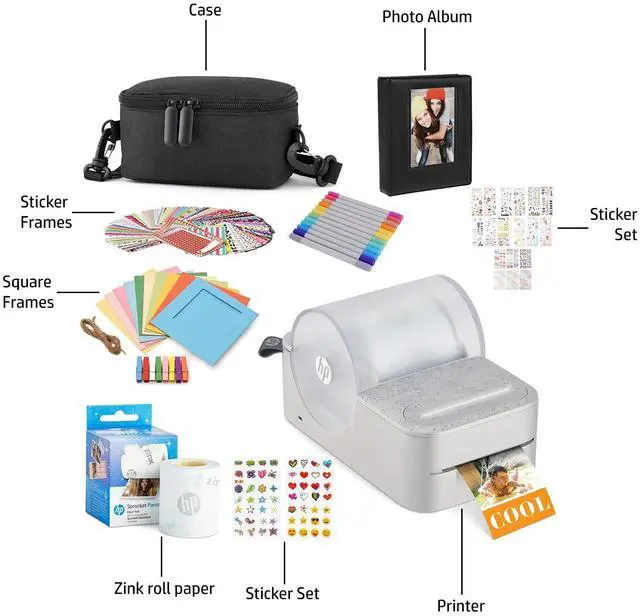
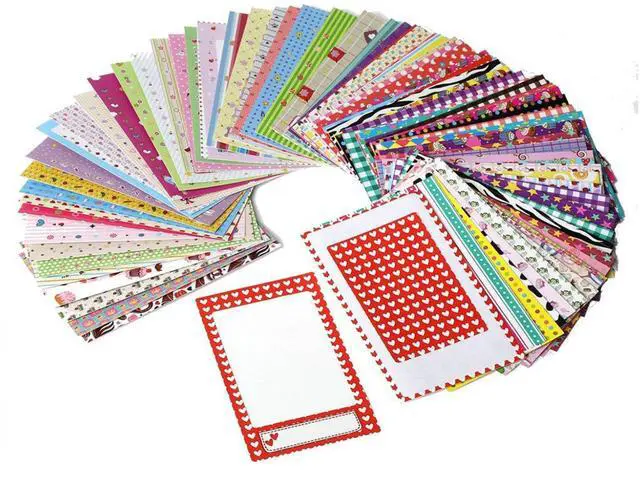
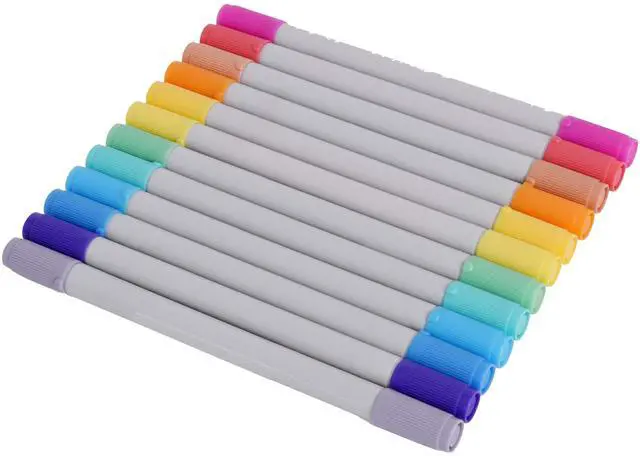


The Perfect Gift for Kids and Adults

Experience the Panorama Fun
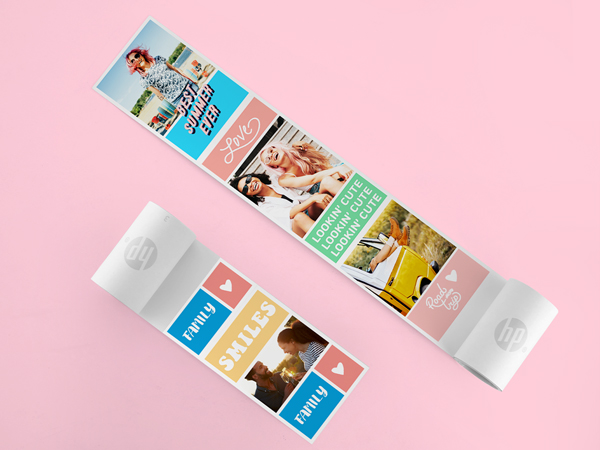
Create Custom Photobooth Strips, Labels & Designs
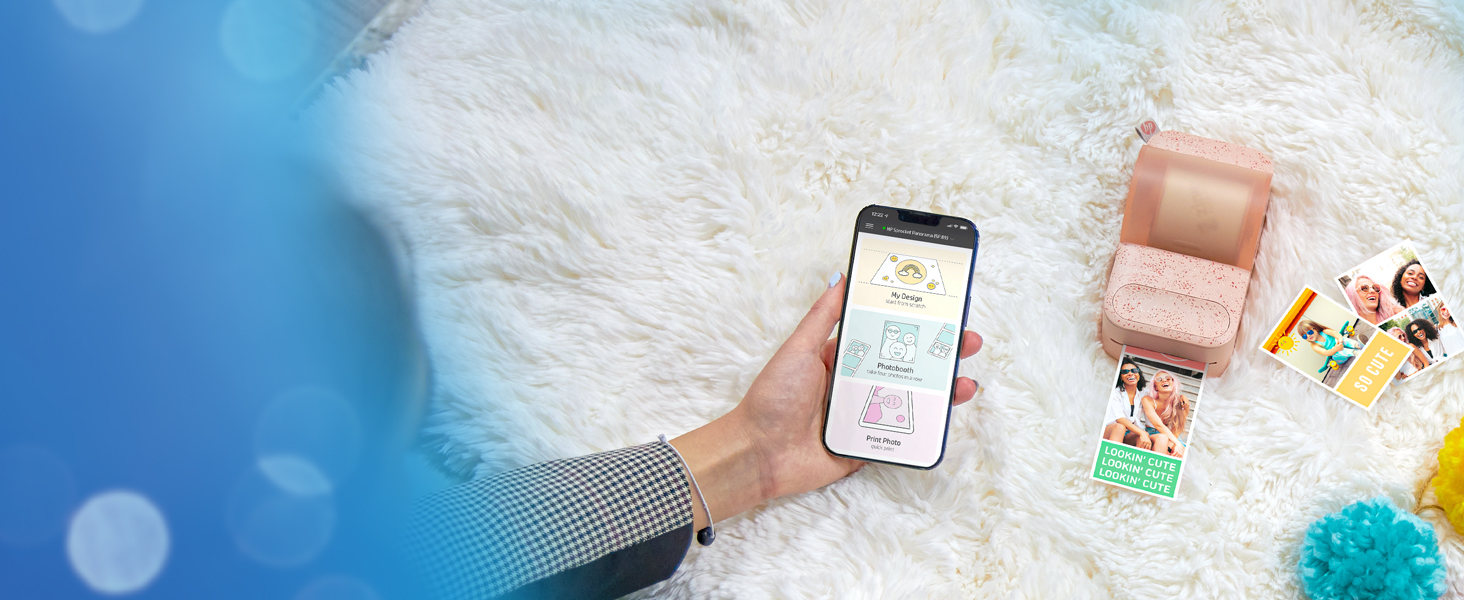
Wireless printing at your fingertips
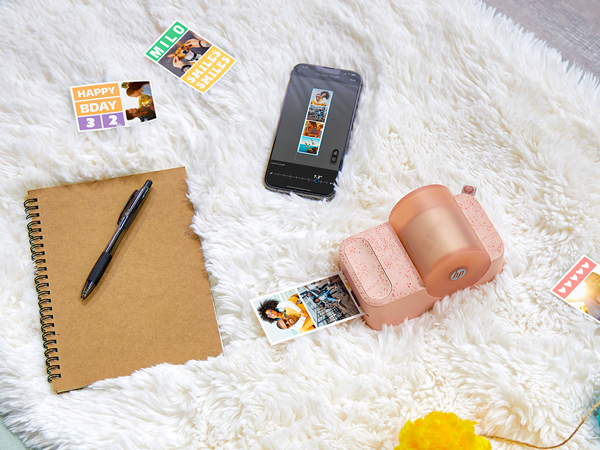
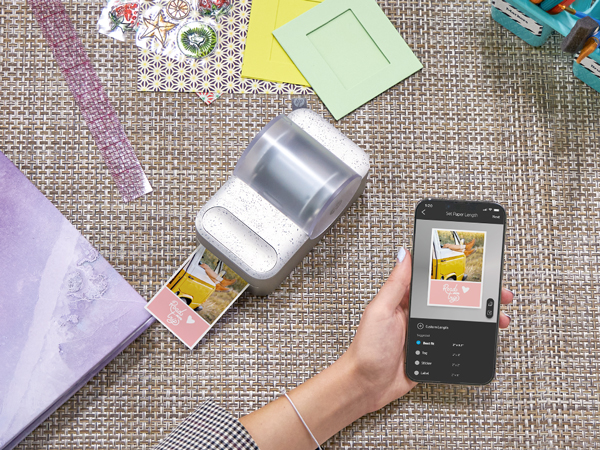
Connect to any iOS or Android smartphone via Bluetooth and instantly print from the Panorama app.
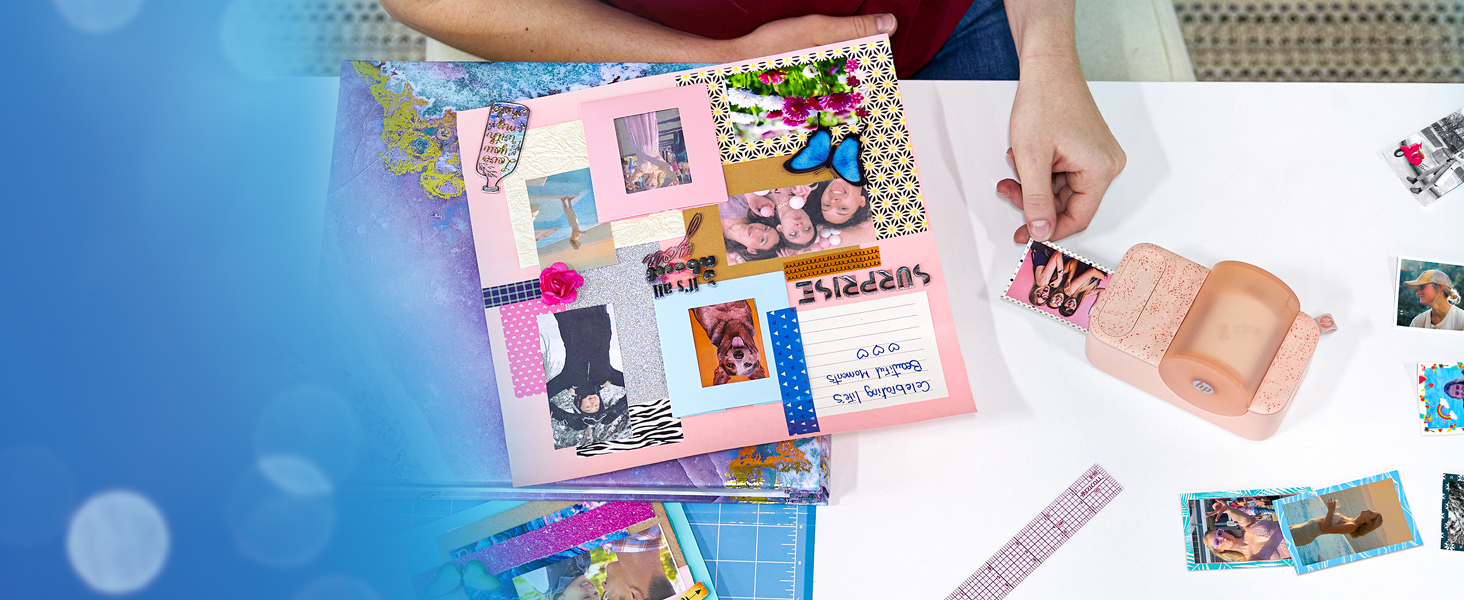
Get creative with tons of options
Use stickers, borders, filters, and customizable text to turn your photos into artwork.
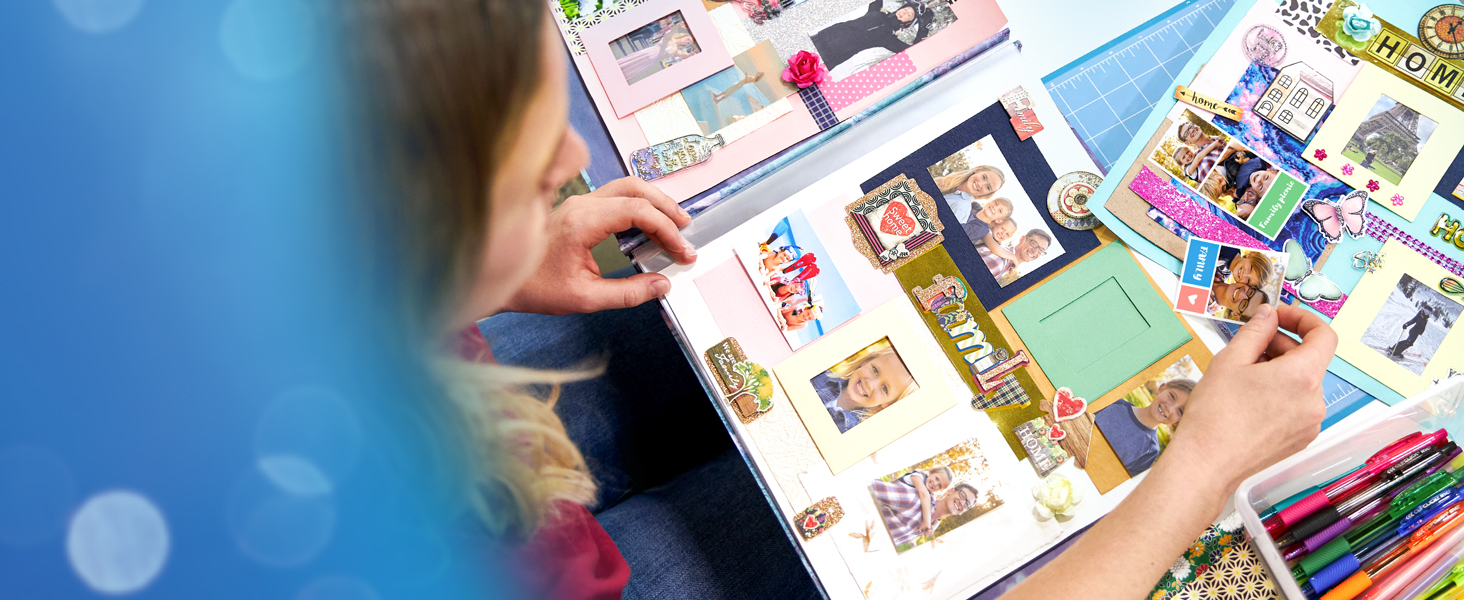
Mesh memories together with style
Put photos on the canvas your way or print consecutive pictures with the photobooth feature.
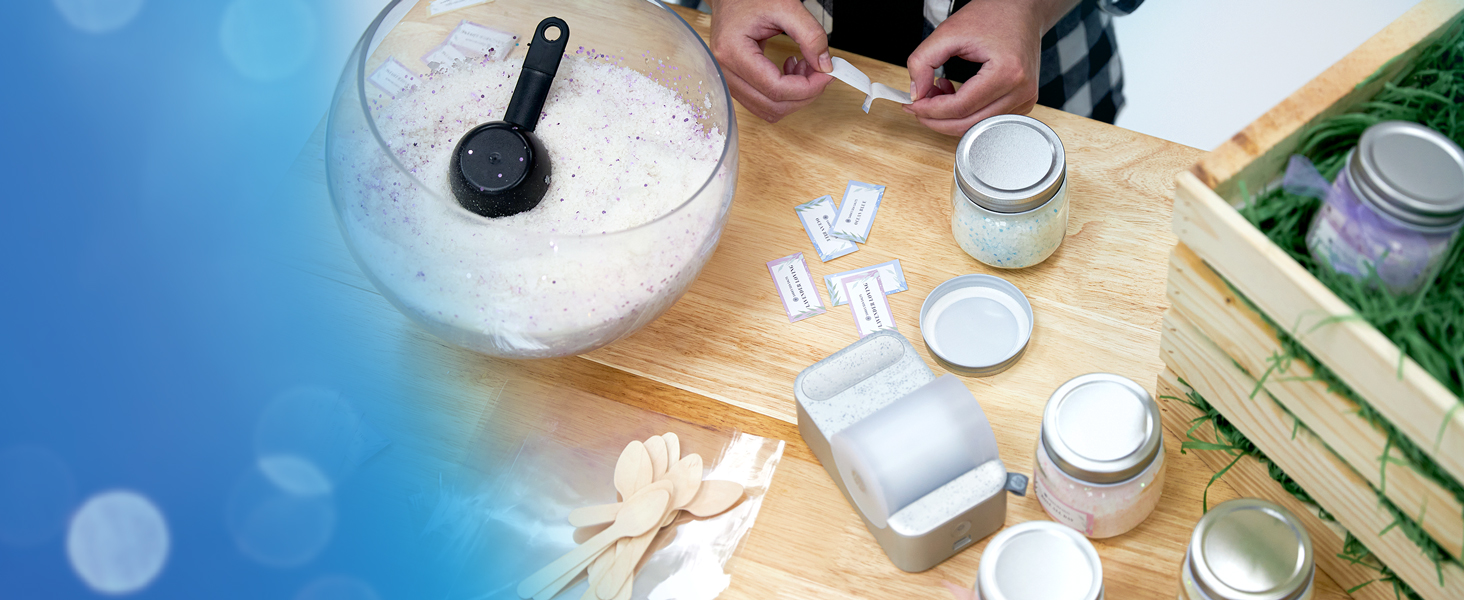
Tons of ways to print
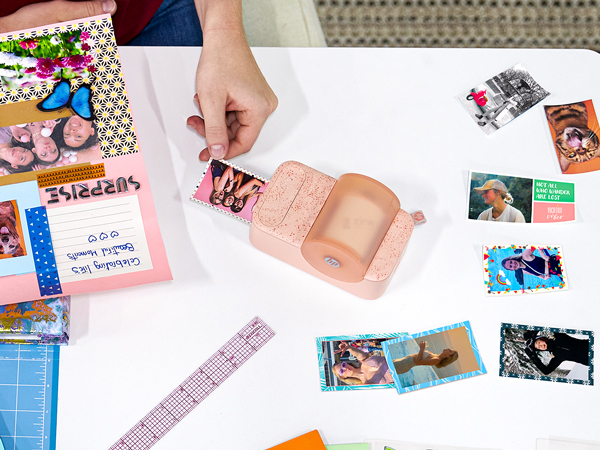
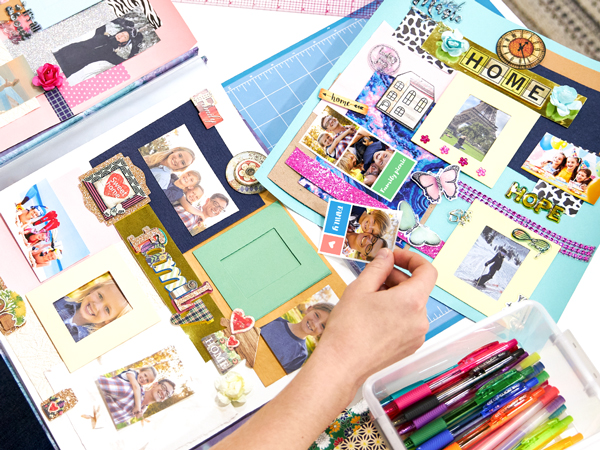
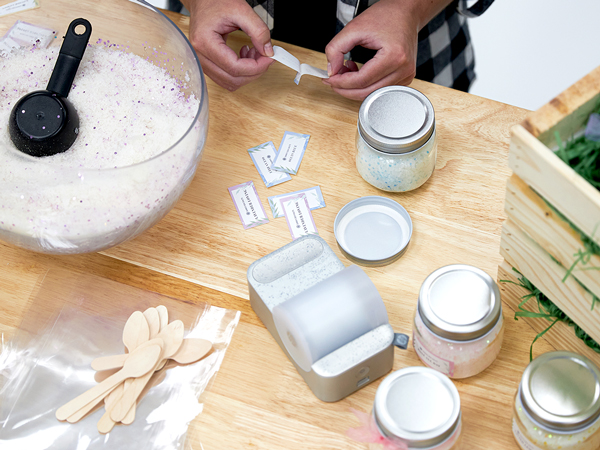
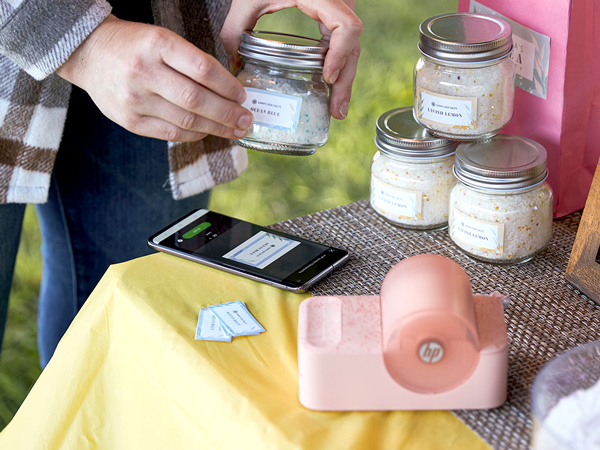
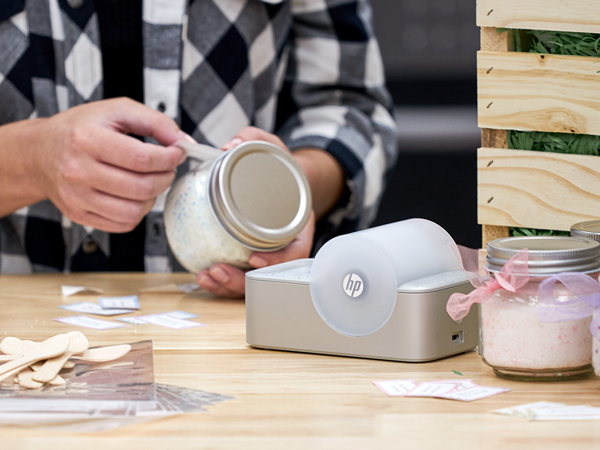
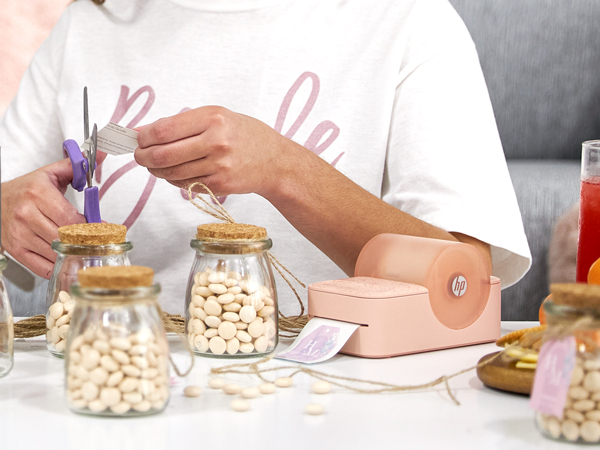
Make sticky-backed creations and use them as scrapbook stickers, labels, wall décor, and more.
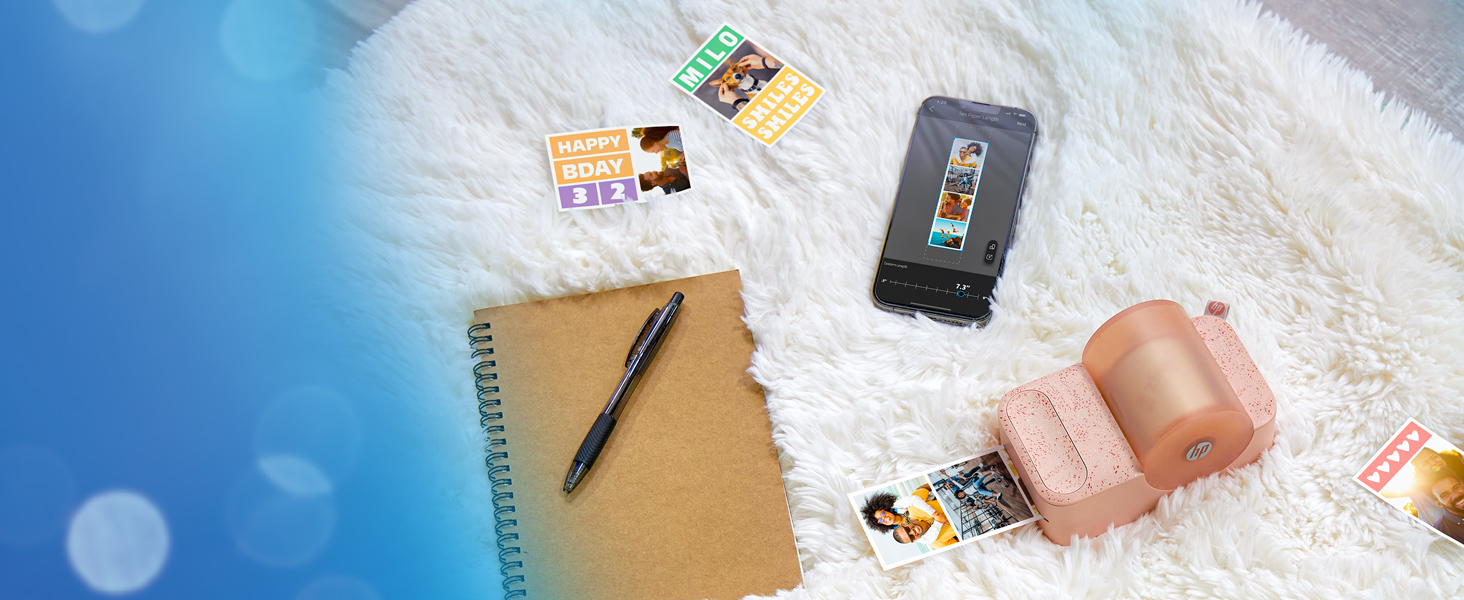
Palm-sized device for various sizes
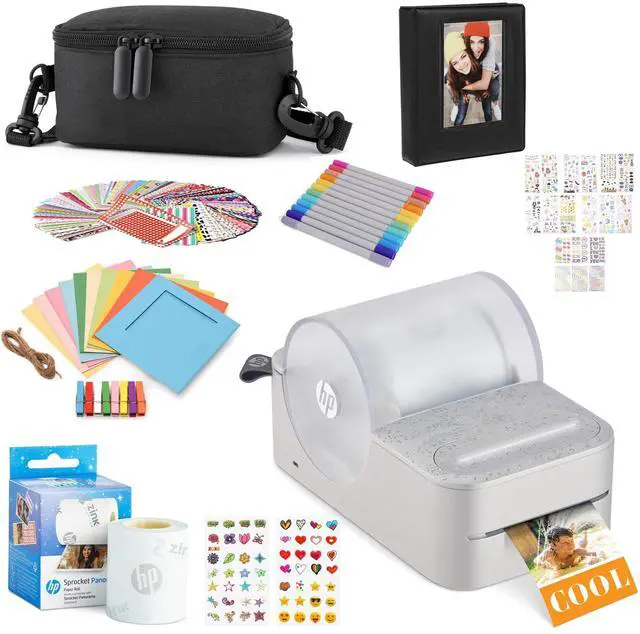
Print custom creations anywhere from 0.5” to 9” long on 2” wide Zink sticky-backed paper rolls.
ZINK ZERO INK technology

Built to last
Zink brings you tear-resistant, water-resistant, and blot-proof paper that is made to make photos last for years.
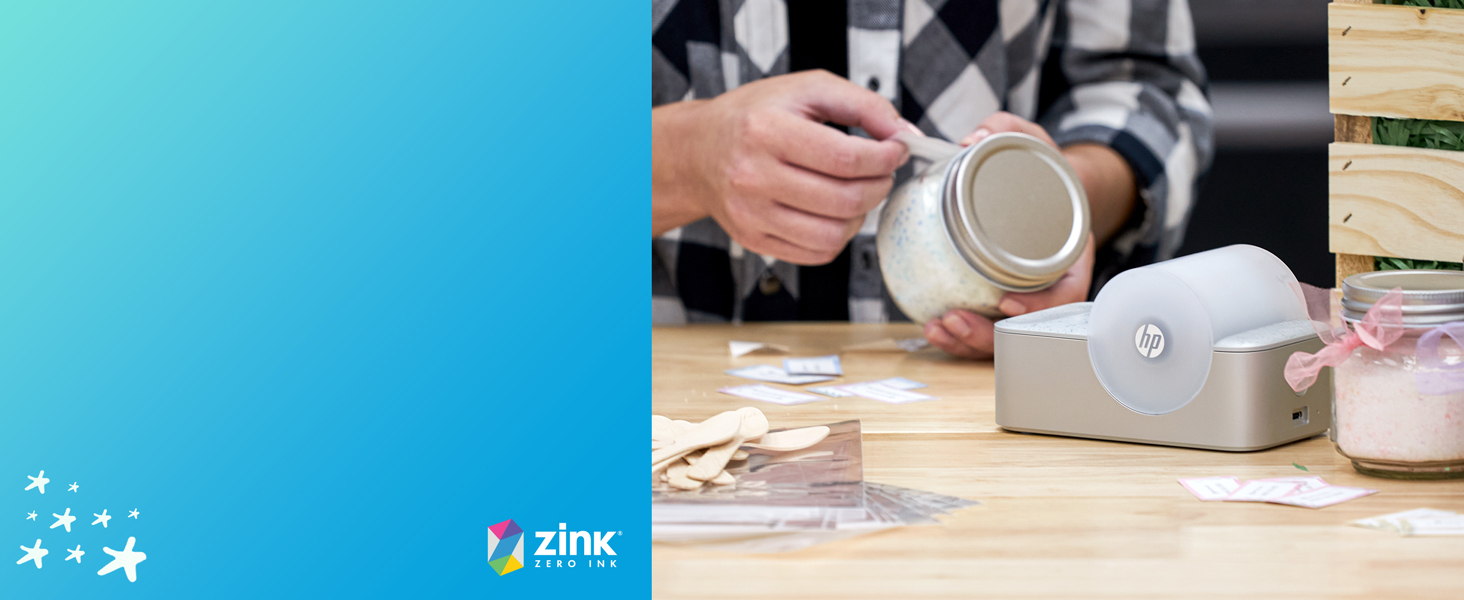
Adhesive paper
Print your creations on Zink sticky-backed paper and stick them to your scrapbook, journal, photo wall, locker, and more.
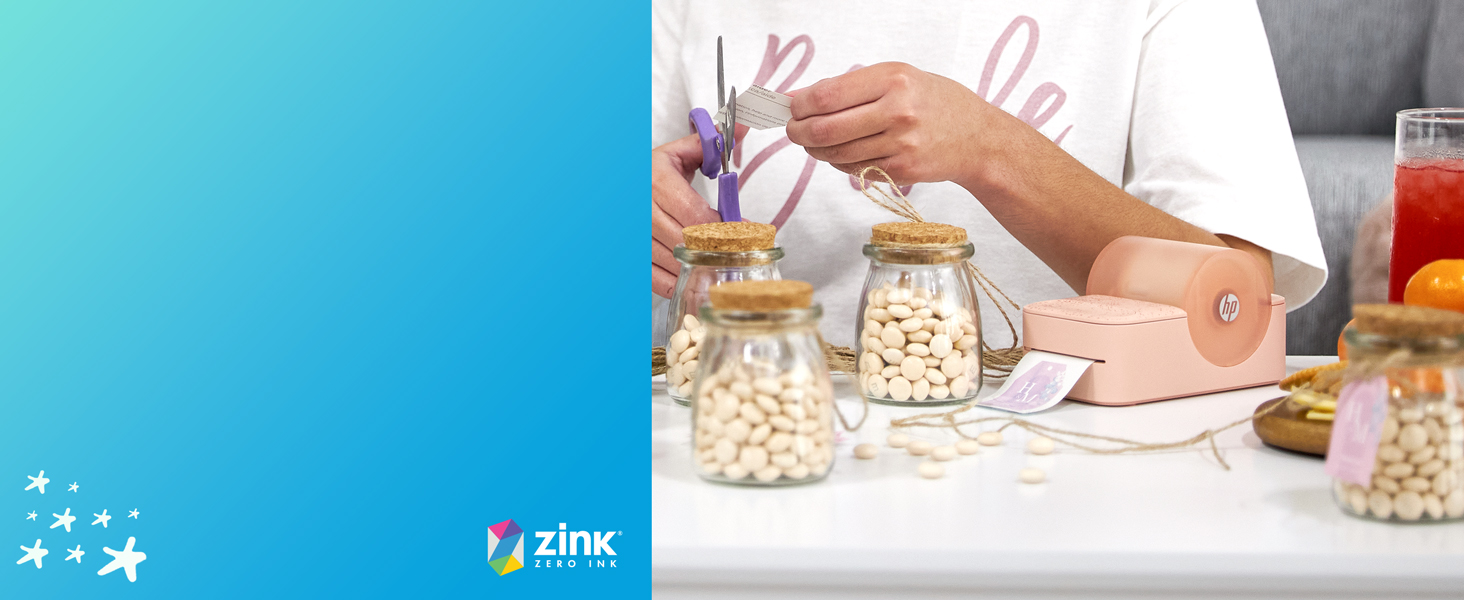
Print without ink
Made with colors embedded inside the paper so that the need for expensive ink, toners, and ribbons is no more.

Various sizes
Load in a Zink paper roll and print out creations as stickers, labels, or photos of different sizes from 0.5” to 9” long.

Labeling and scrapbooking
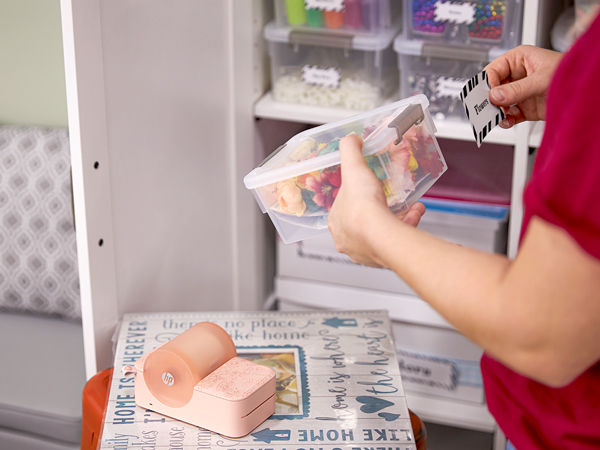
Print out photos as label-sized stickers for organizing belongings or enjoying an afternoon of scrapbooking.
Get started in an Instant
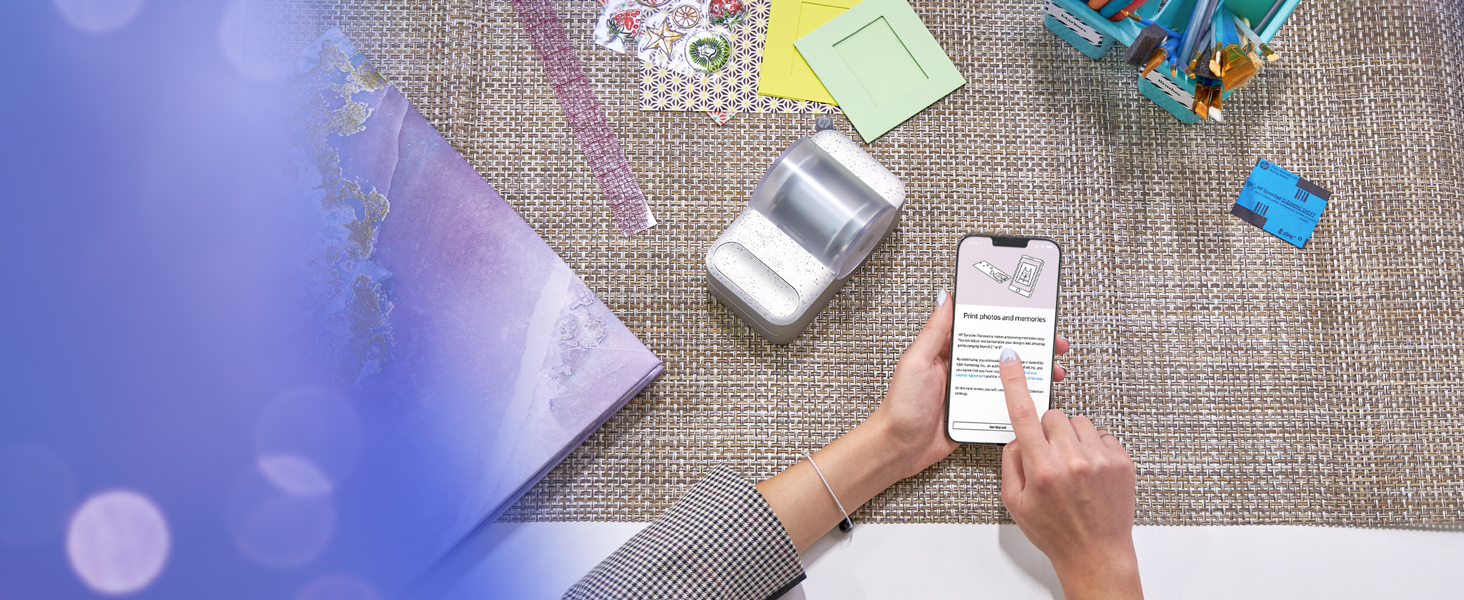
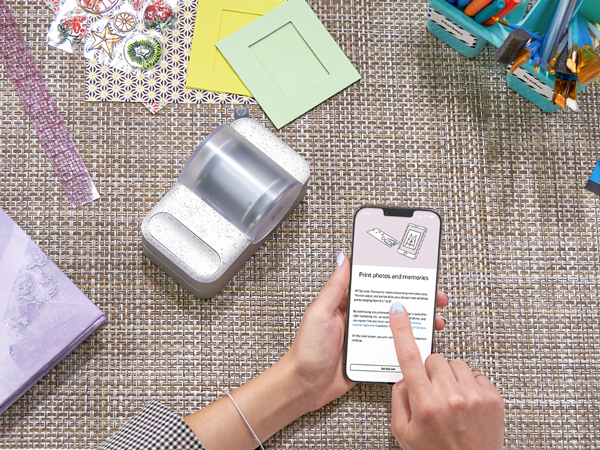
Download app
Download the HP Sprocket Panorama app and connect the printer to your phone via Bluetooth.

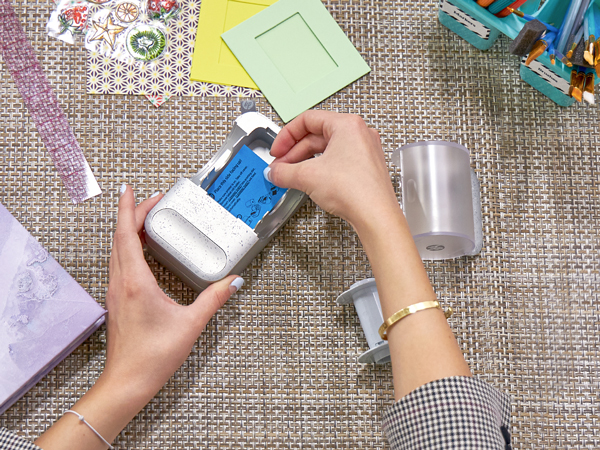
Clean printer
Insert the cleaning sheet and place the cover on the printer for the sheet to automatically feed.

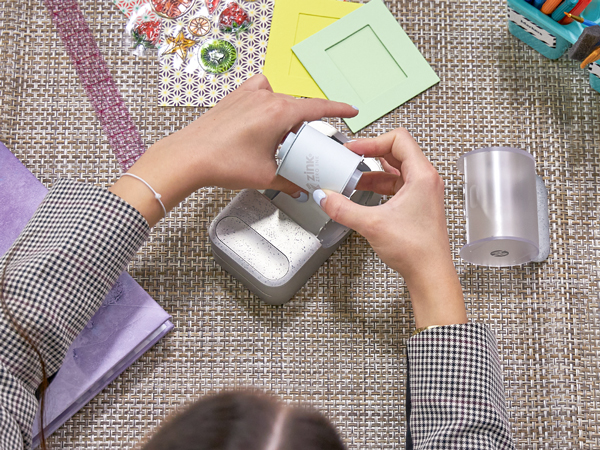
Load paper
Place the roll on the holder, feed the paper into the slot, and fasten the holder into the printer.
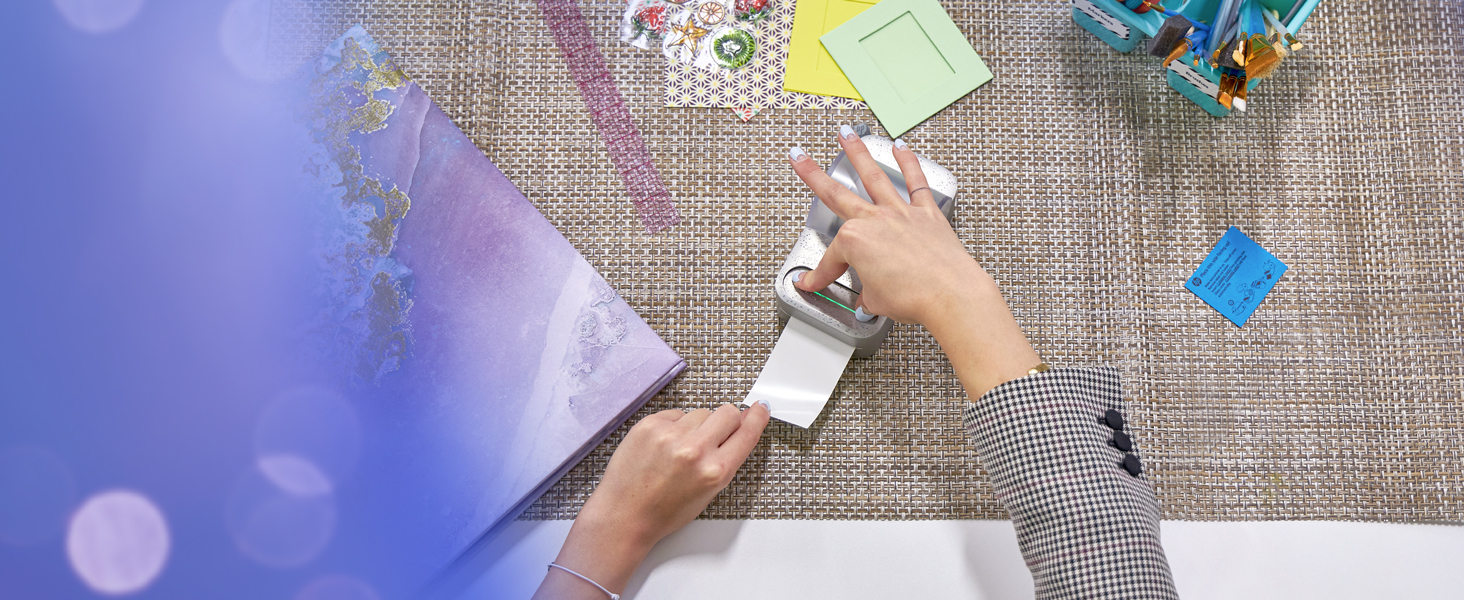
Cut barcode
Once the barcode is scanned, press the cutting button to cut off the barcode sticker evenly.
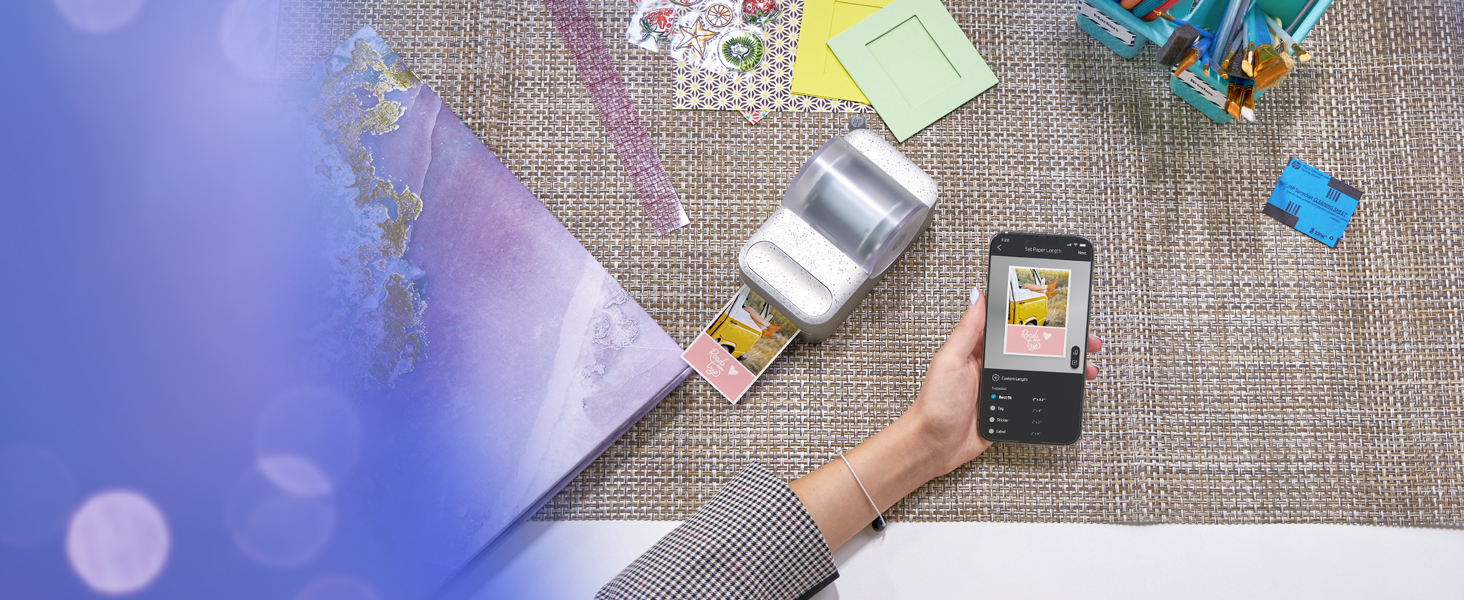
Print creations
Use the app to personalize your photos with stickers, filters, frames, and text before you print.
What do you do if streaking appears on your photos?
If streaking appears in the photos, use the cleaning sheet. You can improve print quality by cleaning the paper path rollers with the cleaning sheet. Keep the cleaning sheet for future maintenance.
How do you load paper in the HP Sprocket Panorama?
First, remove the cover and place the paper roll on the holder. Next, remove the red sticker from the roll, roll up the paper, and stick the end of it into the slot. Finally, insert the holder and place the cover back on the printer.
Which paper can you use with the HP Sprocket Panorama?
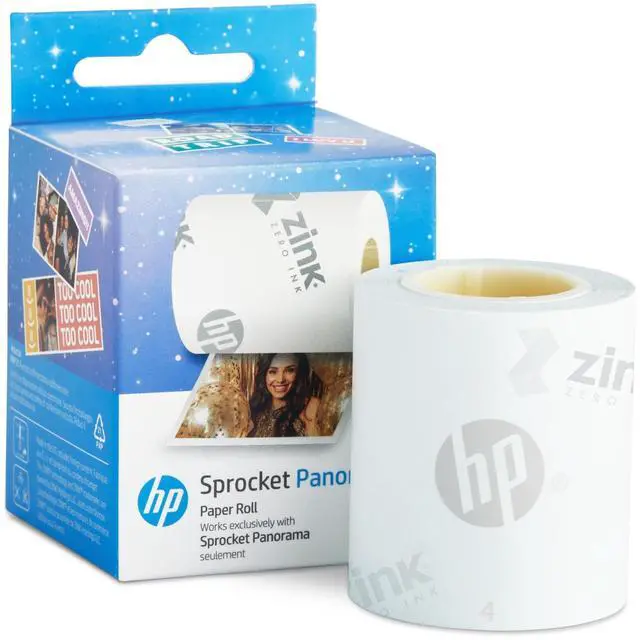
The HP Sprocket Panorama is compatible with the HP Sprocket Panorama ZINK paper roll. This paper is specially designed to work with the HP Sprocket Panorama. Use the HP Sprocket Panorama Zink paper roll to avoid paper jams and malfunctions.
How do you properly cut paper once the photo is printed?
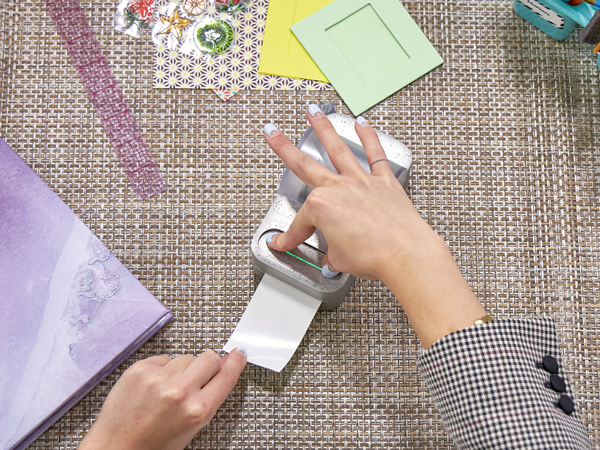
The printer will alert you when printing is done. Once the printing is done, firmly press down the center of the cutter button with two fingers using an appropriate amount of strength to ensure that labels are cut fully and evenly.
What do you do to fix a paper jam?
If the cutter button LED is blinking red, then the printer is out of paper, overheated, or has a paper jam. For paper jams, the printer should clear the jam automatically. For a manual fix, pull the paper roll out of the printer and reset it.

The Perfect Gift for Kids and Adults
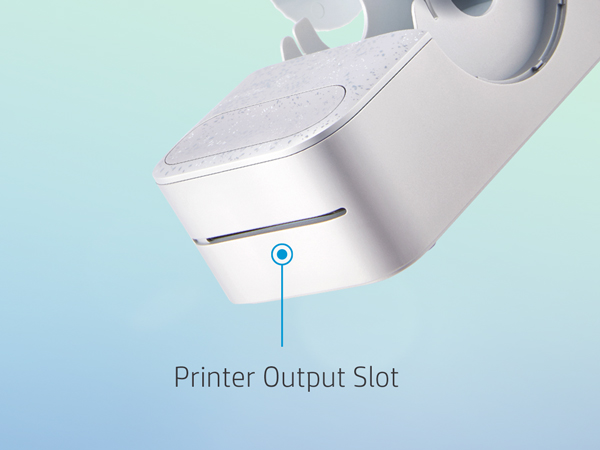
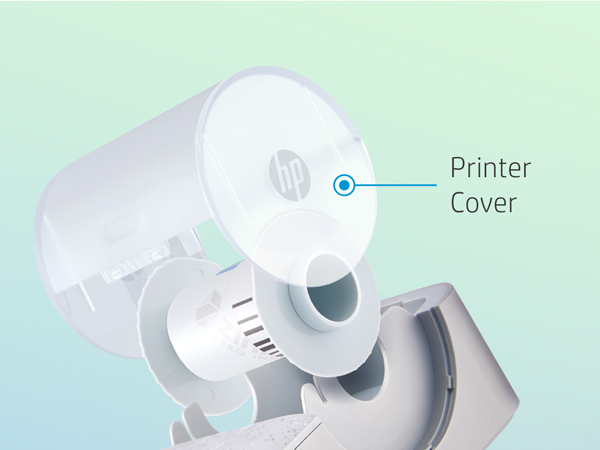
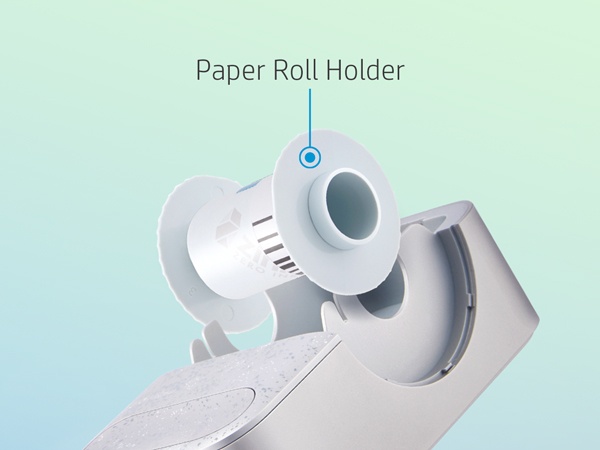
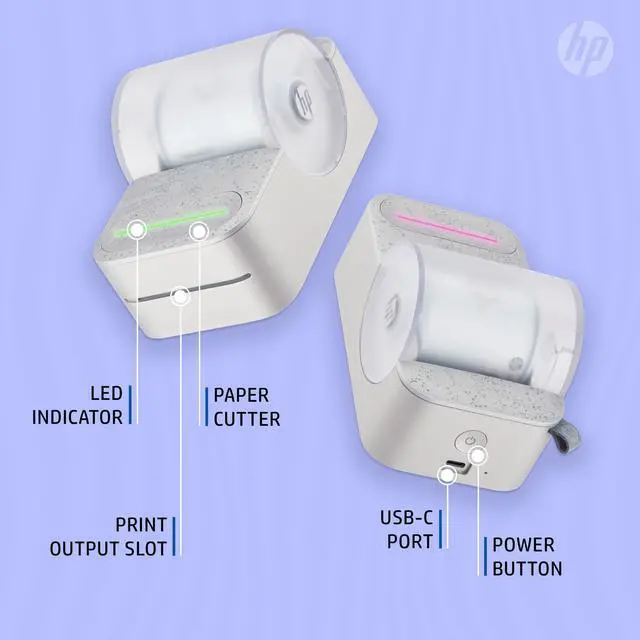
Printer output slot
Watch beautiful creations 2” wide and anywhere from 0.5” to 9” long print from the front of the device.
Printer cover
Keeps paper protected and reduces dust accumulation in the paper compartment.
Paper roll holder
Easily detachable to replace paper and keeps paper roll steady and secure.
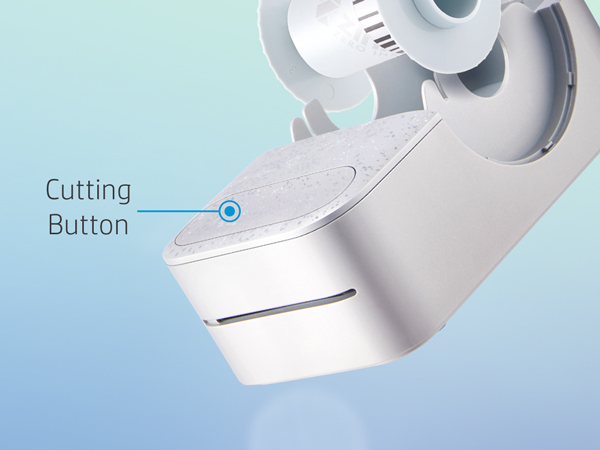
Cutting button
Firmly press down on the center of the button with two fingers to make an even cut.
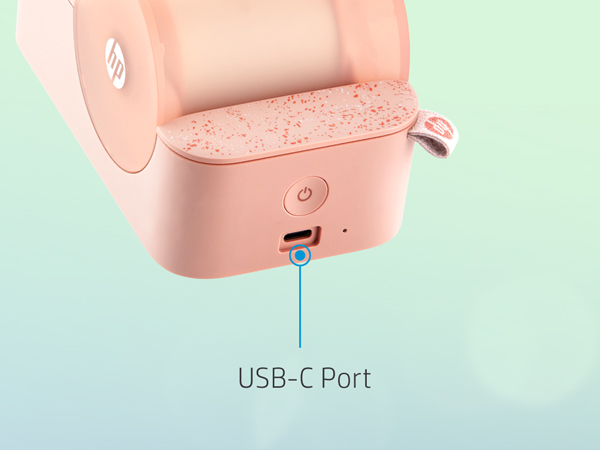
USB-C port
Use the included USB-C cable to charge up the printer from your laptop or wall adapter.
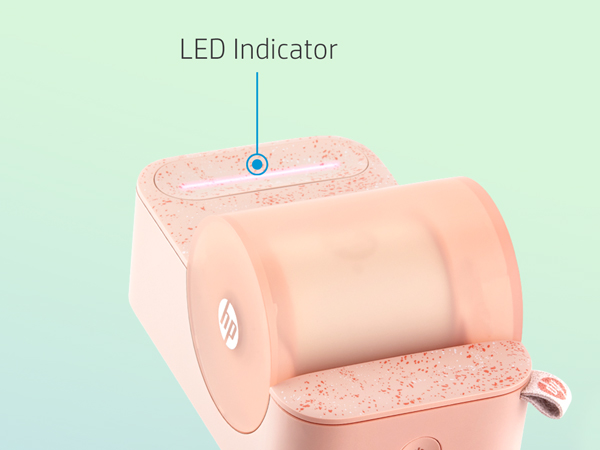
LED indicator
Tells you when the printer is starting up, low on battery, or needs to be updated.
Experience the Panorama Fun
Create Custom Photobooth Strips, Labels & Designs
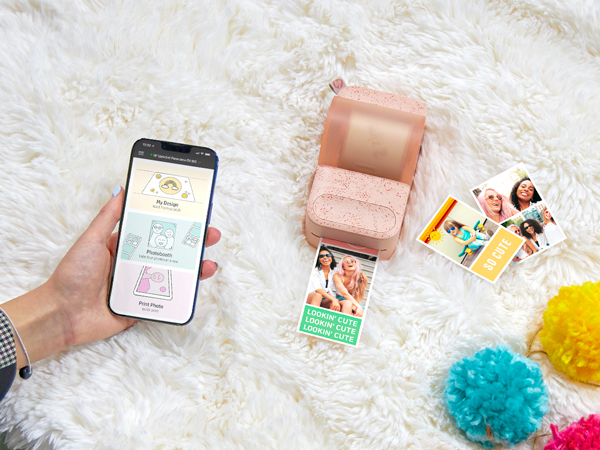
Wireless printing at your fingertips
Connect to any iOS or Android smartphone via Bluetooth and instantly print from the Panorama app.
Get creative with tons of options
Use stickers, borders, filters, and customizable text to turn your photos into artwork.
Mesh memories together with style
Put photos on the canvas your way or print consecutive pictures with the photobooth feature.
Tons of ways to print
Make sticky-backed creations and use them as scrapbook stickers, labels, wall décor, and more.
Palm-sized device for various sizes
Print custom creations anywhere from 0.5” to 9” long on 2” wide Zink sticky-backed paper rolls.
ZINK ZERO INK technology
Built to last
Adhesive paper
Print without ink
Various sizes
Labeling and scrapbooking
Zink brings you tear-resistant, water-resistant, and blot-proof paper that is made to make photos last for years.
Print your creations on Zink sticky-backed paper and stick them to your scrapbook, journal, photo wall, locker, and more.
Made with colors embedded inside the paper so that the need for expensive ink, toners, and ribbons is no more.
Load in a Zink paper roll and print out creations as stickers, labels, or photos of different sizes from 0.5” to 9” long.
Print out photos as label-sized stickers for organizing belongings or enjoying an afternoon of scrapbooking.
Get started in an Instant
Download app
Download the HP Sprocket Panorama app and connect the printer to your phone via Bluetooth.
Clean printer
Insert the cleaning sheet and place the cover on the printer for the sheet to automatically feed.
Load paper
Place the roll on the holder, feed the paper into the slot, and fasten the holder into the printer.
Cut barcode
Once the barcode is scanned, press the cutting button to cut off the barcode sticker evenly.
Print creations
Use the app to personalize your photos with stickers, filters, frames, and text before you print.
What do you do if streaking appears on your photos?
If streaking appears in the photos, use the cleaning sheet. You can improve print quality by cleaning the paper path rollers with the cleaning sheet. Keep the cleaning sheet for future maintenance.
How do you load paper in the HP Sprocket Panorama?
First, remove the cover and place the paper roll on the holder. Next, remove the red sticker from the roll, roll up the paper, and stick the end of it into the slot. Finally, insert the holder and place the cover back on the printer.
Which paper can you use with the HP Sprocket Panorama?
The HP Sprocket Panorama is compatible with the HP Sprocket Panorama ZINK paper roll. This paper is specially designed to work with the HP Sprocket Panorama. Use the HP Sprocket Panorama Zink paper roll to avoid paper jams and malfunctions.
How do you properly cut paper once the photo is printed?
The printer will alert you when printing is done. Once the printing is done, firmly press down the center of the cutter button with two fingers using an appropriate amount of strength to ensure that labels are cut fully and evenly.
What do you do to fix a paper jam?
If the cutter button LED is blinking red, then the printer is out of paper, overheated, or has a paper jam. For paper jams, the printer should clear the jam automatically. For a manual fix, pull the paper roll out of the printer and reset it.