
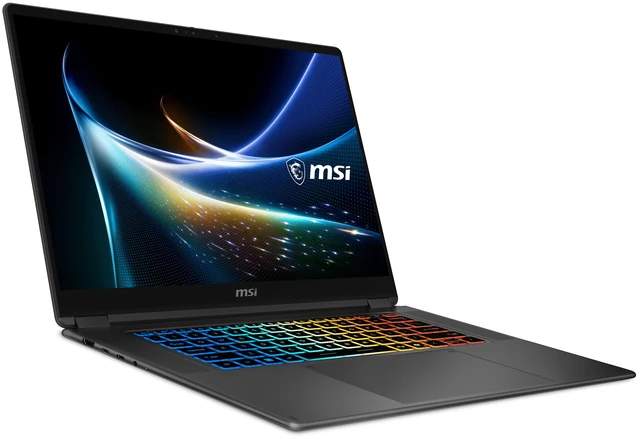
RTX Spark local AI is the main reason many buyers are paying attention to NVIDIA’s new Windows on Arm laptops. The N1X chip shares one large pool of memory between its CPU and GPU, so AI models no longer have to fit inside a small graphics card. However, RTX Spark laptops ship with anywhere from 24 GB to 128 GB of memory, and prices climb fast. This guide explains what RTX Spark local AI can realistically run on 32 GB, when you need more, and whether a full-power 32 GB machine like the MSI Prestige N16 Flip AI+ is the right fit.
Why Unified Memory Changes Local AI
Unified memory lets the RTX Spark GPU use the same large memory pool as the CPU, so models that overflow a typical 8 GB to 16 GB graphics card can still load. This is the core of the RTX Spark local AI pitch.
On a traditional laptop, an AI model must fit inside the GPU’s dedicated video memory, or VRAM. Most laptop GPUs carry 8 GB to 16 GB, and even the flagship RTX 5090 laptop GPU tops out at 24 GB. When a model does not fit, it either fails or slows down sharply as data spills into system memory.
In contrast, the N1X uses one pool of LPDDR5X memory that both the 20-core Grace CPU and the Blackwell RTX GPU can access directly. As a result, a 32 GB RTX Spark laptop can dedicate far more memory to a model than a typical gaming laptop can.
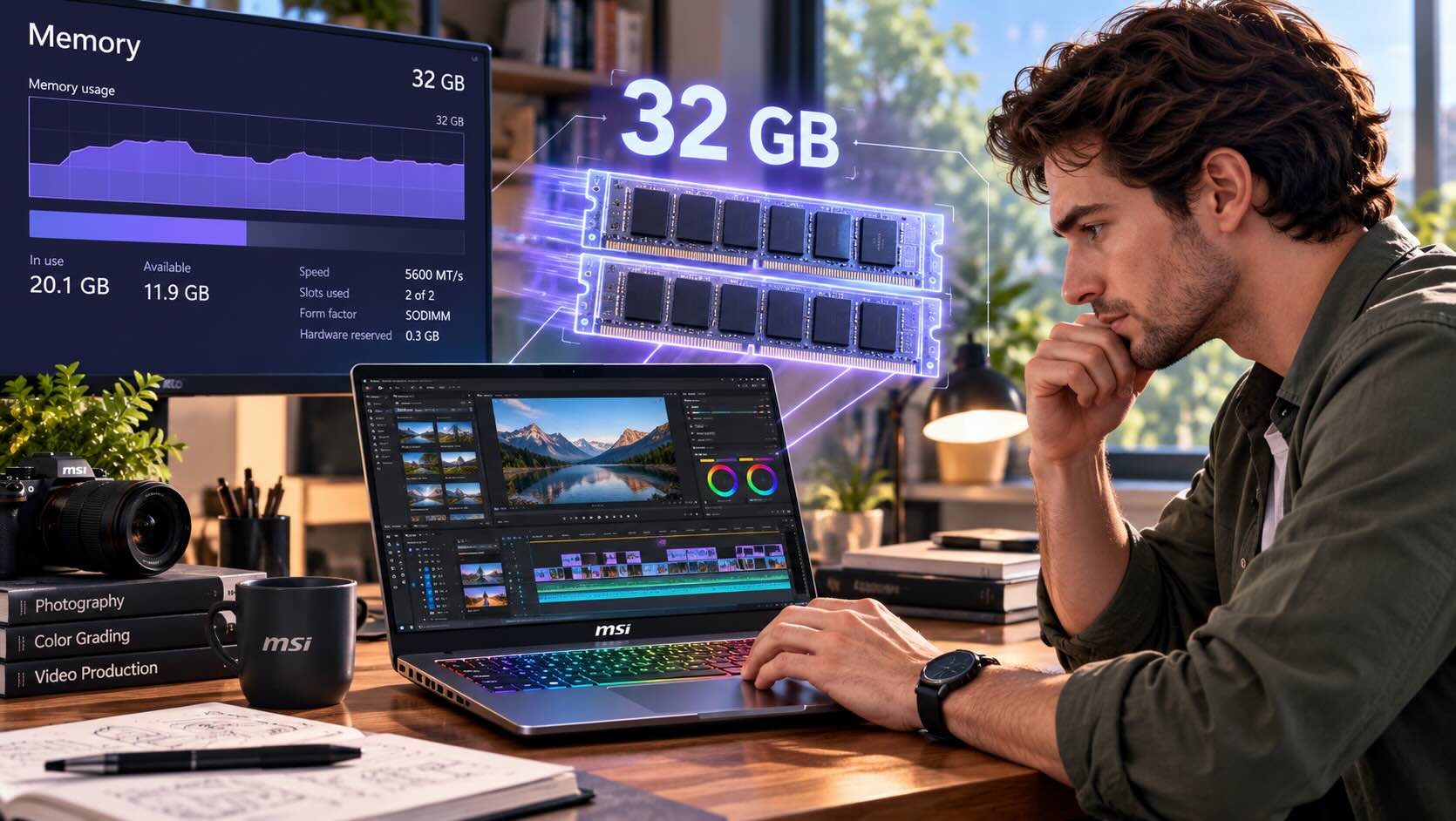
There is one important nuance. Windows, your browser, and your apps also share that pool. Therefore, a 32 GB machine typically leaves roughly 20 GB to 24 GB for AI work during real use. Plan around that working number, not the full 32 GB.
What Fits in 32 GB: A Practical Guide
A 32 GB RTX Spark laptop comfortably runs quantized language models up to roughly 30B parameters, plus most image generation workflows. Larger models need 64 GB or more.
Quantization is the key concept here. It compresses a model’s weights, usually to 4 bits, so the model uses far less memory with modest quality loss. At 4-bit precision, a model needs roughly 0.6 GB per billion parameters, plus extra room for context.
| Workload | Approximate memory need | Fits on 32 GB? |
|---|---|---|
| 7B to 8B chat or coding model (4-bit) | 5 to 7 GB | Yes, with lots of room |
| 13B to 14B model (4-bit) | 8 to 10 GB | Yes |
| 30B to 32B model (4-bit) | 18 to 22 GB | Yes, with modest context |
| 70B model (4-bit) | 40 GB or more | No — needs 64 GB |
| 120B-class model | 64 GB or more | No — needs 128 GB |
| Stable Diffusion-style image generation | 6 to 16 GB | Yes |
| Many ComfyUI image and video workflows | 12 to 24 GB | Usually yes |
These figures are estimates. Actual memory use depends on the model, the quantization format, and how much context you load. Even so, the pattern is clear. A 32 GB RTX Spark local AI setup covers the models most professionals actually use day to day.
Who 32 GB Is Right For
The 32 GB tier fits developers, creators, and analysts who use mid-size models and AI-assisted apps, rather than researchers pushing the largest open models. That describes the majority of local AI users.
For example, a developer might run a 14B coding assistant inside an editor while keeping a browser and terminal open. That workload fits comfortably. Similarly, a designer might generate concept images in ComfyUI while editing photos in a creative app. That also fits.
Here is who benefits most:
- Software developers running local coding assistants for privacy or offline work
- Creators using AI upscaling, background removal, and image generation
- Analysts summarizing documents and data with private, on-device models
- Students and hobbyists learning how LLMs work without cloud costs
On the other hand, some buyers should aim higher. If you plan to run 70B-class models, fine-tune larger models, or keep several big models loaded at once, choose a 64 GB or 128 GB configuration. Community voices on AI buyer guides make this point repeatedly. They argue that a large memory pool is the platform’s main advantage, so serious model researchers should buy as much as they can afford.
The Software Side: Windows, CUDA, and Tooling
RTX Spark brings NVIDIA’s CUDA platform to Windows on Arm, so many popular local AI apps run, but some server-grade tools still target Linux. Check your toolchain before you buy.
Desktop-friendly AI apps are the easiest path. Tools for running local chat models and image generation workflows generally support Windows, and NVIDIA released its first GeForce driver for Windows on Arm alongside RTX Spark. Microsoft is also building on-device AI features and agent tools directly into Windows.
However, developers on the NVIDIA Developer Forums point out a real gap. High-throughput serving frameworks such as vLLM, SGLang, and TensorRT-LLM focus on Linux. If your work depends on those tools, you may prefer a Linux-based system or a dedicated AI developer box.
Arm compatibility also matters for supporting software. Most Python packages and AI libraries now publish Arm64 builds. Still, an older plugin or a niche dependency may require Prism emulation or a workaround. Test your critical tools early, ideally within the return window.
Why the MSI Prestige N16 Flip AI+ Makes Sense at 32 GB
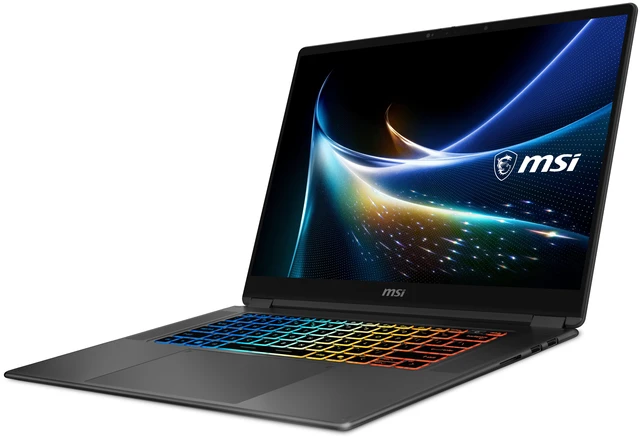
The MSI Prestige N16 Flip AI+ pairs 32 GB of unified memory with the full-power N1X chip, which gives it more GPU compute than many similarly priced RTX Spark laptops. For RTX Spark local AI work, that combination matters.
NVIDIA offers two N1X versions. The full chip has a 20-core CPU and a 6,144-core Blackwell RTX GPU. The lower-power version has an 18-core CPU and a 5,120-core GPU. Memory capacity decides which models fit, but GPU cores decide how fast they run. The MSI gives you the faster chip.
Its other specs suit AI work, too:
| Spec | MSI Prestige N16 Flip AI+ |
|---|---|
| Chip | NVIDIA RTX Spark N1X, 20-core Grace CPU |
| GPU | Blackwell RTX, 6,144 cores |
| Memory | 32 GB LPDDR5X-9600 unified memory |
| Storage | 1 TB PCIe 4.0 NVMe SSD |
| Display | 16-inch 2.8K OLED touchscreen, 120 Hz |
| Battery | 99.9 Wh |
| Price | $3,299 (release date November 6, 2026) |
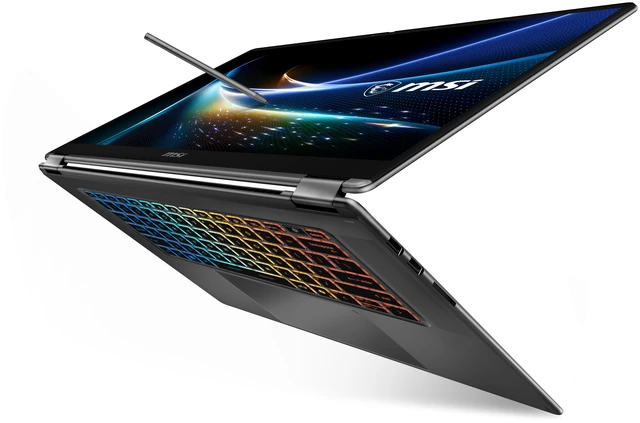
Price is a strong point. Microsoft’s Surface Laptop Ultra charges $3,699 for the same 20-core chip with 32 GB and 1 TB. Meanwhile, the MSI adds a 360-degree convertible design. You can pre-order the MSI Prestige N16 Flip AI+ on Newegg today.
Plan Your Storage and Workflow
AI model files are large, so storage planning matters as much as memory planning for RTX Spark local AI. A single 30B model can take 15 GB to 20 GB of disk space.
The MSI’s 1 TB SSD holds a healthy starter library. Nevertheless, collections grow quickly once you test several models and quantization levels. Image generation checkpoints, LoRAs, and output folders add up, too.
A few habits help:
- Keep only the models you use on the internal drive
- Archive older models on a fast external drive over Thunderbolt 4/USB4
- Use consistent folders so your apps find models without duplicates
- Watch free space, since SSDs slow down when nearly full
A high-speed external NVMe SSD makes a sensible companion purchase. For bulk archives you rarely touch, larger external hard drives cost less per terabyte.
Remember also that the memory is soldered to the board. Unlike some desktops, you cannot add a memory upgrade later. Decide on capacity before you order.
Getting Started: Your First RTX Spark Local AI Setup
The easiest way to start with RTX Spark local AI is to install one desktop model runner, download a small model, and scale up once everything works. This approach keeps early troubleshooting simple.
Follow these steps on day one:
- Update Windows and drivers. Install the latest GeForce driver for Windows on Arm through the NVIDIA app.
- Pick one model runner. Choose a desktop app that supports Windows on Arm and GPU acceleration.
- Start with a 7B or 8B model. It downloads quickly and confirms that GPU acceleration works.
- Check memory use. Open Task Manager and watch how much shared memory the model uses.
- Step up gradually. Try a 14B model next, then a 30B-class model if you have room.
- Test your image tools. Run one image generation workflow to confirm your creative pipeline.
Next, tune context length. Longer context lets a model read bigger documents, but it also uses more memory. If a 30B model runs out of room, reduce the context window before switching to a smaller model.
Also, close memory-heavy apps during big jobs. Browsers with many tabs can consume several gigabytes of shared memory. On a 32 GB RTX Spark local AI machine, that space is better spent on the model.
Finally, compare quantization levels. A 4-bit model saves memory, while a 5-bit or 6-bit version may produce slightly better answers. Because RTX Spark local AI work depends on your exact tasks, a quick side-by-side test tells you more than any spec sheet. Keep the version that balances quality, speed, and memory for your daily work.
How RTX Spark Compares to Other Local AI Options
RTX Spark laptops combine CUDA support, Windows, and large unified memory in a portable form, which no other laptop platform offers in the same package. Each alternative trades away one of those strengths.
Traditional AI PC and Copilot+ laptops handle light on-device AI well, but their NPUs and integrated GPUs cannot match RTX-class compute. RTX 50 Series laptops offer strong CUDA performance, yet their dedicated VRAM caps model size. Apple’s high-memory laptops offer large unified memory, but they do not support CUDA.
Desktop RTX 5090 systems remain the fastest choice when a workload fits in 32 GB of VRAM and portability does not matter. NVIDIA’s DGX Spark targets developers who want a compact Linux-based AI box with 128 GB.
For a portable Windows machine that runs CUDA-accelerated local AI and still handles creative work, RTX Spark is the most balanced option available right now.
Frequently Asked Questions
Can a 32 GB RTX Spark laptop run a 70B model?
Not comfortably. A 4-bit 70B model needs about 40 GB or more. Choose a 64 GB or 128 GB RTX Spark configuration for that class of model.
What is the largest model 32 GB can run?
Quantized models up to roughly 30B to 32B parameters run well, depending on the quantization format and context length.
Does RTX Spark support CUDA on Windows?
Yes. RTX Spark brings CUDA and NVIDIA GeForce drivers to Windows on Arm. Some Linux-focused serving tools, such as vLLM, do not support Windows.
Can I upgrade the memory later?
No. RTX Spark laptops use onboard LPDDR5X memory, so choose your capacity at purchase.
Is the MSI Prestige N16 Flip AI+ good for local AI?
Yes, for mid-size models and creative AI workloads. It combines the full 20-core N1X chip with 32 GB of unified memory for $3,299.
Conclusion
RTX Spark local AI changes what a thin laptop can do. Unified memory lets a 32 GB machine run quantized models up to roughly 30B parameters and handle most image generation workflows. That covers the daily needs of most developers, creators, and analysts.
Buyers chasing 70B-class models should step up to 64 GB or 128 GB. For everyone else, the MSI Prestige N16 Flip AI+ offers a compelling balance: the full N1X chip, 32 GB of memory, and a versatile 2-in-1 design for $400 less than a comparable Surface Laptop Ultra.
Want to compare every option first? Start with the Newegg Laptop Finder, or explore current premium laptop upgrade deals.
Related Posts
- Security Key Buying Guide: Phishing-Resistant Sign-In for Everyone
- How to Choose an Internet Security Suite in 2026: Tiers, Features, and Setup
- Home Network Firewall Guide: How to Protect Every Device in 2026
- Hardware Wallet Buying Guide: Safer Crypto Cold Storage in 2026
- How to Get Protected From AI Scams in 2026: A Four-Layer Plan With Product Kits