The first NAS I built used four desktop drives because they were what I had. It worked for about eighteen months, then two of them started dropping out of the array during rebuilds, and I spent a weekend learning why NAS-rated drives exist. They are not a marketing tier. The difference is specific and it shows up exactly when you least want it to.
So this is less a ranking than a walkthrough of how I would fill a four-bay box today, and which drives I would put in it.
Step One: Understand What You Are Paying Extra For
Three things separate a NAS drive from a desktop drive of the same capacity.
CMR recording. Conventional magnetic recording writes tracks side by side. SMR overlaps them like roof shingles, which buys capacity and costs you write performance once the cache fills. In a RAID rebuild, an SMR drive can slow to a crawl for hours. Every drive on this page is CMR, and I would not put anything else in an array.
Workload rating. Expressed in terabytes written and read per year. Desktop drives are typically rated around 55 TB/year, NAS drives several times that. If you are running backups and media transcoding across the same array, you will pass 55 TB without trying.
Vibration handling. Four to eight drives spinning in one chassis produce rotational vibration that a single-drive desktop was never designed for. NAS drives include sensors and firmware that compensate. This is the one that killed my first array.
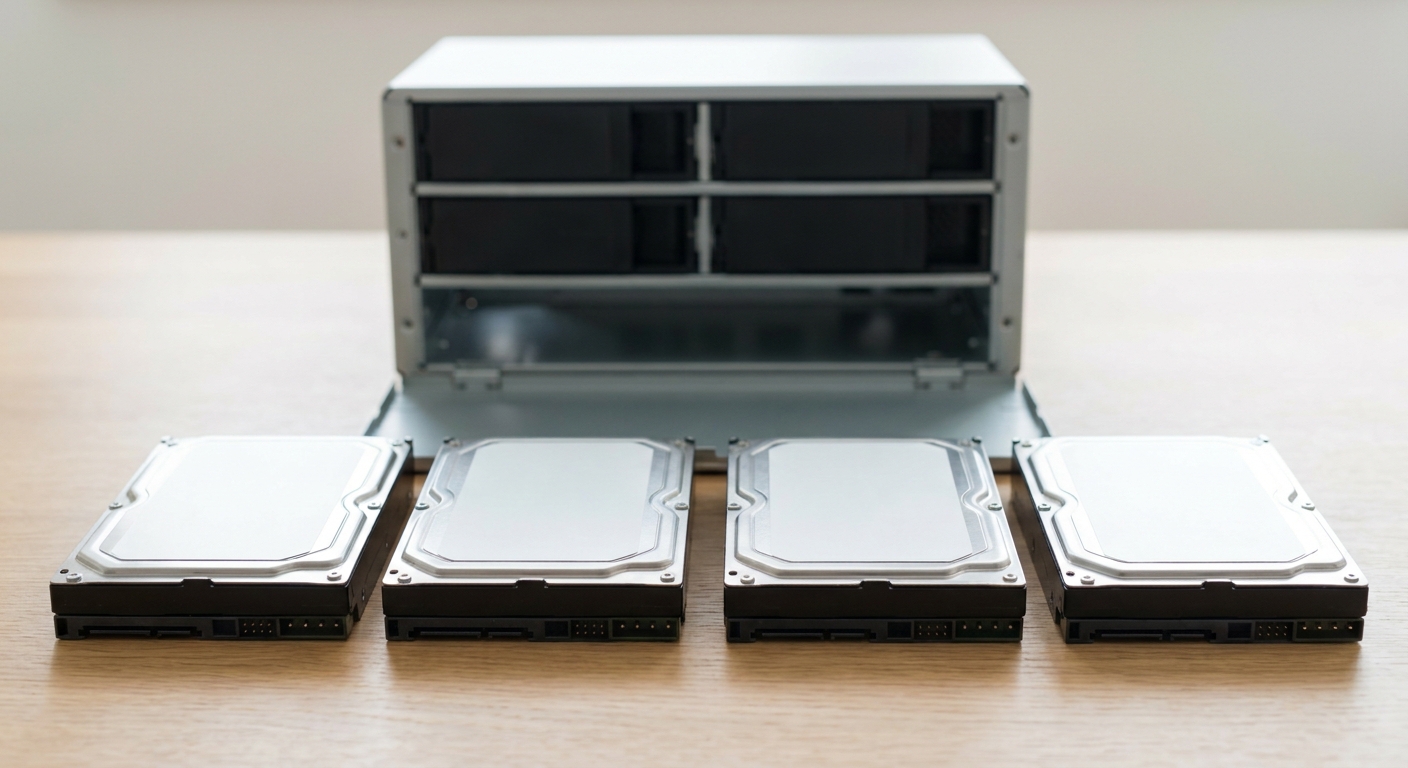
Step Two: Pick a Capacity You Will Not Regret
The rule I use: buy the capacity you think you need, then look at the next size up and ask whether the difference is worth not doing this again in two years. It usually is, because expanding a RAID array later means either replacing every drive one at a time or rebuilding from backup.
Twenty terabytes per drive is the sensible current sweet spot. Four of them in a RAID 5 gives you roughly sixty usable, which is enough that most home setups stop worrying about it.
Step Three: Choose Your Drives
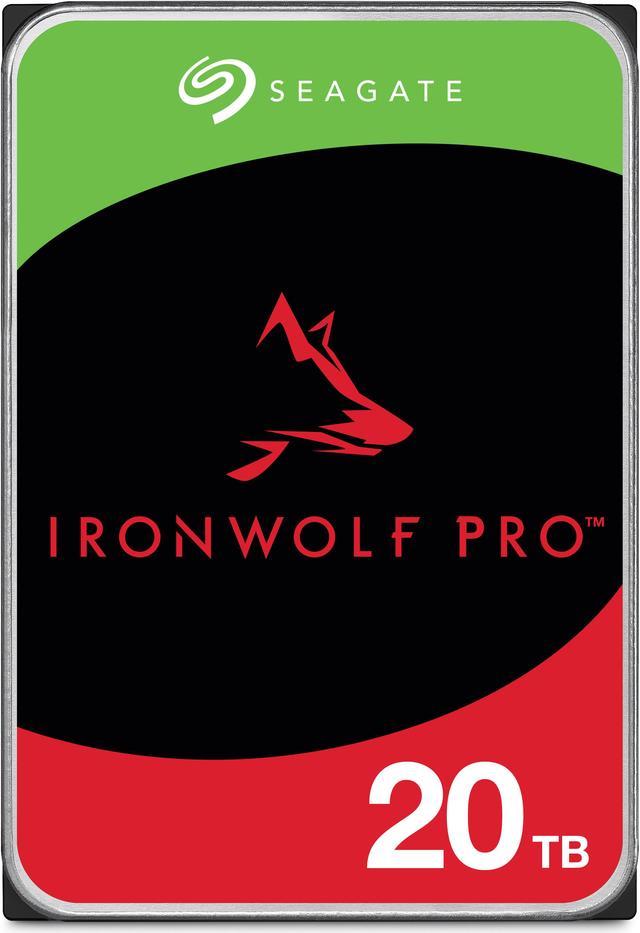
The Seagate IronWolf Pro ST20000NT001 20TB is where I would start. 7200 RPM, 256MB cache, SATA 6.0Gb/s, 3.5-inch. The Pro line is the one rated for multi-bay enclosures rather than the two-bay boxes the plain IronWolf targets, and in a four-bay chassis that distinction matters.
The Seagate IronWolf Pro ST20000NE000 20TB is the earlier model number at the same capacity, also 7200 RPM with 256MB of cache and explicitly listed as CMR. If both are available when you buy, they are close enough that stock and delivery date can decide it.
For a smaller array or a first build, the Seagate IronWolf Pro ST16000NT001 16TB is the same drive family at 16TB, 7200 RPM, 256MB cache. Four of those still gives you around forty-eight usable terabytes in RAID 5, which is a lot of storage by any reasonable measure.
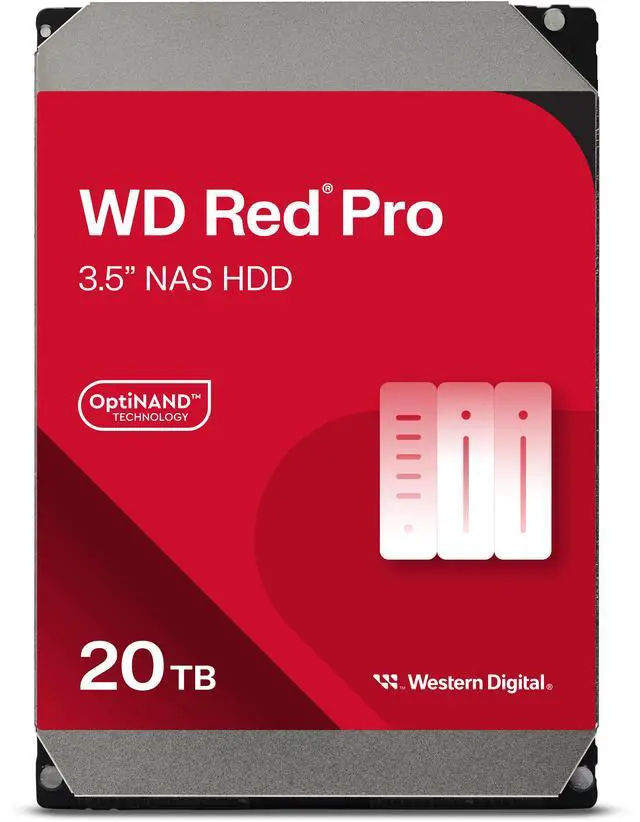
The WD Red Pro WD202KFGX 20TB is the drive I would put opposite the IronWolf Pro. 7200 RPM, CMR, SATA 6.0Gb/s, and 512MB of cache rather than 256MB. Whether that doubled cache changes anything you will notice depends heavily on your workload, but it is not nothing on a busy array.
The WD Red Pro WD201KFGX 20TB is the preceding model at the same capacity, cache and rotation speed, also CMR. And the WD Red Pro WD161KFGX 16TB covers the smaller tier with the same 7200 RPM and 512MB cache.
The Two Specialists
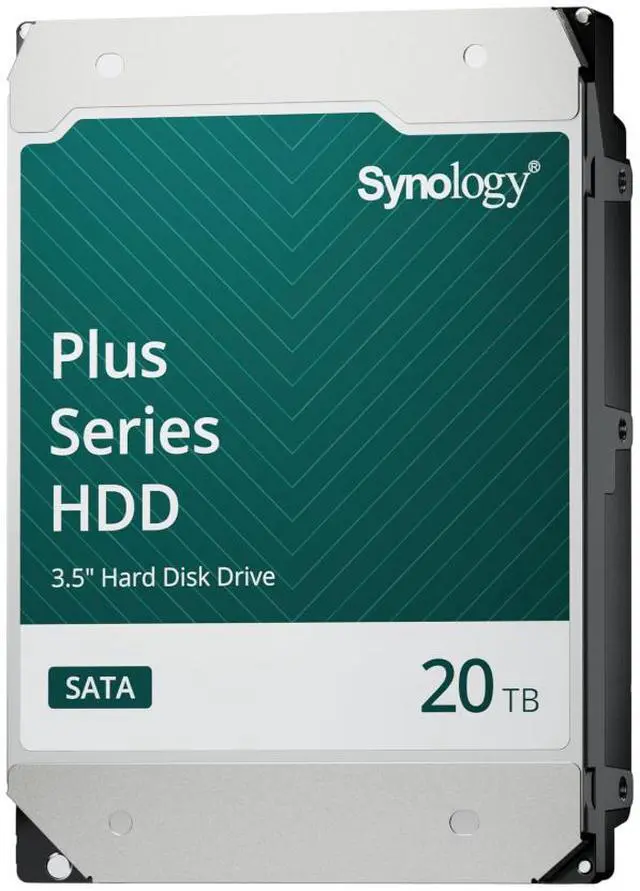
If your box is a Synology, the Synology HAT3320-20T 20TB deserves a look. SATA, 3.5-inch, and a full gigabyte of cache. What you are actually buying is firmware that Synology has qualified against their own enclosures and health reporting that surfaces inside DSM rather than as a generic SMART table. On any other brand of enclosure I would not bother; on theirs it removes a category of uncertainty.
The Toshiba N300 PRO HDWG62AXZSTB 20TB is the one with the number I care most about printed on the box: a workload rating of up to 300 TB per year. That is roughly five times what a desktop drive is rated for. It is CMR, SATA 6Gb/s, 7200 RPM with 512MB of cache, in a 3.5-inch body. For an array that is genuinely busy, rather than one that mostly sits there holding films, this is the specification that should decide it.
Step Four: Do Not Buy Them All From the Same Batch
This is the advice that sounds superstitious and is not. Drives from one manufacturing batch tend to fail at similar times, and a second failure during a rebuild is how a RAID 5 array becomes a restore-from-backup exercise. Buying from two vendors or at two different times, or mixing IronWolf Pro and Red Pro in the same chassis, spreads that risk. Mixed brands in one array are fine as long as capacity and rotation speed match.
And the part everyone skips: RAID is not backup. It survives a drive dying. It does not survive a deleted folder, a failed controller, ransomware, or the building flooding. Whatever you build, something needs to hold a second copy somewhere else.
What I Would Actually Build
Four-bay home NAS, mixed media and backups: four 20TB IronWolf Pro or Red Pro, bought in two pairs from different sources. Tighter budget or a smaller box: the 16TB versions of either. Synology enclosure and you want the integration: HAT3320. Heavy write workload, surveillance, or a busy team share: Toshiba N300 PRO for that 300 TB/year rating. The full range, including capacities above and below 20TB, is in Newegg's NAS hard drive listings.
Frequently Asked Questions
What does CMR mean, and why does it matter for a NAS? Conventional magnetic recording writes data tracks side by side rather than overlapping them the way SMR does. Overlapping tracks means a write can require rewriting neighbouring tracks, which collapses sustained write performance once the drive's cache fills. During a RAID rebuild that turns hours into days. Every drive listed here is CMR for exactly that reason.
Can I use ordinary desktop drives in a NAS? They will work, and many people run them for years without trouble. What you give up is the workload rating, the rotational vibration compensation designed for multiple drives in one chassis, and in some cases the firmware behaviour that lets a controller recover from a slow sector instead of dropping the drive from the array. In a one or two-bay box the risk is modest. In a four-bay box it is the thing that eventually bites.
What is a workload rating and how much do I need? It is the total data a manufacturer expects the drive to read and write per year. Desktop drives sit around 55 TB per year; the Toshiba N300 PRO here is rated up to 300 TB. To estimate yours, think about how much you actually move: a nightly backup of a few hundred gigabytes plus media streaming will not approach 300 TB, while continuous surveillance recording or a shared work array can.
Should all the drives in an array be identical? They should match in capacity and rotation speed, because the array is limited by its smallest and slowest member. They do not need to be the same brand or model, and deliberately mixing them reduces the chance that two drives from one batch fail in the same week. What you should avoid is mixing CMR and SMR drives in one array.
Is a 20TB drive too large to rebuild safely? Rebuild time scales with capacity, and a 20TB drive in a busy array can take a day or more to resilver, during which a second failure loses the array in RAID 5. That is the argument for RAID 6 or its equivalent once you are running four or more drives of this size, and the argument for having a backup regardless of which level you choose.
Read More
- Backblaze: Hard Drive Test Data -- Quarterly failure-rate statistics from a fleet of hundreds of thousands of drives.
- ServeTheHome -- Storage and NAS coverage aimed at home lab and small business builds.
- Seagate: IronWolf and IronWolf Pro -- Manufacturer specifications including workload ratings and bay-count guidance.
- Western Digital: WD Red Pro -- Specifications and supported enclosure counts for the Red Pro line.
- Newegg: NAS Hard Drives -- Compare current drives by capacity, cache, recording technology and workload rating.