
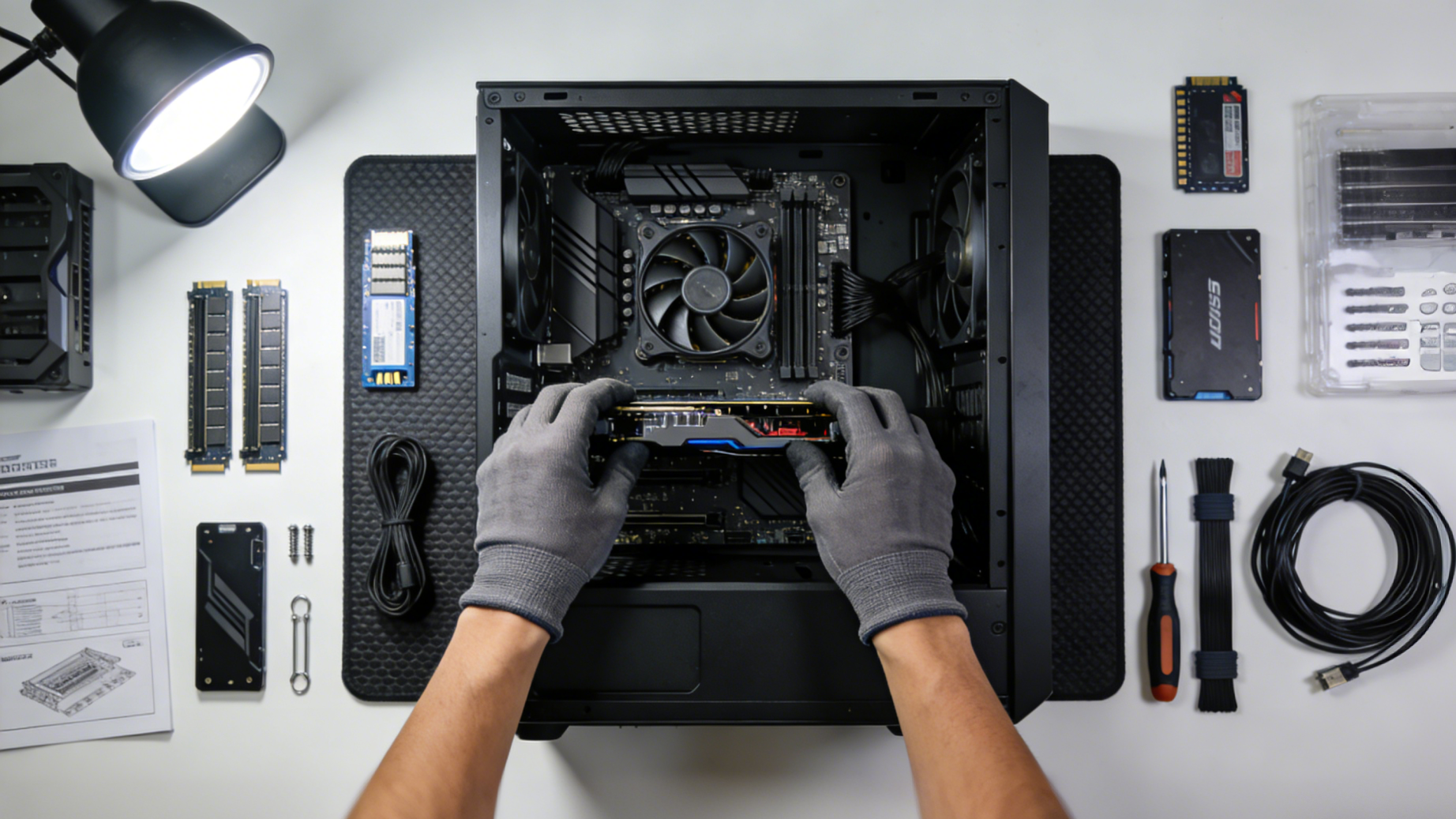
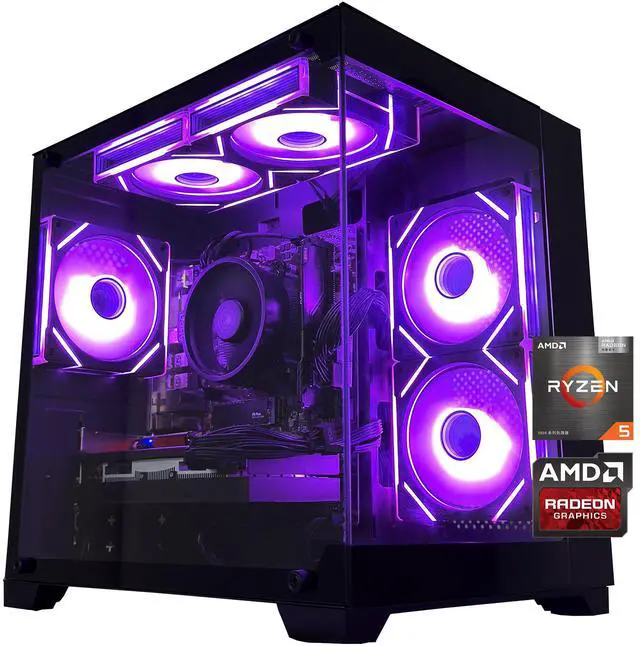
Upgrading your desktop PC offers one of the best value propositions in computing—extending the life of your system while delivering significant performance improvements at a fraction of the cost of a complete replacement. In 2026, the modular nature of desktop PCs continues to make them the most upgradeable computing platform available. This comprehensive guide will help you identify upgrade opportunities, prioritize components based on your needs, and navigate the technical considerations that ensure compatibility and optimal performance.
Diagnosing Your System: Where to Start
Before purchasing any components, understanding your current system’s limitations is crucial. Performance bottlenecks vary depending on your primary use cases. Gamers experiencing low frame rates typically need GPU upgrades, while slow application loading points to storage bottlenecks. System-wide sluggishness during multitasking often indicates insufficient RAM. Professional users working with large files may need both memory and storage improvements.
Windows Task Manager and similar utilities help identify which components max out during typical use. If your GPU utilization consistently hits 100% during gaming, upgrading your graphics card will yield immediate benefits. Conversely, if CPU usage peaks while GPU usage remains low, your processor has become the limiting factor. Understanding these relationships prevents spending money on upgrades that won’t address your actual performance issues.
 Graphics Card Upgrades: The Biggest Gaming Impact
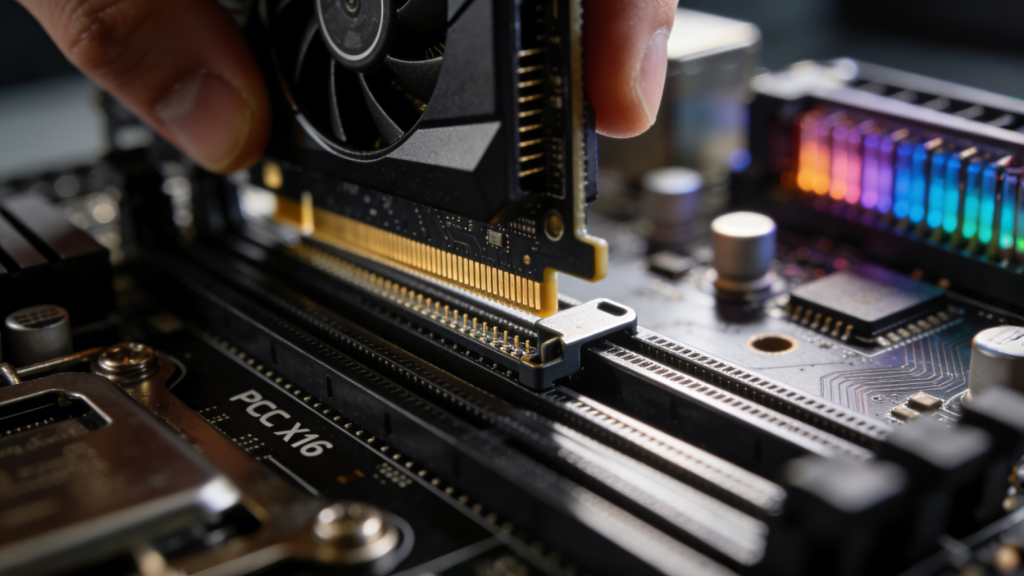
For gamers and creative professionals, GPU upgrades deliver the most dramatic performance improvements. The GPU and Video Graphics Cards category offers options spanning multiple performance tiers, allowing you to choose an upgrade that matches your budget and performance targets.
When upgrading your graphics card, verify several compatibility factors. First, ensure your power supply provides sufficient wattage and the appropriate PCIe power connectors. Modern high-end GPUs can draw 300-450 watts, requiring robust power delivery. Second, check physical dimensions—today’s flagship graphics cards often occupy 2.5 to 3 expansion slots and exceed 320mm in length. Measure your case clearance before purchasing.
Browse the NVIDIA brand store for cards offering advanced features like ray tracing and DLSS upscaling, which dramatically improve visual quality and performance in supported titles. The AMD brand store provides competitive alternatives often offering better value at mid-range price points, with generous memory allocations that benefit high-resolution gaming and content creation.
CPU Upgrades: Boosting System Responsiveness
Processor upgrades can breathe new life into aging systems, but they require more careful planning than GPU upgrades. CPU compatibility depends on your motherboard’s socket type and chipset. A motherboard with an older socket may support newer processors through BIOS updates, but eventually, you’ll need to upgrade both components simultaneously.
The CPU Processor category features current-generation processors offering significant improvements in both single-threaded performance and multi-core capabilities. Modern CPUs with 8-12 cores provide excellent performance for gaming and general use, while 16+ core processors excel at content creation, video editing, and professional workloads.
Before upgrading your CPU, research your motherboard’s specifications to identify compatible processors. Manufacturers often publish CPU support lists detailing which processors work with each motherboard model. Pay attention to BIOS version requirements—newer CPUs may require updated firmware before they’ll function correctly.
 Memory Upgrades: Eliminating Multitasking Bottlenecks
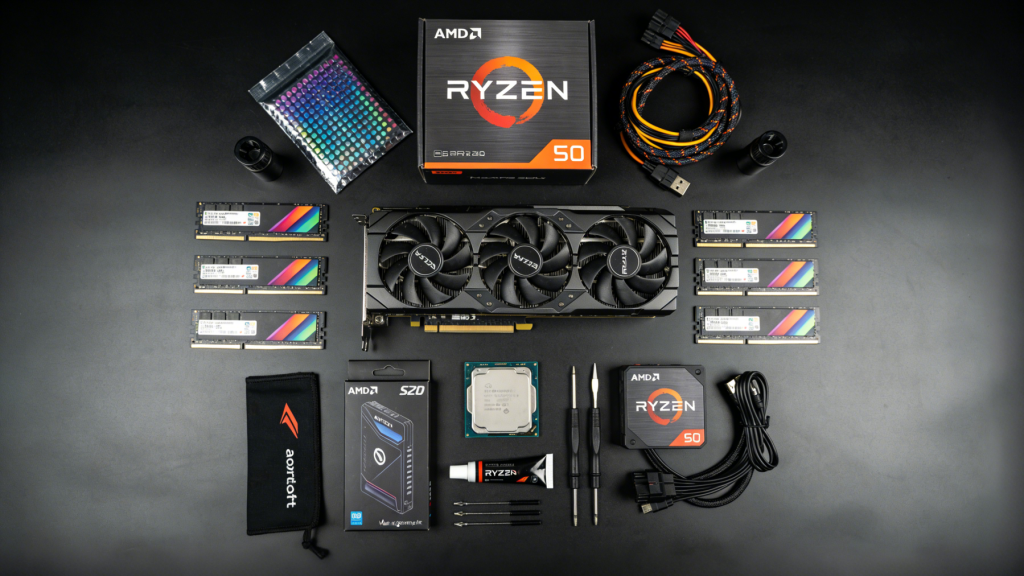
RAM upgrades offer some of the simplest yet most effective system improvements. If you regularly run multiple applications simultaneously or work with large files, insufficient memory forces your system to use much slower disk-based virtual memory. Upgrading from 16GB to 32GB or from 32GB to 64GB can eliminate stuttering and improve overall system responsiveness.
The Memory category provides RAM kits in various capacities and speeds. When upgrading memory, matching your existing RAM specifications ensures compatibility and proper performance. Check your current RAM’s speed (measured in MHz) and type (DDR4 or DDR5) before purchasing.
For best performance, install RAM in matching pairs or sets of four, enabling dual-channel or quad-channel operation. This configuration doubles or quadruples memory bandwidth compared to single-channel operation. If upgrading from a 2x8GB configuration to 32GB, purchasing a 2x16GB kit and removing the old modules typically performs better than mixing different capacity modules.
Storage Upgrades: Eliminating Load Times
Storage represents one of the most noticeable upgrades you can perform. Modern NVMe SSDs load operating systems in seconds, launch applications almost instantly, and eliminate loading screens in many games. The performance difference between traditional hard drives and NVMe SSDs is dramatic—often 20-30 times faster for sequential reads.
The Hard Drives category includes both high-speed SSDs and high-capacity HDDs. For optimal system configuration, use a fast NVMe SSD as your primary drive for your operating system and frequently used applications, then add a larger SATA SSD or HDD for file storage and less-played games.
When upgrading to NVMe storage, verify your motherboard includes M.2 slots and check which PCIe generation they support. PCIe Gen 4 and Gen 5 SSDs deliver exceptional performance but require compatible motherboard slots to reach their full potential. Even if your motherboard only supports Gen 3, modern NVMe drives still vastly outperform SATA SSDs and traditional hard drives.
 Motherboard Upgrades: The Foundation of Future Upgrades
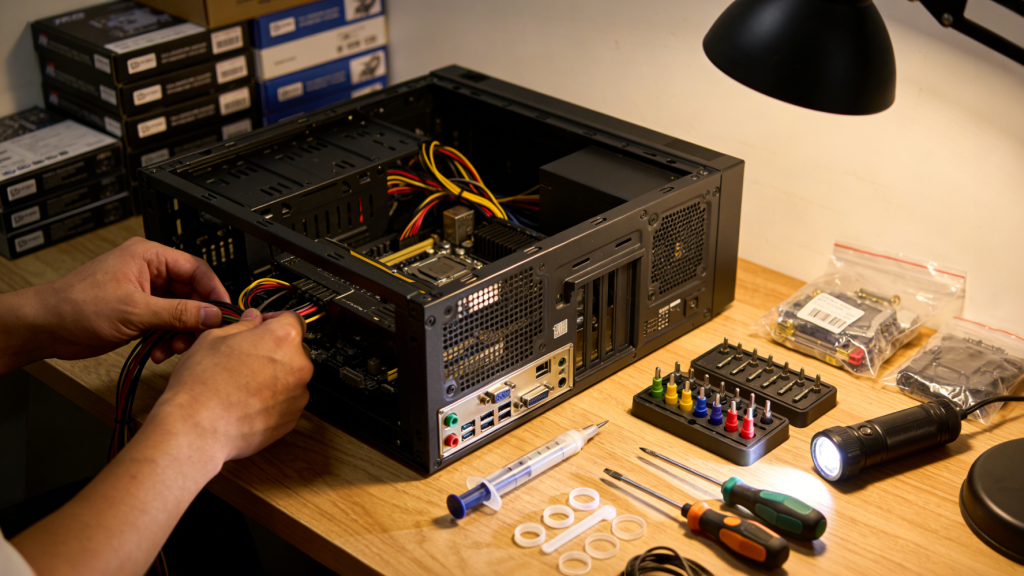
Motherboard upgrades typically accompany CPU upgrades, as socket compatibility eventually limits processor upgrade paths. Modern motherboards offer improved connectivity, faster memory support, and additional features like built-in Wi-Fi and improved audio.
The Motherboard category features boards supporting the latest processor generations and offering advanced features. When selecting a motherboard, consider future upgrade potential—boards with additional M.2 slots, ample PCIe slots, and support for faster memory speeds provide more flexibility for future enhancements.
Motherboard form factor matters significantly. ATX boards offer the most expansion options with multiple PCIe slots and DIMM slots. Micro-ATX boards provide a compromise between size and expandability, while Mini-ITX boards fit small form factor cases but limit expansion possibilities. Ensure your case supports your chosen motherboard size before purchasing.
Power Supply Upgrades: Reliable Power for Demanding Components
Modern high-performance components demand more power than older systems provided. If you’re upgrading to a powerful GPU or high-core-count CPU, your existing power supply may lack the capacity or necessary connectors. Upgrading to a higher-wattage, more efficient power supply prevents stability issues and provides headroom for future upgrades.
Quality matters significantly in power supplies. Look for units with 80 Plus Gold or Platinum efficiency ratings, which waste less energy as heat and provide cleaner power to components. Modular power supplies simplify cable management by allowing you to connect only the cables you need, improving airflow and aesthetics.
Calculate your system’s power requirements by adding the TDP ratings of your CPU and GPU, then add approximately 150-200 watts for other components. This total represents your minimum power supply capacity, but purchasing a unit with 20-30% additional capacity ensures efficient operation and supports future upgrades.
 Cooling Upgrades: Maintaining Performance Under Load
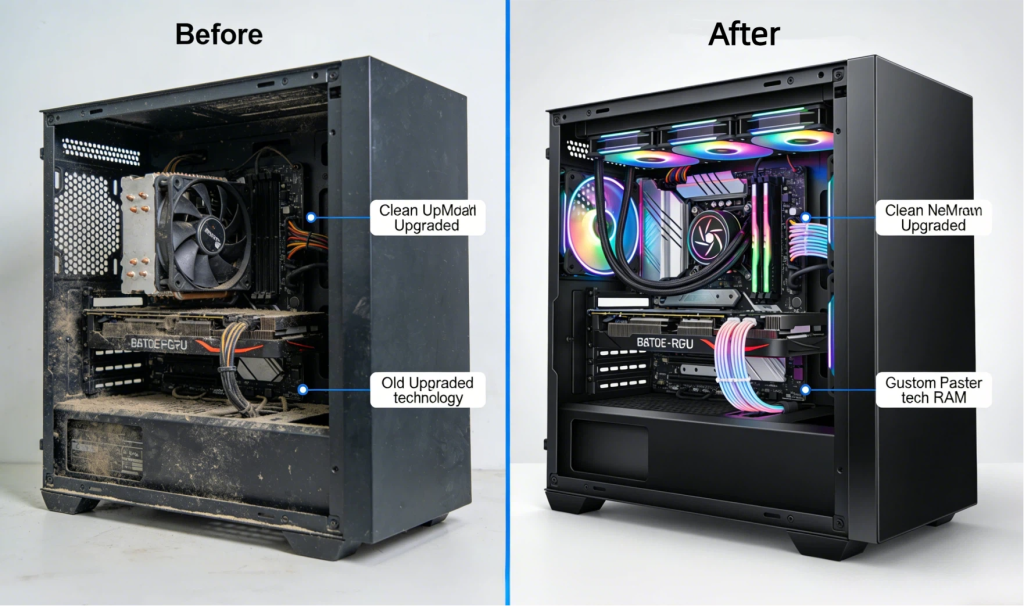
Effective cooling allows components to maintain boost clocks and prevents thermal throttling. If your system runs hot or sounds like a jet engine, cooling upgrades can improve both performance and acoustic comfort. Options range from improved air coolers to all-in-one liquid cooling solutions.
High-quality tower air coolers often outperform budget liquid coolers while costing less and offering better reliability. However, all-in-one liquid coolers provide superior cooling for high-end processors and improved aesthetics with customizable RGB lighting. When selecting coolers, verify compatibility with your CPU socket, case clearance, and RAM height.
Case fans significantly impact overall system temperatures. Upgrading to higher-quality fans improves airflow while reducing noise. Optimal fan configuration includes intake fans at the front and bottom of the case, with exhaust fans at the rear and top, creating positive pressure that reduces dust accumulation.
Using PC Builder Tools for Planning
Before purchasing components, use Newegg’s Custom PC Builder tool to verify compatibility and plan your upgrade path. The tool identifies potential incompatibilities between components and estimates total system power consumption, helping you select an appropriate power supply.
For users uncertain about which upgrades will provide the most benefit, the tool allows you to model different configurations and compare their capabilities. This planning prevents expensive mistakes and ensures your upgraded system will perform as expected.
Budget Optimization: Prioritizing Upgrades
When working within a budget, prioritize upgrades based on your primary use cases and current bottlenecks. Gamers should upgrade GPUs first, as graphics cards have the most significant impact on gaming performance. Content creators benefit from CPU and RAM upgrades, which accelerate rendering and allow smoother multitasking.
For systems with traditional hard drives, storage upgrades to SSDs provide the most noticeable improvement in everyday use. The responsiveness improvement from SSD upgrades often feels more significant than raw performance increases from other components, as every interaction with your computer benefits from faster storage.
 When to Upgrade vs. Replace
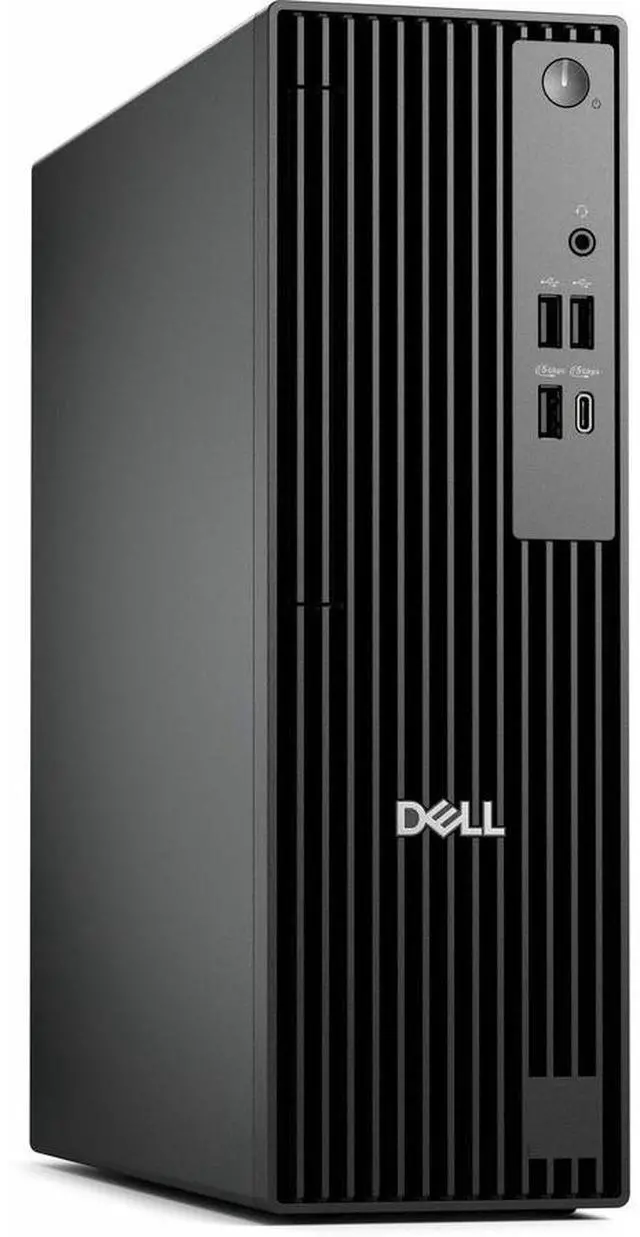
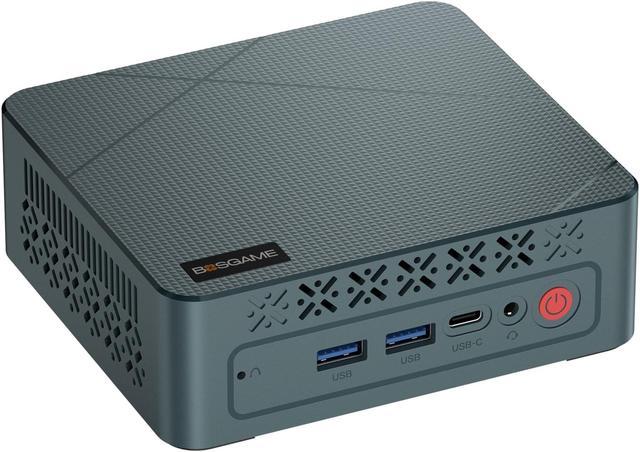
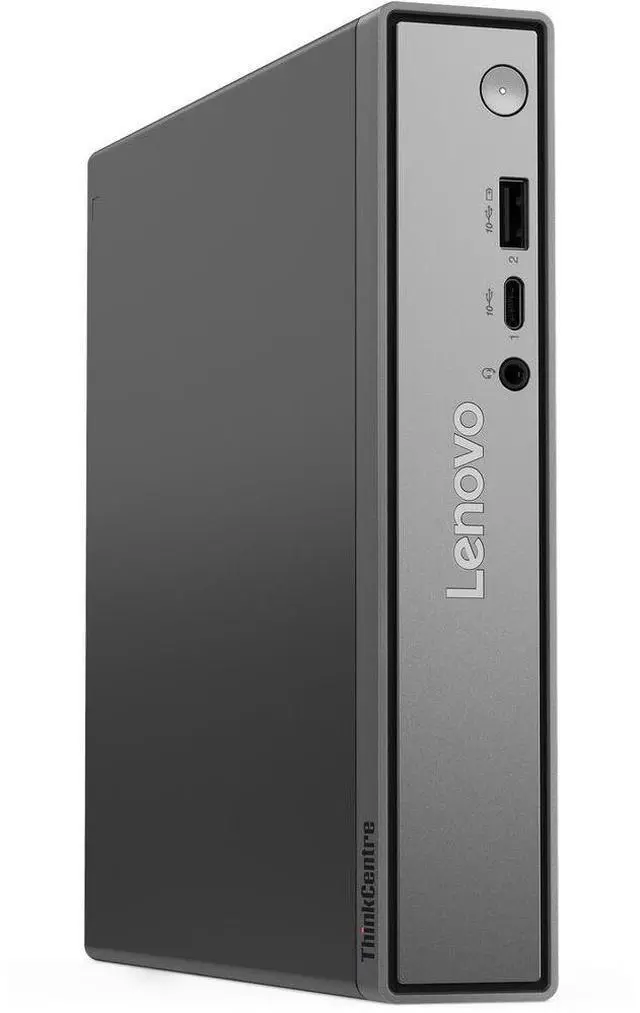
Sometimes upgrading makes less sense than building a new system. If your motherboard limits you to older CPU generations, requires obsolete DDR3 memory, and lacks M.2 slots for modern storage, upgrading individual components provides diminishing returns. In these cases, building a new system or purchasing a modern pre-built configuration delivers better long-term value.
However, if your system uses a current-generation or recent-generation platform, strategic upgrades can extend its useful life by 3-5 years. Systems with modern motherboards supporting DDR4 or DDR5 memory and featuring M.2 storage slots remain excellent upgrade candidates, as you can improve performance dramatically without replacing fundamental platform components.
Conclusion: Smart Upgrades Extend System Life
Strategic component upgrades allow you to maintain competitive performance without the expense of complete system replacement. By understanding your current system’s limitations, verifying component compatibility, and prioritizing upgrades based on your specific needs, you can achieve significant performance improvements at a reasonable cost. The modular nature of desktop PCs remains their greatest advantage—your system can evolve alongside your needs, with each component upgrade bringing new capabilities and extended utility.