A desktop and monitor should work as a team. Pairing a powerful gaming PC with a basic 60Hz display can leave performance on the table, while connecting an entry-level graphics card to an expensive 4K monitor may make smooth gameplay difficult. The right bundle matches the computer's graphics capability with the monitor's resolution, refresh rate, features, and connection standards.
Use this guide to shop for a balanced desktop and gaming monitor bundle. We'll cover the specifications that matter most, explain how to match a display to your graphics card, and outline practical bundle options for gaming, work, school, and creative applications.
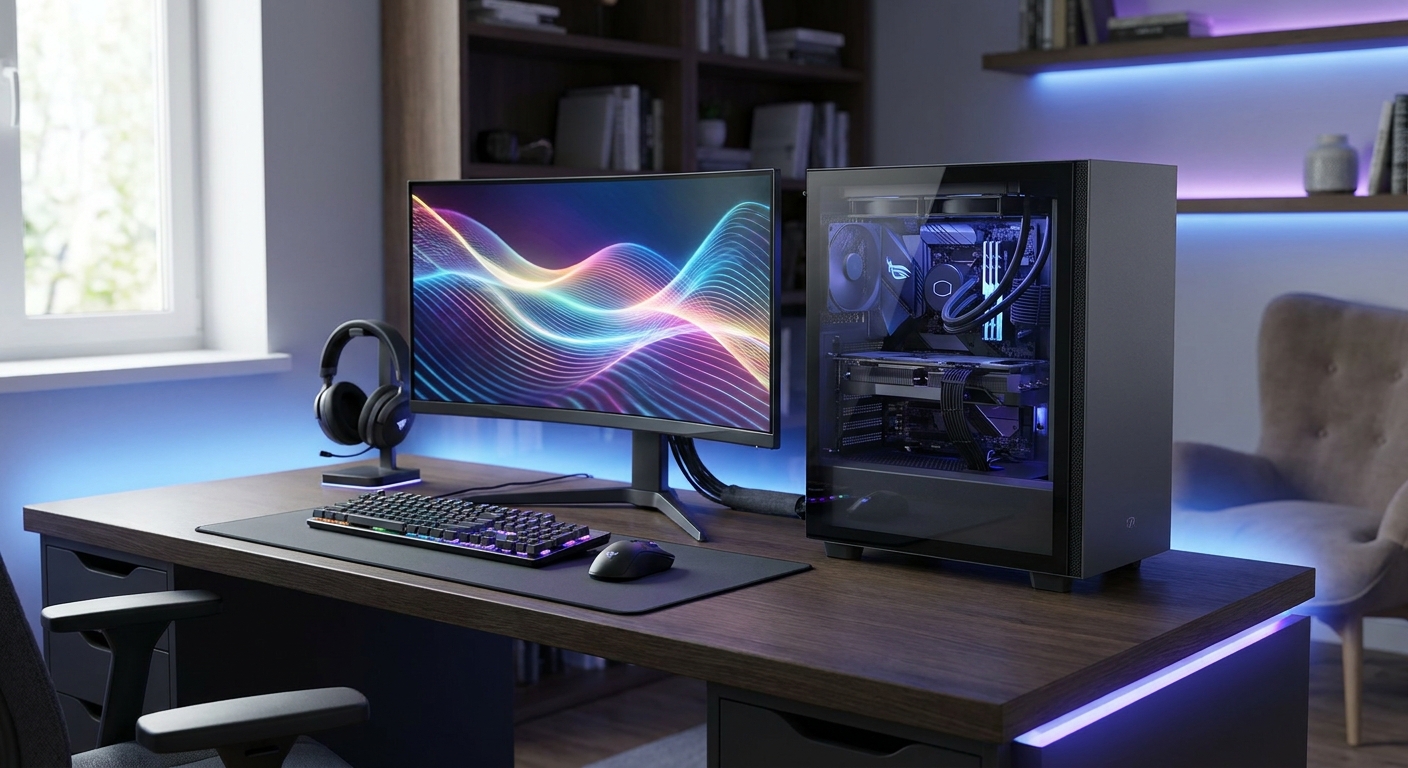
Step 1: Define What the Bundle Must Do
Begin with how you plan to use the system. Gaming, office work, content creation, streaming, and schoolwork all place different demands on a desktop and display. A gaming-first setup should emphasize graphics performance, refresh rate, response behavior, and variable refresh rate support. A productivity-focused bundle may benefit more from high resolution, clear text, ergonomic adjustment, and multiple input options.
Before comparing products, list your target games, applications, resolution, and budget. Choosing the desktop and monitor together makes it easier to build a system that delivers the experience you want instead of buying two components that do not complement each other.
- Competitive gaming: prioritize high refresh rates such as 144Hz, 180Hz, 240Hz, or higher, along with low input latency and a graphics card capable of producing high frame rates.
- Single-player gaming: consider 1440p or 4K resolution, strong contrast, HDR capability, and a monitor size that makes detailed environments easier to see.
- Mixed gaming and work: look for a 27-inch 1440p display, adaptive sync, and a desktop with enough memory and storage for everyday applications.
- Creative work: focus on panel quality, color coverage, factory calibration, resolution, and a graphics card that supports the software you use.
Step 2: Match the Monitor Resolution to the Graphics Card
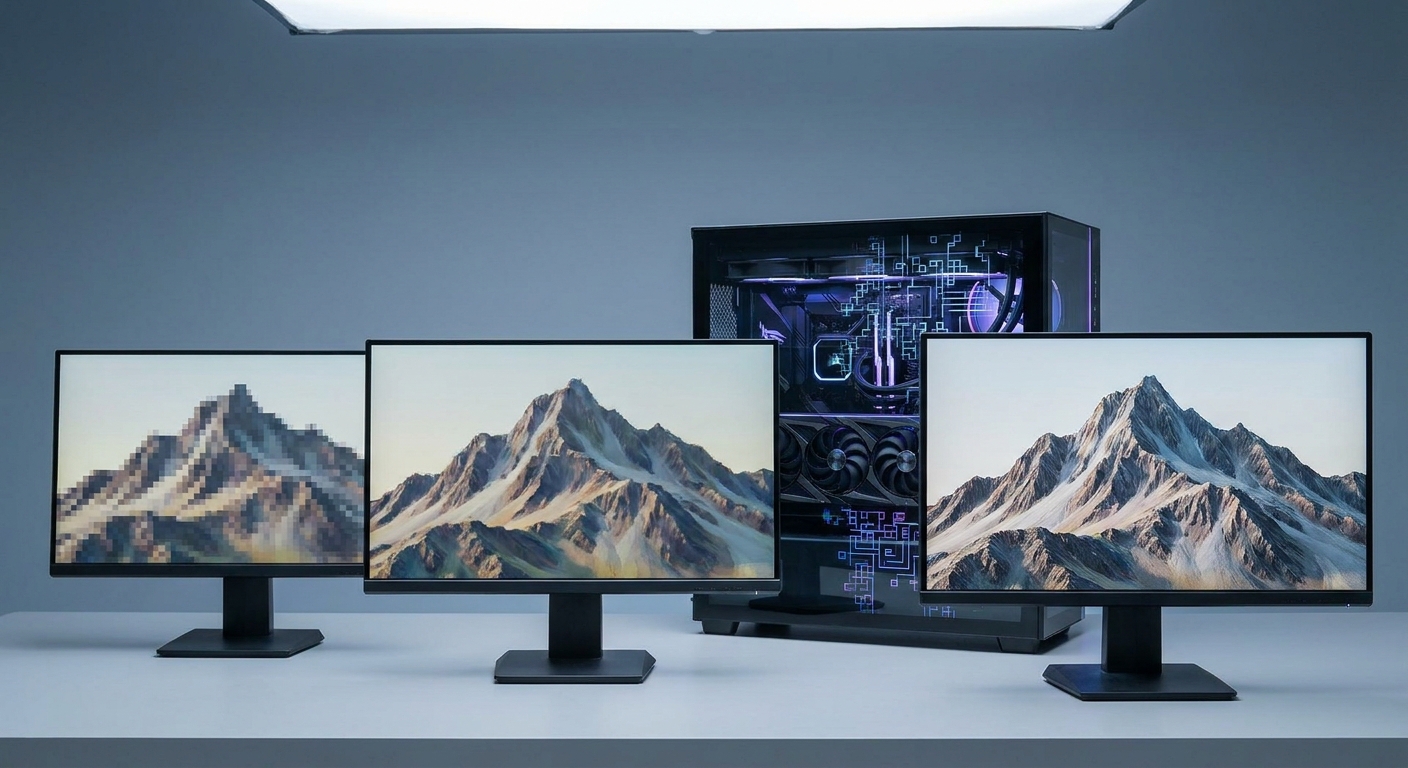
Your graphics card is the key component to consider when selecting a gaming monitor. Resolution determines how many pixels the GPU must render in every frame. A 1920 by 1080 display contains about 2.1 million pixels, 2560 by 1440 contains about 3.7 million, and 3840 by 2160 contains about 8.3 million. Higher resolutions deliver more detail, but they also demand more graphics performance when you want high frame rates.
For many mainstream gaming desktops, 1080p remains a practical choice, especially for competitive games at 144Hz or above. A 1440p monitor is a popular middle ground for modern gaming PCs, offering sharper images and text than 1080p without the same rendering workload as 4K. Choose 4K when you have a higher-tier graphics card, particularly if you plan to use ray tracing or demanding visual presets.
- 1080p: suitable for budget desktops, esports, and high frame rates with modest graphics hardware.
- 1440p: a balanced choice for a midrange or high-performance desktop and a 27-inch monitor.
- 4K: designed for detailed gaming, large screens, productivity, and systems with substantial GPU performance.
- Ultrawide: useful for immersive gaming and multitasking, but its wider pixel count can require performance similar to a higher-resolution standard display.
Step 3: Choose a Refresh Rate the Desktop Can Actually Use
Refresh rate indicates how many times a monitor updates its image per second. A 60Hz display refreshes 60 times per second, while a 144Hz display can refresh 144 times per second. Higher refresh rates can make fast movement and camera pans look smoother, but the desktop must produce enough frames for the display to use that capability.
A 240Hz monitor is not automatically the best choice simply because the number is higher. It is most useful for competitive games when the desktop can consistently deliver very high frame rates. For general gaming, 144Hz to 180Hz is often a better-balanced target. Keep in mind that a 4K monitor running at 144Hz puts a significantly heavier workload on the graphics card than a 1080p monitor running at 144Hz.
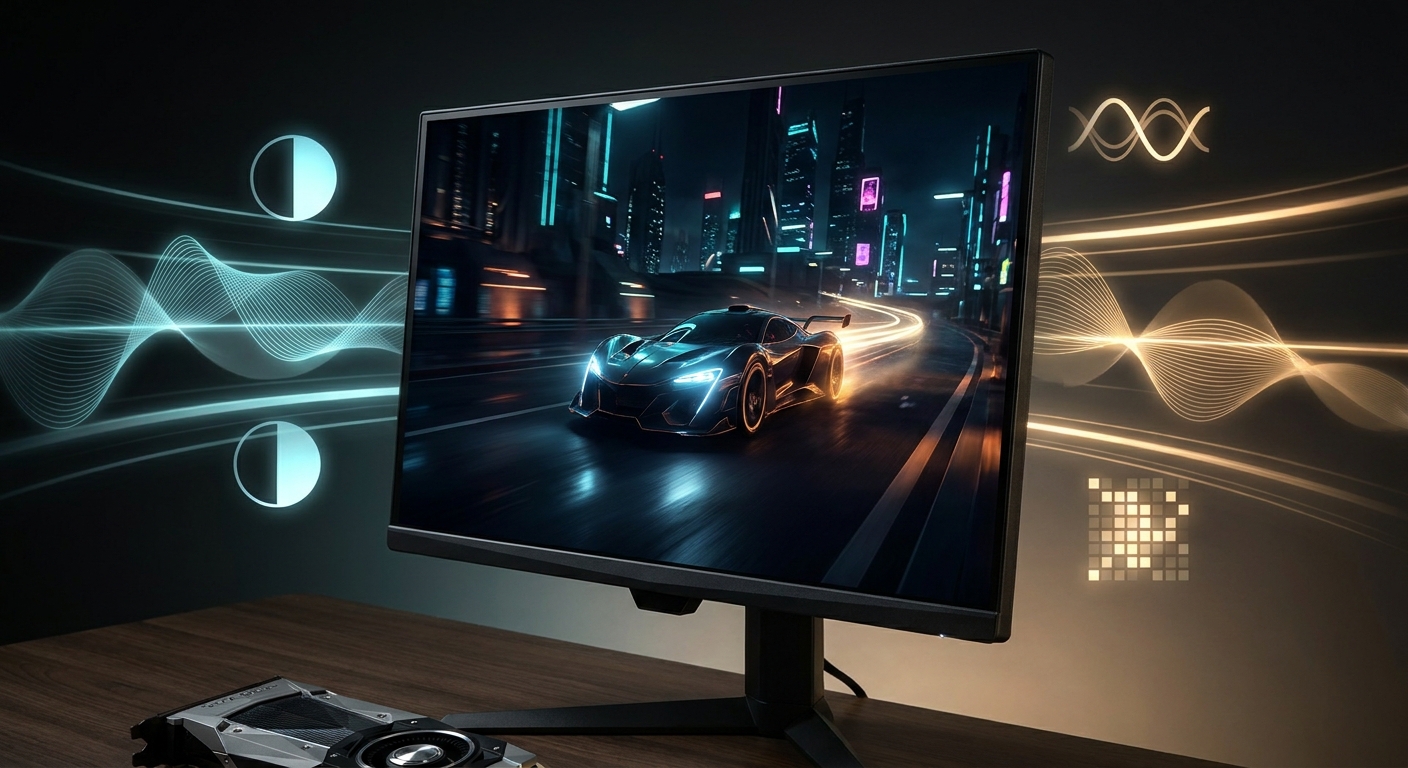
Variable refresh rate technology allows the monitor to synchronize its refresh cycle with the GPU's frame output. AMD FreeSync and NVIDIA G-SYNC technologies are designed to reduce visible tearing and uneven motion when frame rates fluctuate. Before buying, confirm support on both the monitor and graphics card.
Step 4: Compare Panel Type, Response Time, and HDR
Most gaming monitors use IPS, VA, or OLED panels. IPS displays are popular because they typically provide good viewing angles, strong color performance, and fast response behavior. VA panels often offer deeper native contrast, which can improve dark scenes, although some models may show dark-level smearing during fast movement. OLED panels can produce extremely deep blacks and very fast pixel response, but shoppers should also consider price, brightness behavior, and the manufacturer's policies for long-term image retention.
Response time also needs context. A listed 1ms response time may describe a particular test mode rather than every transition. When possible, review independent testing and look for a monitor that maintains clear motion without excessive overshoot. HDR performance can vary widely as well. A monitor that accepts an HDR signal is not automatically capable of delivering bright highlights or strong contrast. Brightness, local dimming, contrast, and panel technology all influence the final result.
- IPS: a versatile option for gaming, work, and color-sensitive applications.
- VA: a useful choice when contrast and dark-scene depth matter.
- OLED: attractive for premium contrast and motion clarity, with additional care required for static desktop content.
- HDR: evaluate brightness and contrast performance instead of relying only on an HDR label.
Step 5: Verify the Connections Between Desktop and Monitor
DisplayPort and HDMI are the two most common connections for a gaming desktop and monitor. The connection version matters because available bandwidth determines which resolution and refresh-rate combinations are possible. DisplayPort 1.4 can support high-resolution, high-refresh configurations, with Display Stream Compression used by some monitors and graphics cards. HDMI 2.1 offers greater bandwidth than HDMI 2.0 and is important for certain 4K high-refresh displays.
When the desktop includes a dedicated GPU, connect the monitor to the graphics card's outputs rather than the motherboard's video outputs. Depending on the desktop design, using the motherboard connection can prevent the system from using the dedicated graphics card for display output. Check the cable, too. A monitor may advertise 4K at 144Hz, but the desktop, port, and cable must all support that combination.
- Confirm the desktop has DisplayPort or HDMI outputs that match the monitor's required input.
- Check whether the desired resolution and refresh rate require DisplayPort, HDMI 2.1, or a specific cable.
- Use the graphics card output when a discrete GPU is installed.
- Check for USB hubs, speakers, headphone outputs, or USB-C video support if those features are part of your setup.
Step 6: Select the Right Screen Size and Ergonomics
Choose screen size and resolution together. A 24-inch 1080p monitor is a common fit for competitive gaming and smaller desks. A 27-inch 1440p display offers a useful combination of workspace, sharpness, and viewing comfort. A 32-inch 4K monitor provides more physical screen area and high pixel density, but it may require more desk depth and a stronger graphics card.
Ergonomics can matter just as much as image quality during long work or gaming sessions. Look for height, tilt, swivel, and pivot adjustment if you spend many hours at your desk. A VESA-compatible monitor can be mounted on an arm to help position the screen at a comfortable height. Curved ultrawide displays can add immersion, while a flat monitor may be easier to share or use for design work.
Step 7: Choose a Bundle Based on the User
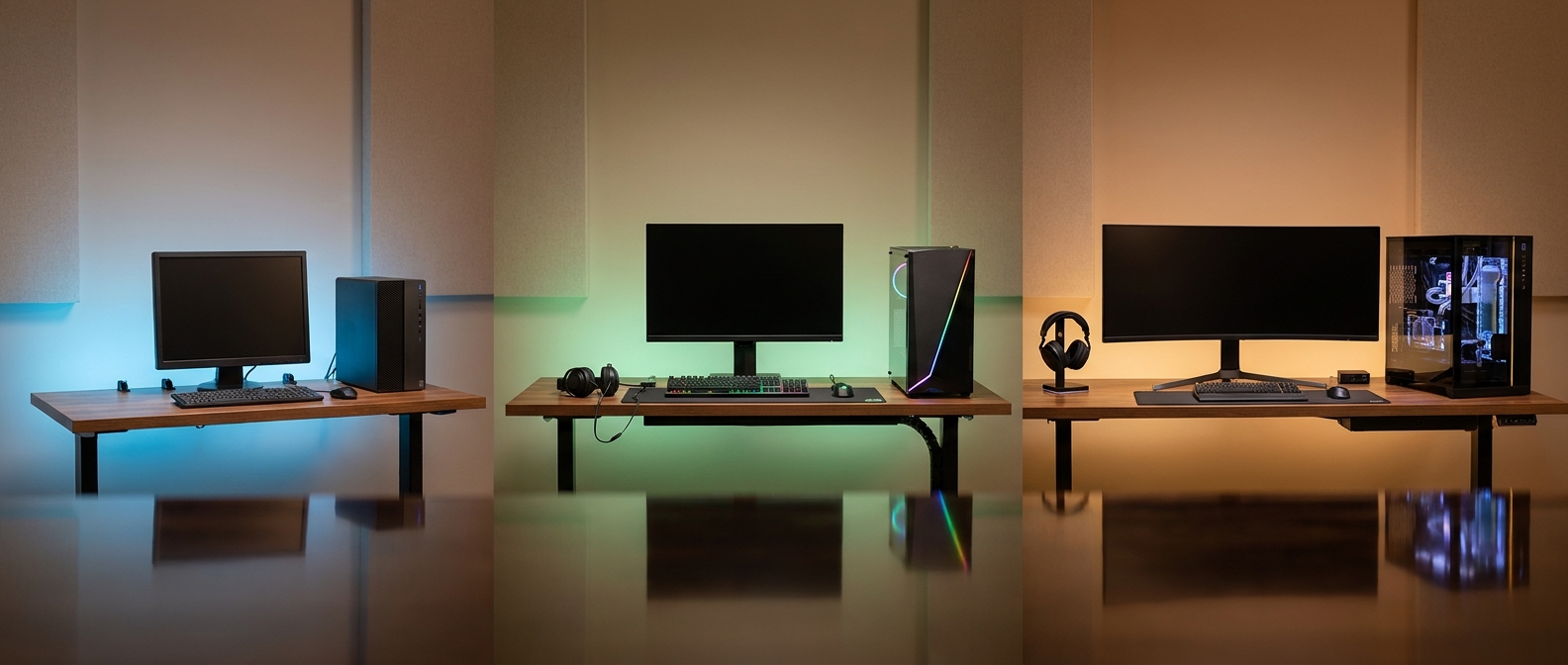
With the core specifications matched, choose a bundle based on the user's priorities. The best desktop and monitor pairing is not necessarily the one with the most expensive component. It is the one that balances performance today with a clear upgrade path for tomorrow.
- Budget gaming bundle: pair a desktop with a capable entry-level graphics card and a 24-inch 1080p monitor at 144Hz or higher. This combination focuses spending on smooth competitive gameplay.
- Balanced 1440p bundle: choose a midrange gaming desktop and a 27-inch 1440p monitor with adaptive sync and at least a 144Hz refresh rate. This is a strong all-purpose setup for current PC gaming.
- Premium 4K bundle: pair a high-performance desktop with a 27-inch or 32-inch 4K monitor. Look for a high refresh rate, HDMI 2.1 or suitable DisplayPort support, and a GPU capable of using upscaling when necessary.
- Work and gaming bundle: select a desktop with a modern multi-core processor, at least 16GB of memory, fast solid-state storage, and a 1440p monitor with strong text clarity and ergonomic adjustment.
Step 8: Check the Complete Setup Before Buying
Before placing your order, review the complete specification list. For the desktop, check the processor, graphics card, memory capacity, storage type, power supply, cooling, and upgrade options. For the monitor, verify the resolution, refresh rate, adaptive sync support, panel type, inputs, stand adjustment, and warranty coverage.
Accessories can also affect the finished setup. You may need a DisplayPort or HDMI cable, and a large monitor may require a deeper desk or monitor arm. If the desktop will handle streaming, video editing, or heavy multitasking, 32GB of memory can provide more headroom than a 16GB configuration. For primarily gaming and everyday use, 16GB may be an appropriate starting point, provided the desktop supports future upgrades.
Summary: Build Around Balance
A desktop and gaming monitor bundle should be built around a shared performance target. Match the monitor's resolution to the graphics card, select a refresh rate the desktop can sustain, verify the connection standard, and evaluate panel behavior instead of focusing on a single headline specification. Screen size, ergonomics, HDR capability, adaptive sync, and upgrade support deserve attention, too.
For many shoppers, a 27-inch 1440p monitor with a 144Hz to 180Hz refresh rate offers a flexible middle ground. Competitive players may prefer 1080p at a much higher refresh rate, while premium systems can make good use of 4K at 144Hz or beyond. Treating the desktop and monitor as one performance system helps you spend with purpose and avoid paying for display capability your computer cannot use.
Frequently Asked Questions
What gaming monitor resolution is best for my desktop?
A 1080p monitor is a practical choice for entry-level desktops and competitive gaming, while 1440p is a strong fit for many midrange systems. Choose 4K when your graphics card can maintain playable frame rates at the settings and refresh rate you want.
Is a 240Hz monitor worth buying for every gaming PC?
No. A 240Hz monitor is most useful when your desktop can consistently produce very high frame rates, especially in competitive games. For general gaming, a 144Hz to 180Hz monitor often provides a better balance between smoothness, image quality, and cost.
How can I check whether my desktop and monitor are compatible?
Compare the desktop's graphics card outputs with the monitor's inputs, then verify that the ports and cable support your target resolution and refresh rate. If your desktop has a dedicated graphics card, connect the monitor directly to the graphics card rather than the motherboard video output.
Should I choose an IPS, VA, or OLED gaming monitor?
IPS is a versatile option for gaming, work, and color-sensitive applications, while VA generally offers stronger native contrast for dark scenes. OLED provides excellent black levels and motion clarity, but shoppers should also consider price, brightness behavior, image-retention precautions, and warranty coverage.
What should I check before buying a desktop and monitor bundle?
Review the desktop's GPU, processor, memory, storage, power supply, cooling, and upgrade options alongside the monitor's resolution, refresh rate, adaptive sync, inputs, stand adjustment, and warranty. Also confirm current stock, included cables, return terms, desk space, and whether the bundle leaves room for future upgrades.
Read More
- The 7 Best Gaming Monitors of 2026 — RTINGS compares gaming monitors across resolution, refresh rate, response behavior, HDR, and gaming performance.
- What to Look For in a Gaming Monitor — This buying guide explains the monitor specifications that matter most for different types of gamers.
- DisplayPort FAQ — The official DisplayPort FAQ provides guidance on bandwidth, Display Stream Compression, adapters, and compatibility.
- HDMI 2.1 Specification Announcement — The HDMI Forum explains the capabilities and backward compatibility considerations associated with HDMI 2.1.
- The Best Gaming Monitors — Tom's Guide reviews gaming monitors across budget, resolution, refresh rate, panel technology, and use cases.