Need more screen space without committing to a permanent desk setup? A portable monitor can expand a laptop, tablet, phone, game console, or compact desktop wherever you work or play. It is a practical upgrade for remote work, travel, school, creative projects, gaming, and presentations.
The right model depends on more than screen size. This guide covers the specifications that matter most, including resolution, connectivity, power, panel type, refresh rate, and ergonomics. Use it to narrow your options and find a portable monitor that fits your devices and your everyday routine.
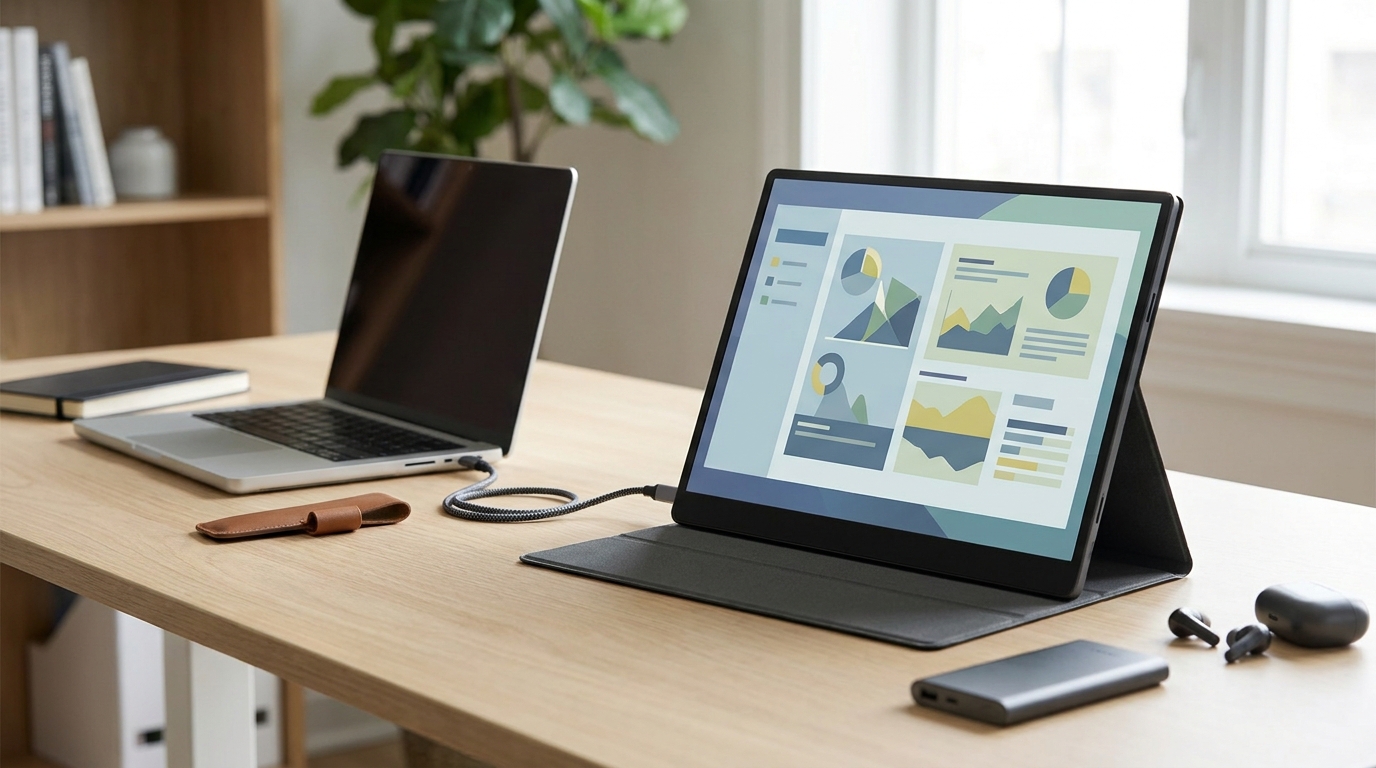
1. Start by Identifying What You Need the Monitor to Do
The best portable monitor for you is not necessarily the biggest, brightest, or most advanced option available. Begin with the device you plan to connect and the work you want to do. A monitor for spreadsheets has different priorities than one for a Nintendo Switch, camera, or smartphone.
Define your main use case before you start comparing models. This makes it easier to focus on features that will improve your setup, avoid unnecessary spending, and identify compatibility requirements early.
- For office work, prioritize a 15.6-inch or larger screen, 1080p resolution or higher, USB-C connectivity, and an adjustable stand.
- For travel, look for a lighter 13.3-inch to 15.6-inch model with a protective cover and a simple single-cable setup.
- For gaming, check refresh rate, response time, input compatibility, and whether the monitor accepts video from your console.
- For photo or video work, consider an IPS panel, wide viewing angles, useful brightness, and color coverage appropriate for your software.
- For phone-based productivity, verify that your phone supports video output through USB-C or the monitor's required desktop mode.
2. Understand the Main Benefits of a Portable Monitor
The biggest advantage is additional screen space. You can leave a document, reference page, chat window, timeline, or spreadsheet visible beside your main display instead of repeatedly switching between applications. That makes multitasking more convenient because important information does not have to stay hidden behind another window.
Portability adds another layer of flexibility. A portable monitor can serve as a second screen at the kitchen table, in a hotel room, at a client site, in a classroom, or next to a game console. When you are finished, it can go into a laptop bag instead of taking up permanent space.
- More workspace: A second 1080p display creates practical room for email, research, documents, or communication tools.
- Better viewing: A separate screen can hold reference material at a more comfortable angle than constant window switching.
- Easy relocation: Most portable monitors are designed to travel with a laptop or compact device.
- Lower equipment commitment: One display can serve home, work, and travel locations instead of requiring separate monitors.
- Flexible orientation: Some models support landscape and portrait positioning for long documents, coding, and social content.

3. Choose the Right Screen Size and Resolution
Screen size is a balance between usable workspace and packability. A 13.3-inch display is easier to carry and can work well for shorter sessions, but text and application controls may feel more limited. At 15.6 inches, a portable monitor offers a familiar laptop-like workspace while remaining practical for travel. A 17.3-inch model gives you more room, although its added size and weight may be less convenient for frequent transport.
Resolution determines how much detail appears on the screen. Full HD, or 1920 by 1080, is a sensible baseline for a 13.3-inch or 15.6-inch portable monitor. A 2560 by 1600 or 2560 by 1440 display can deliver sharper text and more workspace, but may draw more power and place greater demands on the connected device. A 4K portable monitor is useful for detailed imagery, but it is not essential for every office or travel setup.
- 13.3 inches: A good fit when minimum size and weight matter more than maximum workspace.
- 15.6 inches: A versatile size for spreadsheets, documents, streaming, and everyday multitasking.
- 17.3 inches: Helpful when you want a larger work area and do not travel often.
- 1920 by 1080: A practical resolution for everyday productivity and console gaming.
- 2560 by 1440 or 2560 by 1600: Better suited to shoppers who want sharper text or more workspace and have compatible hardware.
- 3840 by 2160: A high-detail choice for selected creative workflows, provided the device and power setup can support it.
4. Check Connectivity Before You Buy
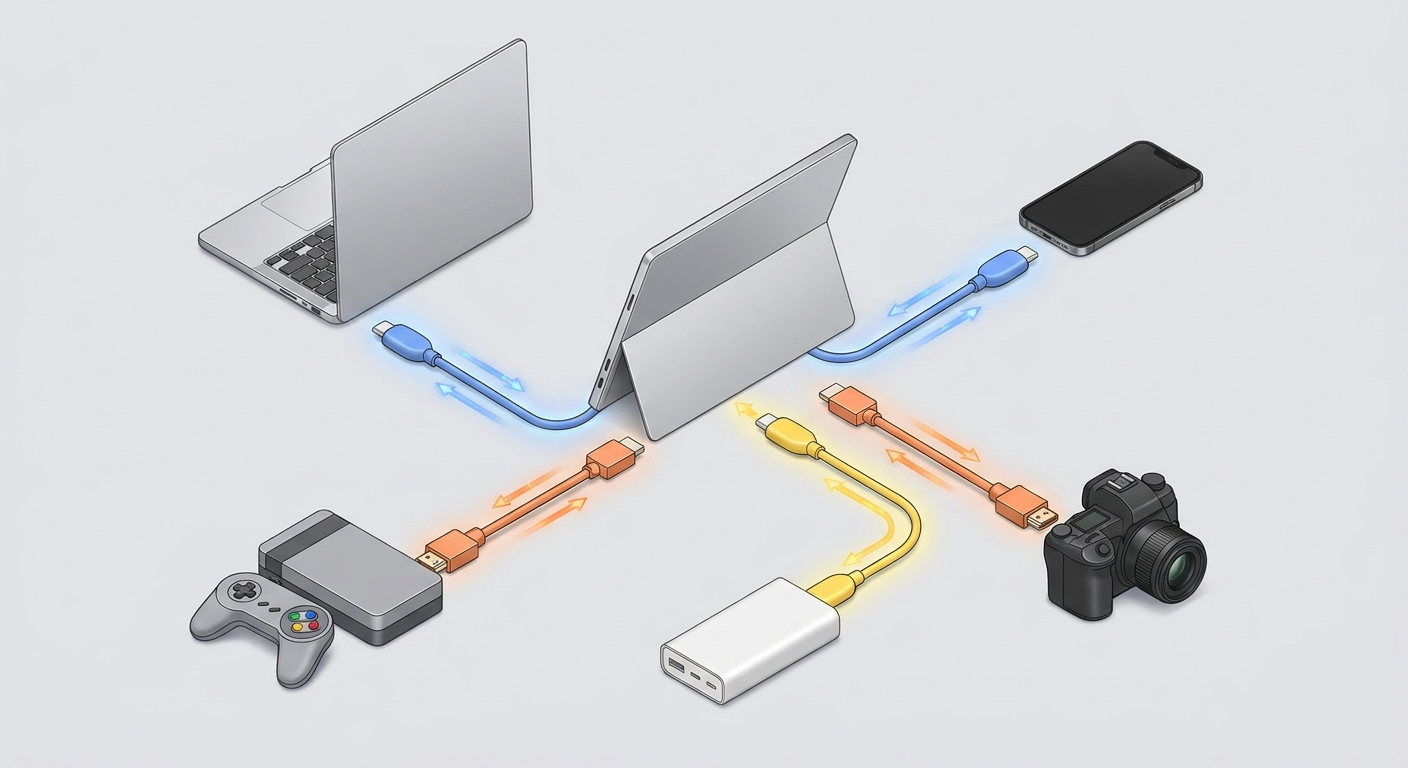
Connectivity should be one of your first purchase checks. A USB-C port does not automatically support video. Your computer, phone, or tablet must provide DisplayPort Alt Mode through USB-C, or the monitor must use another video input such as HDMI. Check both devices rather than assuming matching connectors guarantee compatibility.
Many portable monitors use USB-C to carry video and power over one cable, which is convenient with newer laptops and compatible tablets. Depending on the device, you may need two USB-C cables: one for video and another for additional power. HDMI works with a wider range of laptops, cameras, mini PCs, and game consoles, but it typically requires a separate power connection.
- USB-C with DisplayPort Alt Mode: Can carry video and, in some setups, power through one cable.
- Mini HDMI or full-size HDMI: Useful for consoles, cameras, desktops, and devices without USB-C video output.
- USB-A power: May supply power, but USB-A generally does not carry video to a portable monitor on its own.
- DisplayLink adapters: Can add displays through software and USB, but drivers, compatibility, and performance require careful checking.
- Power delivery passthrough: Some models can pass charger power to a laptop, but supported wattage and port arrangement vary.
5. Select a Panel Type and Image Specification
IPS and OLED are two common panel types in portable monitors. IPS remains popular because it provides broad viewing angles, consistent image quality, and practical pricing. It is a strong all-around option for documents, browsing, schoolwork, media, and many creative applications.
OLED panels can produce deeper blacks and strong contrast because individual pixels can switch off. That can make movies and games look more dramatic. However, consider the price, power use, brightness behavior, and possibility of image retention during long sessions with static interface elements. A 60Hz portable monitor is suitable for office work and most video, while 120Hz or higher can make scrolling and supported games feel smoother.
- Viewing angles: IPS panels are generally well suited to shared viewing and changing desk positions.
- Brightness: A brighter panel helps near windows or outdoors, although no portable display performs equally well in direct sunlight.
- Refresh rate: 60Hz is appropriate for general productivity; higher refresh rates may improve gaming and motion smoothness.
- Response time: Lower stated response times can reduce visible smearing, but results vary by panel and testing method.
- Color coverage: Look for stated coverage such as sRGB or DCI-P3 when accurate color matters.
- Surface finish: Matte finishes can reduce reflections, while glossy finishes may look more vivid but show more glare.
6. Set Up a Portable Monitor for Work and Study
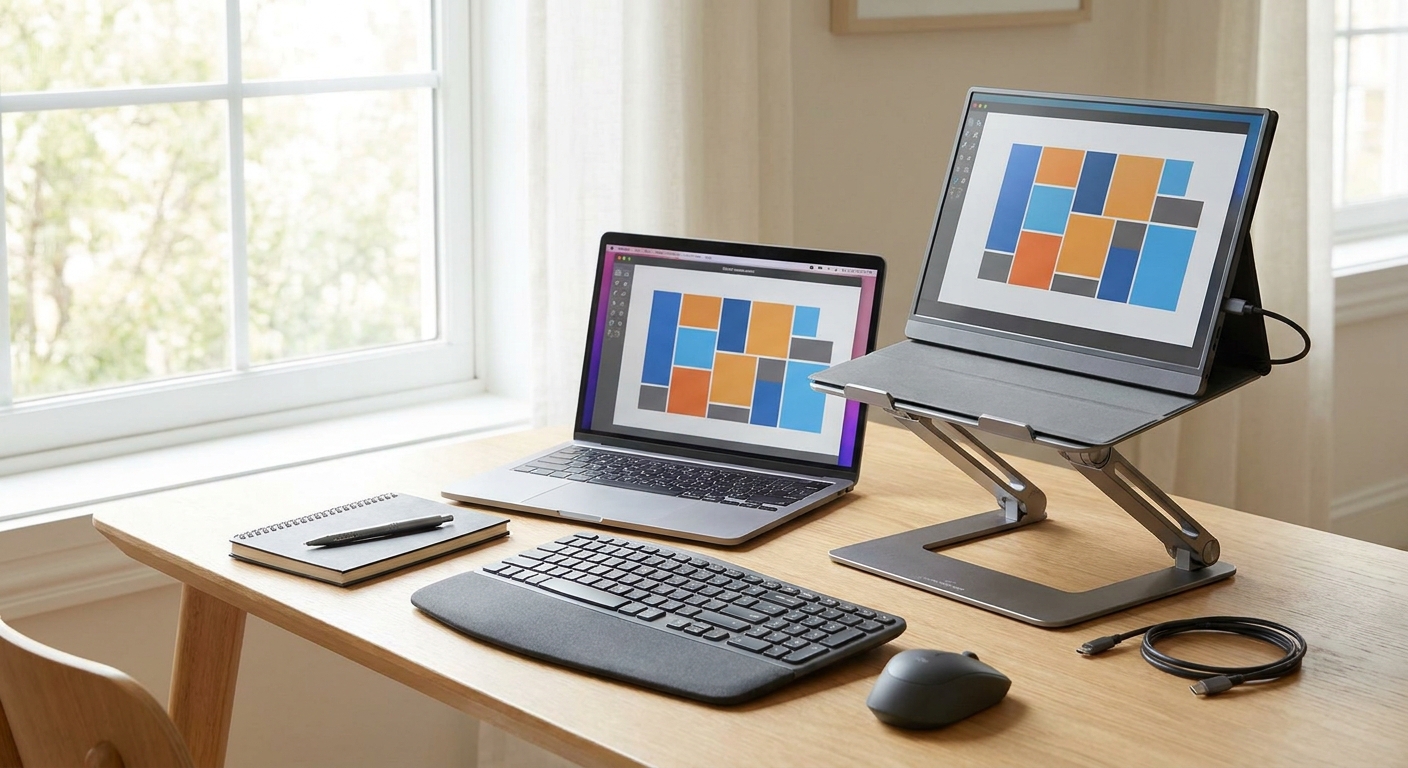
For laptop use, place the portable monitor beside the built-in display when you need two independent work areas. Keep a video call, email inbox, research source, or messaging app on one screen while writing or editing on the other. If your laptop supports it, extended-display mode is usually more useful than mirroring because each screen gets its own desktop area.
A temporary workspace still benefits from good ergonomics. Raise the portable monitor so its top edge is near eye level, keep it close enough that you do not lean forward, and adjust the angle to limit reflections. A folding cover that doubles as a stand is convenient, but a separate stand may offer better height and stability for long sessions.
- Connect the monitor to power if the laptop cannot supply enough power through USB-C.
- Connect the video cable and wait for the operating system to detect the display.
- Select extended desktop mode when you want two separate work areas.
- Set the correct resolution and refresh rate in the display settings.
- Adjust display scaling so text and application controls are comfortable to read.
- Move the second screen to the correct physical side in the operating system's display arrangement.
7. Match the Monitor to Specific Use Cases
A portable monitor earns its place when it solves a recurring problem. One model can support limited laptop screen space, an awkward hotel workspace, a presentation, or the need to show content to someone else without carrying a full-size display.
Think about how often you will use each feature and whether the monitor will run from battery power, wall power, or your laptop. A model that works well on a hotel desk may not be the best choice for outdoor use or console gaming.
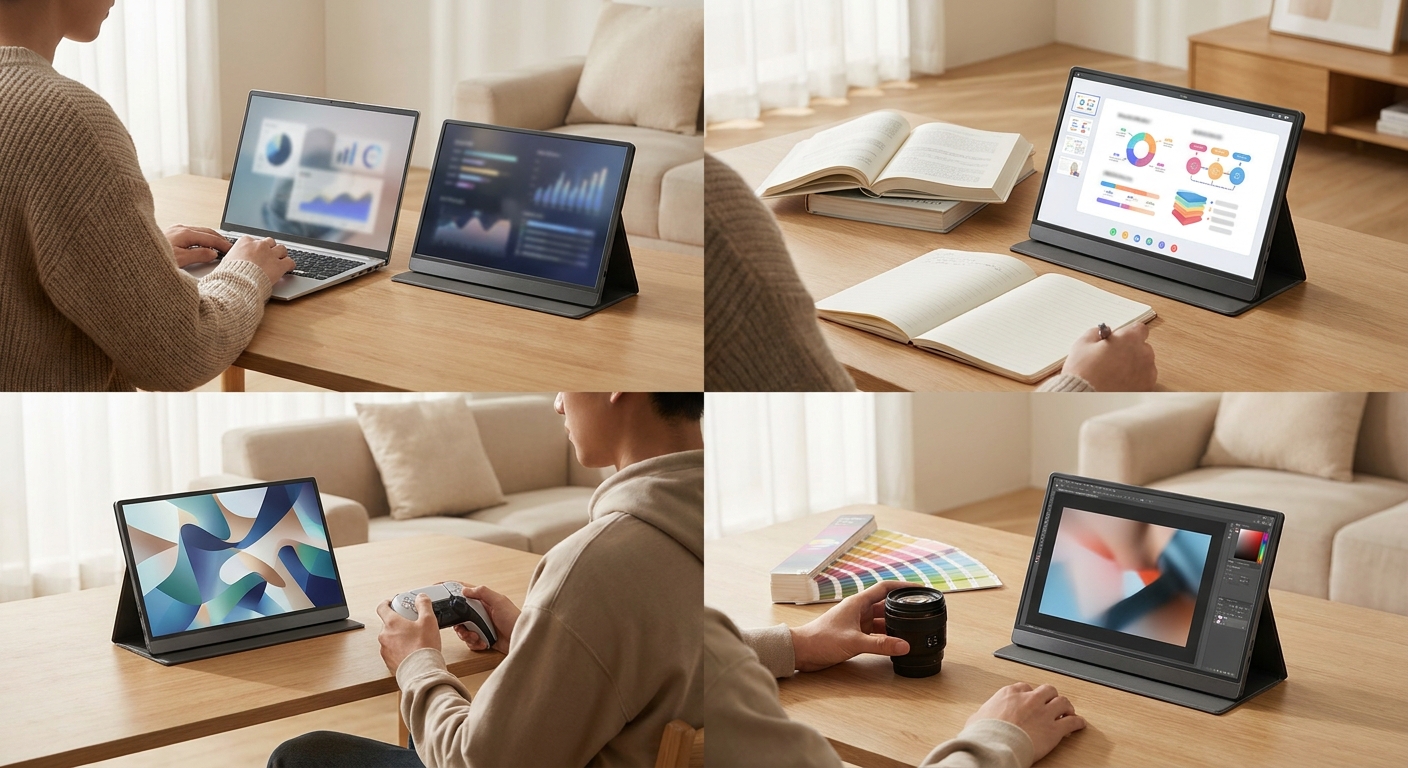
- Remote work: Keep video meetings, task lists, chat, or reference documents on the second screen while using the primary display for focused work.
- Students: Place lecture material, digital textbooks, or research sources on one screen and take notes on the other.
- Travel: Choose a compact model with a protective cover, simple setup, and a power requirement your charger can handle.
- Creative work: Use the extra display for tool panels, file browsers, timelines, or reference images. Check color specifications if the screen will support color-sensitive decisions.
- Gaming: Confirm console output resolution, HDMI requirements, audio support, refresh rate, and whether the monitor can run from the available power source.
- Presentations: A second screen can show presenter notes while an audience views the main content, provided the device supports the necessary display mode.
- Programming: Put code on one screen and documentation, terminals, or testing tools on the other. Portrait mode can help with long files.
- Photography: A larger screen can make on-location image review easier, but verify brightness, color coverage, and connection compatibility.
8. Plan for Power, Audio, and Accessories
A portable monitor may draw power from your laptop, a wall charger, a power bank, or a dedicated adapter. Requirements vary with screen size, brightness, refresh rate, and panel technology. If you want a one-cable setup, confirm that the laptop's USB-C port can provide both video and enough power. Flickering, disconnects, or a missing image can sometimes point to insufficient power.
The right accessories also affect how portable a monitor feels. A protective cover helps prevent scratches in a bag, and a USB-C cable rated for video and power can help avoid connection issues. For longer sessions, a stable stand may be more useful than relying exclusively on a folding cover.
- Use a charger with enough output for both the host device and monitor when power is shared.
- Carry a compatible HDMI adapter if you often connect to consoles, cameras, or older laptops.
- Choose a power bank only after checking its output standards and the monitor's required input.
- Pack cables of practical length; very short cables restrict placement, while very long cables create clutter.
- Use headphones or external speakers when the monitor's built-in audio is not suitable for your environment.
9. Avoid Common Portable Monitor Buying Mistakes
Many compatibility problems come from confusing a connector's physical shape with its capabilities. Two USB-C ports may look identical while offering different features. One might support video, power delivery, and data, while another supports charging only. The computer or phone must also provide the required output standard.
Screen size alone is not enough to choose a portable monitor. A large display with limited brightness, inconvenient power requirements, or an unstable stand may be less useful than a smaller model that works reliably with your devices.
- Do not assume every USB-C port carries video.
- Do not assume one cable will power the monitor and laptop at the same time.
- Do not choose a high-resolution display without checking whether your device supports its output mode.
- Do not overlook the stand, cover, cable storage, or weight if you travel frequently.
- Do not treat a stated response time as a complete measure of gaming performance.
- Do not skip warranty terms, return policies, dead-pixel policies, or included accessories.
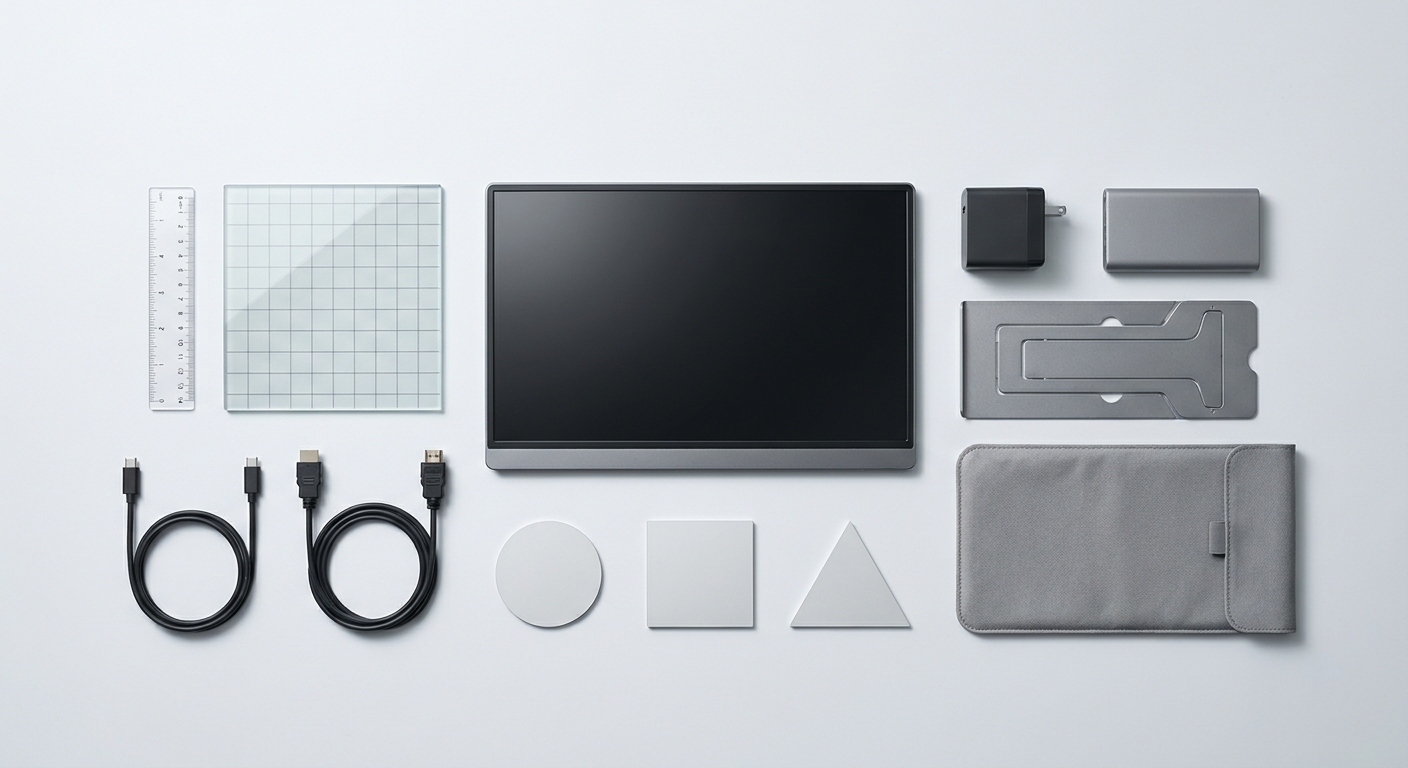
10. Make a Final Purchase Decision
Once you know your main use case, compare models against a short list of requirements instead of focusing on one isolated specification. A 15.6-inch 1920 by 1080 IPS display with USB-C video, HDMI, a folding cover, and 60Hz refresh can be an excellent general-purpose choice. A gamer may prioritize 120Hz or higher, while a creative professional may value color coverage and panel consistency more.
Evaluate the complete setup: host device, cables, charger, stand, viewing position, and the locations where you will use the monitor. The best portable monitor is the one you can connect quickly and position comfortably whenever you need extra screen space.
- Confirm the display output supported by your laptop, tablet, phone, camera, or console.
- Choose a screen size that fits your bag, workspace, and expected viewing distance.
- Select 1920 by 1080 for practical general use, or a higher resolution when your workflow justifies it.
- Check USB-C video support, HDMI availability, power requirements, and included cables.
- Compare brightness, viewing angles, refresh rate, color coverage, and surface finish.
- Review the stand design, weight, protection, warranty, and return terms.
- Consider whether the monitor solves a frequent problem rather than an occasional inconvenience.
Summary: When a Portable Monitor Is Worth It
A portable monitor is a smart upgrade when you regularly need more screen space but do not want a permanent desktop display. It can make multitasking easier, improve travel work, support presentations, expand gaming options, and provide a larger view for creative or educational tasks.
Your best match comes down to compatibility and routine use. Start with video output, power, screen size, resolution, and portability. Then compare panel type, refresh rate, brightness, color coverage, stand design, and accessories. With those priorities in place, a portable monitor can become a practical extension of the devices you already own.
Frequently Asked Questions
Will any USB-C laptop work with a portable monitor?
No. The laptop's USB-C port must support video output, usually through DisplayPort Alt Mode, for a direct USB-C connection to work. If the port only supports charging or data, you may need HDMI, a compatible adapter, or a DisplayLink solution.
What size portable monitor is best for everyday work?
A 15.6-inch portable monitor is a practical choice for spreadsheets, documents, email, and multitasking because it provides useful workspace without being excessively large. Choose a 13.3- or 14-inch model if weight and bag space are more important, or a 17.3-inch model if you prioritize screen area over portability.
Is a 1080p portable monitor good enough for work and gaming?
Yes. Full HD resolution is sufficient for general productivity, streaming, presentations, and most console gaming on a 13.3- or 15.6-inch screen. Higher resolutions can provide sharper text and more workspace, but they may increase power use and require stronger output support from the connected device.
Can a portable monitor run from a laptop alone?
Sometimes. A compatible USB-C connection may carry both video and power, but the laptop must provide enough power for the monitor, and higher brightness or refresh rates can increase power demand. If the display flickers, disconnects, or fails to start, connect it to a wall charger or suitable power bank.
What should I check about warranty and returns before buying?
Review the warranty period, coverage for dead pixels, return window, included accessories, and the seller's process for handling damaged or defective units. Also confirm whether the warranty is provided by the manufacturer or retailer, especially when buying from a third-party marketplace.
Read More
- The 3 Best Portable Monitors of 2026 — RTINGS compares portable monitors using hands-on testing, including picture quality, portability, brightness, and connectivity.
- Best Portable Monitors 2026: Gaming and Laptop Productivity — Tom's Hardware reviews portable monitors for travel, productivity, gaming, Raspberry Pi projects, and console use.
- How to Pick the Right External Monitor for Your Laptop — HP explains monitor size, resolution, USB-C DisplayPort Alt Mode, ergonomics, and other important buying considerations.
- ZenScreen Portable Monitors — ASUS's official ZenScreen product page shows portable monitor options for laptops, phones, consoles, and mobile productivity.
- Dell Pro 14 Plus Portable Monitor — Dell's official product page provides an example of a 14-inch IPS portable monitor with USB-C connectivity, portrait support, and power pass-through.