

Your Browsing History

Meet Your Seller

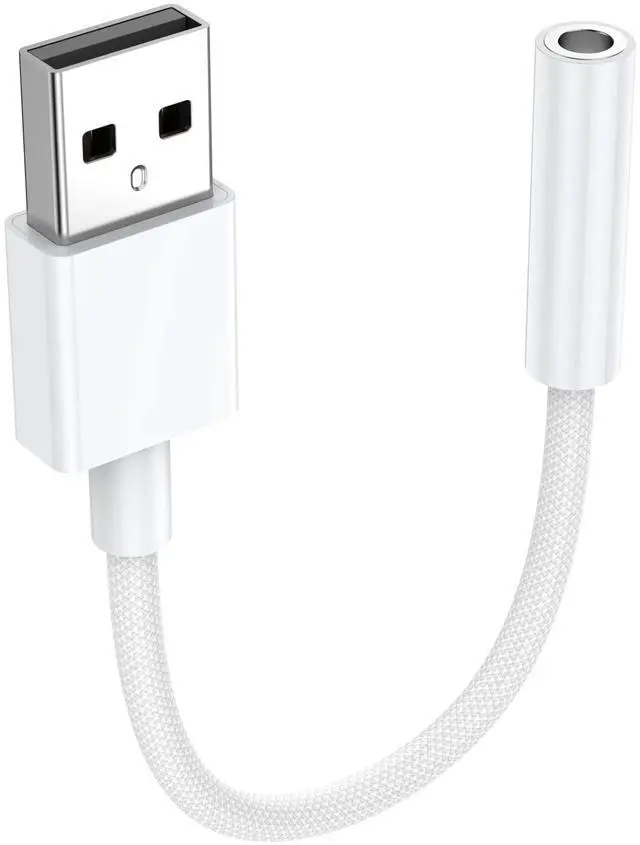
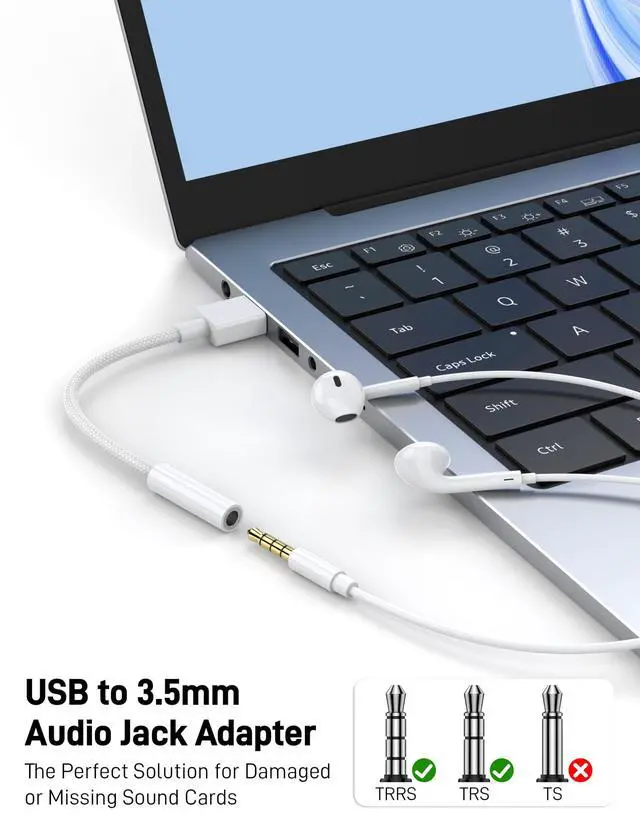
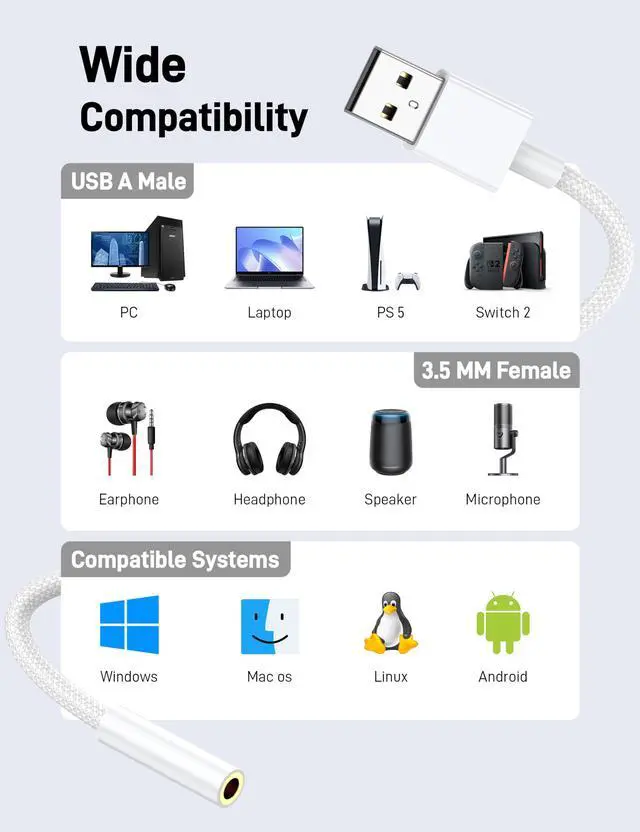


USB to 3.5mm Audio Jack Adapter, Audio Aux Cable External Stereo Sound Card, USB to 3.5mm TRRS Female Headset for PS5 PS4 Headphone PC Laptop Linux Desktops and More Device
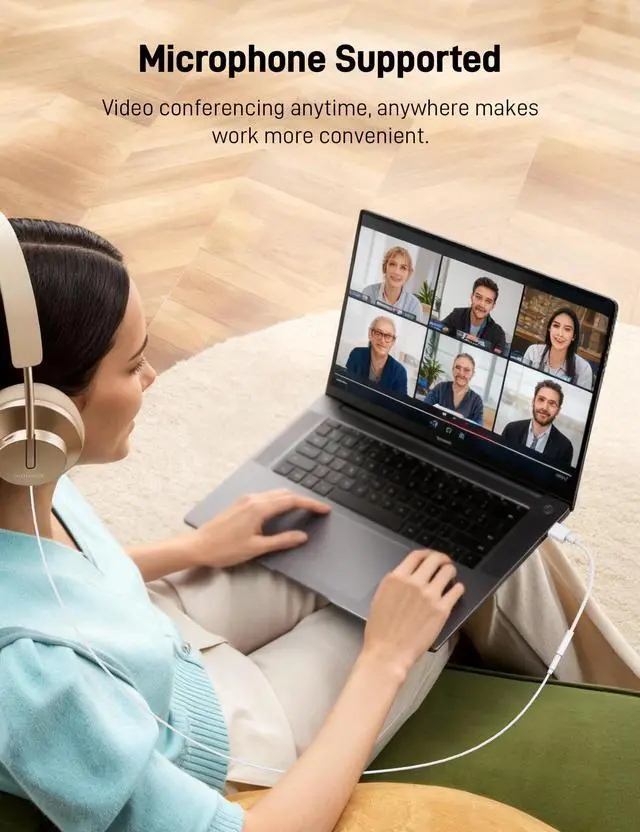
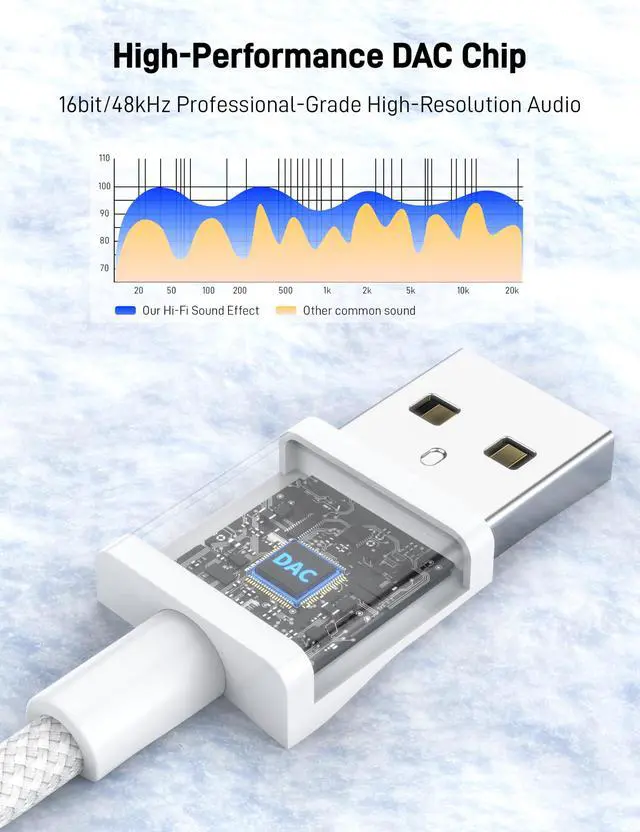
- External Stereo Sound CardIdeal to connect a TRRS 4-pole 3.5mm headset, TRRS mic or speaker to PC via USB interface. Support stereo sound listening + speaking, dual functions. Easily add a 3.5mm TRRS aux port for your devices, or a replacement for a failed USB sound card audio adapter. This Usb-A to headphone adapter adopted an advance DAC Smart Chip, offer high-definition audio, powerful noise reduction, you can get higher fidelity sound from it.
- Plug and PlaySimply connect this sound card to your device and you're ready to go - no drivers or external power sources required. Whether you use it to focus on enjoying games, watching movies, or listening to music, this USB audio adapter provides rich and immersive audio.
- Universal CompatibilityUSB to 3.5mm Jack Audio Adapter support TRRS headsets and microphones.USB male wide compatibility with Windows 11/10/9/8/7/Vista/XP,Linux,Mac OS X google Chromebook,Raspberry Pi, PS4,PS5 and Windows Surface 3 etc.
- NOTE1. Some USB interfaces do not carry audio signals, so this USB audio adapter cannot be used for PS3, cars, amplifiers, CD players, etc Xbox.2. Supports regular headphones with a resistance less than 50 ohms, but does not support high resistance headphones Does not support Apple headphone line control
- What you getPackage include: USB to 3.5mm Jack Audio Adapter.And our product have 18-month after-sale warranty.If you have any problem,please feel free to contact our customer services.
+
+
Overview
Specs
Reviews

Any questions? Our AI mode will help you find out quickly.
Try me now
USB to Audio Jack Adapter
Color: White
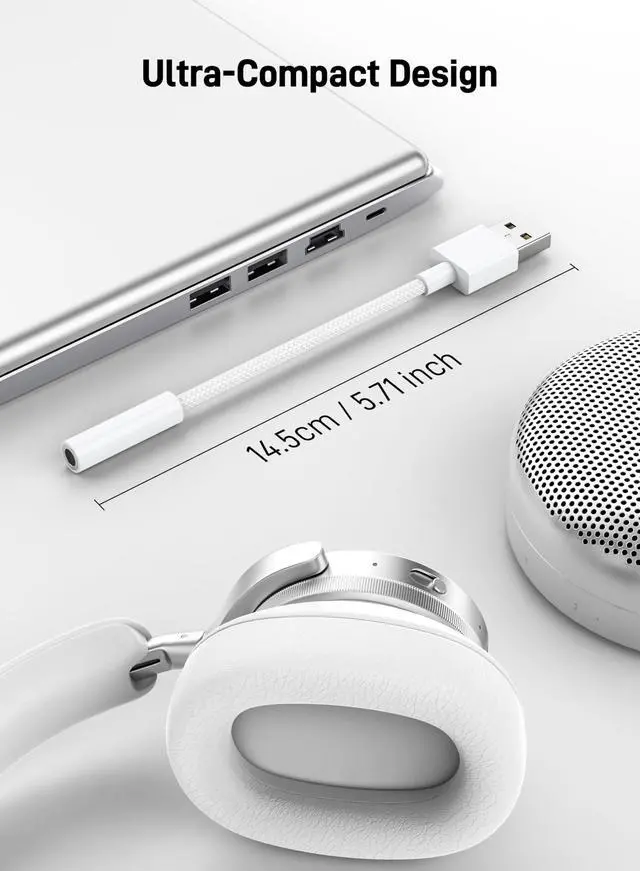
Length: 15CM/5.5in
Configuration Instructions
Windows:
* Right-click on the sound icon in the taskbar;
* Select Playback or Recording devices;
* Adjust the volume on the computer and in the application.
Mac:
* Go to System Preferences > Sound > C-Media USB Headset > Output or Input > Volume
To turn off microphone monitoring/sidechannel:
Go to the [Mixer] tab.
Under Playback -> Speakers -> Monitoring -> Microphone, either move the slider to 0, or click the mute button on the right of the volume slider.
Warranty & Returns
Warranty, Returns, And Additional Information
Warranty
- Please contact the Seller directly for warranty information. Warranty information may also be found on the Manufacturer's website.
- CONTACT
Return Policies
- Return for refund within: 30 days
- Return for replacement within: 30 days
- This item is covered by Sonwirely Return Policy
Manufacturer Contact Info
- For a directory of all our manufacturers, please click below.
- Manufacturers Directory
LOADING...