





Specifications


Warm Tips
If you encounter compatibility, application downloads, or any other issues, please let us know and we will provide you with a solution as soon as possible.
In daily use, most of the problems encountered can be fixed by first restoring the factory settings and then upgrading the system.
- Restore factory settings path: Click on "Settings" ? dropdown, click on "Device Preferences" ? click on "About" ? click on "Restore factory settings or reset".
- System upgrade path 1: Click on "Settings" ? dropdown, click on "Device Preferences" ? click on "About" ? click on "System Upgrade".
- System upgrade path 2: On the homepage, click on "More APP" to enter the "More APP" interface ->find the "FOTA Update" APP, click on this application to enter the system upgrade.
- Application compatibility:
- Our TV box comes pre installed with apps such as Google Play, Netflix, Prime Video, YouTube, and more. It should be noted that these application manufacturers recommend using pre installed applications as they are already compatible with the TV box's system. Manufacturers do not recommend installing or upgrading other versions to avoid compatibility issues that may prevent the application from functioning properly.
- If upgrading these applications results in compatibility issues or inability to use them properly, you can restore the normal use of the applications by resetting them to factory settings.
- If there are compatibility issues with the product during normal use, a system upgrade can be performed to fix them.
- Application installation:
- Most applications can be installed from Ggle Play, and it is recommended to choose the 32-bit system version or the universal version;
- Download and install the required apps, such as Disn+, through the APKPure app store;
- Download and install the required applications through the Aptoide TV app store;
- Download the APK file and install the application through a USB drive:
USB installation method: Download the APK format (32-bit or universal version of the application, non ZIP/RAR compressed file) application installation package to the USB drive, and download the TV version (mobile version may not be compatible with remote control operation); Format the USB drive in FAT32/exFAT format (NTFS may not be recognized); Then, open the USB drive through "Media Center" or "File Manager", long press the APK file and select "Package Installer" to install.
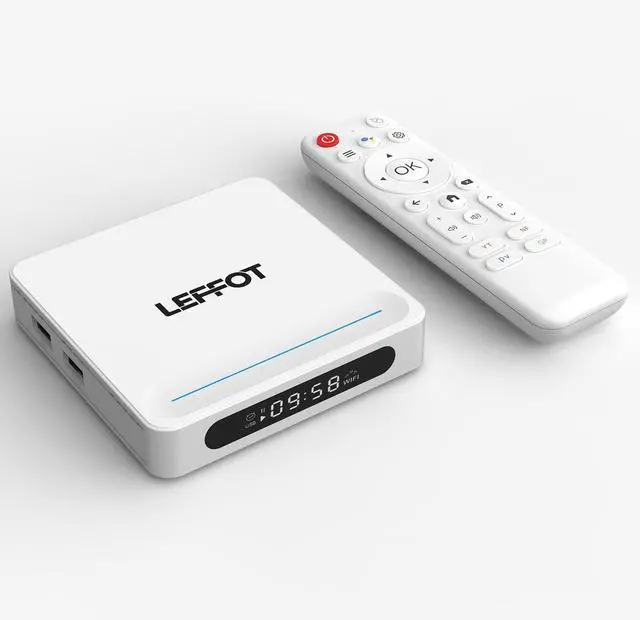
Specifications
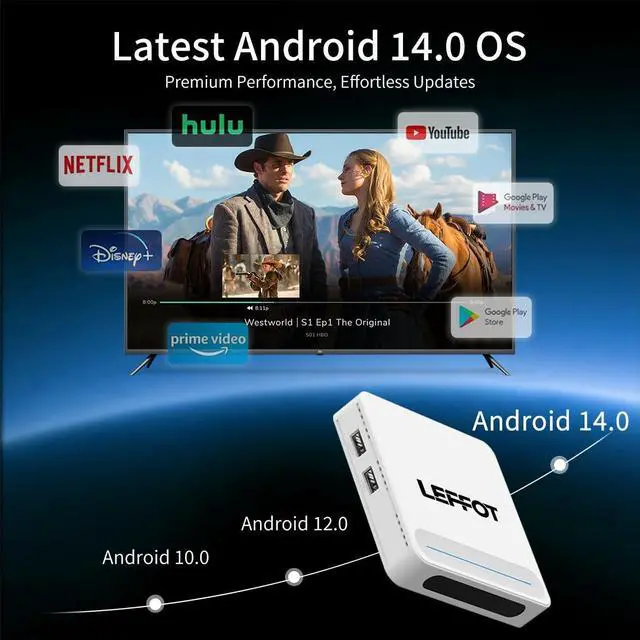
| OS | Android 14.0 |
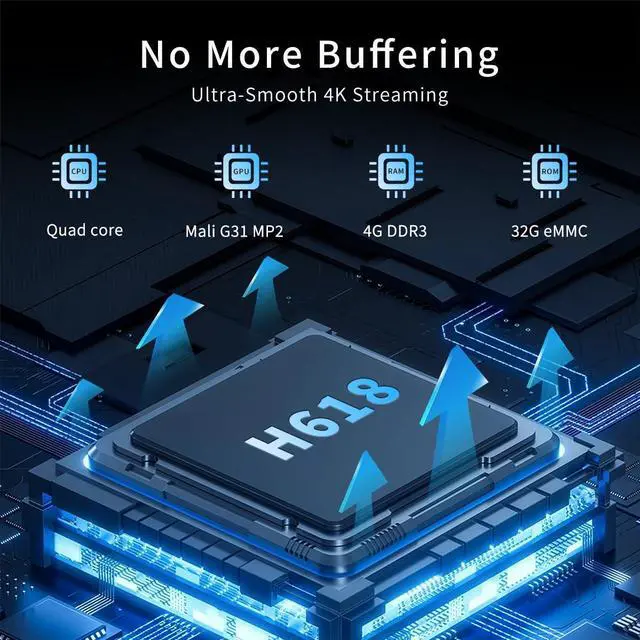
| CPU | H618 Quad core ARM Cortex A53 |
| Storage | 4GB RAM 32GB ROM |
| Wi-Fi | 2.4G/5GHz Dual WiFi 6 |
| LAN | Ethernet 10/100M standard RJ-45 |
| Bluetooth | 5.4 |
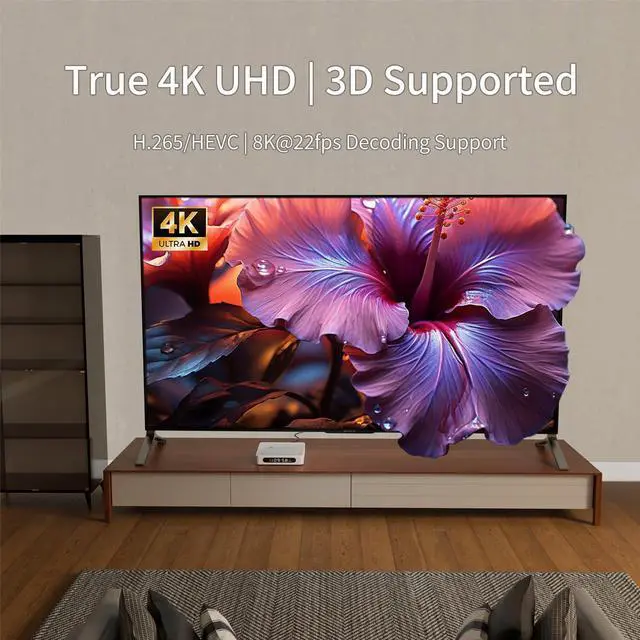
| High-resolution video output | 4K@ 60fps UHD Output |
| Support DecoderFormat | H.265, VP9-10 up to 8K@22fps |
| Support Media Format | Avi/ Ts/ Vob/ Mkv/ Mov/ wmv/ asf/ flv/ dat/ mpg/ mpeg |
| Support Photo Format | JPEG/ BMP/ GIF/ PNG/ TIFF |
| Support Music Format | MP3/ WMA/ AAC/ WAV/ OGG/ DDP/ FLAC/ APE |
Warm Tips
If you encounter compatibility, application downloads, or any other issues, please let us know and we will provide you with a solution as soon as possible.
In daily use, most of the problems encountered can be fixed by first restoring the factory settings and then upgrading the system.
- Restore factory settings path: Click on "Settings" ? dropdown, click on "Device Preferences" ? click on "About" ? click on "Restore factory settings or reset".
- System upgrade path 1: Click on "Settings" ? dropdown, click on "Device Preferences" ? click on "About" ? click on "System Upgrade".
- System upgrade path 2: On the homepage, click on "More APP" to enter the "More APP" interface ->find the "FOTA Update" APP, click on this application to enter the system upgrade.
- Application compatibility:
- Our TV box comes pre installed with apps such as Google Play, Netflix, Prime Video, YouTube, and more. It should be noted that these application manufacturers recommend using pre installed applications as they are already compatible with the TV box's system. Manufacturers do not recommend installing or upgrading other versions to avoid compatibility issues that may prevent the application from functioning properly.
- If upgrading these applications results in compatibility issues or inability to use them properly, you can restore the normal use of the applications by resetting them to factory settings.
- If there are compatibility issues with the product during normal use, a system upgrade can be performed to fix them.
- Application installation:
- Most applications can be installed from Ggle Play, and it is recommended to choose the 32-bit system version or the universal version;
- Download and install the required apps, such as Disn+, through the APKPure app store;
- Download and install the required applications through the Aptoide TV app store;
- Download the APK file and install the application through a USB drive:
USB installation method: Download the APK format (32-bit or universal version of the application, non ZIP/RAR compressed file) application installation package to the USB drive, and download the TV version (mobile version may not be compatible with remote control operation); Format the USB drive in FAT32/exFAT format (NTFS may not be recognized); Then, open the USB drive through "Media Center" or "File Manager", long press the APK file and select "Package Installer" to install.